


Table of Contents
- Introduction
- What are Code Branches and Code Commits?
- Some Terminology, and the Branch Strategy!
- At-a-Glance Overview of the Strategy
- Is It Safe?
- Tutorial Diagram
- Tutorial Step Zero: Create a GitHub Repository
- 1. Create an Integration (Development) Branch
- 2. Create a local Feature Branch
- 3. Code the Feature
- 4. Publish the Feature Branch
- 5. Merge Request (aka Pull Request) to Development Branch
- 6. Update your local Development Branch
- 7. Destroy the local and remote Feature Branch
- 8. Create a Release Branch
- 9. Make Minor Fixes in the Release Branch
- 10. Merge Request (aka Pull Request) Release Branch to both Main and Development Branches
- 11. Tag the Release
- 12. Destroy the Local and Remote Release Branch
- Summary
- Further Reading
Introduction
A while back, Jan Cumps and I worked together on a series of GitHub-related blog posts, developing a workflow that proved suitable for commercial software projects. Fast-forward several years, and I recently came across an excellent article in Code Magazine by Sahil Malik titled Git Branching Strategies. I was pleased to find that its recommendations closely aligned with the approach Jan and I had adopted. That inspired me to revisit the topic and document the workflow again with a fresh re-write and new example screenshots that hopefully augment all of the earlier content we created (I reused many of the same branch names I used in an earlier blog post which happened to use a graphical user interface; this blog post uses the command line).
Firstly, the phrase Professional Beginner might seem like an oxymoron, but it accurately describes the intended audience for this article. It is aimed at professional engineers who are new to Git and GitHub and would like to become productive quickly. It is equally relevant to students and hobbyists, who will inevitably encounter GitHub when sharing and maintaining their own projects, or when contributing fixes and enhancements to other people's applications and libraries.
An aim of this article is to walk through a complete, practical workflow, from creating a repository, through feature development and code review, to producing and tagging a release, using the same processes that are suitable for real-world commercial software projects. It’s followed by a 12-step example (actually a baker’s dozen) that is easy to try out yourself, and hopefully have good success with it.
What are Code Branches and Code Commits?
When you first write a ‘hello world’ program, all you have access to is the code as you’ve written it; at best you can hit the undo button if you need to go back a little bit. With more complex software, you’ll soon want to be able to have the ability to add features incrementally, but also be able to go back and see what code was modified to create each feature. Plus, you may want to delegate coding of some features to others.
Code commits are ways to ‘checkpoint’ what you’ve done at suitable points during each feature development; they can be labelled with a description to help mentally recall your purpose for each commit.
Code branches are used to work on different streams of code; for instance, you may need to make tiny fixes to released code, while others are working on adding more features that are currently untested, in a different branch.
Some Terminology, and the Branch Strategy!
GitHub is an online platform that hosts software repositories, allowing individuals and teams to collaborate on software projects. Repositories can be public or private.
The system used to manage the contents of a repository is called Git. Git can be used from a PC's command line after installing git.
Using Git together with the GitHub website, you can create repositories, create branches, commit changes, review code, and merge content from one branch into another. These capabilities become especially important when multiple developers are working on different features at the same time and their work eventually needs to be combined into a single code base.
Without some discipline, it is easy for a project to become difficult to manage. That is where a branching strategy comes in. The strategy described in this article uses several different branch types. Two branches are long-lived, while the others are temporary and exist only for specific tasks.
Main Branch
When a repository is created, a branch called main usually exists by default. This branch should contain stable, releasable code that can be built and used with confidence.
Developers do not normally make feature changes directly on the main branch. Instead, tested and approved changes are merged into it from other branches.
Development Branch
The workflow described in this article uses a second long-lived branch called the development branch (often named develop or similar). This branch acts as the integration point for completed features.
As developers finish their work, their changes are merged into the development branch. Once enough new functionality has accumulated, integration testing can be performed to verify that the various features work correctly together and have not introduced bugs.
Release Branch
When the project is ready for release, a release branch is created from the development branch. This branch contains all of the functionality intended for the upcoming release and provides an opportunity for final testing and minor fixes.
Once the code is considered ready, the release can be tagged (for example, v1.1) and merged into both the main branch and the development branch. The release branch can then be deleted because the tag preserves a permanent reference to the released code.
Feature Branch
A feature branch is temporarily created by a developer for specific pieces of work; each feature is developed and tested independently on its own branch.
Once the feature is complete, it is merged into the development branch and the feature branch is no longer needed. Temporary feature branches help isolate changes and reduce the risk of developers interfering with each other's work.
Local and Remote
The code is stored in a remote repository, and Git typically refers to that remote repository as the origin. A software developer will make a copy of the entire repository on their PC, and then locally switch to the branch they wish to work on, independently of any changes that might take place in the origin. In other words, their local copy is just a large dump of the entire repository and its history; there’s no automatic sync if other developers happen to modify code in the origin.
Actual code changes are usually made by developers on their local PC, as mentioned by switching (called a checkout in Git terminology) to the local copy of the desired branch.
In the steps further below, you’ll frequently see git checkout <branch_name> commands followed by git pull commands. Together, those two commands will locally switch to a specified branch, and then immediately update or pull the latest content from the corresponding branch at the origin. That way, you’ll effectively have created the most recent local snapshot of that branch.
Push versus Pull versus Pull Request!
These terms are notoriously confusing. Usually, a git pull means retrieving content from the origin, to update your local copy. A good example of that is mentioned above, after a git checkout.
A git push means placing content (specifically, code you’ve committed, i.e. checkpointed in your local copy), to the branch at the origin. If the branch didn’t exist yet at the origin, then it also gets created with the git push command.
Key tip: A Pull Request is best mentally understood as “Merge Request”. It is used in the opposite direction to the “pull” direction mentioned above, hence it’s best to pretend you’re reading “merge request” whenever you see the words “pull request”. Once you have pushed content to the origin, you can submit a merge request so that other developers or the project maintainer can view your request (and usually review it), and then one of them will merge in your code, to, say, the development branch or whichever branch was requested.
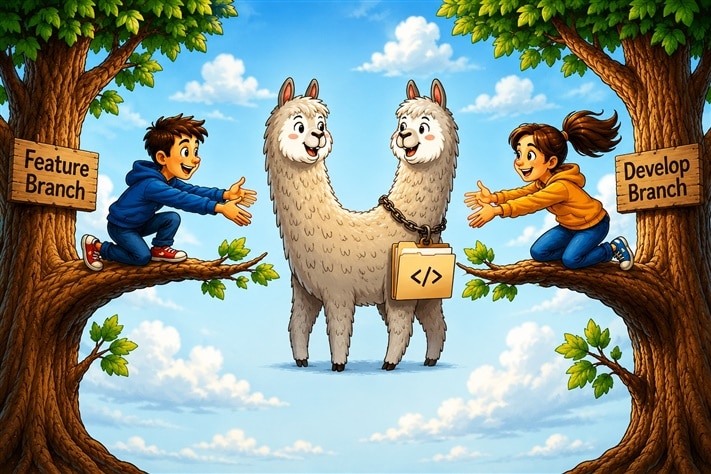
At-a-Glance Overview of the Strategy
The diagram below can be used to partially explain how the branches are used, and doesn’t indicate when branches are created or destroyed. There’s no timeline on this diagram; it is not followed from left-to-right either.
Assume that the main branch, and the development branch (dev-branch-1) are already created beforehand when viewing this diagram.
By examining the diagram on the left side, you can see that it’s possible for a developer to use a git push command to place their changes from their local feature branch into the respective feature branch at the origin GitHub Repository; the push command would also create that feature branch at the origin, if that remote branch didn’t exist.
For the merge operation to occur from the feature branch to the development branch, a Pull Request (i.e. a Merge Request) is submitted as discussed earlier.
Later, the feature branch is destroyed since all content from there is inside the development branch (the destruction is not shown in the diagram) and then a release branch is formed based on the development branch. Any small final tweaks to the code are made in that release branch, and then it is merged (technically another Pull Request) into both the development branch to its left side in the diagram, and to the main branch to its right side in the diagram. Finally, a release tag is applied at that point on the origin main so that it is always possible to determine at what commit to main the release was created, and then the release branch can be destroyed, leaving nothing behind except the main and development branches.

Is It Safe?

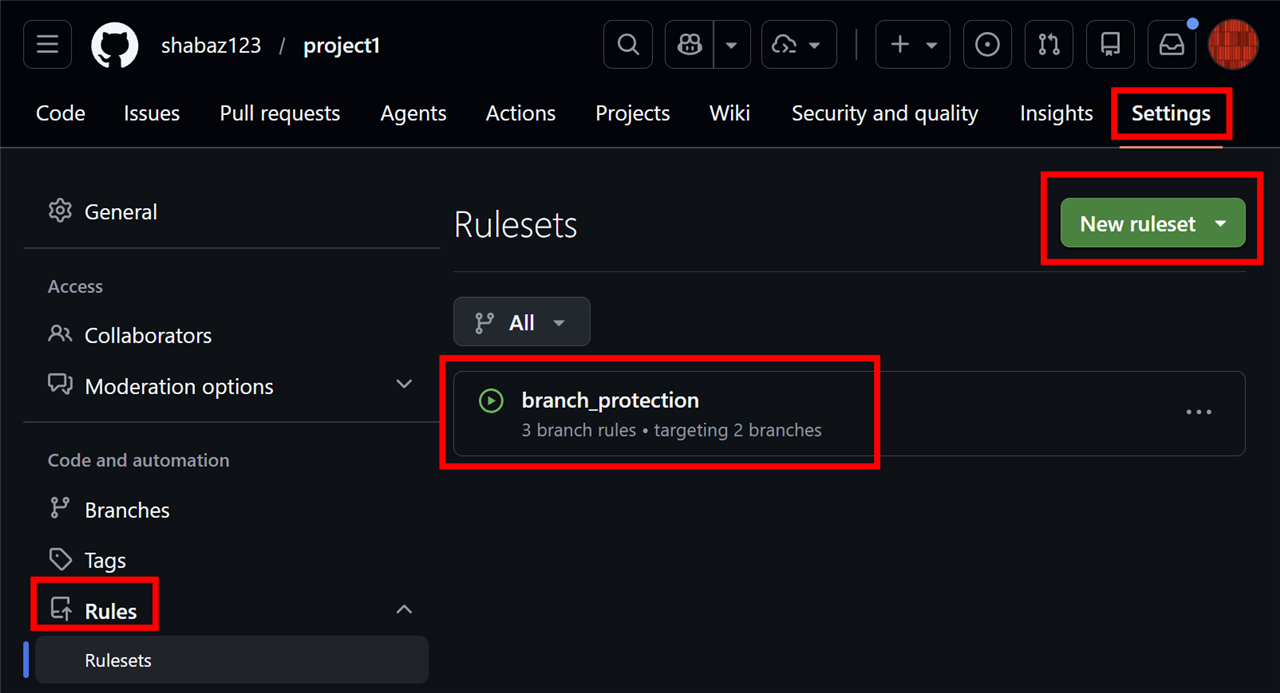
Generally, yes! The workflow is designed to avoid using the main branch for direct feature development. One could still mistype Git commands, but most things are generally reversible. Perhaps one may accidentally erase code they had not committed, but that could occur even if one was not using Git. Furthermore, you can try to prevent people from deliberately (or accidentally) working around certain parts of the workflow, by creating branch rulesets (not detailed here, but you can explore that from the GitHub site; see the screenshot below to find where to navigate to.
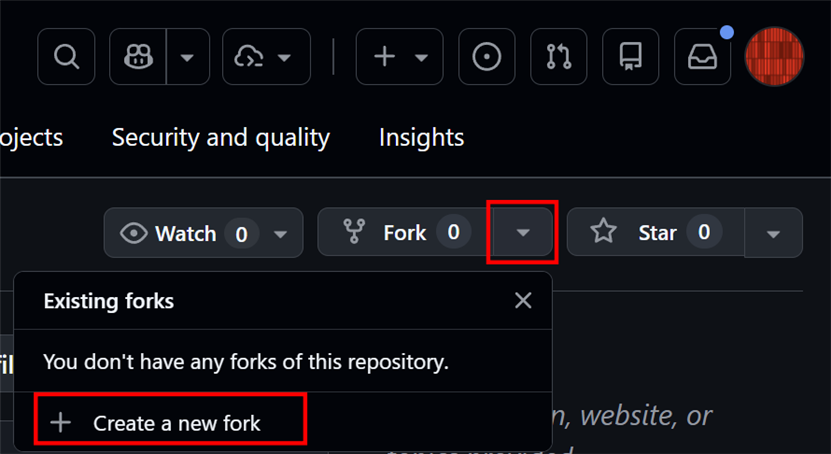
This blog post uses a real-world repository containing a simple project called project1, and you're welcome to try things out using that repository, or (recommended) create your own. To keep it realistic, I'll happily accept any pull requests that either improve the project, even in minute ways, or result in minor tweaks to README files (I'm OK even with "this is a test" sentences added to the project1 README). However, you'll need to be added as a collaborator by me (I'll need your GitHub username), otherwise you won't have permissions for certain steps. Therefore, it's easier is to create your own repository by forking the project; the screenshot below shows where to click, to do that.
In summary, to follow the tutorial, it's best to create your own repository (either from scratch, or by forking).
OK; it’s time for the step-by-step tutorial. You could try this yourself by creating a GitHub account, and then following from step zero!
Tutorial Diagram
You may wish to refer to this as you follow the tutorial steps. The diagram assumes steps 0 and 1 have already been completed. This diagram does show a time sequence, running from left-to-right. The remote repository branches are in solid colors, and the local (PC) content is shown with thin double-lines.

Tutorial Step Zero: Create a GitHub Repository
Use the GitHub site to create a repository if you don't already have one to use. It’s worth getting the site to automatically add a README file at this stage.
Next, on your PC:
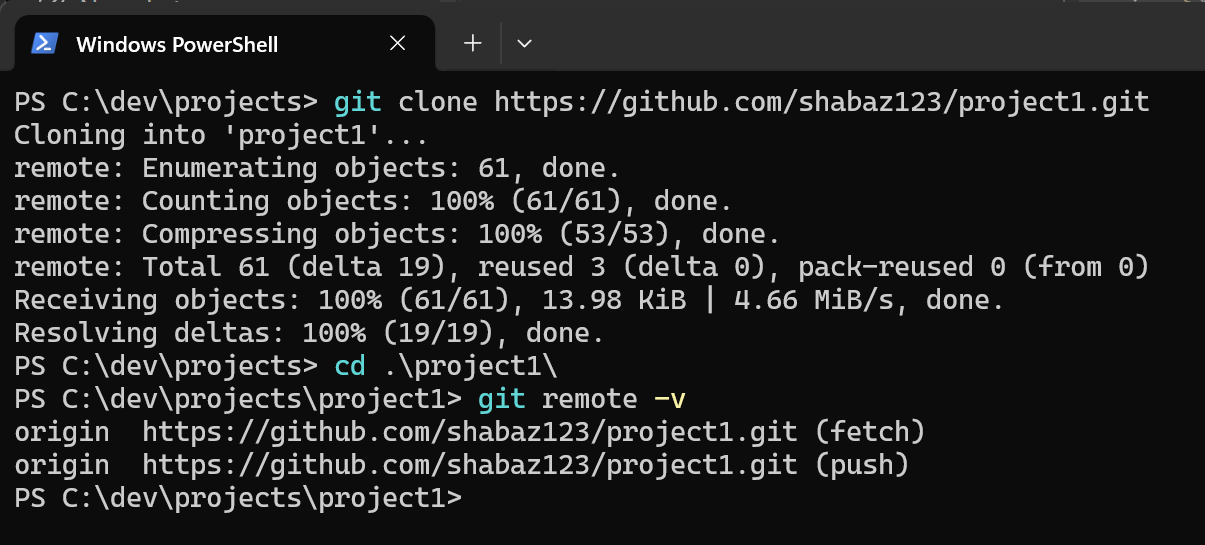
git clone https://github.com/<your_github_username>/project1.git # Creates a local copy of the repository onto your PC
git remote -v # Displays the remote repository URL, in case you later forget! It may display multiple URLs for clarity about which URL later operations like git pull and git push will use
1. Create an Integration (Development) Branch
The plan is to create a branch which will be used as a long-lived development branch. It will be reused for each sprint.
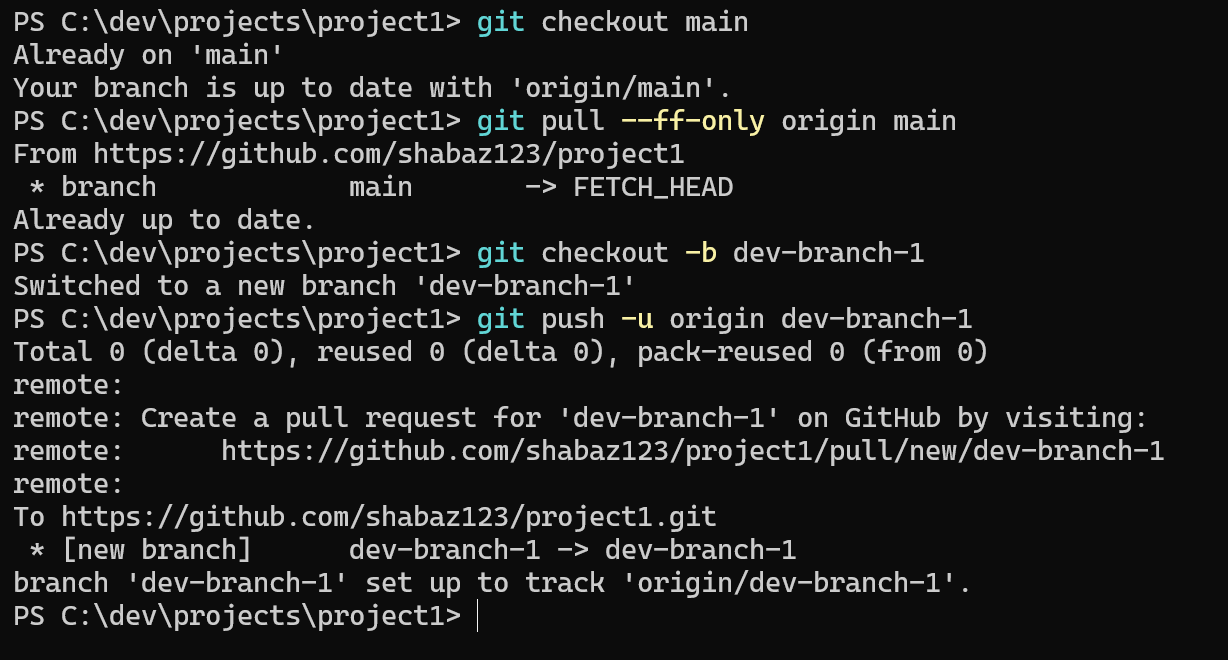
git checkout main # View your local copy of the main branch. Since this is local to you, this may eventually be old compared to the origin (remote repository) if someone else makes changes to that meanwhile
git pull --ff-only origin main # update your view with the latest from the origin (the --ff-only means abort if you have local commits that have not been pushed and origin has also moved forward meanwhile).
git checkout -b dev-branch-1 # Create the branch on your local PC
git push -u origin dev-branch-1 # Publish the branch on the remote (i.e. origin)
2. Create a local Feature Branch
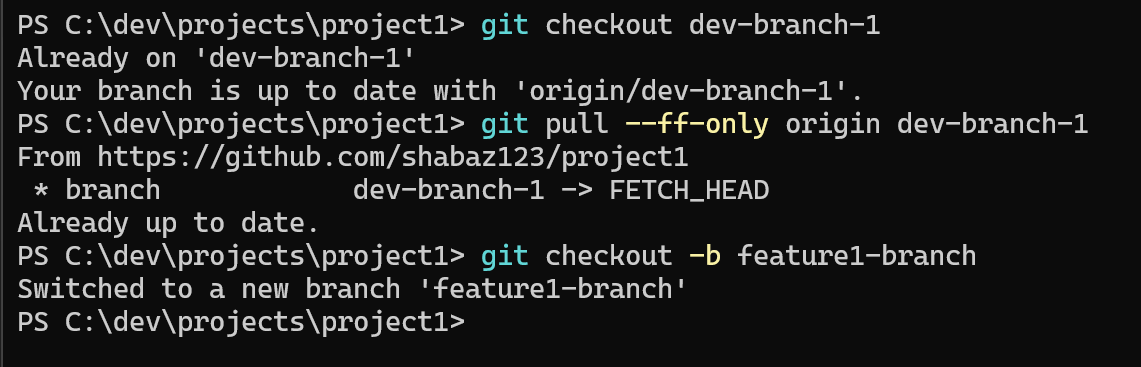
git checkout dev-branch-1 # View the project on your local copy of the development branch
git pull --ff-only origin dev-branch-1 # update your view with the latest from the origin
git checkout -b feature1-branch # Create the feature branch locally on your PC
3. Code the Feature
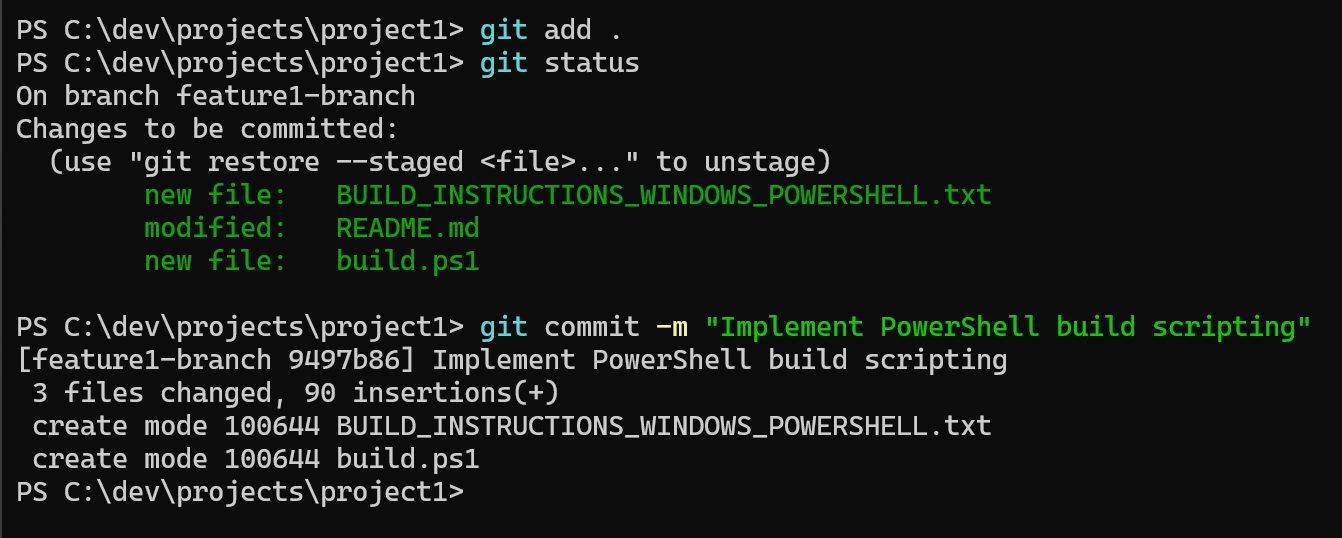
git add . # Prepares (stages) any new/modified/deleted files in your local view
git commit -m "Implement feature 1" # Checkpoints your changes and new files in your local view
4. Publish the Feature Branch
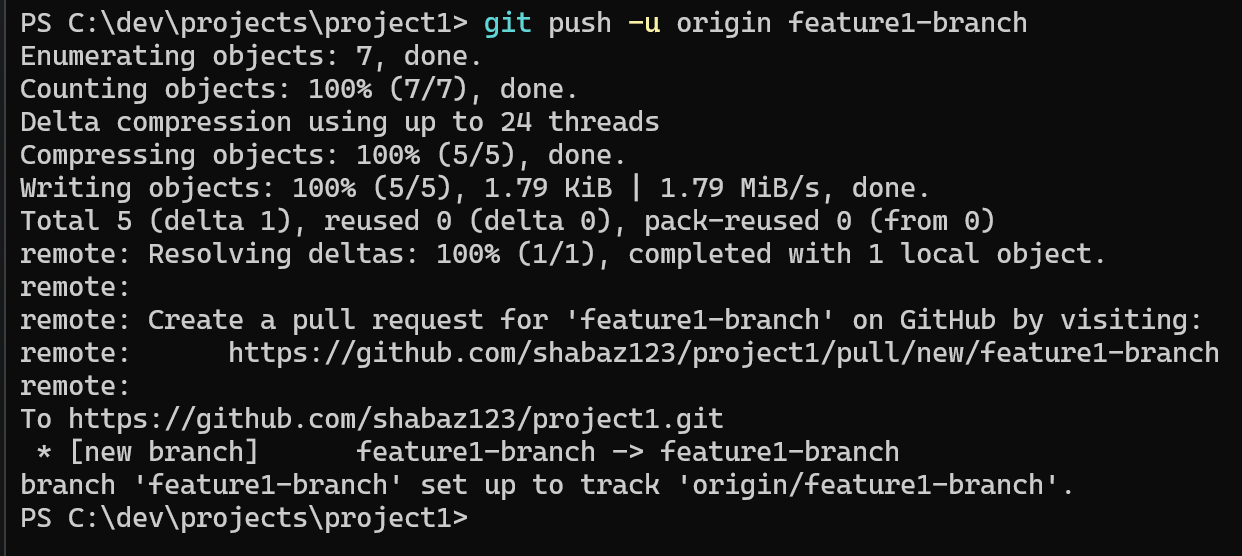
git push -u origin feature1-branch # Creates or updates the feature branch at the origin
5. Merge Request (aka Pull Request) to Development Branch
In GitHub, click to create a Pull Request, with the feature branch being the source, and the development branch being the destination. Wait for the request and your code to be reviewed and merged!
This screenshot shows where to go to create the pull request:
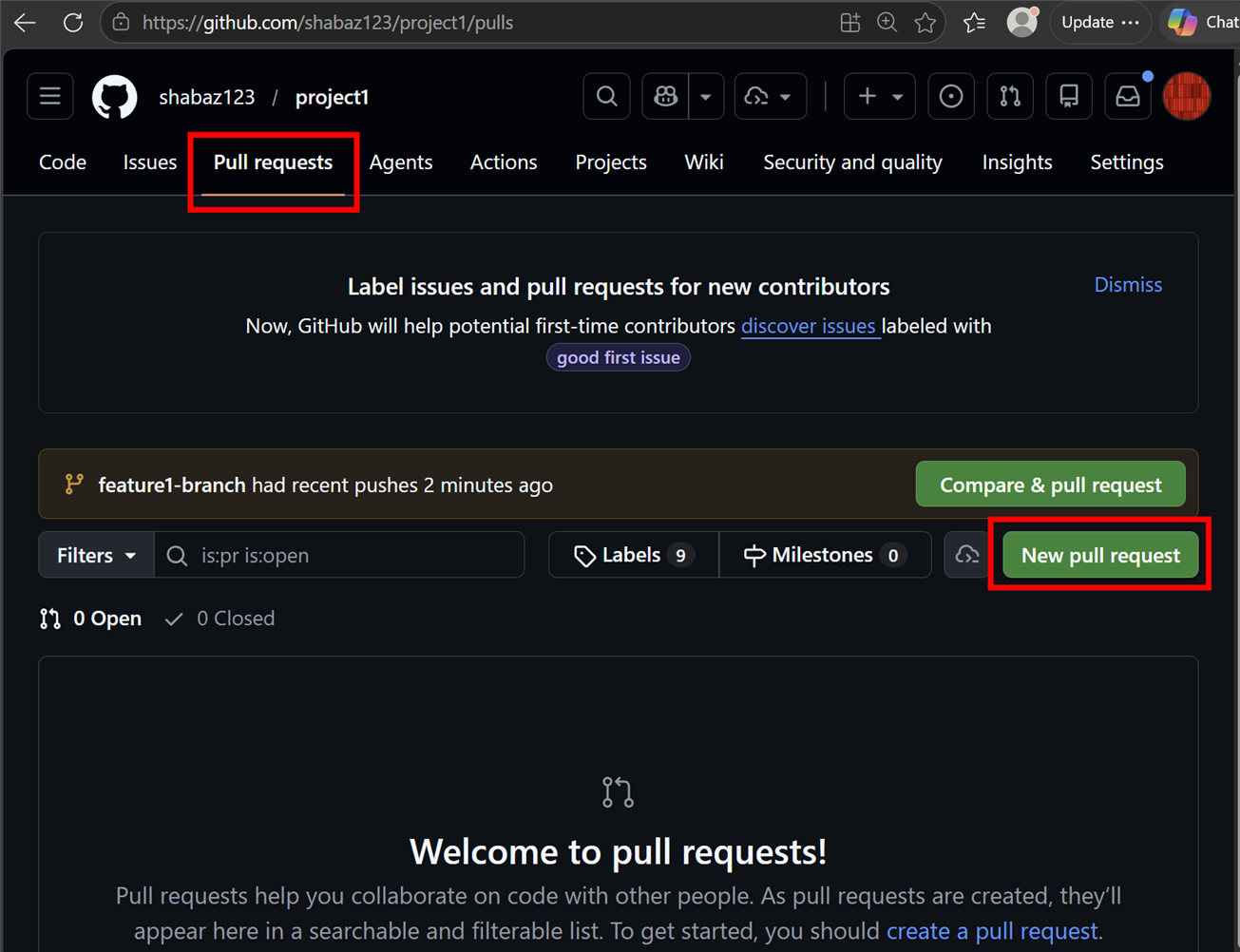
In the drop-down boxes, select such that the feature branch is the source (notice the arrow direction in the screenshot) and that the development branch is the destination.

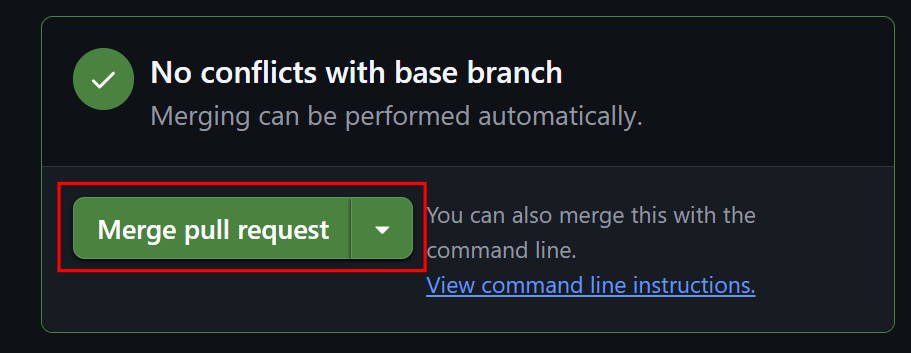
Next, the user will be prompted to click a button that will perform the merge. Now the feature code is in the development branch in the repository.
6. Update your local Development Branch
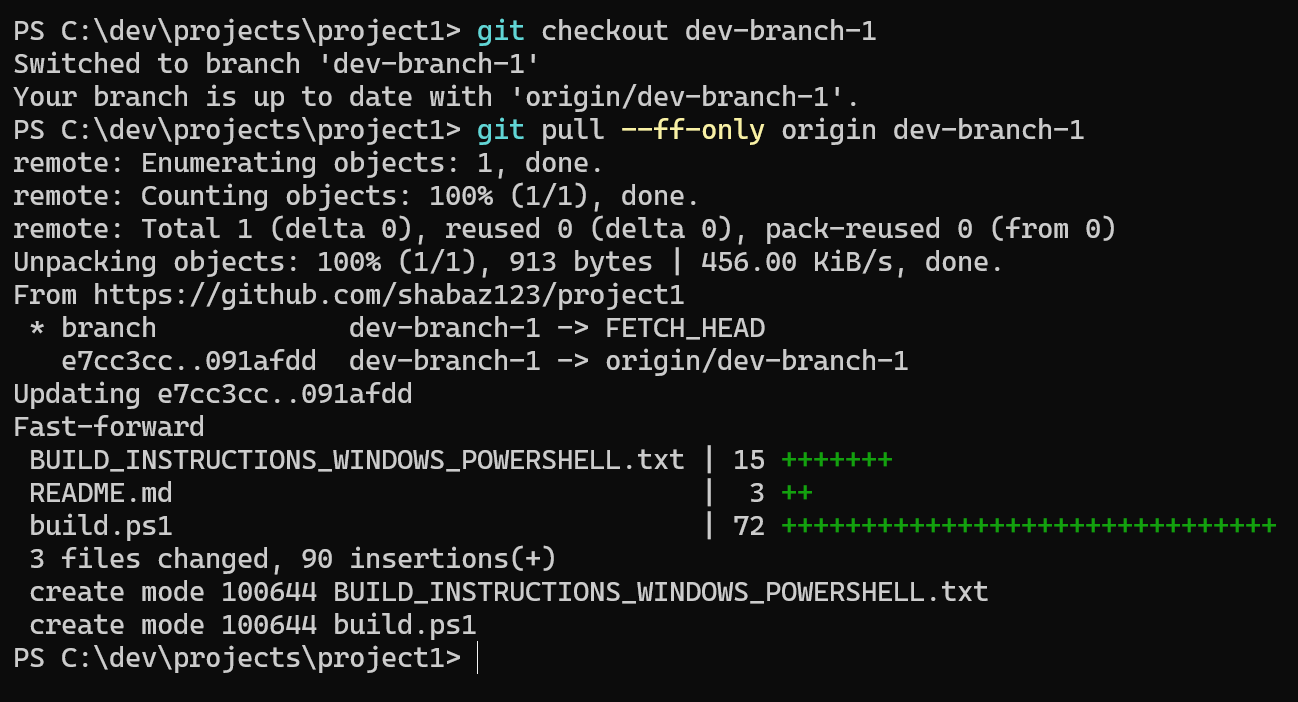
git checkout dev-branch-1 # View the project on your local copy of the development branch
git pull --ff-only origin dev-branch-1 # update your view with the latest from the origin
7. Destroy the local and remote Feature Branch
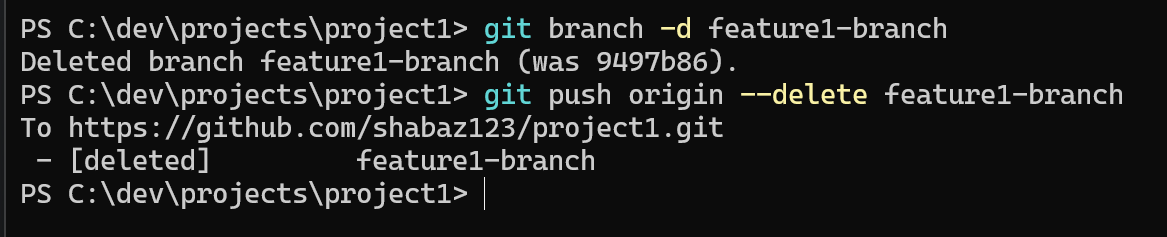
git branch -d feature1-branch # delete the local PC feature branch
git push origin --delete feature1-branch # delete the feature branch at the origin
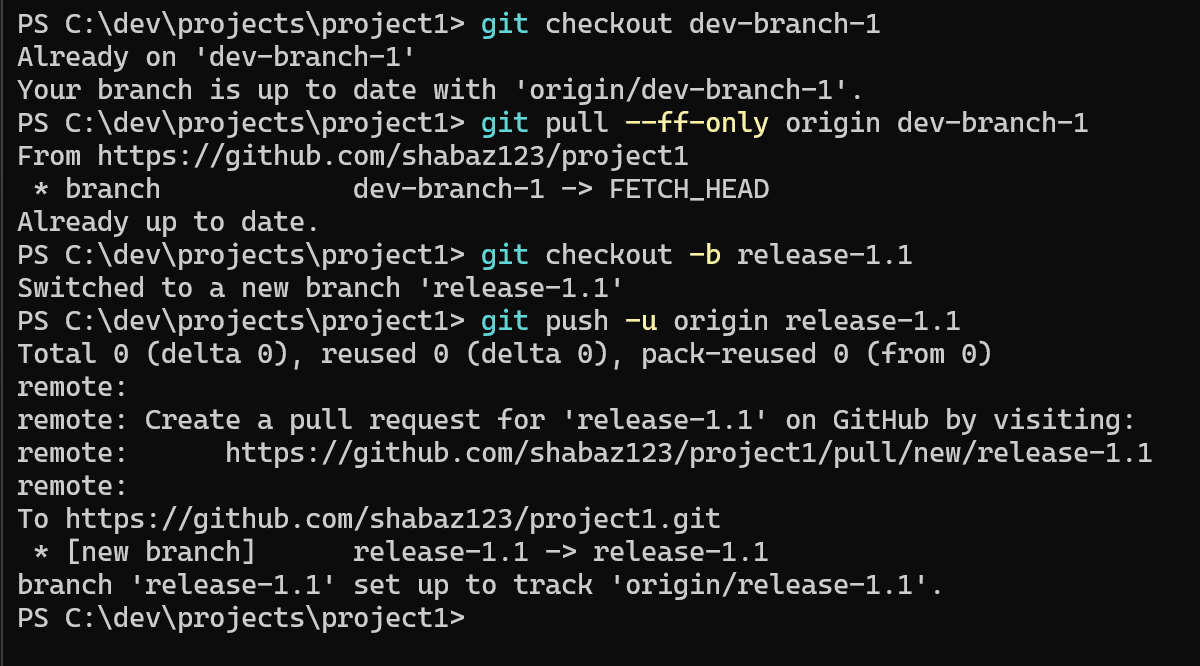
8. Create a Release Branch
git checkout dev-branch-1 # View the project on your local copy of the development branch
git pull --ff-only origin dev-branch-1 # update your view with the latest from the origin
git checkout -b release-1.1 # Create the release branch on your local PC
git push -u origin release-1.1 # Creates or updates the release branch at the origin
9. Make Minor Fixes in the Release Branch
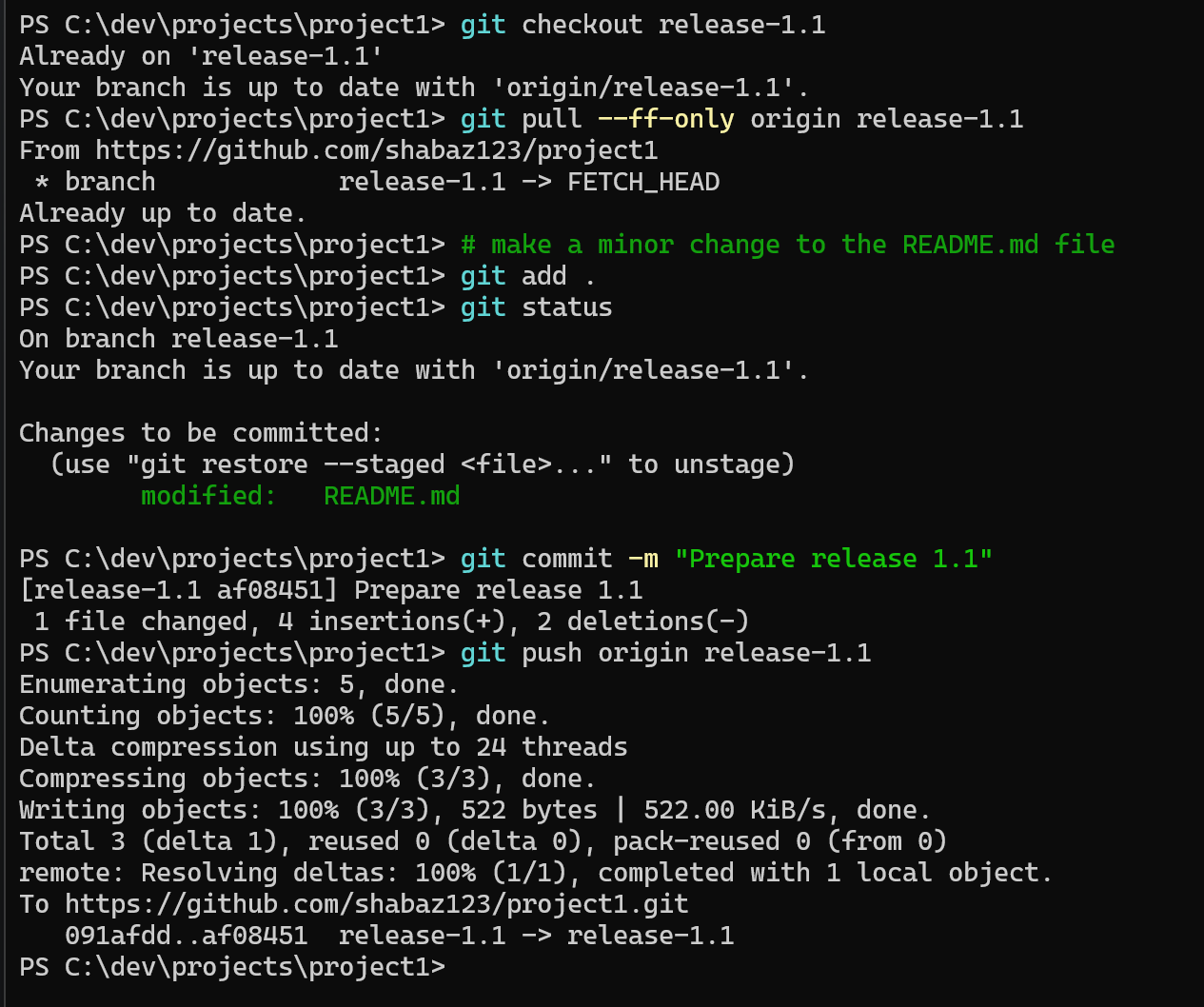
git checkout release-1.1 # View the project on your local copy of the release branch
git pull --ff-only origin release-1.1 # update your view with the latest from the origin
git add . # Prepares (stages) any new/modified/deleted files in your local view
git commit -m "Prepare release 1.1" # Checkpoints your changes and any new files in your local view
git push origin release-1.1 # Updates the release branch at the origin
10. Merge Request (aka Pull Request) Release Branch to both Main and Development Branches
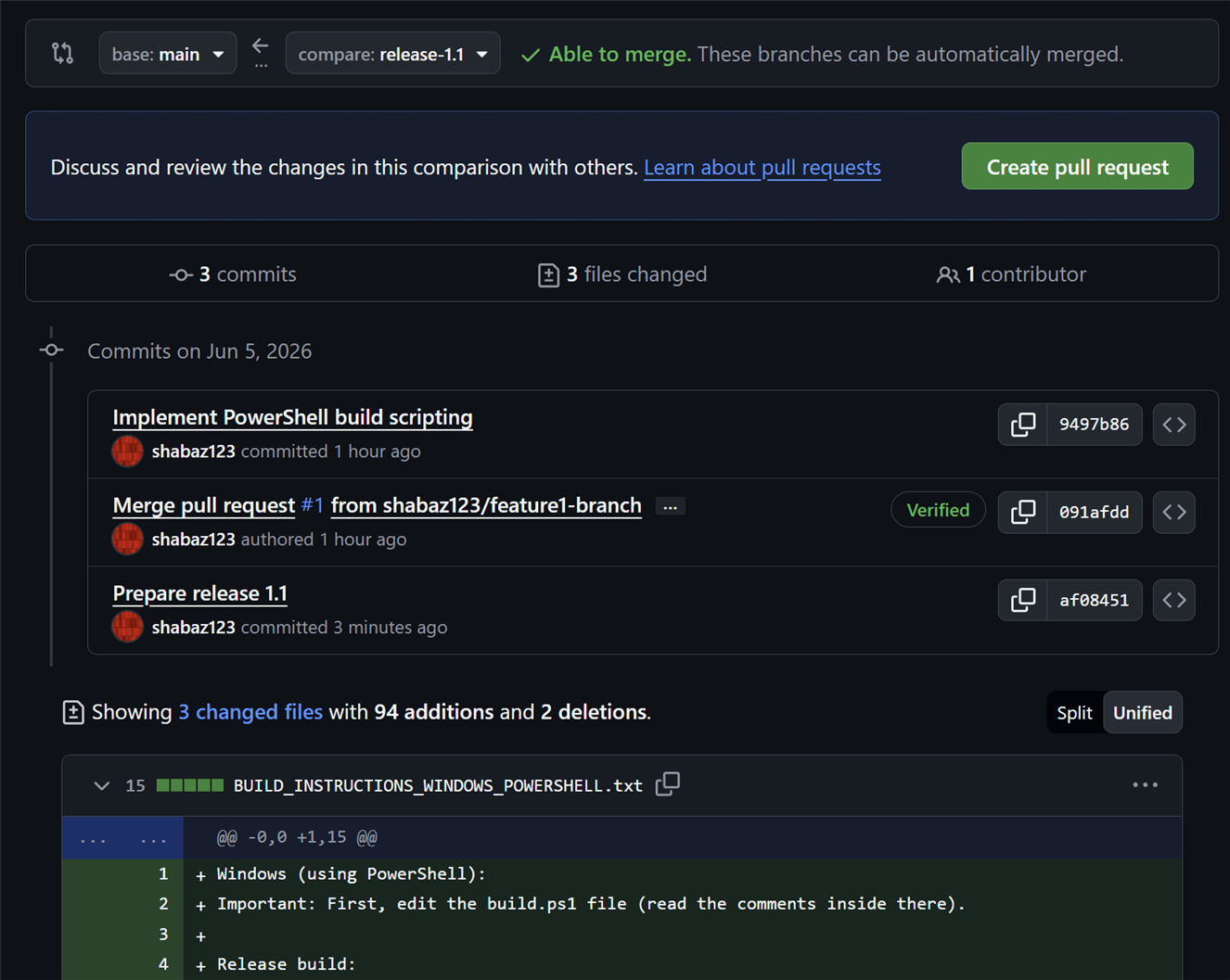
You want the release branch content to be within both the main and the development branches.
In GitHub, click to create a Pull Request, with the release branch being the source, and the main branch being the destination. Wait for the request and your code to be reviewed and merged! Repeat, this time with the development branch being the destination.
Here is a screenshot of the merge to the main branch about to be performed. The merge to the development branch is performed in a similar way.
11. Tag the Release
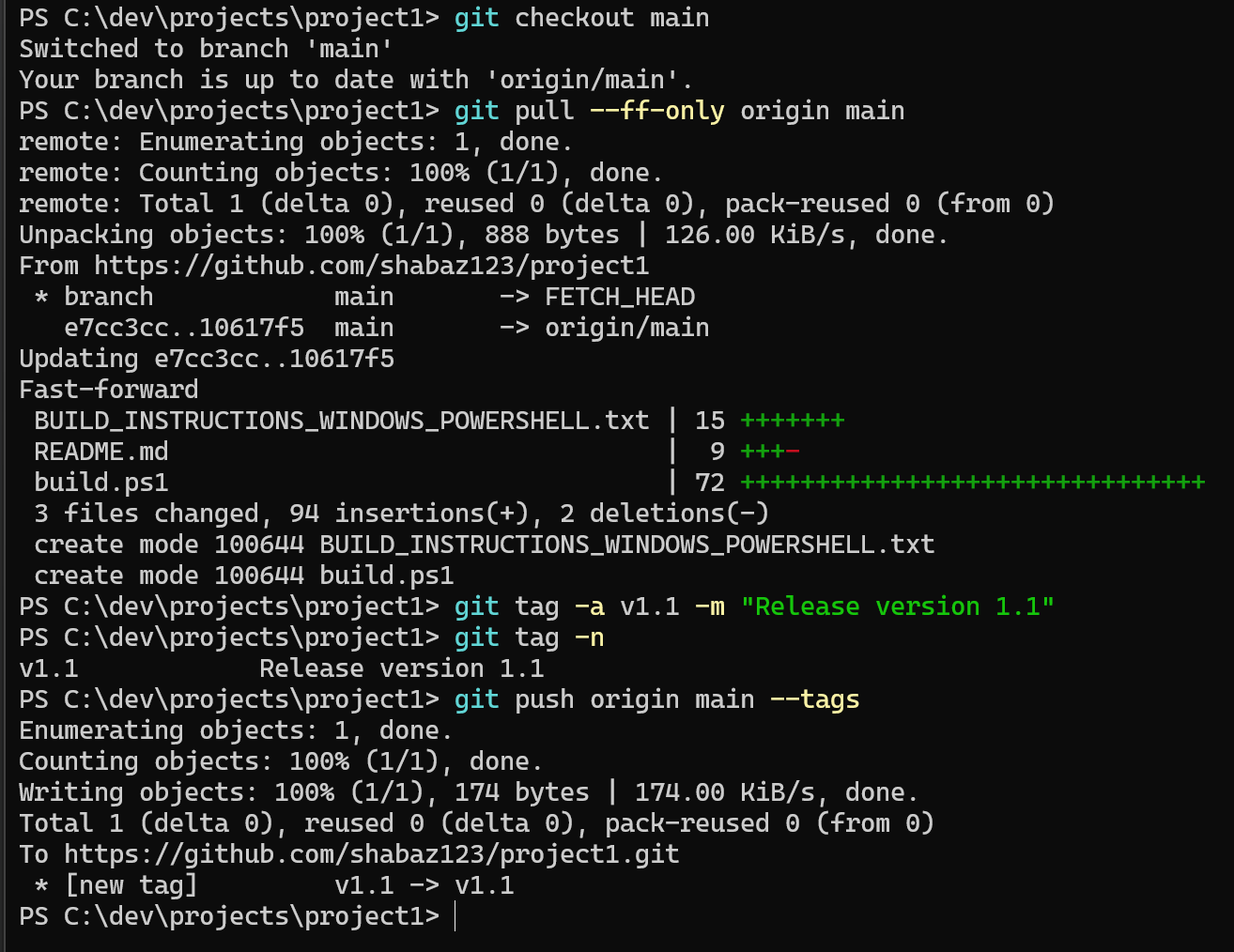
git checkout main # View the project on your local copy of the main branch
git pull --ff-only origin main # update your view with the latest from the origin (the --ff-only means abort if you have
local commits that have not been pushed and origin has also moved forward meanwhile).
git tag -a v1.1 -m "Release version 1.1" # create a tag in your local view at the current commit you’re at
git push origin main --tags # Updates, including tags, the main branch at the origin
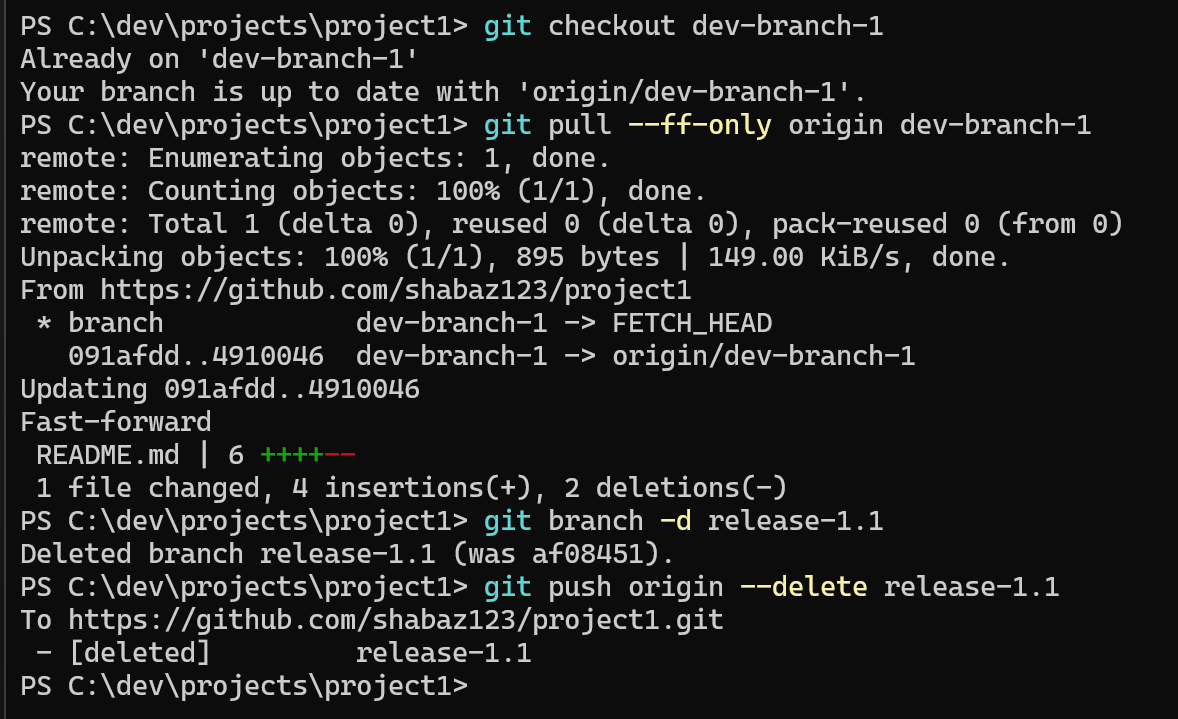
12. Destroy the Local and Remote Release Branch
git checkout dev-branch-1 # Switch away from release-1.1 first
git pull --ff-only origin dev-branch-1 # update your view with the latest from the origin
git branch -d release-1.1 # Delete the release branch on your local PC
git push origin --delete release-1.1 # Delete the release branch at the origin
Summary
The basic concept when using GitHub and Git is that developers work on their own local copies of a project, periodically exchange changes with a shared repository, and use a simple review process before combining (merging) their work with that of other team members.
This article introduced a practical workflow or strategy suitable for both individual developers and teams. The particular workflow uses a small number of branches with clear responsibilities: one main branch for stable released code, one for ongoing development, temporary branches for new features, and temporary release branches for preparing a software release.
It was explored how to create a repository, create and switch between branches, save work locally, publish changes to GitHub, submit Merge Requests, create releases, and apply version tags. The terminology can sometimes be confusing, it pays to closely focus on the meanings of Pull, Push, and Pull Request.
The overall process helps developers work independently while still allowing their changes to be combined in a controlled and predictable manner.
Once you have worked through the steps for a few small projects, hopefully things will be easier to follow. No major damage is likely to happen if you create a test repository on GitHub to just experiment. Plus, it’s free. Understanding the workflow will make one more confident in participating in professional software projects and for contributing to open-source software hosted on GitHub.
If you have suggestions, for instance particular command line parameters and switches you like to use at various stages, or any other comments or criticisms, tips/tricks and so on, it would be great to hear about them.
Thanks for reading!

Further Reading
(+) Break-Fix with GitHub: part two: push bug fixes to the development team - element14 Community
(+) GitHub for Beginners: Incrementally Adding Features to your Code - element14 Community
(+) GitHub for Beginners: Working with PyCharm and other JetBrains IDEs - element14 Community
(+) GitHub for Beginners: Feature Development for Projects - element14 Community

