


Table of Contents
Introduction
KiCad 10, the PCB design software, has finally been released, and I've started getting up to speed with it.
One thing I've noticed is that KiCad by default consumes just over 5 GB of RAM when running, and a part of that is due to the number of default libraries it loads. RAM is tight these days, due to increasing costs!
I don't use all the default libraries, and have no foreseeable plans to use them in the coming year either. This blog post discusses how to prune things to reduce the RAM usage.
How are Libraries Stored?
KiCad creates a folder KiCad\10.0\share\kicad during installation.
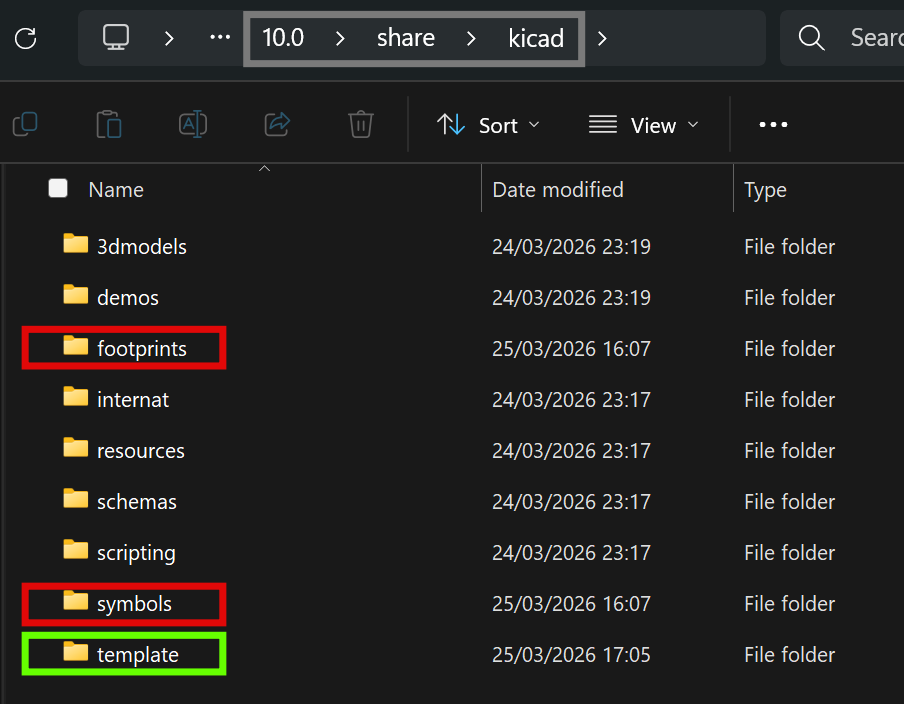
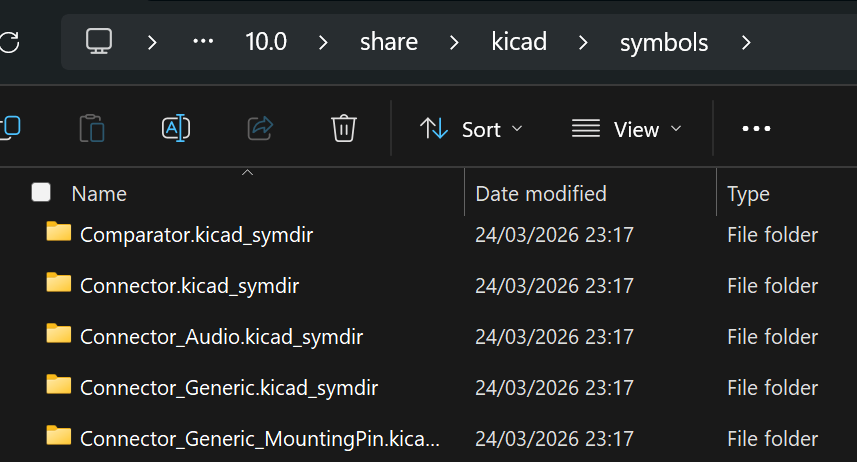
Within that, there are footprints and symbols folders, and within those are a load of yet more folders, one for each library. In other words, each library is a folder (this wasn't the case in older KiCad versions, but it is in the past few KiCad versions).
For instance, here is some of the content in the symbols folder:
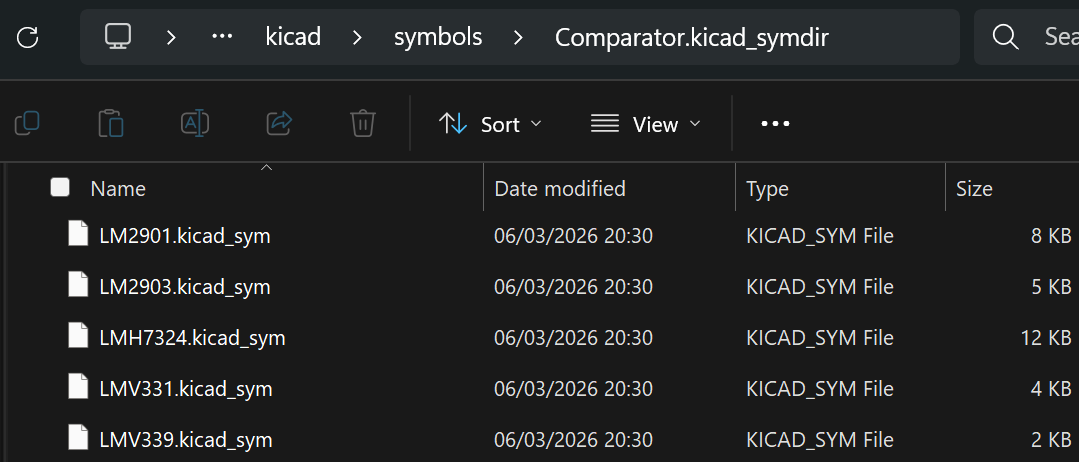
Clicking on (say) the Comparator.kicad_symdir folder reveals files, one per symbol:
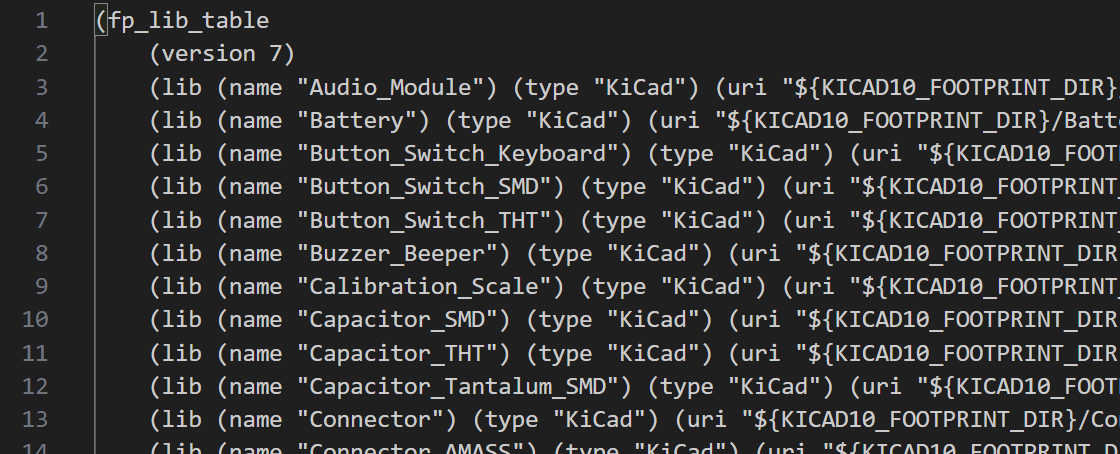
There are hundreds of libraries, and KiCad maintains a list of them; two lists actually, one for symbols, and one for footprints, called sym-lib-table and fp-lib-table, respectively. They are stored in the template folder highlighted in green in an earlier screenshot.
Here is what the two files look like (both are similar; this is just a screenshot from the fp-lib-table file):
Pruning Strategy
Ordinarily, you don't need to touch the files manually. You can create libraries, footprints, symbols, and so on using the KiCad graphical app. Using the Preferences selection in the top menu bar, you can click on Manage Symbol Libraries or Manage Footprint Libraries and work with the contents listed there.
However, I wanted a programmatic way to 'remove' libraries. The method described in this blog post doesn't actually delete any library files as such; it just modifies the sym-lib-table and fp-lib-table files in the template folder, so that KiCad simply ignores libraries that are not present in those two files.
With some AI help, I created a couple of Python programs. One program will read the two files and save a list of all libraries in a simple CSV format to a file called lib-list.txt, which looks like this:
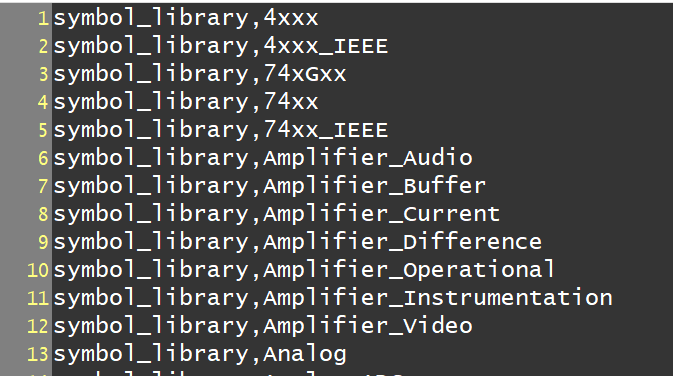
Then, using any text editor, I can delete line entries for libraries I do not care about and save the file with a name such as desired-lib-list.txt.
Next, I run another program that will perform the following steps:
(a) Backup the sym-lib-table and fp-lib-table files
(b) Recreate the two files, but omitting any entries that are not present in the desired-lib-list.txt file
(c) Save all the omitted entries in a file called lib-table-removed-lines.txt, just in case it's ever needed.
Source Code
The two Python files are on GitHub, called list-libs.py and write-table-files.py
Using the Code
First, I closed KiCad.
I placed the Python files in a folder (in my case, I created one called C:\dev\projects\kicad_tools) and then typed the following in a PowerShell window from that folder:
python list-libs.py C:/DEV/vhd_mounts/kicad/10.0/share/kicad/template
That resulted in a file called lib-list.txt
Next, I opened up the text file, manually deleted all the uninteresting (to me) library entries, and saved the file as desired-lib-list.txt
After that, I typed the following line (the two parameters are the desired list name, and the path to the folder containing the sym-lib-table and fp-lib-table files):
python write-table-files.py desired-lib-list.txt C:/DEV/vhd_mounts/kicad/10.0/share/kicad/template
That was all I needed to do. Here is a screenshot of the commands and their output:

Next, I started up KiCad, opened an example project and schematic, and that consumes about 2.7 GB according to Windows Task Manager. Then I clicked Tools->Assign Footprints, which usually results in a short delay while the footprints are loaded into RAM. It was noticeably quicker. Also, Windows Task Manager revealed significantly reduced RAM usage by this stage (4 GB, i.e., a 20% saving of that resource).
Summary
KiCad consumes a lot of memory because it loads certain library-related content into RAM. Not all libraries are interesting, and it is possible to effectively remove unwanted libraries from KiCad visibility by editing a couple of files. Python code was written to perform the editing operations, and noticeable memory savings were achieved, as well as a noticeably quicker response when KiCad loads library content into memory.
Please note that there may be bugs in the code; I don't believe there is any significant risk, but I cannot guarantee it. KiCad can be uninstalled and reinstalled if any wanted libraries are lost or the table files become corrupted.
If you give it a shot, it would be useful to hear whether it worked or not.
Thanks for reading!
-

shabaz
-
Cancel
-
Vote Up
0
Vote Down
-
-
Sign in to reply
-
More
-
Cancel
-

Fred27
in reply to shabaz
-
Cancel
-
Vote Up
0
Vote Down
-
-
Sign in to reply
-
More
-
Cancel
Comment-

Fred27
in reply to shabaz
-
Cancel
-
Vote Up
0
Vote Down
-
-
Sign in to reply
-
More
-
Cancel
Children