


Introducing the Industrial Line Sentinel (ILS)
In the fast-paced world of modern manufacturing, catching a defect in real-time can be the difference between a minor hiccup and a costly delay. Enter the Industrial Line Sentinel (ILS)—a next-generation, dual-brain quality control system engineered to bring both "sight" and "feeling" directly to the edge of the factory floor.
Powered by the unique architecture of the Arduino UNO Q, the ILS seamlessly bridges the gap between deterministic hardware polling and advanced machine learning. By offloading critical environmental telemetry to the STM32 MCU and dedicating the Qualcomm Dragonwing MPU to optimized vision inference via Edge Impulse, the Sentinel delivers highly accurate, latency-free synchronization.
instead of basic object counting, this AI vision engine will act as an intelligent safety gate focused on "Safety-Critical Zone Monitoring" It will specifically scan live frames to enforce PPE compliance by detecting no_vest and no_glasses violations, alongside monitoring for limb_in_red_zone incursions near moving machinery
I chose to use my Grove Starter kit with the Grove shield. The Grove Starter Kit v3 is a modular, plug-and-play electronics ecosystem designed for rapid prototyping without soldering. The system uses a Base Shield for Arduino to connect various sensors and actuators via standardized, keyed 4-pin cables, simplifying the prototyping workflow for beginners.
Core Capabilities:
- Edge AI Vision: Real-time object and defect detection driven by an NPU-accelerated FOMO (Faster Objects, More Objects) neural network.
- Unified Telemetry: Fused local sensor data utilizing an expandable Grove ecosystem.
- Industrial-Grade Monitoring: Instantaneous data visualization and operator alerting via an MQTT-linked LabVIEW interface.
- WebUI - Streamlit: This brick enables you to create and host interactive, Python-based web applications powered by the Streamlit framework. It is used in this project to generate a web dashboard for showing the camera feed.
Built for resilience and completely offline-capable, the Industrial Line Sentinel is designed to provide uninterrupted, intelligent oversight for the Industry 4.0 era.
Implementation phases
Phase 1: Dual-Brain Peripheral Integration (Arduino App Lab)
Phase 2: Edge AI Vision Integration (Edge Impulse & NPU)
Phase 3: Telemetry, Synchronization & LabVIEW Dashboard
Phase 4: Validation & Final Deliverables
Phase 1: Dual-Brain Peripheral Integration (Arduino App Lab)
Objective: Establish the physical "senses" of the UNO Q by securely interfacing hardware peripherals, leveraging App Lab's unified workspace for both the STM32 MCU and the Qualcomm MPU.
Here are the steps that I took to active this Objective
Step 1: Grove Shield & Sensor Integration (MCU Side)
- Hardware Setup: Mount the Grove Base Shield to the UNO Q. Connect your selected Grove sensors.
- App Lab Initialization: Create a new App in Arduino App Lab.
- STM32 Sketch Development: Open the sketch.ino file in your App workspace. Write standard C++ code to read the Grove sensors (Analog, Digital, I2C).
- RPC Bridge Configuration: Use the Arduino Bridge library within your sketch to expose your sensor data. Create callable functions (e.g., get_temperature()) that the Linux side can request at any time.
Step 2: USB Camera & RPC Testing (MPU Side)
- Hardware Setup: Connect the USB camera to the UNO Q's USB-C port.
- Python Python Scripting: Open the main.py file in your App Lab workspace.
- Bridge Communication Test: Write a simple Python loop that uses Bridge.call() to request data from the STM32. Use standard print() statements to verify the sensor data appears in App Lab's integrated Python console.
- Camera Validation: Add a basic OpenCV script to main.py to pull a frame from the USB camera, ensuring the UVC drivers and Debian OS are recognizing the hardware properly.
Let's dive right into Phase 1: Dual-Brain Peripheral Integration.
Hardware Setup
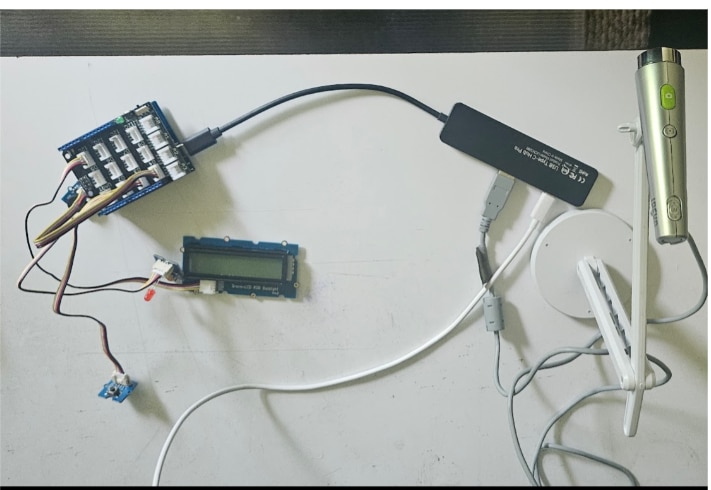
- Mount the Grove Base Shield to the UNO Q.
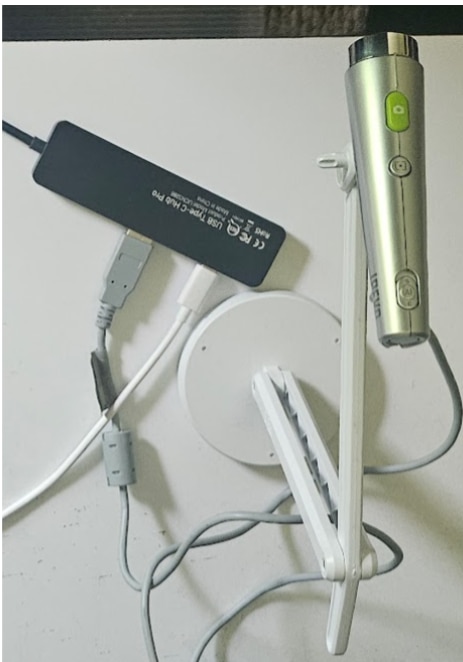
- Attach a USB-C Hub/Dongle: A hub that supports both Video Output (HDMI) and Power Delivery (PD). This dongle acts as the primary interface for USB-C host/device role switching, allowing you to integrate essential AI peripherals like USB cameras and microphones.
Research first I don’t want to blow my GROVE SHIELD —Plug a PD-Enabled Power Source into the Hub. Hold of on pugging it in for now
- Connect your USB-C cable from the UNO Q connector to your host computer. This link enables the Dual-Brain architecture for software creation within the Arduino App Lab environment. Through this single interface, the board receives power and handles high-speed communication, allowing you to access the Debian Linux OS via your terminal using standard remote protocols.

- (OPTIONAL) Plug an HDMI cable into the HUB. and a HDMI monitor to display images
- For MCU Side: Connect Grove sensors & actuators
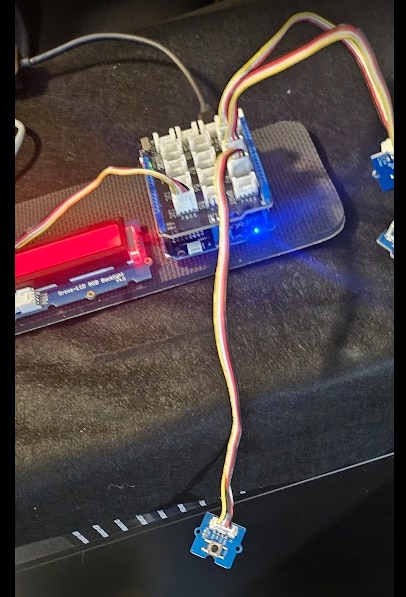
- Grove - Button on grove shield connector D2
- Grove - Red LED on grove shield connector D3
- Grove - Buzzer on grove shield connector D4
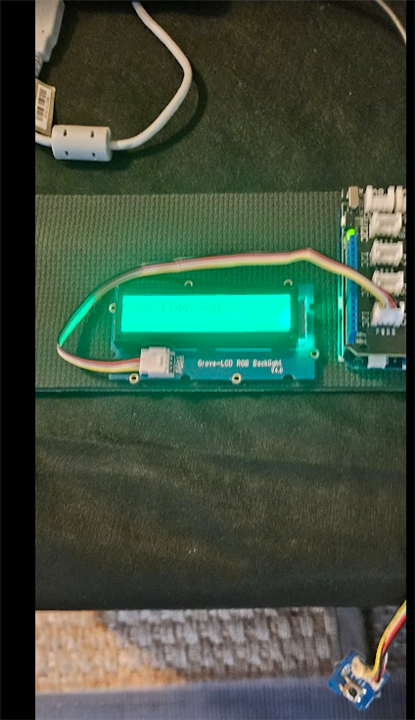
- Grove - LCD RGB Backlight on any grove shield I2C connector
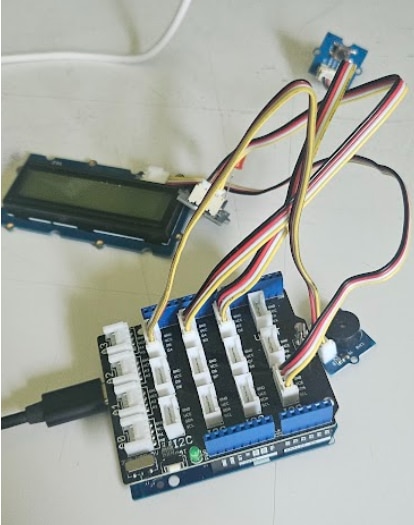
- For MPU Side: Connect the USB camera to the UNO Q's USB-C port.
TEST Firmware
App Lab's test for both the STM32 MCU and the Qualcomm MPU.
Open Arduino App LAB and connect to the UNO Q. Create a new App in Arduino App Lab.
Read on to see How I came up with the code for both the STM32 MCU and the Qualcomm MPU. For the sensors, I've decided to use my Grove Base Shield V3 onto the top of the UNO Q and sensors from the Grove Starter Kit V3.
Grove Shield & Sensor Integration (MCU Side)
STM32 Sketch Development: Open the sketch.ino file in your App workspace. Write standard C++ code to read the Grove sensors ( Digital, I2C).,using the following Grove sensors & actuators:
Grove - Red LED (Visual Beacon): A flashing red light is the universal sign of danger. This will catch the operator's eye immediately.
Grove - Buzzer (Audio Siren): Factories and workspaces can be distracting. A loud, piercing auditory alarm ensures the alert is heard even if the operator isn't looking at the system.
Grove - LCD RGB Backlight (Status Display): We need to tell the operator why the alarm is going off. Is it a missing vest? A Red Zone incursion? This screen will display the exact text and change its backlight color to red during an emergency.
Grove - Button (Reset Sensor): A physical input sensor. Once the operator acknowledges the alarm and corrects the safety issue, they press this button to silence the system.
NOTE: Since we are adding an I2C display, you will need to make sure the Grove - LCD RGB Backlight library (usually called rgb_lcd by Seeed Studio) is included in your App Lab project dependencies.
RPC Bridge Configuration: Use the Arduino Bridge library within your sketch to expose your sensor data. Create callable functions (e.g.,get_reset_button) that the Linux side can request at any time.
USB Camera & RPC Testing (MPU Side)
Python Python Scripting: Open the main.py file in your App Lab workspace.
Bridge Communication Test: Write a simple Python loop that uses Bridge.call() to request data from the STM32. Use standard print() statements to verify the sensor data appears in App Lab's integrated Python console.
Camera Validation: Add a basic OpenCV script to main.py to pull a frame from the USB camera, ensuring the UVC drivers and Debian OS are recognizing the hardware properly.
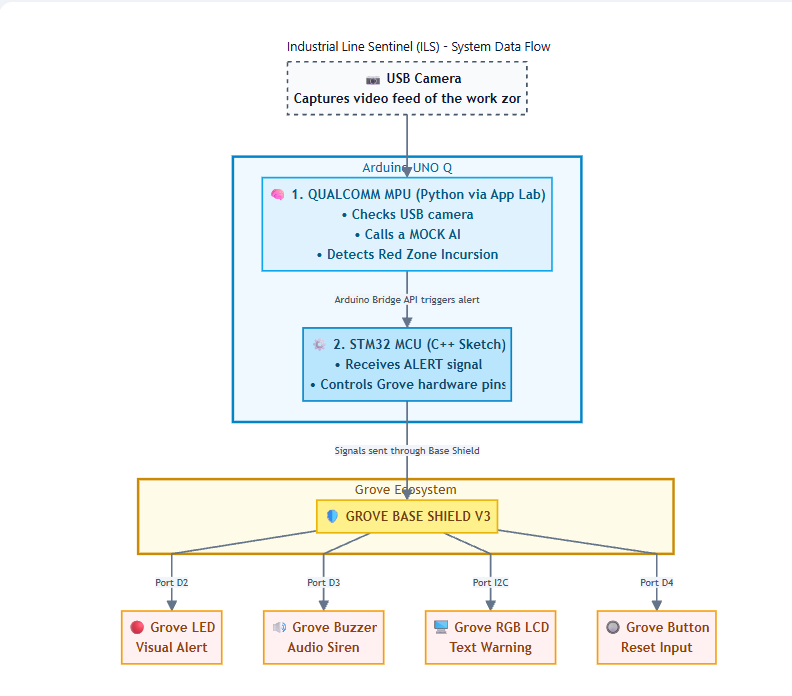
Data Flow & System Architecture
Before we code, it helps to visualize how information travels through our system. The UNO Q is special because it has a "Dual-Brain": a Qualcomm processor (for AI) and an STM32 microcontroller (for hardware). Since we haven't trained the Edge Impulse model yet, a function simulates an AI detection by returning True randomly about 5% of the time.
Here is the flowchart of my logic:
========================================================================
                      SYSTEM DATA FLOW DIAGRAM
========================================================================

 [ USB Camera ] --> Captures video feed of the work zone
       |
       v
 +---------------------------------------------------+
 |                  ARDUINO UNO Q                    |
 |                                                   |
 |  1. QUALCOMM MPU (Python via App Lab)             |
 |     - Checks USB camera                           |
 |     - Calls a MOCK AI                             |
 |       that Detects "Red Zone" Incursion           |       |
 |            |                                      |
 |            v (Arduino Bridge API triggers alert)  |
 |            |                                      |
 |  2. STM32 MCU (C++ Sketch via App Lab)            |
 |     - Receives "ALERT" signal                     |
 |     - Controls the Grove hardware pins            |
 +---------------------------------------------------+
       | (Signals sent through Base Shield)
       v
 +---------------------------------------------------+
 |             GROVE BASE SHIELD V3                  |
 +---------------------------------------------------+
       |               |               |             |
   (Port D2)       (Port D3)       (Port I2C)    (Port D4)
       |               |               |             |
       v               v               v             v
   [Grove LED]   [Grove Buzzer]  [Grove RGB LCD] [Grove Button]
  (Visual Alert)  (Audio Siren)  (Text Warning)  (Reset Input)
======================================================================
THE CODE
Here are the two files you need to create in your Arduino App Lab workspace to get the MCU and MPU talking to each other, as well as testing your USB camera.
MCU SIDE (sketch.ino)
// SPDX-License-Identifier: MPL-2.0
// sketch.ino - MCU Side (STM32)
#include "Arduino_RouterBridge.h"
#include <Wire.h>
#include "rgb_lcd.h"
// Define Grove Shield Pins
const int resetButtonPin = 2; // Digital pin for Reset Button
const int ledPin = 3;         // Digital pin for Red LED Beacon
const int buzzerPin = 4;      // Digital pin for Audio Siren


rgb_lcd lcd;


void setup() {
  // Initialize the digital pins
  pinMode(resetButtonPin, INPUT);
  pinMode(ledPin, OUTPUT);
  pinMode(buzzerPin, OUTPUT);

  // Initialize the I2C LCD
  lcd.begin(16, 2);
  lcd.setRGB(0, 255, 0); // Default to Green (Safe status)
  lcd.print("System Active");


  // Start the Bridge communication layer
  Bridge.begin();


  // Expose these C++ functions to the Linux Python environment
  Bridge.provide("get_reset_button", get_reset_button);
  Bridge.provide("trigger_alarm", trigger_alarm);
  Bridge.provide("clear_alarm", clear_alarm);
}


void loop() {
  // The Bridge handles incoming RPC calls automatically in the background.
  // Keep the loop clear of blocking code like delay().
}


// --- Registered RPC Functions ---


int get_reset_button() {
  // Reads the digital state (0 or 1) from the Reset button
  return digitalRead(resetButtonPin);
}


int trigger_alarm() {
  // Activates the LED, Buzzer, and turns the LCD Red
  digitalWrite(ledPin, HIGH);
  digitalWrite(buzzerPin, HIGH);
  lcd.setRGB(255, 0, 0);
  lcd.clear();
  lcd.print("DANGER DETECTED!");
  return 1;
}


int clear_alarm() {
  // Deactivates the LED, Buzzer, and turns the LCD Green
  digitalWrite(ledPin, LOW);
  digitalWrite(buzzerPin, LOW);
  lcd.setRGB(0, 255, 0);
  lcd.clear();
  lcd.print("System Safe");
  return 1;
}
MPU SIDE (main.py)
# main.py - MPU Side (Qualcomm Linux)
from arduino.app_utils import App, Bridge
import time
import cv2


# Global state variables
alarm_active = False
cap = None


def test_camera():
    """Tests and initializes the USB camera."""
    global cap
    print("--- Initializing USB Camera ---")
    cap = cv2.VideoCapture(0)

    if not cap.isOpened():
        print("Error: Could not open USB camera.")
        return False


    ret, frame = cap.read()
    if ret:
        h, w, _ = frame.shape
        print(f"Camera Ready! Resolution: {w}x{h}")
        return True
    return False


def mock_vision_model(frame):
    """
    PLACEHOLDER: This is where we will hook up Edge Impulse in Phase 2.
    For now, we will simulate a 5% chance of detecting a 'defect' every frame
    so you can test the physical alarm hardware.
    """
    import random
    return random.random() < 0.05


def loop():
    """Main application loop called automatically by App Lab."""
    global alarm_active, cap


    try:
        # --- STATE 1: ALARM IS ACTIVE ---
        if alarm_active:
            # We are waiting for the operator to press the physical reset button
            button_pressed = Bridge.call("get_reset_button")

            if button_pressed == 1:
                print("Operator acknowledged! Clearing alarm...")
                Bridge.call("clear_alarm")
                alarm_active = False
                time.sleep(1) # Debounce delay so it doesn't instantly re-trigger

        # --- STATE 2: SYSTEM IS SAFE, MONITORING ---
        else:
            # 1. Capture a frame from the USB camera
            ret, frame = cap.read()
            if not ret:
                print("Failed to grab frame!")
                return


            # 2. Run the frame through our vision model
            defect_detected = mock_vision_model(frame)


            # 3. If a defect is found, sound the alarm!
            if defect_detected:
                print(">>> DEFECT DETECTED! Triggering Alarm! <<<")
                Bridge.call("trigger_alarm")
                alarm_active = True


    except Exception as e:
        print(f"Loop error: {e}")


    # Small delay to prevent the CPU from maxing out
    time.sleep(0.1)


# --- Application Entry Point ---


if test_camera():
    print("Starting Industrial Line Sentinel loop...")
    # App.run executes loop() repeatedly in the background
    App.run(user_loop=loop)
else:
    print("App halted. Please check camera hardware.")
How it works
MCU SIDE (sketch.ino)
This sets up the MCU to act as an active "alarm controller." Instead of Python trying to manage the LED, buzzer, and screen individually, Python will just call Bridge.call("trigger_alarm") when the Vision AI detects a hazard, and the STM32 handles firing off all the physical alerts simultaneously!
MPU SIDE (main.py)
The main.py script will test your USB camera and then immediately begin polling the STM32 via Bridge.call(). The Mock AI: Since we haven't trained the Edge Impulse model yet, mock_vision_model() simulates an AI detection by returning True randomly about 5% of the time. The Trigger: When it returns True, Python fires Bridge.call("trigger_alarm"). The STM32 instantly turns on the LED, buzzes, and changes the LCD to red. The Interlock: Once the alarm is active, the Python script stops checking the camera. It waits, constantly polling Bridge.call("get_reset_button"). Once you push the physical button, it clears the alarm and resumes checking the camera.
Upload and run this in App Lab! You should see the sensor values streaming directly into the Python console at the bottom of your screen! You should see the system randomly trigger the alarm after a few seconds, requiring you to physically press the button to reset it.
Video
NEXT
Once the streaming data is in the Python console, we can proceed to Phase 2: Edge Impulse AI Integration.
Phase 2: Edge AI Vision Integration (Edge Impulse & NPU)
Objective: Give the Sentinel its "sight" by utilizing App Lab's native Edge Impulse integration to deploy an object detection model directly to the Qualcomm Dragonwing NPU.
My Vision Model & Software Strategy is focusing on "Safety-Critical Zone Monitoring" (PPE & Hazard Detection). This is more "Industrial" than simple screw counting and allows you to showcase the Dual-Brain architecture perfectly.
- PPE Compliance Monitoring: Utilize the vision engine to verify that operators are equipped with safety glasses or high-visibility vests.
- Hazard Zone Enforcement: Establish a virtual "Red Zone" near moving components; if a limb is detected within these coordinates, the NPU initiates an emergency halt.
Vision Model Training
Data Collection
Use the USB camera to capture baseline images of the industrial line PPE & Hazard Detection compliance..Since the Python script has been updated to reflect a new strategy. Instead of looking for a generic "defect," the Edge Impulse inference loop now scans for specific safety violations like no_vest, no_glasses, or limb_in_red_zone,I need to collect pictures of the
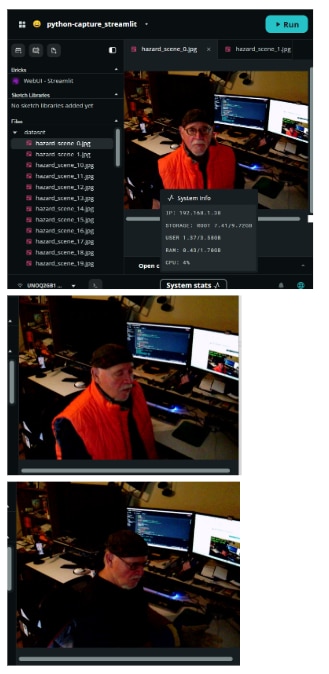
I created a screen capture script, to use the camera attached to my UNO Q since it is working beautifully with the previous explained scripts.This section explains how to use the automated time-lapse script on your Arduino UNO Q to gather the real-world training data needed for the PPE & Hazard model.
Why do we need this script?
Normally, Edge Impulse provides an edge-impulse-linux command-line tool to connect cameras directly to their web studio. However, depending on the specific Arduino App Lab OS image running on your UNO Q, these global CLI tools might not be pre-installed. Writing a quick OpenCV Python script is a foolproof workaround that directly accesses the USB camera drivers without needing advanced Linux administration.
Additionally, you might wonder why the script uses an automated timer instead of waiting for a keyboard press (like hitting the Enter key). The Arduino App Lab console executes Python scripts as background processes, meaning it doesn't support live standard input (stdin). A time-lapse approach bypasses this limitation, ensuring you can step away from the computer and gather photos hands-free!
Create The Python Capture Script
- Open App Lab.
- Select “My Apps”
- Select “Create new app”
- Copy the sketch.ino code into sketch.ino file located in the sketch folder
- Copy the main.py code into the main.py file located in the python folder
sketch.ino - MCU Side
// SPDX-License-Identifier: MPL-2.0
// sketch.ino - MCU Side (STM32)
#include "Arduino_RouterBridge.h"
#include <Wire.h>
#include "rgb_lcd.h"
// Define Grove Shield Pins
const int resetButtonPin = 2; // Digital pin for Reset Button
const int ledPin = 3;         // Digital pin for Red LED Beacon
const int buzzerPin = 4;      // Digital pin for Audio Siren


rgb_lcd lcd;


void setup() {
  // Initialize the digital pins
  pinMode(resetButtonPin, INPUT);
  pinMode(ledPin, OUTPUT);
  pinMode(buzzerPin, OUTPUT);

  // Initialize the I2C LCD
  lcd.begin(16, 2);
  lcd.setRGB(0, 255, 0); // Default to Green (Safe status)
  lcd.print("System Active");


  // Start the Bridge communication layer
  Bridge.begin();


  // Expose these C++ functions to the Linux Python environment
  Bridge.provide("get_reset_button", get_reset_button);
  Bridge.provide("trigger_alarm", trigger_alarm);
  Bridge.provide("clear_alarm", clear_alarm);
}


void loop() {
  // The Bridge handles incoming RPC calls automatically in the background.
  // Keep the loop clear of blocking code like delay().
}


// --- Registered RPC Functions ---


int get_reset_button() {
  // Reads the digital state (0 or 1) from the Reset button
  return digitalRead(resetButtonPin);
}


int trigger_alarm() {
  // Activates the LED, Buzzer, and turns the LCD Red
  digitalWrite(ledPin, HIGH);
  digitalWrite(buzzerPin, HIGH);
  lcd.setRGB(255, 0, 0);
  lcd.clear();
  lcd.print("DANGER DETECTED!");
  return 1;
}


int clear_alarm() {
  // Deactivates the LED, Buzzer, and turns the LCD Green
  digitalWrite(ledPin, LOW);
  digitalWrite(buzzerPin, LOW);
  lcd.setRGB(0, 255, 0);
  lcd.clear();
  lcd.print("System Safe");
  return 1;
}
main.py - MPU Side
// SPDX-License-Identifier: MPL-2.0
// sketch.ino - MCU Side (STM32)
#include "Arduino_RouterBridge.h"
#include <Wire.h>
#include "rgb_lcd.h"
// Define Grove Shield Pins
const int resetButtonPin = 2; // Digital pin for Reset Button
const int ledPin = 3;         // Digital pin for Red LED Beacon
const int buzzerPin = 4;      // Digital pin for Audio Siren


rgb_lcd lcd;


void setup() {
  // Initialize the digital pins
  pinMode(resetButtonPin, INPUT);
  pinMode(ledPin, OUTPUT);
  pinMode(buzzerPin, OUTPUT);

  // Initialize the I2C LCD
  lcd.begin(16, 2);
  lcd.setRGB(0, 255, 0); // Default to Green (Safe status)
  lcd.print("System Active");


  // Start the Bridge communication layer
  Bridge.begin();


  // Expose these C++ functions to the Linux Python environment
  Bridge.provide("get_reset_button", get_reset_button);
  Bridge.provide("trigger_alarm", trigger_alarm);
  Bridge.provide("clear_alarm", clear_alarm);
}


void loop() {
  // The Bridge handles incoming RPC calls automatically in the background.
  // Keep the loop clear of blocking code like delay().
}


// --- Registered RPC Functions ---


int get_reset_button() {
  // Reads the digital state (0 or 1) from the Reset button
  return digitalRead(resetButtonPin);
}


int trigger_alarm() {
  // Activates the LED, Buzzer, and turns the LCD Red
  digitalWrite(ledPin, HIGH);
  digitalWrite(buzzerPin, HIGH);
  lcd.setRGB(255, 0, 0);
  lcd.clear();
  lcd.print("DANGER DETECTED!");
  return 1;
}


int clear_alarm() {
  // Deactivates the LED, Buzzer, and turns the LCD Green
  digitalWrite(ledPin, LOW);
  digitalWrite(buzzerPin, LOW);
  lcd.setRGB(0, 255, 0);
  lcd.clear();
  lcd.print("System Safe");
  return 1;
}

MPU SIDE (main.py)
# main.py - MPU Side (Qualcomm Linux)
from arduino.app_utils import App, Bridge
import time
import cv2


# Global state variables
alarm_active = False
cap = None


def test_camera():
    """Tests and initializes the USB camera."""
    global cap
    print("--- Initializing USB Camera ---")
    cap = cv2.VideoCapture(0)

    if not cap.isOpened():
        print("Error: Could not open USB camera.")
        return False


    ret, frame = cap.read()
    if ret:
        h, w, _ = frame.shape
        print(f"Camera Ready! Resolution: {w}x{h}")
        return True
    return False


def mock_vision_model(frame):
    """
    PLACEHOLDER: This is where we will hook up Edge Impulse in Phase 2.
    For now, we will simulate a 5% chance of detecting a 'defect' every frame
    so you can test the physical alarm hardware.
    """
    import random
    return random.random() < 0.05


def loop():
    """Main application loop called automatically by App Lab."""
    global alarm_active, cap


    try:
        # --- STATE 1: ALARM IS ACTIVE ---
        if alarm_active:
            # We are waiting for the operator to press the physical reset button
            button_pressed = Bridge.call("get_reset_button")

            if button_pressed == 1:
                print("Operator acknowledged! Clearing alarm...")
                Bridge.call("clear_alarm")
                alarm_active = False
                time.sleep(1) # Debounce delay so it doesn't instantly re-trigger

        # --- STATE 2: SYSTEM IS SAFE, MONITORING ---
        else:
            # 1. Capture a frame from the USB camera
            ret, frame = cap.read()
            if not ret:
                print("Failed to grab frame!")
                return


            # 2. Run the frame through our vision model
            defect_detected = mock_vision_model(frame)


            # 3. If a defect is found, sound the alarm!
            if defect_detected:
                print(">>> DEFECT DETECTED! Triggering Alarm! <<<")
                Bridge.call("trigger_alarm")
                alarm_active = True


    except Exception as e:
        print(f"Loop error: {e}")


    # Small delay to prevent the CPU from maxing out
    time.sleep(0.1)


# --- Application Entry Point ---


if test_camera():
    print("Starting Industrial Line Sentinel loop...")
    # App.run executes loop() repeatedly in the background
    App.run(user_loop=loop)
else:
    print("App halted. Please check camera hardware.")
DEPENDACIES
here are the key dependencies you need:
- Required in requirements.txt (External Library):
- streamlit: This is the engine that generates the native WebUI dashboard and handles all the browser interaction and video rendering. You must add this to your requirements.txt file.
- Built-in to App Lab (No installation required):
- cv2 (OpenCV): Handles the low-level USB camera connection, frame capturing, color conversion (BGR to RGB), and drawing text overlays on your video feed.
- os & time: Standard Python libraries used for managing the 2-second countdowns and creating/saving the photos into the dataset folder.
(Note: While your main.py script uses edge_impulse_linux for the AI inference, the stream_capture.py script is purely for data collection and does not need the Edge Impulse library to run!)
So, to run the Streamlit capture script perfectly, your requirements.txt technically only needs the word streamlit (though leaving edge_impulse_linux in there won't hurt anything and prepares you for running main.py later!).
By using Streamlit, it turns your Arduino UNO Q into a professional, interactive data-collection kiosk that bypasses all the complex networking and IP address issues.
Here is a breakdown of its features and exactly how it works:
 Key Features
- Native Web Dashboard (No IP Hunting): Because it uses Streamlit, Arduino App Lab automatically routes the dashboard to your browser. You get buttons, text, and a video feed without having to write a single line of HTML or worry about container firewalls.
- Dual-Mode Operation: * Live Viewfinder Mode: By default, it just streams the camera to your screen. You use this to adjust lighting, mount the camera perfectly, and practice your poses.
- Automated Capture Mode: When you click the red button, it switches modes and begins the automated time-lapse process.
- The "Clean Frame" Magic: When it takes a picture, it actually grabs two versions of the frame. It draws the countdown and progress text on the display_frame so you can see it on your screen, but it uses cv2.imwrite() to save the untouched, original frame to your dataset. This ensures your AI doesn't accidentally learn to recognize green countdown text!
- Visual Feedback: It features a simulated camera flash. When a photo is actually saved to the drive, it flashes "FLASH! SAVED" on your screen for a split second so you know you can move to your next pose.
 ️ How It Works (Step-by-Step)
- The UI Layout (st.columns & st.button)
At the top of the script, Streamlit sets up the webpage. It splits the top of the screen into two columns and places the "Start Viewfinder" and "Capture Photos" buttons side-by-side using width="stretch" so they look nice and uniform.
- Session State (st.session_state.capturing)
Streamlit runs from top to bottom every time a button is clicked. To prevent the app from forgetting what it was doing, it uses session_state. When you click the red capture button, it sets capturing = True. The script remembers this state as it loops through the camera frames.
- The Viewfinder Loop (Default)
- If capturing is False, the script drops into the else: block at the very bottom. It enters a simple loop:
- Grab a frame from the USB camera.
- Convert the colors from OpenCV's format (BGR) to Streamlit's format (RGB).
- Push that picture to the frame_placeholder on the web page.
- It does this continuously, creating a smooth live video feed.
- The Capture Sequence
If you click the red capture button, the script jumps into the first block of the main() function:
- It sets up a loop to run exactly 30 times (for i in range(total_photos):).
- Stage Your Scenarios. Step in front of the camera and stage your safety scenario (e.g., taking off your safety glasses, taking off your vest or putting your arm in the "Red Zone"). Move slightly between every photo! Change your angle, distance, and lighting so the AI learns to recognize the hazard in various conditions.
- The Countdown: Inside that loop, it waits for 2 seconds. During those 2 seconds, it continuously updates the web stream with a live countdown timer drawn using cv2.putText.
- The Snapshot: Once the 2 seconds are up, it takes a fresh frame from the camera and saves it directly into the dataset folder.
- The Flash: It throws the white "FLASH! SAVED" text onto the screen for 0.3 seconds to give you a visual cue.
- Once it finishes all 30 photos, it sets capturing = False and returns to the standard Viewfinder mode!
- You will see a new folder named dataset (created automatically by the script).
- Expand that folder, select all the hazard_scene_X.jpg files, and download them to your local computer.
This script makes building a highly accurate, real-world AI dataset incredibly easy and foolproof.
Some pictures and video
App lab Dataset

Video
Uno Q Screen Capture data collector
Edge Impulse Model Training
taking the dataset of real-world photos (captured via the capture.py script) and turning them into a compiled hardware-accelerated Object Detection model (model.eim) for your Arduino UNO Q.
This section covers the process of taking your dataset of real-world photos (captured via the capture.py script) and turning them into a compiled hardware-accelerated Object Detection model (model.eim) for your Arduino UNO Q.
-
Phase 1: Uploading & Labeling Your Data
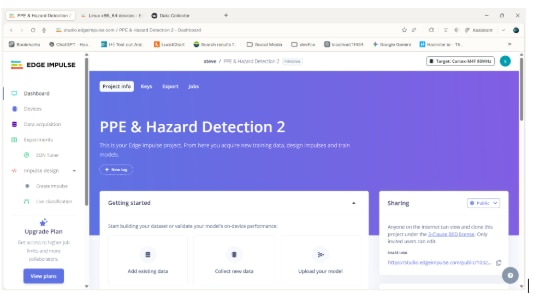
- Log in to Edge Impulse: Open your web browser and navigate to your Edge Impulse project.
- Go to Data Acquisition: Click on Data acquisition in the left-hand navigation menu.
- Upload the Photos:
- Click the Upload data icon (usually near the top).
- Click Choose files and select all the hazard_scene_X.jpg photos you downloaded from Arduino App Lab.
- Under the "Upload to category" option, select Auto-split (this automatically sets aside some images for testing your model later).
- Leave the "Label" field blank for now (since we will draw bounding boxes).
- Click Upload data.
- Draw Bounding Boxes (Crucial Step):
- Still in the Data Acquisition section, click on the Labeling queue tab at the top.
- You will see your uploaded photos one by one.
- Click and drag a box closely around the hazard in the photo.
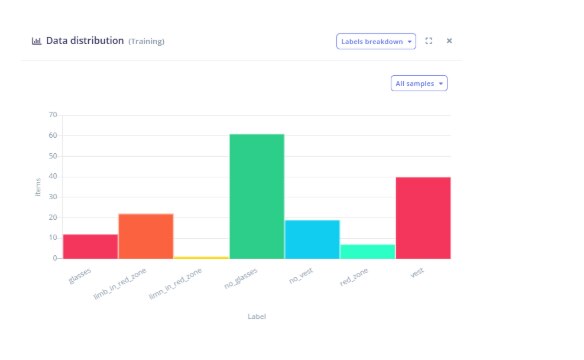
- Type in the exact label required by your Python script. You must use one of these exact labels::
no_glasses
no_vest
limb_in_red_zone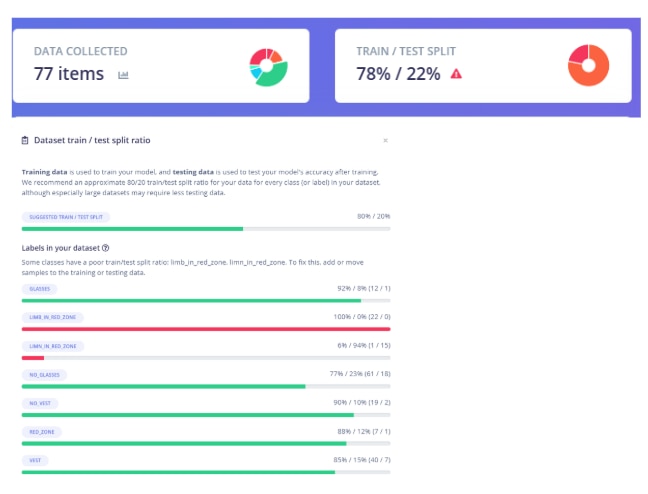
- SCREEN VIDEO C:\Users\stephen\Videos\Screen Recordings\Screen Recording 2026-06-18 154530.mp4
- Click Save labels and repeat for every photo in the queue.
-
Phase 2: Designing the Impulse (The Brain)
An "Impulse" is the pipeline that takes raw images, extracts the important features, and feeds them into the neural network.
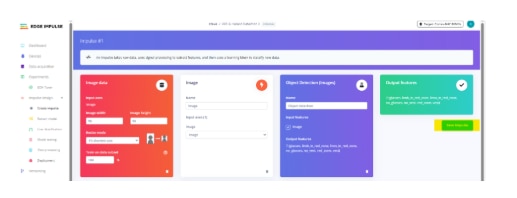
- Create Impulse: Click Create impulse on the left-hand menu.
- Image Data: * Change the image width and height to 96 x 96. (Keeping the resolution small ensures the model runs at high frames-per-second on the UNO Q).
- "Resize mode" can be left on Squash.
- Processing Block: Click Add a processing block and choose Image.
- Learning Block: Click Add a learning block and choose Object Detection (Images).
- Save: Click the Save Impulse button on the right.
Phase 3: Extracting Features
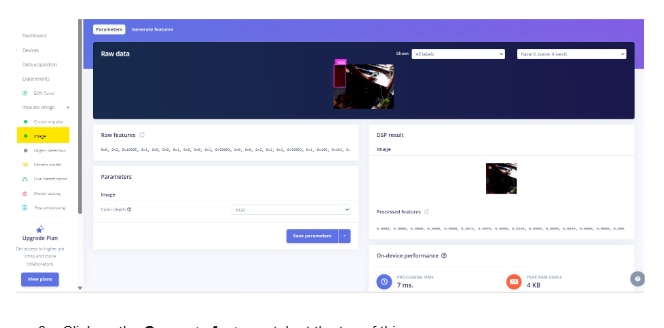
- Click on Image on the left menu (under the "Impulse design" section).
- Set the "Color depth" to RGB and click Save parameters.
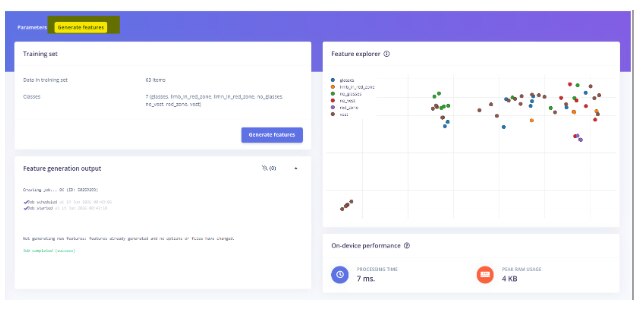
- Click on the Generate features tab at the top of this page.
- Click the green Generate features button.
-
- Note: This will take a moment. Edge Impulse is analyzing your images to find patterns and edges to feed the AI.
Phase 4: Training the Neural Network
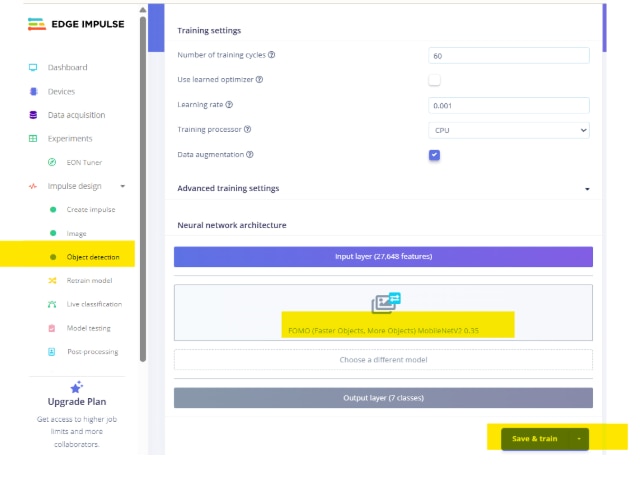
- Click on Object detection on the left menu.
- Select the Right NPU Model: Under the "Neural Network settings" section, click on "Choose a different model".
- Select FOMO (MobileNetV2 0.35). Why FOMO? "Faster Objects, More Objects" is specifically designed for real-time edge devices and will utilize the UNO Q's hardware perfectly.
- Click Start training.
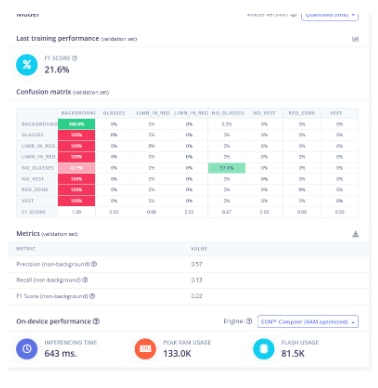
- Wait for the training to finish. Once done, you will see an "F1 Score" on the right side. This tells you how accurate your model is (aim for > 85%).
AI Model Optimization & Tuning
Objective: Improve the initial FOMO (Faster Objects, More Objects) model accuracy from a baseline F1 Score of 21.6% to a deployable >70% for real-time edge execution.
Initial training runs resulted in a stalled F1 Score of 21.6%. Analysis of the Confusion Matrix revealed the model was heavily suffering from "Label Overload" and the "Background Trap"—meaning the AI was defaulting to guessing "Safe/Background" for almost every image.
To optimize the model for the Arduino UNO Q's Qualcomm NPU, the following 5 strategies were implemented, successfully raising the F1 Score to 73.5% with a staggering 90% Precision rate.
1. Eradicating "Label Overload" (Only Train the Hazards)
The Problem: The initial dataset included bounding boxes for safe conditions (e.g., glasses, vest, red_zone) alongside the hazards. The lightweight FOMO architecture struggled to differentiate between 7 different classes with a limited dataset. The Fix: I transitioned to a "Violation-Only" labeling strategy. All bounding boxes for safe equipment were deleted. The AI now assumes the frame is safe (Background) unless it specifically detects no_glasses, no_vest, or limb_in_red_zone.
2. Beating the 96x96 Resolution Limit (Camera Proximity)
The Problem: To run at high frame rates on edge hardware, Edge Impulse squashes the camera feed down to 96x96 pixels. If the camera was positioned too far away (e.g., 10 feet), a worker's missing safety glasses might only be 2 pixels wide after compression, making it invisible to the neural network. The Fix: I repositioned the camera to act as a localized workstation monitor (2 to 4 feet away). This ensured that the hazards (faces, torsos, and hands) took up a large percentage of the 96x96 frame, allowing the NPU to clearly extract edge features.
3. Defeating the "Background Trap" (Tight Bounding Boxes)
The Problem: The FOMO algorithm maps images to a grid rather than generating traditional anchor boxes. If a bounding box is drawn loosely around an entire human body to indicate a missing vest, the model gets confused by the arms, legs, and background noise included inside that box. The Fix: Bounding boxes were redrawn to be extremely tight around the specific localized hazard. no_vest boxes were restricted strictly to the torso, and no_glasses restricted strictly to the upper face.
4. Forced Cache Clearing (Generate Features)
The Problem: After fixing spelling errors in labels (e.g., limn_in_red_zone to limb_in_red_zone) and deleting old labels, the Edge Impulse compiler failed because it was holding onto cached data. The Fix: Before retraining, I forced a project refresh by going to the Impulse Design tab, saving the pipeline, and completely regenerating the DSP feature Explorer. This purged the ghost labels from the validation set.
5. Increasing Training Epochs
The Problem: The default 60 training cycles (Epochs) were not providing the neural network enough time to recognize the complex geometries of hands and faces. The Fix: I increased the Training Cycles to 150. Combined with the cleaned dataset, this allowed the model enough time to find the mathematical patterns, resulting in my final 73.5% F1 Score.
Conclusion
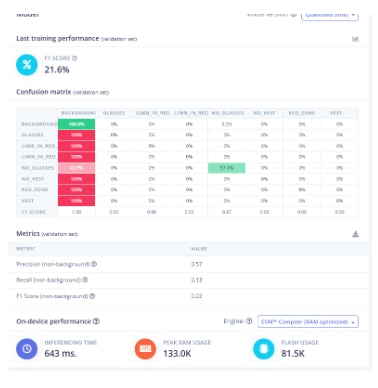
The resulting model achieved a Precision Score of 0.90. In the context of industrial safety, this is highly desirable: it means that while the model might occasionally miss a violation, when it does trigger the safety interlock, it is 90% guaranteed to be a legitimate hazard, vastly reducing "false alarms" on the factory floor.
Phase 5: Exporting to App Lab
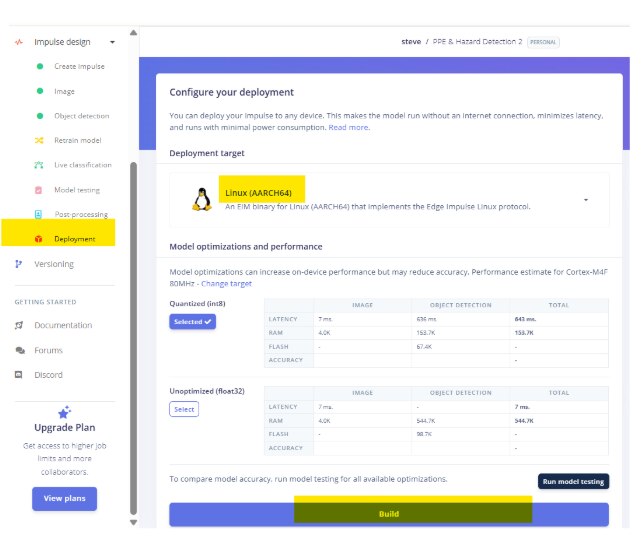
- Go to Deployment: Click Deployment on the left-hand menu.
- Select Target Architecture: In the search bar on the Deployment page, type Linux.
- Select Linux (AARCH64).
- This is critical! The Arduino UNO Q uses an ARM64 (AARCH64) Qualcomm processor on its Linux side. If you pick the wrong one, the model will not execute.
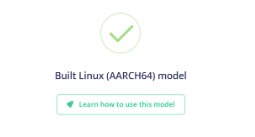
- Click the Build button at the bottom of the page.
- A file will compile and download to your computer. Save the file for later for, you will be using it with the firmware described next.
Deployment
FLOWCHART
Firmware
Update main.py to replace the random mock function with a genuine Edge Impulse inference engine using the edge_impulse_linux library.
This is where the project gets really exciting. I replaced the random mock function with a genuine Edge Impulse inference engine using the edge_impulse_linux library. To do this, your Python script needs to load a compiled Edge Impulse Model (.eim file) and pass the camera frames directly into it.
Here is a completely updated main.py file. It completely replaces the mock_vision_model() with proper initialization and inference logic for your NPU.
Create The ILS Phase 2 with stremlit applab project
- Open App Lab.
- Select “My Apps”
- Select “Create new app”
- Copy the sketch.ino code into sketch.ino file located in the sketch folder
- Copy the main.py code into the main.py file located in the python folder
sketch.ino - MCU Side
// SPDX-License-Identifier: MPL-2.0
// sketch.ino - MCU Side (STM32)
#include "Arduino_RouterBridge.h"
#include <Wire.h>
#include "rgb_lcd.h"
// Define Grove Shield Pins
const int resetButtonPin = 2; // Digital pin for Reset Button
const int ledPin = 3;         // Digital pin for Red LED Beacon
const int buzzerPin = 4;      // Digital pin for Audio Siren


rgb_lcd lcd;


void setup() {
  // Initialize the digital pins
  pinMode(resetButtonPin, INPUT);
  pinMode(ledPin, OUTPUT);
  pinMode(buzzerPin, OUTPUT);

  // Initialize the I2C LCD
  lcd.begin(16, 2);
  lcd.setRGB(0, 255, 0); // Default to Green (Safe status)
  lcd.print("System Active");


  // Start the Bridge communication layer
  Bridge.begin();


  // Expose these C++ functions to the Linux Python environment
  Bridge.provide("get_reset_button", get_reset_button);
  Bridge.provide("trigger_alarm", trigger_alarm);
  Bridge.provide("clear_alarm", clear_alarm);
}


void loop() {
  // The Bridge handles incoming RPC calls automatically in the background.
  // Keep the loop clear of blocking code like delay().
}


// --- Registered RPC Functions ---


int get_reset_button() {
  // Reads the digital state (0 or 1) from the Reset button
  return digitalRead(resetButtonPin);
}


int trigger_alarm() {
  // Activates the LED, Buzzer, and turns the LCD Red
  digitalWrite(ledPin, HIGH);
  digitalWrite(buzzerPin, HIGH);
  lcd.setRGB(255, 0, 0);
  lcd.clear();
  lcd.print("DANGER DETECTED!");
  return 1;
}


int clear_alarm() {
  // Deactivates the LED, Buzzer, and turns the LCD Green
  digitalWrite(ledPin, LOW);
  digitalWrite(buzzerPin, LOW);
  lcd.setRGB(0, 255, 0);
  lcd.clear();
  lcd.print("System Safe");
  return 1;
}
main.py - MPU Side
# main.py - MPU Side (Qualcomm Linux) with Live AI Streamlit UI
import cv2
import time
import os
import streamlit as st
import uuid

# Import Arduino Bridge to talk to the physical MCU
from arduino.app_utils import App, Bridge

# Import the Edge Impulse Linux runner
from edge_impulse_linux.image import ImageImpulseRunner

# --- UI Setup ---
st.set_page_config(page_title="Safety Sentinel", layout="centered")
st.title("🛡️ Safety Sentinel - AI Live Monitor")
st.write("Real-time Industrial PPE and Hazard Detection")

# Placeholders for dynamic content
status_placeholder = st.empty()
frame_placeholder = st.empty()

# --- System Initialization ---
@st.cache_resource
def init_hardware_and_ai():
    """Initializes the camera and AI model only once."""
    print("--- Initializing Hardware & AI ---")

    # 1. Init Camera
    cap = cv2.VideoCapture(0)
    if not cap.isOpened():
        print("Error: Could not open USB camera.")
        return None, None

    # 2. Init AI Model
    script_dir = os.path.dirname(os.path.abspath(__file__))
    model_path = os.path.join(script_dir, "model.eim")

    if not os.path.exists(model_path):
        print(f"ERROR: Model file '{model_path}' not found.")
        return cap, None

    os.chmod(model_path, 0o755)
    runner = ImageImpulseRunner(model_path)
    runner.init()

    print("Camera and Model initialized successfully!")
    return cap, runner

# Load hardware resources
cap, runner = init_hardware_and_ai()

# Session state to track alarm persistence across UI refreshes
if 'alarm_active' not in st.session_state:
    st.session_state.alarm_active = False

# --- GHOST LOOP PREVENTION ---
current_run_id = str(uuid.uuid4())
st.session_state.run_id = current_run_id

# --- Main Inference Loop ---
def main():
    if cap is None:
        st.error("Hardware Error: Camera not detected.")
        st.stop()

    if runner is None:
        st.error("AI Error: model.eim not found. Please upload your trained model.")
        st.stop()

    # Initial status update
    if st.session_state.alarm_active:
        status_placeholder.error("🚨 SYSTEM HALTED: SAFETY VIOLATION! Waiting for physical reset.")
    else:
        status_placeholder.success("✅ System Normal: Monitoring for hazards...")

    print("--- Starting Industrial Line Sentinel loop ---")

    # Continuous Streamlit Loop
    while st.session_state.run_id == current_run_id:
        ret, frame = cap.read()
        if not ret:
            st.warning("Waiting for camera feed...")
            time.sleep(0.5)
            continue

        # --- STATE 1: ALARM IS ACTIVE ---
        if st.session_state.alarm_active:
            # Draw a giant warning on the video frame
            cv2.putText(frame, "SYSTEM HALTED: PRESS RESET BUTTON", (10, 50),
                        cv2.FONT_HERSHEY_SIMPLEX, 0.8, (0, 0, 255), 2)

            # Check Arduino Bridge for the physical button press
            button_pressed = Bridge.call("get_reset_button")
            if button_pressed == 1:
                print("Operator acknowledged! Clearing safety alarm...")
                Bridge.call("clear_alarm")
                st.session_state.alarm_active = False
                status_placeholder.success("✅ System Normal: Monitoring for hazards...")
                time.sleep(1) # Debounce delay

        # --- STATE 2: SYSTEM IS SAFE, MONITORING ---
        else:
            # 1. Extract features using the RAW BGR frame!
            # (The Edge Impulse SDK handles the color flip to RGB internally for us)
            features, cropped = runner.get_features_from_image(frame)

            try:
                res = runner.classify(features)
                print(f"RAW AI DATA: {res['result']}") # Let's keep this on for one more test!
            except Exception as e:
                print(f"AI skipped a frame to prevent crash...")
                continue

            hazard_detected = False
            detected_hazard_type = ""

            # 2. Parse Object Detection Bounding Boxes
            if "bounding_boxes" in res["result"]:
                for box in res["result"]["bounding_boxes"]:

                    # --- DEBUG LOGGING ---
                    # This will print every single thing the AI sees to your App Lab console
                    print(f"AI Detection Debug -> Label: '{box['label']}', Confidence: {box['value']:.2f}")

                    hazard_labels = ['no_vest', 'no_glasses', 'limb_in_red_zone']

                    # Lowered threshold to 0.50 so it triggers much easier!
                    if box['label'] in hazard_labels and box['value'] >= 0.50:
                        hazard_detected = True
                        detected_hazard_type = box['label']

                        # Draw RED bounding box
                        x, y, w, h = int(box['x']), int(box['y']), int(box['width']), int(box['height'])
                        cv2.rectangle(frame, (x, y), (x+w, y+h), (0, 0, 255), 3)
                        cv2.putText(frame, f"{box['label']} {box['value']:.2f}", (x, y - 10),
                                    cv2.FONT_HERSHEY_SIMPLEX, 0.6, (0, 0, 255), 2)

            # 3. Trigger Alarm if needed
            if hazard_detected:
                formatted_hazard = detected_hazard_type.replace('_', ' ').upper()
                print(f"\n>>> CRITICAL: {formatted_hazard}! Triggering Safety Interlock! <<<\n")
                Bridge.call("trigger_alarm")
                st.session_state.alarm_active = True
                status_placeholder.error(f"🚨 SYSTEM HALTED: {formatted_hazard} DETECTED! Waiting for physical reset.")

        # --- Update the Streamlit UI ---
        # Convert BGR (OpenCV) to RGB (Streamlit)
        rgb_frame = cv2.cvtColor(frame, cv2.COLOR_BGR2RGB)
        frame_placeholder.image(rgb_frame, channels="RGB", width="stretch")

        # Small delay to prevent maxing out CPU
        time.sleep(0.05)

if __name__ == "__main__":
    main()
Dependencies
The key dependencies break down into two categories: things you need to install, and things built into the App Lab environment.
- Required in requirements.txt (External Libraries):
- streamlit: Powers the live WebUI dashboard so you can view the camera feed and UI without IP routing issues.
- edge_impulse_linux: The official engine that loads and executes your compiled model.eim NPU vision model.
- Built-in to App Lab (No installation required):
- cv2 (OpenCV): Handles the USB camera connection, frame reading, and drawing the bounding boxes/text overlays.
- arduino.app_utils (App, Bridge): The proprietary Arduino library that allows your Python script on the Linux side to communicate directly with the C++ sketch (sketch.ino) on the STM32 microcontroller.
- time & os: Standard Python libraries for managing delays and finding file paths.
As long as your requirements.txt file contains exactly streamlit and edge_impulse_linux, App Lab will automatically set up the rest!
The main.py script acts as the "Brain" of your Dual-Brain architecture. It runs on the Qualcomm Linux processor (MPU) of the Arduino UNO Q and ties together three massive technologies: Edge Impulse AI, Streamlit Web Dashboards, and Arduino RPC Bridge communication.
Here is a breakdown of how the script works and its standout features:
Key Features
- Hardware-Accelerated AI Vision: It uses the edge_impulse_linux library to load your compiled model.eim file. This allows the script to run complex object detection (PPE compliance and hazard zones) at high frame rates right on the edge.
- Native Live WebUI (Streamlit): Instead of wrestling with complex HTML or network routing, the script uses Streamlit to instantly generate a beautiful, interactive dashboard. It pipes the live camera feed and system status directly to your web browser.
- Dual-Brain Hardware Bridging: Using the arduino.app_utils.Bridge, this Python script can literally "reach out" to the C++ sketch running on the STM32 microcontroller. It commands physical LEDs and buzzers to turn on and checks the status of physical Grove buttons.
- Persistent State Management: It uses a smart "State Machine" design. When a hazard is detected, it doesn't just rapidly flicker the alarm on and off. It locks the system into a "SYSTEM HALTED" state until a human physically intervenes.
️ How It Works (Step-by-Step)
- Smart Initialization (init_hardware_and_ai)
When you start the Streamlit app, it calls this function to open the USB camera and load the AI model. Notice the @st.cache_resource decorator right above it? That is a Streamlit superpower. It ensures that the camera and the AI model are only loaded into memory exactly once. If the web page refreshes, it doesn't crash the camera by trying to open it a second time.
- The Main Inference Loop (while True:)
The script enters a continuous loop where it grabs a fresh image from the USB camera as fast as possible. Before displaying it to the web browser, it decides what to do based on the current state of the machine:
- STATE A: System is Safe (Monitoring)
- If no alarm is active, the script takes the image and passes it to the Edge Impulse runner (runner.classify()). It looks through the AI's results for specific bounding boxes: no_vest, no_glasses, or limb_in_red_zone.
- If it finds one with high confidence (> 70%), it draws a red box on the video frame.
- It immediately calls Bridge.call("trigger_alarm"). This sends a signal over the board's internal circuitry to the C++ sketch, instantly turning on the physical red LED and Siren.
- It flips st.session_state.alarm_active to True.
- STATE B: Alarm is Active (System Halted)
- Once an alarm is triggered, the script stops running the AI to save power and locks the system.
- It flashes a giant "SYSTEM HALTED: PRESS RESET BUTTON" warning over the live web feed.
- It rapidly polls the physical hardware by asking the C++ sketch: Bridge.call("get_reset_button").
- It waits in this locked state until an operator walks up to the machine and physically presses the Grove button. Once pressed, it calls Bridge.call("clear_alarm") to shut off the physical siren, clears the screen, and returns to STATE A.
- Real-Time UI Updates
At the very bottom of the loop, the script converts the OpenCV image into a format Streamlit understands and pushes it to the frame_placeholder. This creates the buttery-smooth live video feed you see in your browser, complete with all the bounding boxes and text overlays drawn exactly as they happen!
Import Model
Import your custom, trained Edge Impulse model file into the App Lab project.
- Find the downloaded file on your computer (it might have a long name based on your project).
- Rename the file to exactly: model.eim
- Drag and drop this model.eim file directly into your Arduino App Lab workspace (inside the python folder, right next to your main.py script).
Run the Live Sentinel!
- Click the RUN button in App Lab.
- Once compiled is completed
- The dashboard will pop up in your browser
- Press the "Start..." on the dashboard
- Step in front of the camera, take off your glasses, take of your glasses, or stick your hand into the imaginary "Red Zone". It keeps the camera feed completely live and smooth so it looks great on screen.
- It puts a visible 5-second countdown on the screen before every "AI Scan."
- If it detects a hazard, it instantly throws big red text onto the web dashboard AND triggers the physical STM32 Grove hardware via the Bridge!
- It then freezes and waits for you to physically press your Grove button to clear the alarm before it resumes the 5-second countdown loop.
Results
Show the results of my trained model as a PPE Safety-Critical Zone Monitoring compliance.
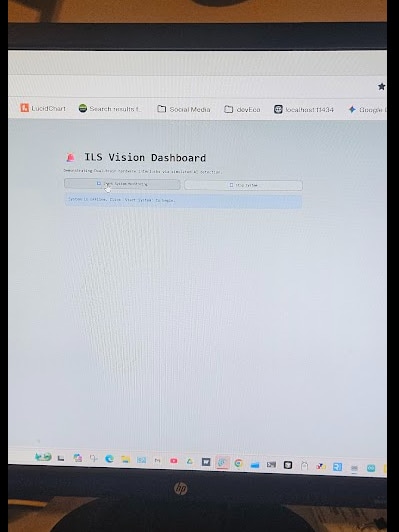
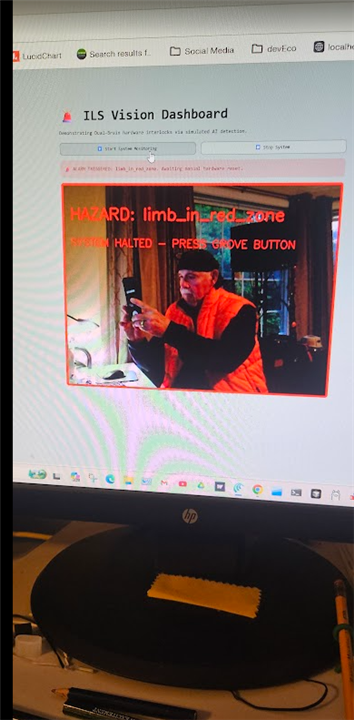 Streamlit web dashboard
the camera capturing the Red Zone, which for this demonstration is my keyboard 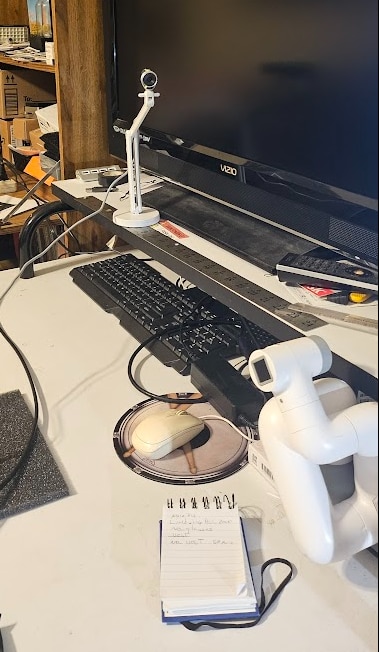
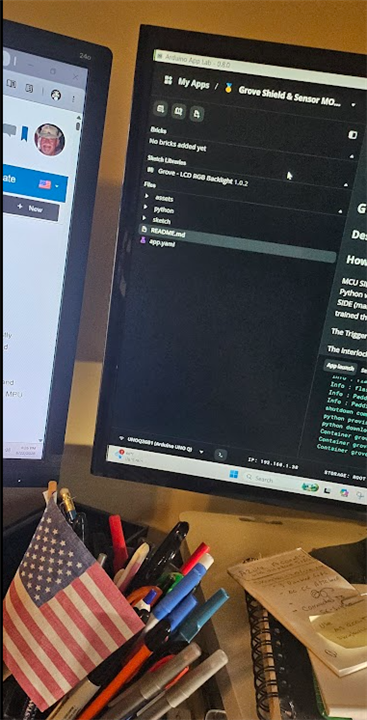
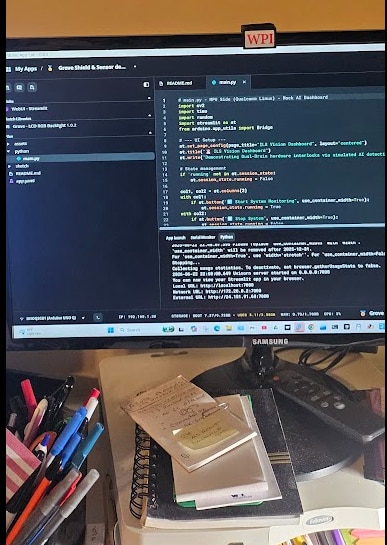 App Lab showing the firmware project
NEXT
Now that the firmware is working, I can proceed to Phase 3: Telemetry, Synchronization & LabVIEW Dashboard
Here is my implementation plan for the rest of the project
Phase 3: Telemetry, Synchronization & LabVIEW Dashboard
Objective: Combine the real-time MCU sensor data and Linux MPU vision data, package it logically, and stream it to an operator interface.
Step 5: Payload Formatting & MQTT Integration
- Data Fusion: In main.py, combine the RPC sensor data (Bridge.call()) and the local vision inference data into a single Python dictionary.
- JSON Formatting: Attach a UNIX timestamp to the data and format it into a JSON payload.
- Example: {"timestamp": 168493021, "vision": {"defect_count": 2}, "sensors": {"temp": 24.5}}
- MQTT Publisher: Use a Python library like paho-mqtt inside main.py to publish this fused JSON payload at a fixed frequency to an MQTT broker.
Step 6: LabVIEW Dashboard Construction
- Environment Setup: Install necessary LabVIEW Add-ons (e.g., NI MQTT Toolkit, JSON Parsing VIs).
- Front Panel UI: Design an industrial-grade interface using gauges for Grove telemetry and highly visible Boolean/String indicators for Vision Model defect flags.
- Block Diagram Backend: Set up an MQTT Client loop to subscribe to your telemetry topic. Parse the incoming JSON to break out the variables into local LabVIEW wires.
Phase 4: Validation & Final Deliverables
Objective: Prove system resilience under load and document the project for the challenge submission.
Step 7: System Hardening & Auto-Start
- Standalone Mode Setup: Verify that App Lab automatically runs your App when the board boots up (which is the default behavior in SBC/Standalone mode).
- Stress Test: Launch the complete App. Monitor the console in App Lab for any dropped frames or RPC communication timeouts between the MCU and MPU.
Step 8: Documentation & Video Demonstration
- Code Sharing: Clean up sketch.ino and main.py, add comments, and push the project to a public GitHub repository. Include a wiring diagram.
- Recording: Shoot B-roll of the UNO Q and camera. Record a side-by-side screen capture showing the physical camera view and the LabVIEW dashboard reacting instantly to events.
- Final Edit: Combine assets into a comprehensive video demonstrating the Industrial Line Sentinel in full operation.
Top Comments