element14 Community
element14 Community
    Register Log In
  • Site
  • Search
  • Log In Register
  • Community Hub
    Community Hub
    • What's New on element14
    • Feedback and Support
    • Benefits of Membership
    • Personal Blogs
    • Members Area
    • Achievement Levels
  • Learn
    Learn
    • Ask an Expert
    • eBooks
    • element14 presents
    • Learning Center
    • Tech Spotlight
    • STEM Academy
    • Webinars, Training and Events
    • Learning Groups
  • Technologies
    Technologies
    • 3D Printing
    • FPGA
    • Industrial Automation
    • Internet of Things
    • Power & Energy
    • Sensors
    • Technology Groups
  • Challenges & Projects
    Challenges & Projects
    • Design Challenges
    • element14 presents Projects
    • Project14
    • Arduino Projects
    • Raspberry Pi Projects
    • Project Groups
  • Products
    Products
    • Arduino
    • Avnet & Tria Boards Community
    • Dev Tools
    • Manufacturers
    • Multicomp Pro
    • Product Groups
    • Raspberry Pi
    • RoadTests & Reviews
  • About Us
  • Store
    Store
    • Visit Your Store
    • Choose another store...
      • Europe
      •  Austria (German)
      •  Belgium (Dutch, French)
      •  Bulgaria (Bulgarian)
      •  Czech Republic (Czech)
      •  Denmark (Danish)
      •  Estonia (Estonian)
      •  Finland (Finnish)
      •  France (French)
      •  Germany (German)
      •  Hungary (Hungarian)
      •  Ireland
      •  Israel
      •  Italy (Italian)
      •  Latvia (Latvian)
      •  
      •  Lithuania (Lithuanian)
      •  Netherlands (Dutch)
      •  Norway (Norwegian)
      •  Poland (Polish)
      •  Portugal (Portuguese)
      •  Romania (Romanian)
      •  Russia (Russian)
      •  Slovakia (Slovak)
      •  Slovenia (Slovenian)
      •  Spain (Spanish)
      •  Sweden (Swedish)
      •  Switzerland(German, French)
      •  Turkey (Turkish)
      •  United Kingdom
      • Asia Pacific
      •  Australia
      •  China
      •  Hong Kong
      •  India
      • Japan
      •  Korea (Korean)
      •  Malaysia
      •  New Zealand
      •  Philippines
      •  Singapore
      •  Taiwan
      •  Thailand (Thai)
      • Vietnam
      • Americas
      •  Brazil (Portuguese)
      •  Canada
      •  Mexico (Spanish)
      •  United States
      Can't find the country/region you're looking for? Visit our export site or find a local distributor.
  • Translate
  • Profile
  • Settings
Rocking Raspberry Pi
  • Challenges & Projects
  • Design Challenges
  • Rocking Raspberry Pi
  • More
  • Cancel
Rocking Raspberry Pi
Blog Rocking The Rocking Raspberry Pi Challenge.. Part 4 - Connecting to Wi-Fi and Playing YouTube Videos....
  • Blog
  • Forum
  • Documents
  • Files
  • Mentions
  • Sub-Groups
  • Tags
  • More
  • Cancel
  • New
  • Share
  • More
  • Cancel
Group Actions
  • Group RSS
  • More
  • Cancel
Engagement
  • Author Author: saurocksall
  • Date Created: 26 Feb 2014 7:25 PM Date Created
  • Views 1699 views
  • Likes 2 likes
  • Comments 10 comments
  • raspberrypi-wifi-setup
  • rpibeginner
  • rocking-the-rocking-raspberrypi-challenge
  • raspberrypi-flash-player
  • rockingraspberrypi
  • raspberry-pi
  • raspberrypi
  • youtube-on-raspbian
  • playing-youtube-videos-in-midori-browser
  • rocking_pi
Related
Recommended

Rocking The Rocking Raspberry Pi Challenge.. Part 4 - Connecting to Wi-Fi and Playing YouTube Videos....

saurocksall
saurocksall
26 Feb 2014

In this post I will be discussing about what I did this week and how I did it, what problems I faced and what I am going to do in the coming weeks... I will be sharing every thing with you guys, yes every thing !!!!


I received my Kit this week, Below is the unboxing video...


You don't have permission to edit metadata of this video.
Edit media
x
image
Upload Preview
image


After that the first thing that I did was to boot the Raspberry Pi, I chose Raspbian as The OS, it was easy as we were provided with a 8 GB SD card per-installed with NOOBS ( New Out Of the Box Software ).  But before installing the OS I copied the contents of the card in a folder in my PC, in case some thing horrible happens I wont have to Download 1.3 GB of software again, And I strongly recommend doing the same to all reading my posts...


Below Is the Installation Video...


You don't have permission to edit metadata of this video.
Edit media
x
image
Upload Preview
image


It takes allot of time for installation so be patient....


After that next thing I did was to configure The WiFi settings and connect to the internet, Wi-Pi is the USB WiFi dongle provided to us by Element14..


Here Is The Procedure to connect to your WiFi network...


1 ). On your Raspbian Desktop open The "WiFi config"...

         image


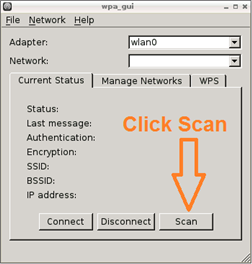
2 ). Now a window will appear named " wpa_gui ", in that window click scan...
 

        image

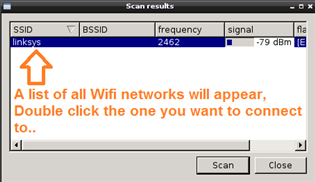
3 ). Now a new window will open named "scan results ", which will contain a list of all available WiFi networks, double click on the network you want to connect to..
 

       image

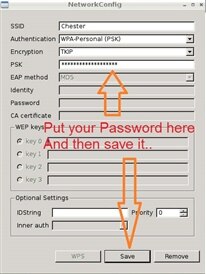
4 ). Now another window will open named "Network Config", in this window in "PSK" enter your WiFi password and click "save"....
        image


Now you are connected to the internet through WiFi, congrats !!!

You can double check that by going to the "Midori Browser"...


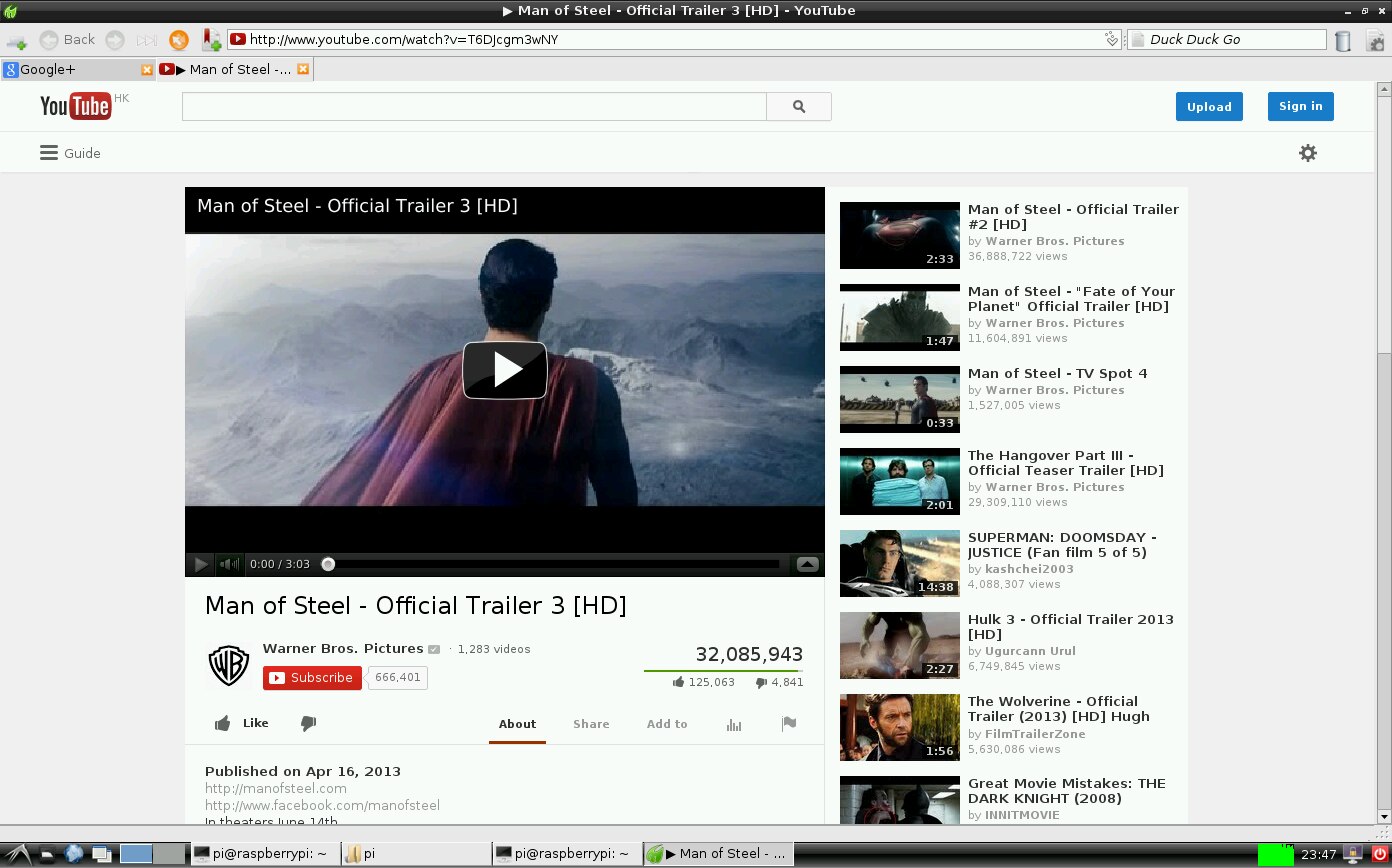
OK, the first thing I did after Raspberry Pi Got connected to WiFi was to Open The Midori Browser and went to YouTube and searched for Karaoke songs, i found many songs but when i tried to play one I found that I cannot as there is no flash player installed on RPi, so I had to down load one and install it, and now I am going to tell you how to down load and install it...


1 ). Open LXTerminal..


2 ). Type " sudo apt-get install gnash " in the LXTerminal and press Enter to run the command, ( gnash is a plugin for the browser and is a free and open-source alternative to Adobe Flash Player. which enables you to play Videos in Midori Browser ).


3 ). After some time it would ask you " ready to Unpack [Y/N] ? " or some thing like that, press " Y " and then press Enter.. By this the plugin will be installed, but still the     browser will not be able to recognize it, so now we will have to make the browser recognize the plugin. It takes allot of time for installation so be patient....


4 ) Now Type " sudo apt-get install browser-plugin-gnash " and press Enter to run the command and let the process finish, ( this command installs another plugin which enables the browser to see the Gnash plugin...)


5 ) You are done now, Now you can play YouTube Videos in Midori Browser, Congrats !!!


Before Installing Gnash :
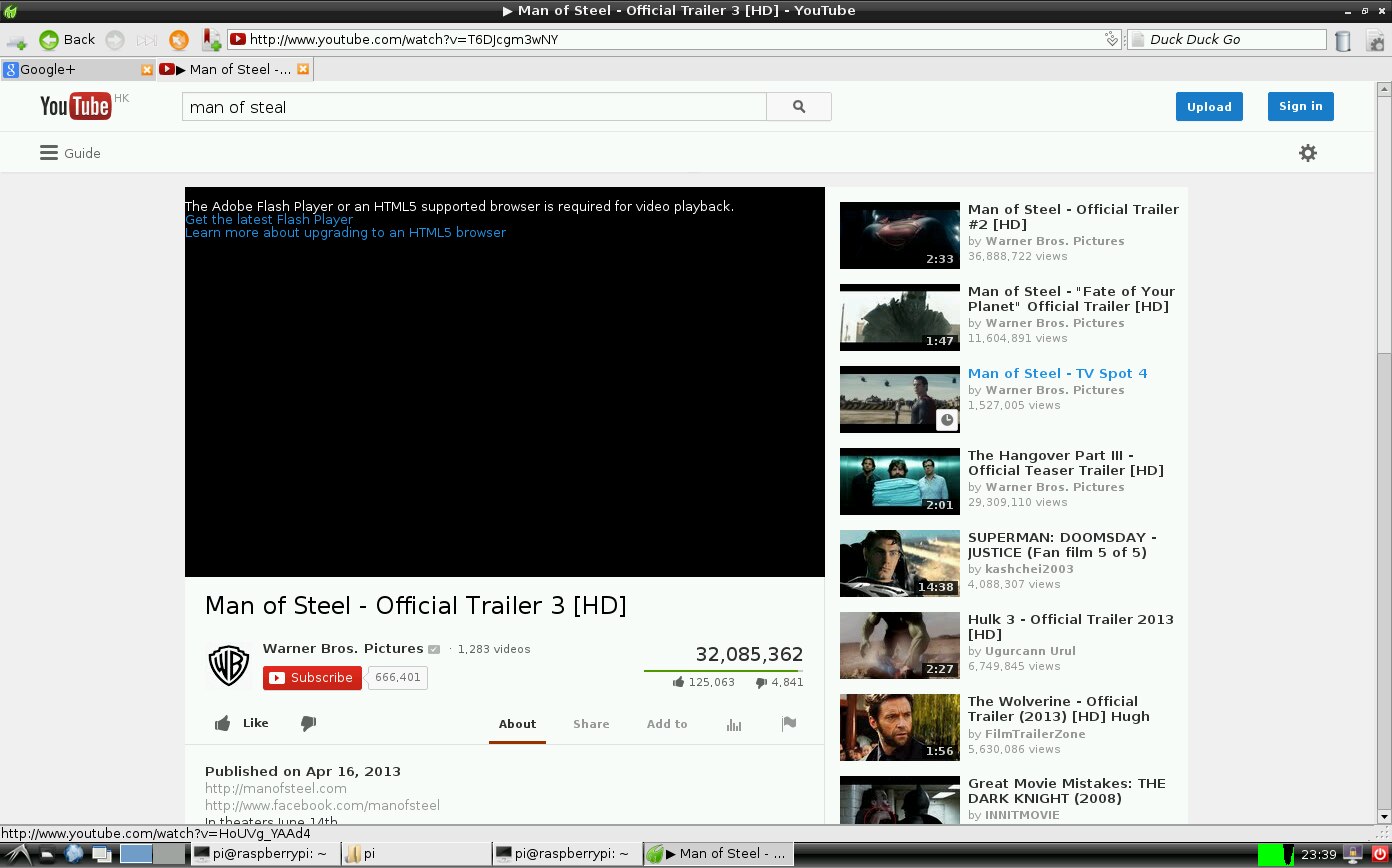
image


After Installing Gnash :


image


I think this much is enough for this post, in my next post I will discuss about some other things I Learned this week, and teach them to you as well....

  • Sign in to reply

Top Comments

  • Former Member
    Former Member over 11 years ago +1
    Very informative, thanks for sharing.....
  • Former Member
    Former Member over 11 years ago +1
    All your posts are very informative, kudos !
  • Former Member
    Former Member over 11 years ago +1
    I agree, its very useful for beginners.
Parents
  • Former Member
    Former Member over 11 years ago

    All your posts are very informative, kudos !

    • Cancel
    • Vote Up +1 Vote Down
    • Sign in to reply
    • More
    • Cancel
Comment
  • Former Member
    Former Member over 11 years ago

    All your posts are very informative, kudos !

    • Cancel
    • Vote Up +1 Vote Down
    • Sign in to reply
    • More
    • Cancel
Children
No Data
element14 Community

element14 is the first online community specifically for engineers. Connect with your peers and get expert answers to your questions.

  • Members
  • Learn
  • Technologies
  • Challenges & Projects
  • Products
  • Store
  • About Us
  • Feedback & Support
  • FAQs
  • Terms of Use
  • Privacy Policy
  • Legal and Copyright Notices
  • Sitemap
  • Cookies

An Avnet Company © 2025 Premier Farnell Limited. All Rights Reserved.

Premier Farnell Ltd, registered in England and Wales (no 00876412), registered office: Farnell House, Forge Lane, Leeds LS12 2NE.

ICP 备案号 10220084.

Follow element14

  • X
  • Facebook
  • linkedin
  • YouTube