


Abstract
The project proposed has a subsystem which can use the image processing capabilities of the RPi to get commands visually which can be transmitted to various devices over the network. In the previous post (http://www.element14.com/community/community/design-challenges/sci-fi-your-pi/blog/2015/05/16/project-virusweek-2-getting-started-with-opencv-and-rpi-camera) I started on how to install OpenCV and how to take a picture with the RPi Camera. In this tutorial, I will be going through the procedure of setting up video acquisition using Python, OpenCV and the RPI Camera
Why another tutorial
There are a number of tutorials on the subject of Capturing Video in Python however this series is focused on using OpenCV on the Raspberry Pi 2 and the RPi camera. For a beginner, it can be confusing to get existing example code to run using the RPi Camera since the basic functionality is a bit different. The RPi Camera is far more capable than an ordinary USB camera since we can control some functionality of the camera using some functions and code as we will see in this tutorial.
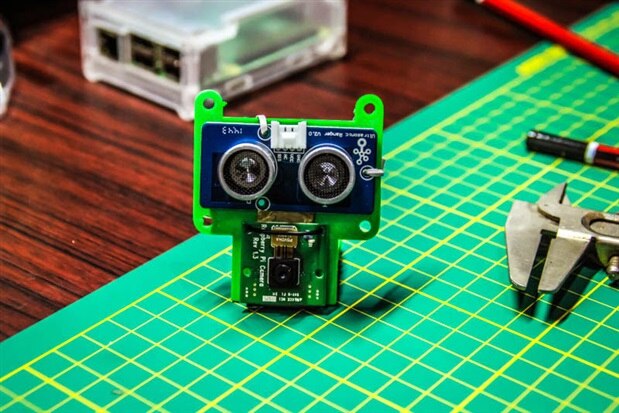
Pi Camera Python Module
In the previous post, we discussed the installation of OpenCV and the PiCamera Module. I will list out the most useful functions in the module and how to use them as follows:
1. capture(output, format=None, use_video_port=False, resize=None, splitter_port=0, **options)
In the above, the filename, output format, and image size can be configured.
2. capture_continuous(output, format=None, use_video_port=False, resize=None, splitter_port=0, burst=False, **options)
Used to capture a video stream with a specific format, and size
3. capture_sequence(outputs, format='jpeg', use_video_port=False, resize=None, splitter_port=0, burst=False, **options)
Used to capture a sequence of images for say a time lapse video?
4. record_sequence(outputs, format='h264', resize=None, splitter_port=1, **options)
Used to record a sequence of video clips of predefined length
5. awb_gains
Used to get or set the auto white balance gains. Useful when you are trying control the white balance in a scene
6. awb_mode
Used to get or set the Auto White balance mode. You can set it to ‘off if you face problems with image processing in a place.
7. brightness
Used to set the brightness manually.
8. contrast
Used to set the Contract Manually.
9. exposure_mode
Used to adjust the exposure mode of the camera.
10. meter_mode
Retrieves or sets the metering mode of the camera. Can be set to average, spot or matrix or backlight.
The complete list is available at (https://picamera.readthedocs.org/en/latest/api_camera.html#module-picamera.camera) but these are the ones I commonly use. Lets start by making a template for our OpenCV projects.
Pi Camera Template
Since OpenCV allows the option for image compression out of the box, you may be tempted to use it. It will save space if you are saving the images HOWEVER, jpeg is a lossy compression format AND it takes processing horsepower to compress and decompress it. Instead I would recommend capturing and processing raw images which is better in live streams. Here is the code...
# import the necessary packages
from picamera.array import PiRGBArray
from picamera import PiCamera
import time
import cv2

# initialize the camera and grab a reference to the raw camera capture
camera = PiCamera()
camera.resolution = (640, 480)
camera.framerate = 30
Capture = PiRGBArray(camera, size=(640, 480))

time.sleep(0.1)

# capture frames from the camera
for frame in camera.capture_continuous(Capture, format="bgr", use_video_port=True):
    image = frame.array

    # show the frame and do stuff to it here
    cv2.imshow("Frame", image)
    key = cv2.waitKey(1) & 0xFF

    # clear the stream in preparation for the next frame
    rawCapture.truncate(0)
    # if the `q` key was pressed, break from the loop
    if key == ord("q"):
        break
The code above is a good starting point for your OpenCV projects and I would use try and catch to allow cleanup. The alternative is to use ‘with’ statement which is explained here (https://www.python.org/dev/peps/pep-0343/) and is given in the (https://picamera.readthedocs.org/en/latest/recipes1.html)
import time
import picamera
import picamera.array
import cv2


with picamera.PiCamera() as camera:
    # camera.start_preview()
    camera.resolution=(640,480)
    camera.framerate=30
    time.sleep(2)
    with picamera.array.PiRGBArray(camera) as rawCapture:
        time.sleep(0.1)
        for frame in camera.capture_continuous(rawCapture, format='bgr', use_video_port=True):
            image=frame.array
            cv2.imshow("Video Feed", image)
            # Do Stuff here


            key=cv2.waitKey(1) & 0xff
            rawCapture.truncate(0)
            if key==ord("q"):
                break
I was able to get a decent output with this and if you know of a better method, please do let me know and I will update it.
Capture a timelapse
Calling all 3D printer people. This is something that you will like and I will be trying this out myself. The concept is to take a picture every few minutes if not seconds and then put them all together to for a video. This allows for a “Fast-Forward” view of the subject which may be a plant growing, ants building, sunrise and sunset or my favourite… a model being 3D printed. The script is simple as:
import time
import picamera


with picamera.PiCamera() as camera:
    camera.start_preview()
    time.sleep(2)
    for filename in camera.capture_continuous('img{counter:03d}.jpg'):
        print('Captured %s' % filename)
        time.sleep(300) # wait 5 minutes
That’s it! You can set various parameters like AWB and the duration between the images. I recommend copying this script in a folder and running it from there so that all the files are created in the folder only.
There are other stuff that you can do like stream the video over a network but my interest was only to capture and process.
Conclusion
I have presented a small segment of code that I hope will be useful to you all starting out. In the next episode, I will be showing you how to select objects in a live stream and then track them. See ya next time!
Top Comments