


Overview
The Wireless Electronic Fridge TAG
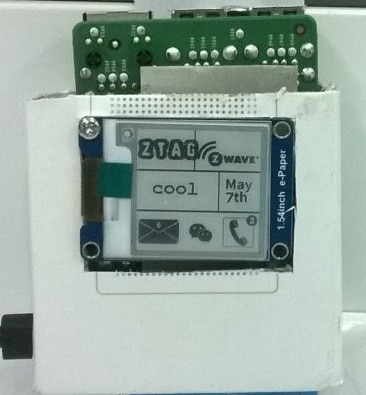
The idea is simple and a little playful: you type a message on your phone, and that message shows up on a small display stuck to the fridge with a magnet — no wires, no cloud account required to understand, just a clean end-to-end wireless link from pocket to kitchen.
What is IT
It's a short-range wireless display node:
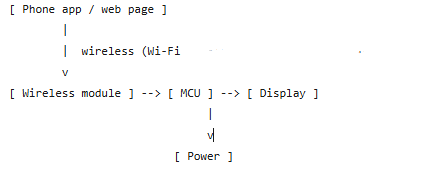
- The user enters text on a phone (app or web page)
- The text is sent over a wireless link to a small controller mounted behind a magnetic front panel.
- The controller drives a display so the message is visible at a glance on the fridge
That's the whole loop. What makes it a good project is that every layer is learnable: a radio/network
Hardware
- E-ink LED
- Raspberry Pi
- Phone APP with CORDOVA
Software
- CORDOVA part with html coding for pubsub service
<!DOCTYPE html>
<html>
<!--

-->
<head>

        <meta charset="utf-8" />
        <meta name="viewport" content="width=device-width, user-scalable=no
                initial-scale=1.0, minimum-scale=1.0, maximum-scale=1.0" />

        <title>eSticker</title>

        <style>
                [url=home.php?mod=space&uid=568594]@import[/url] 'ui/css/evothings-app.css';
        </style>


        <script src="cordova.js"></script>
        <script src="libs/jquery/jquery.js"></script>
        <script src="libs/evothings/evothings.js"></script>
        <script src="libs/evothings/ui/ui.js"></script>
        <script src="libs/evothings/arduinoble/arduinoble.js"></script>
        <script src="libs/pubnub.4.18.0.js"></script>
        <!-- or <script src="https://cdn.pubnub.com/sdk/javascript/pubnub.4.18.0.js"></script> -->


</head>

<body><!-- enables low-delay CSS transitions. -->

        <header>
                <button class="back">
                        <img src="./ui/images/arrow-left.svg" />
                </button>

                <img class="logotype"  src="./ui/images/logoesticker.png" alt="eSticker" />

                <!--<button class="menu"><img src="ui/images/menu.svg" /></button>-->
        </header>

        <h1>eSticker</h1>

        <p id="info">Initializing...</p>

<!--
         <button class="yellow wide">CONNECT</button>
         //New empty Keys
                 pubnub = new PubNub({
        publishKey: 'pub-c-218bb0fd-bdb4-45c6-a1c4-77d7674c8caf',
        subscribeKey: 'sub-c-383e74cc-d0e3-11e7-b07a-4e4fd9aca72d'
    })
-->

        <br />

        <input type="text" id="txtag" value="input text...">

        <button class="green wide big">Sent Text</button>

        <br />

        <button class="red wide big">Clear Text</button>

        <script>
        // Application object.
        var app = {}

        var pubnub = new PubNub({
        subscribeKey: 'sub-c-81c369ca-5ba6-11e7-a298-xxxxxxxxxxx', // always required
        publishKey: 'pub-c-6a7a7381-128c-4d9b-b3af-xxxxxxxxxxxxxx' // only required if publishing
    });

  // Function PublishMessage.
    function publishMessage(txMessage) {
        console.log("Since we're publishing on subscribe connectEvent, we're sure we'll receive the following publish.");
        var publishConfig = {
            channel : "flood_alarm_signal",
            message : txMessage
        }
        pubnub.publish(publishConfig, function(status, response) {
            console.log(status, response);
        })
    };


        // Connected device.
        app.device = null;
        var count=0;

        // Add listener and subscribing
    pubnub.addListener({
        status: function(statusEvent) {
            if (statusEvent.category === "PNConnectedCategory") {
                publishMessage("PNConnected!");
            }
        },
        message: function(message) {
            console.log("New Message!!", message);
            count=count+1;
            //app.showMessage(message.message);
            app.showMessage(message.message);
        },
        presence: function(presenceEvent) {
            // handle presence
        }
    });
   pubnub.subscribe({
        channels: ['flood_alarm_signal']
    });


        // Turn on LED.
        app.sentTX = function()
        {
                var txSent=new Uint8Array();
                txSent=document.getElementById('txtag').value;
                app.device && app.device.writeDataArray(new Uint8Array([txSent]), '19b10001-e8f2-537e-4f6c-d104768a1214');

                var txMessage = txSent;
                publishMessage(txMessage) ;

                //app.showMessage(txMessage.text);
        }

        // Turn off LED.
        app.clearTX = function()
        {
                document.getElementById('txtag').value = " ";
                app.device && app.device.writeDataArray(new Uint8Array([0]), '19b10001-e8f2-537e-4f6c-d104768a1214');
        }

        app.showMessage = function(info)
        {
                document.getElementById('info').innerHTML = info
        };

        // Called when BLE and other native functions are available.
        app.onDeviceReady = function()
        {
                app.showMessage('Touch the connect button to begin.');
        };

        app.connect = function()
        {
                evothings.arduinoble.close();

                app.showMessage('Connecting...');

                evothings.arduinoble.connect(
                        'TAG', // Advertised name of BLE device.
                        function(device)
                        {
                                app.device = device;
                                app.showMessage('Connected! Touch buttons to turn LED on/off.');
                        },
                        function(errorCode)
                        {
                                app.showMessage('Connect error: ' + errorCode + '.');
                        });
        };

        document.addEventListener(
                'deviceready',
                function() { evothings.scriptsLoaded(app.onDeviceReady) },
                false);
        </script>

</body>

</html>
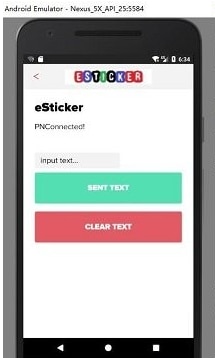
This is how it appears in ANDROID phone
- codes in python running on Raspberry Pi and driver for Waveshare E-link LCD
##
 #  @filename   :   main.cpp
 #  @brief      :   1.54inch e-paper display demo
 ##

import epd1in54
import time
import Image
import ImageDraw
import ImageFont

from pubnub.callbacks import SubscribeCallback
from pubnub.enums import PNStatusCategory
from pubnub.pnconfiguration import PNConfiguration
from pubnub.pubnub import PubNub
pnconfig = PNConfiguration()
pnconfig.subscribe_key = 'sub-c-81c369ca-5ba6-11e7-a298-xxxxxxxxxxxxxx'
pnconfig.publish_key = 'pub-c-xxxxxxxxxxxxxxxxxxxxxxxxxx'
pubnub = PubNub(pnconfig)


def main():
    epd = epd1in54.EPD()
    epd.init(epd.lut_full_update)
    image = Image.new('1', (epd1in54.EPD_WIDTH, epd1in54.EPD_HEIGHT), 255)  # 255: clear the frame
    draw = ImageDraw.Draw(image)
    font = ImageFont.truetype('/usr/share/fonts/truetype/freefont/FreeMonoBold.ttf', 24)
    draw.rectangle((0, 10, 200, 34), fill = 0)
    epd.clear_frame_memory(0xFF)
    epd.set_frame_memory(image, 0, 0)
    epd.display_frame()
    epd.delay_ms(2000)

    # for partial update
    epd.init(epd.lut_partial_update)
    image = Image.open('/home/pi/zTag/python/monocolor.bmp')
    epd.set_frame_memory(image, 0, 0)
    epd.display_frame()
    epd.set_frame_memory(image, 0, 0)
    epd.display_frame()

    time_image = Image.new('1', (96, 48), 255)  # 255: clear the frame
    draw = ImageDraw.Draw(time_image)
    font = ImageFont.truetype('/usr/share/fonts/truetype/freefont/FreeMonoBold.ttf', 32)
    image_width, image_height  = time_image.size

    def indisplay(txdata):
        draw.rectangle((0, 0, 96, 48), fill = 255)
        draw.text((0, 0), txdata, font = font, fill = 0)
        epd.set_frame_memory(time_image.rotate(90), 80, 80)
        epd.display_frame()

    # Pubnub start...
    def my_publish_callback(envelope, status):
      if not status.is_error():
        pass
      else:
        pass

    class MySubscribeCallback(SubscribeCallback):
      def presence(self, pubnub, presence):
        pass
      def status(self, pubnub, status):
        # print("Status category", status.category)
        if status.category == PNStatusCategory.PNUnexpectedDisconnectCategory:
            pass
        elif status.category == PNStatusCategory.PNConnectedCategory:
            pubnub.publish().channel("flood_alarm_signal").message("Hi...").async(my_publish_callback)
        elif status.category == PNStatusCategory.PNReconnectedCategory:
            pass
      def message(self, pubnub, message):
        txdata=message.message
        #jdata=json.dumps(txdata)
        print(txdata)
        indisplay(txdata)

    pubnub.add_listener(MySubscribeCallback())
    pubnub.subscribe().channels('flood_alarm_signal').execute()
- pubsub service behind the bar
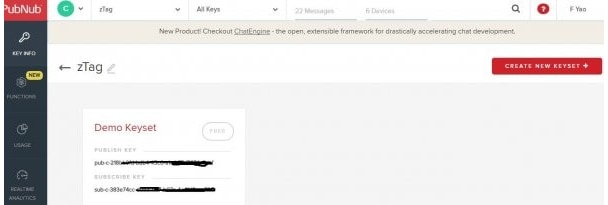
The API dey and registered service shall be use in the program both in mobile APP and raspberry PI part, as broker
RUNING the APP
- Start the app in raspberry PI
runing
python main.py
- Input text such as 'cool', it appears in phone app
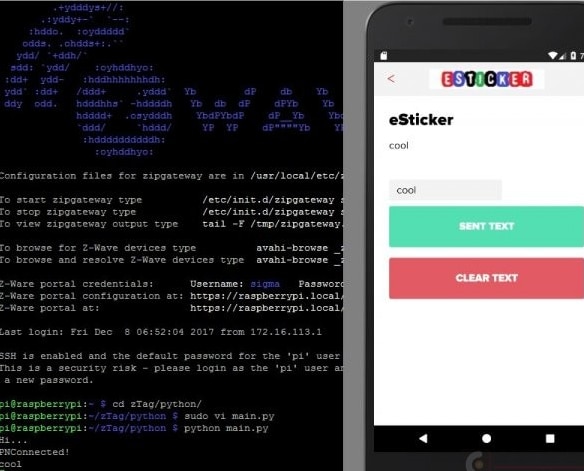
- On The Wireless Electronic Fridge Tag as well
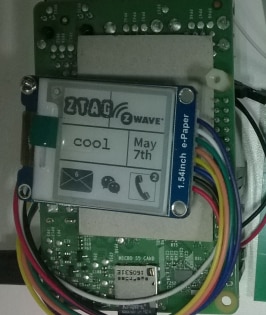
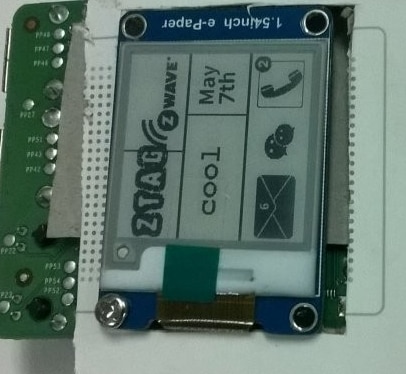
z-wave part is not passed in testing, but the UI still keep it
- put it into one case and stick magnet as back
 b--a----c----k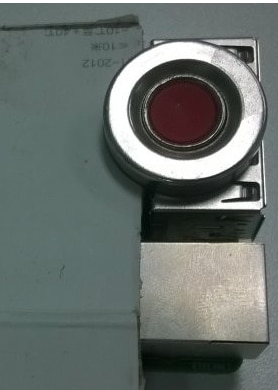
Summary
This is one demo project on how to delivery short message across different platform, in this case , mix wifi and bluetooth service together. Simple as it is, it is prototype for IoT service with Center MSG broker, ede view and remote control.