element14 Community
element14 Community
    Register Log In
  • Site
  • Search
  • Log In Register
  • Community Hub
    Community Hub
    • What's New on element14
    • Feedback and Support
    • Benefits of Membership
    • Personal Blogs
    • Members Area
    • Achievement Levels
  • Learn
    Learn
    • Ask an Expert
    • eBooks
    • element14 presents
    • Learning Center
    • Tech Spotlight
    • STEM Academy
    • Webinars, Training and Events
    • Learning Groups
  • Technologies
    Technologies
    • 3D Printing
    • FPGA
    • Industrial Automation
    • Internet of Things
    • Power & Energy
    • Sensors
    • Technology Groups
  • Challenges & Projects
    Challenges & Projects
    • Design Challenges
    • element14 presents Projects
    • Project14
    • Arduino Projects
    • Raspberry Pi Projects
    • Project Groups
  • Products
    Products
    • Arduino
    • Avnet & Tria Boards Community
    • Dev Tools
    • Manufacturers
    • Multicomp Pro
    • Product Groups
    • Raspberry Pi
    • RoadTests & Reviews
  • About Us
  • Store
    Store
    • Visit Your Store
    • Choose another store...
      • Europe
      •  Austria (German)
      •  Belgium (Dutch, French)
      •  Bulgaria (Bulgarian)
      •  Czech Republic (Czech)
      •  Denmark (Danish)
      •  Estonia (Estonian)
      •  Finland (Finnish)
      •  France (French)
      •  Germany (German)
      •  Hungary (Hungarian)
      •  Ireland
      •  Israel
      •  Italy (Italian)
      •  Latvia (Latvian)
      •  
      •  Lithuania (Lithuanian)
      •  Netherlands (Dutch)
      •  Norway (Norwegian)
      •  Poland (Polish)
      •  Portugal (Portuguese)
      •  Romania (Romanian)
      •  Russia (Russian)
      •  Slovakia (Slovak)
      •  Slovenia (Slovenian)
      •  Spain (Spanish)
      •  Sweden (Swedish)
      •  Switzerland(German, French)
      •  Turkey (Turkish)
      •  United Kingdom
      • Asia Pacific
      •  Australia
      •  China
      •  Hong Kong
      •  India
      • Japan
      •  Korea (Korean)
      •  Malaysia
      •  New Zealand
      •  Philippines
      •  Singapore
      •  Taiwan
      •  Thailand (Thai)
      • Vietnam
      • Americas
      •  Brazil (Portuguese)
      •  Canada
      •  Mexico (Spanish)
      •  United States
      Can't find the country/region you're looking for? Visit our export site or find a local distributor.
  • Translate
  • Profile
  • Settings
STEM Projects
  • Learn
  • Learning Center
  • STEM Academy
  • STEM Projects
  • More
  • Cancel
STEM Projects
Blog Exercise sheet sorter machine. Part3. Hands on.
  • Blog
  • Forum
  • Documents
  • Events
  • Polls
  • Files
  • Members
  • Mentions
  • Sub-Groups
  • Tags
  • More
  • Cancel
  • New
Join STEM Projects to participate - click to join for free!
  • Share
  • More
  • Cancel
Group Actions
  • Group RSS
  • More
  • Cancel
Engagement
  • Author Author: Anonymous-237891
  • Date Created: 26 Jul 2015 8:01 PM Date Created
  • Views 382 views
  • Likes 0 likes
  • Comments 0 comments
  • raspberry
  • computervision
  • raspicam
  • teachers_pet
  • opencv
  • raspberrypi
  • teachers pet robotics design challenge
  • camera
  • exercise_sheet_sorter
  • rapsberrycamera
  • hands-on
Related
Recommended

Exercise sheet sorter machine. Part3. Hands on.

Anonymous-237891
Anonymous-237891
26 Jul 2015

Finally there it is, my third post for the teacher pet contest.

It has been a while but I have been really busy and I had to wait for some stuff to come to be able to start working with my raspberry.


First of all I bought myself a external screen, which had HDMI input (yes the only other screens I have are VGA/DVI input only, and I didn't wanted to buy yet another adapter image )

For this post I will shorten Raspberry-pi by RPi, I hope that it won't offend anyone but it takes too much effort otherwise.

I have to say though, that I preferred the old S-video output on the old RPi than this 3-ways 3,5mm jack... which are unfortunately not that popular.


1)Downloading and setting up


For my first try at using a RPi I did it the easy way ! No crazy things going on here.

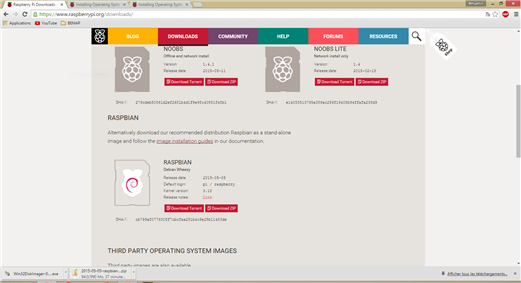
I first downloaded a fresh and clean image of raspbian

https://www.raspberrypi.org/downloads/
image

I am not sure what the NOOB concept is all about but a wasn't too exited about loosing time trying to figure out what this was.

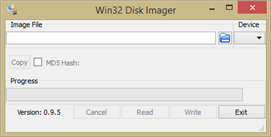
Then whith the little software linked on the page (Win32 Disk Imager download | SourceForge.net)
image

the process of making a bootable SD card for the raspberry was flawless, nothing to complain about.

Unfortunately I don't have any screen capture for the all rasp-config thing but it was all pretty easy.

Don't forget to expand the space to the whole SD card, otherwise you would have the bad surprise of finding that your total space on the pi is only 55.9 MB or so...

I also configured the keyboard to my old and trusty qwertz setup image and I enabled the use of the Rpi camera, which I will need later on for the project.


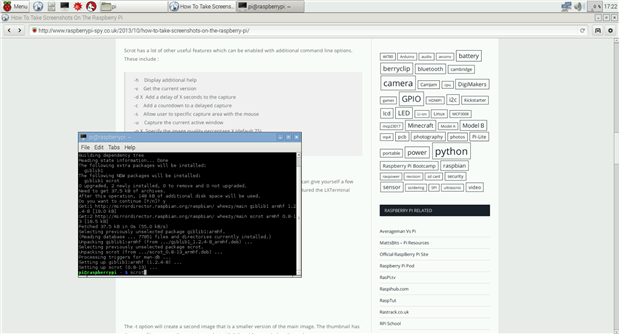
The first thing I needed was a way to take screenshots, so I searched for a few seconds and settled on using the utility package scrot.

sudo apt-get update
sudo apt-get upgrade
sudo apt-get install scrot
scrot

A few lines in the terminal later my first screenshot was here.
 

image


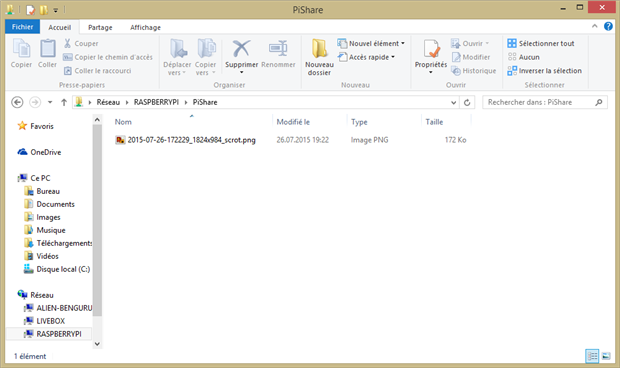
Then I needed a way to easily and quickly transfer screen shots and other files from my RPi to my windows PC (strangely the remote connection works right out of the box with my MacBook).

So I went and followed this nicely done tutorial How-To: Share a folder with a Windows computer from a Raspberry Pi | Raspberry Pi HQ
 

image

Having a shared folder on the raspberry will dramatically improve the productivity I will have to develop the project.


2)Getting the first video stream from the raspberry cam

Lets do some test with opencv and python first.

So after some search I found this little tutorial http://tothinkornottothink.com/post/59305587476/raspberry-pi-simplecv-opencv-raspicam-csi

Which appears to be really comprehensive http://tothinkornottothink.com/post/59305587476/raspberry-pi-simplecv-opencv-raspicam-csi

image

# import the necessary packages
from picamera.array import PiRGBArray
from picamera import PiCamera
import time
import cv2


# initialize the camera and grab a reference to the raw camera capture
camera = PiCamera()
camera.resolution = (640, 480)
camera.framerate = 32
rawCapture = PiRGBArray(camera, size=(640, 480))


# allow the camera to warmup
time.sleep(0.1)


# capture frames from the camera
for frame in camera.capture_continuous(rawCapture, format="bgr", use_video_port=True):
    # grab the raw NumPy array representing the image, then initialize the timestamp
    # and occupied/unoccupied text
    image = frame.array


    # show the frame
    cv2.imshow("Frame", image)
    key = cv2.waitKey(1) & 0xFF


    # clear the stream in preparation for the next frame
    rawCapture.truncate(0)


    # if the `q` key was pressed, break from the loop
    if key == ord("q"):
        break


This piece of code allowed me to see that everything was working properly and it is a big step foward.


Next time I will implement the color detection system image

See you then.

  • Sign in to reply
element14 Community

element14 is the first online community specifically for engineers. Connect with your peers and get expert answers to your questions.

  • Members
  • Learn
  • Technologies
  • Challenges & Projects
  • Products
  • Store
  • About Us
  • Feedback & Support
  • FAQs
  • Terms of Use
  • Privacy Policy
  • Legal and Copyright Notices
  • Sitemap
  • Cookies

An Avnet Company © 2025 Premier Farnell Limited. All Rights Reserved.

Premier Farnell Ltd, registered in England and Wales (no 00876412), registered office: Farnell House, Forge Lane, Leeds LS12 2NE.

ICP 备案号 10220084.

Follow element14

  • X
  • Facebook
  • linkedin
  • YouTube