


Good day comrades!
Today I want to present to you the final article of the series. As you probably remember, the last time I discovered a critical flaw in my Arduino Due - the DAC broke down. It is sad of course, but is that a reason to stop? Of course not! After all, I promised my readers to install RTC on the robot, and we are going to do it today.
However, before we proceed, we must mention one more thing: the fact is that in my [voting] an item on Matlab has won a lot of votes. In addition, Madhu Govindarajan personally asked me to devote to this issue a little more time. Well, I could not refuse.
Now, first things first.
1. A few days ago I got RTC DS1302, that I had ordered on ebay about a month ago. I tested them at the bench on which the Arduino Duemilanove was installed and found one problem: if I connect to the RTC the battery of autonomous power (well known CR2032 supplying 3.0v), the clock can only work at Vcc = 5.0v, while without this batteries it works successfully at 5.0v and at 3.3v as well. This is quite a serious problem, because the Arduino Due is powered by 3.3v. However, as it turned out, the chip line CLK, IO and RST perceive the control signal as a logical "1", if the voltage is greater than (Vcc - 2.0v), so I still managed to connect the chip to the robot:

2. As you can see, I took off robot's audio system, because with my existing Arduino Due playing music isn't still possible ...
3. Thus, the robot is assembled. What's next? Then, of course firmware! The algorithm of work of my program is as follows:
- read the first line of the config.txt file from SD-Card;
- determine at what time and day of the week the robot is to leave the "garage";
- determine what melody (or message), it must play at the same time;
- upon the occurrence of specified time a robot leaves the garage and plays a melody / message, and then (if necessary) some time later comes back and reads the second line of the file config.txt;
- the cycle is repeated as long as the config.txt file runs out of records.
4. Why all this? The answer is simple! I conduct classes 3 times a week (hereinafter provided "examples of lessons", really there are many more):
- Monday, 14:00 informatics;
- Tuesday, 10:20, programming;
- Thursday, 19:10, industrial automation.
Each session lasts 1:30, so the robot must:
- On Monday at 15:30 go out and announce the homework on informatics;
- On Tuesday at 11:50 go and announce the homework on programming;
- On Thursday at 17:00 go out and announce the homework on industrial automation.
This behavior of the robot will help me not to forget to stop in time (because I really like to linger!) and certainly amuse my students and get them to come to class next week (I hope).
The configuration file for the robot will be as follows:
15 30 00 2 informa.wav
11 50 00 3 program.wav
17 00 00 5 industr.wav
5. The configuration file seems to be simple, but why not to automate its generation? And to help us with it comes again Matlab!
6. I wrote a small program with a remarkable module called GUIDE. With it, I quickly created the program interface:

And then proceeded to write the code. As you know, the help system of Matlab - is the best in the world (at least all my friends-teachers think so) I did not have any problems.
function varargout = gui(varargin)
% GUI MATLAB code for gui.fig
%      GUI, by itself, creates a new GUI or raises the existing
%      singleton*.
%
%      H = GUI returns the handle to a new GUI or the handle to
%      the existing singleton*.
%
%      GUI('CALLBACK',hObject,eventData,handles,...) calls the local
%      function named CALLBACK in GUI.M with the given input arguments.
%
%      GUI('Property','Value',...) creates a new GUI or raises the
%      existing singleton*.  Starting from the left, property value pairs are
%      applied to the GUI before gui_OpeningFcn gets called.  An
%      unrecognized property name or invalid value makes property application
%      stop.  All inputs are passed to gui_OpeningFcn via varargin.
%
%      *See GUI Options on GUIDE's Tools menu.  Choose "GUI allows only one
%      instance to run (singleton)".
%
% See also: GUIDE, GUIDATA, GUIHANDLES

% Edit the above text to modify the response to help gui

% Last Modified by GUIDE v2.5 02-Sep-2015 19:09:48

% Begin initialization code - DO NOT EDIT
gui_Singleton = 1;
gui_State = struct('gui_Name',       mfilename, ...
                   'gui_Singleton',  gui_Singleton, ...
                   'gui_OpeningFcn', @gui_OpeningFcn, ...
                   'gui_OutputFcn',  @gui_OutputFcn, ...
                   'gui_LayoutFcn',  [] , ...
                   'gui_Callback',   []);
if nargin && ischar(varargin{1})
    gui_State.gui_Callback = str2func(varargin{1});
end

if nargout
    [varargout{1:nargout}] = gui_mainfcn(gui_State, varargin{:});
else
    gui_mainfcn(gui_State, varargin{:});
end
% End initialization code - DO NOT EDIT


% --- Executes just before gui is made visible.
function gui_OpeningFcn(hObject, eventdata, handles, varargin)
% This function has no output args, see OutputFcn.
% hObject    handle to figure
% eventdata  reserved - to be defined in a future version of MATLAB
% handles    structure with handles and user data (see GUIDATA)
% varargin   command line arguments to gui (see VARARGIN)

% Choose default command line output for gui
handles.output = hObject;
handles.txt = '';

% Update handles structure
guidata(hObject, handles);

% UIWAIT makes gui wait for user response (see UIRESUME)
% uiwait(handles.figure1);


% --- Outputs from this function are returned to the command line.
function varargout = gui_OutputFcn(hObject, eventdata, handles)
% varargout  cell array for returning output args (see VARARGOUT);
% hObject    handle to figure
% eventdata  reserved - to be defined in a future version of MATLAB
% handles    structure with handles and user data (see GUIDATA)

% Get default command line output from handles structure
varargout{1} = handles.output;


% --- Executes on button press in ok_box.
function ok_box_Callback(hObject, eventdata, handles)
% hObject    handle to ok_box (see GCBO)
% eventdata  reserved - to be defined in a future version of MATLAB
% handles    structure with handles and user data (see GUIDATA)

% Hint: get(hObject,'Value') returns toggle state of ok_box


function hour_box_Callback(hObject, eventdata, handles)
% hObject    handle to hour_box (see GCBO)
% eventdata  reserved - to be defined in a future version of MATLAB
% handles    structure with handles and user data (see GUIDATA)

% Hints: get(hObject,'String') returns contents of hour_box as text
%        str2double(get(hObject,'String')) returns contents of hour_box as a double


% --- Executes during object creation, after setting all properties.
function hour_box_CreateFcn(hObject, eventdata, handles)
% hObject    handle to hour_box (see GCBO)
% eventdata  reserved - to be defined in a future version of MATLAB
% handles    empty - handles not created until after all CreateFcns called

% Hint: edit controls usually have a white background on Windows.
%       See ISPC and COMPUTER.
if ispc && isequal(get(hObject,'BackgroundColor'), get(0,'defaultUicontrolBackgroundColor'))
    set(hObject,'BackgroundColor','white');
end


function minute_box_Callback(hObject, eventdata, handles)
% hObject    handle to minute_box (see GCBO)
% eventdata  reserved - to be defined in a future version of MATLAB
% handles    structure with handles and user data (see GUIDATA)

% Hints: get(hObject,'String') returns contents of minute_box as text
%        str2double(get(hObject,'String')) returns contents of minute_box as a double


% --- Executes during object creation, after setting all properties.
function minute_box_CreateFcn(hObject, eventdata, handles)
% hObject    handle to minute_box (see GCBO)
% eventdata  reserved - to be defined in a future version of MATLAB
% handles    empty - handles not created until after all CreateFcns called

% Hint: edit controls usually have a white background on Windows.
%       See ISPC and COMPUTER.
if ispc && isequal(get(hObject,'BackgroundColor'), get(0,'defaultUicontrolBackgroundColor'))
    set(hObject,'BackgroundColor','white');
end


function second_box_Callback(hObject, eventdata, handles)
% hObject    handle to second_box (see GCBO)
% eventdata  reserved - to be defined in a future version of MATLAB
% handles    structure with handles and user data (see GUIDATA)

% Hints: get(hObject,'String') returns contents of second_box as text
%        str2double(get(hObject,'String')) returns contents of second_box as a double


% --- Executes during object creation, after setting all properties.
function second_box_CreateFcn(hObject, eventdata, handles)
% hObject    handle to second_box (see GCBO)
% eventdata  reserved - to be defined in a future version of MATLAB
% handles    empty - handles not created until after all CreateFcns called

% Hint: edit controls usually have a white background on Windows.
%       See ISPC and COMPUTER.
if ispc && isequal(get(hObject,'BackgroundColor'), get(0,'defaultUicontrolBackgroundColor'))
    set(hObject,'BackgroundColor','white');
end


% --- Executes on selection change in day_list.
function day_list_Callback(hObject, eventdata, handles)
% hObject    handle to day_list (see GCBO)
% eventdata  reserved - to be defined in a future version of MATLAB
% handles    structure with handles and user data (see GUIDATA)

% Hints: contents = cellstr(get(hObject,'String')) returns day_list contents as cell array
%        contents{get(hObject,'Value')} returns selected item from day_list


% --- Executes during object creation, after setting all properties.
function day_list_CreateFcn(hObject, eventdata, handles)
% hObject    handle to day_list (see GCBO)
% eventdata  reserved - to be defined in a future version of MATLAB
% handles    empty - handles not created until after all CreateFcns called

% Hint: popupmenu controls usually have a white background on Windows.
%       See ISPC and COMPUTER.
if ispc && isequal(get(hObject,'BackgroundColor'), get(0,'defaultUicontrolBackgroundColor'))
    set(hObject,'BackgroundColor','white');
end


% --- Executes on button press in add_button.
function add_button_Callback(hObject, eventdata, handles)
% hObject    handle to add_button (see GCBO)
% eventdata  reserved - to be defined in a future version of MATLAB
% handles    structure with handles and user data (see GUIDATA)

day     = findobj('Tag','day_list');
second  = findobj('Tag','second_box');
minute  = findobj('Tag','minute_box');
hour    = findobj('Tag','hour_box');
ok      = findobj('Tag','ok_box');
melody  = findobj('Tag','filename_box');
strings = findobj('Tag','total_box');

len  = length(get(melody, 'String'));
if len ~= 11
    msgbox({'Melody name length'; 'must be equal 11'},  'Error!', 'error')
    return;
end

s = str2num(get(strings,'String'));
set(strings, 'String', num2str(s+1));
set(ok,'Enable', 'Off');

save_button = findobj('Tag','save_button');
set(save_button,'Enable', 'On');

day     = num2str(get(day, 'Value'));
ok      = get(ok,  'Value');
melody  = get(melody, 'String');
second  = strcat('0', get(second, 'String'));
minute  = strcat('0', get(minute, 'String'));
hour    = strcat('0', get(hour,   'String'));

second = second(end-1:end);
minute = minute(end-1:end);
hour   = hour(end-1:end);


main_string = [hour, ' ', minute, ' ', second, ' ', day];
if ok
    main_string = [main_string, ' ', melody];
end
handles.txt = [handles.txt; main_string];
guidata(hObject,handles);


% --- Executes on button press in save_button.
function save_button_Callback(hObject, eventdata, handles)
% hObject    handle to save_button (see GCBO)
% eventdata  reserved - to be defined in a future version of MATLAB
% handles    structure with handles and user data (see GUIDATA)

text = handles.txt;

[FileName,PathName] = uiputfile('*.txt','Save Config','config.txt');

if FileName ~= 0
    FileName = [PathName FileName];
    id = fopen(FileName,'w');
    for i=1:length(text(1:end,1))
        fprintf(id, '%s', text(i,1:end));
        if i < length(text(1:end,1))
            fprintf(id, '\n');
        end
    end
    fclose(id);
end


function filename_box_Callback(hObject, eventdata, handles)
% hObject    handle to filename_box (see GCBO)
% eventdata  reserved - to be defined in a future version of MATLAB
% handles    structure with handles and user data (see GUIDATA)

% Hints: get(hObject,'String') returns contents of filename_box as text
%        str2double(get(hObject,'String')) returns contents of filename_box as a double


% --- Executes during object creation, after setting all properties.
function filename_box_CreateFcn(hObject, eventdata, handles)
% hObject    handle to filename_box (see GCBO)
% eventdata  reserved - to be defined in a future version of MATLAB
% handles    empty - handles not created until after all CreateFcns called

% Hint: edit controls usually have a white background on Windows.
%       See ISPC and COMPUTER.
if ispc && isequal(get(hObject,'BackgroundColor'), get(0,'defaultUicontrolBackgroundColor'))
    set(hObject,'BackgroundColor','white');
end

function total_box_Callback(hObject, eventdata, handles)
% hObject    handle to total_box (see GCBO)
% eventdata  reserved - to be defined in a future version of MATLAB
% handles    structure with handles and user data (see GUIDATA)

% Hints: get(hObject,'String') returns contents of total_box as text
%        str2double(get(hObject,'String')) returns contents of total_box as a double

% --- Executes during object creation, after setting all properties.
function total_box_CreateFcn(hObject, eventdata, handles)
% hObject    handle to total_box (see GCBO)
% eventdata  reserved - to be defined in a future version of MATLAB
% handles    empty - handles not created until after all CreateFcns called

% Hint: edit controls usually have a white background on Windows.
%       See ISPC and COMPUTER.
if ispc && isequal(get(hObject,'BackgroundColor'), get(0,'defaultUicontrolBackgroundColor'))
    set(hObject,'BackgroundColor','white');
end


% --- Executes on button press in clear_button.
function clear_button_Callback(hObject, eventdata, handles)
% hObject    handle to clear_button (see GCBO)
% eventdata  reserved - to be defined in a future version of MATLAB
% handles    structure with handles and user data (see GUIDATA)

handles.txt = '';
guidata(hObject,handles);

strings = findobj('Tag','total_box');
set(strings, 'String', '0');

ok = findobj('Tag','ok_box');
set(ok,'Enable', 'On');

save_button = findobj('Tag','save_button');
set(save_button,'Enable', 'Off');


% --- Executes on key press with focus on clear_button and none of its controls.
function clear_button_KeyPressFcn(hObject, eventdata, handles)
% hObject    handle to clear_button (see GCBO)
% eventdata  structure with the following fields (see MATLAB.UI.CONTROL.UICONTROL)
%    Key: name of the key that was pressed, in lower case
%    Character: character interpretation of the key(s) that was pressed
%    Modifier: name(s) of the modifier key(s) (i.e., control, shift) pressed
% handles    structure with handles and user data (see GUIDATA)

function add_button_KeyPressFcn(hObject, eventdata, handles)
% hObject    handle to clear_button (see GCBO)
% eventdata  structure with the following fields (see MATLAB.UI.CONTROL.UICONTROL)
%    Key: name of the key that was pressed, in lower case
%    Character: character interpretation of the key(s) that was pressed
%    Modifier: name(s) of the modifier key(s) (i.e., control, shift) pressed
% handles    structure with handles and user data (see GUIDATA)
If you wish, you can download the source code from my file archive: [program]
7. So, let's see how it all works. First, let's create a configuration file:
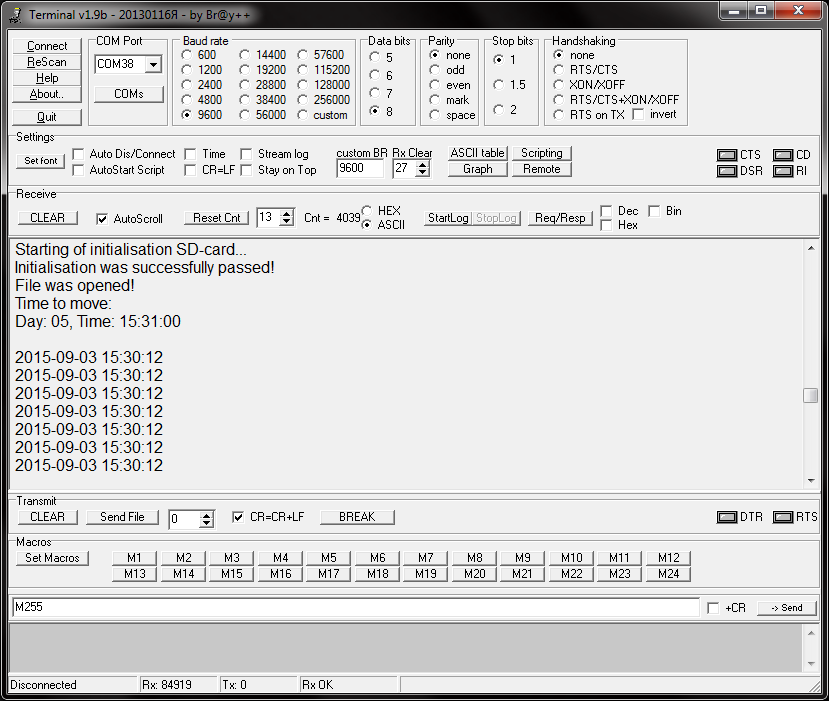
Now let's see how the robot responds to the attainment of a timestamp. As always, not without a small incident: I set the time on the robot according to my wristwatches, which turned out to be ahead of the "normal" time by 12 seconds:
If you're interested, here's Log recorded from the robot during tests:
8. Conclusion: Well, comrades, I can now say with a pure heart, that the project is finally finished! I have held all the promises given to the community. This project brought me a great pleasure, but we need to look to the future - I already have new ideas and if I'm invited to the next RoadTest, I'm sure they will be implemented!
Thank you very much and see you soon in the next contest 
Top Comments