


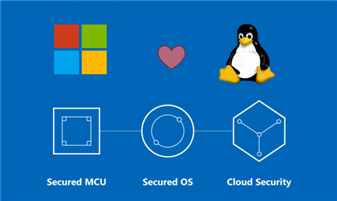
Starting in preview release of 19.11, the Azure Sphere SDK started supporting Linux as a development platform. In release 20.01 (the latest to occur), this support is available and I thought it may be helpful to provide an overview of how to migrate some existing projects—specifically my clickboard projects—to this latest SDK release, build them using CMAKE and then run/debug using Ubuntu Linux. All the Click-board demos have been updated to build with CMAKE and the original Microsoft instructions for setting up the SDK are located here.
Getting Started
I am using Ubuntu 18.04.4 LTS while working with the SDK and in addition to the SDK itself, you also need to have net-tools, curl, ninja-build, and cmake installed:
sudo apt-get install net-tools curl ninja-build cmake
Overall, installing the Azure Sphere SDK is pretty straight forward, simply download the script file that Microsoft provides here, make the downloaded file executable (chmod +x install_azure_sphere_sdk.sh) and run it. I also found it helpful to install the Microsoft Azure Sphere GiutHub Project which provides several sample projects that include sample projects using CMAKE.
Lastly, clone the clickboard_demos repository to pull in the Click Board demo projects.
git clone --recurse https://github.com/Avnet/clickboad_demos clickboard_demos2
Be sure you include the ‘--recurse’ flag so that you pull in the clickmodules repository. This repository contains ALL the clickboard library code. The RELAY CLICK demo is one of the simpler demos to use for discussing the steps necessary to get it working with CMAKE in a Linux environment, but if you want to use a different clickboard project in the clickboard_demos repository, the steps for building, loading, and debugging are all similar.
After the clickboard_demos has been cloned, you will have the following directory environment (highlighted directories contained modified/new contents):
├── ATTSK2
├── clickmodules
│ ├── AIRQUALITY5
│ ├── BAROMETER
│ ├── build
│ ├── build.sh
│ ├── clicklib.cmake
│ ├── CMakeLists.txt
│ ├── FLAME
│ ├── HEARTRATE4
│ ├── LCDMINI
│ ├── LICENSE
│ ├── LIGHTRANGER
│ ├── LSM6DSL
│ ├── OLED-B
│ ├── README.md
│ ├── RELAY
│ ├── TEMP_HUM
│ └── UART_I2CSPI
├── K64F
├── LICENSE
├── README.md
├── SPHERE_MT3620
│ ├── AES-MS-MT3620-SK-G_SCH.PDF
│ ├── AirQuality5_demo
│ ├── click_demo
│ ├── flame_demo
│ ├── Hardware
│ ├── hr4_demo
│ ├── LCDmini_demo
│ ├── lsm6dsm_demo
│ ├── relay_demo
│ └── tof_demo
└── ULTRA96
Navigate to the SPHERE_MT3620/RELAY directory and verify the following contents:
├── relay_demo
├── applibs_versions.h
├── app_manifest.json
├── build.sh
├── CMakeLists.txt
├── CMakeSettings.json
└── main.c
To build the image:
- Create a directory ‘build’. This is where compilation occurs and image files are stored.
- Copy the ‘build.sh’ script from the relay_demo directory into the 'build' directory. Once copied, ensure the script is marked as executable so it can be executed. The build script uses CMAKE to create the ninja-build system make files. Ninja-build is a build system that uses a higher-level build system (CMAKE) to create a script that it can then use to build a target as fast as possible. Microsoft is using this tool within their SDK CMAKE build system for all builds
- From within the 'build' directory, run the build.sh file:
~/clickboard_demos2/SPHERE_MT3620/relay_demo/build$ ./build.sh
 Not searching for unused variables given on the command line.
 -- The C compiler identification is GNU 8.2.0
 -- Check for working C compiler: /opt/azurespheresdk/Sysroots/4/tools/sysroots/x86_64-pokysdk-linux/usr/bin/arm-poky-linux-musleabi/arm-poky-linux-musleabi-gcc
 -- Check for working C compiler: /opt/azurespheresdk/Sysroots/4/tools/sysroots/x86_64-pokysdk-linux/usr/bin/arm-poky-linux-musleabi/arm-poky-linux-musleabi-gcc -- works
 -- Detecting C compiler ABI info
 -- Detecting C compiler ABI info - done
 -- Detecting C compile features
 -- Detecting C compile features - done
 -- Configuring done
 -- Generating done
 -- Build files have been written to: /home/jflynn/Avnet/SphereCMAKE/clickboard_demos2/SPHERE_MT3620/relay_demo/build
4. After build.sh has run, you can execute ‘ninja’ to generate the executable target:
clickboard_demos2/SPHERE_MT3620/relay_demo/build$ ninja
 [0/1] Re-running CMake...
 -- Configuring done
 -- Generating done
 -- Build files have been written to: /home/jflynn/Avnet/SphereCMAKE/clickboard_demos2/SPHERE_MT3620/relay_demo/build
 [5/5] Generating relay_demo.imagepackage
 Azure Sphere Utility version 20.1.6.56107
 Copyright (C) Microsoft Corporation. All rights reserved.

 Start time (UTC): Monday, 30 March 2020 14:43:34
 verbose: Creating image package.
 verbose: Azure Sphere application image package written.
 verbose: Appending metadata.
 verbose: Wrote metadata:
 Section: Identity
 Image Type:           Application
 Component ID: 3b468583-4290-44cd-a5cc-857419588546
 Image ID: 706fa3d6-5ac9-4bac-93da-9b0ec748ae67
 Section: Signature
 Signing Type:         ECDsa256
 Cert: a8d5cc6958f48710140d7a26160fc1cfc31f5df0
 Section: Debug
 Image Name:           relay_demo
 Built On (UTC):       3/30/20 2:43:35 PM
 Built On (Local):     3/30/20 10:43:35 AM
 Section: Temporary Image
 Remove image at boot: False
 Under development:    True
 Section: ABI Depends
 Depends on: ApplicationRuntime, version 4

 verbose: Packaging completed successfully.
 verbose: Output file is at: clickboard_demos2/SPHERE_MT3620/relay_demo/build/relay_demo.imagepackage
 Command completed in 00:00:00.5653461.
5. When the build is complete, run/debug the image package (relay_demo.imagepackage) by side loading it to the MT3620 hardware:
clickboard_demos2/SPHERE_MT3620/relay_demo/build$ azsphere device sideload deploy --imagepackage relay_demo.imagepackage
Deploying 'relay_demo.imagepackage' to the attached device.
Image package 'relay_demo.imagepackage' has been deployed to the attached device.
Note: when the application is side-loaded into the device, it automatically starts executing so the first step is to halt application execution so it can be re-started in debug mode, e.g.:
clickboard_demos2/SPHERE_MT3620/relay_demo/build$ azsphere device app stop
3b468583-4290-44cd-a5cc-857419588546: App state: stopped
clickboard_demos2/SPHERE_MT3620/relay_demo/build$ azsphere device app start --debug --componentid 3b468583-4290-44cd-a5cc-857419588546
3b468583-4290-44cd-a5cc-857419588546
App state : debugging
GDB port : 2345
Output port : 2342
Core : High-level
6. When the application starts in debug mode, the Port numbers for GDB and Output are provided. You then use these ports to monitor the application output using telnet and managed execution with GDB:
clickboard_demos2/SPHERE_MT3620/relay_demo/build$ telnet -a 192.168.35.2 2342
Trying 192.168.35.2...
Connected to 192.168.35.2.
Escape character is '^]'.
Starting debugger....
Process /mnt/apps/3b468583-4290-44cd-a5cc-857419588546/bin/app created; pid = 73
Listening on port 2345
In a separate terminal windows, start GDB (GDB is installed as part of the SDK), set the target, then continue execution of the application:
clickboard_demos2/SPHERE_MT3620/relay_demo$ /opt/azurespheresdk/Sysroots/4/tools/sysroots/x86_64-pokysdk-linux/usr/bin/arm-poky-linux-musleabi/arm-poky-linux-musleabi-gdb relay_demo.out
GNU gdb (GDB) 8.3
Copyright (C) 2019 Free Software Foundation, Inc.
License GPLv3+: GNU GPL version 3 or later <http://gnu.org/licenses/gpl.html>
This is free software: you are free to change and redistribute it.
There is NO WARRANTY, to the extent permitted by law.
Type "show copying" and "show warranty" for details.
This GDB was configured as "--host=x86_64-pokysdk-linux --target=arm-poky-linux-musleabi".
Type "show configuration" for configuration details.
For bug reporting instructions, please see:
<http://www.gnu.org/software/gdb/bugs/>.
Find the GDB manual and other documentation resources online at:
<http://www.gnu.org/software/gdb/documentation/>.
For help, type "help".
Type "apropos word" to search for commands related to "word"...
relay_demo.out: No such file or directory.
(gdb) target remote 192.168.35.2:2345 <= you have to tell GDB how to connect to the target using the 'target remote' command
Remote debugging using 192.168.35.2:2345
Reading /proc/67/exe from remote target...
warning: File transfers from remote targets can be slow. Use "set sysroot" to access files locally instead.
Reading /proc/67/exe from remote target...
Reading symbols from target:/proc/67/exe...
(No debugging symbols found in target:/proc/67/exe)
Reading /lib/ld-musl-armhf.so.1 from remote target...
Reading /lib/ld-musl-armhf.so.1 from remote target...
Reading symbols from target:/lib/ld-musl-armhf.so.1...
Reading /lib/libc.so from remote target...
Reading /lib/.debug/libc.so from remote target...
Reading /opt/exp23/2.6.2/sysroots/x86_64-pokysdk-linux/usr/lib/arm-poky-linux-musleabi/debug//lib/libc.so from remote target...
Reading /opt/exp23/2.6.2/sysroots/x86_64-pokysdk-linux/usr/lib/arm-poky-linux-musleabi/debug/lib//libc.so from remote target...
Reading target:/opt/exp23/2.6.2/sysroots/x86_64-pokysdk-linux/usr/lib/arm-poky-linux-musleabi/debug/lib//libc.so from remote target...
(No debugging symbols found in target:/lib/ld-musl-armhf.so.1)
0xbeebd758 in _dlstart () from target:/lib/ld-musl-armhf.so.1
(gdb) continue <= once the target is connected, you have to tell GDB to continue execution of the program
Continuing.
Reading /usr/lib/libapplibs.so.0 from remote target...
Reading /lib/libgcc_s.so.1 from remote target...
Reading /usr/lib/libc++runtime.so.1 from remote target...
Reading /usr/lib/libapplibs.so.0.1 from remote target...
Reading /usr/lib/.debug/libapplibs.so.0.1 from remote target...
Reading /opt/exp23/2.6.2/sysroots/x86_64-pokysdk-linux/usr/lib/arm-poky-linux-musleabi/debug//usr/lib/libapplibs.so.0.1 from remote target...
Reading /opt/exp23/2.6.2/sysroots/x86_64-pokysdk-linux/usr/lib/arm-poky-linux-musleabi/debug/usr/lib//libapplibs.so.0.1 from remote target...
Reading target:/opt/exp23/2.6.2/sysroots/x86_64-pokysdk-linux/usr/lib/arm-poky-linux-musleabi/debug/usr/lib//libapplibs.so.0.1 from remote target...
Reading /lib/.debug/libgcc_s.so.1 from remote target...
Reading /opt/exp23/2.6.2/sysroots/x86_64-pokysdk-linux/usr/lib/arm-poky-linux-musleabi/debug//lib/libgcc_s.so.1 from remote target...
Reading /opt/exp23/2.6.2/sysroots/x86_64-pokysdk-linux/usr/lib/arm-poky-linux-musleabi/debug/lib//libgcc_s.so.1 from remote target...
Reading target:/opt/exp23/2.6.2/sysroots/x86_64-pokysdk-linux/usr/lib/arm-poky-linux-musleabi/debug/lib//libgcc_s.so.1 from remote target...
Reading /usr/lib/.debug/libc++runtime.so.1 from remote target...
Reading /opt/exp23/2.6.2/sysroots/x86_64-pokysdk-linux/usr/lib/arm-poky-linux-musleabi/debug//usr/lib/libc++runtime.so.1 from remote target...
Reading /opt/exp23/2.6.2/sysroots/x86_64-pokysdk-linux/usr/lib/arm-poky-linux-musleabi/debug/usr/lib//libc++runtime.so.1 from remote target...
Reading target:/opt/exp23/2.6.2/sysroots/x86_64-pokysdk-linux/usr/lib/arm-poky-linux-musleabi/debug/usr/lib//libc++runtime.so.1 from remote target...
[Inferior 1 (process 67) exited normally]
(gdb)
7. After GDB is running, switch back to the telnet session and observe the output:
Starting debugger....
 Process /mnt/apps/3b468583-4290-44cd-a5cc-857419588546/bin/app created; pid = 67
 Listening on port 2345
 Remote debugging from host 192.168.35.1, port 50742


    ****
   **  **     SW reuse using C example
  **    **    for the Relay Click
 ** ==== **

 This demo simply alternates the relays through different
 states at a 1 second interval. This demo requires using Socket #1.
 (1) relay2 OFF, relay1 ON
 (2) relay2 ON, relay1 OFF
 (3) relay2 ON, relay1 ON
 (4) relay2 OFF, relay1 OFF
 (5) relay2 OFF, relay1 ON
 (6) relay2 ON, relay1 OFF
 (7) relay2 ON, relay1 ON
 (8) relay2 OFF, relay1 OFF
 (9) relay2 OFF, relay1 ON
 (10) relay2 ON, relay1 OFF
 (11) relay2 ON, relay1 ON
 (12) relay2 OFF, relay1 OFF
 (13) relay2 OFF, relay1 ON
 (14) relay2 ON, relay1 OFF
 (15) relay2 ON, relay1 ON
 (16) relay2 OFF, relay1 OFF
 (17) relay2 OFF, relay1 ON
 (18) relay2 ON, relay1 OFF
 (19) relay2 ON, relay1 ON
 (20) relay2 OFF, relay1 OFF
 (21) relay2 OFF, relay1 ON
 (22) relay2 ON, relay1 OFF
 (23) relay2 ON, relay1 ON
 (24) relay2 OFF, relay1 OFF
 (25) relay2 OFF, relay1 ON
 (26) relay2 ON, relay1 OFF
 (27) relay2 ON, relay1 ON
 (28) relay2 OFF, relay1 OFF
 (29) relay2 OFF, relay1 ON
 (30) relay2 ON, relay1 OFF
 relay2 OFF, relay1 oFF
 DONE...

 Child exited with status 0
 Connection closed by foreign host.
When the clickboard application runs, you hear the relays clicking and observe the associated LEDs cycling. It does this for approximately 30 seconds then terminates. Not terribly exciting, but it is a good example of controlling the clickboard hardware while using a Linux development environment with the Azure Sphere SDK.
In summary, the steps needed to port the relay_demo project to SDK v20.01 involve:
- Update the project to utilize an Hardware Abstraction layer. This abstraction layer is contained in the ‘Hardware’ directory within the SPHERE_MT3620 directory. It holds the hardware definitions for all the hardware platforms that the Sphere SDK supports. In the case of this project, the relay app uses the generic mt3620_rdb definitions (which work find with the Avnet Starter Kit), see the CMakeSettings.json file, lines 6 and 7.
- Add the clickmodules library to the CMakeLists.txt file. This involves adding a command to define the location of the clickmodules library (line 8), including the clickmodule library (line 9), and adding the click library to the TARGET_LINK_LIBRARIES (line 13).
- Update the app_manafest.json file so all the interface definitions are defined using the Abstracted Hardware names. For example, relay_demo uses GPIO 1 and 35. Previously this was defined as "Gpio": [1,35] but with the hardware abstraction we have to define the GPIO interfaces as "Gpio": [ "$MT3620_GPIO1", "$MT3620_GPIO35"]. This allows the various Sphere Hardware platforms to reference the correct GPIO’s even if they are not strictly defined as pin 1 and pin 35.
- The build.sh file captures the defines and commands needed to create the ninja-build file (build.ninja) and is fairly straight forward, one item worth highlighting is that the SDK API version is defined in this script file, -DAZURE_SPHERE_TARGET_API_SET='4', and as new API versions are relased, this version will need to be updated.
Summary
Hopefully, this quick overview and the associated reference code helps others use the updated Azure Sphere SDK in a Linux environment. The mix of Click Modules used in the demo projects provides a variety of interface examples--SPI, I2C, UART, GPIO--so as you integrate additional Click Boards into your projects, you should be able to find an interface demo to use as a reference. As always, please leave some feedback on the usefulness and coverage provided by this blog; I'm always looking for subjects to discuss and appreciate everyone's feedback.


