element14 Community
element14 Community
    Register Log In
  • Site
  • Search
  • Log In Register
  • Community Hub
    Community Hub
    • What's New on element14
    • Feedback and Support
    • Benefits of Membership
    • Personal Blogs
    • Members Area
    • Achievement Levels
  • Learn
    Learn
    • Ask an Expert
    • eBooks
    • element14 presents
    • Learning Center
    • Tech Spotlight
    • STEM Academy
    • Webinars, Training and Events
    • Learning Groups
  • Technologies
    Technologies
    • 3D Printing
    • FPGA
    • Industrial Automation
    • Internet of Things
    • Power & Energy
    • Sensors
    • Technology Groups
  • Challenges & Projects
    Challenges & Projects
    • Design Challenges
    • element14 presents Projects
    • Project14
    • Arduino Projects
    • Raspberry Pi Projects
    • Project Groups
  • Products
    Products
    • Arduino
    • Avnet & Tria Boards Community
    • Dev Tools
    • Manufacturers
    • Multicomp Pro
    • Product Groups
    • Raspberry Pi
    • RoadTests & Reviews
  • About Us
    About the element14 Community
  • Store
    Store
    • Visit Your Store
    • Choose another store...
      • Europe
      •  Austria (German)
      •  Belgium (Dutch, French)
      •  Bulgaria (Bulgarian)
      •  Czech Republic (Czech)
      •  Denmark (Danish)
      •  Estonia (Estonian)
      •  Finland (Finnish)
      •  France (French)
      •  Germany (German)
      •  Hungary (Hungarian)
      •  Ireland
      •  Israel
      •  Italy (Italian)
      •  Latvia (Latvian)
      •  
      •  Lithuania (Lithuanian)
      •  Netherlands (Dutch)
      •  Norway (Norwegian)
      •  Poland (Polish)
      •  Portugal (Portuguese)
      •  Romania (Romanian)
      •  Russia (Russian)
      •  Slovakia (Slovak)
      •  Slovenia (Slovenian)
      •  Spain (Spanish)
      •  Sweden (Swedish)
      •  Switzerland(German, French)
      •  Turkey (Turkish)
      •  United Kingdom
      • Asia Pacific
      •  Australia
      •  China
      •  Hong Kong
      •  India
      •  Japan
      •  Korea (Korean)
      •  Malaysia
      •  New Zealand
      •  Philippines
      •  Singapore
      •  Taiwan
      •  Thailand (Thai)
      •  Vietnam
      • Americas
      •  Brazil (Portuguese)
      •  Canada
      •  Mexico (Spanish)
      •  United States
      Can't find the country/region you're looking for? Visit our export site or find a local distributor.
  • Translate
  • Profile
  • Settings
Arduino
  • Products
  • More
Arduino
Arduino Forum How do I add a Liquid Crystal Display to my current project
  • Blog
  • Forum
  • Documents
  • Quiz
  • Events
  • Polls
  • Files
  • Members
  • Mentions
  • Sub-Groups
  • Tags
  • More
  • Cancel
  • New
Join Arduino to participate - click to join for free!
Actions
  • Share
  • More
  • Cancel
Forum Thread Details
  • State Verified Answer
  • Replies 37 replies
  • Answers 2 answers
  • Subscribers 410 subscribers
  • Views 4143 views
  • Users 0 members are here
  • x
  • 1
  • lcd_display
  • arduino
  • 16
Related

How do I add a Liquid Crystal Display to my current project

Former Member
Former Member over 12 years ago

Hello,


I recently completed, with some assistance from Coder27, Bill Abbot, Tony, and Mark Beckett the first part of my project ( http://www.element14.com/community/thread/23967?start=0&tstart=0 )

Now the second part - I am wanting to add a small 16 x 1 LCD to finish up my project (see coding below that I will be using)

I would like the LCD to simply show which direction a servo is pointing (as in degrees, such as 0°, 90°, 180°, 270°, or 360° or anywhere in between 0° to 360°)

Please be advised: I do know that arduino 1.0.4 has the LCD Scroll example, but I am sure I dont need the entire code they have.  Also, my LCD is only 16 x 1, not x 2.

Thanks,

~Anna


******** BEGINNING OF CODE *************

#include <Servo.h>


const int pan1 = 3;     // first servo

const int tilt1 = 5;    // second servo

const int pan2 = 9;     // third servo

const int tilt2 = 11;    // fourth servo


const int potpan1 = A0; // Joystick 1 Vertical signal

int val0;

const int pottilt1 = A1;   // Joystick 1 Horizontal signal

int val1;

const int potpan2 = A5;   // Joystick 1 Select signal

int val2;

const int pottilt2= A3;   // Joystick 2 Vertical signal

int val3;


int servoVal[4];        // variable to read the value from the analog pin


Servo mypan1;                                  // create servo object to control a servo

Servo mytilt1;    // create servo object to control a servo

Servo mypan2;                                  // create servo object to control a servo

Servo mytilt2;    // create servo object to control a servo


void setup()

{


  // Servo 

  mypan1.attach(pan1);  // attaches the servo

  mytilt1.attach(tilt1);  // attaches the servo

  mypan2.attach(pan2);  // attaches the servo

  mytilt2.attach(tilt2);  // attaches the servo


  // Inizialize Serial

  Serial.begin(57600);

}


void loop()

{


  outputPotentiometers();           // Read and output joystick values


  val0 = analogRead(potpan1);            // reads the value of the potentiometer (value between 0 and 1023)

  val0 = map(val0, 0, 1023, 0, 179);     // scale it to use it with the servo (value between 0 and 180)

  mypan1.write(val0);                  // sets the servo position according to the scaled value


  //Serial.print("Value of PWM 3:   ");

  //Serial.println(val0);

  //Serial.print("\t");


  val1 = analogRead(pottilt1);            // i added

  val1 = map(val1, 0, 1023, 0, 179);     // i added

  mytilt1.write(val1);                  // i added 


  //Serial.print("Value of PWM 5:   ");

  //Serial.println(val1);

  //Serial.print("\t");


  val2 = analogRead(potpan2);            // i added

  val2 = map(val2, 0, 1023, 0, 179);     // i added

  mypan2.write(val2);                  // i added


  //Serial.print("Value of PWM 6:   ");

  //Serial.println(val2);

  //Serial.print("\t");


  val3 = analogRead(pottilt2);            // i added

  val3 = map(val3, 0, 1023, 0, 179);     // i added

  mytilt2.write(val3);                  // i added


  delay(20);                                      

}


void outputPotentiometers()     // Display Joystick Values

{

  Serial.print("Pot Pan 1 on ~3:     ");

  Serial.print(analogRead(potpan1));

  Serial.print("\t");

  Serial.print("     Pot Tilt 1 on ~5:     ");

  Serial.print(analogRead(pottilt1));

  Serial.print("\t");

  Serial.print("     Pot Pan 2 on ~9:     ");

  Serial.print(analogRead(potpan2));

  Serial.print("\t");

  Serial.print("     Pot Tilt 2 on ~11:     ");

  Serial.println(analogRead(pottilt2));

  Serial.print("\t");


}


********** END OF CODE *************

  • Sign in to reply
  • Cancel

Top Replies

  • ntewinkel
    ntewinkel over 12 years ago +1 suggested
    Here's a good example to start with: http://arduino.cc/en/Tutorial/LiquidCrystal You'd have to change the setup line to be lcd.begin(16,1) for your smaller display (and assuming the lcd lib supports it…
  • mcb1
    mcb1 over 12 years ago in reply to billabott +1 verified
    Annasta Your explanation does give us some clues where your learnng lies, and how you have come to be involved, so thanks. You may have noticed that there are many people asking for help, and a lot are…
  • Former Member
    Former Member over 12 years ago in reply to billabott +1
    If I might add a bit to WATB's reply, we get all sorts of questions here, and the kind of answer you want to give differs based on the motivation for the question. If someone is asking for help with what…
Parents
  • Former Member
    0 Former Member over 12 years ago

    ******* CODING LOCATED AFTER MY "~Anna" *********


    So I purchased a Serial LCD (sparkfun PN RTL-09877)

    I hacked some code from Sparkfun’s website and so far so good..well to a point.

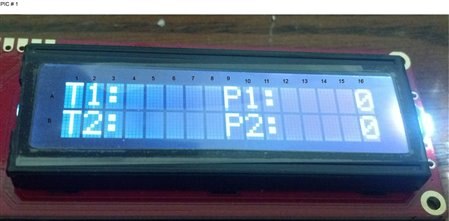
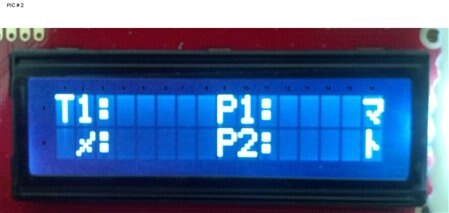
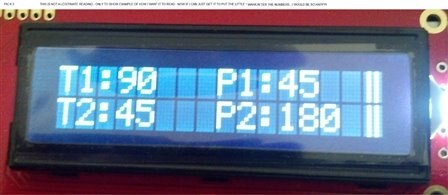
    I have attached 2 pics and will need to be used to reference information I am speaking about.

    each column and  row are assigned coordinates by me

    Here are my questions:

    1. 1. What is the opposite of random as seen in lines 43 through 46?
    2. 2. Why am I getting the zeros in PIC # 1: A16 & B16?
    3. 3. Would these same lines cause B1 & B2 to also randomize as seen in pic # 2?
    4. 4. Right now just looking for an answer to this one, its regarding PIC # 3, writing the location to the lcd in degrees.


    Note regarding pics.  PIC # 3 are NOT legitimate readings, I added them for the purpose of this question.


    To explain further:


    As you will see in PIC # 1

    I have programmed the Arduino to write T1: (across A1, A2,& A3)

    I have programmed the Arduion to write T2: (across A9, A10, & A11)

    The information in row B, is the same for the exceptions, B row will be for T2: and P2: respectively.

    So info in these rows and listed columns are to be static.


    Now if you would please, focus on A16, and B16 (STILL ON PIC # 1)

    Those 2 zeros, is actually random information (a random generation of info is NOT needed for the project)

    I am pretty sure that the location for this small little glitch will be found in the following lines.


    1. Lines 43 through 46 -  I have the RANDOM(1000) listed ß what is the opposite of random?


    Now to use PIC # 2

    In this pic we see that the following locations are changing (A16 & B16)

    But notice locations: B1 & B2.  These 2 locations have changed from T2 do randomization.  This one I don’t have a firm grip on but believe its somewhere around the following lines:

    Lines 60 up to 70


    Finally PIC # 3

    This is what I need to have showing up.  As in previous postings, I am looking to get the °’s of each pot, when I turn the servo.  My thought process tells me that I need to actually figure out where each given servo is at a certain point of the potentiometer, therefore I would need to have the coding reference the location of the pots. 


    1. WOW…ok guys, we are doing so well…I hope you see that I am trying and really attempting things before I post questions…  J


    ~Anna


    ******CODING*********

    LINEPROGRAMMING
    1// SparkFun Serial LCD example 2
    2// Format and display fake RPM and temperature data
    3
    4// This sketch is for Arduino versions 1.0 and later
    5// If you're using an Arduino version older than 1.0, use
    6// the other example code available on the tutorial page.
    7
    8// Use the softwareserial library to create a new "soft" serial port
    9// for the display. This prevents display corruption when uploading code.
    10#include <SoftwareSerial.h>
    11
    12// Attach the serial display's RX line to digital pin 2
    13SoftwareSerial mySerial(3,2); // pin 2 = TX, pin 3 = RX (unused)
    14
    15void setup()
    16{
    17  mySerial.begin(9600); // set up serial port for 9600 baud
    18  delay(500); // wait for display to boot up
    19
    20  mySerial.write(254); // cursor to beginning of first line
    21  mySerial.write(128);
    22
    23  //mySerial.write("RPM:            "); // clear display + legends
    24  //mySerial.write("TEMP:           ");
    25  mySerial.write("T1:     P1:     "); // clear display + legends
    26  mySerial.write("T2:     P2:     ");
    27}
    28
    29//int temp, rpm;
    30//char tempstring[10], rpmstring[10]; // create string arrays
    31int t1, p1, t2, p2;
    32//char t1[8], p1[8], t2[8], p2[8]; // create string arrays
    33char t1string[8];
    34char p1string[8];
    35char t2string[8];
    36char p2string[8];
    37;
    38
    39void loop()
    40{
    41  //temp = random(1000); // make some fake data
    42  //rpm = random(10000);
    43  t1 = random(1000); // make some fake data
    44  p1 = random(1000);
    45  t2 = random(1000); // make some fake data
    46  p2 = random(10000);
    47
    48  //sprintf(tempstring,"%4d",rpm); // create strings from the numbers
    49  //sprintf(rpmstring,"%4d",temp); // right-justify to 4 spaces
    50  sprintf(t1string,"%4d",t1); // create strings from the numbers
    51  sprintf(p1string,"%4d",p1); // right-justify to 4 spaces
    52  sprintf(t2string,"%4d",t2); // create strings from the numbers
    53  sprintf(p2string,"%4d",p2); // right-justify to 4 spaces
    54
    55  //mySerial.write(254); // cursor to 7th position on first line
    56  //mySerial.write(134);
    57  mySerial.write(254); // cursor to 7th position on first line
    58  mySerial.write(143);
    59
    60  //mySerial.write(rpmstring); // write out the RPM value
    61  mySerial.write(t1); // write out the RPM value
    62
    63  //mySerial.write(254); // cursor to 7th position on second line
    64  //mySerial.write(198);
    65  mySerial.write(254); // cursor to 7th position on second line
    66  mySerial.write(207);
    67
    68  //mySerial.write(tempstring); // write out the TEMP value
    69  mySerial.write(t1); // write out the TEMP value
    70  delay(1000); // short delay
    71}

    imageimageimage

    • Cancel
    • Vote Up +1 Vote Down
    • Sign in to reply
    • Verify Answer
    • Cancel
  • ntewinkel
    0 ntewinkel over 12 years ago in reply to Former Member

    Hi Annasta,


    You could simplify things by creating the strings for top and bottom line completely and then just printing those out on the display.


    I happened to still have my 16x2 display hooked up, so I tried the following, and it works nicely. You'd need to do this for both the top and the bottom line of course (my top line just says "hello, world!", which is from the example).


    char messagebuffer[17];  // 16 characters plus the null to terminate the string


    void setup() {

      // set up the LCD's number of columns and rows:

      lcd.begin(16, 2);

      // Print a message to the LCD.

      lcd.print("hello, world!");


      int t1 = 25;

      int t2 = 42;

      sprintf(messagebuffer, "T1 = %d, T2 = %d", t1, t2);  // Create the whole line at once. The %d bits get replaced by the values.


      lcd.setCursor(0, 1);

      lcd.print(messagebuffer);

    }


    To ensure that your display doesn't show leftover characters from a previous display you either have to make sure the message is always 16 characters, or set up a blank string of 16 spaces and print that to top and bottom lines to clear the display before showing your real messages.


    Hope that helps.


    Cheers,

    -Nico

    • Cancel
    • Vote Up +1 Vote Down
    • Sign in to reply
    • Verify Answer
    • Cancel
  • Former Member
    0 Former Member over 12 years ago in reply to ntewinkel

    Hi Nico -

    I was just looking over the example code File / Example / Liquid Crystal / Hello World

    It states that this

    "Demonstrates the use a 16x2 LCD display.  The LiquidCrystal

    library works with all LCD displays that are compatible with the

    Hitachi HD44780 driver. There are many of them out there, and you

    can usually tell them by the 16-pin interface."


    My liquid crystal dispaly is a serial LCD.


    To continue, I know you have been attempting to help me, but I really need the Kid glove treatment when it comes to programing.

    You stated:

    "I happened to still have my 16x2 display hooked up, so I tried the following, and it works nicely. You'd need to do this for both the top and the bottom line of course (my top line just says "hello, world!", which is from the example)."


    How did you hook it up?

    What worked nicely?

    Where do I begin to place this code?


    Sorry, but thats me.  I am trying.  But tossing a bunch of new code at me, is only causing me frustration image


    Would love your assistance, but I need to be spoonfed to understand. 

    Heck, toss in some code, and make errors.  I maybe able to figure them out on my own....


    ~Anna

    • Cancel
    • Vote Up 0 Vote Down
    • Sign in to reply
    • Verify Answer
    • Cancel
  • mcb1
    0 mcb1 over 12 years ago in reply to Former Member

    Annasta

    Have you tried the corrections I suggested?


    I think Nico was offering you an alternative way of sending the message, rather than the multi step method the original example you used.


    Mark

    • Cancel
    • Vote Up +1 Vote Down
    • Sign in to reply
    • Verify Answer
    • Cancel
Reply
  • mcb1
    0 mcb1 over 12 years ago in reply to Former Member

    Annasta

    Have you tried the corrections I suggested?


    I think Nico was offering you an alternative way of sending the message, rather than the multi step method the original example you used.


    Mark

    • Cancel
    • Vote Up +1 Vote Down
    • Sign in to reply
    • Verify Answer
    • Cancel
Children
  • Former Member
    0 Former Member over 12 years ago in reply to mcb1

    Hi Mark - this is long image

    I am working on it right now.  I am adding a few lines and will be reposting with different line code #'s.  I think its much easier to follow someone when line code #'s are used.  You will see that those #'s now start with line 10 and increase by 10 each line.


    I did, with your assistance, realize I didn’t change my copy paste code on the line

    “sending an integer value to the display at line 61 and again at line 69” yes I forgot to change that to p1 in line 69

    Those lines are now: 610 and 690


    “Shouldn't you be sending t1string and t2string from lines 50, 52 ??”

    T1 and P1 will work together as do T2 and P2


    "PLUS you are setting the cursor at the 16th postion (they count from 1) and then giving it a 4 digit number.  You should be setting it at position 4 for the t1, t2 values and position 12 for the p1, p2 values"


    1ST part: 16th position answer:

    According to what I looked up prior to posting:


    Position    1       2      3       4       5      6      7       8       9     10    11     12     13     14    15    16

    line 1128129130131132133134135136137138139140141142143
    line 2192193194195196197198199200201202203204205206207


    So with that, I would want the cursor to move on line 1 to position 135 thus allowing me to utilize 1-135 for T1, then allowing the cursor to begin again at position 9 (136)

    The same would be for line 2 (T2 and P2) with the exception the numbers would be 199 and 207 respectively


    2nd part: The 4 digit number is not a 4 digit #, but more lets say characters.  Being that a circle can only pan or tilt 360°

    I want to have enough room between the T’s to accommodate the max characters (3) with the ° sign in the max 4th position, then leaving a space between

    In this example I will be using the --- as a space


    Example:                                 T1: 90°--P1:45°--

                                                    T2:45°--P2:180°-


    Or                                           

    T1: 180°-P1:150°-

                                                    T2:160°-P2:90°--


    As for the encoder thing…No not going to do that.  I understand how the compass bearing works, and I plan on utilizing that.


    ~Anna

    • Cancel
    • Vote Up 0 Vote Down
    • Sign in to reply
    • Verify Answer
    • Cancel
element14 Community

element14 is the first online community specifically for engineers. Connect with your peers and get expert answers to your questions.

  • Members
  • Learn
  • Technologies
  • Challenges & Projects
  • Products
  • Store
  • About Us
  • Feedback & Support
  • FAQs
  • Terms of Use
  • Privacy Policy
  • Legal and Copyright Notices
  • Sitemap
  • Cookies

An Avnet Company © 2026 Premier Farnell Limited. All Rights Reserved.

Premier Farnell Ltd, registered in England and Wales (no 00876412), registered office: Farnell House, Forge Lane, Leeds LS12 2NE.

ICP 备案号 10220084.

Follow element14

  • X
  • Facebook
  • linkedin
  • YouTube