


(For Part 2, click here.)
I recently got my hands on a new RIoTBoard, and thought it would be a fun opportunity to try writing a simple Android app to run on it. Like a lot of our members, I learned how to code a long time ago using languages like C, Pascal, and (gulp) Fortran. Every couple of years, I learn a current programming language just to keep my chops up. Most recently, I've had a lot of fun learning how to write Python scripts to unlock the capabilities of our single-board computers.

Android apps are different-- at least for me. First, a lot of app development for Android is done in Java. While you can write apps for Android using other languages, the Android developer's kit uses Java by default. Java is a serious programming language that is not nearly as easy to learn as, say, Python or Perl, which are more forgiving of formatting inconsistencies. And then there is the Android SDK, itself. Many of the developers I speak with recall the same war stories to me about how much time they spent learning their way around the SDK, and, in particular, getting Android software emulators to work without bogging down the rest of their system. As I'll explain shortly, the RIoTBoard lets you completely bypass software emulators by testing your apps in an actual, dedicated Android environment.
Android is by far the dominant OS for smartphones globally, and I prefer to work with open-source environments when possible. The app I created is not going to win any awards, but it should demonstrate the basics of getting started with Android app development.
I. Behold the RIoTBoard
The RIoTBoard boasts a number of cool features-- an ARM Cortex A9 core running at 1GHz, onboard Ethernet, HDMI, audio in/out, 5 USB ports (4 USB A-type + 1 USB mini-b), GPIO, and SD card interface. Here's the top of the board:

The SD card is underneath:

Sorry-- I have to say it again: 4 USB-A ports!

RIoTBoard does not ship with a DC power supply, so you might need to do what I did and make a pilgrimage to your local parts supplier. Here are the specs for the power supply:
- 5V
- 1A (minimum)
- "M" Tip barrel connector
Connecting the RIoTBoard was pretty simple. I connected my monitor's HDMI to the RIoTBoard's HDMI port, my USB keyboard and mouse to two of its ports, and, finally, the power supply:

(There's two USB connections on the bottom.)
Within about two seconds, the Android logo appeared on my monitor:

And within about 20 seconds, I was looking at my Android start screen:

To see your home screen, just click and drag the lock symbol in any direction just like you would on an Android phone:


Not much happening here. Click the small button on the bottom of this page and it will take you to your applications view:


From left to right, starting at the top:
Browser
Cactus Player
Calculator
Calendar
Clock
Downloads
Gallery
Messaging
Movie Studio
Music
People
Search
Settings
Sound Recording
RIoTBoard runs Jelly Bean, Android 4.3. It came out in July 2013. More Android phones are currently running Jelly Bean distros than any other versions of Android. This is great, because it means you will be working with a super-current version of Android as you start building apps.
II. Setting up ADT
The first thing you'll need to do to make your first Android app is download the Android Developer Tools (ADT) to a different computer (I'm going to call it our devbox). We're going to make the RIoTBoard into an Android test platform where we will install the apps we build before 'porting them over to an Android phone or tablet. Why is this useful? Because the RIoTBoard is able to show us all kinds of detail on a large monitor so we can really optimize our app before releasing it into the wild. Also, it lets us completely ignore Android software emulators-- programs that run on devbox which mimic an Android phone or tablet. I hate-- hate -- Android emulators. Maybe it's because my devbox has a few years on it, but I find they bog my system down to the point of being unusable. Because we have a shiny new RIoTBoard, we'll just use that as our testing environment! Once we like the way the app looks and performs on the RIoTBoard, we'll send it to an Android phone. But we're going to build the app on devbox. Devbox can be any computer you have within reach-- Windows, Mac OS, or Linux. (Just check the minimum requirements shown at the bottom of this page to make sure your computer is up to the job.). You'll need to install the ADT to devbox by downloading it from here. The ADT is sometimes referred to as the SDK, or ADT Bundle. We're looking for the package that includes the Eclipse IDE, ADT plugin, and SDK Tools. I'm running Windows 7, so here's what I see:

If you're running on Mac or Linux, you'll see something similar for your OS. Be sure to check out the system requirements at the bottom of the page to make sure you have a powerful enough box. Just click on the big blue button and make yourself comfortable-- the package is 480 MB, so it's going to take a while.
In the meantime, DO NOT EAT THE SILICA GEL.

Actually, there is something else you can do while you're waiting. You need to have JDK 6 on your devbox to use the Android Developer Tools bundle. Setting it up can take a little work-- mainly because Java wants everyone to run the latest version of its developer kit, 7u51. The problem is that Android sometimes doesn't work so well with it. Let's grab and install JDK 6.
III. Side Quest: Installing Java 6
1. Go to Java SE Downloads
2. Click on "Previous Releases":

3. Scroll down and click on Java SE 6:

4. On the next page, scroll down and click on the link for "Java SE Development Kit 6u45":

5. Read and accept the License Agreement that pops up.
6. Download the appropriate version for your OS. Since I'm running a 64-bit version of Windows, I'll choose that. If I were running a 32-bit version of Windows, I would choose the one right above it ("x86"). If I were downloading this to my Mac or Linux box, I would choose those versions. As it is, I'll just download the one I need today:

7. At this point, Oracle will force you to register for a free account in order to download the JDK. Go ahead and sign up to complete your download.
8. Go to your Downloads folder and run the Java 6 SDK installer. Click Yes whenever prompted.
IV. Back to Installing ADT
Hopefully your ADT bundle has finished downloading in the background. Unzip it from your Downloads folder and extract it somewhere that you'll be able to easily find it. Extraction will take a few minutes owing to the size of the download, so now is the perfect time to take a break. (Why not watch the latest episode of The Ben Heck Show while you wait?  )
)
Once ADT has finished unpacking, I recommend creating an alias to the Eclipse application. Browse to the wherever you extracted ADT, go into the Eclipse subdirectory and make a shortcut to the eclipse executable::
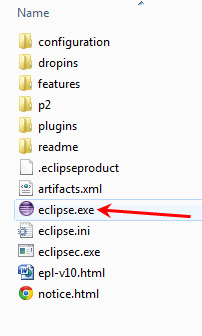
Eclipse is a popular IDE which is used by many developers across a wide variety of programming languages. What's cool about this particular version of Eclipse is that it is specifically optimized to help you create Android applications. Before launching it, let's confirm our installation of Java 6 finished successfully. Go to your Start button and launch the Command window by typing "cmd" in the search bar:

Either press Enter or click on the program that appears at the top of this list called cmd.exe
In the next window that appears, type: java -version

You should be rewarded with a confirmation that you are running Java 1.6.0_45. You're now ready to launch Eclipse.
Go to the shortcut you made earlier for the Eclipse app and launch it by double-clicking it. Within a couple of seconds, you should see the Eclipse splash screen appear:
If you got this far, congratulations: you're nearly ready to start building Android apps! If nothing happened or if you got an error, review the previous steps and see if you missed something. As I mentioned at the top, one of the hardest parts about building Android apps is just your development environment functioning. In my next post, I'll show you how to set up the SDK Manager and code a simple "Hello, World" app.
If you have any questions, post them in the comments below and I'll do my best to answer them.
Ready for Part 2? Click here.


