If you have followed my previous guide you will have a working Android platform on your RIoTboard, now lets do something with it!
In this guide we will be installing and using Skype to participate in a video call. The process can be easilly adapted to cover almost any Android software which is distributed as a free APK
If you have not yet installed the UART-8000-U drivers, visit my previous guide for detailed instructions.
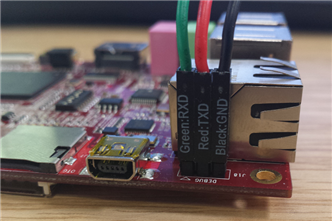
Use the UART8000-U to connect the RIoTboard to your PC as in the image. The debug header you are looking for (J18) is tucked away in a corner between the Ethernet port and the USB OTG we used to flash the board
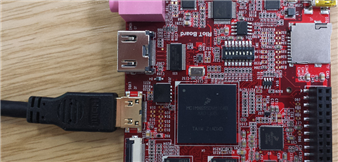
Connect the LCD8000-97C
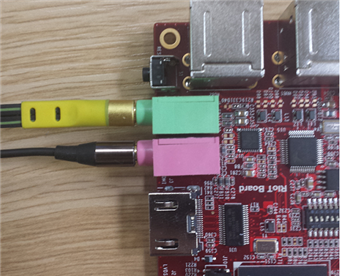
Connect your speakers and microphone into their appropriately colour coded inputs
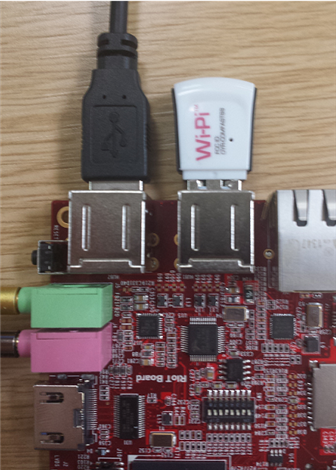
Connect the WiPi and CAM8100-U into two of the empty USB ports
Finally supply power to the board
Preparing the APK
While the RIoTboard is booting up, rename the Skype APK to Skype.apk and move it to the root folder of a USB memory stick. Once the RIoTboard has fully booted. Plug the USB into one of the empty USB ports on the RIoTboard. Android will detect and automount the storage device as /udisk
Installing Skype
Use PuTTY to connect to the serial console on the RIoTboard then type the following line of code to install the skype APK
pm install /udisk/Skype.apk
All Done
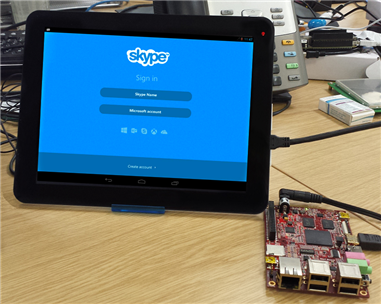
You'll find the Skype icon in the applications tray, log in and call someone.
You will notice that the CAM8100-U can be used along with the microphone and speakers to enable video chat!