


Click the "VIEW ALL DOWNLOADS AND SIZES" dropdown button to reveal the table containing all the SDK download options |  |
In the "VIEW ALL DOWNLOADS AND SIZES" dropdown look in the second table (SDK Tools Only). The top download "android-sdk_r23.0.2-windows.zip" contains all the files we need in a much smaller package than the entire SDK.
Download this zip file and then extract it to a location of your choice. | 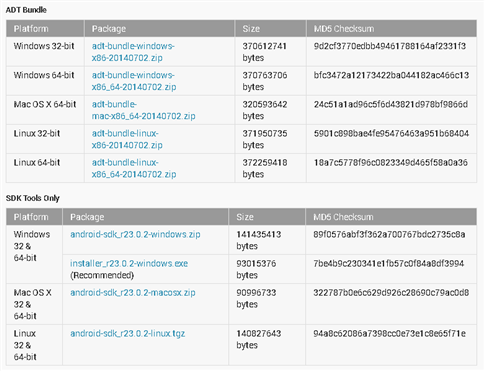 |
Within the extracted zip file there should be a folder named "tools" open this and ensure that "monitor.bat" is contained inside. You will need to use this soon.
Connect the RIoTboard
Connect the LCD8000-97C to the RIoTboard via the HDMI Type C connector | 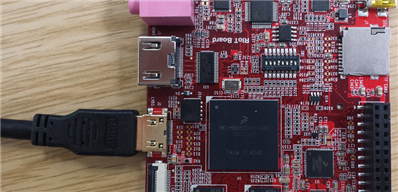 |
Connect the PC to the RIoTboard via the USB OTG interface in the corner of the board | 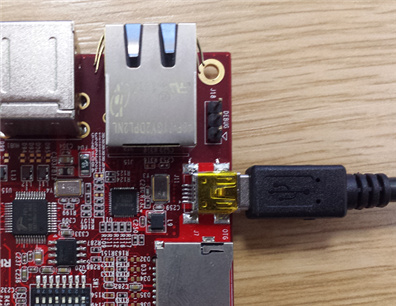 |
Finally supply power to the RIoTboard via the 5V PSU socket | 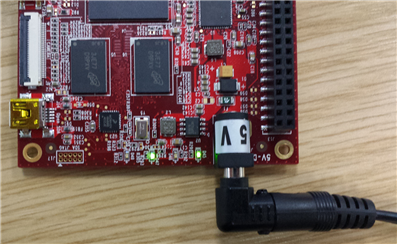 |
Once the RIoTboard has booted up you will need to enable developer mode. This can be done by simply going to the settings menu and tapping on "Build number" 7 times. This will reveal a new settings menu option: "Developer options" | 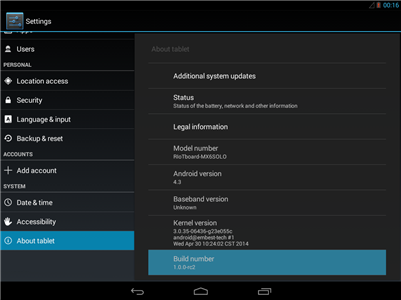 |
Once in the Developer Options menu you need to ensure that the "USB Debugging" option is ticked. | 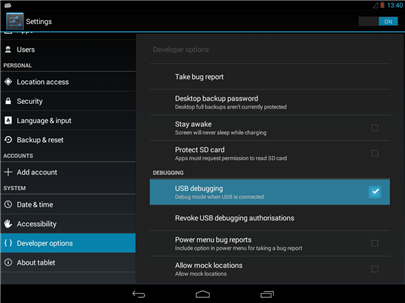 |
| Now that Debug mode is enabled you can double click on monitor.bat to start the ADM |  |
| The RIoTboard should be listed in the window as: "freescale-riotboard_mx6solo-0123456789ABCDEF", make sure that it is selected. | 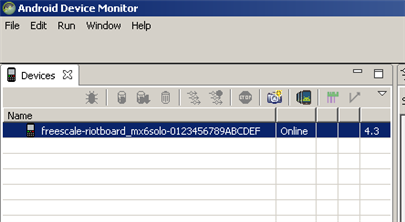 |
You can now click the "Capture Screen" button to view the RIoTboards current screen on your computer. When the Device Screen Capture interface appears you may need to hit Refresh |  |
The Device Screen Capture interface is very intuitive and can be used to rotate, save and copy screenshots from the RIoTboard. Don't forget to click Refresh whenever you want to grab a different screen as the interface will not automatically refresh to keep up to date with the RIoTboard. | 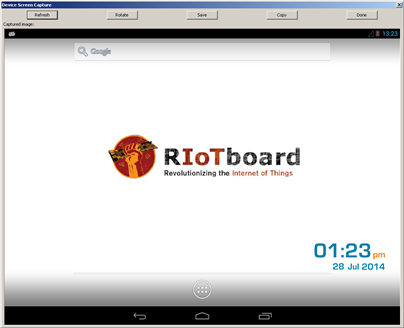 |
 | |
