element14 Community
element14 Community
    Register Log In
  • Site
  • Search
  • Log In Register
  • Community Hub
    Community Hub
    • What's New on element14
    • Feedback and Support
    • Benefits of Membership
    • Personal Blogs
    • Members Area
    • Achievement Levels
  • Learn
    Learn
    • Ask an Expert
    • eBooks
    • element14 presents
    • Learning Center
    • Tech Spotlight
    • STEM Academy
    • Webinars, Training and Events
    • Learning Groups
  • Technologies
    Technologies
    • 3D Printing
    • FPGA
    • Industrial Automation
    • Internet of Things
    • Power & Energy
    • Sensors
    • Technology Groups
  • Challenges & Projects
    Challenges & Projects
    • Design Challenges
    • element14 presents Projects
    • Project14
    • Arduino Projects
    • Raspberry Pi Projects
    • Project Groups
  • Products
    Products
    • Arduino
    • Avnet & Tria Boards Community
    • Dev Tools
    • Manufacturers
    • Multicomp Pro
    • Product Groups
    • Raspberry Pi
    • RoadTests & Reviews
  • About Us
    About the element14 Community
  • Store
    Store
    • Visit Your Store
    • Choose another store...
      • Europe
      •  Austria (German)
      •  Belgium (Dutch, French)
      •  Bulgaria (Bulgarian)
      •  Czech Republic (Czech)
      •  Denmark (Danish)
      •  Estonia (Estonian)
      •  Finland (Finnish)
      •  France (French)
      •  Germany (German)
      •  Hungary (Hungarian)
      •  Ireland
      •  Israel
      •  Italy (Italian)
      •  Latvia (Latvian)
      •  
      •  Lithuania (Lithuanian)
      •  Netherlands (Dutch)
      •  Norway (Norwegian)
      •  Poland (Polish)
      •  Portugal (Portuguese)
      •  Romania (Romanian)
      •  Russia (Russian)
      •  Slovakia (Slovak)
      •  Slovenia (Slovenian)
      •  Spain (Spanish)
      •  Sweden (Swedish)
      •  Switzerland(German, French)
      •  Turkey (Turkish)
      •  United Kingdom
      • Asia Pacific
      •  Australia
      •  China
      •  Hong Kong
      •  India
      •  Japan
      •  Korea (Korean)
      •  Malaysia
      •  New Zealand
      •  Philippines
      •  Singapore
      •  Taiwan
      •  Thailand (Thai)
      •  Vietnam
      • Americas
      •  Brazil (Portuguese)
      •  Canada
      •  Mexico (Spanish)
      •  United States
      Can't find the country/region you're looking for? Visit our export site or find a local distributor.
  • Translate
  • Profile
  • Settings
Raspberry Pi
  • Products
  • More
Raspberry Pi
Raspberry Pi Forum Installing Code for PiFace Real Time Clock
  • Blog
  • Forum
  • Documents
  • Quiz
  • Events
  • Polls
  • Files
  • Members
  • Mentions
  • Sub-Groups
  • Tags
  • More
  • Cancel
  • New
Join Raspberry Pi to participate - click to join for free!
Featured Articles
Announcing Pi
Technical Specifications
Raspberry Pi FAQs
Win a Pi
Raspberry Pi Wishlist
Actions
  • Share
  • More
  • Cancel
Forum Thread Details
  • State Suggested Answer
  • Replies 52 replies
  • Answers 4 answers
  • Subscribers 697 subscribers
  • Views 7460 views
  • Users 0 members are here
  • raspberry_pi
Related

Installing Code for PiFace Real Time Clock

fc-element
fc-element over 9 years ago

Dear Element 14 Community.

All my Raspberry Pi devices (RPi 2, RPi Zero, and RPi 3 (planned) are running with the current Raspbian Jessie version. I have successfully installed PiFace Real Time Clock using the PiFace website instructions and GitHub.com software download on a number of RPi 2's and one of my three RPi Zero's.


I have recently continued the installations on another two RPi's and cannot continue because after these two lines:

1. chmod +x install-piface-real-time-clock.sh

2. sudo ./install-piface-real-time-clock.sh


The following new comments are returned: 1

1.. create new pifacertc init script to load time from PiFace RTC

2. Adding /etc/init.d/pifacertc .

3. install the pifacertc init script

4. enable I2c by using raspi-config


As I am a Linux beginner, can someone lead me through (expand) the coding of these lines so I may install PiFace RTC currently and in the future. The changelog on GitHub refers to a revision change but I am not knowledgable enough to understand why the install went through previously by not currently.


Thank you very much,

Frank.

  • Sign in to reply
  • Cancel
  • Former Member
    0 Former Member over 9 years ago in reply to Former Member

    Here's my revised script, unfortunately I cant test it on a pi zero because I don't have one, nor do I have the real time clock module. The script isn't reliant upon the model or revision of the raspberry pi anymore. It finds the hardware i2c port from the devices list so it should be compatible with all models and revisions of the pi to date. If a raspberry pi is introduced in the future that utilizes multiple i2c ports/buses then this script would need to be modified but for the time being it should work fine.


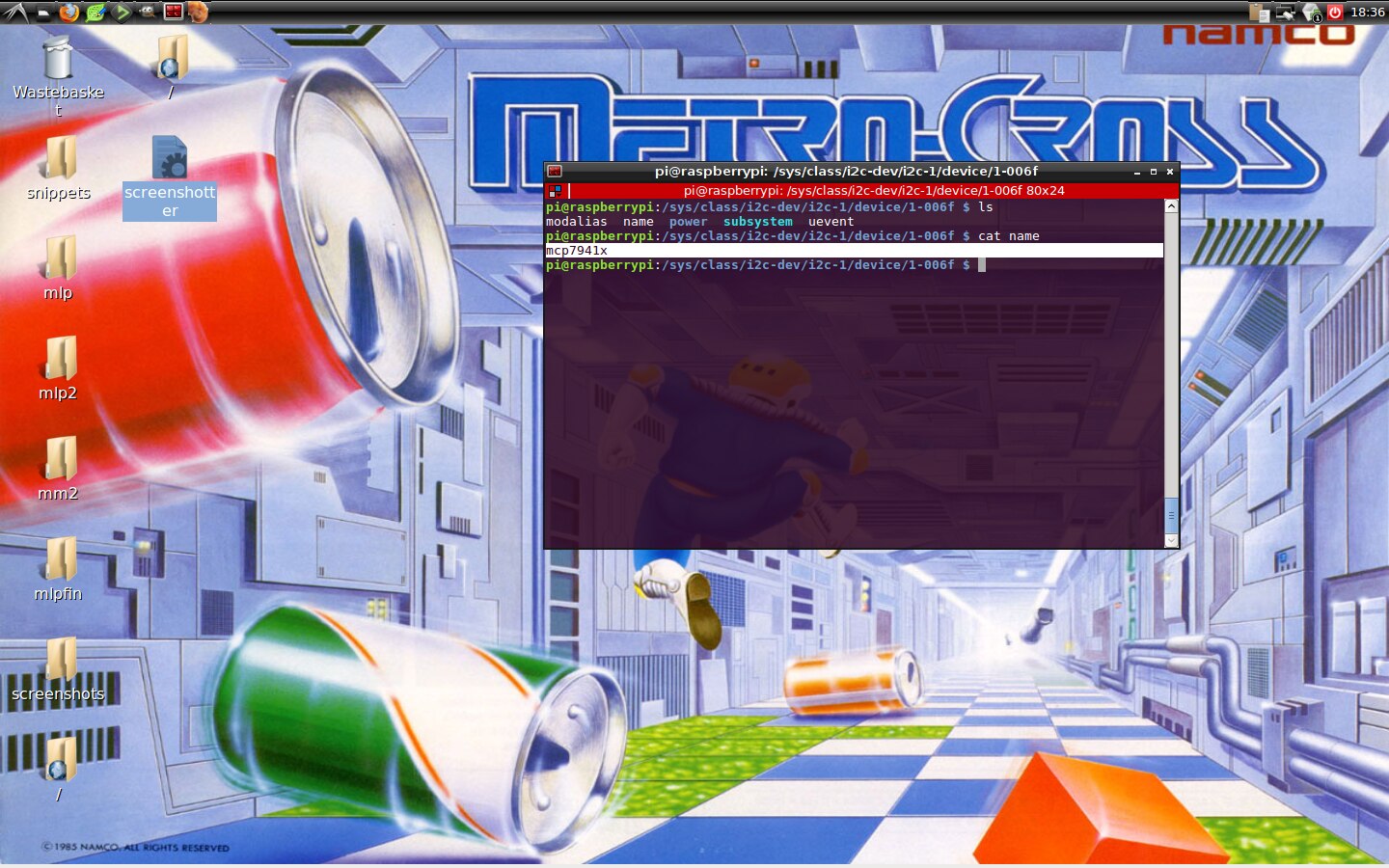
    As a test on my Raspberry Pi 3 Model B, a ran the revised script, restarted and then searched for the MCP7941x device in the i2c-dev system folder, sure enough it was there. If I had the physical realtime clock module, this is the part of the system that would communicate with it.


    image


    Finally to the revised script:


    pifacetest.sh

    #!/bin/bash
    #: Description: Enables the required modules for PiFace Clock.
    # a modification of a script at:
    # https://github.com/piface/PiFace-Real-Time-Clock/blob/master/install-piface-real-time-clock.sh
    # this modification includes functionality with Raspberry Pi Zero
    # by making the model and revision checking redundant
    # credit for the original script goes to tompreston & pat3df at GitHub
    # modifications made by Lucie Tozer
    
    #=======================================================================
    # NAME: check_for_i2c_tools
    # DESCRIPTION: Checks if i2c-tools is installed.
    #=======================================================================
    check_for_i2c_tools() {
        dpkg -s i2c-tools > /dev/null 2>&1
        if [[ $? -eq 1 ]]; then
            echo "The package `i2c-tools` is not installed. Install it with:"
            echo ""
            echo "    sudo apt-get install i2c-tools"
            echo ""
            exit 1
        fi
    }
    
    #=======================================================================
    # NAME: final_message
    # DESCRIPTION: prints instructions for setting the clock
    #=======================================================================
    final_message(){
        echo "Now *reboot* and set your clock with:"
        echo ""
        echo '    sudo date -s "14 JAN 2014 10:10:30"'
        echo "    sudo hwclock --systohc"
        echo ""
    }
    
    #=======================================================================
    # NAME: get_i2c_device
    # DESCRIPTION: Obtains the working i2c port from the /dev file system
    #=======================================================================
    get_i2c_device(){
        I2C_DEVICE=$(ls /dev | grep "i2c")
        echo "i2c device on this model = " $I2C_DEVICE
        
        if [[ $I2C_DEVICE == "i2c-1" ]]; then
            I2C_PORT_NUMBER=1  # i2c-1
        else
            I2C_PORT_NUMBER=0  # i2c-0
        fi
        
        if [[ ! -e /sys/class/i2c-dev/i2c-$I2C_PORT_NUMBER ]]; then
            echo "Enable I2C by using:"
            echo ""
            echo "    raspi-config"
            echo ""
            echo "Then navigate to 'Advanced Options' > 'I2C' and select 'yes' to "
            echo "enable the ARM I2C interface."
            echo ""
            echo "Please Restart This Script Once The I2C Interface Has Been Enabled"
            echo "EXITING..."
            exit 1
        fi
    
    }
    
    #=======================================================================
    # NAME: start_on_boot
    # DESCRIPTION: Load the I2C modules and send magic number to RTC, on boot.
    #=======================================================================
    start_on_boot() {
        echo "Create a new pifacertc init script to load time from PiFace RTC."
        echo "Adding /etc/init.d/pifacertc ."


        cat > /etc/init.d/pifacertc  << EOF
    #!/bin/sh
    ### BEGIN INIT INFO
    # Provides:          pifacertc
    # Required-Start:    udev mountkernfs \$remote_fs raspi-config
    # Required-Stop:
    # Default-Start:     S
    # Default-Stop:
    # Short-Description: Add the PiFace RTC
    # Description:       Add the PiFace RTC
    ### END INIT INFO
    
    . /lib/lsb/init-functions
    
    case "\$1" in
      start)
        log_success_msg "Probe the i2c-dev"
        modprobe i2c-dev
        # Calibrate the clock (default: 0x47). See datasheet for MCP7940N
        log_success_msg "Calibrate the clock"
        i2cset -y $I2C_PORT_NUMBER 0x6f 0x08 0x47
        log_success_msg "Probe the mcp7941x driver"
        modprobe i2c:mcp7941x
        log_success_msg "Add the mcp7941x device in the sys filesystem"
        # https://www.kernel.org/doc/Documentation/i2c/instantiating-devices
        echo mcp7941x 0x6f > /sys/class/i2c-dev/i2c-$I2C_PORT_NUMBER/device/new_device
        log_success_msg "Synchronise the system clock and hardware RTC"
        hwclock --hctosys
        ;;
      stop)
        ;;
      restart)
        ;;
      force-reload)
        ;;
      *)
        echo "Usage: \$0 start" >&2
        exit 3
        ;;
    esac
    EOF
        chmod +x /etc/init.d/pifacertc
    
        echo "Install the pifacertc init script"
        update-rc.d pifacertc  defaults
    }
    
    #=======================================================================
    # MAIN
    #=======================================================================
    # check if the script is being run as root
    if [[ $EUID -ne 0 ]]
    then
        printf 'This script must be run as root.\nExiting..\n'
        exit 1
    fi


    I2C_PORT_NUMBER=0
    I2C_DEVICE=""
    
    check_for_i2c_tools &&
    get_i2c_device &&
    start_on_boot &&
    final_message


    I kept as much of the original as possible so it should read similarly and changes should be easily noticed.


    here's an easy way to install:

    1) copy the script to clipboard

    2) log on to your raspberry pi with a terminal

    3) cd ~/

    4) nano ./pifacetest.sh

    5) Paste clipboard into nano (ctrl + shift + v)

    6) wait a few seconds for nano to buffer the clip board

    7) once clipboard has pasted press ctrl + o to write the file

    8) press ctrl + x to exit nano

    9) sudo chmod +x ./pifacetest.sh to enable the file to be executed

    10) finally run the script sudo ./pifacetest.sh


    If your having trouble creating the file, Im happy to upload it to a temporary location so you can use wget to download it directly to the raspberry pi.

    • Cancel
    • Vote Up +1 Vote Down
    • Sign in to reply
    • Verify Answer
    • Cancel
  • fc-element
    0 fc-element over 9 years ago in reply to Robert Peter Oakes

    Dear Mr. Oakes,

    In the past 12 hr, I got a couple of responses pertaining to the RPi Zero issue regarding PiFace RTC. I am impressed that so much knowledge can be attained with the cat /proc/cpuinfo command. As I am just a beginner in Raspberry Pi application and its language (I realize its a subset of Linux), I guess I'll call it raspbian language. [A brief history- started with RPi Model 2 / wheezy w/ PiFace RTC all went well but I had to modify the code to use 3.5- and 7- inch raspberry Pi screens. I am into RPi zero Rev 1 installations using Jessie but have had no success in adding PiFace RTC thru /etc/init.d/pifacertc . I plan to install RPi zero Rev 2 with the new Jessie w/ Pixel installation when this issue is resolved. It appears that your suggestions about modifying the code " manualy" but I am very limited knowledgwise in accomplishing the task alone. With the help of ms tozer and now a response from Jan Crumps (please see other posts), I am assuming that a code revision is warranted. I also have RPi 3's planned for installation and hope to find out by then what I'm doing.]


    I will execute >>  run i2cdetect -l << on my RPi zero's shortly. I see that the only model 512 MB RPi Zero (I assume Ver 1) is a Sony Device. I don't know what my RPi Zero (Ver 2) which includes a camera interface) hardware info and whether the pending changes will be compatible.

    • Cancel
    • Vote Up 0 Vote Down
    • Sign in to reply
    • Verify Answer
    • Cancel
  • fc-element
    0 fc-element over 9 years ago in reply to Former Member

    Dear Mr. Elkins

    I believe that you are spot-on the problem I am having with Installing PiFaceRTC on Rpi Zero (ver 1). Ms Tozer and jan crumps have responded quickly and pointedly at my (and others) issue. I agree on rewriting the code " manually" but I am afraid I am very limited knowledgwise in accomplishing this task alone. I believe that a code revision is imminent and I will patiently await a revision without reporting the bug (I may not be clear of what to request). I just am not knowledgeable to apply the code you wrote above (which is understandable to me) into a executable (I don't know if that's correct verbage) complete code and not know what to do with it. Please read all other posts on this thread because they seem to be very applicable when combined. Thank you very much. Frank.

    • Cancel
    • Vote Up 0 Vote Down
    • Sign in to reply
    • Verify Answer
    • Cancel
  • fc-element
    0 fc-element over 9 years ago in reply to Former Member

    Dear Ms Tozer,

    During the time I was writing the responses to the number of experts I got this message. I truly appreciate the help from all and I will try it on my physical RPi Zeros and PiFace RTC. I don't know whether this will completely install the RTC and as a result it may take a few days (trial and error). However, as you suggested if you can generate a website to expedite the code capture directly to my device terminal,  I would greatly appreciate it. In  addition, I apologize for not understanding this forums language and you may or may not be attached to "violet" and \or "Jan Cump". (Disregard if you are confused).


    Also, as stated in one of Peter Oakes replies, even though the Zero's I've been testing all have the same Mfgr (Sony), I have two other RPi Zeros (model 2- ones a camera interface). I have no knowledge that PiFace RTC will be be successfully installed with your code but I will march on faithfully.


    Again all the other replies in this thread should be read for their noble efforts, enthusiasim and participation in this issue.

    Thanks again, Frank

    • Cancel
    • Vote Up 0 Vote Down
    • Sign in to reply
    • Verify Answer
    • Cancel
  • Former Member
    0 Former Member over 9 years ago in reply to fc-element

    Ive uploaded the modified file to http://www.uk-robotics.co.uk/temp/pifacertctest.sh provided you pi is connected to the internat, you can download it easily to your raspberry pi by opening a terminal and the typing:


    cd ~/

    wget http://www.uk-robotics.co.uk/temp/pifacertctest.sh


    to run the file type sudo ./pifacertctest.sh


    If you have any problem with executable permissions, type chmod +x ./pifacertctest.sh and then try running it again

    • Cancel
    • Vote Up 0 Vote Down
    • Sign in to reply
    • Verify Answer
    • Cancel
  • Jan Cumps
    0 Jan Cumps over 9 years ago

    I've seen a few variations of my name floating around in this thread (unusual for a Raspberry Pi topic). What did I say/do?

    • Cancel
    • Vote Up 0 Vote Down
    • Sign in to reply
    • Verify Answer
    • Cancel
  • Robert Peter Oakes
    0 Robert Peter Oakes over 9 years ago in reply to fc-element

    looking at response and new script, it won't matter what the model of PI is, what will matter is if the pi is exposing  I2C-0 or I2C-1 and selecting the appropriate one as found in the test


    this could easily work on non PI units like ApplePI, OrangePi, BannanaPI etc etc.

    • Cancel
    • Vote Up 0 Vote Down
    • Sign in to reply
    • Verify Answer
    • Cancel
  • Former Member
    0 Former Member over 9 years ago in reply to Former Member

    "Ms. Tozer",


    Suggestion: In the "start" function of /etc/init.d/pifacertc, if an error occurs, quit immediately with the appropriate error message (log_failure_msg).  There is no point in continuing with the remaining commands when it isn't going to work.  And, it might cause other issues as mentioned in the i2cset man page.


    For example, I simulated a clock not connected condition.  Actually, I don't have the hardware.  I was able to install simply because I enabled i2c in raspy-config.

    My syslog entries from system startup:


    Nov  6 14:36:02 raspbian pifacertc[1465]: Probe the i2c-dev.

    Nov  6 14:36:02 raspbian pifacertc[1465]: Calibrate the clock.

    Nov  6 14:36:02 raspbian pifacertc[1465]: Error: Write failed

    Nov  6 14:36:02 raspbian pifacertc[1465]: Probe the mcp7941x driver.

    Nov  6 14:36:02 raspbian pifacertc[1465]: Add the mcp7941x device in the sys filesystem.

    Nov  6 14:36:02 raspbian pifacertc[1465]: Synchronise the system clock and hardware RTC.

    Nov  6 14:36:02 raspbian pifacertc[1465]: hwclock: Cannot access the Hardware Clock via any known method.

    Nov  6 14:36:02 raspbian pifacertc[1465]: hwclock: Use the --debug option to see the details of our search for an access method.

    Nov  6 14:36:02 raspbian systemd[1]: pifacertc.service: control process exited, code=exited status=70

    Nov  6 14:36:02 raspbian systemd[1]: Unit pifacertc.service entered failed state.


    You can catch the exit code of each step to see if that step was successful or not.

    • Cancel
    • Vote Up 0 Vote Down
    • Sign in to reply
    • Verify Answer
    • Cancel
  • Former Member
    0 Former Member over 9 years ago in reply to fc-element

    Frank, you have my permission to call me "Richard" !! image

    • Cancel
    • Vote Up 0 Vote Down
    • Sign in to reply
    • Verify Answer
    • Cancel
  • Former Member
    0 Former Member over 9 years ago in reply to Jan Cumps

    Jan, how can we talk about you behind your back if you keep on peeking over our shoulders??? image

    • Cancel
    • Vote Up +1 Vote Down
    • Sign in to reply
    • Verify Answer
    • Cancel
<>
element14 Community

element14 is the first online community specifically for engineers. Connect with your peers and get expert answers to your questions.

  • Members
  • Learn
  • Technologies
  • Challenges & Projects
  • Products
  • Store
  • About Us
  • Feedback & Support
  • FAQs
  • Terms of Use
  • Privacy Policy
  • Legal and Copyright Notices
  • Sitemap
  • Cookies

An Avnet Company © 2026 Premier Farnell Limited. All Rights Reserved.

Premier Farnell Ltd, registered in England and Wales (no 00876412), registered office: Farnell House, Forge Lane, Leeds LS12 2NE.

ICP 备案号 10220084.

Follow element14

  • X
  • Facebook
  • linkedin
  • YouTube