element14 Community
element14 Community
    Register Log In
  • Site
  • Search
  • Log In Register
  • Community Hub
    Community Hub
    • What's New on element14
    • Feedback and Support
    • Benefits of Membership
    • Personal Blogs
    • Members Area
    • Achievement Levels
  • Learn
    Learn
    • Ask an Expert
    • eBooks
    • element14 presents
    • Learning Center
    • Tech Spotlight
    • STEM Academy
    • Webinars, Training and Events
    • Learning Groups
  • Technologies
    Technologies
    • 3D Printing
    • FPGA
    • Industrial Automation
    • Internet of Things
    • Power & Energy
    • Sensors
    • Technology Groups
  • Challenges & Projects
    Challenges & Projects
    • Design Challenges
    • element14 presents Projects
    • Project14
    • Arduino Projects
    • Raspberry Pi Projects
    • Project Groups
  • Products
    Products
    • Arduino
    • Avnet & Tria Boards Community
    • Dev Tools
    • Manufacturers
    • Multicomp Pro
    • Product Groups
    • Raspberry Pi
    • RoadTests & Reviews
  • About Us
    About the element14 Community
  • Store
    Store
    • Visit Your Store
    • Choose another store...
      • Europe
      •  Austria (German)
      •  Belgium (Dutch, French)
      •  Bulgaria (Bulgarian)
      •  Czech Republic (Czech)
      •  Denmark (Danish)
      •  Estonia (Estonian)
      •  Finland (Finnish)
      •  France (French)
      •  Germany (German)
      •  Hungary (Hungarian)
      •  Ireland
      •  Israel
      •  Italy (Italian)
      •  Latvia (Latvian)
      •  
      •  Lithuania (Lithuanian)
      •  Netherlands (Dutch)
      •  Norway (Norwegian)
      •  Poland (Polish)
      •  Portugal (Portuguese)
      •  Romania (Romanian)
      •  Russia (Russian)
      •  Slovakia (Slovak)
      •  Slovenia (Slovenian)
      •  Spain (Spanish)
      •  Sweden (Swedish)
      •  Switzerland(German, French)
      •  Turkey (Turkish)
      •  United Kingdom
      • Asia Pacific
      •  Australia
      •  China
      •  Hong Kong
      •  India
      •  Japan
      •  Korea (Korean)
      •  Malaysia
      •  New Zealand
      •  Philippines
      •  Singapore
      •  Taiwan
      •  Thailand (Thai)
      •  Vietnam
      • Americas
      •  Brazil (Portuguese)
      •  Canada
      •  Mexico (Spanish)
      •  United States
      Can't find the country/region you're looking for? Visit our export site or find a local distributor.
  • Translate
  • Profile
  • Settings
Raspberry Pi Projects
  • Products
  • Raspberry Pi
  • Raspberry Pi Projects
  • More
  • Cancel
Raspberry Pi Projects
Blog Syslog: Sending Log Messages to a Server with MicroPython
  • Blog
  • Documents
  • Events
  • Polls
  • Members
  • Mentions
  • Sub-Groups
  • Tags
  • More
  • Cancel
  • New
Join Raspberry Pi Projects to participate - click to join for free!
  • Share
  • More
  • Cancel
Group Actions
  • Group RSS
  • More
  • Cancel
Engagement
  • Author Author: shabaz
  • Date Created: 25 Jan 2026 4:59 PM Date Created
  • Views 1075 views
  • Likes 14 likes
  • Comments 11 comments
  • Pi Pico W
  • rpiintermediate
  • syslog
  • micropython
  • api
  • pico w
  • pi pico
Related
Recommended

Syslog: Sending Log Messages to a Server with MicroPython

shabaz
shabaz
25 Jan 2026

Introduction

Installing MicroPython on your microcontroller board allows you to write and immediately run Python code, without needing to build or compile the code. It’s a really fast way of creating applications.

Usually I use print statements to see what’s going on in the code, but I might not always have a PC connected, nor an LCD screen. It was time to find an alternative solution!

This very short blog post discusses how to edit and run Python code (well, MicroPython code, but it’s almost the same thing) on a Pi Pico W using an editor tool called Thonny, and how to view log content remotely using an application called a syslog server. It is very lightweight, it uses UDP messages over the network.

General Overview

The Python code will first import some general network functions:

from net_utils import NET_UTILS

Next, in the main function, a net_utils object is created:

net_utils = NET_UTILS()

You can connect to the WiFi by the following command:

net_utils.wifi_connect()

The WiFi SSID and password from a file called secrets.py will be used.

To send messages to a syslog server running on a PC, the following commands are used:

net_utils.syslog_init()
net_utils.syslog("hello this is a message!”)

That’s it, it’s very simple.

Getting Started

I purchased a Pi Pico-W, and then downloaded the MicroPython UF2 file from the raspberrypi MicroPython page.

The UF2 file is effectively the binary for the MicroPython operating system. I held down the Boot button on the Pi Pico-W, and then plugged in the USB cable, and then drag-and-dropped that UF2 file onto the drive letter that appeared.

Here is a video showing how to do that:

You don't have permission to edit metadata of this video.
Edit media
x
image
Upload Preview
image

Obtain Example Code

I created some example code downloadable from GitHub. It can be downloaded as a zip file, by clicking on the green button and selecting Download ZIP. When extracted, there will be three files: main.py, net_utils.py, and secrets_example.py.

The secrets_example.py file needs to be renamed to secrets.py, and then edited to insert your WiFi SSID and password. (Note: the SSID and password are stored in plain text and very easy to extract, so you wouldn't do this generally; it's best to have a dedicated SSID and network for your experiments, so that there's no harm if the credentials are leaked).

The example code connects the Pico W to the network using WiFi, repeatedly retrieves the current temperature, and sends it in a message to the syslog server every minute.

Quick Thonny Guide

Thonny is a simple text editor and tool for uploading Python files. I downloaded and installed Thonny from the Thonny website: 

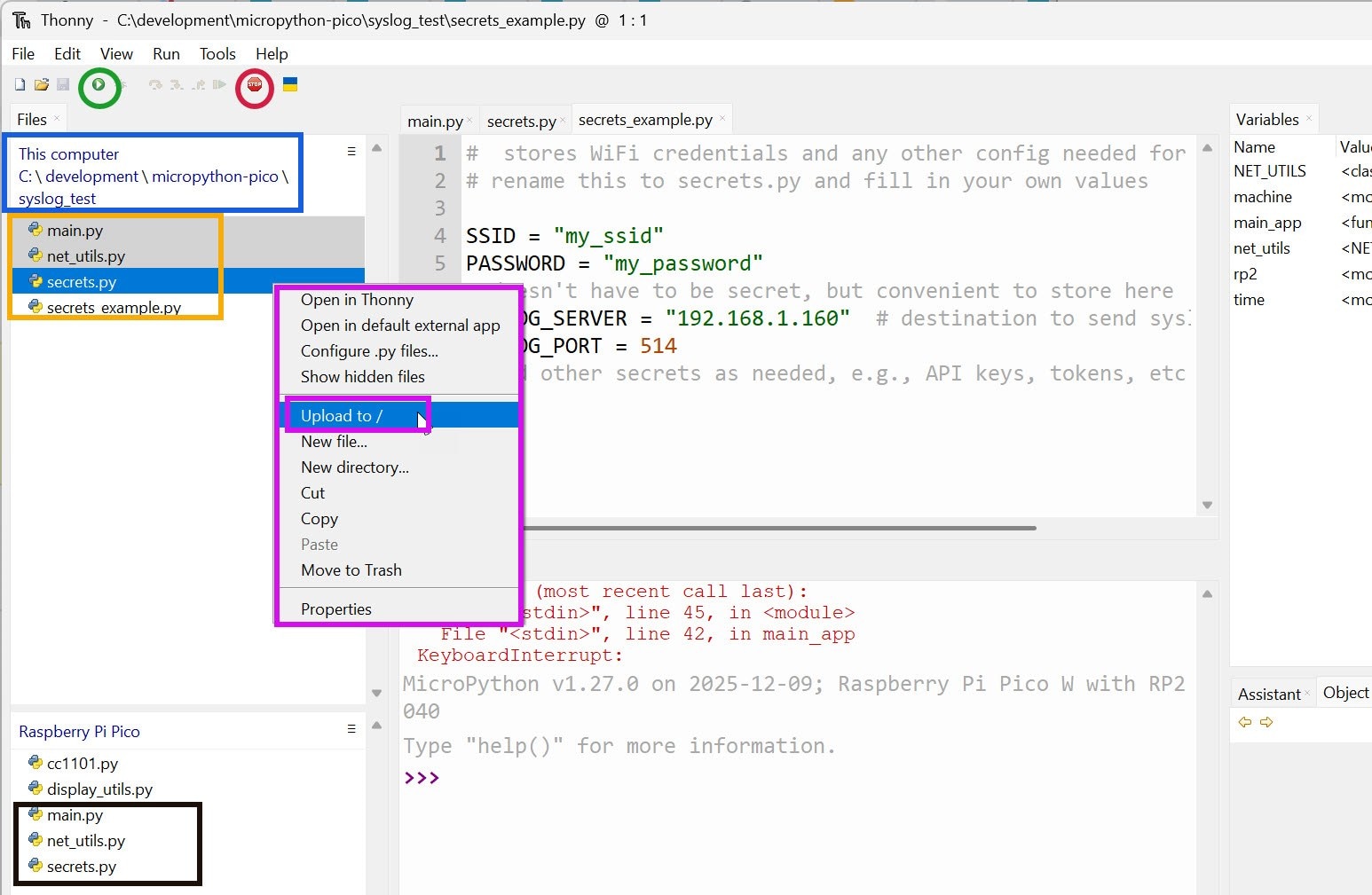
The screenshot below shows how to use Thonny. Click the red circle to connect to the Pi Pico-W.
image

The blue area is used to select the current folder (select the folder where the example code extracted zip file contents were placed).

Once that’s done, the files in that folder will be listed below (orange box). Now you can select one or more files, and then right-click, and see the purple menu appear. From there, if you select Upload to / then the selected files will be transferred via USB to the Pi Pico-W. You’ll know when that is done, because they will be listed at the bottom-left (black box).

The main.py code will automatically run if the Pico-W is power-cycled, but you don’t need to do that. Instead, just double-click on the main.py file in the orange box, so that the contents appear in the main editor pane. Next, click the green circled icon, and the code will immediately run. You’ll see any print statements appear in the pane just below the editor pane (the pane is labelled Shell).

To stop the code, click in the pane below the editor pane, and press Ctrl-C. You;ll see a Python prompt.

If you wish to make code changes, do that in the editor pane, then save the file, then redo the steps to Upload to / and then to rerun the code, press the green circled icon again.

Running the Example Code

When you run the code as explained in the Quick Thonny Guide, you should see the following in Thonny's Shell pane; it will display the IP address that your Pi Pico-W has acquired, and the temperature at the latitude and longitude for Alcatraz (it’s just a demo location).

image

Installing and Configure a Syslog Server

The Syslog Server is the software application that will collect and display the logs. I used an application called Kiwi Syslog Server Free Edition.

During installation, I chose to run it as an application rather than a service. Run the application, and select File->Setup, and then in the window that appears, select Inputs on the left, and then enter the IP address of the Pico-W in the red highlighted area, and click Add, then Apply, then OK. Now the Syslog server is ready to accept log messages from the Pico-W.

image

Configure the Pico-W to send Syslog Messages

Find out the IP address of your PC, and then go to the secrets.py file using Thonny, and edit the SYSLOG_SERVER IP address to be the PC’s IP address.

Re-run the code (i.e. stop the code first by Ctrl-C in the shell pane, then select main.py and then press the green circled icon as indicated earlier.

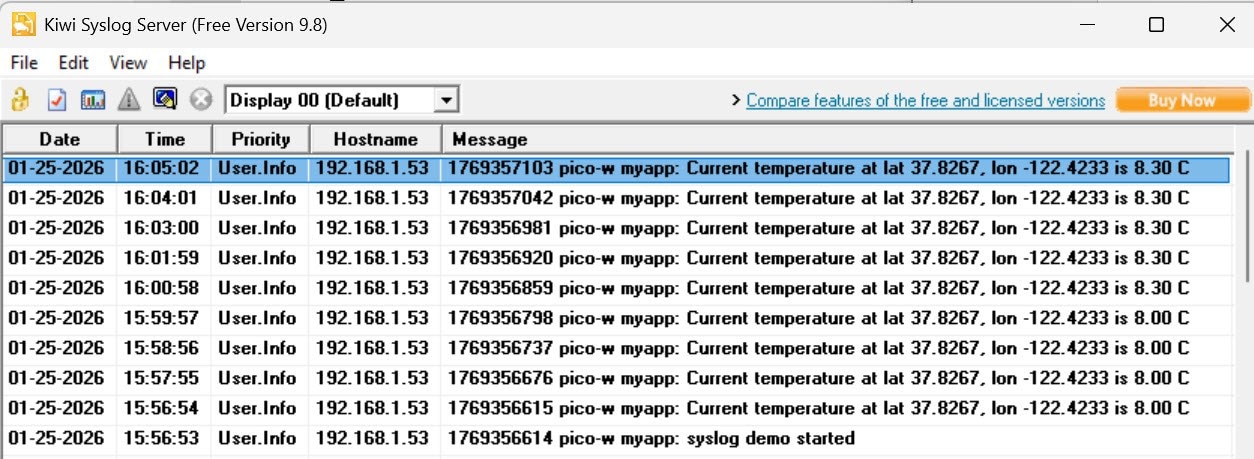
You should see logs appear!
image

Obtaining the Temperature

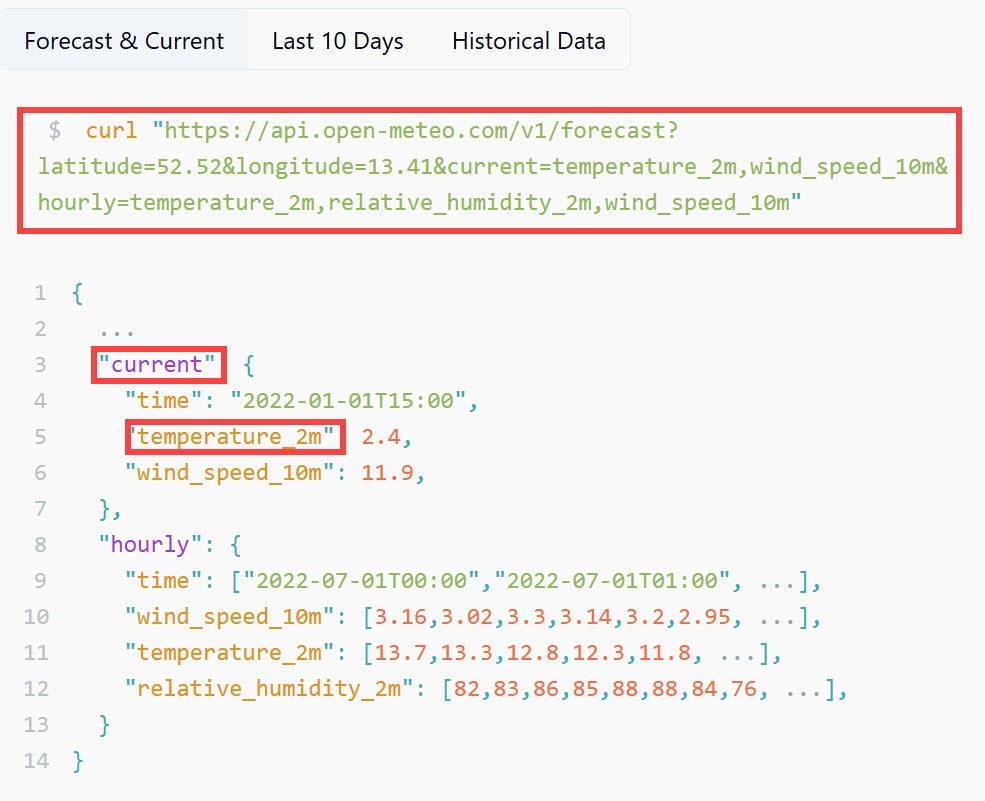
If you're curious, the main.py code shows how the temperature was obtained from a web API accessible from open-meteo. If you look at that site, you can see it describes a URL of https://api.open-meteo.com/v1/forecast with longitude and latitude parameters, and you can see the returned message format, it's known as JSON:
image

I used that URL and used this command to send the request:

data = net_utils.get_json_with_retries(url)
The temperature was pulled from the returned data, which is in JSON format and easily extracted:
cur = data.get("current")
temp = cur.get("temperature_2m")

Summary

MicroPython makes it very easy to quickly prototype things on a microcontroller.

A very lightweight remote logging method can be easily implemented in MicroPython. Syslog is a very well-known protocol. Simple code was presented that will send messages to a free syslog server. An API demo was presented using open-meteo.

Thanks for reading!

  • Sign in to reply
  • embeddedguy
    embeddedguy 4 months ago

    Nice first line, I fell the same. about Micropython.

    • Cancel
    • Vote Up 0 Vote Down
    • Sign in to reply
    • More
    • Cancel
  • shabaz
    shabaz 4 months ago in reply to BigG

    I've not used blockly, but I did try an older graphical method in the past, but MicroPython implementation might well be more developed than JavaScript/Blockly. I suspect it's much faster.

    Personally, Python (barely any difference between Python and MicroPython, except the number of libraries is reduced, and some slight language restrictions) is more attractive to learn for all manner of tasks, unless I really wanted to do web development.

    Regarding speed, one thing that will accelerate I/O tasks further (which Blockly might not support), is to move anything super-high-speed to PIO, if it fits. PIO works just as well with MicroPython as it does in a C program. This doesn't solve every high-speed task, but with the PIO capability, plus the previously-mentioned ability to write C functions for algorithms (i.e. C code that does not interface with peripherals) a lot can be done. 

    For sure it will still be far slower than C for the (still many) situations where PIO does not make sense, and more than an algorithm is needed, but often high speed isn't needed in all areas of code to still appear real-time for a user.

    I've spent some hours this evening, (with AI help) prototyping a subset of SNMPv1 and it is working! This will help tons to see how the MicroPython performance is, for indefinite periods.

    For anyone not familiar: the SNMP capability allows you to remotely read statistics (like CPU usage, stack and heap usage) and also remotely configure or control things (like restarting functions). With the combination of syslog and SNMP and the statistics/metrics, it is a layer of code that will give at least some primitive, (and currently non-secure) network-appliance-like functions to any MicroPython project. A basic web server would be nice to add too. All this could be ported to C too, but currently I'd struggle to find time to do that : (

    I'm going to try to eat my own dogfood, since I'm copying these features into a heating controller I've been working on, and that will be useless unless it can run for at least months without falling over (I have an off-the-shelf controller that is buggier, it easily hangs if certain buttons are pressed at a certain speed, so the bar is low!). Technically one could use a watchdog type feature to restart things, but I want to avoid that for now, to just purely see if MicroPython will be robust enough for this very simple example scenario.

    The screenshot below shows command-line SNMP get/set but in reality off-the-shelf software would provide graphical charts and red/amber/green alerts on resource usage.

    image

    • Cancel
    • Vote Up 0 Vote Down
    • Sign in to reply
    • More
    • Cancel
  • BigG
    BigG 4 months ago in reply to shabaz

    Good to hear (re on the fence) Grin

    MicroPython is certainly convenient for testing out short coding exercises quickly and has proven itself useful for utility functions and tools, as you've demonstrated.

    But, despite all the Python libraries bringing huge convenience to the coder, Python IMO is still a bit like Blockly - you can start off quick but you'll hit the buffers quickly when code grows to a certain scale and, of course, the code becomes noticeably slower to run.

    Furthermore, whilst MicroPython is very stable, there's still inherent risk to things crashing down due to errors lurking in edge case conditions (this is when the code has grown too big). As its a scripting language you'll never generally hit the condition, unless you've carried out extensive testing. So you'll never know until it's out there running (could be days, could be months).

    That's the sting I don't like.

    Of course there's indentation hell too. But I'll leave that for another day.

    • Cancel
    • Vote Up 0 Vote Down
    • Sign in to reply
    • More
    • Cancel
  • shabaz
    shabaz 4 months ago in reply to BigG

    I'm still on the fence.. MicroPython is very stable, I've not seen it ever crash on me (whereas CircuitPython is unstable). It would be really neat to use MicroPython for configuration/scripting in projects, co-existing with C code, but I've not found a decent way to do this. It is possible to write algorithms in C, and MicroPython can call them, but that is still limiting,because the C function cannot be used to control peripherals (as far as I know) because that will clash with MicroPython.

    it would be better if say one core was running a normal C application and the other was running MicroPython. Today I think the easiest would be to use two Pi Pico devices, one running C code, and the other running MicroPython, interfacing via any serial interface as an example.

    I figured if I'm serious about running MicroPython long-term as an experiment, then syslog will be very useful to monitor over weeks/months. Similarly, I want to investigate SNMP (might need to be simpler SNMPv1) so that I can query resources and get feedback about the Pico-W and the MicroPython environment. I think these protocols at a minimum will help loads to see if it's really up to the task! It might fail miserably though. I have no idea yet.

    • Cancel
    • Vote Up 0 Vote Down
    • Sign in to reply
    • More
    • Cancel
  • BigG
    BigG 4 months ago

    "Installing MicroPython on your microcontroller board allows you to write and immediately run Python code, without needing to build or compile the code. It’s a really fast way of creating applications."

    Interesting perspective... surely that's fast (and loose). I would add that this is best served in a class room environment, with a note on the wall... please leave all (micro)Python behind when leaving. 

    Besides that, this is a nice logging method.

    • Cancel
    • Vote Up 0 Vote Down
    • Sign in to reply
    • More
    • Cancel
<>
element14 Community

element14 is the first online community specifically for engineers. Connect with your peers and get expert answers to your questions.

  • Members
  • Learn
  • Technologies
  • Challenges & Projects
  • Products
  • Store
  • About Us
  • Feedback & Support
  • FAQs
  • Terms of Use
  • Privacy Policy
  • Legal and Copyright Notices
  • Sitemap
  • Cookies

An Avnet Company © 2026 Premier Farnell Limited. All Rights Reserved.

Premier Farnell Ltd, registered in England and Wales (no 00876412), registered office: Farnell House, Forge Lane, Leeds LS12 2NE.

ICP 备案号 10220084.

Follow element14

  • X
  • Facebook
  • linkedin
  • YouTube