


Table of Contents
Introduction
The Cheap Yellow Display (CYD) is a very low-cost board with a 2.4” RGB TFT screen on one side, and an ESP32 module on the other! The formal name is ESP32-2432S028 but it’s known as the CYD for self-explanatory reasons.
I recently saw a project on Hackaday.io (a site I usually ignore, because most projects documented there are incomplete, usually missing schematics or code) and was happy to see the author had provided a GitHub repository link to the code. The project used the CYD, and I thought it would be a nice gift for my little niece.
This blog post describes the CYD, the connections present on it, and how to go about using the CYD! It's a very short process; about an hour from start to finish.
In brief, using the CYD entails connecting it to the PC using the supplied USB cable, and then in terms of the software environment, one can install Visual Studio Code (VS Code), and then withing that select to install an extension called PlatformIO, and that will provide task items in a list, that can be clicked to build code, and upload it to the board. All the steps are described further below. The example project will be the jellyfish project as mentioned above.
CYD Features
The CYD diagram here shows what’s on the board, and it can be used as a pinout reference when coding.
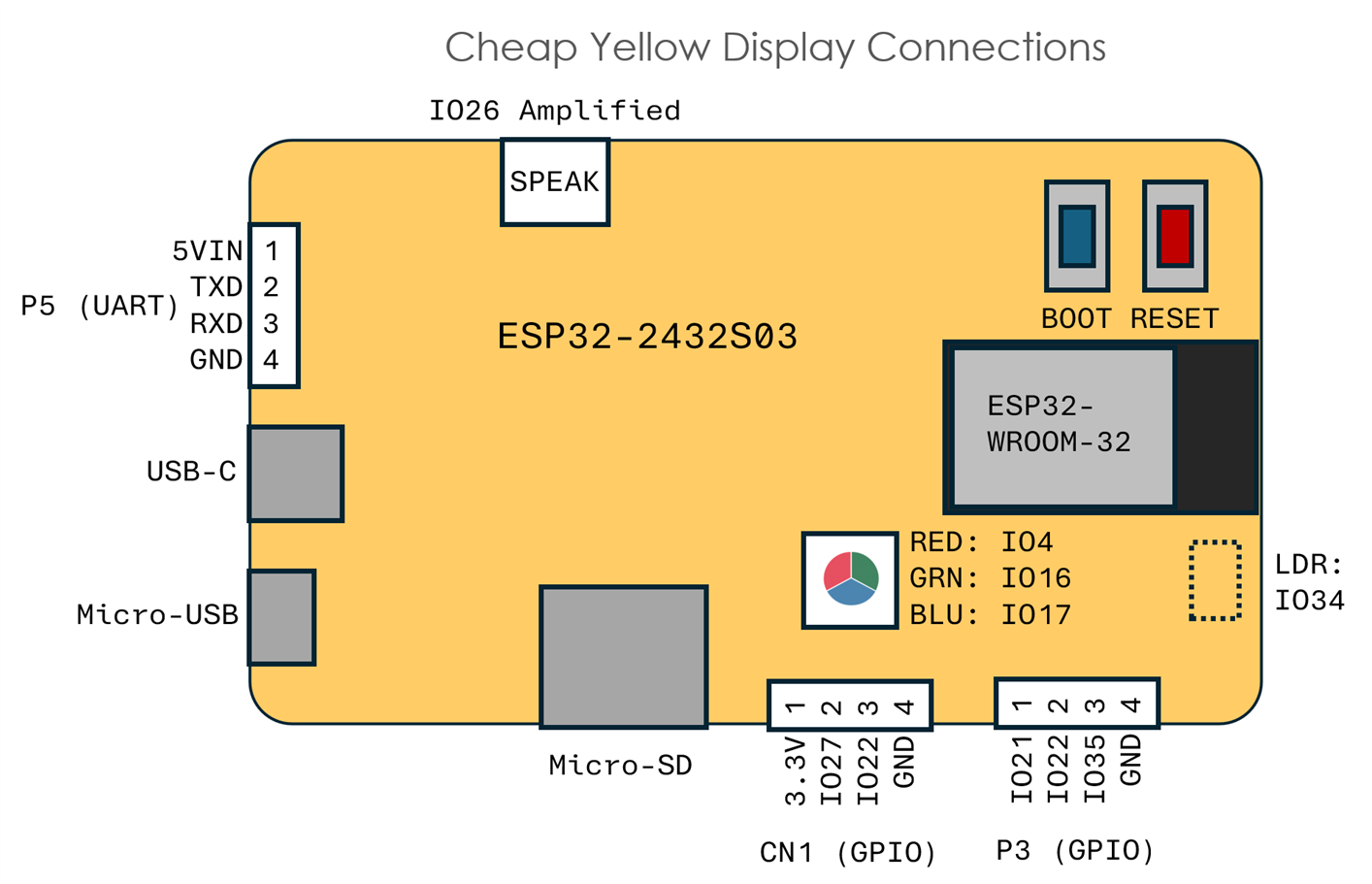
The component side has an ESP32 module (PDF Datasheet) with approximately 4 Mbyte Flash, and about 520k RAM, 2.4 GHz wireless LAN capability, and Bluetooth Low Energy (BLE).
There is also an RGB LED, a 1W audio amplifier, Micro SD card socket (very useful for logging or configuration files for projects) and very few spare GPIO connections brought out to a couple of connectors.
The board I purchased had both USB-C and Micro-USB connectors, but they are attached to the same signals, so both must not be used simultaneously.
Power entry can come from either the connector labelled P5, or either of the USB sockets. Software can be debugged using the USB Serial interface present on the USB connectors, or using an external USB-UART adapter connected to P5.
There are boot and reset buttons, which are needed during device programming.

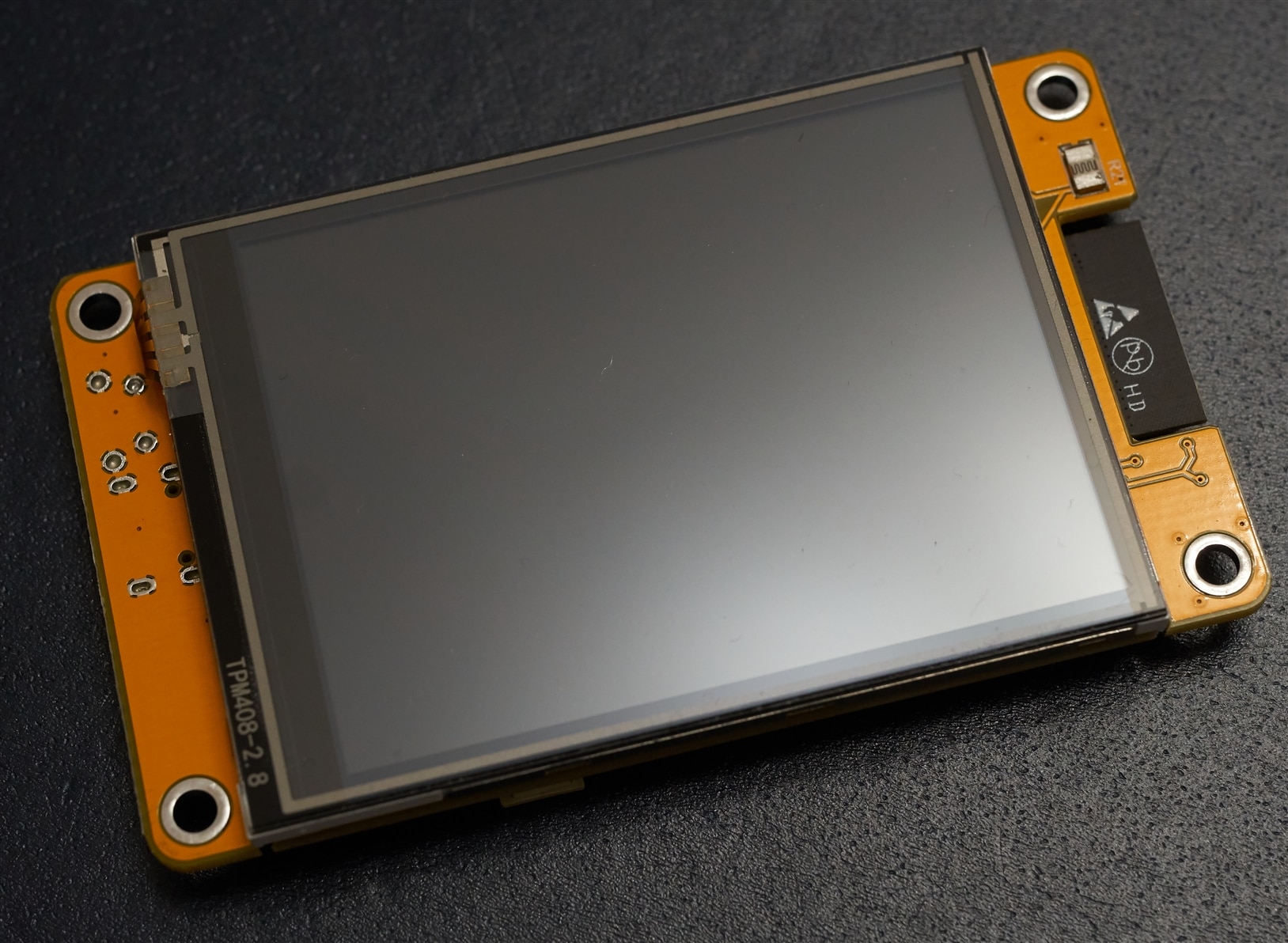
The other side contains just the TFT touchscreen, and a little light sensor (Light Dependent Resistor).
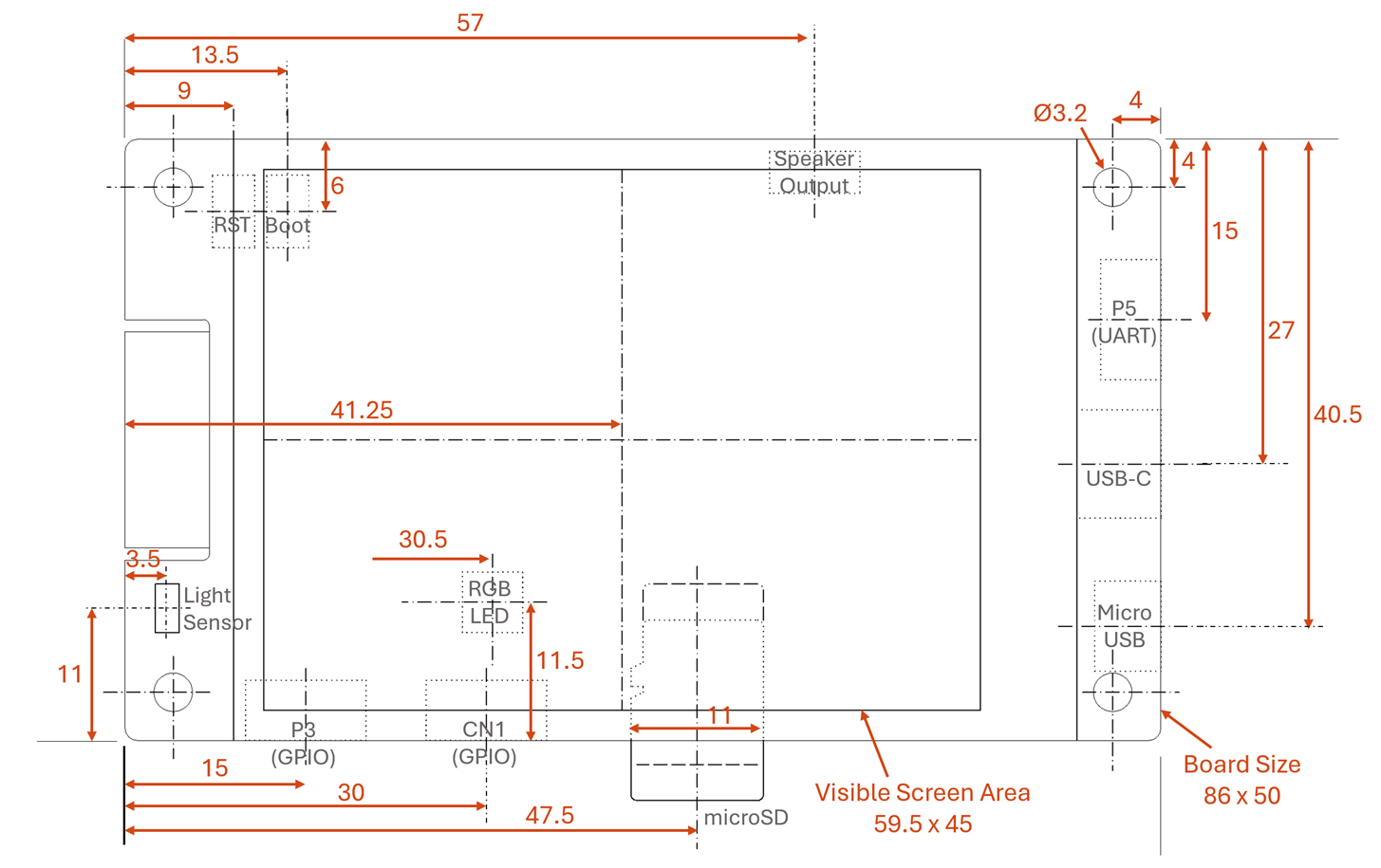
Board Dimensions / Technical Drawing
The overall board is 86 x 50 mm, it's a standard 1.6 mm thick PCB. The 70 x 50 mm TFT screen has a 4 mm height above the board surface. Visible area is 59.5 x 45 mm.
On the other side of the board, most parts protrude 4 mm or less from the board surface, except the Reset and Boot buttons and the speaker connector which are all approx. 4.8 mm tall.
Click the image to enlarge (all measurements are likely only accurate to within a millimeter, and may vary since not all CYD boards may be identical).
Is It Any Good?
The board arrives with a USB-C to Type A cable (a USB-C to USB-C cable will not work), and a short 4-wire cable if required for any external UART or GPIO connections, and a little plastic stylus, although the touchscreen can be pressed with fingers too.
The 2.4” 240 x 320 resolution TFT screen is very basic, the contrast is quite poor, but that’s to be expected at such a low price. I think it is very good value for money, and the board can be used for user interfaces (for example).
The board I purchased has space for an additional Flash chip to be installed, but that was not fitted on the board; the only Flash memory present is that inside the ESP32 module.
CYD Connections Reference
There isn’t an official schematic, but it’s possible to figure out the connections. Here they are!
Note: all connectors are Molex PicoBlade (1.25 mm pitch), sometimes known as JST 1.25 (even though JST doesn't manufacture them!).
RGB LED
There is a large RGB LED near the ESP32 module. The GPIO pins need to be pulled low to turn on the LEDs.
| GPIO# | Connection |
| 4 | Red Cathode |
| 16 | Green Cathode |
| 17 | Blue Cathode |
Micro SD Socket
The Micro SD interfaces uses a Serial Peripheral Interface (SPI):
| GPIO# | Connection |
| 5 | *CS |
| 23 | MOSI |
| 19 | MISO |
| 18 | SCLK |
UART and BOOT pin
The serial interface connects to both the USB connector (via a CH340C USB-to-Serial converter) and to a board connector P5, through 100 ohm resistors. A supplied cable can be used.
| ESP32 Signal Name | Description |
| RDX0 | ESP32 Board Rx, and P5 pin 3 (Blue wire) |
| TXD0 | ESP32 Board Tx, and P5 pin 2 (Yellow wire) |
The detail for connector P5:
| P5 Pin | Description |
| 1 | 5V Board Power Input (Red wire) |
| 2 | ESP32 Board Tx (Yellow wire) |
| 3 | ESP32 Board Rx (Blue wire) |
| 4 | GND (Black wire) |
The ESP32 boot pin is GPIO#0, and it is connected to a push-button to the left of the ESP32. It may need to be held down, while tapping RST, when programming the board. The boot pin is also connected to the CH340C chip to try to automate the boot control from the PC during device programming, but it didn’t work for me, and I had to use the push-button.
Audio Output
One pin (GPIO26) is wired to an SC8002B audio amplifier IC, which is a 1W 8-ohm bridge-tied-load amplifier, wired to a 2-pin connector labelled SPEAK. The connection is through an RC filter. GPIO26 can be operated in a DAC mode (peripheral signal name DAC_2) or perhaps PWM could be performed (no idea).

Spare Input/Output Connections
A few GPIO pins are brought out to two connectors, called CN1 and P3.
CN1:
| CN1 Pin | Connection |
| 1 | 3.3V |
| 2 | GPIO27 |
| 3 | GPIO22 (also present on conn P3) |
| 4 | GND |
P3:
| P3 Pin | Connection |
| 1 | GPIO21 |
| 2 | GPIO22 (also present on conn CN1) |
| 3 | GPIO35 |
| 4 | GND |
Touch Interface
There is a resistive touch layer on the TFT screen, and it can be pressed by fingers or using the supplied stylus. The touch interface uses an XPT2046 IC (PDF datasheet) in a TSSOP package.
| GPIO# | Connection |
| 36 | Touch *PENIRQ (input to ESP32) |
| 32 | Touch DIN (MOSI output from ESP32) |
| 39 | Touch DOUT (MISO input to ESP32) |
| 25 | Touch DCLK (output from ESP32) |
| 33 | Touch *CS (output from ESP32) |
TFT Screen, Backlight and Light Sensor (Light Dependent Resistor)
The TFT screen uses an ILI9341_2 software driver (Driver IC PDF datasheet). The reset pin is hard-wired to the board reset circuitry, i.e. a capacitor keeps it low at power-up briefly.
The Light Dependent Resistor (LDR) is attached to GPIO pin that may need a pull-up configured in software, perhaps.
| GPIO# | Connection |
| 14 | TFT SCLK |
| 2 | TFT DC (Data/*Command) |
| 15 | TFT *CS |
| 13 | TFT MOSI (ESP32 Output) |
| 12 | TFT MISO (ESP32 Input) |
| 21 | TFT Backlight PWM (High = ON) |
| 34 | (ADC1_CH6) Light Dependent Resistor to GND |
Install VS Code, and PlatformIO Extension
To get going with the CYD, first install VS Code. Then, install the PlatformIO extension by following the steps shown in this screenshot:
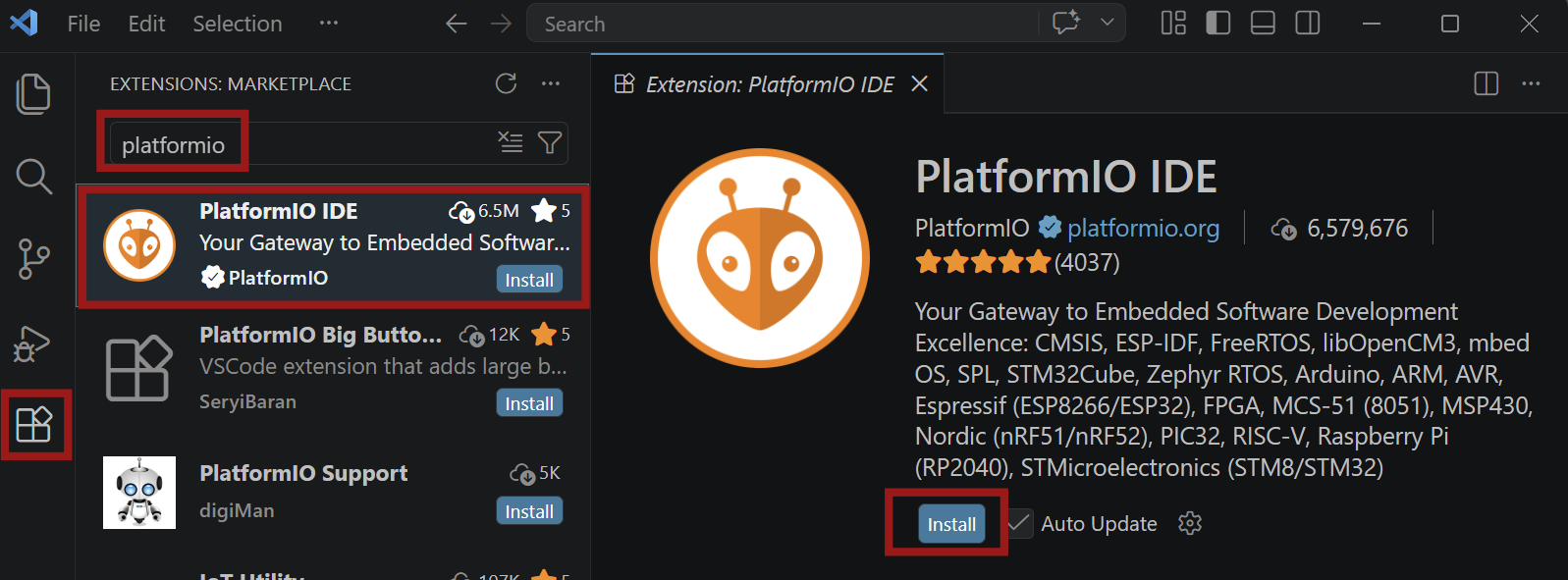
Then, restart VS Code!
Later, you might see Installing PlatformIO Core messages at the bottom-right of the VS Code window at some point, such as when a project folder is opened. If you see that, let it complete, and then click Reload Now.
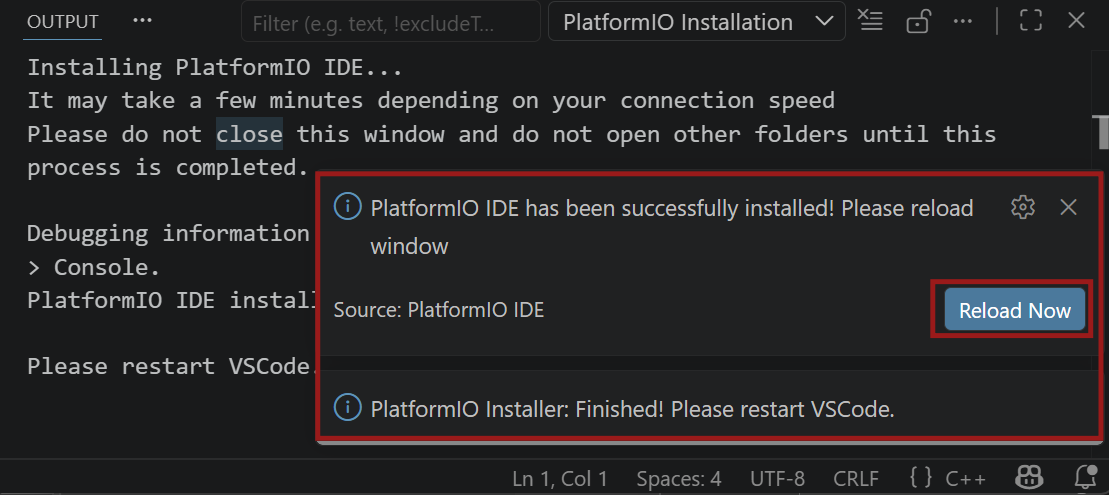
Download the Jellyfish Project
Create a general projects folder, for instance, C:\DEV\projects
Ensure you have git installed (install it using https://git-scm.com/download/win )
Open PowerShell, navigate to that general projects folder, and type the following, which will create a folder called denki-kurage and the source code will be placed there by the command:
git clone https://github.com/likeablob/denki-kurage.git
Open the Project Folder in VS Code
Go to File->Open Folder and select the downloaded project folder denki-kurage. Click to trust the folder if prompted.
You can view the code, by clicking on the left side explorer view, for instance, click on src and select main.cpp. The code will appear in the main pane.
You should see a load of messages appear in VS Code at the lower-right, regarding PlatformIO performing project configuration operations. It may take a quarter of an hour or so to complete, even on a fast PC, and it may well sit at 100% for quite a while, seemingly doing nothing, but let it complete. I wasn’t impressed by PlatformIO’s poor status messages and the crazily long install time.
Eventually you should see this:
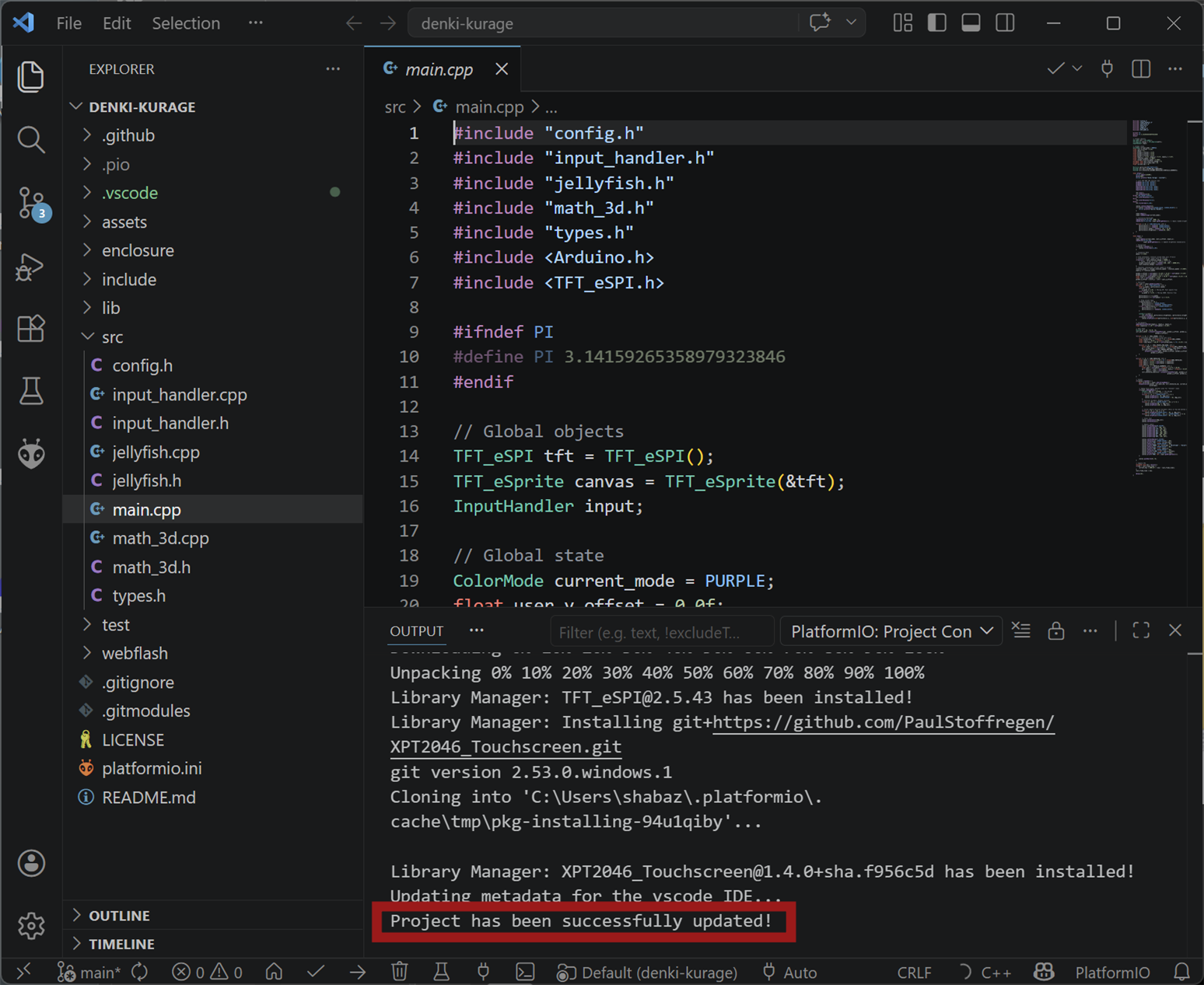
Build the Project
Click on the PlatformIO icon on the left side icon bar, it looks like an alien head. Then click on cyd->General and then select Build.
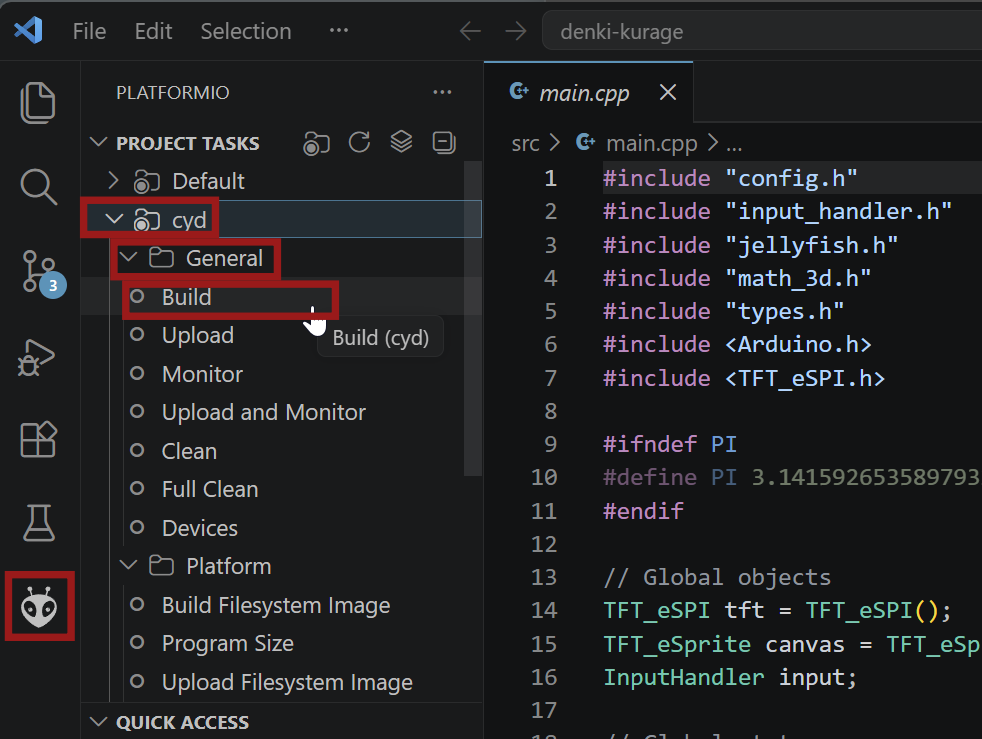
You should see a load of messages appear at the bottom, followed by Success messages.

Uploading Firmware to the Board
Plug in the USB cable into to the board and into your PC. You should hear a Windows device installed sound after a few seconds. Windows Device Manager will show a port installed, in my case, it was COM3 but the number will vary.
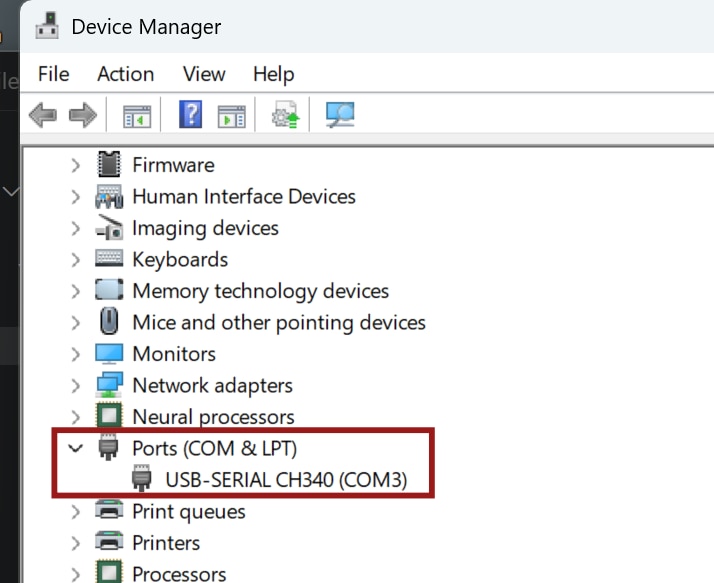
The display on the board should be lit up, and may display an image that is part of any factory firmware that may be in Flash memory.
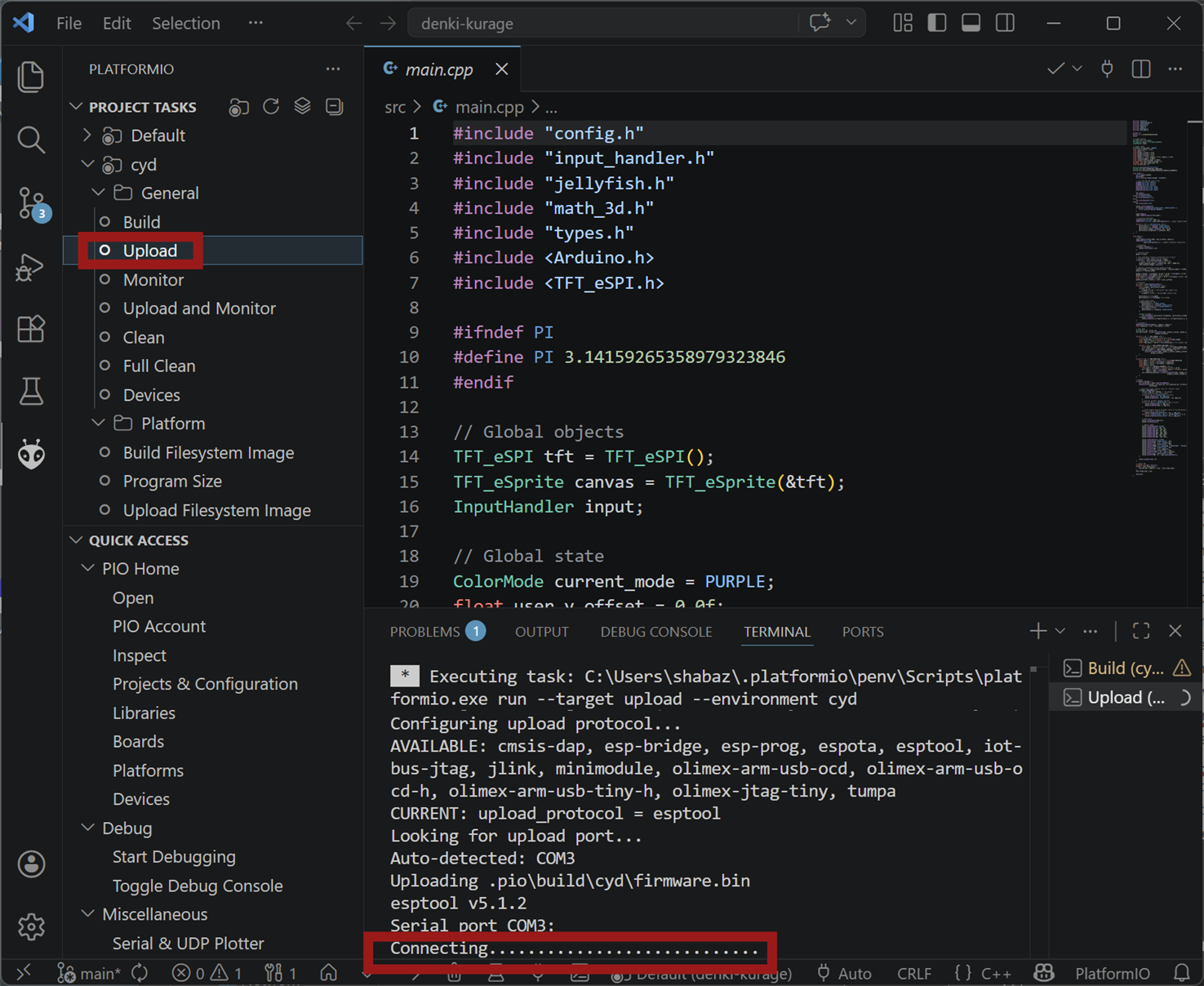
Look at the back of the board, and locate the two buttons. The top one is labelled RST (Reset) and the one below it is labelled BOOT. The plan will be to click on Upload in VS Code, and then when you see a Connecting… message appear, quickly press down BOOT, and while holding it down, press and immediately release RST. Then you can release BOOT. What this does, is essentially ensure that BOOT is pressed during a board reset.
Click on cyd->General->Upload, and notice the Connecting… text at the bottom:
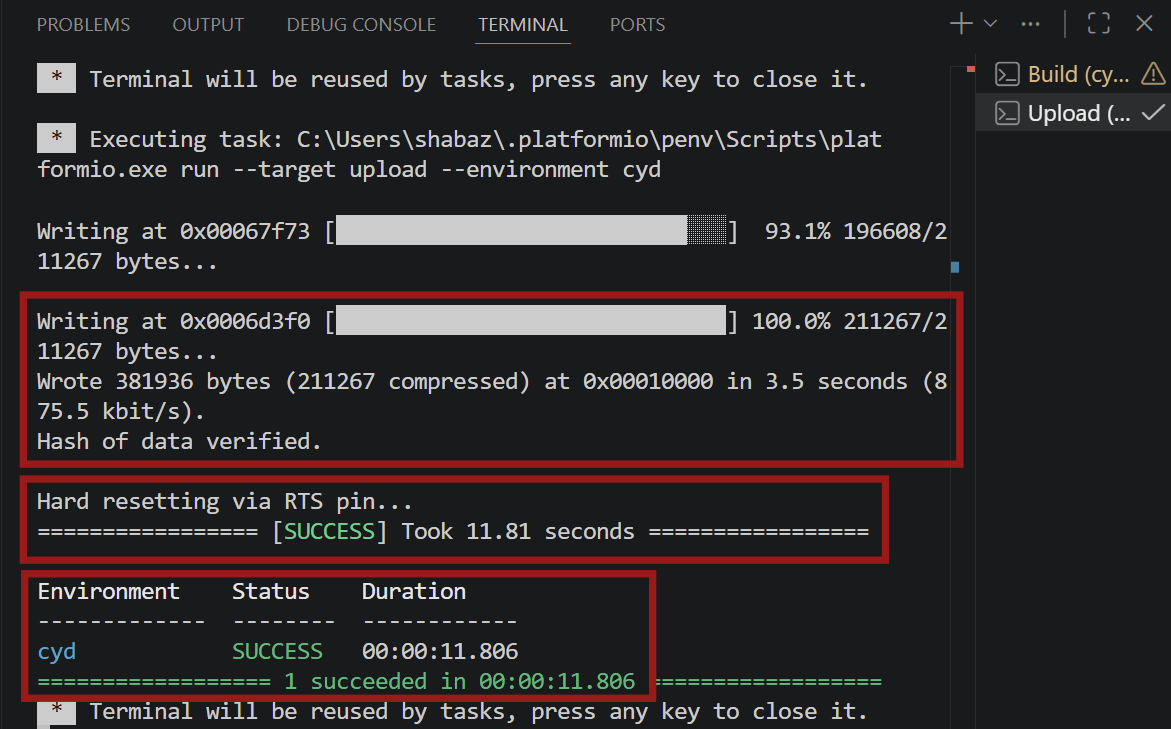
Now, as soon as that text appears, hold down the lower button (BOOT), then tap the top button (RST) and then release BOOT. You should see some uploading messages appear, followed by Success messages:
Take a look at the LCD on the board, and a jellyfish should be present! Tap the jellyfish to change its colour.
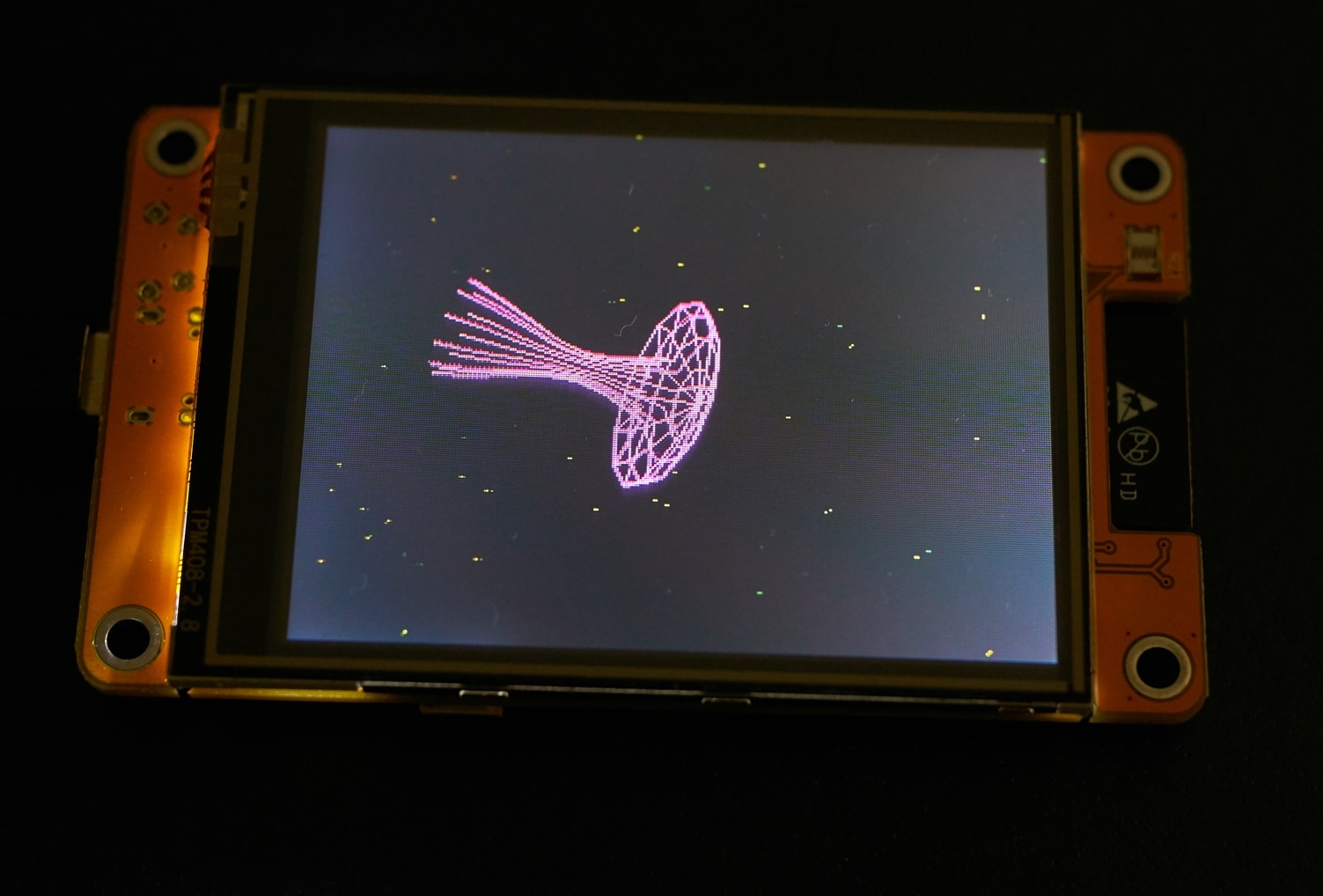
The jellyfish happened to be on a white background which I didn't like, so I edited the src/config.h file, to add the following line:
#define CYD_INVERT_DISPLAYAfter that, I re-built and re-uploaded the firmware, and all was well.
Summary
The Cheap Yellow Display is a very low cost ESP32 microcontroller board with built-in touchscreen TFT. To get going with it, VS Code was downloaded, a PlatformIO extension installed, and then it was just a matter of clicking to build and upload any code. My board required the BOOT and RST buttons to be used during the code upload process.
For next steps, I'd like to personalize the display, and maybe get it to display the time at the bottom too, so it can function as a desk clock. For other unrelated projects, the code could perhaps be used as a template, for custom code.
Thanks for reading!
Top Comments