


Introduction
Definitely the Python language with some content improvements has been adopted to manage the UI, replacing the initial idea to use Qt for two reasons: development optimization and architecture simplification. Unfortunately as many times occur, making things simple it is not so simple.
Exploiting the features of the Linux graphic interface
Together with Python there is a very useful library interfacing the language with the standard features natively available in the Raspbian desktop: PyGTK
This library lets create almost any graphical user interface with the Python language using GTK+. This means that it is possible to create multiplatform visual applications based on the graphic features and performances of the Gnome Desktop.
The resulting program can work easily with good performances without further intermediate graphic components.
Another advantage is that the entire set of UI applications developed in PyGTK inherit the GTK desktop theme adapting to any supported environment.
As occur with all the Python libraries the integration of PyGTK in the Python programs is almost simple:
#!/usr/bin/env python

import sys
try:
    import pygtk
    pygtk.require("2.0")
except:
    pass
try:
    import gtk
    import gtk.glade
except:
    print("GTK Not Availible")
    sys.exit(1)

class HellowWorldGTK:
    """This is an Hello World GTK application"""

    def __init__(self):

        #Set the Glade file
        self.gladefile = "HelloWin.glade"
        self.wTree = gtk.glade.XML(self.gladefile)


if __name__ == "__main__":
    hwg = HellowWorldGTK()
    gtk.main()
A simple GTK Window with Python
The following scriptlet shows the creation of a simple windows using PyGTK
#!/usr/bin/env python

# example base.py

import pygtk
pygtk.require('2.0')
import gtk

class Base:
    def __init__(self):
        self.window = gtk.Window(gtk.WINDOW_TOPLEVEL)
        self.window.show()

    def main(self):
        gtk.main()

print __name__
if __name__ == "__main__":
    base = Base()
    base.main()
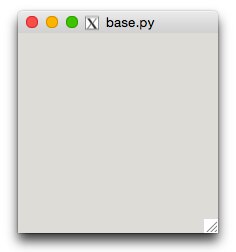
This source is very simple generating a small window on the screen as shown below:
Something more complex
Using the PyGTK API - we can try this more complex example
#!/usr/bin/env python

# example table.py

import pygtk
pygtk.require('2.0')
import gtk

class Table:
    # Our callback.
    # The data passed to this method is printed to stdout
    def callback(self, widget, data=None):
        print "Hello again - %s was pressed" % data

    # This callback quits the program
    def delete_event(self, widget, event, data=None):
        gtk.main_quit()
        return False

    def __init__(self):
        # Create a new window
        self.window = gtk.Window(gtk.WINDOW_TOPLEVEL)

        # Set the window title
        self.window.set_title("Table")

        # Set a handler for delete_event that immediately
        # exits GTK.
        self.window.connect("delete_event", self.delete_event)

        # Sets the border width of the window.
        self.window.set_border_width(20)

        # Create a 2x2 table
        table = gtk.Table(2, 2, True)

        # Put the table in the main window
        self.window.add(table)

        # Create first button
        button = gtk.Button("button 1")

        # When the button is clicked, we call the "callback" method
        # with a pointer to "button 1" as its argument
        button.connect("clicked", self.callback, "button 1")


        # Insert button 1 into the upper left quadrant of the table
        table.attach(button, 0, 1, 0, 1)

        button.show()

        # Create second button

        button = gtk.Button("button 2")

        # When the button is clicked, we call the "callback" method
        # with a pointer to "button 2" as its argument
        button.connect("clicked", self.callback, "button 2")
        # Insert button 2 into the upper right quadrant of the table
        table.attach(button, 1, 2, 0, 1)

        button.show()

        # Create "Quit" button
        button = gtk.Button("Quit")

        # When the button is clicked, we call the main_quit function
        # and the program exits
        button.connect("clicked", lambda w: gtk.main_quit())

        # Insert the quit button into the both lower quadrants of the table
        table.attach(button, 0, 2, 1, 2)

        button.show()

        table.show()
        self.window.show()

def main():
    gtk.main()
    return 0

if __name__ == "__main__":
    Table()
    main()
This code will generate the window shown in the image below
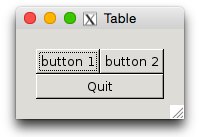
Until we press the buttons 1 and 2 we see on the terminal the button message then pressing the OK button the program ends.
Hello again - button 1 was pressed
Hello again - button 2 was pressed
The PyGTK library includes also the API to set callback functios, associate methods to the buttons and so on. A complete manager of the visual interaction. Unfortunately also for a simple application (three buttons with their callback inside a standard window) we should write a lot of code. As a matter of fact every graphic option, button, icon and detail should be written in Python calling the proper PyGTK API.
Separating the design from the code
The solution to make the things easier is to operate a separation between the User Interface design and the code. To reach this goal we should adopt a technique very similar to the Android applications, keeping apart the objects design in XML format from the PyGTK Python code.
The Meditech Python controller when start shows the main Meditech logo on the screen while managing the inter-process communication. To reach this result the background image has been created:

Then a special window has been defined in a separate XML file: the MeditechInterface2.glade as shown below
<?xml version="1.0" encoding="UTF-8"?>
<interface>
  <!-- interface-requires gtk+ 3.0 -->
  <object class="GtkWindow" id="MeditechBackground">
    <property name="visible">True</property>
    <property name="sensitive">False</property>
    <property name="can_focus">False</property>
    <property name="halign">center</property>
    <property name="valign">center</property>
    <property name="title" translatable="yes">Meditech 1.0Beta</property>
    <property name="resizable">False</property>
    <property name="modal">True</property>
    <property name="window_position">center-on-parent</property>
    <property name="default_width">1024</property>
    <property name="default_height">1080</property>
    <property name="hide_titlebar_when_maximized">True</property>
    <property name="type_hint">desktop</property>
    <property name="skip_taskbar_hint">True</property>
    <property name="skip_pager_hint">True</property>
    <property name="accept_focus">False</property>
    <property name="focus_on_map">False</property>
    <property name="decorated">False</property>
    <property name="deletable">False</property>
    <property name="gravity">center</property>
    <property name="has_resize_grip">False</property>
    <property name="mnemonics_visible">False</property>
    <property name="focus_visible">False</property>
    <child>
      <object class="GtkImage" id="background">
        <property name="width_request">1024</property>
        <property name="height_request">768</property>
        <property name="visible">True</property>
        <property name="sensitive">False</property>
        <property name="can_focus">False</property>
        <property name="xalign">0</property>
        <property name="yalign">0</property>
        <property name="pixbuf">images/Meditech-1024.jpg</property>
      </object>
    </child>
  </object>
</interface>
This is a window where many parameters are different than the default: there are no decorations, the window is not resizable, the image is centered and both window and image are expanded over the entire screen and more. Designing the UI apart has created a dramatic simplification in the Python code, where the entire UI definition is reduced to a line of code as shown below.
import sys
try:
    import pygtk
    pygtk.require("2.0")
except:
    pass
try:
    import gtk
    import gtk.glade
except:
    print("GTK Not Availible")
    sys.exit(1)

class MeditechMain:

    wTree = None

    def __init__( self ):
        #  ============================ XML with the UI desgn definition
        builder = gtk.Builder()
        builder.add_from_file("MeditechInterface2.glade")
        # ============================
        builder.connect_signals(self)
        self.window = builder.get_object("MeditechBackground")
        self.window.fullscreen()
        self.window.maximize()
        self.window.set_keep_below(True)
        self.window.set_deletable(False)
        # self.window.show_all()

        # self.image = builder.get_object("Background")
        # self.image.show()

def main():
    gtk.main()

if __name__ == "__main__":
    mainClass = MeditechMain()
    main()
What makes the difference is the call add_from_file("MeditechInterface2.glade") incorporating the XML file. Obviously the PyGTK APIs remain available and can be used in the program to make changes and adaptions to the initial UI.
Making the design simple
It is almost intuitive that it is not simple to define the UI components in XML. It is also obvious that this separation between design and code has also another great advantage: we can retouch and adjust some design issues without changing the code.
The reason that the UI design XML file has the glade extension derives from the name of the graphic IDE we are using, just to create the design. Again this strategy is a remembrance of the Android UI design.
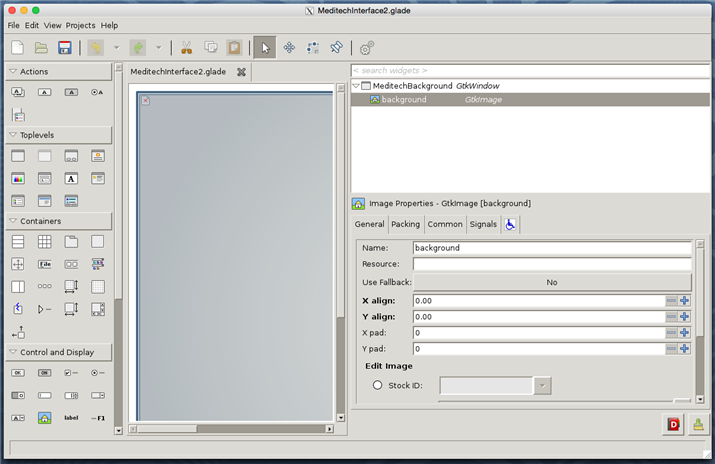
The Glade IDE makes available all the GTK components to design the UI components seeing them as they appear at runtime; then generates the glade XML file when the design is saved to be used in the PyGTK Python application. Details on the installation and usage of the Glade IDE can be found at glade.gnome.org
Top Comments
-

shabaz
-
Cancel
-
Vote Up
+1
Vote Down
-
-
Sign in to reply
-
More
-
Cancel
-

balearicdynamics
in reply to shabaz
-
Cancel
-
Vote Up
+1
Vote Down
-
-
Sign in to reply
-
More
-
Cancel
Comment-

balearicdynamics
in reply to shabaz
-
Cancel
-
Vote Up
+1
Vote Down
-
-
Sign in to reply
-
More
-
Cancel
Children