


MSP432 and CC3100 MQTT with Websockets Part II (MSP432/CC3100 MQTT config)
Hardware:
SimpleLink MSP432P401R LaunchPad
CC3100MODBOOST WiFi, SimpleLink Module BoosterPack
Software:
CC3100 MQTT Client - Texas Instruments Wiki
MSP432Ware v.3.50.00.02 (CC3100BOOST_MQTT_TwitterLED_MSP432_401R example)
Eclipse Paho JavaScript Client
In my previous post, I outlined how to set up MQTT with Websockets on a Beaglebone Black using Mosquitto. Here, I will show how to use that config and combine it with an MSP432 and CC3100 MQTT example to send and receive data from the CC3100 using MQTT.
Part1
Safe and Sound Wearables- Hearing Guard System #13: MSP432 and CC3100 MQTT with Websockets Part I
To get started with MQTT on the MSP432 with CC3100 in Code Composer Studio, I had a look at Jan Cumps' posting which covers security questions with MQTT on the MSP432 with the CC3100 Booster pack.
Like in Jan's example, I used the MSPWare CC3100BOOST_MQTT_TwitterLED_MSP432_401R example. However, in my case, I do not wish to publish anything on the web and want to keep the communication local. To perform this I had to edit the example code as such.
The first thing is to import the CC3100BOOST_MQTT_TwitterLED_MSP432_401R example from MSP432Ware. I'm using CCS 6.2 and importing from Resource Explorer does not work all the time so I had to import the project directly from the appropriate folder.
On my system, this ended up at:
C:\ti\tirex-content\msp\msp432ware__3.50.00.02\examples\boards\MSP-EXP432P401R\MSP-EXP432P401R_Software_Examples\Firmware\Source\CC3100BOOST_MQTT-TwitterLED_MSP432P401R
From CCS, click on Project-> Import CCS Projects and navigate to the location of the example.
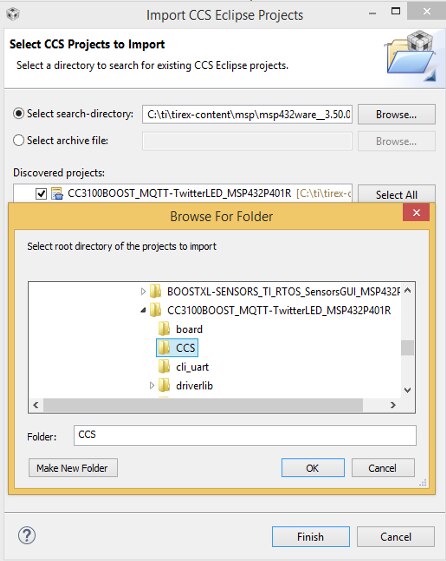
Once this is located and the 'OK' Button is clicked, the project should show up in the 'Discovered Projects' window.
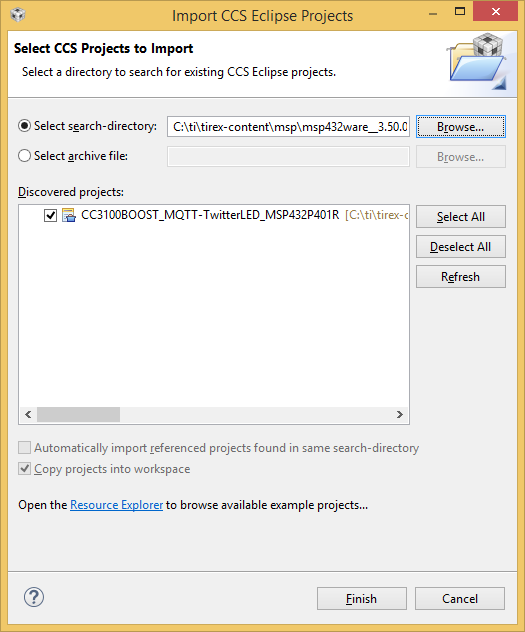
Click 'Finish' and the project should be imported into CCS.
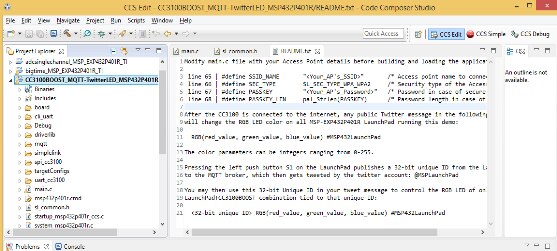
NOTE: There is README.txt with some instruction with regards to how to set-up the code for your particular environment.
In the 'main.c' file, locate the section of code that allows you to set the network parameters.
/*
 * Values for below macros shall be modified per the access-point's (AP) properties
 * SimpleLink device will connect to following AP when the application is executed
 */
//#define SSID_NAME       "<Your_AP's_SSID>"       /* Access point name to connect to. */
#define SSID_NAME       "YourSSID"       /* Access point name to connect to. */
#define SEC_TYPE        SL_SEC_TYPE_WPA_WPA2     /* Security type of the Access piont */
//#define PASSKEY         "<Your_AP's_Password>"   /* Password in case of secure AP */
#define PASSKEY         "WPA_WPA2_PASSWORD"   /* Password in case of secure AP */
#define PASSKEY_LEN     pal_Strlen(PASSKEY)      /* Password length in case of secure AP */
NOTE: As Jan pointed out, like with setting the Wireless connection on a RasPi or Beaglebone, or Linux system in general, the SSID and Password to your Wi-Fi config will be exposed. At least in this case it is in the compiled code.
Set the SSID_NAME and PASSKEY appropriately.
Next, locate the section of code that shows the defines for the MQTT broker and set the MQTT_BROKER_SERVER to the appropriate IP as well as define the SUBSCRIBE_TOPIC and PUBLISH_TOPIC defines.
/*
 * MQTT server and topic properties that shall be modified per application
 */
//#define MQTT_BROKER_SERVER  "iot.eclipse.org"
//#define SUBSCRIBE_TOPIC "/msp/cc3100/demo"

#define MQTT_BROKER_SERVER  "YOUR_BROKER_IP"

#define SUBSCRIBE_TOPIC "/test/topic"
#define PUBLISH_TOPIC "/msp/cc3100/demo/fromLP"
//#define PUBLISH_TOPIC "/test/topic"
The example code will generate a uniqueID for the CC3100 based on the MAC address
    // Generate 32bit unique ID from TLV Random Number and MAC Address
    generateUniqueID();
I added a variable for the mqqt_port since it was hardcoded in the function call
     int rc = 0;
    unsigned char buf[100];
    unsigned char readbuf[100];
    int mqtt_port = 8883;  //  Added for MQTT port
I changed some of the CLI_Write statements just to debug the topic assignments
    if (rc != 0) {
        CLI_Write(" Failed to subscribe to /msp/cc3100/demo topic \n\r");
        LOOP_FOREVER();
    }
    //CLI_Write(" Subscribed to /msp/cc3100/demo topic \n\r");
    CLI_Write(" Subscribed to ");
    CLI_Write(SUBSCRIBE_TOPIC);
    CLI_Write(" topic \n\r");


    rc = MQTTSubscribe(&hMQTTClient, uniqueID, QOS0, messageArrived);


    if (rc != 0) {
        CLI_Write(" Failed to subscribe to uniqueID topic \n\r");
        LOOP_FOREVER();
    }
    //CLI_Write(" Subscribed to uniqueID topic \n\r");
    CLI_Write(" Subscribed to ");
    CLI_Write(uniqueID);
    CLI_Write(" topic \n\r");
Also, I changed some of the reporting for the Publish section to ensure it was sending to the correct topic.
        if (publishID) {
            int rc = 0;
            MQTTMessage msg;
            msg.dup = 0;
            msg.id = 0;
            msg.payload = uniqueID;
            msg.payloadlen = 8;
            msg.qos = QOS0;
            msg.retained = 0;
            rc = MQTTPublish(&hMQTTClient, PUBLISH_TOPIC, &msg);


            if (rc != 0) {
                CLI_Write(" Failed to publish unique ID to MQTT broker \n\r");
                LOOP_FOREVER();
            }
            CLI_Write(" Published unique ID successfully \n\r");
            CLI_Write(PUBLISH_TOPIC);
            CLI_Write("\n\r");


            publishID = 0;
        }
In the example, to generate the uniqueID, it combines a random number and the MAC address.
static void generateUniqueID() {
    CRC32_setSeed(TLV->RANDOM_NUM_1, CRC32_MODE);
    CRC32_set32BitData(TLV->RANDOM_NUM_2);
    CRC32_set32BitData(TLV->RANDOM_NUM_3);
    CRC32_set32BitData(TLV->RANDOM_NUM_4);
    int i;
    for (i = 0; i < 6; i++)
    CRC32_set8BitData(macAddressVal[i], CRC32_MODE);


    uint32_t crcResult = CRC32_getResult(CRC32_MODE);
    sprintf(uniqueID, "%06X", crcResult);
}
When a message arrives, a message callback function takes the message and parses the data from it to enable the appropriate RGB LEDs on the MSP432.
//****************************************************************************
//
//!    \brief MQTT message received callback - Called when a subscribed topic
//!                                            receives a message.
//! \param[in]                  data is the data passed to the callback
//!
//! \return                        None
//
//****************************************************************************
static void messageArrived(MessageData* data) {
    char buf[BUFF_SIZE];
    CLI_Write("Message arrrived \n\r");
    char *tok;
    long color;


    // Check for buffer overflow
    if (data->topicName->lenstring.len >= BUFF_SIZE) {
//      UART_PRINT("Topic name too long!\n\r");
        return;
    }
    if (data->message->payloadlen >= BUFF_SIZE) {
//      UART_PRINT("Payload too long!\n\r");
        return;
    }

    strncpy(buf, data->topicName->lenstring.data,
        min(BUFF_SIZE, data->topicName->lenstring.len));
    buf[data->topicName->lenstring.len] = 0;

    strncpy(buf, data->message->payload,
        min(BUFF_SIZE, data->message->payloadlen));
    buf[data->message->payloadlen] = 0;


    tok = strtok(buf, " ");
    color = strtol(tok, NULL, 10);
    TA0CCR1 = PWM_PERIOD * (color/255.0);                 // CCR1 PWM duty cycle
    tok = strtok(NULL, " ");
    color = strtol(tok, NULL, 10);
    TA0CCR2 = PWM_PERIOD * (color/255.0);                // CCR2 PWM duty cycle
    tok = strtok(NULL, " ");
    color = strtol(tok, NULL, 10);
    TA0CCR3 = PWM_PERIOD * (color/255.0);                  // CCR3 PWM duty cycle

    return;
}
The example code uses an IRQ Handler to process the button presses and send either a message with the uniqueID or the MAC Address.
/*
 * Port 1 interrupt handler. This handler is called whenever the switch attached
 * to P1.1 is pressed.
 */
void PORT1_IRQHandler(void)
{
    uint32_t status = GPIO_getEnabledInterruptStatus(GPIO_PORT_P1);
    GPIO_clearInterruptFlag(GPIO_PORT_P1, status);


    if (status & GPIO_PIN1)
    {
        if (S1buttonDebounce == 0)
        {
            S1buttonDebounce = 1;


            GPIO_setOutputHighOnPin(GPIO_PORT_P1, GPIO_PIN0);


            // Publish the unique ID
            publishID = 1;
            CLI_Write("** PublishID \n\r ");
            CLI_Write(publishID);
            CLI_Write("\n\r");


            MAP_Timer_A_startCounter(TIMER_A1_BASE, TIMER_A_UP_MODE);
        }
    }
    if (status & GPIO_PIN4)
    {
        if (S2buttonDebounce == 0)
        {
            S2buttonDebounce = 1;


            CLI_Write(" MAC Address: \n\r ");
            CLI_Write(macStr);
            CLI_Write("\n\r");


            MAP_Timer_A_startCounter(TIMER_A1_BASE, TIMER_A_UP_MODE);
        }
    }
}
Compile and Run the code.
To view the UART output, find the COM port associated with the 'XDS110 Class Application/User UART.
This is COM3 on my system.

Open a serial port connection to the XDS110 COM port.
Settings:
Speed (baud): 9600
Data bits: 8
Stop bits: 1
Parity: None
Flow control: XON/XOFF (I'm not sure if this matters)
On a Mac system, the serial port can be opened as:
This is what it looks like on my system but may not be the same in all cases
screen /dev/cu.usbmodem123jon11 9600
On Windows, I use PuTTY.
When the example code is run, the output to the serial port should resemble the following:
NOTE: If nothing is seen on the screen, press the Reset button on the MSP432 to reset the config.
MQTT Twitter Controlled RGB LED - Version 1.0.0
*******************************************************************************
 Device is configured in default state
 Device started as STATION
 Connection established w/ AP and IP is acquired
 Connected to MQTT broker
 Started MQTT client successfully
 Subscribed to /test/topic topic
 Subscribed to 765521EB topic
NOTE: The board first starts in the default config but then switches to a STATION. If all goes well, the connection will be acquired and should show the connection to the MQTT broker as well as Subscription to the topics. The 'uniqueID topic is listed as well as:
Subscribed to 765521EB topic
When sending a message to a topic the CC3100 is subscribed to, a 'Message arrived' message will be seen:
Message arrived
Message arrived
Message arrived
When SW1 is Pressed on the MSP432, the code will Publish to topic uniqueID ;'765521EB' in this case
This is the added code I put to see what is happening when Publishing and Subscribing from the CC3100
** PublishID

 Published unique ID successfully
/msp/cc3100/demo/fromLP
If SW2 is pressed, the MAC Address will be reported.
MAC Address:
 f4:b8:5e:3c:f1:7e
To test this, the MQTT config from my previous post can be used.
Using the Beaglebone, ensure the Mosquitto MQTT broker is running
joiot@beaglebone:~$ sudo mosquitto -c /etc/mosquitto/mosquitto.conf
1496620491: mosquitto version 1.4.12 (build date 2017-05-29 17:29:22+0000) starting
1496620491: Config loaded from /etc/mosquitto/mosquitto.conf.
1496620491: Opening ipv4 listen socket on port 1883.
1496620491: Opening ipv4 listen socket on port 8883.
1496620491: Opening websockets listen socket on port 8083.
Reset the MSP432.
NOTE: If all is configured properly, the MQTT Broker should indicate that a new connection has been established with the uniqueID from the CC3100:
1496620596: New connection from 192.168.2.101 on port 8883.
1496620596: New client connected from 192.168.2.101 as 765521EB (c1, k60).
In separate windows, subscribe to the uniqueID topic, '765521EB' in this instance, as well as the '/msp/cc3100/demo/fromLP' topic.
joiot@beaglebone:~/MQTT$ sudo mosquitto_sub -v -h 192.168.2.202 -p 8883 -t '/msp/cc3100/demo/fromLP'

joiot@beaglebone:~$ sudo mosquitto_sub -v -h 192.168.2.202 -p 8883 -t '765521EB'765521EB
When SW1 on the MSP432 is pressed, the uniqueID from the CC3100 should appear with the '/msp/cc3100/demo/fromLP' topic:
Ex:
/msp/cc3100/demo/fromLP 765521EB
The RasPi config can be used as third system to Publish a message to the CC3100 topic and enable a RGB LED on the MSP432.
Ex: Green LED Enabled and Disabled
pi@jiot2:~ $ sudo mosquitto_pub -h 192.168.2.202 -p 8883  -t '765521EB' -m '0 255 0'
pi@jiot2:~ $ sudo mosquitto_pub -h 192.168.2.202 -p 8883  -t '765521EB' -m '0 0 0'
This also should be seen from the device that is subscribed to the '765521EB' topic:
Ex:
joiot@beaglebone:~$ sudo mosquitto_sub -v -h 192.168.2.202 -p 8883 -t '765521EB

765521EB 0 255 0
765521EB 0 0 0
The Green LED on the MSP432 should light in this case.
Ex:

I grabbed another Javascript MQTT with Websockets example and made some changes to send a message to the CC3100 to light the RGB LEDs on the MSP432.
This was downloaded from:
https://github.com/hexagon5un/mqtt-javascript-demo
The code is pretty basic and easy to implement and uses the Paho MQTT Client.
The 'index.html' looks like this:
<!DOCTYPE html>
<html>


        <head>
                <meta charset="UTF-8">
                <title>MQTT MSP432 CC3100</title>
        </head>


        <body>


                <h2 align=center>MQTT Example of Websockets with MSP432 and CC3100!</h2>


                <h3 id="id_status">Waiting for ID status update...</h3>
                <h3 id="test_status">Waiting for Test  status update...</h3>


                <button style="background-color:tomato;width:250;height:200" id="status_button0" type="button" onclick="led0_toggle();"><b>Click Me to Toggle RED LED!</b></button>
                <button style="background-color:chartreuse" id="status_button1" type="button" onclick="led1_toggle();"><b>Click Me to Toggle GREEN LED!</b></button>
                <button style="background-color:#1E90FF" id="status_button2" type="button" onclick="led2_toggle();"><b>Click Me to Toggle BLUE LED!</b></button>


                <!-- Source Paho MQTT Client-->
                <script src="lib/mqttws31.js"></script>
                <!-- Our Code Goes Here -->
                <script src="button_test.js"></script>
                <!-- Start it up! -->
                <script>connect();</script>


        </body>
</html>
The 'button_test.js' looks like this.
NOTE: I left the original author's name in place so I am not sure if this is correct since I did modify the original code but thought they should get cred for it none the less.
/*
   Eclipse Paho MQTT-JS Utility
   by Elliot Williams for Hackaday article,
*/


// Global variables
var client       = null;
var led0_is_on    = null;
var led1_is_on    = null;
var led2_is_on    = null;
// These are configs
var hostname       = "192.168.2.202";
//var port           = "9001";
var port           = "8083";
var clientId       = "mqtt_js_" + parseInt(Math.random() * 100000, 10);
var id_topic   = "/msp/cc3100/demo/fromLP";
//var test_topic     = "test/topic";
var test_topic     = "765521EB";


// This is called after the webpage is completely loaded
// It is the main entry point into the JS code
function connect(){
        // Set up the client
        client = new Paho.MQTT.Client(hostname, Number(port), clientId);
        console.info('Connecting to Server: Hostname: ', hostname,
                        '. Port: ', port, '. Client ID: ', clientId);


        // set callback handlers
        client.onConnectionLost = onConnectionLost;
        client.onMessageArrived = onMessageArrived;


        // see client class docs for all the options
        var options = {
                onSuccess: onConnect, // after connected, subscribes
                onFailure: onFail,     // useful for logging / debugging
                //userName: "",
                //password: ""
        };
        // connect the client
        client.connect(options);
        console.info('Connecting...');
}


function onConnect(context) {
        console.log("Client Connected");
    // And subscribe to our topics      -- both with the same callback function
        options = {qos:0, onSuccess:function(context){ console.log("subscribed"); } }
        client.subscribe(id_topic, options);
        client.subscribe(test_topic, options);
}
The screen shot of this looks like the following:

When the CC3100 subscribes to the MQTT broker, the ID status will change to the uniqueID of the CC3100.

This works the same as Publishing from command line, so if the Toggle RED LED button is pressed, this will be reported to the '765521EB' topic to toggle the LED on the MSP432.
joiot@beaglebone:~$ sudo mosquitto_sub -v -h 192.168.2.202 -p 8883 -t '765521EB'765521EB

765521EB 255 0 0
765521EB 0 0 0
Also, the MQTT Broker will indicate that the Websocket has been established:
1496622622: New client connected from 192.168.2.102 as mqtt_js_13043 (c1, k60).
So, that is pretty much it. This has shown how to configure an Mosquitto MQTT Broker on a Beaglebone Black using Debian, how to Publish and Subscribe to topics using a Mosquitto client, how to set up MQTT Websockets and use Javascript using a Paho Client to connect to the topics and send messages as well as to configure a CC3100 running on a MSP432 to Publish and Subscribe to MQTT topics using an Embedded MQTT client.
My next step is to get all this working in TI-RTOS and merge it with my existing Hearing Guard System. Time is ticking away though.
Here be a vid that shows all of this working.
Top Comments