element14 Community
element14 Community
    Register Log In
  • Site
  • Search
  • Log In Register
  • Community Hub
    Community Hub
    • What's New on element14
    • Feedback and Support
    • Benefits of Membership
    • Personal Blogs
    • Members Area
    • Achievement Levels
  • Learn
    Learn
    • Ask an Expert
    • eBooks
    • element14 presents
    • Learning Center
    • Tech Spotlight
    • STEM Academy
    • Webinars, Training and Events
    • Learning Groups
  • Technologies
    Technologies
    • 3D Printing
    • FPGA
    • Industrial Automation
    • Internet of Things
    • Power & Energy
    • Sensors
    • Technology Groups
  • Challenges & Projects
    Challenges & Projects
    • Design Challenges
    • element14 presents Projects
    • Project14
    • Arduino Projects
    • Raspberry Pi Projects
    • Project Groups
  • Products
    Products
    • Arduino
    • Avnet & Tria Boards Community
    • Dev Tools
    • Manufacturers
    • Multicomp Pro
    • Product Groups
    • Raspberry Pi
    • RoadTests & Reviews
  • About Us
    About the element14 Community
  • Store
    Store
    • Visit Your Store
    • Choose another store...
      • Europe
      •  Austria (German)
      •  Belgium (Dutch, French)
      •  Bulgaria (Bulgarian)
      •  Czech Republic (Czech)
      •  Denmark (Danish)
      •  Estonia (Estonian)
      •  Finland (Finnish)
      •  France (French)
      •  Germany (German)
      •  Hungary (Hungarian)
      •  Ireland
      •  Israel
      •  Italy (Italian)
      •  Latvia (Latvian)
      •  
      •  Lithuania (Lithuanian)
      •  Netherlands (Dutch)
      •  Norway (Norwegian)
      •  Poland (Polish)
      •  Portugal (Portuguese)
      •  Romania (Romanian)
      •  Russia (Russian)
      •  Slovakia (Slovak)
      •  Slovenia (Slovenian)
      •  Spain (Spanish)
      •  Sweden (Swedish)
      •  Switzerland(German, French)
      •  Turkey (Turkish)
      •  United Kingdom
      • Asia Pacific
      •  Australia
      •  China
      •  Hong Kong
      •  India
      •  Japan
      •  Korea (Korean)
      •  Malaysia
      •  New Zealand
      •  Philippines
      •  Singapore
      •  Taiwan
      •  Thailand (Thai)
      •  Vietnam
      • Americas
      •  Brazil (Portuguese)
      •  Canada
      •  Mexico (Spanish)
      •  United States
      Can't find the country/region you're looking for? Visit our export site or find a local distributor.
  • Translate
  • Profile
  • Settings
element14's The Ben Heck Show
  • Challenges & Projects
  • element14 presents
  • element14's The Ben Heck Show
  • More
  • Cancel
element14's The Ben Heck Show
Forum Hi Ben, long time watcher of the TBHS. Love it & you. Need Help with Raspberry pi 2 & LCD please!
  • Blog
  • Forum
  • Documents
  • Polls
  • Files
  • Members
  • Mentions
  • Sub-Groups
  • Tags
  • More
  • Cancel
  • New
Join element14's The Ben Heck Show to participate - click to join for free!
Actions
  • Share
  • More
  • Cancel
Forum Thread Details
  • State Suggested Answer
  • Replies 25 replies
  • Answers 5 answers
  • Subscribers 30 subscribers
  • Views 2350 views
  • Users 0 members are here
  • raspberry
  • waveshare
  • lcd
  • spotpear
  • pi
  • 2
  • tft
  • 3.5"
Related

Hi Ben, long time watcher of the TBHS. Love it & you. Need Help with Raspberry pi 2 & LCD please!

Former Member
Former Member over 10 years ago

Super new to the raspberry pi scene been watching you do various projects with them and figured it would be something new and cool to check out. got my noobs installed perfect now running raspbian.

been moving along following different tutorials trying out new things.


I finaly got stuff working on my Raspbian good and I'm starting to get a little more comfortable doing stuff on my Pi like, 1.) Installed apache and MySQL got wordpress working. (been tinkering around with it a little) also got a working copy of minecraft server vrs.1.8.4 working on my Pi.


Recently wanted to make it a bit more portable.

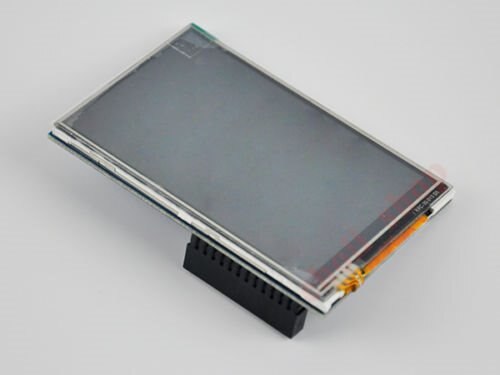
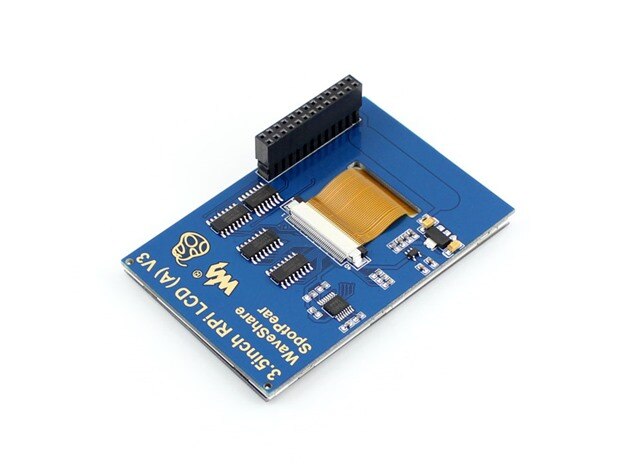
So I bought the 3.5" TFT LCD from Waveshare spotpear.

thought it was a no brainer plug N play with the Gpio

I pretty sure it is. but I cant seem to get or find proper soft ware, & or documentation to easily install it. there was no software when I got my lcd. it told me to go to few sites which were for the older pi.

I've read through few pages of peoples post seems a lot of new and regulars on the  Pi scene are having similar problems with lcd installations.

Currently My pi is running on hdmi to tv.


Best Related web page related info I could find so far Is http://www.wvshare.com/product/3.5inch-RPi-LCD-A.htm
 

image

image


Please say you can help figure this out.


Also, if anyone else who reads this if you also have a raspi2 w/ the 3.5" tft lcd Waveshare Spotpear addon card let us know if you got it working right and if so let  us know what you did or didn't do, please also provide software as I have been unable to find it.

  • Sign in to reply
  • Cancel

Top Replies

  • Former Member
    Former Member over 10 years ago +1 suggested
    I have that same screen, ordered from china off e-mail for around $20. Ill start by saying that you get what you pay for. It is not as easy to install but it works great! These instructions should get…
Parents
  • Former Member
    0 Former Member over 10 years ago

    I have that same screen, ordered from china off e-mail for around $20.


    Ill start by saying that you get what you pay for. It is not as easy to install but it works great!


    These instructions should get it up and running on the Pi.


    However, getting it to rotate was a pain and I ended up using bits and pieces of the Adafruit instructions as well.


    You have to do quite a bit of mucking with the /boot/config.txt to include the fbtft device entries and some work on the X11Config to get it all rotated and the touch working correctly.


    Hope it helps, If not drop me a line and Ill help you get it working.

    • Cancel
    • Vote Up +1 Vote Down
    • Sign in to reply
    • Verify Answer
    • Reject Answer
    • Cancel
  • Former Member
    0 Former Member over 10 years ago in reply to Former Member

    well tried your options, think I'm just not doing something right. As I'm still only getting a white screen. nothing else.

    is it possible for you to zip a fresh image with it all installed. and I can install that image on to my 16gb micro sd class 10 card.

    and see if it at least gets the screen to work?


    ====================================================================================================

    Found someone with same screen (they had a image) but they have old Raspberry pi. Do not know if that matters or not in this case.

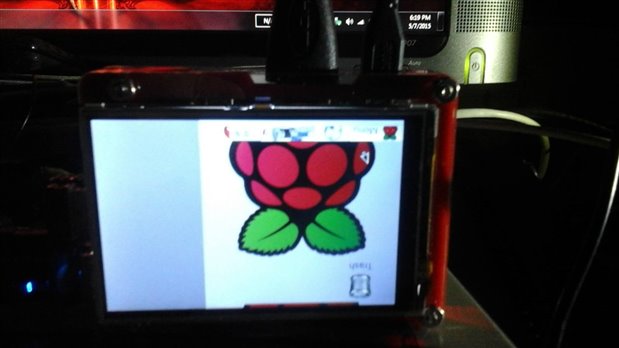
    I had spare micro SD card so I applied the image to it. and it booted right up. not sure how but everything sort of works. But as this is I wont be able to use my own image or fresh copy of raspbian, or Ubuntu if I wanted to. I would not know how to make that work.


    So if I want to use this 3.5" lcd it looks like I'm stuck using this guys image. image

    But image  happy image to find out that the LCD does work so does the tft part. the windows in the desktop environment are really hard to navigate due to resolution not sure how to make the windows

    fit the 320 x 480 resolution.

    Also another bummer with this image is I can not use the HDMI port anymore. image

    not sure how to make both work at same time or if they can even do that.


    Tried to attach the image so you guys could check it out. but the size is over a 1gb even after I Rared it. image


    any ideas on any of these issues would be great. thanks for all the help so far.

    • Cancel
    • Vote Up 0 Vote Down
    • Sign in to reply
    • Verify Answer
    • Cancel
  • Former Member
    0 Former Member over 10 years ago in reply to Former Member

    I got the same screen

    I followed instructions on http://futurice.com/blog/id-like-to-have-some-lcd-on-my-pi and it works !

    the trick is that

    1. it's called Waveshare Spotpear 3.5" RPi LCD (A)
    2. it is not officially supported yet, but with flexfb one can tweak parameters manually


    Hope it will work for you !

    Patrick

    • Cancel
    • Vote Up 0 Vote Down
    • Sign in to reply
    • Verify Answer
    • Cancel
  • Former Member
    0 Former Member over 10 years ago in reply to Former Member

    There is an old saying about giving a man a fish.


    Rather than giving you an image, how about I give you step by step instruction with explanations.


    Get the latest copy of the Raspbian and boot your pi up. The first time you boot it, there will be a menu to expand the image and do some other stuff. go ahead and set it up as you like. The change is that under Advanced Options you need to turn on "SPI    ENABLE/DISABLE AUTOMATIC LOADING“


    once you are back in and at a command line run the following command


    sudo REPO_URI=https://github.com/notro/rpi-firmware rpi-update


    This will download and update the firmware. Once this process is done it will tell you that you have to reboot. Do do that yet, lets get some other setup out of the way


    edit the /boot/cmdline.txt by doing a


    sudo nano /boot/cmdline.txt


    In this file is a single long line that is used during boot. Add the following to the end of it.


    fbtft_device.custom fbtft_device.name=flexfb fbtft_device.gpios=dc:24,reset:25 fbtft_device.bgr=1 fbtft_device.speed=16000000


    This sets up the frame buffer to use the 3.5" screen and tells it to load the device. If you want the 3.5" screen to be your only video device you can add


    fbcon=map:1 fbcon=font:VGA8x8


    To the end of the line as well. That sets it up so when booting it shows all the boot information on the screen in the correct resolution and font size.


    Now save the file and exit.

    Next we need to setup the kernel module. open it by running the command


    sudo nano /etc/modules


    Now add the following to the end of the file


    # WaveShare SpotPear 3.5" LCD

    fbtft_device debug=3 rotate=90 name=flexfb speed=16000000 gpios=reset:25,dc:24

    flexfb  width=320 height=480 regwidth=16 init=-1,0xb0,0x0,-1,0x11,-2,250,-1,0x3A,0x55,-1,0xC2,0x44,-1,0xC5,0x00,0x00,0x00,0x00,-1,0xE0,0x0F,0x1F,0x1C,0x0C,0x0F,0x08,0x48,0x98,0x37,0x0A,0x13,0x04,0x11,0x0D,0x00,-1,0xE1,0x0F,0x32,0x2E,0x0B,0x0D,0x05,0x47,0x75,0x37,0x06,0x10,0x03,0x24,0x20,0x00,-1,0xE2,0x0F,0x32,0x2E,0x0B,0x0D,0x05,0x47,0x75,0x37,0x06,0x10,0x03,0x24,0x20,0x00,-1,0x36,0xF8,-1,0x11,-1,0x29,-3


    # Touchscreen

    ads7846_device model=7846 cs=1 gpio_pendown=17 keep_vref_on=1 swap_xy=0 pressure_max=255 x_plate_ohms=60 x_min=200 x_max=3900 y_min=200 y_max=3900


    The above may be wrapped. The file that starts with flexfb should be one single line all the way to the -3 at the end.

    This configures the drives for both the display and the touch screen. Read through those lines carefully as you may need to change the "rotate" on the fbtft driver and you may need to change the "swap_xy=" on the touch screen to make it the way you want it. Personally, I loaded them as is and then went back to adjust later.


    Now save that file and open the /boot/config.txt file for editing with the command


    sudo nano /boot/config.txt


    Add the following line to the bottom of the file


    dtoverlay=piscreen,speed=16000000,rotate=90


    save and exit the editor. This activates the touchscreen with the same rotation as the fbtft driver.


    Go ahead and reboot the unit. when it comes up the screen should go from white to black.


    No log back in and we can set up the XWindows system to work with the display.


    You need to edit the /usr/share/X11/xorg.conf.d/99-fbturbo.conf This is the config for the frame Buffer driver in X11.


    sudo nano /usr/share/X11/xorg.conf.d/99-fbturbo.conf


    look for the line that reads


    Option     "fbdev"  "/dev/fb0"


    That is what tells it to use the HDMI port. So change that to


    Option     "fbdev" "/dev/fb1"


    /dev/fb1 is the 3.5" screen. You can now save that file.


    The last step is to set the touch screen up. Edit the /usr/share/X11/xorg.conf.d/10-evdev.config file with


    sudo nano /usr/share/X11/xorg.conf.d/10-evdev.config


    The last entry should read


    Section "InputClass"

            Identifier "evdev touchscreen catchall"

            MatchIsTouchscreen "on"

            MatchDevicePath "/dev/input/event*"

            Driver "evdev"

    EndSection


    You want to add a line just before Driver that reads


    Option      "GrabDevice" "True"


    Other useful options include


    Option     "InvertY" "True"

    Option     "InvertX" "True"

    Option     "SwapAxes" "True"


    Inverts the direction of X/Y or swaps the Axes, which is used if you move your finger up and the courser goes left or right.


    Save that file and you should be ready to startx

    • Cancel
    • Vote Up 0 Vote Down
    • Sign in to reply
    • Verify Answer
    • Reject Answer
    • Cancel
Reply
  • Former Member
    0 Former Member over 10 years ago in reply to Former Member

    There is an old saying about giving a man a fish.


    Rather than giving you an image, how about I give you step by step instruction with explanations.


    Get the latest copy of the Raspbian and boot your pi up. The first time you boot it, there will be a menu to expand the image and do some other stuff. go ahead and set it up as you like. The change is that under Advanced Options you need to turn on "SPI    ENABLE/DISABLE AUTOMATIC LOADING“


    once you are back in and at a command line run the following command


    sudo REPO_URI=https://github.com/notro/rpi-firmware rpi-update


    This will download and update the firmware. Once this process is done it will tell you that you have to reboot. Do do that yet, lets get some other setup out of the way


    edit the /boot/cmdline.txt by doing a


    sudo nano /boot/cmdline.txt


    In this file is a single long line that is used during boot. Add the following to the end of it.


    fbtft_device.custom fbtft_device.name=flexfb fbtft_device.gpios=dc:24,reset:25 fbtft_device.bgr=1 fbtft_device.speed=16000000


    This sets up the frame buffer to use the 3.5" screen and tells it to load the device. If you want the 3.5" screen to be your only video device you can add


    fbcon=map:1 fbcon=font:VGA8x8


    To the end of the line as well. That sets it up so when booting it shows all the boot information on the screen in the correct resolution and font size.


    Now save the file and exit.

    Next we need to setup the kernel module. open it by running the command


    sudo nano /etc/modules


    Now add the following to the end of the file


    # WaveShare SpotPear 3.5" LCD

    fbtft_device debug=3 rotate=90 name=flexfb speed=16000000 gpios=reset:25,dc:24

    flexfb  width=320 height=480 regwidth=16 init=-1,0xb0,0x0,-1,0x11,-2,250,-1,0x3A,0x55,-1,0xC2,0x44,-1,0xC5,0x00,0x00,0x00,0x00,-1,0xE0,0x0F,0x1F,0x1C,0x0C,0x0F,0x08,0x48,0x98,0x37,0x0A,0x13,0x04,0x11,0x0D,0x00,-1,0xE1,0x0F,0x32,0x2E,0x0B,0x0D,0x05,0x47,0x75,0x37,0x06,0x10,0x03,0x24,0x20,0x00,-1,0xE2,0x0F,0x32,0x2E,0x0B,0x0D,0x05,0x47,0x75,0x37,0x06,0x10,0x03,0x24,0x20,0x00,-1,0x36,0xF8,-1,0x11,-1,0x29,-3


    # Touchscreen

    ads7846_device model=7846 cs=1 gpio_pendown=17 keep_vref_on=1 swap_xy=0 pressure_max=255 x_plate_ohms=60 x_min=200 x_max=3900 y_min=200 y_max=3900


    The above may be wrapped. The file that starts with flexfb should be one single line all the way to the -3 at the end.

    This configures the drives for both the display and the touch screen. Read through those lines carefully as you may need to change the "rotate" on the fbtft driver and you may need to change the "swap_xy=" on the touch screen to make it the way you want it. Personally, I loaded them as is and then went back to adjust later.


    Now save that file and open the /boot/config.txt file for editing with the command


    sudo nano /boot/config.txt


    Add the following line to the bottom of the file


    dtoverlay=piscreen,speed=16000000,rotate=90


    save and exit the editor. This activates the touchscreen with the same rotation as the fbtft driver.


    Go ahead and reboot the unit. when it comes up the screen should go from white to black.


    No log back in and we can set up the XWindows system to work with the display.


    You need to edit the /usr/share/X11/xorg.conf.d/99-fbturbo.conf This is the config for the frame Buffer driver in X11.


    sudo nano /usr/share/X11/xorg.conf.d/99-fbturbo.conf


    look for the line that reads


    Option     "fbdev"  "/dev/fb0"


    That is what tells it to use the HDMI port. So change that to


    Option     "fbdev" "/dev/fb1"


    /dev/fb1 is the 3.5" screen. You can now save that file.


    The last step is to set the touch screen up. Edit the /usr/share/X11/xorg.conf.d/10-evdev.config file with


    sudo nano /usr/share/X11/xorg.conf.d/10-evdev.config


    The last entry should read


    Section "InputClass"

            Identifier "evdev touchscreen catchall"

            MatchIsTouchscreen "on"

            MatchDevicePath "/dev/input/event*"

            Driver "evdev"

    EndSection


    You want to add a line just before Driver that reads


    Option      "GrabDevice" "True"


    Other useful options include


    Option     "InvertY" "True"

    Option     "InvertX" "True"

    Option     "SwapAxes" "True"


    Inverts the direction of X/Y or swaps the Axes, which is used if you move your finger up and the courser goes left or right.


    Save that file and you should be ready to startx

    • Cancel
    • Vote Up 0 Vote Down
    • Sign in to reply
    • Verify Answer
    • Reject Answer
    • Cancel
Children
  • Former Member
    0 Former Member over 10 years ago in reply to Former Member

    Finally got a moment to work on this..

    so I am following your instructions..

    at the fbcon=map:1 fbcon=font:VGA8x8 section

    I left this out as I want to be able to use either 3.5" or the hdmi

    if possible I would like it to work on both simultaneously.

    or be able to detect when I have hdmi plugged in.


    ok so made it further down before I ran into a problem..


    the sudo nano /usr/shar/X11/xorg.conf.d/99-fbturbo.conf does not seem to exist & wont let me save to create one.


    I have stopped at this point do to the fact this appears to be important.

    I do have a black screen now when loading btw.


    I checked some of your directories and found the problems.


    you left the (e) out in /usr/share/ part that solved that problem

    Ive finished it but cant seem to get the screen to flip or rotate in the upper direction.

    its upside down for me. I tried changing rotate but it would reboot with partial screen working

    • Cancel
    • Vote Up 0 Vote Down
    • Sign in to reply
    • Verify Answer
    • Cancel
  • Former Member
    0 Former Member over 10 years ago in reply to Former Member

    Ok, when I run into an issue like that I start by cd'ing to each directory in the list and making sure they are all spelled correct. image


    it's "share" not "shar" If what you entered above is a copy of your line then you forgot an e.


    Correction, I left out an e. lol I correct my post above. Sorry about that.

    • Cancel
    • Vote Up 0 Vote Down
    • Sign in to reply
    • Verify Answer
    • Cancel
  • Former Member
    0 Former Member over 10 years ago in reply to Former Member

    yeh, my main problem seems to be getting the screen to be right side up yours has mine with cords at the bottom  also the touch screen seems to be off some how.

    I've tried going back through and changing the rotate but only rotate=90 will give me any picture properly and its upside down for me.


    Ideas?

    image

    • Cancel
    • Vote Up 0 Vote Down
    • Sign in to reply
    • Verify Answer
    • Cancel
  • Former Member
    0 Former Member over 10 years ago in reply to Former Member

    There are two rotate points. One in modules and one in the boot config.txt


    If I remember correctly they can be 0, 90, -90, or 180


    I spent a lot of time playing with both for mine the module had to be -90 and the config had to b 90 to get it rotated the correct direction.


    It seems that they would cancel each other out but it actually flips the screen the right direction for me.

    • Cancel
    • Vote Up 0 Vote Down
    • Sign in to reply
    • Verify Answer
    • Cancel
  • Former Member
    0 Former Member over 10 years ago in reply to Former Member

    ok finaly got screen rotated as I wanted, got the touch going in the right x & y axis but the touch does not go to edge of desktop in any direction it is like a half a centimeter short of space in each direction. what do I play with to make it go to edge of screen?


    While I wait for a response I will try to get my IOgear GBU521 adapter running and try to figure out how to make a wireless Bluetooth speaker connect (something I have been unable to do) wish me luck on this.

    • Cancel
    • Vote Up 0 Vote Down
    • Sign in to reply
    • Verify Answer
    • Cancel
  • Former Member
    0 Former Member over 10 years ago in reply to Former Member

    Try running the touch screen calibration


    sudo TSLIB_FBDEVICE=/dev/fb1 TSLIB_TSDEVICE=/dev/input/touchscreen ts_calibrate


    • Cancel
    • Vote Up 0 Vote Down
    • Sign in to reply
    • Verify Answer
    • Reject Answer
    • Cancel
  • Former Member
    0 Former Member over 10 years ago in reply to Former Member

    sudo: ts_calibrate: command not found
    is what i do when i do your command. image

    • Cancel
    • Vote Up 0 Vote Down
    • Sign in to reply
    • Verify Answer
    • Cancel
  • Former Member
    0 Former Member over 10 years ago in reply to Former Member

    will this guide work for the 4 inch waveshare spotpear lcd I ccan get it to work on the supplied image but I want to use my propper pi image

    and I would if attall possible use hdmi and screen and if not is it possible to stop kodi or xbmc going through hdmi and use the touch screen or both

    • Cancel
    • Vote Up 0 Vote Down
    • Sign in to reply
    • Verify Answer
    • Cancel
  • Former Member
    0 Former Member over 10 years ago in reply to Former Member

    I forgot to sayits pi b+ plus what is the comand to just switch outputs manully as the ones supplied dont seem to work hdmi-sys-show or lcd4-sys-show

    • Cancel
    • Vote Up 0 Vote Down
    • Sign in to reply
    • Verify Answer
    • Cancel
  • Former Member
    0 Former Member over 10 years ago in reply to Former Member

    honestly harvey I dont know. I think it will you will have to tinker with res size i think if yours gets a higher res than my 3.5" but it should work I think. as for getting both LCD & HDMI to work i have yet to be able to do that my self. currently still working out kings with the touch as it doesnt quite work yet.


    also failing at getting my bluetooth stuff installed. I think this is probly the number 1 reason most windows users still havent moved to linux is because its not so simple to install stuff on.


    But after all said and done I was so happy to see my screen work at all and even happier when I finaly got it to be in the rotation I wanted. So thank you guys for your help on this.

    • Cancel
    • Vote Up 0 Vote Down
    • Sign in to reply
    • Verify Answer
    • Cancel
element14 Community

element14 is the first online community specifically for engineers. Connect with your peers and get expert answers to your questions.

  • Members
  • Learn
  • Technologies
  • Challenges & Projects
  • Products
  • Store
  • About Us
  • Feedback & Support
  • FAQs
  • Terms of Use
  • Privacy Policy
  • Legal and Copyright Notices
  • Sitemap
  • Cookies

An Avnet Company © 2026 Premier Farnell Limited. All Rights Reserved.

Premier Farnell Ltd, registered in England and Wales (no 00876412), registered office: Farnell House, Forge Lane, Leeds LS12 2NE.

ICP 备案号 10220084.

Follow element14

  • X
  • Facebook
  • linkedin
  • YouTube