element14 Community
element14 Community
    Register Log In
  • Site
  • Search
  • Log In Register
  • Community Hub
    Community Hub
    • What's New on element14
    • Feedback and Support
    • Benefits of Membership
    • Personal Blogs
    • Members Area
    • Achievement Levels
  • Learn
    Learn
    • Ask an Expert
    • eBooks
    • element14 presents
    • Learning Center
    • Tech Spotlight
    • STEM Academy
    • Webinars, Training and Events
    • Learning Groups
  • Technologies
    Technologies
    • 3D Printing
    • FPGA
    • Industrial Automation
    • Internet of Things
    • Power & Energy
    • Sensors
    • Technology Groups
  • Challenges & Projects
    Challenges & Projects
    • Design Challenges
    • element14 presents Projects
    • Project14
    • Arduino Projects
    • Raspberry Pi Projects
    • Project Groups
  • Products
    Products
    • Arduino
    • Avnet & Tria Boards Community
    • Dev Tools
    • Manufacturers
    • Multicomp Pro
    • Product Groups
    • Raspberry Pi
    • RoadTests & Reviews
  • About Us
  • Store
    Store
    • Visit Your Store
    • Choose another store...
      • Europe
      •  Austria (German)
      •  Belgium (Dutch, French)
      •  Bulgaria (Bulgarian)
      •  Czech Republic (Czech)
      •  Denmark (Danish)
      •  Estonia (Estonian)
      •  Finland (Finnish)
      •  France (French)
      •  Germany (German)
      •  Hungary (Hungarian)
      •  Ireland
      •  Israel
      •  Italy (Italian)
      •  Latvia (Latvian)
      •  
      •  Lithuania (Lithuanian)
      •  Netherlands (Dutch)
      •  Norway (Norwegian)
      •  Poland (Polish)
      •  Portugal (Portuguese)
      •  Romania (Romanian)
      •  Russia (Russian)
      •  Slovakia (Slovak)
      •  Slovenia (Slovenian)
      •  Spain (Spanish)
      •  Sweden (Swedish)
      •  Switzerland(German, French)
      •  Turkey (Turkish)
      •  United Kingdom
      • Asia Pacific
      •  Australia
      •  China
      •  Hong Kong
      •  India
      • Japan
      •  Korea (Korean)
      •  Malaysia
      •  New Zealand
      •  Philippines
      •  Singapore
      •  Taiwan
      •  Thailand (Thai)
      • Vietnam
      • Americas
      •  Brazil (Portuguese)
      •  Canada
      •  Mexico (Spanish)
      •  United States
      Can't find the country/region you're looking for? Visit our export site or find a local distributor.
  • Translate
  • Profile
  • Settings
STEM Academy
  • Learn
  • Learning Center
  • STEM Academy
  • More
  • Cancel
STEM Academy
Blog Access Raspberry pi GUI and command line from your windows machine using SSH and VNC
  • Blog
  • Forum
  • Documents
  • Events
  • Polls
  • Files
  • Members
  • Mentions
  • Sub-Groups
  • Tags
  • More
  • Cancel
  • New
Join STEM Academy to participate - click to join for free!
  • Share
  • More
  • Cancel
Group Actions
  • Group RSS
  • More
  • Cancel
Engagement
  • Author Author: deepankarmaithani
  • Date Created: 7 Jul 2015 5:43 PM Date Created
  • Views 18367 views
  • Likes 3 likes
  • Comments 16 comments
  • raspberrypi
  • stem space
Related
Recommended

Access Raspberry pi GUI and command line from your windows machine using SSH and VNC

deepankarmaithani
deepankarmaithani
7 Jul 2015

Access Raspberry pi GUI and command line from your windows machine using SSH and VNC

At times you might face a situation when you cannot connect your Raspberry pi to a monitor ,like in a situation when you actually don't have a monitor or when you have your pi working in a project like say a weather monitor and it is not possible to physically access. There is a possible solution to this using SSH  and VNC(Virtual network computing) and you only need to satisfy one condition for this and that is you should have your pi connected to the network using LAN or wifi. Here in this post i will show you how to do this.


Step1: know the IP address of your pi,

for getting the IP address there are several methods you can follow any of them

Method-1

If you know the admin password of your wifi router open your browser and enter the adddress of your router it is generally if you enter 192.168.l.l in your browser on a computer connected to your router you will be prompted or admin password and username once you enter it you can get the IP addres of your connected devices

Method-2

If you donot have admin details of your routerConnect your android phone to your home network .install an app like wifi inspector from the google store and run it it will give you the ip address and mac address of al the connected device. This is the simplest method.


Method-3

This method require good understanding of commands and network.

In the command prompt

you can use ping raspberrypi and it will give you the IP address it may or may not work for you.

you can also use netstat -r in the command prompt this will give you IP address of all your network routes and one of the ip address in the list will be of your pi but for this you need to be sure that the pi has successfully connected to the network.Or else you can use a software like nmap.


Step2: Download putty. It is a small softwae that lets you establish an SSH connection.Run putty and type this IP address of your pi in the host name under the sessions. and click open

image


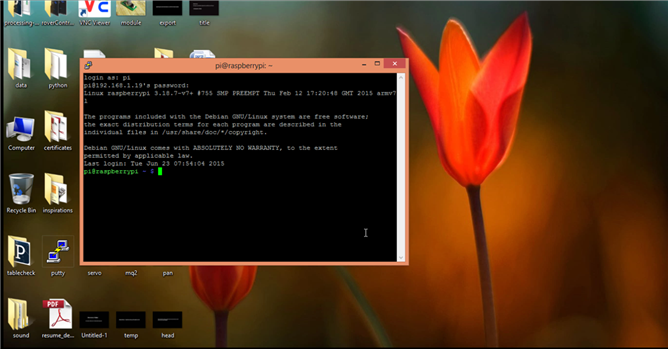
Then login using login ID and password. Default is pi and raspberry respectively.
 

image


Step3: install VNC server using the command sudo apt-get install tightvncserver

image


Step4: type tightvncserver to start the server socket.It will prompt you for password enter the password. this password that you will set will be required to be fed into the VNC client.It would also ask you if you would like to set another readonly password press N to dismiss


Step5: Setup a socket by using the command vncserver :1 -geometry 800X600 -depth 24
(The part after the 1 is optional)
Step6: Install a VNC client like the real VNC view https://www.realvnc.com/download/viewer/


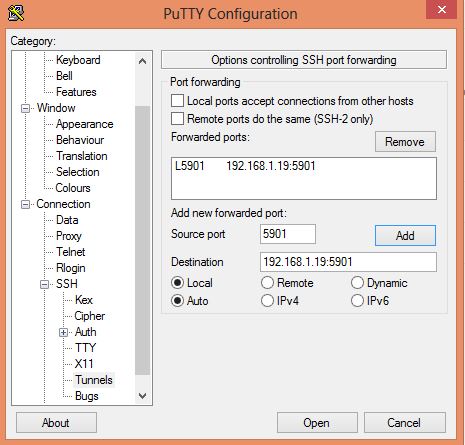
Step7: open putty enter the host IP(the ip of raspberrypi) in the host field under sessions. Then go to tunnels under the SSH tab.add source to be 5901 and destination to be hostIP:5901. then click add.Finally  click open.
image


Step 8: log in into the pi using putty
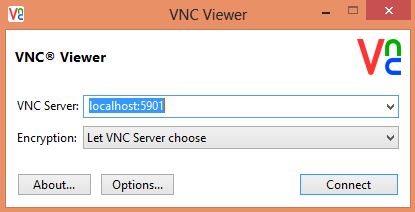
step9: Open real VNC  view. Under the VNC server name add localhost:5901. click connect. then click continue on the next popup.
image

image


After this you will be prompted for password. Enter password that you have setup while setting up the vnc server and you will get the screen of your Pi.


image

  • Sign in to reply

Top Comments

  • rolandl
    rolandl over 10 years ago +3
    Another command that might be of interest is: mosh https:// mosh .mit.edu/ Remote terminal application that allows roaming , supports intermittent connectivity , and provides intelligent local echo and…
  • balearicdynamics
    balearicdynamics over 10 years ago in reply to deepankarmaithani +1
    Hello Deepankar, ffrankly I think no. There are several levels accessing a remote machine via ssh that is the securing tunnel. VNC is just the application. In a linea of principle, AFAIK it is not needed…
  • balearicdynamics
    balearicdynamics over 10 years ago in reply to deepankarmaithani +1
    In your local lan you don't need a DNS, instead you need to setup a static IP address that will remain the same at every boot. Enrico
Parents
  • deepankarmaithani
    deepankarmaithani over 10 years ago

    I had problem accessing the raspbery pi by using the ping raspberrypi  to get the ip address. Can anyone here explain this in detail. I actually did it with other method. May be some other things are to be kept in mind

    • Cancel
    • Vote Up 0 Vote Down
    • Sign in to reply
    • More
    • Cancel
  • balearicdynamics
    balearicdynamics over 10 years ago in reply to deepankarmaithani

    If you wrote the command


    >ping raspberryPI


    it is almost normal that you get nothing. The fact is that also if you have set the raspberry PI host name as raspberryPI the computer from where you wrote the ping command does not know it at all. To make a remote computer to know other devices on the lan a DNS server should be created.


    1) To know the ip address of your raspberryPI type the command sudo ifconfig and you will see a list of all the network interfaces with their relative IP settings.


    In a small network (e.g. a personal lan), to have the other computers visible on the network (I mean linux or Mac computers, including the raspberry PI) every computer should have a list of the other computers IP addresses in their /etc/hosts  configuration file (that is, a static DNS).


    Alternatively depending on the network protocol you are using and the remote computers you can adopt different methods to make the devices announces on the network. The most commons are the SAMBA protocol, visible by Windows devices too, use the WINS server announcement and so on.


    Take in account that if you are using the home ADSL router (or similar) with its own DHCP the ip addresses to the devices connected to the network are assigned dynamically depending on the order these connects to the network. If you want to be sure of what IP address is assigned to your raspberry PI you should set it as a static (fixed) IP instead of the DHCP address from the router. Don't forget that to be visible on the same LAN static IP and dynamically assigned IP should be part of the same network.


    Enrico

    • Cancel
    • Vote Up 0 Vote Down
    • Sign in to reply
    • More
    • Cancel
  • deepankarmaithani
    deepankarmaithani over 10 years ago in reply to balearicdynamics

    Hi Enrico

    I understand that ifconfig will give me the ip address of the pi or  on reboot  before the login appears the IP address appears too. But the situation i am taking is suppose  i want to know the IP of pi from the windows machine conected to the same network.In order to do SSH the first thing i would require is the IP of my PI. So cant run ifconfig there to find out the IP.Then what command should i go with. One of the command i mentiond in mypost gave me the IP but it gave me the routes and i needed to figureout which  one is pi.

    Also if you could elaborate or direct to a link explaining the creation of DNS

    • Cancel
    • Vote Up 0 Vote Down
    • Sign in to reply
    • More
    • Cancel
  • balearicdynamics
    balearicdynamics over 10 years ago in reply to deepankarmaithani

    In your local lan you don't need a DNS, instead you need to setup a static IP address that will remain the same at every boot.


    Enrico

    • Cancel
    • Vote Up +1 Vote Down
    • Sign in to reply
    • More
    • Cancel
  • deepankarmaithani
    deepankarmaithani over 10 years ago in reply to balearicdynamics

    OK,and what about my other querry

    • Cancel
    • Vote Up 0 Vote Down
    • Sign in to reply
    • More
    • Cancel
Comment
  • deepankarmaithani
    deepankarmaithani over 10 years ago in reply to balearicdynamics

    OK,and what about my other querry

    • Cancel
    • Vote Up 0 Vote Down
    • Sign in to reply
    • More
    • Cancel
Children
  • balearicdynamics
    balearicdynamics over 10 years ago in reply to deepankarmaithani

    Sorry, maybe I am a bit lost. What other query ?

    • Cancel
    • Vote Up 0 Vote Down
    • Sign in to reply
    • More
    • Cancel
  • deepankarmaithani
    deepankarmaithani over 10 years ago in reply to balearicdynamics

    Enrico i want to know How to know the IP of raspberry pi from windows not using  wifi router login,not using third party software just buy commands. may be by the technique you mentioned.

    computers IP addresses in their /etc/hosts  configuration file (that is, a static DNS).

    pls elaborate

    • Cancel
    • Vote Up 0 Vote Down
    • Sign in to reply
    • More
    • Cancel
  • balearicdynamics
    balearicdynamics over 10 years ago in reply to deepankarmaithani

    This is feasable with NON-windows machines, as windows manages the network in a more complex and crap way, in my opinion. To work with windows networks, also from linux connected devices, you need to manage the wins protocol.

    • Cancel
    • Vote Up 0 Vote Down
    • Sign in to reply
    • More
    • Cancel
element14 Community

element14 is the first online community specifically for engineers. Connect with your peers and get expert answers to your questions.

  • Members
  • Learn
  • Technologies
  • Challenges & Projects
  • Products
  • Store
  • About Us
  • Feedback & Support
  • FAQs
  • Terms of Use
  • Privacy Policy
  • Legal and Copyright Notices
  • Sitemap
  • Cookies

An Avnet Company © 2025 Premier Farnell Limited. All Rights Reserved.

Premier Farnell Ltd, registered in England and Wales (no 00876412), registered office: Farnell House, Forge Lane, Leeds LS12 2NE.

ICP 备案号 10220084.

Follow element14

  • X
  • Facebook
  • linkedin
  • YouTube