


In my last blog I explained how I am using the Python library (which is pre-installed on a Raspberry Pi) to teach programming. It's convenient, and "pretty cool" when it's projected onto a large whiteboard in my office; but this isn't the end all to what I hope to achieve with the Raspberry Pi B+...
Now that it's the Christmas holidays I've had plenty of time to work on my robotics stuff as a hobby. Below is my "Fat Cat" robot made of a Dagu 5 robot chassis, a Raspberry Pi B+ an Arduino Mega along with the lovely Pi Camera board:
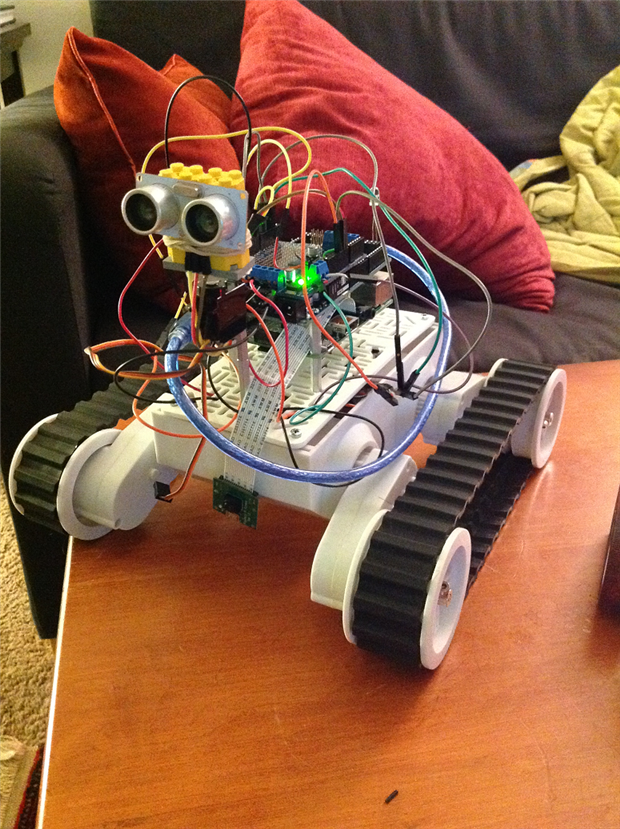
I call it the "Fat Cat" because I think my cat thinks it's a living entity. Moreover, she is much smaller than this mash-up of electronics. Anyway, this Fat Cat is the culmination of what I have been able to achieve thus far in my robotics career. Let me ruminate on the past by presenting my obstacle avoiding "Dragon Bot".....
Oh what good times! The video's artistic flair may take away from the seriousness of the obstacle avoiding genius. The problem with this type of contraption though, is that you can't just yell at it to stop like a golden retriever in your favorite park. No! Instead you have to chase it all over the floor, pick it up and then turn it off manually which is an inconvenience when you think about how we are living in the year 2014; the year of the internet and ultra high def TVs...yada...yada...yada....
Anyway, I eventually invested in an Arduino Yun, a wifi version of a regular Arduino in an attempt to gain remote control over my aimless obstacle avoiding Dragon Bot! Below is a picture of an Arduino Yun which, like the Raspberry Pi, has a LINUX processor embedded onboard:
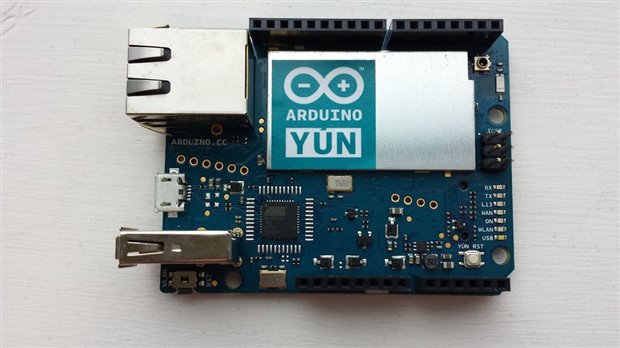
It is quite a snazzy little micro-controller but the way I'd drive my updated Dragon Bot was through entering commands in the Yun's version of the serial monitor called Console. It can't be called a Serial Communication because it is not actually attached to a computer but living in the nether world of wifi  .
.
By entering in letters and sending them through the Arduino Console I could drive my robot around and then with the sending of a key stroke I could set the robot into obstacle avoiding "autopilot" mode. Then bring it back under my control (like a little zombie) through another keystroke. However, because I was using Console I could not use Python and the Pyserial library to create a graphical control interface . This is an Arduino bummer, and is why the Raspberry Pi came into play when I developed the "Fat Cat." But I must get back to the point, and not let my ramblings about the Fat Cat detract.
This blog post is about the Turtle Bot, how I developed it and how it will be used when the school year picks up again to teach Python programming. In this way, the Turtle Bot is a pedagogical tool.
Below is a picture of the "Fat Cat" with the completed "Turtle Bot." Notice the differences in size between them:
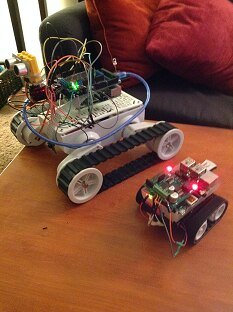
The smaller "Turtle Bot" is built off of a Pololu Zumo Bot Chassis; a relatively cheap base and very simple to work with. On top of it is the Raspberry Pi B+ along with a Raspibot V2 Motorcontroller set over the GPIO pins. Now, you not need to use a Raspirobot Board V2 to construct this; for me it was just convenient and at my disposal to use this attachable motor controller built specifically for the Raspberry Pi:
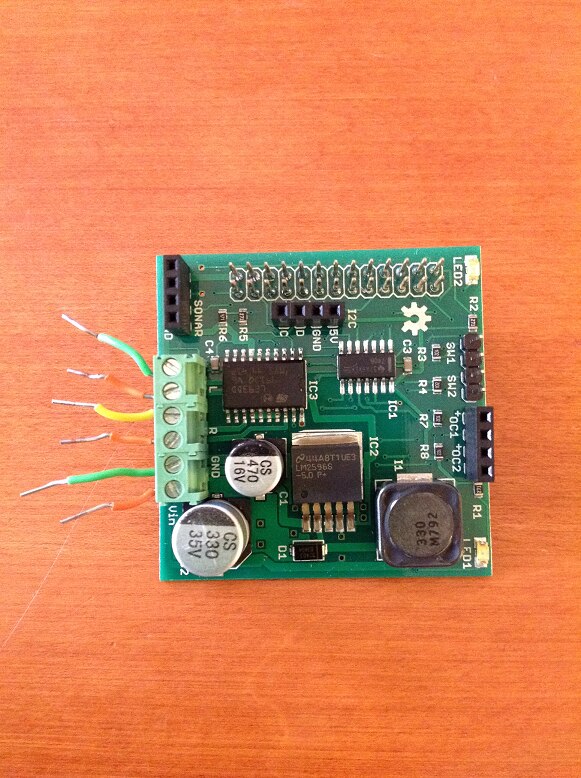
What's nice about this add on board is that it comes with a pre written Python library which includes commands that can be easily modified into a python script to control forward, backward, left and right movements. Click the link HERE to learn more.
However, when I first starting thinking about making a robot out of the raspberry Pi I watched this video and it turns out that any H Bridge motor controller will work for making Raspberry Pi robots. Note: you need to use a motor controller because otherwise you'll burn out the GPIO pins on the Raspberry Pi and also you won't be able to achieve bi-directional motor movement:
The guy who makes these films is very knowledgeable and I plan to do the exercise he runs at the end of the film where the Zumo robot draws shapes out of a Python script with my students (refer to 12:10 in the video above). In general, it's the types of activities which bring programming and robotics into an experience that you can touch and feel. So far, I think that one of the constraints of teaching programming for beginners is that oftentimes lessons are constrained to the surfaces of a computer screen. Why not have feedback from code jump out at you like a Zumo Robot constructing the latest and greatest octagon on paper!
Anyway, have I mentioned that I ended up producing my own robot using the Zumo chassis and my swag motor controller  ? Here it is!
The mighty... "Turtle Bot!"
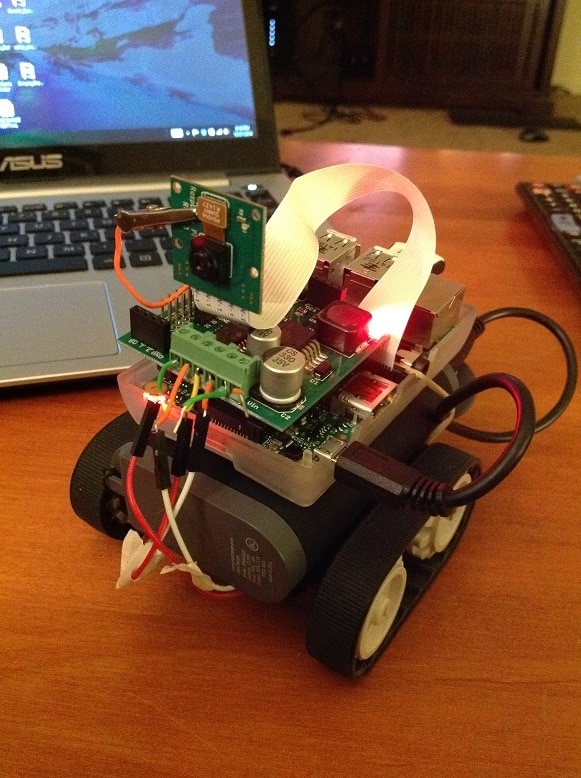
Notice how I have placed the Pi Camera on board to give me a Turtle's Eye View of the terrain. Ultimately, this adds to the awe of driving the turtle bot and also helps the driver fall into the "mindset" of the turtle. How else would this be possible without seeing the world through it's lowly HD video eyes?
If you're wondering why I keep calling this thing the Turtle Bot, it is because I plan to incorporate this educational tool into my next programming lessons with William. We have gone over drawing geometric forms in Python using the Turtle library. We have been declaring t = turtle.Pen() but now that we have this thing it might as well be "Turtle_Bot" = turtle.Pen(). I am hoping to attach a pen to the back of the vehicle so it can literally become a remote pen which drives around to trace shapes. How cool and valuable of a learning experience would that be; suddenly bringing the virtual 2D world of Python turtle into the domain of real life; now actualized with the "Turtle Bot!"
Additionally, I am hoping to relate the lesson on drawing shapes using a turtle to the development of buttons and graphical interfaces using the Tkinter library in Python. Here is a great tutorial article I found online as to how to create and control your robots using graphical interfaces made in Python - CLICK HERE
Below is the graphical interface I adapted from the article to control the "Fat Cat" which I then reused and adapted again to control the Turtle Bot:
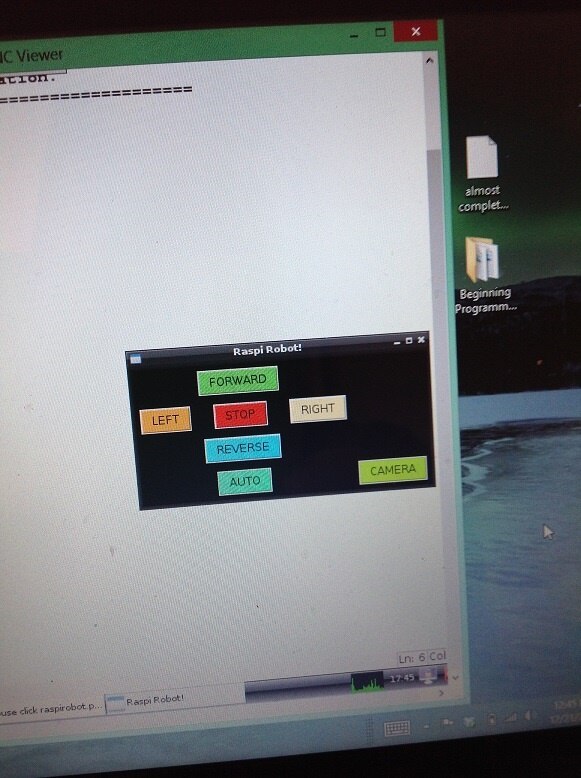
Nothing fancy, but what's neat is that my computer has a touch screen so I can tap each of those buttons to control the bot! Constructing a unique control interface for the Turtle Bot in Python will be another activity I'll run with my programming students. You'll notice too that I have a CAMERA button, when that is clicked it will take me to a live online stream of the Pi Camera board. I did a lot of research into how to do this, as streaming live video from the perspective of a robot is something I've wanted to complete since the summer and finally, with the Raspberry Pi it is unbelievable easy. The link on how to do this with the RPi CAM Control is HERE
Basically, it streams video to a weblink which is the IP address of your Pi computer. This can be accessed by any external computer on the wireless network so don't go and do something silly like ride the Turtle Bot around in a public cafe. You may unexpectedly find that every other patron knows the eye of the turtle (maybe without your permission)!
The most important step; and also the most important realization I've recently had with the Pi; is being able to control the LINUX interface from another computer. This means that I don't need to plug the Pi in with an HDMI cord to monitor what's going on inside. This is HUGE if you are thinking about using the Pi as a robotics controller because it's not like you can have a TV screen being dragged on the back of a teeny weeny robot.
Enter VNC viewer! The APP which allows you to broadcast another computer's screen remotely to your own in a window. Here is a picture which may explain what I mean:
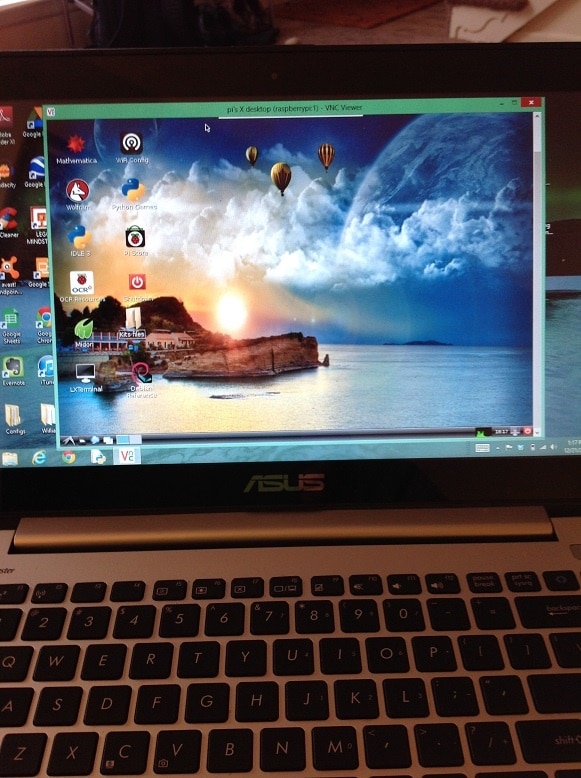
With the VNC viewer I now have my Raspberry Pi desktop mirrored onto my laptop computer's desktop. Windows within windows which becomes a feast for the eyes and also a thrill to the robot enthusiast. Controlling a Raspberry Pi is much more convenient and user friendly this way and I highly recommend it. The other alternative is to SSH into your Raspberry Pi via PuTTY (if you have a PC) but we won't get into that. Instead, refer to this link to set up your Raspberry Pi for tight VNC viewer:
This is the single most important thing I learned while completing the Turtle Bot project; it is that the VNC viewer is essential and very useful for those creating robots and maybe for those in schools who do not have an abundance of desktop monitors or TVs with HDMI ports.
In the end, VNC viewer, a TKinter control interface and the RPi live feed allowed me to set up my laptop desktop screen like this once I re-sized the windows :
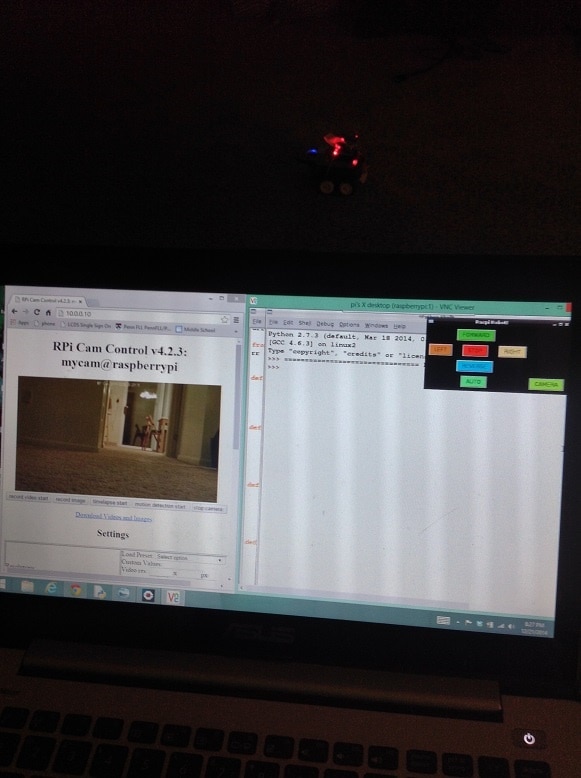
Note: that is the robot sitting in the darkness behind the computer screen. In conclusion, I will use the Turtle Bot as the foundation for building upon my first lesson in Python programming. Students will:
1. Will learn how to program the Turtle Bot to drive in geometric patters; similar to the ways in which the turtle moves around on the Python/IDLE interface
2. Learn how to program their own graphical interface for remote control of the Turtle Bot using Python's TKinter library
3. Use the on-board pi board camera to do exploratory missions; for example, movement to a location and then take a picture
The third objective completes my educational philosophy where I try and situate lessons within the context of a greater theme; in this case, it is about a mission to reach a location and document footage. Much like a rover travels to Mars, drives around and then returns back to earth with footage. Perhaps this is a method for encouraging young students to become astronauts. More importantly, I know that this will be a method for driving intellectual curiosity into the possibilities for combining technology at our disposal.
The video below shows the Turtle Bot, freshly minted, moving around my living room floor......
Top Comments
-

mcb1
-
Cancel
-
Vote Up
+1
Vote Down
-
-
Sign in to reply
-
More
-
Cancel
-

kitfud
in reply to mcb1
-
Cancel
-
Vote Up
0
Vote Down
-
-
Sign in to reply
-
More
-
Cancel
-

mcb1
in reply to kitfud
-
Cancel
-
Vote Up
0
Vote Down
-
-
Sign in to reply
-
More
-
Cancel
-

Problemchild
in reply to mcb1
-
Cancel
-
Vote Up
0
Vote Down
-
-
Sign in to reply
-
More
-
Cancel
-

mcb1
in reply to Problemchild
-
Cancel
-
Vote Up
0
Vote Down
-
-
Sign in to reply
-
More
-
Cancel
-

kitfud
in reply to mcb1
-
Cancel
-
Vote Up
0
Vote Down
-
-
Sign in to reply
-
More
-
Cancel
-

kitfud
in reply to Problemchild
-
Cancel
-
Vote Up
0
Vote Down
-
-
Sign in to reply
-
More
-
Cancel
Comment-

kitfud
in reply to Problemchild
-
Cancel
-
Vote Up
0
Vote Down
-
-
Sign in to reply
-
More
-
Cancel
Children