element14 Community
element14 Community
    Register Log In
  • Site
  • Search
  • Log In Register
  • Community Hub
    Community Hub
    • What's New on element14
    • Feedback and Support
    • Benefits of Membership
    • Personal Blogs
    • Members Area
    • Achievement Levels
  • Learn
    Learn
    • Ask an Expert
    • eBooks
    • element14 presents
    • Learning Center
    • Tech Spotlight
    • STEM Academy
    • Webinars, Training and Events
    • Learning Groups
  • Technologies
    Technologies
    • 3D Printing
    • FPGA
    • Industrial Automation
    • Internet of Things
    • Power & Energy
    • Sensors
    • Technology Groups
  • Challenges & Projects
    Challenges & Projects
    • Design Challenges
    • element14 presents Projects
    • Project14
    • Arduino Projects
    • Raspberry Pi Projects
    • Project Groups
  • Products
    Products
    • Arduino
    • Avnet & Tria Boards Community
    • Dev Tools
    • Manufacturers
    • Multicomp Pro
    • Product Groups
    • Raspberry Pi
    • RoadTests & Reviews
  • About Us
  • Store
    Store
    • Visit Your Store
    • Choose another store...
      • Europe
      •  Austria (German)
      •  Belgium (Dutch, French)
      •  Bulgaria (Bulgarian)
      •  Czech Republic (Czech)
      •  Denmark (Danish)
      •  Estonia (Estonian)
      •  Finland (Finnish)
      •  France (French)
      •  Germany (German)
      •  Hungary (Hungarian)
      •  Ireland
      •  Israel
      •  Italy (Italian)
      •  Latvia (Latvian)
      •  
      •  Lithuania (Lithuanian)
      •  Netherlands (Dutch)
      •  Norway (Norwegian)
      •  Poland (Polish)
      •  Portugal (Portuguese)
      •  Romania (Romanian)
      •  Russia (Russian)
      •  Slovakia (Slovak)
      •  Slovenia (Slovenian)
      •  Spain (Spanish)
      •  Sweden (Swedish)
      •  Switzerland(German, French)
      •  Turkey (Turkish)
      •  United Kingdom
      • Asia Pacific
      •  Australia
      •  China
      •  Hong Kong
      •  India
      • Japan
      •  Korea (Korean)
      •  Malaysia
      •  New Zealand
      •  Philippines
      •  Singapore
      •  Taiwan
      •  Thailand (Thai)
      • Vietnam
      • Americas
      •  Brazil (Portuguese)
      •  Canada
      •  Mexico (Spanish)
      •  United States
      Can't find the country/region you're looking for? Visit our export site or find a local distributor.
  • Translate
  • Profile
  • Settings
Personal Blogs
  • Community Hub
  • More
Personal Blogs
Legacy Personal Blogs Getting Started with an Old Raspberry Pi 1B : Connecting via Ethernet
  • Blog
  • Documents
  • Mentions
  • Sub-Groups
  • Tags
  • More
  • Cancel
  • New
  • Share
  • More
  • Cancel
Group Actions
  • Group RSS
  • More
  • Cancel
Engagement
  • Author Author: dubbie
  • Date Created: 20 Feb 2019 12:22 PM Date Created
  • Views 1855 views
  • Likes 5 likes
  • Comments 4 comments
  • ethernet
  • raspberri pi
  • rpi_beginner
Related
Recommended

Getting Started with an Old Raspberry Pi 1B : Connecting via Ethernet

dubbie
dubbie
20 Feb 2019

As it seems possible to setup the old Raspberry Pi 1B that I have borrowed I set about doing everything necessary.


I inserted the SD card into my newly discovered SD card slot in my laptop and low and behold, it was recognised and mounted. Unfortunately it then said the SD card had to be reformatted. As I had been given permission to wipe this card I did so and that seemed to work OK


Then I had to download an image of the Raspberry Pi operating system, which I think is called Debian. But this is zipped and my existing unzipper didn't work so I had to download 7zip. This took two attempts. I'm not sure what happened to the first version I downloaded, floating around my hard-disk somewhere I suppose. I then managed to unzip the downloaded Raspberry Pi operating system.


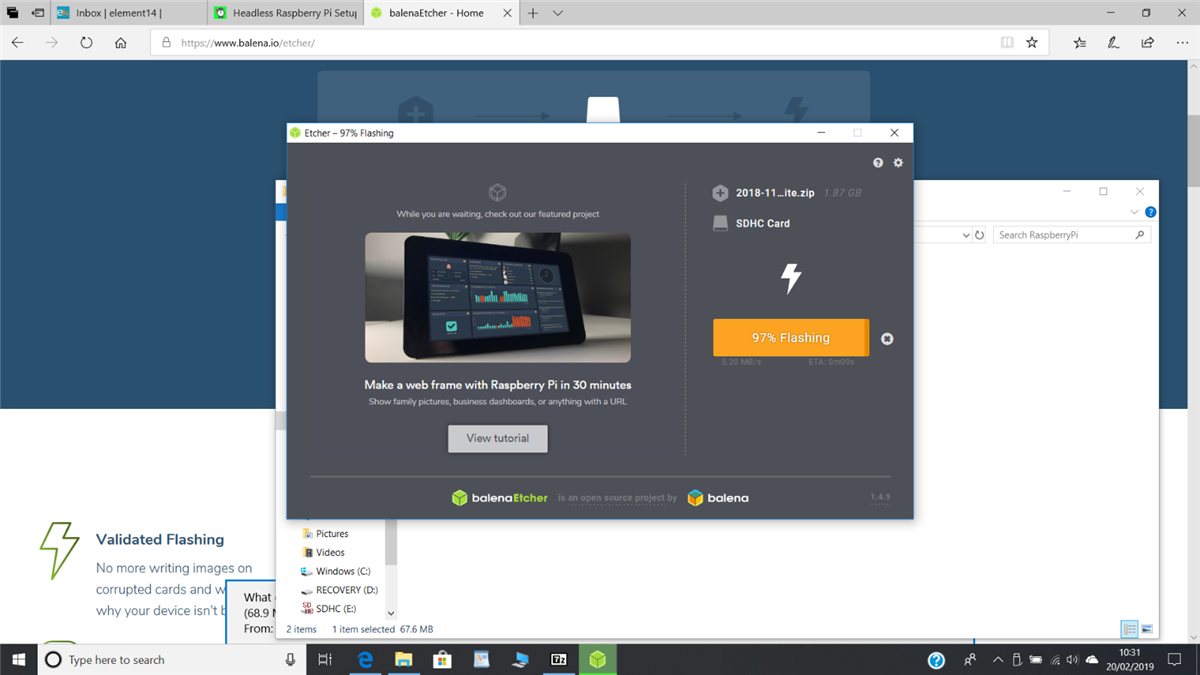
The next step in the process was to install an image of the operating sytem on the SD card, which required Etcher. So I had to download Etcher, guessing I wanted the 32 bit version. This worked surprisingly quickly and well and, as it turns out, can use the zipped image of the Raspberry Pi operating system, so I didn't need the 7zip programme after all. Then I just etched it. See below for it nearing the end of the process:
 

image


What they do not tell you is that at the end of the etching process the SD card is automatically unmounted and disappears from the Windows screen. I had to remove and then re-insert the SD card in order to be able to add the file called ssh. It is a bit unclear what this file should be. The tutorial said that it should not have a file extension but it is still listed as a text file in the example screendump. So I just copied an existing text file, deleted the contents and renamed it ssh. It still has the .txt file extension but this is not displayed, so I hope this is correct.


I removed the SD card from my laptop, forgetting to unmount it first, so I hope it is OK and inserted it into the Raspberry Pi. I then found a micro USB cable for the power but only have a 1A power plug, but the documentation says this should be OK for the Raspberry Pi 1B, and then plugged it in. Lights came on so that was good. I had forgotten to insert the Ethernet cable so inserted it now (more lights came on), hopefully this will not be a problem. I now have to find the IP address of the Raspberry Pi. I looked up the IP address of the Ethernet connection on my Windows laptop and used that. I'm not sure if that is correct but I don't have access to my router to find it that way.


I now had to download Putty which was pretty painless. I thought I was on the home stretch now, but alas it was not to be. I entered the IP address I had but no matter what I did, it always failed saying connection refused. So I'm giving up for the moment.


Anyone any ideas?


Dubbie

  • Sign in to reply

Top Comments

  • shabaz
    shabaz over 6 years ago +3
    Hi! That's great progress. There's a few things you can do (I'm assuming you're running all this without a monitor and keyboard connected, which makes it a bit harder, but still feasible). Regarding the…
  • ralphjy
    ralphjy over 6 years ago +3
    I think shabaz has given you all the right suggestions. Hopefully, you have things working by now. Since you are new to network stuff, I thought I would add that because you are obtaining your ipaddress…
  • dubbie
    dubbie over 6 years ago in reply to ralphjy +1
    Ralph, I did used to do some networking but it was many years ago when things were much simpler. Then work requirements change and you have to work on other stuff and the technology gets away from you…
Parents
  • shabaz
    shabaz over 6 years ago

    Hi!


    That's great progress. There's a few things you can do (I'm assuming you're running all this without a monitor and keyboard connected, which makes it a bit harder, but still feasible).

    Regarding the ssh file, it must have no extension (I've never tried it with an extension, but I believe it won't work). Normally I just right-click in the file explorer, and select New->Text Document, which by default has a .txt suffix, but I delete it. For this to work, the File Explorer options must be set to always display the extension.

    image

    Then the file can be created in the top level of the SD card:

    You don't have permission to edit metadata of this video.
    Edit media
    x
    image
    Upload Preview
    image


    Once you've connected it to the router (best to do this with the Pi unpowered first, otherwise it hangs for ages on boot), you need to find the IP address of the Pi. The info below assumes you've connected to a typical router at home:

    Method 1: requires access to the router via a web page (it is nearly always http://192.168.0.254 or http://192.168.1.254 for home routers) to check what IP address the Pi has acquired

    Method 2: Try to ping raspberrypi.local

    To do this, type the following in a windows command prompt (the -4 is used to force IPv4 pings):

    ping raspberrypi.local -4

    and look for this response:

    image

    That IP address can now be attempted using your SSH client software, e.g. PuTTY:

    image


    Method 3: Just try to ping random addresses! Figure out if your network is on 192.168.0.xx or 192.168.1.xx, by opening up a windows command prompt and typing:

    ipconfig /all

    Look for this information:

    image

    Now you can randomly ping stuff until you get a response:

    image

    and then see if it is a Pi by trying to SSH to it using your PuTTY software. There are tools that try to ping all addresses to narrow down the list of choices, but it still takes a while : (. Method 1 or Method 2 is better.

    • Cancel
    • Vote Up +3 Vote Down
    • Sign in to reply
    • More
    • Cancel
  • dubbie
    dubbie over 6 years ago in reply to shabaz

    else

    Shabaz,


    Thanks for this, it all looks very good. I will have a go at all this a bit later on. I'm going to do something that I know works first to keep my spirits high and postpone the frustration of just not being able to get stuff going to a bit later in the day.


    Dubbie

    • Cancel
    • Vote Up 0 Vote Down
    • Sign in to reply
    • More
    • Cancel
Comment
  • dubbie
    dubbie over 6 years ago in reply to shabaz

    else

    Shabaz,


    Thanks for this, it all looks very good. I will have a go at all this a bit later on. I'm going to do something that I know works first to keep my spirits high and postpone the frustration of just not being able to get stuff going to a bit later in the day.


    Dubbie

    • Cancel
    • Vote Up 0 Vote Down
    • Sign in to reply
    • More
    • Cancel
Children
No Data
element14 Community

element14 is the first online community specifically for engineers. Connect with your peers and get expert answers to your questions.

  • Members
  • Learn
  • Technologies
  • Challenges & Projects
  • Products
  • Store
  • About Us
  • Feedback & Support
  • FAQs
  • Terms of Use
  • Privacy Policy
  • Legal and Copyright Notices
  • Sitemap
  • Cookies

An Avnet Company © 2025 Premier Farnell Limited. All Rights Reserved.

Premier Farnell Ltd, registered in England and Wales (no 00876412), registered office: Farnell House, Forge Lane, Leeds LS12 2NE.

ICP 备案号 10220084.

Follow element14

  • X
  • Facebook
  • linkedin
  • YouTube