element14 Community
element14 Community
    Register Log In
  • Site
  • Search
  • Log In Register
  • Community Hub
    Community Hub
    • What's New on element14
    • Feedback and Support
    • Benefits of Membership
    • Personal Blogs
    • Members Area
    • Achievement Levels
  • Learn
    Learn
    • Ask an Expert
    • eBooks
    • element14 presents
    • Learning Center
    • Tech Spotlight
    • STEM Academy
    • Webinars, Training and Events
    • Learning Groups
  • Technologies
    Technologies
    • 3D Printing
    • FPGA
    • Industrial Automation
    • Internet of Things
    • Power & Energy
    • Sensors
    • Technology Groups
  • Challenges & Projects
    Challenges & Projects
    • Design Challenges
    • element14 presents Projects
    • Project14
    • Arduino Projects
    • Raspberry Pi Projects
    • Project Groups
  • Products
    Products
    • Arduino
    • Avnet & Tria Boards Community
    • Dev Tools
    • Manufacturers
    • Multicomp Pro
    • Product Groups
    • Raspberry Pi
    • RoadTests & Reviews
  • About Us
  • Store
    Store
    • Visit Your Store
    • Choose another store...
      • Europe
      •  Austria (German)
      •  Belgium (Dutch, French)
      •  Bulgaria (Bulgarian)
      •  Czech Republic (Czech)
      •  Denmark (Danish)
      •  Estonia (Estonian)
      •  Finland (Finnish)
      •  France (French)
      •  Germany (German)
      •  Hungary (Hungarian)
      •  Ireland
      •  Israel
      •  Italy (Italian)
      •  Latvia (Latvian)
      •  
      •  Lithuania (Lithuanian)
      •  Netherlands (Dutch)
      •  Norway (Norwegian)
      •  Poland (Polish)
      •  Portugal (Portuguese)
      •  Romania (Romanian)
      •  Russia (Russian)
      •  Slovakia (Slovak)
      •  Slovenia (Slovenian)
      •  Spain (Spanish)
      •  Sweden (Swedish)
      •  Switzerland(German, French)
      •  Turkey (Turkish)
      •  United Kingdom
      • Asia Pacific
      •  Australia
      •  China
      •  Hong Kong
      •  India
      • Japan
      •  Korea (Korean)
      •  Malaysia
      •  New Zealand
      •  Philippines
      •  Singapore
      •  Taiwan
      •  Thailand (Thai)
      • Vietnam
      • Americas
      •  Brazil (Portuguese)
      •  Canada
      •  Mexico (Spanish)
      •  United States
      Can't find the country/region you're looking for? Visit our export site or find a local distributor.
  • Translate
  • Profile
  • Settings
Arduino
  • Products
  • More
Arduino
Arduino Forum TX RX 433 question
  • Blog
  • Forum
  • Documents
  • Quiz
  • Events
  • Polls
  • Files
  • Members
  • Mentions
  • Sub-Groups
  • Tags
  • More
  • Cancel
  • New
Join Arduino to participate - click to join for free!
Actions
  • Share
  • More
  • Cancel
Forum Thread Details
  • State Not Answered
  • Replies 13 replies
  • Subscribers 403 subscribers
  • Views 1291 views
  • Users 0 members are here
Related

TX RX 433 question

Former Member
Former Member over 14 years ago

Hi everyone!


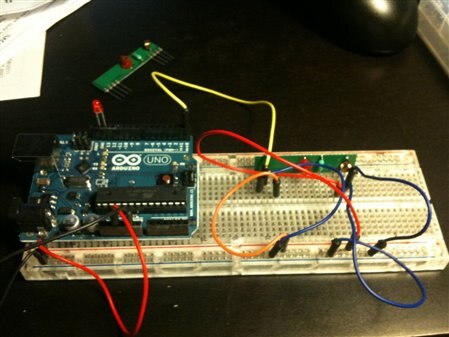
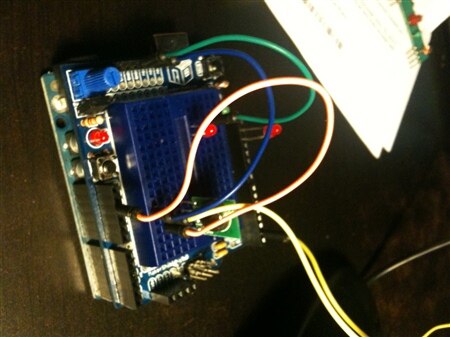
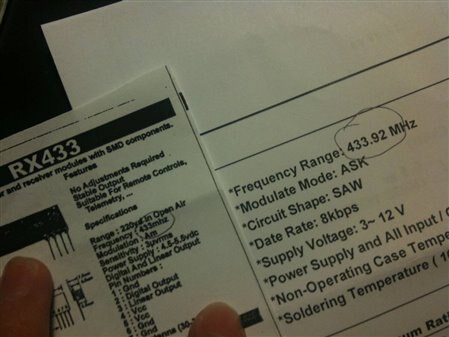
I bought my first arduino a month ago, and have been having fun with it. However, last night I was trying to send signals from a TX433 to a RX433 on 2 different unos. First thing to note though is that the TX says it's 433.92MHZ while the RX just says 433 MHZ. I've been trying different configurations and different codes to get them to work but no avail (meaning the serial monitor doesn't show anything at all). Do you think it's because their frequencies are different? (I emailed the store I bought it from , and they insisted that they were compatible, despite that they were from 2 different suppliers). Otherwise, what am I missing? Here are some pics of how I've set them up, and I also posted the code I am trying right now (amongst the other ones I've tried).


Thanks so much guys!
 

imageimageimage


TRANSMITTER:

/*
* Simple Transmitter Code
* This code simply counts up to 255
* over and over
* (TX out of Arduino is Digital Pin 1)
*/
byte counter;
void setup(){
//2400 baud for the 434 model
Serial.begin(1200);
counter = 0;
}
void loop(){
//send out to transmitter
Serial.print(counter);
counter++;
delay(10);
}


RECEIVER:

/*
* Simple Receiver Code
* (TX out of Arduino is Digital Pin 1)
* (RX into Arduino is Digital Pin 0)
*/
int incomingByte = 0;
void setup(){
//2400 baud for the 434 model
Serial.begin(1200);
}
void loop(){
// read in values, debug to computer
if (Serial.available() > 0) {
incomingByte = Serial.read();
Serial.println(incomingByte, DEC);
}
incomingByte = 0;
}

  • Sign in to reply
  • Cancel
Parents
  • Former Member
    0 Former Member over 14 years ago

    You could still use an encoder and decoder. Then just set up the bits that you wish to transmit. I have already used this kind of transmitter and receiver but I didn't have that problem. It could interfere with any other signals. Encoder and decoder are best for this application. Cheers

    • Cancel
    • Vote Up 0 Vote Down
    • Sign in to reply
    • Verify Answer
    • Cancel
Reply
  • Former Member
    0 Former Member over 14 years ago

    You could still use an encoder and decoder. Then just set up the bits that you wish to transmit. I have already used this kind of transmitter and receiver but I didn't have that problem. It could interfere with any other signals. Encoder and decoder are best for this application. Cheers

    • Cancel
    • Vote Up 0 Vote Down
    • Sign in to reply
    • Verify Answer
    • Cancel
Children
  • Former Member
    0 Former Member over 14 years ago in reply to Former Member

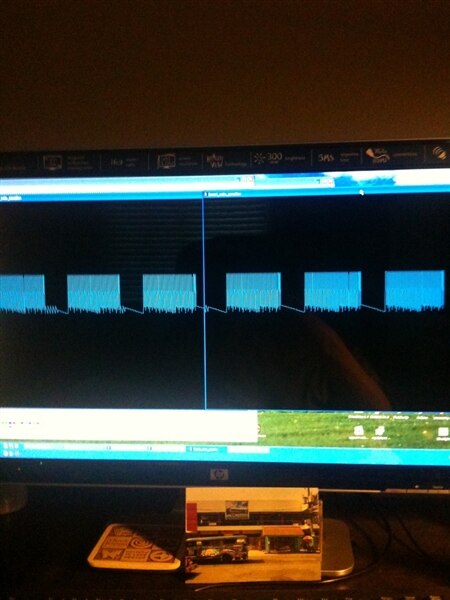
    Thanks for your reply.. I was actually able to make it work.. I used processing to graph the signal using direct wire connection, took a screenshot of it, then I switched to rf and "tuned" the module using a screw driver until the graphs looked the same.. (see pic)


    Please tell me more about the encoder/decoder and how it works as I am a noob to this.. or if you have anyreference you might want to share, that would be helpful. I'm currently using vwire to send stuff to the receiver.


    Thanks!

    AG


    image

    • Cancel
    • Vote Up 0 Vote Down
    • Sign in to reply
    • Verify Answer
    • Cancel
  • terryking
    0 terryking over 14 years ago in reply to Former Member

    AG, that's a innovative way to tuning these units!!!  Can you point to more information on how you did this. How about your Processing code???


    Thanks!


    Regards, Terry King

    ...In The Woods In Vermont

    terry@yourduino.com

    • Cancel
    • Vote Up 0 Vote Down
    • Sign in to reply
    • Verify Answer
    • Cancel
  • Former Member
    0 Former Member over 14 years ago in reply to terryking

    just set the tx to keep sending the same value (just mod the code above).


    And here's the code I used for processing.. I don't remember where I got it.. But I used it before for building a heartbeat monitor.


    /*
      Graph

    A simple example of communication from the Arduino board to the computer:
    the value of analog input 0 is sent out the serial port.  We call this "serial"
    communication because the connection appears to both the Arduino and the
    computer as a serial port, even though it may actually use
    a USB cable. Bytes are sent one after another (serially) from the Arduino
    to the computer.

    You can use the Arduino serial monitor to view the sent data, or it can
    be read by Processing, PD, Max/MSP, or any other program capable of reading
    data from a serial port.  The Processing code below graphs the data received
    so you can see the value of the analog input changing over time.

    The circuit:
    Any analog input sensor is attached to analog in pin 0.

    created 2006
    by David A. Mellis
    modified 14 Apr 2009
    by Tom Igoe and Scott Fitzgerald

    This example code is in the public domain.


    http://www.arduino.cc/en/Tutorial/Graph
    */


    // Graphing sketch


    // This program takes ASCII-encoded strings
    // from the serial port at 9600 baud and graphs them. It expects values in the
    // range 0 to 1023, followed by a newline, or newline and carriage return

    // Created 20 Apr 2005
    // Updated 18 Jan 2008
    // by Tom Igoe
    // This example code is in the public domain.

    import processing.serial.*;

    Serial myPort;        // The serial port
    int xPos = 1;         // horizontal position of the graph

    void setup () {
    // set the window size:
    size(1000, 800);       

    // List all the available serial ports
    println(Serial.list());
    // I know that the first port in the serial list on my mac
    // is always my  Arduino, so I open Serial.list()[0].
    // Open whatever port is the one you're using.
    myPort = new Serial(this, Serial.list()[0], 1200);
    // don't generate a serialEvent() unless you get a newline character:
    myPort.bufferUntil('\n');
    // set inital background:
    background(0);
    }
    void draw ()
    {
    // everything happens in the serialEvent()
    }
    float prevByte;
    void serialEvent (Serial myPort)
    {
       // get the ASCII string:
       String inString = myPort.readStringUntil('\n');

       if (inString != null)
         {
         // trim off any whitespace:
         inString = trim(inString);
        
         // convert to an int and map to the screen height:
         float inByte = float(inString);
         inByte = map(inByte, 0, 255, 250, height+250);

         // draw the line:
         stroke(0,127,200);
        // ellipse(xPos, height - inByte*8,1,1);
         line(xPos-1, prevByte, xPos, inByte);


         println(inByte);
         prevByte = inByte;
         // at the edge of the screen, go back to the beginning:
         if (xPos >= width)
           {
           xPos = 0;
           background(0);
           }
        
         else
           {
           // increment the horizontal position:
           xPos++;
           }
         }
       
       }


    Goodluck!

    • Cancel
    • Vote Up 0 Vote Down
    • Sign in to reply
    • Verify Answer
    • Cancel
  • Former Member
    0 Former Member over 14 years ago in reply to Former Member

    Hey Brother,


    Think I've got what you've been looking for.  Check out the VirtualWire library for Arduino.  It's documented fairly well and it's implementation is a lot more robust than running your RF communication like a normal UART.  Along with setting up transmission protocols, it also has a built in CRC (error checking) to make sure what you're getting is legit.  It definitely has its limitations like no RSSI calculation, but if you're looking for a way to simply transmit and receive data on an Arduino, it’s the way to go.  I see this has been thread has been dormant for a while, but if you try it out and have questions let me know.  The example sketches that come with the library are a good place to get started.
    • Cancel
    • Vote Up 0 Vote Down
    • Sign in to reply
    • Verify Answer
    • Cancel
  • Former Member
    0 Former Member over 14 years ago in reply to Former Member

    Yeah, that's exactly what I'm using. It works great image

    • Cancel
    • Vote Up 0 Vote Down
    • Sign in to reply
    • Verify Answer
    • Cancel
element14 Community

element14 is the first online community specifically for engineers. Connect with your peers and get expert answers to your questions.

  • Members
  • Learn
  • Technologies
  • Challenges & Projects
  • Products
  • Store
  • About Us
  • Feedback & Support
  • FAQs
  • Terms of Use
  • Privacy Policy
  • Legal and Copyright Notices
  • Sitemap
  • Cookies

An Avnet Company © 2025 Premier Farnell Limited. All Rights Reserved.

Premier Farnell Ltd, registered in England and Wales (no 00876412), registered office: Farnell House, Forge Lane, Leeds LS12 2NE.

ICP 备案号 10220084.

Follow element14

  • X
  • Facebook
  • linkedin
  • YouTube