element14 Community
element14 Community
    Register Log In
  • Site
  • Search
  • Log In Register
  • Community Hub
    Community Hub
    • What's New on element14
    • Feedback and Support
    • Benefits of Membership
    • Personal Blogs
    • Members Area
    • Achievement Levels
  • Learn
    Learn
    • Ask an Expert
    • eBooks
    • element14 presents
    • Learning Center
    • Tech Spotlight
    • STEM Academy
    • Webinars, Training and Events
    • Learning Groups
  • Technologies
    Technologies
    • 3D Printing
    • FPGA
    • Industrial Automation
    • Internet of Things
    • Power & Energy
    • Sensors
    • Technology Groups
  • Challenges & Projects
    Challenges & Projects
    • Design Challenges
    • element14 presents Projects
    • Project14
    • Arduino Projects
    • Raspberry Pi Projects
    • Project Groups
  • Products
    Products
    • Arduino
    • Avnet & Tria Boards Community
    • Dev Tools
    • Manufacturers
    • Multicomp Pro
    • Product Groups
    • Raspberry Pi
    • RoadTests & Reviews
  • About Us
  • Store
    Store
    • Visit Your Store
    • Choose another store...
      • Europe
      •  Austria (German)
      •  Belgium (Dutch, French)
      •  Bulgaria (Bulgarian)
      •  Czech Republic (Czech)
      •  Denmark (Danish)
      •  Estonia (Estonian)
      •  Finland (Finnish)
      •  France (French)
      •  Germany (German)
      •  Hungary (Hungarian)
      •  Ireland
      •  Israel
      •  Italy (Italian)
      •  Latvia (Latvian)
      •  
      •  Lithuania (Lithuanian)
      •  Netherlands (Dutch)
      •  Norway (Norwegian)
      •  Poland (Polish)
      •  Portugal (Portuguese)
      •  Romania (Romanian)
      •  Russia (Russian)
      •  Slovakia (Slovak)
      •  Slovenia (Slovenian)
      •  Spain (Spanish)
      •  Sweden (Swedish)
      •  Switzerland(German, French)
      •  Turkey (Turkish)
      •  United Kingdom
      • Asia Pacific
      •  Australia
      •  China
      •  Hong Kong
      •  India
      •  Korea (Korean)
      •  Malaysia
      •  New Zealand
      •  Philippines
      •  Singapore
      •  Taiwan
      •  Thailand (Thai)
      • Americas
      •  Brazil (Portuguese)
      •  Canada
      •  Mexico (Spanish)
      •  United States
      Can't find the country/region you're looking for? Visit our export site or find a local distributor.
  • Translate
  • Profile
  • Settings
Freedom development platform
  • Products
  • Dev Tools
  • Freedom development platform
  • More
  • Cancel
Freedom development platform
Blog Kinetis Design Studio 3.0 + Kinetis SDK 1.2 Processor-Expert using FRDM-KL27Z:  Blink Red Led with TPM (Timer/PWM Module)
  • Blog
  • Forum
  • Documents
  • Files
  • Members
  • Mentions
  • Sub-Groups
  • Tags
  • More
  • Cancel
  • New
Join Freedom development platform to participate - click to join for free!
  • Share
  • More
  • Cancel
Group Actions
  • Group RSS
  • More
  • Cancel
Engagement
  • Author Author: bheemarao
  • Date Created: 13 Jul 2015 5:22 AM Date Created
  • Views 481 views
  • Likes 2 likes
  • Comments 0 comments
  • kds3.0
  • kds-v3.0.0
  • ksdk1.2.0
  • frdm-kl27z
Related
Recommended

Kinetis Design Studio 3.0 + Kinetis SDK 1.2 Processor-Expert using FRDM-KL27Z:  Blink Red Led with TPM (Timer/PWM Module)

bheemarao
bheemarao
13 Jul 2015


Here is a Project created using new KDS version 3.0 and Kinetis software development kit 1.2 on processor expert platform. This is a project for blinking an RED LED using TPM module of PE implemented using freedom board FRDM-KL27Z.


Requirements

To run successfully this exercise, you need first to download following packages (link enclosed):

- IDE toolchain Kinetis Design Studio (KDS) min v3.0
- microcontroller Library Kinetis Software Development Kit (KSDK) min 1.2
- FRDM-KL27Z materials (schematics, Quick Start Package)
- latest P&E Micro windows drivers and SDA Applications


Before connecting your FRDM-KL27Z for the first time to the USB port of your computer, install the P&E Micro windows driver to ensure a correct detection of the board.


Install first the IDE toolchain KDS and when the installation ended successfully, install the MCU Library KSDK keeping the proposed installation path c:\freescale\kds or ksdk unchanged.

Launch KDS and define your workspace path, then select Help, Install New Software, Add, Archive, C:\Freescale\KSDK_1.2.0\tools\eclipse_update, select KSDK_1.2.0_Eclipse_Update.zip and press Open, OK, select KSDK Eclipse Update, press Next, Accept the Licence Agreement and press Finish. The KSDK libraries are now directly available in the IDE toolchain.

The automated code generator Processor Expert is already included in the IDE Toolchain (available separately as Processor Expert Driver Suite for other IDE toolchains).


Tutorial instructions


The tutorial shows how to toggle LED with KSDK 1.2.0 in KDS 3.0 and Processor Expert using a Timer Output for FRDM-KL27Z.

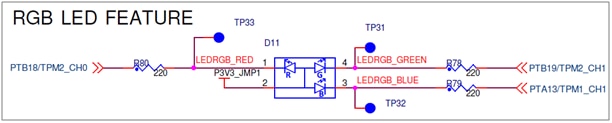
Guide is prepared for red LED which is connected to Timer/PWM Module 2 (TPM2), channel 0 (according to FRDM-KL27Z schematics).

image


Create new project


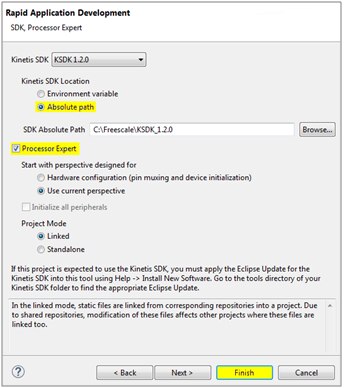
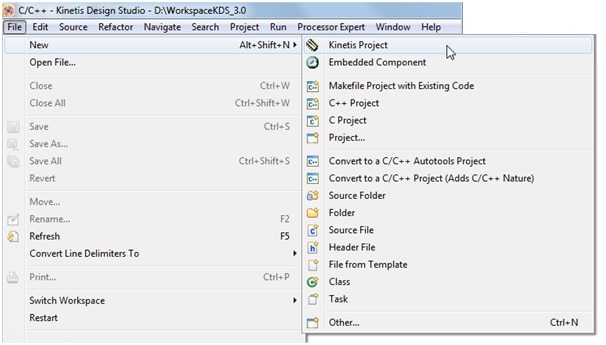
Create new project in KDS 3.0 with KSDK 1.2.0
image

Type the project name e.g. frdm-kl27z_red_blinky_tpm, choose the board FRDM-KL27Z, mark off options Kinetis SDK and Processor Expert

imageimage


image


Now, your project structure looks like this in the project explorer and Processor Expert windows:

imageimage


Set Processor Expert Settings


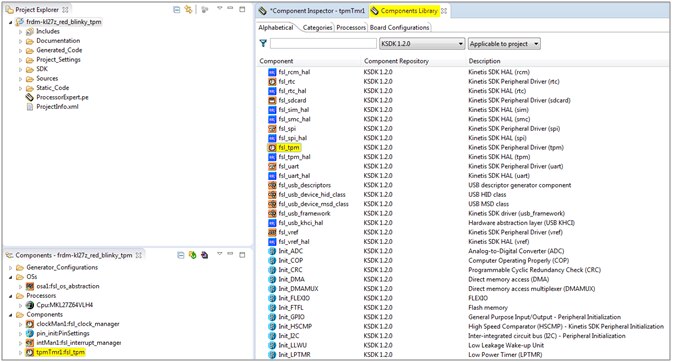
Now, go to Components Library, find fsl_tpm component using filters KSDK 1.2.0 and Applicable to Project and by double click add the component to the Processor Expert Component View of your project.
image

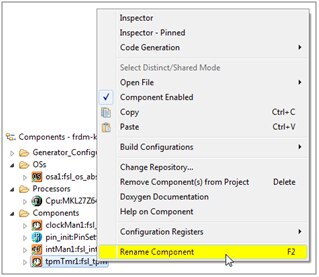
Rename the component tpmTmr:fsl_tpm to RedLed.

image

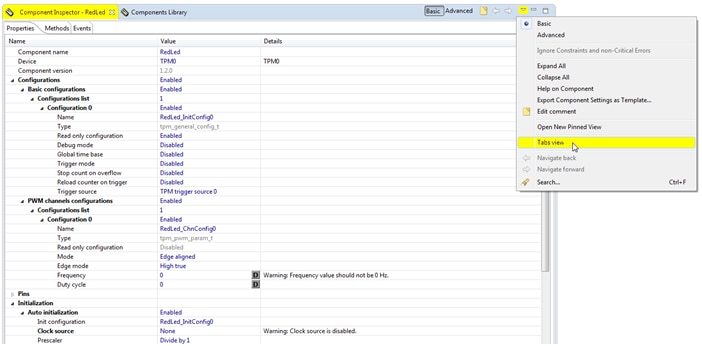
Double click on RedLed:fsl_tpm in Components View and Component Inspector view should open automatically.


First turn the Component Inspector view to Classical view by unselecting the Tab View option.

image


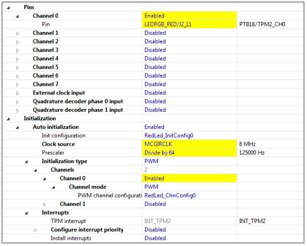
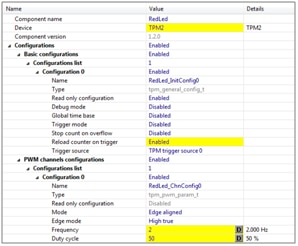
Enable to reload the counter on Trigger


Set the counter frequency to 2Hz with a Duty cyle of 50%


Allocate TPM0 Channel 2 to Pin LED2_RED (defined by board selection)


Select Clock source MCGIRCLK and choose the Prescaler Divide by 64


Enable the Initialization of TPM0 Channel 2

image


image

Save the configuration by pressing ctrl+s
The star beside Component Inspector tab should have disappeared.

              image

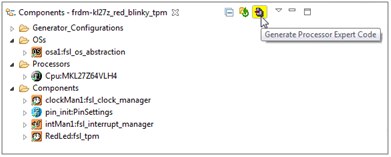
Generate the Processor Expert Code for the component RedLed that we have just configured
image

Build your project by choosing the right toolbar shortcut 


image

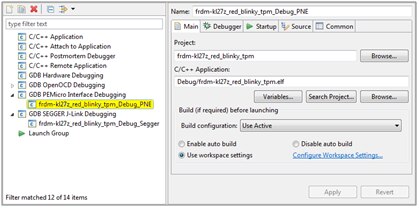
Debugging the FRDM-KL46Z board for the first time, you need to define a Debug Configuration by selecting the appropriate option from the toolbar


image


The FRDM-KL27Z embeds a multimode programming and debug interface easily reconfigurable by drag’n droping from the file explorer new SDA applications in Bootloader mode.


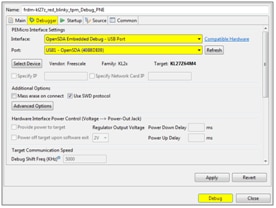
For this example, we are going to select the PEMicro OpenSDA Debug mode.


Select the Debugger tab to choose the Interface OpenSDA Embedded Debug - USB Port


You can now start the Debug session!!

image


image


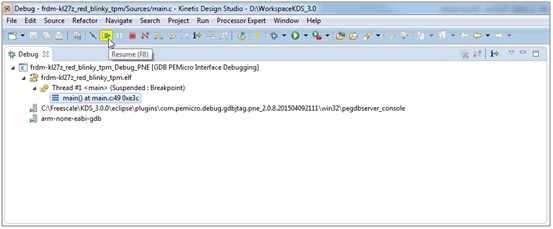
Launch the configuration

image

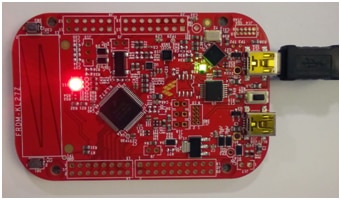
You should now the Red LED blink with a 2Hz frequency
image


I have enclosed the project folder and executable SREC file for quick reference.

Attachments:
KL27-TPM example-srec.rar
KL27-TPM example.rar
  • Sign in to reply
element14 Community

element14 is the first online community specifically for engineers. Connect with your peers and get expert answers to your questions.

  • Members
  • Learn
  • Technologies
  • Challenges & Projects
  • Products
  • Store
  • About Us
  • Feedback & Support
  • FAQs
  • Terms of Use
  • Privacy Policy
  • Legal and Copyright Notices
  • Sitemap
  • Cookies

An Avnet Company © 2025 Premier Farnell Limited. All Rights Reserved.

Premier Farnell Ltd, registered in England and Wales (no 00876412), registered office: Farnell House, Forge Lane, Leeds LS12 2NE.

ICP 备案号 10220084.

Follow element14

  • X
  • Facebook
  • linkedin
  • YouTube