


Here is a Project created using new KDS version 3.0 and Kinetis software development kit 1.2 on processor expert platform. This project controls the GPIO (LED toggle/set/clear) using command over UART console communication using debug_console and fsl_gpio component implemented using KL43Z freedom board.
Requirements
To run successfully this exercise, you need first to download following packages (link enclosed):
- IDE toolchain Kinetis Design Studio (KDS) min v3.0
- microcontroller Library Kinetis Software Development Kit (KSDK) min 1.2
- FRDM-KL43Z materials (schematics, Quick Start Package and Sample Code Package)
- latest P&E Micro windows drivers and SDA Applications
Before connecting your FRDM-KL43Z for the first time to the USB port of your computer, install the P&E Micro windows driver to ensure a correct detection of the board.
Install first the IDE toolchain KDS and when the installation ended successfully, install the MCU Library KSDK keeping the proposed installation path c:\freescale\kds or ksdk unchanged.
Launch KDS and define your workspace path, then select Help, Install New Software, Add, Archive, C:\Freescale\KSDK_1.2.0\tools\eclipse_update, select KSDK_1.2.0_Eclipse_Update.zip and press Open, OK, select KSDK Eclipse Update, press Next, Accept the Licence Agreement and press Finish. The KSDK libraries are now directly available in the IDE toolchain.
The automated code generator Processor Expert is already included in the IDE Toolchain (available separately as Processor Expert Driver Suite for other IDE toolchains).
The Hardware connection of the KL43Z from schematic are:
GPIO pin connection of the board:
LED1 is connected to PTD-5 Green LED
LED2 is connected to PTE31 RED LED

And UART connections are:

Simple Instruction to execute the project
Step-1: Create a bare bone project
Step-2: Add the component debug_console, fsl_gpio to project
Step-3: Configure the hardware settings for UART and LED components
Step-4: Add the software code and compile/Build the project
Step-5: Execute the project and see the result.
Step-1: Create a bare bone project
I have created a project by name “KL43Z GPIO using UART” using same steps as earlier


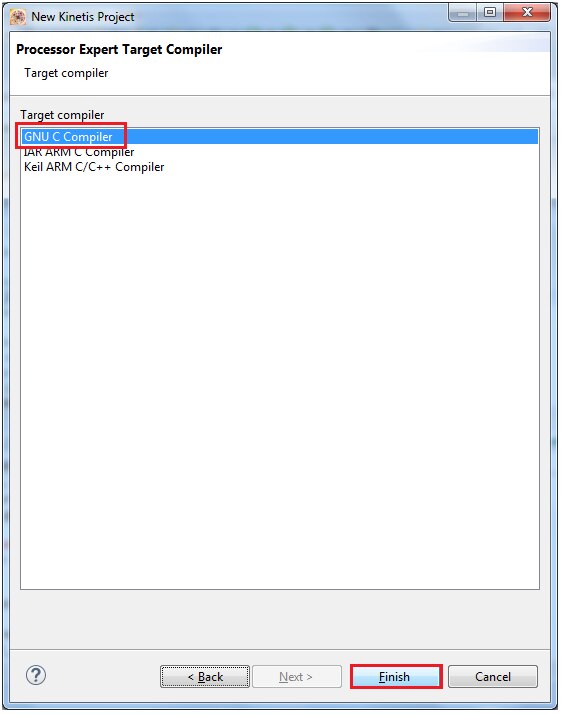
Now the project looks like as shown below

Step-2: Add the component debug_console, fsl_gpio to project
Now i am going to add the component fsl_debug_console and fsl_gpio from component library

Adding fsl_debug_console

Step-3: Configure the hardware settings for UART and LED components
Double click on the selected debug component “fsl_debug_console “ and select the baud rate of 19200 as shown below:

Now select the uart pins for these settings:
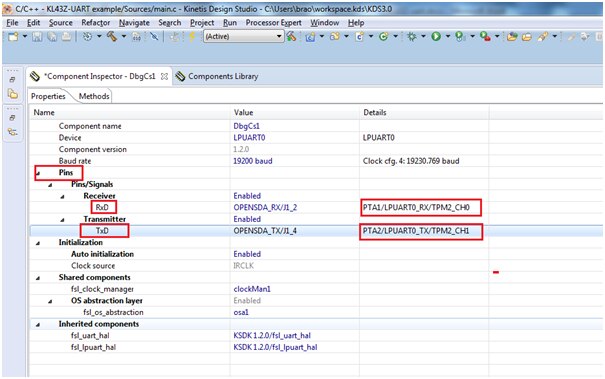
Settings for fsl_gpio
Double click on fsl_gpio component and make the below settings:
Green LED is connected to PTD-5

Click on the generate button as shown below:

Step-4: Add the software code and compile/Build the project
Now write the below lines of codes inside the main file to control the Green LED through Debug UART
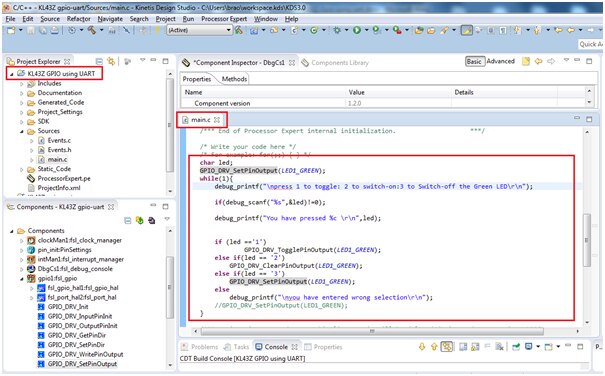
The code is given below:
char led;
 GPIO_DRV_SetPinOutput(LED1_GREEN);
 while(1){
        debug_printf("\npress 1 to toggle: 2 to switch-on:3 to Switch-off the Green LED\r\n");

        if(debug_scanf("%s",&led)!=0);

        debug_printf("You have pressed %c \r\n",led);


        if (led =='1')
                      GPIO_DRV_TogglePinOutput(LED1_GREEN);
        else if(led == '2')
                GPIO_DRV_ClearPinOutput(LED1_GREEN);
        else if(led == '3')
                GPIO_DRV_SetPinOutput(LED1_GREEN);
        else
                debug_printf("\nyou have entered wrong selection\r\n");
 }
This code will ask user to enter choices to Toggle, switch-on, switch-off the Green LED through UART communication. And the result can be seen on board with response on hyper terminal
Now compile/build the project by clicking the generate button as shown below:

The project compiles with with no error, we will proceed further in execution the project:
Step-5: Execute the project and see the result

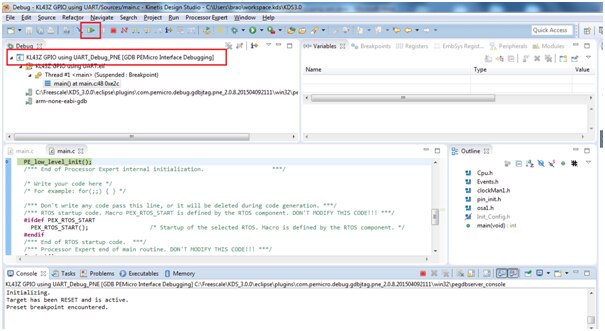
Click on debug configuration and select the proper OpenSDA usb port from debugger tab as shown below:

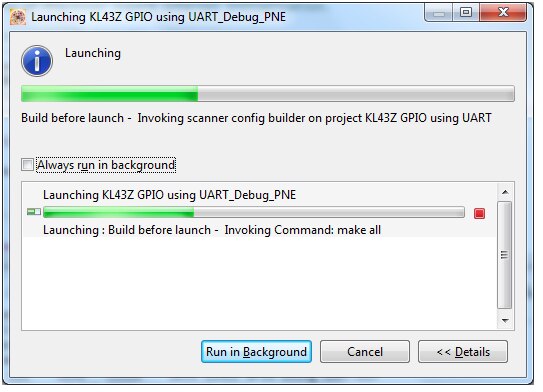
Before clicking on the resume button make sure to open the hyper terminal of your choice with baud rate of 19200, 8N1
I have opened putty with the said settings:

Below is my video output seen on the hyper terminal window:
I have enclosed the project folder and executables for quick evaluation
Happy working on Console windows 
