element14 Community
element14 Community
    Register Log In
  • Site
  • Search
  • Log In Register
  • Community Hub
    Community Hub
    • What's New on element14
    • Feedback and Support
    • Benefits of Membership
    • Personal Blogs
    • Members Area
    • Achievement Levels
  • Learn
    Learn
    • Ask an Expert
    • eBooks
    • element14 presents
    • Learning Center
    • Tech Spotlight
    • STEM Academy
    • Webinars, Training and Events
    • Learning Groups
  • Technologies
    Technologies
    • 3D Printing
    • FPGA
    • Industrial Automation
    • Internet of Things
    • Power & Energy
    • Sensors
    • Technology Groups
  • Challenges & Projects
    Challenges & Projects
    • Design Challenges
    • element14 presents Projects
    • Project14
    • Arduino Projects
    • Raspberry Pi Projects
    • Project Groups
  • Products
    Products
    • Arduino
    • Avnet & Tria Boards Community
    • Dev Tools
    • Manufacturers
    • Multicomp Pro
    • Product Groups
    • Raspberry Pi
    • RoadTests & Reviews
  • About Us
  • Store
    Store
    • Visit Your Store
    • Choose another store...
      • Europe
      •  Austria (German)
      •  Belgium (Dutch, French)
      •  Bulgaria (Bulgarian)
      •  Czech Republic (Czech)
      •  Denmark (Danish)
      •  Estonia (Estonian)
      •  Finland (Finnish)
      •  France (French)
      •  Germany (German)
      •  Hungary (Hungarian)
      •  Ireland
      •  Israel
      •  Italy (Italian)
      •  Latvia (Latvian)
      •  
      •  Lithuania (Lithuanian)
      •  Netherlands (Dutch)
      •  Norway (Norwegian)
      •  Poland (Polish)
      •  Portugal (Portuguese)
      •  Romania (Romanian)
      •  Russia (Russian)
      •  Slovakia (Slovak)
      •  Slovenia (Slovenian)
      •  Spain (Spanish)
      •  Sweden (Swedish)
      •  Switzerland(German, French)
      •  Turkey (Turkish)
      •  United Kingdom
      • Asia Pacific
      •  Australia
      •  China
      •  Hong Kong
      •  India
      • Japan
      •  Korea (Korean)
      •  Malaysia
      •  New Zealand
      •  Philippines
      •  Singapore
      •  Taiwan
      •  Thailand (Thai)
      • Vietnam
      • Americas
      •  Brazil (Portuguese)
      •  Canada
      •  Mexico (Spanish)
      •  United States
      Can't find the country/region you're looking for? Visit our export site or find a local distributor.
  • Translate
  • Profile
  • Settings
BeagleBoard
  • Products
  • Dev Tools
  • Single-Board Computers
  • BeagleBoard
  • More
  • Cancel
BeagleBoard
Blog BeagleBone Black & BB-View Demo - I Moustache You a Question
  • Blog
  • Forum
  • Documents
  • Quiz
  • Polls
  • Files
  • Members
  • Mentions
  • Sub-Groups
  • Tags
  • More
  • Cancel
  • New
Join BeagleBoard to participate - click to join for free!
  • Share
  • More
  • Cancel
Group Actions
  • Group RSS
  • More
  • Cancel
Engagement
  • Author Author: Former Member
  • Date Created: 27 Aug 2014 9:29 AM Date Created
  • Views 1454 views
  • Likes 2 likes
  • Comments 6 comments
  • beagle
  • bone
  • BeagleBone
  • beaglebone-black
  • stache
  • moustache
  • beaglestache
Related
Recommended

BeagleBone Black & BB-View Demo - I Moustache You a Question

Former Member
Former Member
27 Aug 2014

imageimage


Intro

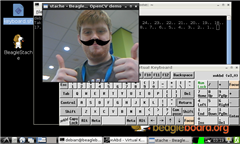
This Demo will take a fresh from the box element14 BeagleBone Black with the preinstalled Debian system and configure it to work with BB-View. Subsequently we will use this new setup to attach virtual moustaches to passers-by


Equipment Required

e14 BeagleBone Blacke14 BeagleBone Black

BB-View 4.3"4.3" or 7"7"

5v PSU5v PSU

UART8000-UUART8000-U (Optional QOL improvement)

USB memory stick

Playstation 3 camera


Downloads

Debian patch files

Linux tools

BeagleStache


Setup


Extract the files from the Debian Image archive to a USB stick


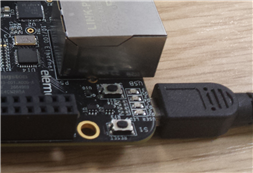
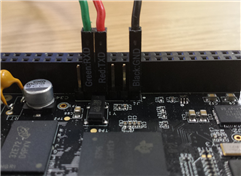
Connect the BeagleBone black to your PC via either the UART8000-U or the included USB cable

imageimage


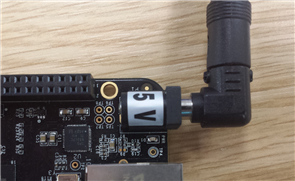
Connect the 5V PSU

image


While the board is booting, ensure PuTTY is installed on your computer and start the software. The settings for each connection type vary:

Ethernet over USB: uses an SSH connection via the default IP address of 192.168.7.2

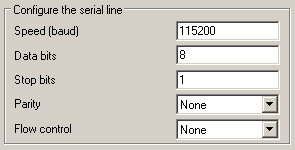
UART8000-U: The COM port will vary, the correct port can be found in the Windows Device Manager (for more information on this please see the UART8000-U guide). The other settings are shown in the image to the right.

image


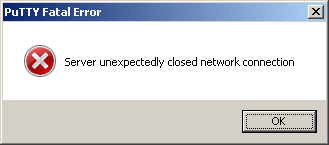
Once the board has had time to boot you can go ahead and click "Open" on the main screen of PuTTY to open a connection to the board. From here on all the commands are uneffected by your chosen connection method. There is a slight inconveniance when connecting via SSH using the Ethernet over USB as the connection will need to be re-established each time you reset the board

image

BB-View Patches


In the terminal window enter the following commands (as per the BB-View user manual):

mkdir /media/udisk
mount /dev/sda1 /media/udisk
cp -f /media/udisk/zImage /boot/uboot
cp -f /media/udisk/*.dtb /boot/uboot/dtbs
tar -xvf /media/udisk/kernel_modules.tar.gz -C /
cp -f /media/udisk/xorg.conf /etc/X11/
sync

If you are using the 4.3" screen with your BB-View than you are good to go! However the 7" screen requires a little more configuration, enter the following commands into PuTTY:

cd /boot/uboot/dtbs
cp am335x-boneblack-lcd7.dtb am335x-boneblack.dtb
rm /etc/pointercal*
sync

Now shut down the BeagleBone and connect the BB-View along with the screen, then supply power.

You should now have a working BB-View & BeagleBone Black system running Debian

Ethernet


After applying the BB-View patch the ethernet is disabled by default to improve boot times. If required, the Ethernet can be re-enabled with a simple edit, use nano to edit the following file:

nano /etc/network/interfaces

Then find the lines:

#auto eth0
#iface eth0 inet dhcp

and uncomment them by removing the # to read:

auto eth0
iface eth0 inet dhcp

After this save and exit then:

sync
reboot

Moustache Time!

(From my list of titles I never thought I would write)


A full set of instructions for adorning people with virtual moustaches can be found at BeagleBoard.org - BeagleStache however they are repeated below, with slight modifications to make the project BB-View compatible.

    1. Clone the GitHub repository and build the code with the following commands

      git clone git://github.com/jadonk/stache
      cd stache
      make && make install

    2. Because the BB-View by default operates as the user "Debian" instead of root, the following commands are required to operate BeagleStache:

      mkdir /home/debian/stache
      cp -r /root/stache/* /home/debian/stache

    3. To make the running of BeagleStache a little easier you can create a shellscript on your desktop containing the following:

      #!/bin/bash
      sudo /root/stache/runstache

    4. Now plug in the camera ,doubletap your new desktop script and enjoy your moustachey exploits!
image

  • Sign in to reply
  • Former Member
    Former Member over 10 years ago

    Hi Guys & Matt,


    I followed you instructions to the tee & can't get the BB-View to work.  I am using the latest Debian release (03/15).


    The BBB boots fine. LED0/LED1 on the LCD are both lit. Nothing else happens. No backlight.


    Any suggestions would be gratefully accepted!


    Thanks, Dave

    • Cancel
    • Vote Up 0 Vote Down
    • Sign in to reply
    • More
    • Cancel
  • lotusf33t
    lotusf33t over 10 years ago in reply to lotusf33t

    That didn't seem to work. System seems to be booting, just no output to the LCD. I am going to do other things with the system until I can figure out what's going on with the BB-VIEW7.


    Respectfully,


    Jack.

    • Cancel
    • Vote Up 0 Vote Down
    • Sign in to reply
    • More
    • Cancel
  • lotusf33t
    lotusf33t over 10 years ago

    Matt:


    I am not sure if these patches still work with exactly these commands. Here is my experience with recent Debian build (2015-03-01) - dtbs directory sits like /boot/dtbs/3.8.13-bone70, not underneath uboot like boot/uboot/dtbs.

    Do I modify the commands to suit like below, or do I create the dtbs directory under uboot and use the exact commands?


    <code>

    mkdir /media/udisk

    mount /dev/sda1 /media/udisk

    cp -f /media/udisk/zImage /boot/uboot ##this command seems suspicious at this point... image

    cp -f /media/udisk/*.dtb /boot/dtbs/3.8.13-bone70 ##this is where dtbs are right now, after re-flashing from scratch to fix the messed up HDMI colors since the LCD never came up...

    tar -xvf /media/udisk/kernel_modules.tar.gz -C /

    cp -f /media/udisk/xorg.conf /etc/X11/

    sync

    </code>

    In the manual for BB View LCD the tar -xvf line has some extra characters near the end that are confusing and incorrect, as well. This is the "BB VIEW User Manual V3.pdf"


    Then reboot...and

    <code>

    cd /boot/dtbs/3.8.13-bone70

    cp am335x-boneblack-lcd7.dtb am335x-boneblack.dtb

    ...reset cals if necessary...

    </code>


    Does this seem correct to you at this point?


    Regards,


    Jack

    • Cancel
    • Vote Up 0 Vote Down
    • Sign in to reply
    • More
    • Cancel
  • PaulRowntree
    PaulRowntree over 11 years ago

    Matt, the filenames for the Angstrom patches appear to be the same as these Debian filenames.  Do we follow the same procedures for Angstrom?  I have an older RevB board ...

    • Cancel
    • Vote Up 0 Vote Down
    • Sign in to reply
    • More
    • Cancel
  • Former Member
    Former Member over 11 years ago in reply to PaulRowntree

    You are correct, good catch!

    • Cancel
    • Vote Up 0 Vote Down
    • Sign in to reply
    • More
    • Cancel
>
element14 Community

element14 is the first online community specifically for engineers. Connect with your peers and get expert answers to your questions.

  • Members
  • Learn
  • Technologies
  • Challenges & Projects
  • Products
  • Store
  • About Us
  • Feedback & Support
  • FAQs
  • Terms of Use
  • Privacy Policy
  • Legal and Copyright Notices
  • Sitemap
  • Cookies

An Avnet Company © 2025 Premier Farnell Limited. All Rights Reserved.

Premier Farnell Ltd, registered in England and Wales (no 00876412), registered office: Farnell House, Forge Lane, Leeds LS12 2NE.

ICP 备案号 10220084.

Follow element14

  • X
  • Facebook
  • linkedin
  • YouTube