element14 Community
element14 Community
    Register Log In
  • Site
  • Search
  • Log In Register
  • Community Hub
    Community Hub
    • What's New on element14
    • Feedback and Support
    • Benefits of Membership
    • Personal Blogs
    • Members Area
    • Achievement Levels
  • Learn
    Learn
    • Ask an Expert
    • eBooks
    • element14 presents
    • Learning Center
    • Tech Spotlight
    • STEM Academy
    • Webinars, Training and Events
    • Learning Groups
  • Technologies
    Technologies
    • 3D Printing
    • FPGA
    • Industrial Automation
    • Internet of Things
    • Power & Energy
    • Sensors
    • Technology Groups
  • Challenges & Projects
    Challenges & Projects
    • Design Challenges
    • element14 presents Projects
    • Project14
    • Arduino Projects
    • Raspberry Pi Projects
    • Project Groups
  • Products
    Products
    • Arduino
    • Avnet & Tria Boards Community
    • Dev Tools
    • Manufacturers
    • Multicomp Pro
    • Product Groups
    • Raspberry Pi
    • RoadTests & Reviews
  • About Us
    About the element14 Community
  • Store
    Store
    • Visit Your Store
    • Choose another store...
      • Europe
      •  Austria (German)
      •  Belgium (Dutch, French)
      •  Bulgaria (Bulgarian)
      •  Czech Republic (Czech)
      •  Denmark (Danish)
      •  Estonia (Estonian)
      •  Finland (Finnish)
      •  France (French)
      •  Germany (German)
      •  Hungary (Hungarian)
      •  Ireland
      •  Israel
      •  Italy (Italian)
      •  Latvia (Latvian)
      •  
      •  Lithuania (Lithuanian)
      •  Netherlands (Dutch)
      •  Norway (Norwegian)
      •  Poland (Polish)
      •  Portugal (Portuguese)
      •  Romania (Romanian)
      •  Russia (Russian)
      •  Slovakia (Slovak)
      •  Slovenia (Slovenian)
      •  Spain (Spanish)
      •  Sweden (Swedish)
      •  Switzerland(German, French)
      •  Turkey (Turkish)
      •  United Kingdom
      • Asia Pacific
      •  Australia
      •  China
      •  Hong Kong
      •  India
      •  Japan
      •  Korea (Korean)
      •  Malaysia
      •  New Zealand
      •  Philippines
      •  Singapore
      •  Taiwan
      •  Thailand (Thai)
      •  Vietnam
      • Americas
      •  Brazil (Portuguese)
      •  Canada
      •  Mexico (Spanish)
      •  United States
      Can't find the country/region you're looking for? Visit our export site or find a local distributor.
  • Translate
  • Profile
  • Settings
BeagleBoard
  • Products
  • Dev Tools
  • Single-Board Computers
  • BeagleBoard
  • More
  • Cancel
BeagleBoard
Blog BeagleBone Web Server - LED Blinking
  • Blog
  • Forum
  • Documents
  • Quiz
  • Polls
  • Files
  • Members
  • Mentions
  • Sub-Groups
  • Tags
  • More
  • Cancel
  • New
Join BeagleBoard to participate - click to join for free!
  • Share
  • More
  • Cancel
Group Actions
  • Group RSS
  • More
  • Cancel
Engagement
  • Author Author: oneleggedredcow
  • Date Created: 22 Nov 2013 1:21 AM Date Created
  • Views 7040 views
  • Likes 2 likes
  • Comments 42 comments
Related
Recommended

BeagleBone Web Server - LED Blinking

oneleggedredcow
oneleggedredcow
22 Nov 2013

Table of Contents

Setup

LED Blinking

MySQL Installation

Temperature Sensor

Introduction

In the previous article, we set up the BeagleBone to be a webserver running Lighttpd and PHP.


In this article, we are going to build upon that foundation.  We are going to create a web site that lets the user turn on and off an LED on the BeagleBone.  This is a good example of how to create a simple web page that interacts with the BeagleBone and is a step towards our final goal of creating a website to show historical temperature information.


Turning a LED On/Off

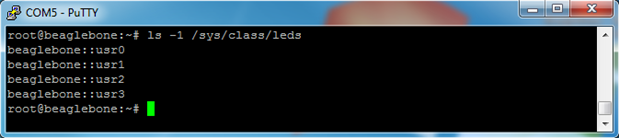
BeagleBone LEDs can be turned on/off through command line, but in order to do this, we need to figure out what they are named.  The names can be found like this:


ls -1 /sys/class/leds
image

So, turning the usr2 LED on/off would look something like this:

image

1 will turn the LED on, and 0 will turn the LED off.


By default, some of the LEDs are used to display information to us about what is going on.  So, if you change the state of one of those LEDs, it will be quickly overwritten.  We can see this by looking at the trigger:


cat /sys/class/leds/beaglebone::usr0/trigger

image

To modify this so that the LED only changes when we tell it to, we can change the trigger to none:


echo none > /sys/class/leds/beaglebone::usr0/trigger

image


C Program

Now that we know how to turn on/off the LEDs, we can write a small C program to make it easier for us. The program will take in the number of the LED to change (0-4) and the state to change it to (off = 0, on = 1). Here’s the code:


#include <stdio.h>

#include <stdlib.h>

#include <fcntl.h>

#include <unistd.h>


int main(int argc, const char *argv[])

{

if (argc != 3)

{

printf("Usage:\n");

printf("\tledCtl <led> <on/off>\n");

printf("\n");

printf("<led>  : Number between 0-3\n");

printf("<on/off>: 1 = on, 0 = off\n");


return 1;

}


int ledNum = atoi(argv[1]);

if (ledNum < 0 || ledNum > 3)

{

printf("<led>  : Number between 0-3\n");


return 1;

}


char ledPath[1024];

sprintf(ledPath, "/sys/class/leds/beaglebone::usr%d/brightness", ledNum);

int fid = open(ledPath, O_WRONLY);


int onOff = atoi(argv[2]);

switch (onOff)

{

case 0:

write(fid, "0", 1);

break;

case 1:

write(fid, "1", 1);

break;

default:

printf("<on/off>: 1 = on, 0 = off\n");

return 1;

}


close(fid);


return 0;

}


Remember to change the path of the LED to the path that we found earlier.


For a simple task like this, we could have just used the command line to turn the LEDs on/off. However, I wanted to put it into a C program so that we set ourselves up better for the future.  When we take temperature measurements and put them into a MySQL database, it will require more logic that is better suited for a small program rather than the command line.


The code should be fairly clear.  It is mostly just checking the inputs that the user gave us to make sure that they are reasonable.


Before we compile it, we need to create a directory to store the scripts that we are going to be running on our web site:


mkdir /www/cgi-bin


To compile the code, type:


g++ ledctl.cpp -o /www/cgi-bin/ledctl

image


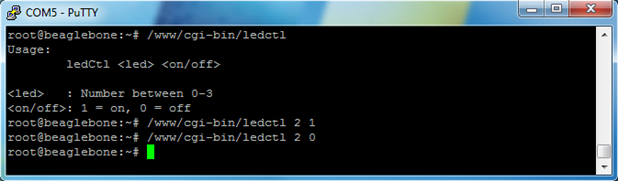
Then we can run some examples and make sure that it works:


/www/cgi-bin/ledCtl

/www/cgi-bin/ledCtl 2 1

/www/cgi-bin/ledCtl 2 0
image


Creating a Web Page

Awesome, now that we have a program to control the LEDs on the BeagleBone, let’s create a web page so that we can control the LEDs over the Internet.  Let’s call the web page ledCtl.php and place the following code in it:


<html>

<head>

<title>BeagleBone LED Changer</title>

<style type="text/css">

p { display: table-cell; }

button { width: 75px; margin: 2px auto; }

</style>

<?php

if (isset($_GET['led']) && isset($_GET['onOff']))

{

$led = $_GET['led'];

$onOff = $_GET['onOff'];


exec( "/www/cgi-bin/ledctl $led $onOff" );

}

?>

</head>

<body>

<div style="width: 200px; margin: 0px auto;">

<div style="width: 100px; float: left;">

<p>LED #2:</p>

<button type="button" onclick="location.href='ledCtl.php?led=2&onOff=1'">ON</button>

<button type="button" onclick="location.href='ledCtl.php?led=2&onOff=0'">OFF</button>

</div>

<div sytle="width: 100px; margin-left: 100px;">

<p>LED #3:</p>

<button type="button" onclick="location.href='ledCtl.php?led=3&onOff=1'">ON</button>

<button type="button" onclick="location.href='ledCtl.php?led=3&onOff=0'">OFF</button>

</div>

</div>

</body>

</html>


Note: We used LEDs #2 and #3 because LED #0 and #1 occasionally blink and override our on/off settings.


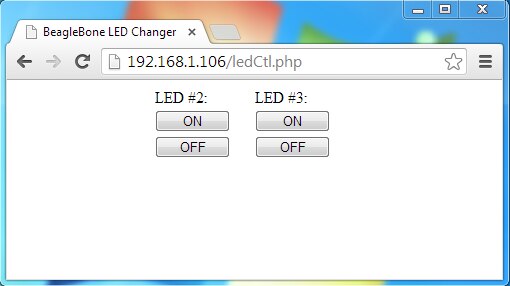
Then we can test our web page by going to a browser and using our new web page:
image

Pressing the buttons on the page should change the state of the LEDs on the BeagleBone!


Next Article

In the next article, we are going to get MySQL up and running on the BeagleBone.  We will use MySQL as a convenient place to store the temperature measurements that we take.  This will also make it easy to retrieve the data when the user requests historical temperature information through our web page.

Attachments:
ledctl.zip
  • Sign in to reply
  • oneleggedredcow
    oneleggedredcow over 12 years ago in reply to morgaine

    Interesting.  I'm using a BeagleBone rev A6a and including the "green" field causes the command to fail.

    image

    I don't have a BeagleBone Black, but based on the googling that I did, that appeared to be the way that it handled it.  I'm assuming you have a BeagleBone Black then?


    I'll be honest, I didn't realize that the : character did not need to be escaped.  I usually use tab completion and it always seems to escape it, so I thought it was required.  Good to know.


    Opps, that last slash is going the wrong direction.  I'll update it.


    I tend to prefer adding the .exe to the end of programs that I write even in Unix.  Helps me to remember that it is program and not just some other file that I didn't add an extension to.  However, you are right, it isn't the standard convention.

    • Cancel
    • Vote Up 0 Vote Down
    • Sign in to reply
    • More
    • Cancel
  • morgaine
    morgaine over 12 years ago

    Some odd Windows'isms and Windows-inspired typos seem to have crept into this article:


    BeagleBone:

    echo 1 > /sys/class/leds/beaglebone\:\:usr2/brightness


    The ':' is not a shell metacharacter and so it doesn't need escaping with a backslash.  Although this will still work, the colour field "green" is missing so overall it fails.  The command should be:


    BeagleBone:

    echo 1 > /sys/class/leds/beaglebone:green:usr2/brightness


    For the BeagleBone Black, you included the "green" field but you used a Windows-style path separator:


    BeagleBone Black:

    echo 1 > /sys/class/leds/beaglebone\:green\:usr2\brightness


    That won't work at all.  It should be:


    BeagleBone Black:

    echo 1 > /sys/class/leds/beaglebone:green:usr2/brightness


    Finally, your compile command added superfluous Windows-type file suffices:


    To compile the code, type:

    g++ ledCtl.cpp -o ledCtl.exe

    Then we can run some examples and make sure that it works:

    ./ledCtl.exe
    ./ledCtl.exe 2 1
    ./ledCtl.exe 2 0


    Although this will work, it's inherently confusing and immediately makes readers wonder on what platform your code was running.  I recommend that you drop the ".exe" file suffices completely, as they're not needed under Unix and they don't respect the standard conventions.


    Morgaine.

    • Cancel
    • Vote Up 0 Vote Down
    • Sign in to reply
    • More
    • Cancel
<
element14 Community

element14 is the first online community specifically for engineers. Connect with your peers and get expert answers to your questions.

  • Members
  • Learn
  • Technologies
  • Challenges & Projects
  • Products
  • Store
  • About Us
  • Feedback & Support
  • FAQs
  • Terms of Use
  • Privacy Policy
  • Legal and Copyright Notices
  • Sitemap
  • Cookies

An Avnet Company © 2026 Premier Farnell Limited. All Rights Reserved.

Premier Farnell Ltd, registered in England and Wales (no 00876412), registered office: Farnell House, Forge Lane, Leeds LS12 2NE.

ICP 备案号 10220084.

Follow element14

  • X
  • Facebook
  • linkedin
  • YouTube