element14 Community
element14 Community
    Register Log In
  • Site
  • Search
  • Log In Register
  • Community Hub
    Community Hub
    • What's New on element14
    • Feedback and Support
    • Benefits of Membership
    • Personal Blogs
    • Members Area
    • Achievement Levels
  • Learn
    Learn
    • Ask an Expert
    • eBooks
    • element14 presents
    • Learning Center
    • Tech Spotlight
    • STEM Academy
    • Webinars, Training and Events
    • Learning Groups
  • Technologies
    Technologies
    • 3D Printing
    • FPGA
    • Industrial Automation
    • Internet of Things
    • Power & Energy
    • Sensors
    • Technology Groups
  • Challenges & Projects
    Challenges & Projects
    • Design Challenges
    • element14 presents Projects
    • Project14
    • Arduino Projects
    • Raspberry Pi Projects
    • Project Groups
  • Products
    Products
    • Arduino
    • Avnet & Tria Boards Community
    • Dev Tools
    • Manufacturers
    • Multicomp Pro
    • Product Groups
    • Raspberry Pi
    • RoadTests & Reviews
  • About Us
  • Store
    Store
    • Visit Your Store
    • Choose another store...
      • Europe
      •  Austria (German)
      •  Belgium (Dutch, French)
      •  Bulgaria (Bulgarian)
      •  Czech Republic (Czech)
      •  Denmark (Danish)
      •  Estonia (Estonian)
      •  Finland (Finnish)
      •  France (French)
      •  Germany (German)
      •  Hungary (Hungarian)
      •  Ireland
      •  Israel
      •  Italy (Italian)
      •  Latvia (Latvian)
      •  
      •  Lithuania (Lithuanian)
      •  Netherlands (Dutch)
      •  Norway (Norwegian)
      •  Poland (Polish)
      •  Portugal (Portuguese)
      •  Romania (Romanian)
      •  Russia (Russian)
      •  Slovakia (Slovak)
      •  Slovenia (Slovenian)
      •  Spain (Spanish)
      •  Sweden (Swedish)
      •  Switzerland(German, French)
      •  Turkey (Turkish)
      •  United Kingdom
      • Asia Pacific
      •  Australia
      •  China
      •  Hong Kong
      •  India
      • Japan
      •  Korea (Korean)
      •  Malaysia
      •  New Zealand
      •  Philippines
      •  Singapore
      •  Taiwan
      •  Thailand (Thai)
      • Vietnam
      • Americas
      •  Brazil (Portuguese)
      •  Canada
      •  Mexico (Spanish)
      •  United States
      Can't find the country/region you're looking for? Visit our export site or find a local distributor.
  • Translate
  • Profile
  • Settings
BeagleBoard
  • Products
  • Dev Tools
  • Single-Board Computers
  • BeagleBoard
  • More
  • Cancel
BeagleBoard
Blog BeagleBone Web Server - Setup
  • Blog
  • Forum
  • Documents
  • Quiz
  • Polls
  • Files
  • Members
  • Mentions
  • Sub-Groups
  • Tags
  • More
  • Cancel
  • New
Join BeagleBoard to participate - click to join for free!
  • Share
  • More
  • Cancel
Group Actions
  • Group RSS
  • More
  • Cancel
Engagement
  • Author Author: oneleggedredcow
  • Date Created: 20 Nov 2013 6:39 PM Date Created
  • Views 11401 views
  • Likes 2 likes
  • Comments 16 comments
Related
Recommended

BeagleBone Web Server - Setup

oneleggedredcow
oneleggedredcow
20 Nov 2013

Table of Contents

Setup

LED Blinking

MySQL Installation

Temperature Sensor

Introduction

In this series, we are going to turn our BeagleBone into a web server.  Then we are going to use that web server to monitor the temperature in a room.  To do this, we are going to leverage a couple of common open source programs.  We are going to use lighttpd as our web server.  Then we are going to integrate in PHP to handle the required server side logic.  We will also use a MySQL database to store the temperature measurements so that we can display historical information.  To gather the temperature measurements, we will use C to read a BeagleBone GPIO port.  Finally, we will use Javascript to give the user a nice interface to work with.


The technologies that we are going to us in this tutorial are very powerful and this is just meant as a starting point to demonstrate how the technologies can be used together on a BeagleBone.  Trust me, this is just the tip of the iceberg.


Install Lighttpd

Now before we install any new software, it is a good idea to update opkg:


opkg update


To install Lighttpd, type:


opkg install lighttpd lighttpd-module-fastcgi


Note, this will display a message about the job failing.  This is because port 80 is already in use.


Disable Preloaded Services

The BeagleBone comes with a bunch of preloaded services.  This this makes it really easy to get started, but the preloaded services use port 80, and that is exactly the one that we want to use.  So, we need to disable them, so that we can run on that port. Also, we disable a few extras in order to free up some memory on the BeagleBone.  Here’s how to disable the services (and a link to what the services that you are disabling do, in case you are interested):


For BeagleBone:

systemctl disable cloud9.service

systemctl disable gateone.service

systemctl disable bone101.service

systemctl disable avahi-daemon.service

systemctl disable gdm.service


For BeagleBone Black:

systemctl disable cloud9.service

systemctl disable gateone.service

systemctl disable bonescript.service

systemctl disable bonescript.socket

systemctl disable bonescript-autorun.service

systemctl disable avahi-daemon.service

systemctl disable gdm.service

systemctl disable mpd.service


image

Excellent, now that the services are disabled, we need to reboot and the services will be no longer started:


shutdown -r now


Warning

It may seem more logical to disable the services first, and then install Lighttpd.  However, this didn’t seem to work for me.  It would hang on the “configuring lighttpd…” step. Doing the installation first seemed to work much better.


Now, let’s test to make sure that Lighttpd installed correctly.  To do this we need to figure out the IP Address of the BeagleBone:


ifconfig -a

image

Now on another computer on your network (anything but the BeagleBone), point a web browser to that IP Address, and you should see a very reassuring message:

image


Install PHP

Next, we need to install PHP.  To do that type:


opkg install php php-cgi php-cli


Now we need to configure Lighttpd to use PHP.  To do this, we need to edit the lighttpd.conf config file.  However, before we do this, we need to gather a little bit of information. We need to find out where php-cgi was installed:


which php-cgi


Then we need to edit the Lighttpd config file:


vi /etc/lighttpd.conf


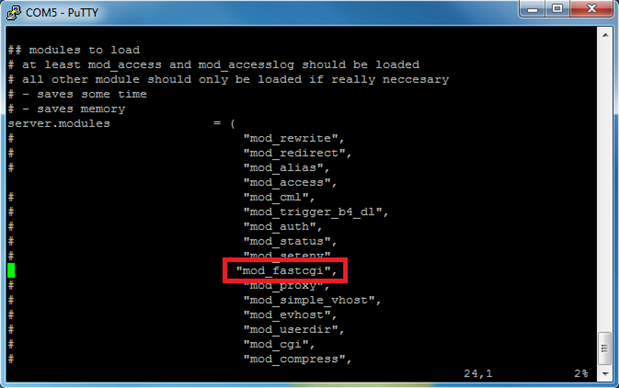
And we need to do two things.  First, we need to uncomment “mod_fastcgi”, which was at line 24 for me:
image

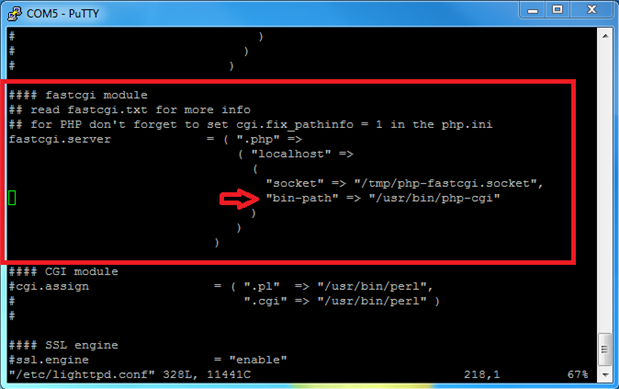
Then we need to uncomment the fastcgi configuration.  Here we will also need to configure the “bin-path” to point to the location of php-cgi that we found earlier.
image

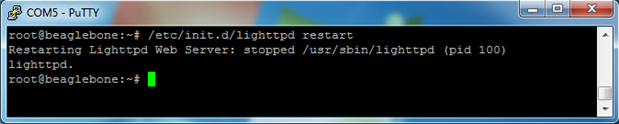
To complete the configuration, we need to restart Lighttpd, so that the configuration file will be read in:


/etc/init.d/lighttpd restart
image

Finally, to test that the web server is working correctly, we are going to create a simple web page:


vi /www/pages/test.php


And type in the following code:


<html>

<head>

<title>Test</title>

</head>

<body>

<?php print(“PHP is working on the BeagleBone!”); ?>

</body>

</html>


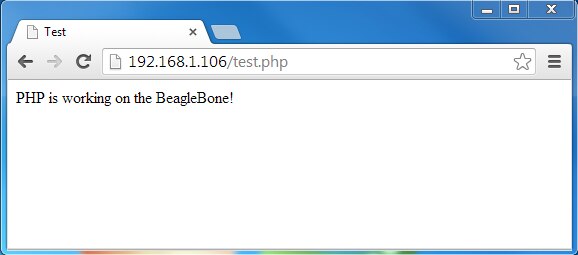
To view the web page, go back to the web browser that you used earlier and type in:


<IP Address>/test.php
image


Video

You don't have permission to edit metadata of this video.
Edit media
x
image
Upload Preview
image


Next Article

In the next article, we are going to use the web server to display a web page that lets you turn the LEDs on the BeagleBone on and off.  Once we have accomplished that, then we will move on to incorporating a MySQL database and a temperature sensor.

  • Sign in to reply
  • oneleggedredcow
    oneleggedredcow over 12 years ago in reply to morgaine

    I debated switching distros.  In retrospect, that probably would have been a good idea.

    • Cancel
    • Vote Up 0 Vote Down
    • Sign in to reply
    • More
    • Cancel
  • morgaine
    morgaine over 12 years ago in reply to Former Member

    I have to agree with selsinork on this.


    Do yourself a favour Shaun, and migrate off Angstrom to another distro --- you'll never look back.  It doesn't matter which you choose.  I've used a very large number of different ones over the decades, and have never encountered the degree of breakage and lack of maintenance and sparsity of packages of Angstrom, so any other choice is likely to serve you well.


    Curiously, well-polished distros are important not only for beginners in Linux, but for old timers as well.  Having the experience to fix any Linux problem is all well and good, but that doesn't mean that it's enjoyable when a bad distro introduces problems continually.  Newcomers benefit from a helpful environment without hiccups, but experts aren't suckers for punishment --- life is too short.


    Morgaine.

    • Cancel
    • Vote Up 0 Vote Down
    • Sign in to reply
    • More
    • Cancel
  • Former Member
    Former Member over 12 years ago in reply to Former Member

    http://www.freedesktop.org/wiki/Software/systemd/PasswordAgents/  seems to suggest that systemd-tty-ask-password is what will prompt the user for a password and it's waiting for a file in /run/systemd/ask-password/ that seems destined to never turn up because lighttpd simply isn't asking for one.


    Unfortunately once you get to this point, everything else you want to install with opkg re-triggers the failed configuration of lighttpd leaving you at the same place with a hung opkg while systemd waits for something that's never going to happen.


    Sorry, but at this point I give up.  angstrom and/or systemd is broken beyond repair.  Who is to blame is mostly irrelevant since the user gets a system that doesn't function properly.

    Try again after putting Debian, or some other semi-sane distro, onto an SDcard.

    • Cancel
    • Vote Up 0 Vote Down
    • Sign in to reply
    • More
    • Cancel
  • Former Member
    Former Member over 12 years ago in reply to Former Member

    so the hang is due to the lighttpd.postinst script running "systemctl start lighttpd.service" but there's nothing in the unit file that suggests there's any reason for a password.

    systemd-tty-ask-password is then creating /run/systemd/ask-password/ directory and setting an inotify watch on that directory, so presumably looking for a file to show up. However creating a file doesn't do much, I can see from strace that it knows the file was created but it just goes back to watching..  more digging needed..

    • Cancel
    • Vote Up 0 Vote Down
    • Sign in to reply
    • More
    • Cancel
  • Former Member
    Former Member over 12 years ago

    The lighttpd install hangs waiting for a password request with "systemd-tty-ask-password-agent --watch", I don't know enough about systemd to be sure, but it's possible that it should be using systemd-tty-ask-password-agent --watch --console" or that something in angstrom either isn't running, or is broken as you never actually get propmted for a password. It does this on my BBB regardless of whether I do it in the order you use, or disable the other services first.

    I'm not clear why it would be asking for a password anyway when you're running the command as root.


    I'll have a bit more of a dig and see if I can find out what it's actually trying to do and reply here if I find anything useful.

    • Cancel
    • Vote Up 0 Vote Down
    • Sign in to reply
    • More
    • Cancel
<>
element14 Community

element14 is the first online community specifically for engineers. Connect with your peers and get expert answers to your questions.

  • Members
  • Learn
  • Technologies
  • Challenges & Projects
  • Products
  • Store
  • About Us
  • Feedback & Support
  • FAQs
  • Terms of Use
  • Privacy Policy
  • Legal and Copyright Notices
  • Sitemap
  • Cookies

An Avnet Company © 2026 Premier Farnell Limited. All Rights Reserved.

Premier Farnell Ltd, registered in England and Wales (no 00876412), registered office: Farnell House, Forge Lane, Leeds LS12 2NE.

ICP 备案号 10220084.

Follow element14

  • X
  • Facebook
  • linkedin
  • YouTube