element14 Community
element14 Community
    Register Log In
  • Site
  • Search
  • Log In Register
  • Community Hub
    Community Hub
    • What's New on element14
    • Feedback and Support
    • Benefits of Membership
    • Personal Blogs
    • Members Area
    • Achievement Levels
  • Learn
    Learn
    • Ask an Expert
    • eBooks
    • element14 presents
    • Learning Center
    • Tech Spotlight
    • STEM Academy
    • Webinars, Training and Events
    • Learning Groups
  • Technologies
    Technologies
    • 3D Printing
    • FPGA
    • Industrial Automation
    • Internet of Things
    • Power & Energy
    • Sensors
    • Technology Groups
  • Challenges & Projects
    Challenges & Projects
    • Design Challenges
    • element14 presents Projects
    • Project14
    • Arduino Projects
    • Raspberry Pi Projects
    • Project Groups
  • Products
    Products
    • Arduino
    • Avnet & Tria Boards Community
    • Dev Tools
    • Manufacturers
    • Multicomp Pro
    • Product Groups
    • Raspberry Pi
    • RoadTests & Reviews
  • About Us
  • Store
    Store
    • Visit Your Store
    • Choose another store...
      • Europe
      •  Austria (German)
      •  Belgium (Dutch, French)
      •  Bulgaria (Bulgarian)
      •  Czech Republic (Czech)
      •  Denmark (Danish)
      •  Estonia (Estonian)
      •  Finland (Finnish)
      •  France (French)
      •  Germany (German)
      •  Hungary (Hungarian)
      •  Ireland
      •  Israel
      •  Italy (Italian)
      •  Latvia (Latvian)
      •  
      •  Lithuania (Lithuanian)
      •  Netherlands (Dutch)
      •  Norway (Norwegian)
      •  Poland (Polish)
      •  Portugal (Portuguese)
      •  Romania (Romanian)
      •  Russia (Russian)
      •  Slovakia (Slovak)
      •  Slovenia (Slovenian)
      •  Spain (Spanish)
      •  Sweden (Swedish)
      •  Switzerland(German, French)
      •  Turkey (Turkish)
      •  United Kingdom
      • Asia Pacific
      •  Australia
      •  China
      •  Hong Kong
      •  India
      • Japan
      •  Korea (Korean)
      •  Malaysia
      •  New Zealand
      •  Philippines
      •  Singapore
      •  Taiwan
      •  Thailand (Thai)
      • Vietnam
      • Americas
      •  Brazil (Portuguese)
      •  Canada
      •  Mexico (Spanish)
      •  United States
      Can't find the country/region you're looking for? Visit our export site or find a local distributor.
  • Translate
  • Profile
  • Settings
Autodesk EAGLE
  • Products
  • More
Autodesk EAGLE
EAGLE User Support (English) Why the hole for via or pads are not shown in layout editor?
  • Blog
  • Forum
  • Documents
  • Events
  • Polls
  • Files
  • Members
  • Mentions
  • Sub-Groups
  • Tags
  • More
  • Cancel
  • New
Join Autodesk EAGLE to participate - click to join for free!
Actions
  • Share
  • More
  • Cancel
Forum Thread Details
  • Replies 7 replies
  • Subscribers 179 subscribers
  • Views 2585 views
  • Users 0 members are here
Related

Why the hole for via or pads are not shown in layout editor?

Former Member
Former Member over 10 years ago

Hello


I am a new user for Eagle and trying to learn from the Basic.


This may not be a big problem but it bothers me a lot.


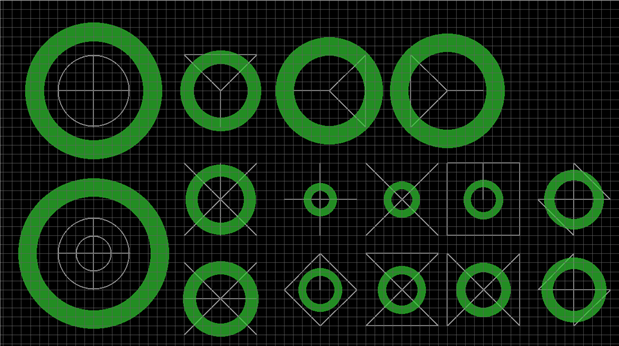
So basically, I cannot see the drill of Via on Layout editor. I attached pictures


image


The right one is layout practice example from Sparkfun site. I tried to draw the same thing but as you see there is no holes and just filled pads shown on my layout editors.


If I checked 44 Drill on Display it just show the stupid lines on the pads sometime X sometimes Square or just line....
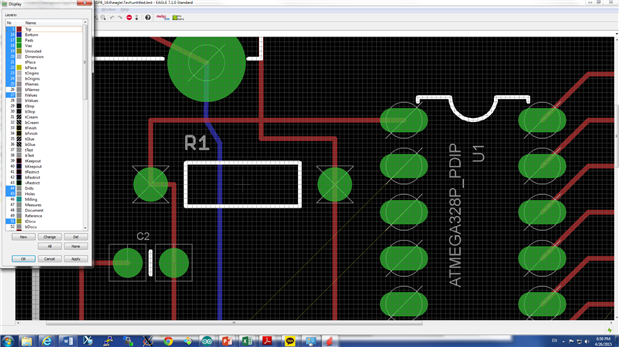
 

image


Can anybody help me to figure out this?


The thing is.. I don't know whether it is Via with through-hole or just a pad for the electronic component... It is really annoying..


Please help me~!

  • Sign in to reply
  • Cancel
  • clem57
    clem57 over 10 years ago

    Adding Vias in Eagle (The Easy Way)

    A quick and easy way to add vias to your board layout in Eagle


    There are a number of time-saving features in Cadsoft's Eagle that can make working with it quicker and easier (which is one of the main advantages of working with mature software products). Unfortunately, some of these features and shortcuts aren't very well known. One good example is laying out vias in Eagle, a task that takes up a good portion of the time involved in laying out any PCB. Many people spend months making vias the hard way before realising that there's actually a better way to do it (or, at least we did!).

    The Classic Method

    The approach most people take when getting started with vias is usually some variation on the following:
    1. Lay out the first part of your trace with the Route tool Route Icon
    2. Switch to the Via tool Via Icon
    3. Adjust the via settings if necessary
      Via Properties
    4. Place the via in the appropriate location
    5. Right-click on the via and set the via's Name to be the same as the original trace (otherwise you can't connect them)
    6. Connect the via and the original trace (now that they have the same name)
    7. Switch back to the Route tool and add another trace on the target board layer.
    8. Stir, shake, and a repeat ad nauseum.
    It works, and this is exactly what we did when we first started out with Eagle, but there's a quicker (if slightly less obvious) way to do it.

    The Lazy Method

    1. Lay out the first part of your trace as usual with the Route tool Route Icon, adding both the start and end of the trace (1 click each), and terminating the trace exactly where you would like the via to occur
    2. Rather than switching to the Via tool, move the mouse directly to the layer selection dropdown in the top left corner (ignoring the trace that will follow your mouse cursor)
      Layer Selector
    3. Select the layer you wish the other half of your via to be located on ("16 Bottom" for example if you started on "1 Top")
    4. Draw the second part of your trace on the other layer and "presto" Eagle will automatically add the via for you
    5. Note: You may need to adjust the Via settings once to set the size and shape you'd like to use, but once modified these settings will be used for all new vias.
    • Cancel
    • Vote Up 0 Vote Down
    • Sign in to reply
    • Cancel
  • autodeskguest
    autodeskguest over 10 years ago

    On 27/04/2015 10:52 a.m., David Kim wrote:


    So basically, I cannot see the drill of Via on Layout editor. I attached

    pictures


    enter the following into the command line

    SET DISPLAY_MODE REAL


    That will solve your issue. Then understand what it was all about,

    search the HELP for 'display_mode'


    HTH

    Warren


    • Cancel
    • Vote Up 0 Vote Down
    • Sign in to reply
    • Cancel
  • Former Member
    Former Member over 10 years ago in reply to autodeskguest

    Thank you so much~! I solved my problem~!

    • Cancel
    • Vote Up 0 Vote Down
    • Sign in to reply
    • Cancel
  • Former Member
    Former Member over 10 years ago in reply to autodeskguest

    image


    One more question is that, is there any meaning for the different mark of the drill? Depending on different drill size, it shows different mark as it shown on the pictures.

    • Cancel
    • Vote Up 0 Vote Down
    • Sign in to reply
    • Cancel
  • autodeskguest
    autodeskguest over 10 years ago in reply to Former Member

    On 27/04/15 21:07, David Kim wrote:


    One more question is that, is there any meaning for the different mark

    of the drill? Depending on different drill size, it shows different mark

    as it shown on the pictures.


    They're distinct marks to show the different drill sizes, that's all. If

    you're setting up a drilling machine you need to know that, and if

    you're checking the drilling patterns you want it to be clear to see.

    Having the different markers shows it much more clearly than if you were

    trying to judge whether two holes are the same size.


    • Cancel
    • Vote Up 0 Vote Down
    • Sign in to reply
    • Cancel
  • Former Member
    Former Member over 10 years ago in reply to autodeskguest

    Thank you so much~! Your answer is really valuable.


    Sorry for keep asking but I have one more question, this one is also simple question.


    As I cannot see the hole of Via, I cannot see the Pin number on the pad.


    There must be a simple answer for this but nobody mentioned about this situation.

    I have tried to search it but am just wasting my time.. cannot find.

    Can you please help me with this too? Thank you

    image

    • Cancel
    • Vote Up 0 Vote Down
    • Sign in to reply
    • Cancel
  • autodeskguest
    autodeskguest over 10 years ago in reply to Former Member

    On 28/04/15 20:27, David Kim wrote:

    I cannot see the Pin number on the pad.


    There must be a simple answer for this but nobody mentioned about this

    situation.

    I have tried to search it but am just wasting my time.. cannot find.

    Can you please help me with this too? Thank you


    If you had typed "help pad names" into the command window, you'd have

    got the help page for PAD. A bit over half way down there's a section on

    pad names which mentions:

        SET PAD_NAMES ON|OFF


    • Cancel
    • Vote Up 0 Vote Down
    • Sign in to reply
    • Cancel
element14 Community

element14 is the first online community specifically for engineers. Connect with your peers and get expert answers to your questions.

  • Members
  • Learn
  • Technologies
  • Challenges & Projects
  • Products
  • Store
  • About Us
  • Feedback & Support
  • FAQs
  • Terms of Use
  • Privacy Policy
  • Legal and Copyright Notices
  • Sitemap
  • Cookies

An Avnet Company © 2026 Premier Farnell Limited. All Rights Reserved.

Premier Farnell Ltd, registered in England and Wales (no 00876412), registered office: Farnell House, Forge Lane, Leeds LS12 2NE.

ICP 备案号 10220084.

Follow element14

  • X
  • Facebook
  • linkedin
  • YouTube