element14 Community
element14 Community
    Register Log In
  • Site
  • Search
  • Log In Register
  • Community Hub
    Community Hub
    • What's New on element14
    • Feedback and Support
    • Benefits of Membership
    • Personal Blogs
    • Members Area
    • Achievement Levels
  • Learn
    Learn
    • Ask an Expert
    • eBooks
    • element14 presents
    • Learning Center
    • Tech Spotlight
    • STEM Academy
    • Webinars, Training and Events
    • Learning Groups
  • Technologies
    Technologies
    • 3D Printing
    • FPGA
    • Industrial Automation
    • Internet of Things
    • Power & Energy
    • Sensors
    • Technology Groups
  • Challenges & Projects
    Challenges & Projects
    • Design Challenges
    • element14 presents Projects
    • Project14
    • Arduino Projects
    • Raspberry Pi Projects
    • Project Groups
  • Products
    Products
    • Arduino
    • Avnet & Tria Boards Community
    • Dev Tools
    • Manufacturers
    • Multicomp Pro
    • Product Groups
    • Raspberry Pi
    • RoadTests & Reviews
  • About Us
    About the element14 Community
  • Store
    Store
    • Visit Your Store
    • Choose another store...
      • Europe
      •  Austria (German)
      •  Belgium (Dutch, French)
      •  Bulgaria (Bulgarian)
      •  Czech Republic (Czech)
      •  Denmark (Danish)
      •  Estonia (Estonian)
      •  Finland (Finnish)
      •  France (French)
      •  Germany (German)
      •  Hungary (Hungarian)
      •  Ireland
      •  Israel
      •  Italy (Italian)
      •  Latvia (Latvian)
      •  
      •  Lithuania (Lithuanian)
      •  Netherlands (Dutch)
      •  Norway (Norwegian)
      •  Poland (Polish)
      •  Portugal (Portuguese)
      •  Romania (Romanian)
      •  Russia (Russian)
      •  Slovakia (Slovak)
      •  Slovenia (Slovenian)
      •  Spain (Spanish)
      •  Sweden (Swedish)
      •  Switzerland(German, French)
      •  Turkey (Turkish)
      •  United Kingdom
      • Asia Pacific
      •  Australia
      •  China
      •  Hong Kong
      •  India
      •  Japan
      •  Korea (Korean)
      •  Malaysia
      •  New Zealand
      •  Philippines
      •  Singapore
      •  Taiwan
      •  Thailand (Thai)
      •  Vietnam
      • Americas
      •  Brazil (Portuguese)
      •  Canada
      •  Mexico (Spanish)
      •  United States
      Can't find the country/region you're looking for? Visit our export site or find a local distributor.
  • Translate
  • Profile
  • Settings
PCB Design, Prototyping and Production
  • Products
  • More
PCB Design, Prototyping and Production
PCB Blogs PCB Art:  The Scream
  • Blog
  • Forum
  • Documents
  • Leaderboard
  • Files
  • Members
  • Mentions
  • Sub-Groups
  • Tags
  • More
  • Cancel
  • New
Join PCB Design, Prototyping and Production to participate - click to join for free!
  • Share
  • More
  • Cancel
Group Actions
  • Group RSS
  • More
  • Cancel
Engagement
  • Author Author: fmilburn
  • Date Created: 24 Jan 2020 3:07 AM Date Created
  • Views 3543 views
  • Likes 13 likes
  • Comments 19 comments
  • pcb_art
  • kicad
  • photoshop
  • pcb
  • art
Related
Recommended

PCB Art:  The Scream

fmilburn
fmilburn
24 Jan 2020

I decided to give PCB art a try and will be basing my attempt on methods described by Andrew Sowa.  Andrew uses Adobe Illustrator for the art work and KiCad for the PCB design.  I will also use KiCad but will use my trusty pre-subscription version of Photoshop for the artwork.  Inkscape is another possibility.  Andrew's process is described in this video from which my work is derived.  The detail behind many of the steps won't be described in this post - watch the video for that.


The goal is to take a photograph, painting, etc. and place it on a PCB using the FR4, copper layer, solder mask, and silk screen to make the palette.  My PCB will feature the famous work by Edvard Munch, The Scream which has always fascinated me.  So, how to turn a masterpiece into a PCB facsimile?image


Palette


The limited palette is a challenge.  For this exercise the focus will be on the central figure in order to reduce board size (and thus cost) of the experiment.  The OSHPark purple solder mask will hopefully give the dark colors desired.  Andrew also used OSHPark in his example, and helpfully provided a palette which has been modified here to help describe how the layers translate to color and are stacked for conversion in KiCad.

image

Different colors will be obtained for different layer transparencies and tints from other board houses.


Photoshop Workflow


The five colors in the palette must be separated into different layers in the software of choice.  My workflow in Photoshop is as follows:

  1. Create a B&W layer
  2. Create a working layer from the background / B&W layer
  3. Using the Magic Wand Tool (adjust tolerance as needed) select the darkest layer (#5 in the palette) from the working layer
  4. Create a new layer using only the selected area and give it a name (e.g. #5_Mask_on_bare for the darkest layer)
  5. Select the current color (#5 for the darkest layer) from the color picker or palette above and fill the selected area with the color
  6. Delete the selected area from the working layer
  7. Repeat steps 3 - 6 above for the next lighter area until all colors in the palette are selected and all areas of the image are filled with colors from the palette.


When these steps are completed the individual layers in Photoshop look something like this:

{gallery} Photoshop Layers

image

Silk Layer

image

Copper Layer

image

Bare FR4 Layer

image

Mask on Copper Layer

image

Mask on bare FR4 Layer


The full image with all layers showing as it appears in Photoshop is shown below.

image


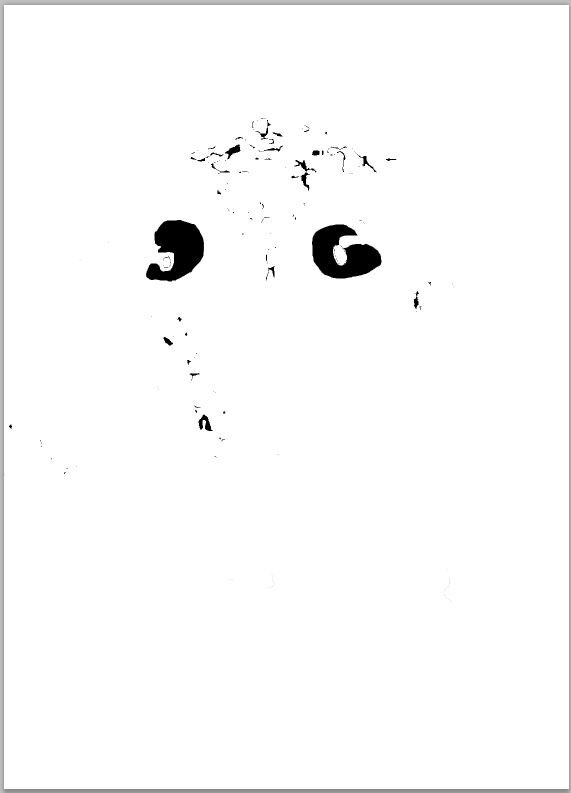
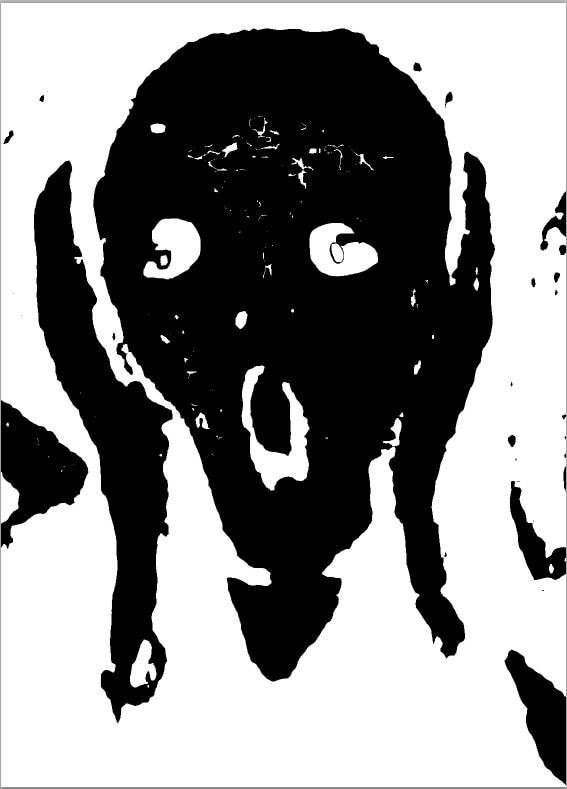
Next prepare the layers that will be used in KiCad.  The layers are copper (both bare and covered by other layers), mask, and silk.  To do this, combine the layers as shown at the bottom of the palette and convert them to a B&W image.   I used png file format set to 400 DPI and roughly the size I wanted (1 x 1.5 inches).  The resulting images are shown below.


{gallery} Layer Images Converted for KiCad

REPLACE THIS TEXT WITH YOUR IMAGEimage

Silk

image

Mask

image

Copper

The work flow in Illustrator demonstrated by Andrew is much different and judging from the video has advantages.  However, my method proved quite workable.


KiCad Conversion Workflow


From this point on everything is the same as in Andrew's video.  KiCad has a learning curve and the details are beyond the scope of this post.  But here it is in outline form...


  • Pull the three B&W images from the last step one at a time into the KiCad Bitmap to Component Converter.
  • Adjust resolution if necessary but not much higher than 400 DPI
  • Set the radio button to Pcbnew (.kicad_mod file)
  • Set Black / White Threshold to 63
  • Set Board Layer for Outline as follows:
    • Front silk screen for silk screen layer
    • Front solder mask for mask and copper layers
  • Export someplace it can be found with meaningful names like Silk, Copper, and Mask


The conversion panel will look something like this:

image


If named as I did there will be three resultant files:  Copper.kicad_mod, Mask.kicad_mod, and Silk.kicad_mod.  Follow the following steps:

  • Copy the file named Silk to a new file which will be combined with the mask and copper ones to make a footprint in KiCad (I named my file scream.kicad_mod)
  • Open up the Mask.kicad_mod file and copy all sections with fp_poly in the leader to just below the last closing parenthesis ")" in the combined file.  Don't copy the header with fp_text and don't copy the closing parenthesis in the Mask file.
  • Open up the Copper.kicad_mod file in Notepad++ or other text editor and replace all instances of Mask with Cu
  • Copy all sections of Copper.kicad_mod with fp_poly in the leader to just below the last closing parenthesis ")" in the combined file of Copper.kicad_mod.  Don't copy the header with fp_text and don't copy the closing parenthesis in the Copper file.


There will now be a combined file which can be used to create a footprint in KiCad which has the layers defined in the 5 colors of the palette.


KiCad Pcbnew Workflow


Inside of Pcbnew, open up the footprint editor and from the File pulldown select Import Footprint from KiCad file... Navigate to the location of the combined file (in this case the file scream.kicad_mod) and select it.  The footprint will appear as shown below:

image

If desired, view it in the 3D Viewer to make sure it looks right.  Save it in the appropriate library.


Now select the Add Footprints tool and place the newly generated footprint in the work area.  Layers can be turned off and on to make sure things look correct.  Draw the boundaries of the PCB on the Edge.Cuts layer.  The 3D viewer in KiCad renders it like this:

image

Finally, use Plot to create the gerber files and it is ready to go to the board house.  Below is what the render from OSHPark looks like.

image

Summary


I won't know how good it really looks until the boards come back but for now I am holding off sending it in.  The primary reason is I would like to add an actual circuit to it. It would be possible to build a simple single layer board with the art on the opposite side but it would be nice if the components somehow enhanced the art.


The process may seem complicated but it took longer to document than it did to figure out how to create the PCB.  Hopefully by documenting the process it will be even quicker next time.  Thanks for reading.  Comments and suggestions are always welcome!


Other posts in this Series


PCB Art:  Screaming LM386

Screaming LM386:  An Audio Amplifier with PCB Art

  • Sign in to reply

Top Comments

  • jw0752
    jw0752 over 6 years ago +5
    Hi Frank, It seems to me that inside every electronics engineer there is a frustrated, or maybe not so frustrated, artist. My attempts have always been very frustrated but I do believe you have a winner…
  • Fred27
    Fred27 over 6 years ago +5
    Some very nice work. It'll be interesting to see how the physical board looks when you get it back. I've been tempted at times to do a PCB business card. One of the things that has held me back is the…
  • Andrew J
    Andrew J over 6 years ago +4
    Brilliant! I’d never even considered the possibility of this, even seeing that people put logos and other images on their boards. I suppose it takes an artist to think of these things... I do like the…
  • Andrew J
    Andrew J over 6 years ago

    Brilliant!  I’d never even considered the possibility of this, even seeing that people put logos and other images on their boards.  I suppose it takes an artist to think of these things...  I do like the idea of combining it with a working circuit, something subtle rather than in your face (no flashing leds for eyes image )  Someone recently did an ‘agoniser’ circuit as part of a competition - I forget who, sorry - and that sounded like awful.  Can’t wait to see the finished result.

    • Cancel
    • Vote Up +4 Vote Down
    • Sign in to reply
    • More
    • Cancel
  • Fred27
    Fred27 over 6 years ago

    Some very nice work. It'll be interesting to see how the physical board looks when you get it back.


    I've been tempted at times to do a PCB business card. One of the things that has held me back is the fact that I'd really like some sort of logo / decorative bit that is actually part of the circuit, not just some isolated copper.


    An ex-colleague of mine has a tattoo that looks like a circuit with artistically done PCB traces. It looked OK but if I had one the circuit would have to be correct too.

    • Cancel
    • Vote Up +5 Vote Down
    • Sign in to reply
    • More
    • Cancel
  • fmilburn
    fmilburn over 6 years ago in reply to jw0752

    Hi John,


    Thanks, and I think you are right (about the frustrated part anyway :-). Throughout my career it seemed most of the technical people I worked with had a love and often made a hobby of something creative and artistic.  Maybe music, photography, or crafts of various sorts.   Now that I am retired I can do things I wouldn't have had time for before and no worries about how it turns out.  There were some really interesting art talks at the Hackaday Supercon I attended last year.  There was one by Mohit Bhoite who makes these electronic sculptures that really interested me - maybe I can merge something like that with the PCB art.


    Frank

    • Cancel
    • Vote Up +3 Vote Down
    • Sign in to reply
    • More
    • Cancel
  • jw0752
    jw0752 over 6 years ago

    Hi Frank,


    It seems to me that inside every electronics engineer there is a frustrated, or maybe not so frustrated, artist. My attempts have always been very frustrated but I do believe you have a winner.


    John

    • Cancel
    • Vote Up +5 Vote Down
    • Sign in to reply
    • More
    • Cancel
<
element14 Community

element14 is the first online community specifically for engineers. Connect with your peers and get expert answers to your questions.

  • Members
  • Learn
  • Technologies
  • Challenges & Projects
  • Products
  • Store
  • About Us
  • Feedback & Support
  • FAQs
  • Terms of Use
  • Privacy Policy
  • Legal and Copyright Notices
  • Sitemap
  • Cookies

An Avnet Company © 2026 Premier Farnell Limited. All Rights Reserved.

Premier Farnell Ltd, registered in England and Wales (no 00876412), registered office: Farnell House, Forge Lane, Leeds LS12 2NE.

ICP 备案号 10220084.

Follow element14

  • X
  • Facebook
  • linkedin
  • YouTube