



element14 Community
element14 Community
    Register Log In
  • Site
  • Search
  • Log In Register
  • Community Hub
    Community Hub
    • What's New on element14
    • Feedback and Support
    • Benefits of Membership
    • Personal Blogs
    • Members Area
    • Achievement Levels
  • Learn
    Learn
    • Ask an Expert
    • eBooks
    • element14 presents
    • Learning Center
    • Tech Spotlight
    • STEM Academy
    • Webinars, Training and Events
    • Learning Groups
  • Technologies
    Technologies
    • 3D Printing
    • FPGA
    • Industrial Automation
    • Internet of Things
    • Power & Energy
    • Sensors
    • Technology Groups
  • Challenges & Projects
    Challenges & Projects
    • Design Challenges
    • element14 presents Projects
    • Project14
    • Arduino Projects
    • Raspberry Pi Projects
    • Project Groups
  • Products
    Products
    • Arduino
    • Avnet & Tria Boards Community
    • Dev Tools
    • Manufacturers
    • Multicomp Pro
    • Product Groups
    • Raspberry Pi
    • RoadTests & Reviews
  • About Us
  • Store
    Store
    • Visit Your Store
    • Choose another store...
      • Europe
      •  Austria (German)
      •  Belgium (Dutch, French)
      •  Bulgaria (Bulgarian)
      •  Czech Republic (Czech)
      •  Denmark (Danish)
      •  Estonia (Estonian)
      •  Finland (Finnish)
      •  France (French)
      •  Germany (German)
      •  Hungary (Hungarian)
      •  Ireland
      •  Israel
      •  Italy (Italian)
      •  Latvia (Latvian)
      •  
      •  Lithuania (Lithuanian)
      •  Netherlands (Dutch)
      •  Norway (Norwegian)
      •  Poland (Polish)
      •  Portugal (Portuguese)
      •  Romania (Romanian)
      •  Russia (Russian)
      •  Slovakia (Slovak)
      •  Slovenia (Slovenian)
      •  Spain (Spanish)
      •  Sweden (Swedish)
      •  Switzerland(German, French)
      •  Turkey (Turkish)
      •  United Kingdom
      • Asia Pacific
      •  Australia
      •  China
      •  Hong Kong
      •  India
      • Japan
      •  Korea (Korean)
      •  Malaysia
      •  New Zealand
      •  Philippines
      •  Singapore
      •  Taiwan
      •  Thailand (Thai)
      • Vietnam
      • Americas
      •  Brazil (Portuguese)
      •  Canada
      •  Mexico (Spanish)
      •  United States
      Can't find the country/region you're looking for? Visit our export site or find a local distributor.
  • Translate
  • Profile
  • Settings
Raspberry Pi
  • Products
  • More
Raspberry Pi
Raspberry Pi Forum GPIO:  HD44780 chip from old Fax Machine.
  • Blog
  • Forum
  • Documents
  • Quiz
  • Events
  • Polls
  • Files
  • Members
  • Mentions
  • Sub-Groups
  • Tags
  • More
  • Cancel
  • New
Join Raspberry Pi to participate - click to join for free!
Featured Articles
Announcing Pi
Technical Specifications
Raspberry Pi FAQs
Win a Pi
Raspberry Pi Wishlist
Actions
  • Share
  • More
  • Cancel
Forum Thread Details
  • Replies 32 replies
  • Subscribers 679 subscribers
  • Views 5008 views
  • Users 0 members are here
  • others
  • seen
  • it.;
  • never
  • to
  • from
  • this
  • gpio?
  • have
  • chip
  • etc;
  • fax
  • but
  • through
  • raspberry_pi
  • before
  • messages
  • old
  • hd44780
  • machine.;
  • display
  • how
  • they
  • it
  • do
  • get
  • state
  • tell
  • gpio:
  • i
  • or
  • text
Related

GPIO:  HD44780 chip from old Fax Machine.

wallarug
wallarug over 13 years ago

How do I get this to display messages, text, etc; through GPIO?  I have seen others do it before but they never state or tell how they do it.


I want to know if this is possible to do and how difficult it is to get the software for it.


This is my screen:
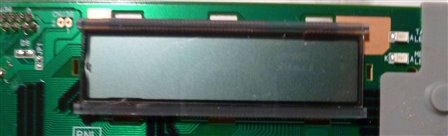
image

This is the chip:

image


How do I wire them togther (they are already on PCB togther)?  How do I wire them to GPIO?


I can work off schematics and can follow very basic instructions (but can not compile software).

  • Sign in to reply
  • Cancel
  • Former Member
    Former Member over 13 years ago

    Hey, there are definitely libraries for it but I don't use python so I wouldn't be of much help!

    • Cancel
    • Vote Up 0 Vote Down
    • Sign in to reply
    • Cancel
  • wallarug
    wallarug over 13 years ago in reply to Former Member

    tom smith wrote:


    Hey, there are definitely libraries for it but I don't use python so I wouldn't be of much help!

    Does anyone know how to install these libraries?

    • Cancel
    • Vote Up 0 Vote Down
    • Sign in to reply
    • Cancel
  • wallarug
    wallarug over 13 years ago

    Fergus Byrne wrote:


    How do I get this to display messages, text, etc; through GPIO?  I have seen others do it before but they never state or tell how they do it.


    I want to know if this is possible to do and how difficult it is to get the software for it.


    This is my screen:

    image

    This is the chip:

    image


    How do I wire them togther (they are already on PCB togther)?  How do I wire them to GPIO?


    I can work off schematics and can follow very basic instructions (but can not compile software).

    Here is a picture of the whole board.

    image

    • Cancel
    • Vote Up 0 Vote Down
    • Sign in to reply
    • Cancel
  • GreenYamo
    GreenYamo over 13 years ago in reply to wallarug

    Hello Fergus, have you seen this posting: http://tech2077.blogspot.co.uk/2012/06/running-hd44780-lcd-over-i2c-on.html


    Steve

    • Cancel
    • Vote Up +1 Vote Down
    • Sign in to reply
    • Cancel
  • fustini
    fustini over 13 years ago

    Check out this tutorial from Adafruit:


    http://learn.adafruit.com/drive-a-16x2-lcd-directly-with-a-raspberry-pi

    Adding a LCD to any project immediately kicks it up a notch. This tutorial explains how to connect a inexpensive HDD44780 compatible LCD to the raspberry pi using 6 GPIOs. While there are other ways to connect using I2C or the UART this is the most direct method that get right down to the bare metal.

    • Cancel
    • Vote Up 0 Vote Down
    • Sign in to reply
    • Cancel
  • wallarug
    wallarug over 13 years ago in reply to fustini

    Hey Drew,


    The problem I am having is that the Screen is already mounted on a PCB.  I don't know which pins to send to Raspberry Pi.  See the image above.


    Also, it connected to the rest of the fax machine via a 16 pin flat ribbon cable (which the socket is acessable from the rear - not pictured). 


    Can I use any of these pins to acess the display?  And is the power for the display the same as what it was connected to on the fax machine (the two pins on the top left)?

    • Cancel
    • Vote Up 0 Vote Down
    • Sign in to reply
    • Cancel
  • bodgy
    bodgy over 13 years ago in reply to wallarug

    Fergus,


    Multimeter tracing time! image   Bung the multimeter onto the continuity trace setting (often the diode test setting, normally has a speaker or sound type icon of vertical bars increasing in length left to right).


    Next find the power traces on the board, put one probe on a pin at the connector and probe a corresponding trace. The power traces are likely to be the thickest ones on the PCB and often the earth/ground one is the one going around the edge of a PCB (devices run off low dc voltages not AC boards which can have different isolated grounds), not which pin number corresponds with positive and negative - tip - find a large capacitor that electrolytic capacitor and use the - pin to see if it traces back to your connector, if it does you have probably found the ground pin, likewise for the positive pin of the capacitor. SMD caps will have a small + or a white/orange band denoting the+ side.


    Once you have found the power terminals, check to see if any of the other connector terminals also return most likely to ground.


    Hitachi do have a datasheet available for the HD44780 and with no voltage applied to the board you could use that to trace any continuity between the connector and inputs of the actual chip.

    • Cancel
    • Vote Up +1 Vote Down
    • Sign in to reply
    • Cancel
  • wallarug
    wallarug over 13 years ago in reply to bodgy

    bodgy wrote:


    Fergus,


    Multimeter tracing time! image   Bung the multimeter onto the continuity trace setting (often the diode test setting, normally has a speaker or sound type icon of vertical bars increasing in length left to right).


    Next find the power traces on the board, put one probe on a pin at the connector and probe a corresponding trace. The power traces are likely to be the thickest ones on the PCB and often the earth/ground one is the one going around the edge of a PCB (devices run off low dc voltages not AC boards which can have different isolated grounds), not which pin number corresponds with positive and negative - tip - find a large capacitor that electrolytic capacitor and use the - pin to see if it traces back to your connector, if it does you have probably found the ground pin, likewise for the positive pin of the capacitor. SMD caps will have a small + or a white/orange band denoting the+ side.


    Once you have found the power terminals, check to see if any of the other connector terminals also return most likely to ground.


    Hitachi do have a datasheet available for the HD44780 and with no voltage applied to the board you could use that to trace any continuity between the connector and inputs of the actual chip.

    I have worked out that the 16 pin connect on the back of the board is for the display interface.  The two connections on the top left is a ground connector.  All I have to is desolder the 16 pins of the connect on the motherboard and away I go.  (any advice for desoldering 16 pins?)

    • Cancel
    • Vote Up 0 Vote Down
    • Sign in to reply
    • Cancel
  • GreenYamo
    GreenYamo over 13 years ago in reply to wallarug

    Fergus, be interested to hear if you get any advice for desoldering, I am completely useless at that. I did pose a question in the soldering forum and it was suggested that plenty of flux is the way to go, then use de-soldering braid. Haven't had a chance to try yet, but trying to use a solder sucker is about the only way I have managed even a half decent job. Watching youtube videos and it seems so easy !


    Steve

    • Cancel
    • Vote Up 0 Vote Down
    • Sign in to reply
    • Cancel
  • bodgy
    bodgy over 13 years ago in reply to GreenYamo

    I would advise against attempting to desolder the connector unless you can lay your hands on a desoldering gun. Manual pneumatic ones can work, and solder braid desoldering is very likely to fail and cause you frustration and possibly a damaged board. I should also point out that desoldering using a desoldering gun can also ruin boards if not carefully used.


    I would really recommend the tracing route for the moment.


    It ought to be possible so long as you have access to the HD44780 chip pins which you do. You have already discovered the power rails, so there are just 8 data pins, 3 status pins plus possibly the contrast control pins, these probably do come out to the connector but might not and you may possibly have the backlight control coming out to the connector.


    Page 4 of the http://www.sparkfun.com/datasheets/LCD/HD44780.pdf datasheet shows that DB0:7 are on pins 39...46 of the 44780 chip and it also shows that RS, RW, E are on pins 36....38 . Once you've found and mapped these on a piece of paper that leaves just 3 pins unaccounted for on your 16 pin connector. If two of these remaining pins trace to one of the power planes the third one is likely to be Vo which is the contrast control. If they don't then they could be the backlight switch.


    If RW pin doesn't seem to be represented on the connector check to see if there is a direct connection between that pin on the 44780 chip and ground.


    As for the desoldering route, at the very least you will need some solder - apply solder to the pin and make sure it wets the surrounding pad well - to desolder anything properly solder is needed because you are relying on the flux which acts as a medium to help the solder to melt. You could use flux, I have a passion for gel flux, but this is very very expensive in hobby terms so the solder method is the better way to go.


    Once you've rewetted all the connector joints, you can then either apply your desoldering gun gently to the pin and pad, make sure the solder has become liquid and gently attempt to move the pin side to side so that the melted solder makes contact with the track that will be on the other side of the board, then press the suck button, you may need to resolder and perform this more than once especially on the power plane. If none of the pins become loose the next step would be to reapply solder and then apply your soldering iron and your desodlering gun to the joint and then suck. Do this only on pins with thick traces otherwise the pad or track may well come away from the board and you're then in trouble.


    Using a hand operated cold solder sucker you need to  apply your sodlering iron to the pin on the PCB (after wetting it in solder), apply the teflon tip of the sucker and release the spring catch.


    Ideally for connector boards a PCB warmer gets the best results, but it it pointless getting one of those as they are not cheap and you aren't going to use it that often. Even where I work, they refuse to buy one for the workshop.


    Colin

    • Cancel
    • Vote Up 0 Vote Down
    • Sign in to reply
    • Cancel
>
element14 Community

element14 is the first online community specifically for engineers. Connect with your peers and get expert answers to your questions.

  • Members
  • Learn
  • Technologies
  • Challenges & Projects
  • Products
  • Store
  • About Us
  • Feedback & Support
  • FAQs
  • Terms of Use
  • Privacy Policy
  • Legal and Copyright Notices
  • Sitemap
  • Cookies

An Avnet Company © 2025 Premier Farnell Limited. All Rights Reserved.

Premier Farnell Ltd, registered in England and Wales (no 00876412), registered office: Farnell House, Forge Lane, Leeds LS12 2NE.

ICP 备案号 10220084.

Follow element14

  • X
  • Facebook
  • linkedin
  • YouTube