element14 Community
element14 Community
    Register Log In
  • Site
  • Search
  • Log In Register
  • Community Hub
    Community Hub
    • What's New on element14
    • Feedback and Support
    • Benefits of Membership
    • Personal Blogs
    • Members Area
    • Achievement Levels
  • Learn
    Learn
    • Ask an Expert
    • eBooks
    • element14 presents
    • Learning Center
    • Tech Spotlight
    • STEM Academy
    • Webinars, Training and Events
    • Learning Groups
  • Technologies
    Technologies
    • 3D Printing
    • FPGA
    • Industrial Automation
    • Internet of Things
    • Power & Energy
    • Sensors
    • Technology Groups
  • Challenges & Projects
    Challenges & Projects
    • Design Challenges
    • element14 presents Projects
    • Project14
    • Arduino Projects
    • Raspberry Pi Projects
    • Project Groups
  • Products
    Products
    • Arduino
    • Avnet & Tria Boards Community
    • Dev Tools
    • Manufacturers
    • Multicomp Pro
    • Product Groups
    • Raspberry Pi
    • RoadTests & Reviews
  • About Us
  • Store
    Store
    • Visit Your Store
    • Choose another store...
      • Europe
      •  Austria (German)
      •  Belgium (Dutch, French)
      •  Bulgaria (Bulgarian)
      •  Czech Republic (Czech)
      •  Denmark (Danish)
      •  Estonia (Estonian)
      •  Finland (Finnish)
      •  France (French)
      •  Germany (German)
      •  Hungary (Hungarian)
      •  Ireland
      •  Israel
      •  Italy (Italian)
      •  Latvia (Latvian)
      •  
      •  Lithuania (Lithuanian)
      •  Netherlands (Dutch)
      •  Norway (Norwegian)
      •  Poland (Polish)
      •  Portugal (Portuguese)
      •  Romania (Romanian)
      •  Russia (Russian)
      •  Slovakia (Slovak)
      •  Slovenia (Slovenian)
      •  Spain (Spanish)
      •  Sweden (Swedish)
      •  Switzerland(German, French)
      •  Turkey (Turkish)
      •  United Kingdom
      • Asia Pacific
      •  Australia
      •  China
      •  Hong Kong
      •  India
      • Japan
      •  Korea (Korean)
      •  Malaysia
      •  New Zealand
      •  Philippines
      •  Singapore
      •  Taiwan
      •  Thailand (Thai)
      • Vietnam
      • Americas
      •  Brazil (Portuguese)
      •  Canada
      •  Mexico (Spanish)
      •  United States
      Can't find the country/region you're looking for? Visit our export site or find a local distributor.
  • Translate
  • Profile
  • Settings
Raspberry Pi
  • Products
  • More
Raspberry Pi
Documents Can the Raspberry Pi 2 Replace your Desktop Computer?
  • Blog
  • Forum
  • Documents
  • Quiz
  • Events
  • Polls
  • Files
  • Members
  • Mentions
  • Sub-Groups
  • Tags
  • More
  • Cancel
  • New
Join Raspberry Pi to participate - click to join for free!
Actions
  • Share
  • More
  • Cancel
Engagement
  • Author Author: biglesp
  • Date Created: 12 Feb 2015 4:06 PM Date Created
  • Last Updated Last Updated: 10 May 2021 7:05 PM
  • Views 11397 views
  • Likes 20 likes
  • Comments 102 comments
Related
Recommended

Can the Raspberry Pi 2 Replace your Desktop Computer?

16248420870_05843a8150_o_d.jpg


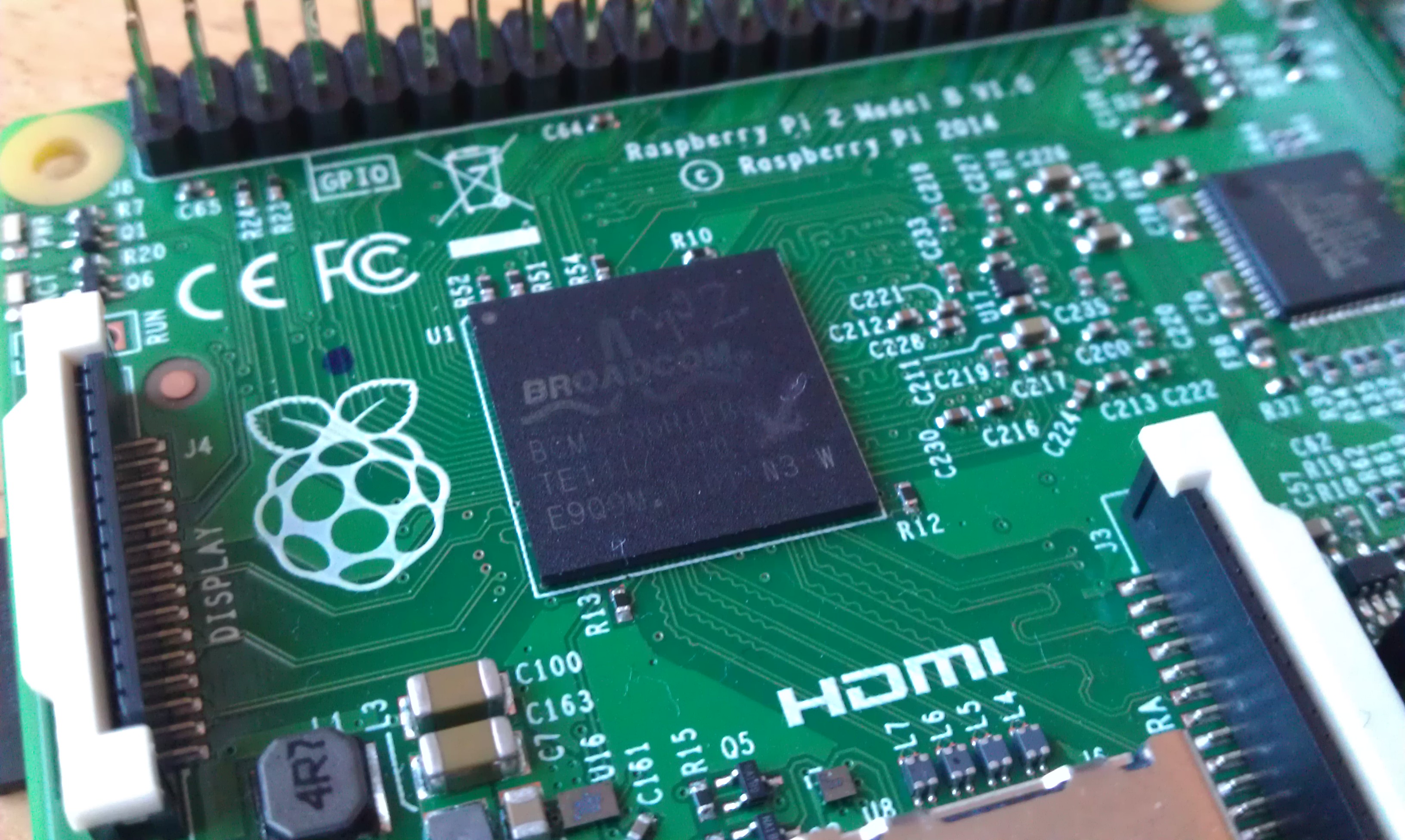
With the recent release of the Raspberry Pi 2 we have seen a flurry of new benchmarks and statistics that represent how powerful the new Raspberry Pi 2 is when compared to the older Raspberry Pi models. From a CPU point of view the new Raspberry Pi is around 6 times more powerful than its predecessors but how can we show this in a more meaningful way?

A more meaningful method to show the power of the Raspberry Pi 2 is to use it as a desktop computer. What can we do with Raspberry Pi 2 that we could not realistically do with Raspberry Pi 1?


In this blog post we will install a range of common applications and use them to gauge how feasible it would be to use the Raspberry Pi 2 as a desktop computer. We won't focus times or other metrics rather we will use a real live person..Me to judge if something takes too long to load or is too slow to use.


So without further ado let's get started.


Test 1 - Create Documents with LibreOffice


LibreOffice is a free office suite that provides the same functionality as Microsoft Office. A standard install of LibreOffice provides you with applications such as


  • Writer - Word Processor
  • Calc - Spreadsheets
  • Base - Database
  • Impress - Presentation
  • Draw - Illustration
  • Math - Equations


To install libreOffice you will need to be connected to your home broadband via WIFI or Ethernet. Open LXTerminal and enter the following commands, remember to press enter at the end of each line.


sudo apt-get update

sudo apt-get install libreoffice


The first line updates our list of available software with a central list this ensures that we are installing the latest software.

The second line installs LibreOffice using the APT package management tool which is common to all Debian based operating systems of which Raspbian is one.


Once installed you will be able to access the Applications via the menu at the top left of your screen, in there will be a new section called Office. Let’s start exploring the LibreOffice suite by launching the Writer application.


Writer


image


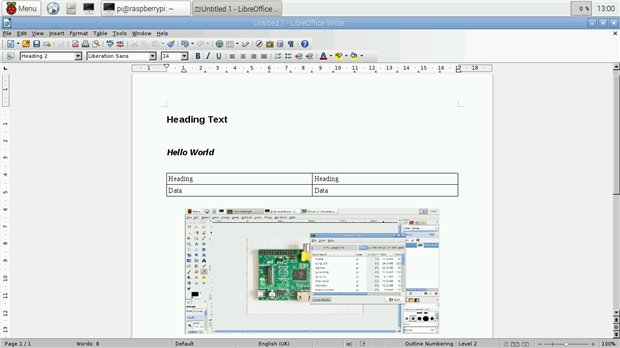
Writer is a word processor application that packs all of the same features as Microsoft Word but is an Open Source application, by which the code that makes the LibreOffice is available to all who wish to see it. It is also a free application so no charges are made to use it.


With LibreOffice Writer you can


  • Create a resume / CV
  • Write a novel
  • Produce reports, including graphs and data from LibreOffice Calc.
  • Create web pages using HTML
  • Export work to PDF
  • Save work as Microsoft compatible files for office and school use


Plus lots more use cases. Anything that can be done with Microsoft Office can be done with LibreOffice.


Calc


image


LibreOffice Calc is a spreadsheet application that offers the same functionality as Microsoft Excel. You can easily perform tasks such as


  • Home accounts
  • Statistical analysis
  • Graphs and tabular data


Test Results


LibreOffice works extremely well taking only 9 seconds to boot with the Raspberry Pi 2. Using Writer and Calc was a slick and pleasurable experience with very little to no lag when navigating the menus. The Raspberry Pi 2 is clearly powerful enough to be used for your next class report or novel.


Test 2 - Edit graphics with GIMP


GIMP, the GNU Image Manipulation Programme is a fully featured bitmap editor with a similar set of functionality to the very expensive Adobe Photoshop. With GIMP you can


  • Edit photographs
  • Color correct images
  • Airbrush
  • Convert images from various formats
  • Create animated GIFs


To install open LXTerminal and type


sudo apt-get install gimp


Once installed GIMP resides in the Graphics menu and can be launched by clicking on it’s entry.


image


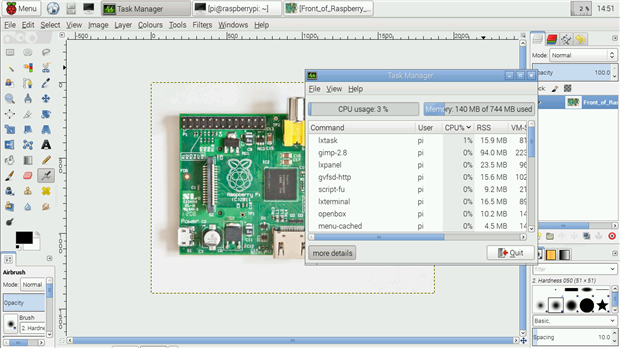
Once GIMP has launched you will be presented with a blank page, you can open an image saved on your Raspberry Pi and edit it to meet your needs. In our test we edited a high res image of the Raspberry Pi 2. Applying colour correction and a blur filter using the built in functions was fairly straight forward, if a little slow.


Test Results


The Raspberry Pi 2 handled GIMP rather well. It was able to keep up with our demands and rarely slowed down. When applying filters there was some slow down but this is also true on machines of a high specification, so pay no heed to that as an indicator.

GIMP on the Raspberry Pi 2 is a pleasant and usable experience and provides a great working environment for budding illustrators


Test 3 - Create Vector Illustrations With Inkscape


Inkscape is a particular favourite of mine, it is an Open Source alternative to Adobe Illustrator and packs a serious amount of functionality into a small application. It is a vector image editor, where illustrations are created using mathematical vectors rather than individual picture elements (pixels) which is how GIMP edits images.


With Inkscape you can

  • Design website layouts
  • Edit SVG images, SVG can be inserted into web pages
  • Design graphics for print, web and broadcast use


To install inkscape you will need to open LXTerminal and enter the following.


sudo apt-get install inkscape


Inkscape is available via the Graphics menu, launch it when ready.


image


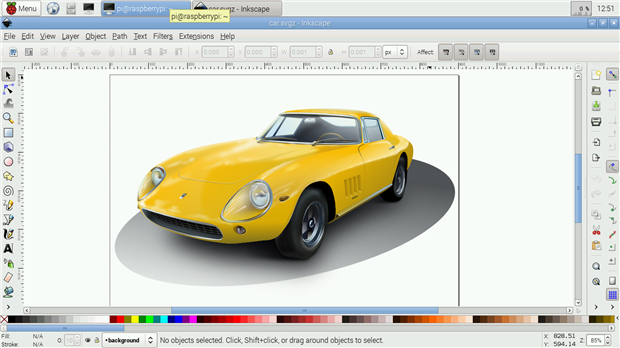
Inkscape does take some time to load and this is true even on my Core i5 laptop with 8GB or RAM. Once loaded it can stutter a little when handling large images but for the most part it is stable and responsive. To really push the Raspberry Pi 2 we loaded one of the intensive examples, a highly detailed yellow car, and inkscape took a short while, around 10 seconds to fully display the image.


Test Results

Inkscape is rather slow on the Raspberry Pi 2 but it is usable, just. We wouldn't recommend editing large documents or illustrations but for day to day tinkering and making it will do a good job of small to medium sized projects.


Test 4 - Editing Audio With Audacity


Audacity is an Open Source audio editor that is favoured among podcasters around the world. It provides a massive amount of power via a series of intricate menus and configuration options. Splicing, manipulating and editing audio is possible thanks to Audacity.


To install Audacity open LXTerminal and type the following, remember to press Enter at the end of the line.


sudo apt-get install audacity


Audacity can be found in the menu under Audio and Video.


image


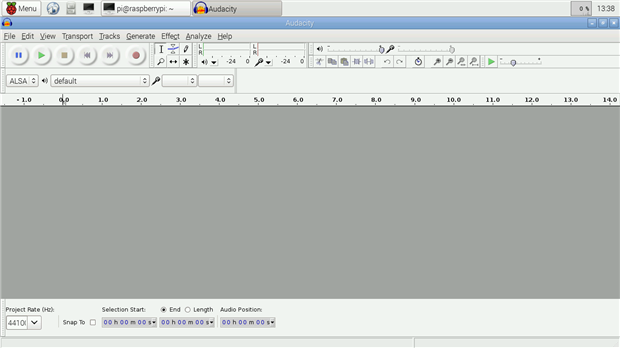
On first launch Audacity will present a top tips dialog box, this is a really handy gesture and I tend to keep it turned on for future reference.

Editing audio in Audacity can be as simple or complex as you wish. In our tests we opened a short wave file and applied an echo filter to it. Applying filters to audio can be a slow process, depending on the size of the file used. Audacity on the Raspberry Pi 2 is not really meant for handling large files, editing short audio clips is possible but much larger files will easily overpower the Raspberry Pi 2.


Test Results

Audacity is an application that can really test a computer, editing audio on a Core i5 is still a resource hog and so it is quite remarkable that the Raspberry Pi 2 can run Audacity as well as it did. We wouldn'tsuggest editing a podcast but sound effects for projects could be easily edited on your Raspberry Pi 2.


Test 5 - Drawing Circuits With Fritzing

Whenever you see a layout diagram or breadboard schematic on Element 14 they will most likely have started life as an illustration in Fritzing. Fritzing is a vector illustration editor that specialises in producing high quality illustrations of maker projects. It comes with a massive parts bin, parts being the common components used in projects, such as LEDs, capacitors, switches etc.


To install Fritzing open LXTerminal and type the following, remember to press Enter at the end of the line.


sudo apt-get install fritzing


Once installed, Fritzing can be found in the Programming section of the menu.


image


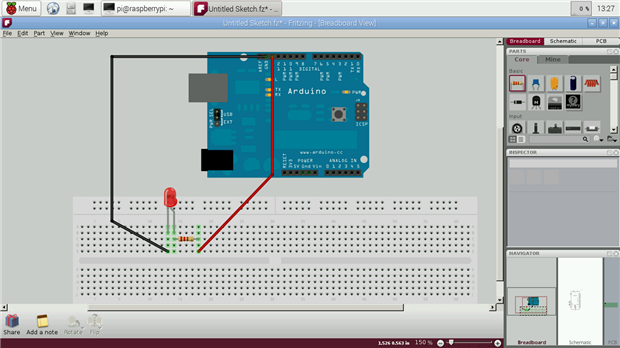
We launched Fritzing and immediately came across an issue with not all of the parts, that’s components to be used in illustrations, being available for use. This can be fixed by importing your own components into the parts bin, but this is out of scope for this blog post.

We created a simple illustration of an Arduino Uno, connected to an LED via a resistor on a breadboard. Fritzing was quick to respond and never slowed down in testing.


Test Results

Fritzing is a great application and it is awesome to see it work on the Raspberry Pi 2. You really could use the Raspberry Pi 2 as a maker computer that meets the project illustration role admirably.


Final Thoughts


It is still early days for the Raspberry Pi 2 but after the initial fanfare has faded we are still left with a solid desktop computer for $35. The sheer power on offer for such a low price is incredible and really outshines other boards on the market.

Yes the Raspberry Pi 2 is not a top spec computer, but it is a sheer powerhouse for it’s size and price. We have proven in this blog post that the raspberry Pi 2 can be used as a second PC in the home either for a child to tinker with or as a serious alternative purchasing a laptop for basic home accounts and office admin duties.


But there aren’t that many home PCs that can travel into space or become robots and investigate the world around them. Only the Raspberry Pi 2 can be all things to everyone.


  • raspberry-pi
  • raspberry_pi_space
  • Share
  • History
  • More
  • Cancel
  • Sign in to reply

Top Comments

  • johnbeetem
    johnbeetem over 11 years ago +5
    Nice 'blog. How well does RasPi 2 surf the Internet? I found that to be intolerably slow on RasPi Model B w/ 256MB DRAM, but the quad Cortex-A7 w/ 1GB DRAM is probably up to the task. I wrote a poll on…
  • dbrems
    dbrems over 11 years ago +4
    Good Blog Entry, It's just missing the development part. Is it now possible to compile C and C++ program (really less than 10 hours for the complete Kernel compilation) on it and not rely only on cross…
  • Former Member
    Former Member over 10 years ago +3
    Excellent article. I too have adopted a Pi 2 as my home desktop, running the Xfce desktop environment on top of Raspbian. In general, it does an excellent job of a traditional desktop, just somewhat slower…
  • Former Member
    Former Member over 10 years ago in reply to clem57

    Thanks Clem,


    The answer was right under my nose and I didn't realize it. (chagrined)  I've been using win32diskimage to burn images onto SD cards for some time now but didn't actually realize I could use the same program to CREATE an image from an existing SD card till I noticed the 'Read' button tonight, right there next to the 'Write' button. image  It's a much simpler solution than loading Ubuntu on my Windows box just so I could dd the SD card. 


    Miles

    • Cancel
    • Vote Up 0 Vote Down
    • Sign in to reply
    • More
    • Cancel
  • clem57
    clem57 over 10 years ago in reply to Former Member

    Never wise to copy an active mounted SD card like Richard posted.Remove and do on another machine. If Linux is your choice, Ross suggestion would work but change bs=4M for faster copy.

    Clem

    • Cancel
    • Vote Up +1 Vote Down
    • Sign in to reply
    • More
    • Cancel
  • Former Member
    Former Member over 10 years ago in reply to Former Member

    Yeah, it was a basic example.  When I mount it on my Ubuntu server, though, SD? Is one of the names that I can use.

    • Cancel
    • Vote Up 0 Vote Down
    • Sign in to reply
    • More
    • Cancel
  • Former Member
    Former Member over 10 years ago

    Ross,


    The Pi MicroSD drive is /dev/mmcblk0 and you cannot dd a drive while any of its partitions are mounted.  Did you mean to `dd` on a separate Linux system?  That's what I would do since I am a Linux and Mac user.  Note that in this case, the MicroSD drive is probably not "sda" if it is USB-mounted.


    Miles,


    What are your disk image copy options?  Windows?  Mac?  Linux?  If Windows, Clem is leading you to a useful solution.

    • Cancel
    • Vote Up 0 Vote Down
    • Sign in to reply
    • More
    • Cancel
  • Former Member
    Former Member over 10 years ago in reply to clem57

    dd works well enough also.


        dd if=/dev/sda bs=1024 of=pi.img


    I think I got the block size right.

    • Cancel
    • Vote Up 0 Vote Down
    • Sign in to reply
    • More
    • Cancel
  • clem57
    clem57 over 10 years ago in reply to Former Member

    Did you use Windiskimage?

    • Cancel
    • Vote Up 0 Vote Down
    • Sign in to reply
    • More
    • Cancel
  • Former Member
    Former Member over 10 years ago

    I used my new Raspberry Pi2 as my functioning desktop machine for about three weeks when my Windows7 PC motherboard crapped out and used the Raspberry to order a refurbed Windows 8.1 PC from the Dell Outlet.  My only lament was not being able to keep 20 tabs open on my browser like I did on my Windows PC.


    Can anyone suggest a good way to clone the micro SD card with all the applications already installed on the first one for my second Raspberry?  I can probably write a bash script to install everything again but there must be an easier way.

    • Cancel
    • Vote Up 0 Vote Down
    • Sign in to reply
    • More
    • Cancel
  • Eyedoll
    Eyedoll over 10 years ago in reply to Former Member

    You could run RaspBMC (An XBMC make for the Pi) on a model B or B+ and watch Youtube videos with no problems. I've tested it on 720p resolution and works like a charm. image If you only have 1 Raspberry Pi, you can just make another SD card with RaspBMC in it and just swap cards to switch your Pi's main role, between a regular computer or Media Center.

    • Cancel
    • Vote Up 0 Vote Down
    • Sign in to reply
    • More
    • Cancel
  • Eyedoll
    Eyedoll over 10 years ago

    You may be glad to know that I'm using my Raspberry Pi 2 to stream live music to a shoutcast master server.  I connected a USB Sound Blaster Live 24 5.1 audio card to it. When I'm DJing I hook up a line output from my mixer to this device. On the Raspberry Pi I run Jack, Jack mixer, IDJC (Internet DJ Console) and Rakarrak.  With this setup, I can do some 'near-real-time' DSP and stream out the audio with no problems.  I only had to run IDJC from the command line; for some reason, the menu item doesn't work, but that's not major issue.

    • Cancel
    • Vote Up +2 Vote Down
    • Sign in to reply
    • More
    • Cancel
  • 172pilot
    172pilot over 10 years ago in reply to 172pilot

    Thanks for all the ideas..  I'll definitely check those out..


    As for someone pointing out that I wasn't exactly specific on what I meant by "GUI"...  I don't need much - I'm not programming a video arcade game or something, but rather a scoring program for a karate tournament.. something like that will look similar to this:

    http://software.n-pro.nl/images/image036.jpg

    Basically resizable text boxes and some buttons supported by some basic score keeping and timing logic..


    I've done some Python before so I might try that, but the others sound promising as well!!


    Thanks!

    • Cancel
    • Vote Up 0 Vote Down
    • Sign in to reply
    • More
    • Cancel
<>
element14 Community

element14 is the first online community specifically for engineers. Connect with your peers and get expert answers to your questions.

  • Members
  • Learn
  • Technologies
  • Challenges & Projects
  • Products
  • Store
  • About Us
  • Feedback & Support
  • FAQs
  • Terms of Use
  • Privacy Policy
  • Legal and Copyright Notices
  • Sitemap
  • Cookies

An Avnet Company © 2026 Premier Farnell Limited. All Rights Reserved.

Premier Farnell Ltd, registered in England and Wales (no 00876412), registered office: Farnell House, Forge Lane, Leeds LS12 2NE.

ICP 备案号 10220084.

Follow element14

  • X
  • Facebook
  • linkedin
  • YouTube