element14 Community
element14 Community
    Register Log In
  • Site
  • Search
  • Log In Register
  • Community Hub
    Community Hub
    • What's New on element14
    • Feedback and Support
    • Benefits of Membership
    • Personal Blogs
    • Members Area
    • Achievement Levels
  • Learn
    Learn
    • Ask an Expert
    • eBooks
    • element14 presents
    • Learning Center
    • Tech Spotlight
    • STEM Academy
    • Webinars, Training and Events
    • Learning Groups
  • Technologies
    Technologies
    • 3D Printing
    • FPGA
    • Industrial Automation
    • Internet of Things
    • Power & Energy
    • Sensors
    • Technology Groups
  • Challenges & Projects
    Challenges & Projects
    • Design Challenges
    • element14 presents Projects
    • Project14
    • Arduino Projects
    • Raspberry Pi Projects
    • Project Groups
  • Products
    Products
    • Arduino
    • Avnet & Tria Boards Community
    • Dev Tools
    • Manufacturers
    • Multicomp Pro
    • Product Groups
    • Raspberry Pi
    • RoadTests & Reviews
  • About Us
    About the element14 Community
  • Store
    Store
    • Visit Your Store
    • Choose another store...
      • Europe
      •  Austria (German)
      •  Belgium (Dutch, French)
      •  Bulgaria (Bulgarian)
      •  Czech Republic (Czech)
      •  Denmark (Danish)
      •  Estonia (Estonian)
      •  Finland (Finnish)
      •  France (French)
      •  Germany (German)
      •  Hungary (Hungarian)
      •  Ireland
      •  Israel
      •  Italy (Italian)
      •  Latvia (Latvian)
      •  
      •  Lithuania (Lithuanian)
      •  Netherlands (Dutch)
      •  Norway (Norwegian)
      •  Poland (Polish)
      •  Portugal (Portuguese)
      •  Romania (Romanian)
      •  Russia (Russian)
      •  Slovakia (Slovak)
      •  Slovenia (Slovenian)
      •  Spain (Spanish)
      •  Sweden (Swedish)
      •  Switzerland(German, French)
      •  Turkey (Turkish)
      •  United Kingdom
      • Asia Pacific
      •  Australia
      •  China
      •  Hong Kong
      •  India
      •  Japan
      •  Korea (Korean)
      •  Malaysia
      •  New Zealand
      •  Philippines
      •  Singapore
      •  Taiwan
      •  Thailand (Thai)
      •  Vietnam
      • Americas
      •  Brazil (Portuguese)
      •  Canada
      •  Mexico (Spanish)
      •  United States
      Can't find the country/region you're looking for? Visit our export site or find a local distributor.
  • Translate
  • Profile
  • Settings
Raspberry Pi
  • Products
  • More
Raspberry Pi
Documents Can the Raspberry Pi 2 Replace your Desktop Computer?
  • Blog
  • Forum
  • Documents
  • Quiz
  • Events
  • Polls
  • Files
  • Members
  • Mentions
  • Sub-Groups
  • Tags
  • More
  • Cancel
  • New
Join Raspberry Pi to participate - click to join for free!
Actions
  • Share
  • More
  • Cancel
Engagement
  • Author Author: biglesp
  • Date Created: 12 Feb 2015 4:06 PM Date Created
  • Last Updated Last Updated: 10 May 2021 7:05 PM
  • Views 12543 views
  • Likes 20 likes
  • Comments 102 comments
Related
Recommended

Can the Raspberry Pi 2 Replace your Desktop Computer?

16248420870_05843a8150_o_d.jpg


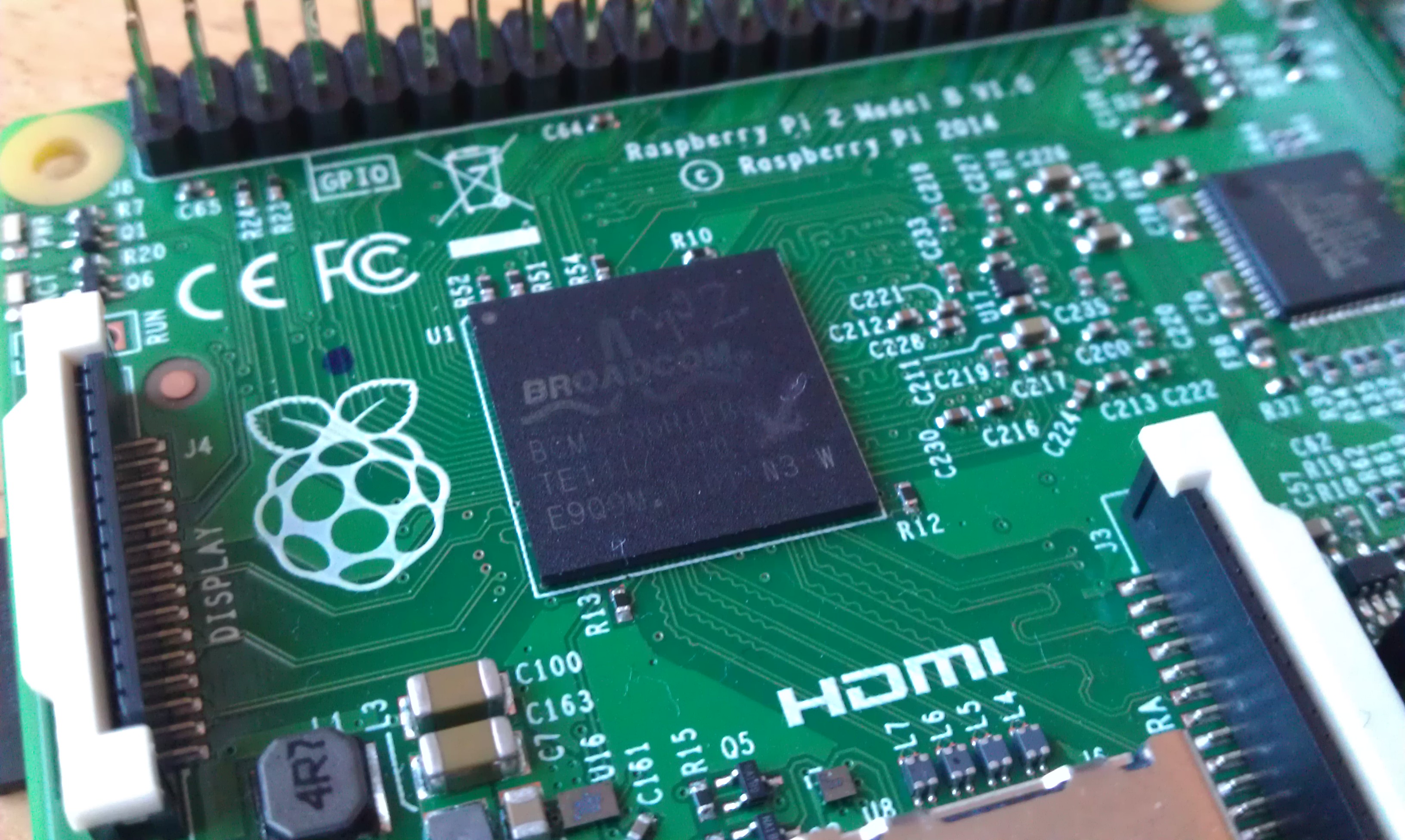
With the recent release of the Raspberry Pi 2 we have seen a flurry of new benchmarks and statistics that represent how powerful the new Raspberry Pi 2 is when compared to the older Raspberry Pi models. From a CPU point of view the new Raspberry Pi is around 6 times more powerful than its predecessors but how can we show this in a more meaningful way?

A more meaningful method to show the power of the Raspberry Pi 2 is to use it as a desktop computer. What can we do with Raspberry Pi 2 that we could not realistically do with Raspberry Pi 1?


In this blog post we will install a range of common applications and use them to gauge how feasible it would be to use the Raspberry Pi 2 as a desktop computer. We won't focus times or other metrics rather we will use a real live person..Me to judge if something takes too long to load or is too slow to use.


So without further ado let's get started.


Test 1 - Create Documents with LibreOffice


LibreOffice is a free office suite that provides the same functionality as Microsoft Office. A standard install of LibreOffice provides you with applications such as


  • Writer - Word Processor
  • Calc - Spreadsheets
  • Base - Database
  • Impress - Presentation
  • Draw - Illustration
  • Math - Equations


To install libreOffice you will need to be connected to your home broadband via WIFI or Ethernet. Open LXTerminal and enter the following commands, remember to press enter at the end of each line.


sudo apt-get update

sudo apt-get install libreoffice


The first line updates our list of available software with a central list this ensures that we are installing the latest software.

The second line installs LibreOffice using the APT package management tool which is common to all Debian based operating systems of which Raspbian is one.


Once installed you will be able to access the Applications via the menu at the top left of your screen, in there will be a new section called Office. Let’s start exploring the LibreOffice suite by launching the Writer application.


Writer


image


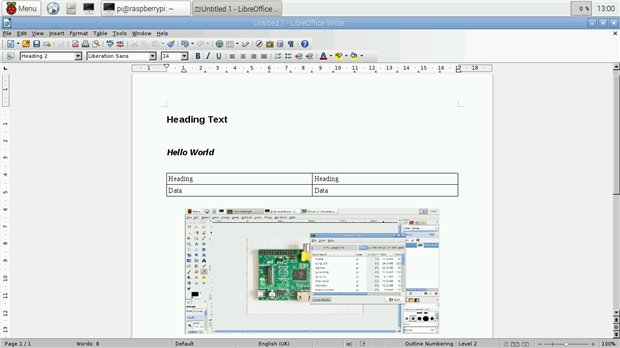
Writer is a word processor application that packs all of the same features as Microsoft Word but is an Open Source application, by which the code that makes the LibreOffice is available to all who wish to see it. It is also a free application so no charges are made to use it.


With LibreOffice Writer you can


  • Create a resume / CV
  • Write a novel
  • Produce reports, including graphs and data from LibreOffice Calc.
  • Create web pages using HTML
  • Export work to PDF
  • Save work as Microsoft compatible files for office and school use


Plus lots more use cases. Anything that can be done with Microsoft Office can be done with LibreOffice.


Calc


image


LibreOffice Calc is a spreadsheet application that offers the same functionality as Microsoft Excel. You can easily perform tasks such as


  • Home accounts
  • Statistical analysis
  • Graphs and tabular data


Test Results


LibreOffice works extremely well taking only 9 seconds to boot with the Raspberry Pi 2. Using Writer and Calc was a slick and pleasurable experience with very little to no lag when navigating the menus. The Raspberry Pi 2 is clearly powerful enough to be used for your next class report or novel.


Test 2 - Edit graphics with GIMP


GIMP, the GNU Image Manipulation Programme is a fully featured bitmap editor with a similar set of functionality to the very expensive Adobe Photoshop. With GIMP you can


  • Edit photographs
  • Color correct images
  • Airbrush
  • Convert images from various formats
  • Create animated GIFs


To install open LXTerminal and type


sudo apt-get install gimp


Once installed GIMP resides in the Graphics menu and can be launched by clicking on it’s entry.


image


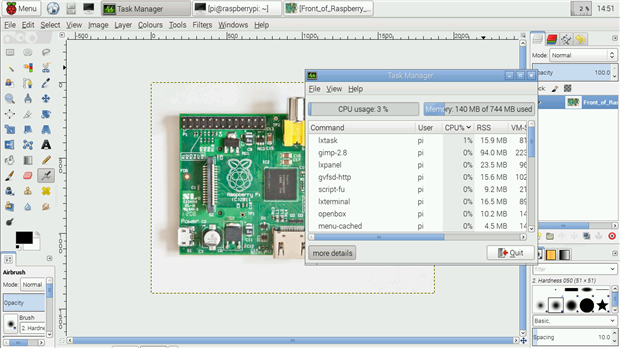
Once GIMP has launched you will be presented with a blank page, you can open an image saved on your Raspberry Pi and edit it to meet your needs. In our test we edited a high res image of the Raspberry Pi 2. Applying colour correction and a blur filter using the built in functions was fairly straight forward, if a little slow.


Test Results


The Raspberry Pi 2 handled GIMP rather well. It was able to keep up with our demands and rarely slowed down. When applying filters there was some slow down but this is also true on machines of a high specification, so pay no heed to that as an indicator.

GIMP on the Raspberry Pi 2 is a pleasant and usable experience and provides a great working environment for budding illustrators


Test 3 - Create Vector Illustrations With Inkscape


Inkscape is a particular favourite of mine, it is an Open Source alternative to Adobe Illustrator and packs a serious amount of functionality into a small application. It is a vector image editor, where illustrations are created using mathematical vectors rather than individual picture elements (pixels) which is how GIMP edits images.


With Inkscape you can

  • Design website layouts
  • Edit SVG images, SVG can be inserted into web pages
  • Design graphics for print, web and broadcast use


To install inkscape you will need to open LXTerminal and enter the following.


sudo apt-get install inkscape


Inkscape is available via the Graphics menu, launch it when ready.


image


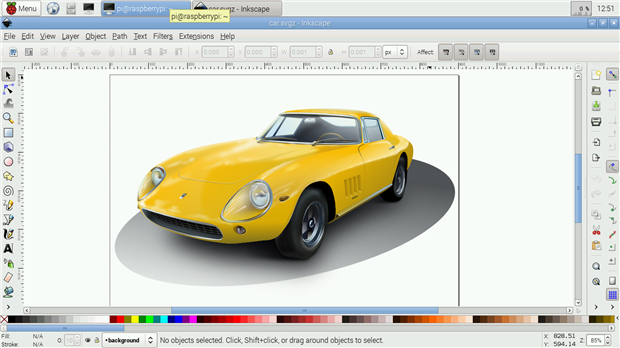
Inkscape does take some time to load and this is true even on my Core i5 laptop with 8GB or RAM. Once loaded it can stutter a little when handling large images but for the most part it is stable and responsive. To really push the Raspberry Pi 2 we loaded one of the intensive examples, a highly detailed yellow car, and inkscape took a short while, around 10 seconds to fully display the image.


Test Results

Inkscape is rather slow on the Raspberry Pi 2 but it is usable, just. We wouldn't recommend editing large documents or illustrations but for day to day tinkering and making it will do a good job of small to medium sized projects.


Test 4 - Editing Audio With Audacity


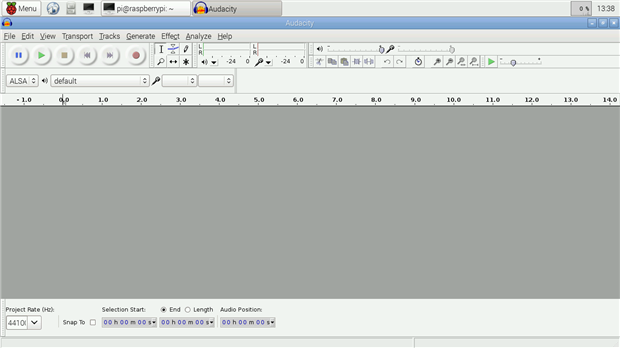
Audacity is an Open Source audio editor that is favoured among podcasters around the world. It provides a massive amount of power via a series of intricate menus and configuration options. Splicing, manipulating and editing audio is possible thanks to Audacity.


To install Audacity open LXTerminal and type the following, remember to press Enter at the end of the line.


sudo apt-get install audacity


Audacity can be found in the menu under Audio and Video.


image


On first launch Audacity will present a top tips dialog box, this is a really handy gesture and I tend to keep it turned on for future reference.

Editing audio in Audacity can be as simple or complex as you wish. In our tests we opened a short wave file and applied an echo filter to it. Applying filters to audio can be a slow process, depending on the size of the file used. Audacity on the Raspberry Pi 2 is not really meant for handling large files, editing short audio clips is possible but much larger files will easily overpower the Raspberry Pi 2.


Test Results

Audacity is an application that can really test a computer, editing audio on a Core i5 is still a resource hog and so it is quite remarkable that the Raspberry Pi 2 can run Audacity as well as it did. We wouldn'tsuggest editing a podcast but sound effects for projects could be easily edited on your Raspberry Pi 2.


Test 5 - Drawing Circuits With Fritzing

Whenever you see a layout diagram or breadboard schematic on Element 14 they will most likely have started life as an illustration in Fritzing. Fritzing is a vector illustration editor that specialises in producing high quality illustrations of maker projects. It comes with a massive parts bin, parts being the common components used in projects, such as LEDs, capacitors, switches etc.


To install Fritzing open LXTerminal and type the following, remember to press Enter at the end of the line.


sudo apt-get install fritzing


Once installed, Fritzing can be found in the Programming section of the menu.


image


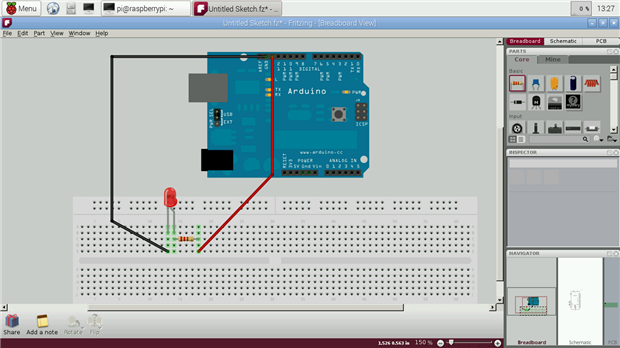
We launched Fritzing and immediately came across an issue with not all of the parts, that’s components to be used in illustrations, being available for use. This can be fixed by importing your own components into the parts bin, but this is out of scope for this blog post.

We created a simple illustration of an Arduino Uno, connected to an LED via a resistor on a breadboard. Fritzing was quick to respond and never slowed down in testing.


Test Results

Fritzing is a great application and it is awesome to see it work on the Raspberry Pi 2. You really could use the Raspberry Pi 2 as a maker computer that meets the project illustration role admirably.


Final Thoughts


It is still early days for the Raspberry Pi 2 but after the initial fanfare has faded we are still left with a solid desktop computer for $35. The sheer power on offer for such a low price is incredible and really outshines other boards on the market.

Yes the Raspberry Pi 2 is not a top spec computer, but it is a sheer powerhouse for it’s size and price. We have proven in this blog post that the raspberry Pi 2 can be used as a second PC in the home either for a child to tinker with or as a serious alternative purchasing a laptop for basic home accounts and office admin duties.


But there aren’t that many home PCs that can travel into space or become robots and investigate the world around them. Only the Raspberry Pi 2 can be all things to everyone.


  • raspberry-pi
  • raspberry_pi_space
  • Share
  • History
  • More
  • Cancel
  • Sign in to reply

Top Comments

  • johnbeetem
    johnbeetem over 11 years ago +5
    Nice 'blog. How well does RasPi 2 surf the Internet? I found that to be intolerably slow on RasPi Model B w/ 256MB DRAM, but the quad Cortex-A7 w/ 1GB DRAM is probably up to the task. I wrote a poll on…
  • dbrems
    dbrems over 11 years ago +4
    Good Blog Entry, It's just missing the development part. Is it now possible to compile C and C++ program (really less than 10 hours for the complete Kernel compilation) on it and not rely only on cross…
  • e14 Contributor
    e14 Contributor over 11 years ago +3
    Excellent article. I too have adopted a Pi 2 as my home desktop, running the Xfce desktop environment on top of Raspbian. In general, it does an excellent job of a traditional desktop, just somewhat slower…
  • e14 Contributor
    e14 Contributor over 11 years ago

    Got my Raspberry Pi 2 in the mail today... very nice, snappy... got it up and running with wipi and I'm very impressed with the response while surfing.  The RPi b+ is painfully slow surfing, but is a nice development board from the command line/ love it too!  But, the RPi 2 finally has the guts to be useful on the web, in development, and from an office standpoint.  I can 'almost' replace my desktop PC with it...  let's just say that for many of the things I do, I can do them from the RPi 2 without any problems.


    By the way, in case you missed my post on Cabe's PI blog (regarding performance) my RPi b+ computes PI to 10,000 places (using Python3, pdeclib, pilib, piagm2()... ) in  1m58s.  My RPi 2 computes PI to 10,000 places in  1m12s  (significant improvement, and that was with a desktop running ta-boot).


    Cheers,

    marcus

    image

    • Cancel
    • Vote Up 0 Vote Down
    • Sign in to reply
    • More
    • Cancel
  • najath
    najath over 11 years ago in reply to e14 Contributor

    Thankfully, most of the people in my circle don't raise most of the questions you mentioned.


    Most of them have got used to firefox and chrome. And since I promote openSUSE with either KDE (PC atleast 2GB RAM) or enlightenment (for memory constrained PC), the question about start menu mostly never comes up. KDE gives the added feature of putting all data in folders that can be accessed directly from desktop.


    The only troublesome question I face is regarding flash and multimedia support, which hopefully will be solved when web will completely move to HTML5 and other open technologies.


    while doing my PhD, I had the privilege of assisting most of the people in my lab to use Linux. In fact all of my experiments and documentation (thesis was in the area of motor drives) where done in the Linux environment. This convinced most of them to try and use Linux as their OS of choice


    Once you show them the benefits of Linux and if you keep on asking them are you still using windows, every time they ask for windows support, I think you can push most people over to Linux.

    • Cancel
    • Vote Up +1 Vote Down
    • Sign in to reply
    • More
    • Cancel
  • e14 Contributor
    e14 Contributor over 11 years ago in reply to e14 Contributor

    Well said!  I myself have tried unsuccessfully to convert some over, but their continuing insistence on the use of MS products won out.  They were never satisfied even though they got thru nursing school papers using open office for a year and a half.


    Some Folks don't like change.

    • Cancel
    • Vote Up 0 Vote Down
    • Sign in to reply
    • More
    • Cancel
  • najath
    najath over 11 years ago in reply to johnbeetem

    I haven't tried one yet. Not sure which of the two is the bigger evil Microsoft or Google (or Ubuntu image).

    I like to promote projects that are truly open source and respects privacy (no data mining). Hence my exploration into different technologies and products.


    May be I should blog about it when I get some free time (when does a techie have free time?image).

    • Cancel
    • Vote Up +2 Vote Down
    • Sign in to reply
    • More
    • Cancel
  • e14 Contributor
    e14 Contributor over 11 years ago in reply to clem57

    Amen to that!  Now, we just have to wait for the thousands of web sites to spend the money to comply!  (-:  Seriously, I hope that they see the light some day.

    • Cancel
    • Vote Up +3 Vote Down
    • Sign in to reply
    • More
    • Cancel
  • e14 Contributor
    e14 Contributor over 11 years ago in reply to najath

    That won't be your worst complaint from family & friends who are accustomed to Windows or Apple.  People are very slow to accept changes to their routine, even if the change is beneficial.  Here are some questions/remarks that I predict:


    1. "So slo-o-o-o-ow!".  Yes, this $35 mobo is not nearly as fast as more expensive hardware.  You cannot tell them but it is 6x as fast as the last version; that will not fly.
    2. "Where is Internet Explorer?/Safari".  They just will not like Epiphany or Iceweasel (Firefoxish but piggy on Pi) no matter what you say.
    3. "Where is Office?".  I like LibreOffice very much.  But, it operates differently compared to M$ Office.
    4. "No flash??!!" (from Windows users).  HTML5 is the new standard but web sites view transition as a big expense.  The wheels of progress turn very slowly.
    5. "Where's the Start button?" (from Windows users).  We can probably get away with telling them in the upper left-hand corner.  However, once they click on it, the next layer of questions will appear.
    6. "Where's my data?".  Are you prepared to migrate their 500GB of multimedia and documents to somewhere and make sure that they can somehow access it?


    All in all, I'd say to keep the Pi away from non-techies, unless you are prepared to conduct exhaustive assessment, filtering, and training for those that you accept.


    I have converted 5 non-techies to a Xubuntu LTS (long-term support) desktop in the past.  They came to me.  They were more than willing to migrate away from Windows.  I migrated their data for them (variety of solutions).  They are Open Source fans now.  Still, they averaged 3 months of mild support each after their migration completed.

    • Cancel
    • Vote Up +1 Vote Down
    • Sign in to reply
    • More
    • Cancel
  • johnbeetem
    johnbeetem over 11 years ago in reply to najath

    najath wrote:


    Moreover I was thinking of promoting the use of RasPi like boards among relatives and friends as a cheap and low power PC. If they are not able to do stuff, they can do in normal Windows PC, it will be very difficult for me to convince them. I'll also end up having more tech support calls - "Hey, this video is not playing. Can you come over and make it work?"

    Have you looked at Chromebooks at all?  I've never tried one myself other than fiddling for a few minutes at Best Buy, but they're designed to be easy to use and robust for consumer-level PC users.  Specifically, they're designed to avoid Windows malware so as to minimize the burden for the family techie.

    • Cancel
    • Vote Up +2 Vote Down
    • Sign in to reply
    • More
    • Cancel
  • clem57
    clem57 over 11 years ago in reply to najath

    Not ready for the average user (especially the ones that want it to work not matter what!)image

    Clem

    • Cancel
    • Vote Up +1 Vote Down
    • Sign in to reply
    • More
    • Cancel
  • najath
    najath over 11 years ago in reply to Workshopshed

    I know we can use firefox without flash. And I had flash disabled in Firefox on my Linux Laptop, just to get rid of the ads that start playing videos without my permission.


    But once in a while, I end up having to watch a video that's available only in flash, like some of the e14 videos.

    Another problem I faced with SBCs I tried, is that local HD videos play fine. But when you have long HD videos streaming over the net, the audio and video get out of sync after some time.

    So it's good to know how good is the web browsing experience - what works and what doesn't


    Moreover I was thinking of promoting the use of RasPi like boards among relatives and friends as a cheap and low power PC. If they are not able to do stuff, they can do in normal windows PC, it will be very difficult for me to convince them. I'll also end up having more tech support calls - "Hey, this video is not playing. Can you come over and make it work?" image

    • Cancel
    • Vote Up 0 Vote Down
    • Sign in to reply
    • More
    • Cancel
  • clem57
    clem57 over 11 years ago in reply to clem57

    http://www.engadget.com/2015/01/27/youtube-html5/ Is now default for modern browsers.

    • Cancel
    • Vote Up +1 Vote Down
    • Sign in to reply
    • More
    • Cancel
<>
element14 Community

element14 is the first online community specifically for engineers. Connect with your peers and get expert answers to your questions.

  • Members
  • Learn
  • Technologies
  • Challenges & Projects
  • Products
  • Store
  • About Us
  • Feedback & Support
  • FAQs
  • Terms of Use
  • Privacy Policy
  • Legal and Copyright Notices
  • Sitemap
  • Cookies

An Avnet Company © 2026 Premier Farnell Limited. All Rights Reserved.

Premier Farnell Ltd, registered in England and Wales (no 00876412), registered office: Farnell House, Forge Lane, Leeds LS12 2NE.

Follow element14

  • X
  • Facebook
  • linkedin
  • YouTube