


I received notification that the additional parts (USB-C hub and power supply) for the roadtest had shipped, so hopefully I'll receive those parts soon. In the meantime, I've gotten started installing AppLab and configuring the Uno Q and trying some of the example apps.
Uno Q Startup/Idle Power
Using the Uno Q for the first time requires a USB data connection for AppLab running on the PC to configure WiFi and the Linux password. Since I am not initially using a powered hub, I decided that I should verify that I wouldn't exceed the current limit of my PC's USB3 port (0.9A). I've read that the Uno Q idles at around 100mA, so I was confident that everything would be fine. The startup sequence runs some animation on the LED matrix - first the Arduino logo as Linux boots and then a heartbeat at idle.
The initial sequence stayed below 200mA and running a couple of apps and WiFi the average current stayed below 500 mA.
AppLab Configuration
The Arduino App Lab is the software ecosystem that is the key to developing applications for the Uno Q. I'll cover how AppLab operates and the composition of an application in a future blog. For now, I'm just trying to verify that my setup is operational by running a couple of example applications.
It takes a little while for AppLab to find the board on USB.
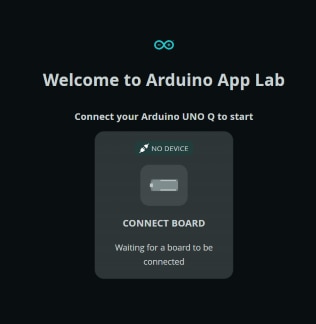
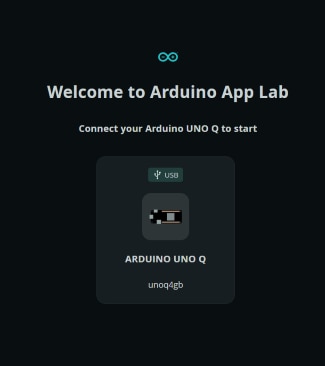
If it finds the board you need to select it to connect (in case it finds multiple boards or connection types there can only be one connected at a time).
Then it scans for network access points nearby.
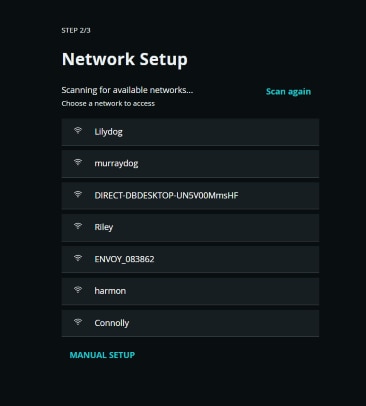
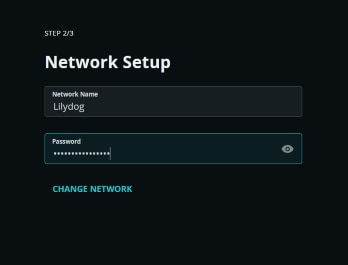
You choose the access point and enter the password to connect to the WiFi network.
Then, it checks for updates.
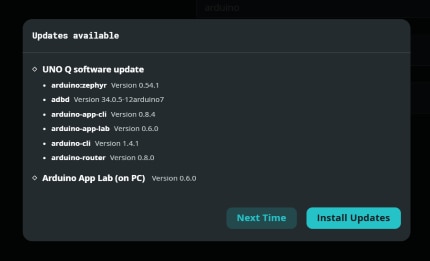
And there will be a few if this is the first connection to AppLab.
Since I added WiFi, it then gives you a choice of connecting via USB or WiFi.

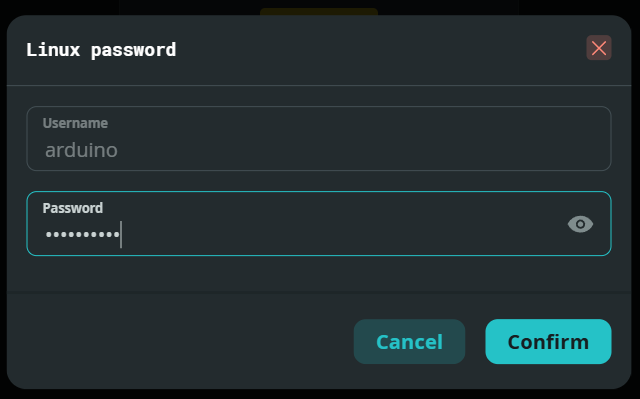
The login prompt - the default user is "arduino". It will prompt for a password at first login.
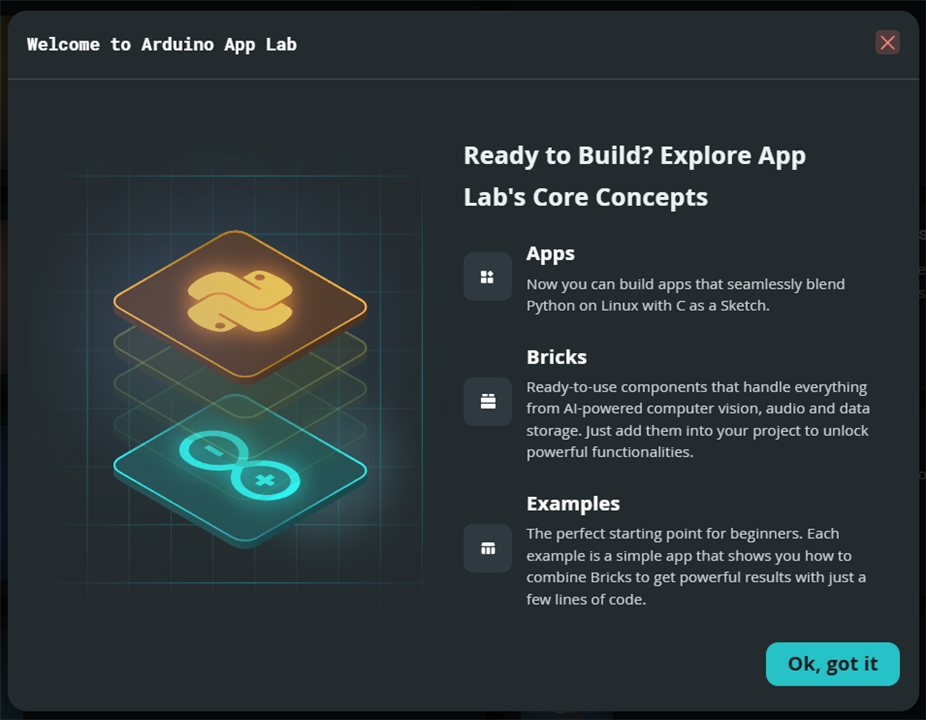
Initial Welcome Screen
Uno Q File System
The Status bar at the bottom of the AppLab window gives a concise view of Flash, RAM, and CPU usage.

The Linux df command gives a better look at how the Flash memory is partitioned. At the bottom left of the AppLab window there is a ">_" button that lets you open a remote shell on the board.

There are three primary partitions /, /home/arduino, and /boot/efi. I am a bit concerned that 68% of the / partition is already consumed. I have read that the docker system that is used by AppLab is stored in that partition
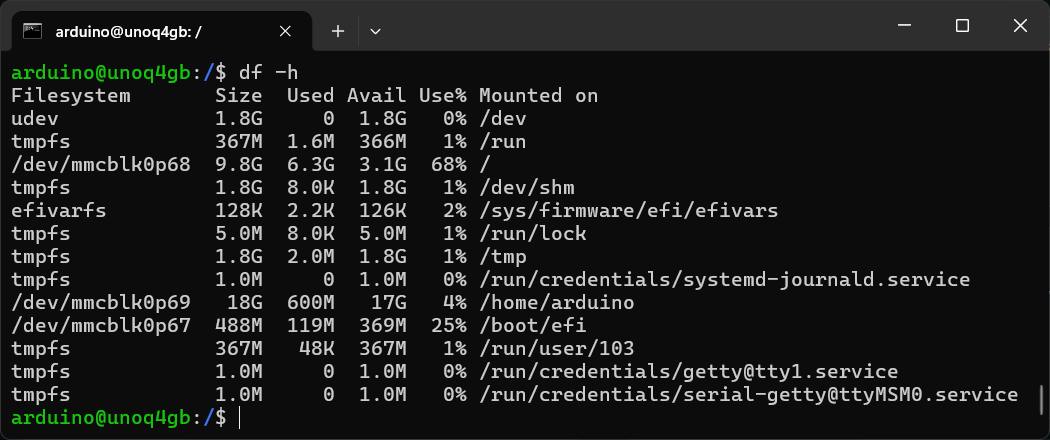
I took a look at the initially installed docker images and it seems like AI applications might quickly consume the available space. It's something that I'll check when running some of the AI examples.

Example Apps
On the left menu bar there are buttons to access your own apps, example apps, and bricks (which are modular components that are essentially functional libraries).
Currently, there are 29 example apps (AppLab version 0.6.0). Here is what would fit in the window just to give you an idea of what's available.
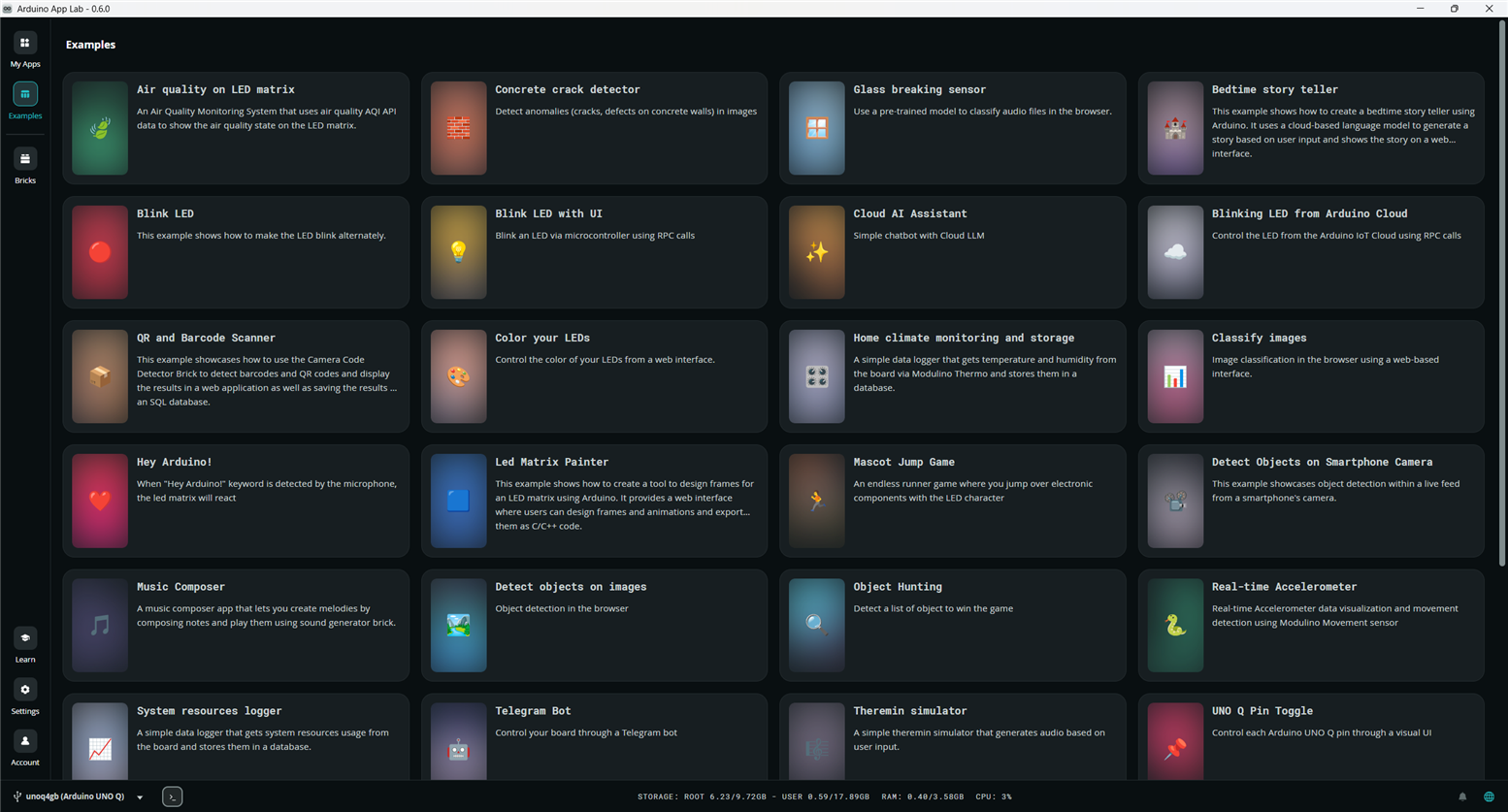
Of course, I ran the customary "Blink LED" and that worked as expected. Then, I ran "Blink LED with UI" which allows controlling the LED using a web browser and that also worked. The next step is to try an app that uses a Modulino module to try out the QWIIC (I2C) interface.
Home climate monitoring app
I decided to use the Home Climate app that uses the Modulino Thermo module to measure temperature and humidity data which it stores and streams to a web interface.
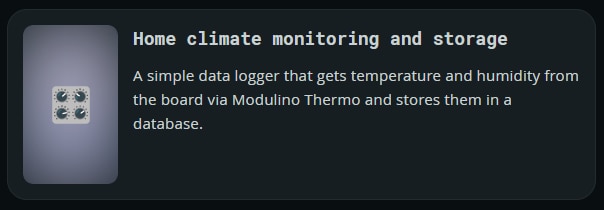
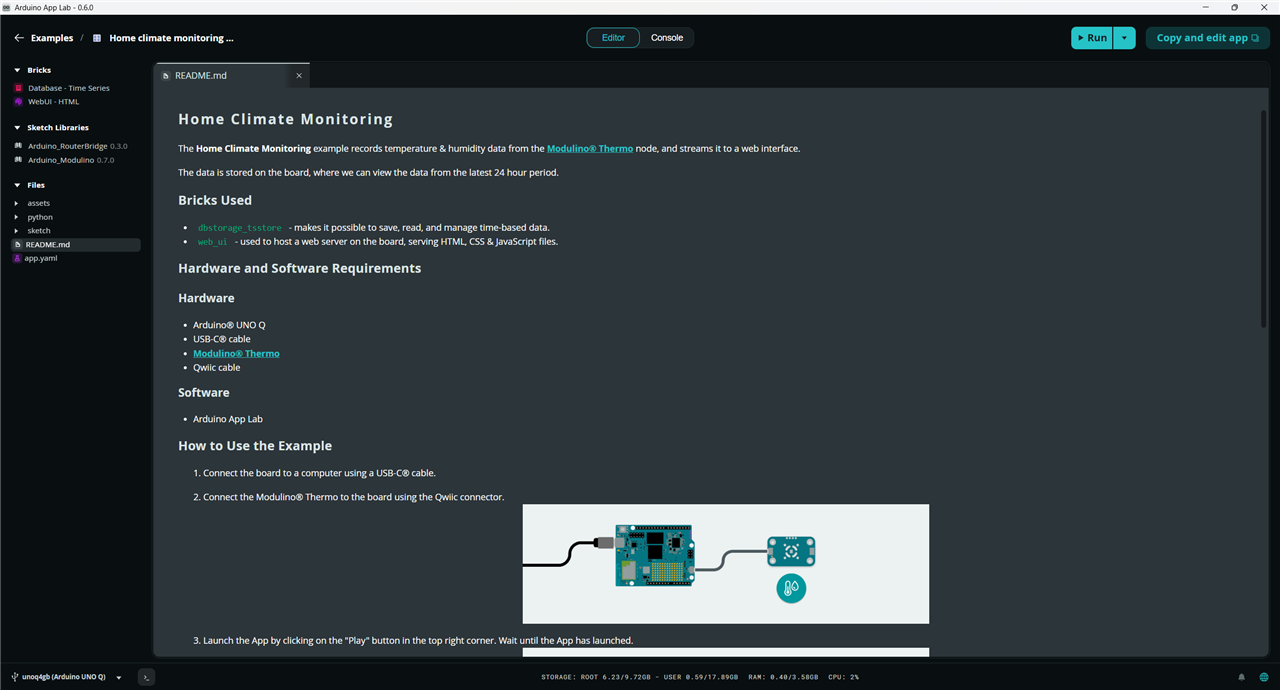
When I tried running this app it had a linking failure during compilation.
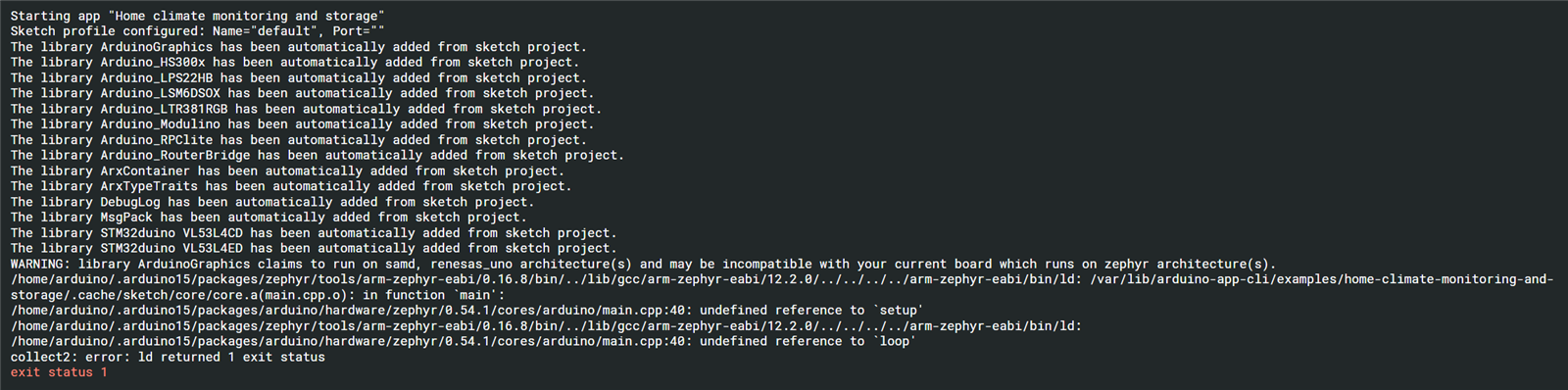
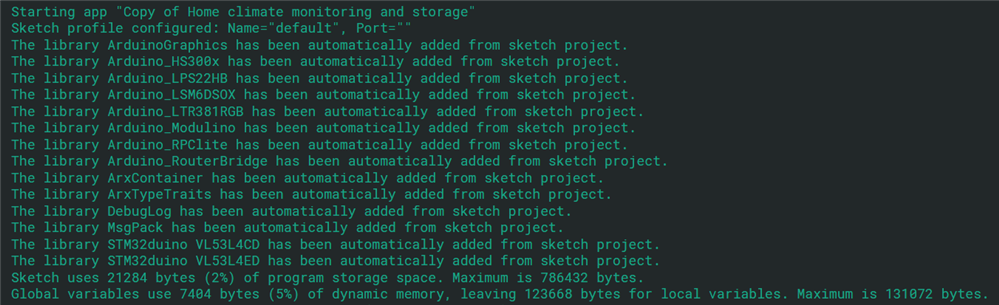
It is something related to Zephyr. One of the changes to the Arduino IDE used for AppLab is the replacement of the Mbed hardware libraries with Zephyr due to the end of Mbed support. I'm not completely sure what this error is, but an AI query suggested that for certain hardware uses Zephyr needed to recompile and it did not have permissions to update the sketch directory because examples are read only. I created a copy of the app which allows me to modify it and it worked without modifying the sketch source code.
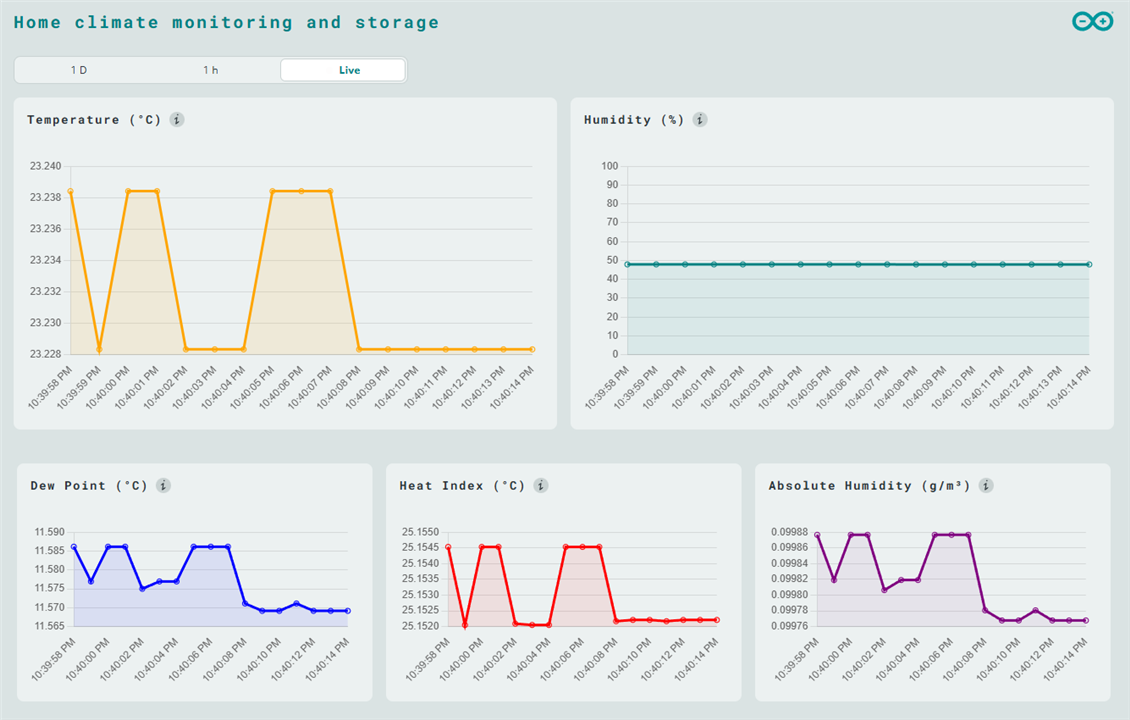
The app uses the WebUI Brick to publish data to a web browser to display the data. The browser URL is unoq_ipaddr:7000.
Home climate monitoring app with proximity detection
I have an Arduino Plug and Make Kit which includes an Arduino Uno R4 WiFi board with 7 Modulino modules and an aluminum baseplate.
- Modulino® Knob: for super-fine value adjustments
- Modulino® Pixels: eight LEDs to shine bright, dim down, or change color – you choose!
- Modulino® Distance: a time-of-flight proximity sensor to measure distances with precision
- Modulino® Movement: to perfectly capture movements like pitch, roll or tilt
- Modulino® Buzzer: to generate your own alarm sounds or simple tunes
- Modulino® Thermo: a sensor for both temperature and humidity data
- Modulino® Buttons: three buttons for quick project navigation
I modified my Uno Q case so that I could attach it to the kit baseplate in place of the Uno R4. I decided to modify the Home climate monitoring app to display the temperature on the Uno Q LED matrix. I will use proximity detection to only display data when a person is detected within 500mm. So in addition to the Thermo, I will need to add a Distance module. The setup is shown below.

Here is a view of my app file structure. Basically the same as the original app.
- Two Bricks are used
- Database for data storage
- WebUI for the web browser based data display
- Two Sketch Linraries are used
- RouterBridge to enable communication between Linux and the MCU
- Modulino that contains classes for all of the Modulino modules
- Two primary app source files
- Python - main.py
- Sketch - sketch.ino
My new app just modifies the sketch.ino file

main.py
# SPDX-FileCopyrightText: Copyright (C) ARDUINO SRL (http://www.arduino.cc)
#
# SPDX-License-Identifier: MPL-2.0

import datetime
import math
from arduino.app_bricks.dbstorage_tsstore import TimeSeriesStore
from arduino.app_bricks.web_ui import WebUI
from arduino.app_utils import App, Bridge

db = TimeSeriesStore()

def on_get_samples(resource: str, start: str, aggr_window: str):
    samples = db.read_samples(measure=resource, start_from=start, aggr_window=aggr_window, aggr_func="mean", limit=100)
    return [{"ts": s[1], "value": s[2]} for s in samples]

ui = WebUI()
ui.expose_api("GET", "/get_samples/{resource}/{start}/{aggr_window}", on_get_samples)

def record_sensor_samples(celsius: float, humidity: float):
    """Callback invoked by the board sketch via Bridge.notify to send sensor samples.
    Stores temperature and humidity samples in the time-series DB and forwards them to the Web UI.
    """
    if celsius is None or humidity is None:
        print("Received invalid sensor samples: celsius=%s, humidity=%s" % (celsius, humidity))
        return

    ts = int(datetime.datetime.now().timestamp() * 1000)
    # Write samples to time-series DB
    db.write_sample("temperature", float(celsius), ts)
    db.write_sample("humidity", float(humidity), ts)

    # Push realtime updates to the UI
    ui.send_message('temperature', {"value": float(celsius), "ts": ts})
    ui.send_message('humidity', {"value": float(humidity), "ts": ts})

    # --- Derived metrics ---
    T = float(celsius)
    RH = float(humidity)

    # Dew point (Magnus formula) - compute only when RH > 0 to avoid math.log(0)
    a = 17.27
    b = 237.7
    dew_point = None
    if RH > 0.0:
        # clamp RH into (0,100] and avoid exact zero
        rh_frac = max(min(RH, 100.0), 1e-6)
        gamma = (a * T) / (b + T) + math.log(rh_frac / 100.0)
        dew_point = (b * gamma) / (a - gamma)

    # Heat Index (using Rothfusz regression). Convert to Fahrenheit and back to Celsius.
    T_f = T * 9.0 / 5.0 + 32.0
    R = max(min(RH, 100.0), 0.0)
    HI_f = (-42.379 + 2.04901523 * T_f + 10.14333127 * R - 0.22475541 * T_f * R
            - 0.00683783 * T_f * T_f - 0.05481717 * R * R
            + 0.00122874 * T_f * T_f * R + 0.00085282 * T_f * R * R
            - 0.00000199 * T_f * T_f * R * R)
    heat_index = (HI_f - 32.0) * 5.0 / 9.0

    # Absolute humidity (g/m^3)
    absolute_humidity = None
    if RH is not None and RH >= 0.0:
        es = 6.112 * math.exp((17.67 * T) / (T + 243.5))
        absolute_humidity = es * (R / 100.0) * 2.1674 / (273.15 + T)


    # Store and forward derived metrics if computed
    if dew_point is not None:
        db.write_sample("dew_point", float(dew_point), ts)
        ui.send_message('dew_point', {"value": float(dew_point), "ts": ts})
    if heat_index is not None:
        db.write_sample("heat_index", float(heat_index), ts)
        ui.send_message('heat_index', {"value": float(heat_index), "ts": ts})
    if absolute_humidity is not None:
        db.write_sample("absolute_humidity", float(absolute_humidity), ts)
        ui.send_message('absolute_humidity', {"value": float(absolute_humidity), "ts": ts})

print("Registering 'record_sensor_samples' callback.")
Bridge.provide("record_sensor_samples", record_sensor_samples)

print("Starting App...")
App.run()
sketch.ino
// SPDX-FileCopyrightText: Copyright (C) ARDUINO SRL (http://www.arduino.cc)
//
// SPDX-License-Identifier: MPL-2.0

#include <Arduino_Modulino.h>
#include <Arduino_RouterBridge.h>
#include "Arduino_LED_Matrix.h"

ArduinoLEDMatrix matrix;

// Create object instance
ModulinoThermo thermo;
ModulinoDistance distance;

unsigned long previousMillis = 0; 	// Stores last time values were updated
const long interval = 1000; 		//Every second

void setup() {
  Bridge.begin();
  matrix.begin();
  Monitor.begin(9600);

  // Initialize Modulino I2C communication
  Modulino.begin(Wire1);
  // Detect and connect to temperature/humidity sensor module
  thermo.begin();
  distance.begin();
}

void loop() {
  unsigned long currentMillis = millis(); // Get the current time
  if (currentMillis - previousMillis >= interval) {
    // Save the last time you updated the values
    previousMillis = currentMillis;


      if (distance.available()) {
        // 1. Force a measurement update
        int currentDistance = distance.get(); // Get distance in mm

        Monitor.print("Distance: ");
        Monitor.print(currentDistance);
        Monitor.println(" mm");

        // 2. Check your specific 500mm condition
        if (currentDistance < 500) {
            // Read temperature in Celsius from the sensor
            float celsius = thermo.getTemperature();
            Monitor.print("Temperature: ");
            Monitor.print(celsius);
            Monitor.println(" C");

            // Read humidity percentage from the sensor
            float humidity = thermo.getHumidity();
            Monitor.print("Humidity: ");
            Monitor.print(humidity);
            Monitor.println(" %");

            Bridge.notify("record_sensor_samples", celsius, humidity);

          // Clear and draw the temperature
            matrix.beginDraw();
            matrix.stroke(0xFFFFFFFF);
            matrix.textFont(Font_5x7);
            matrix.beginText(0, 1, 0xFFFFFFFF);
            matrix.print((int)celsius); // Cast to int to save space on the small matrix
            matrix.print("C");
            matrix.endText();
            matrix.endDraw();

        } else {
            matrix.clear(); // Turn off the matrix if no one is there
        }
        delay(200);
      } else {
          matrix.clear(); // Turn off the matrix if no one is there
          // This will still print even if the sensor sees "nothing"
          Monitor.println("Out of range.");
      }
  }
}
A quick demo of the app.
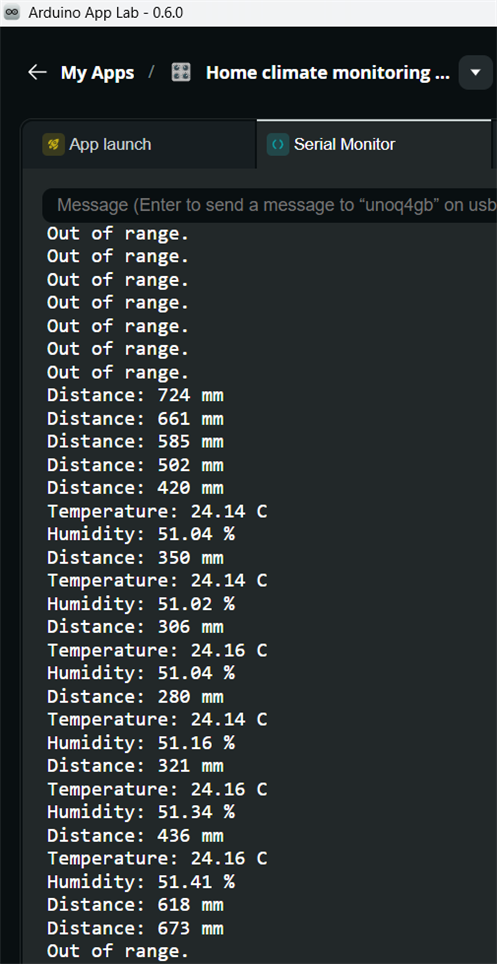
A Serial Monitor output shows the result of my approaching from beyond 2m (Out of range)
Then temperature and humidity data starts logging when I am within 500mm and stops when I am beyond it.
Video showing the same sequence on the Uno Q LED Matrix (displays temperature only within 500mm).
A quick video to get a sense of the time for the app to start from press of the "Run" button and time to stop from the press of the "Stop" button.
The text color switches from white to green when the action is complete.
That's all I wanted to show in this post. When the USB-C hub and power supply arrive, I'll try some more power-intensive applications like running AI and video streaming over WiFi.
Top Comments