


Now that I've got two different ways to attach USB peripherals (hub and OTG adapter) to the Uno Q, I decided to try out a couple of audio apps with a USB speaker.
First I used the Sound Generator Brick to create some music. This has the feel of sound generation that I used to do with the original Uno using frequency and duration to produce music. Of course, this is much more sophisticated and can use different waveforms plus produce sounds algorithmically (synthesis). And I get to use a USB speaker  .
.
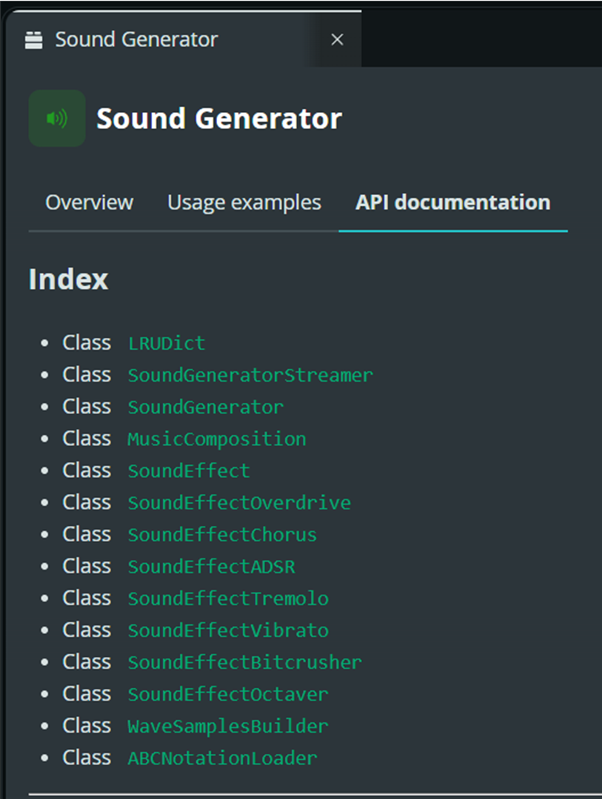
Sound Generator Fur Elise example
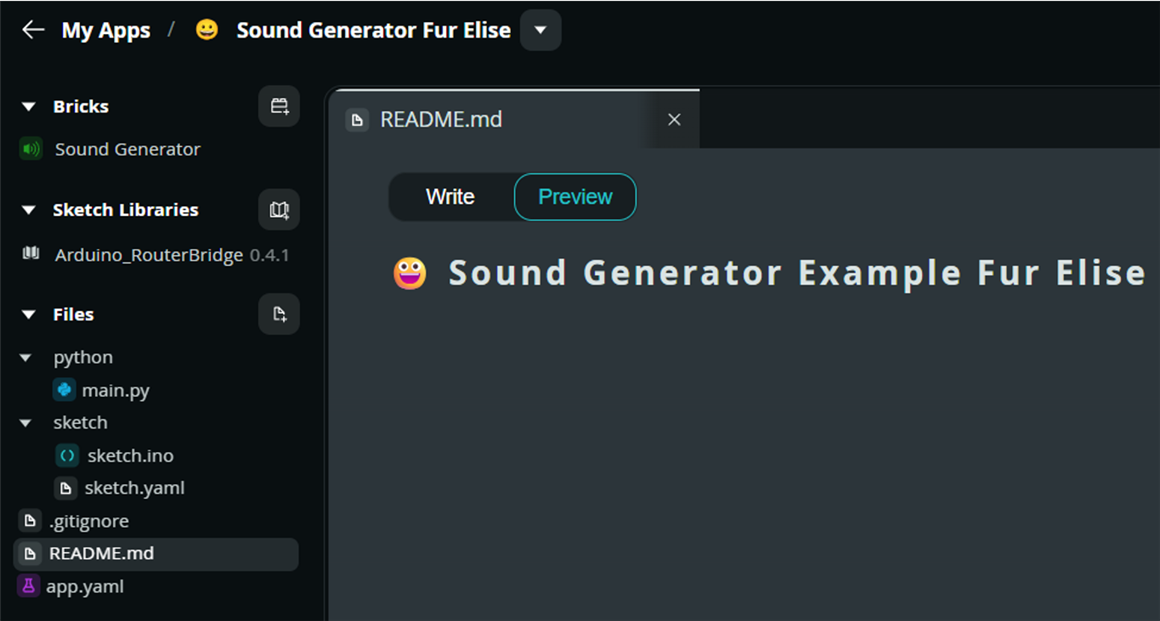
The Brick overview has the tone data for Beethoven's Fur Elise, so I'll just play that.
fur_elise = [
("E5", 1/4), ("D#5", 1/4), ("E5", 1/4), ("D#5", 1/4), ("E5", 1/4),
("B4", 1/4), ("D5", 1/4), ("C5", 1/4), ("A4", 1/2),
("C4", 1/4), ("E4", 1/4), ("A4", 1/4), ("B4", 1/2),
("E4", 1/4), ("G#4", 1/4), ("B4", 1/4), ("C5", 1/2),
("E4", 1/4), ("E5", 1/4), ("D#5", 1/4), ("E5", 1/4), ("D#5", 1/4), ("E5", 1/4),
("B4", 1/4), ("D5", 1/4), ("C5", 1/4), ("A4", 1/2),
("C4", 1/4), ("E4", 1/4), ("A4", 1/4), ("B4", 1/2),
("E4", 1/4), ("C5", 1/4), ("B4", 1/4), ("A4", 1.0),
]
I decided that it would be nice to add something to display on the LED matrix while the music was playing.
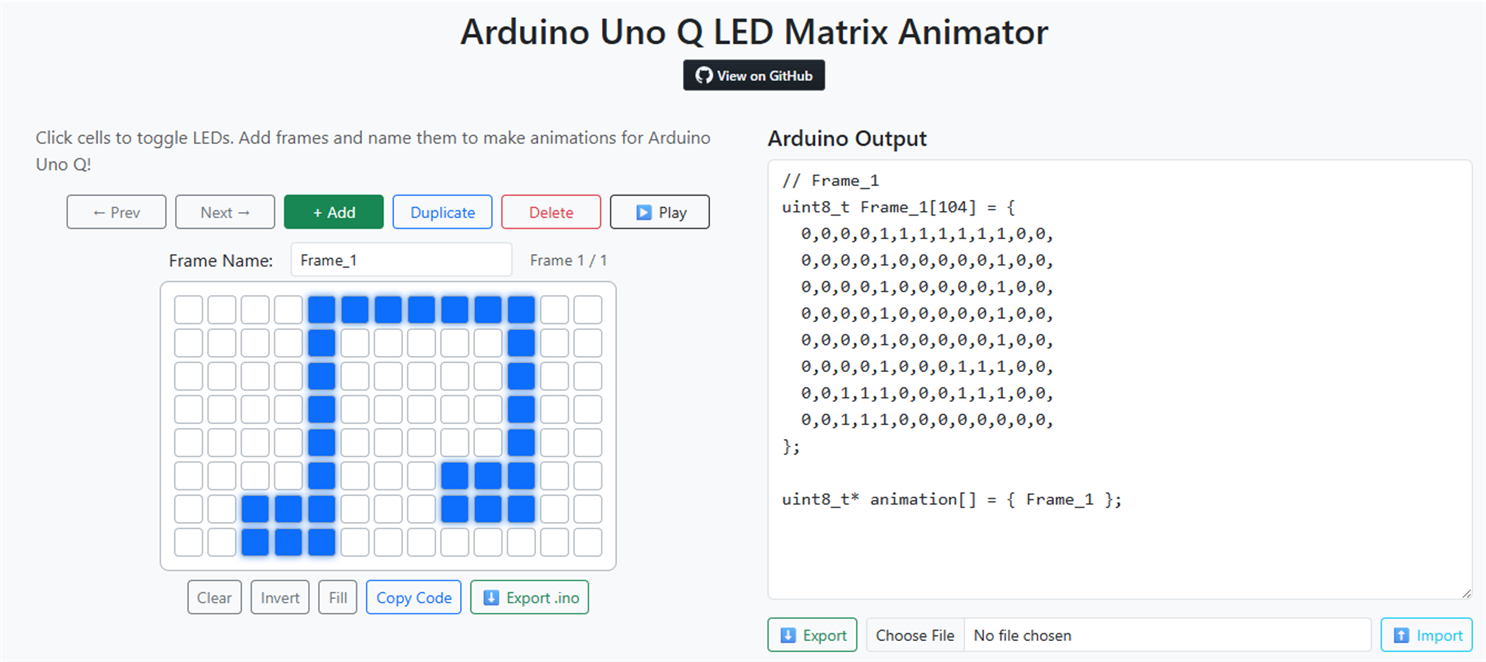
The Uno Q has 13x8 matrix rather than the the 12x8 matrix used on the Uno R4, so I needed to use the Arduino Uno Q LED Matrix Animator. I created the image of a note and exported it to a json file. I am using only a single image rather than an animation. I needed to create a left justified array of 4 uint32_t integers to represent the 104 matrix bits (13x8) for the sketch. The last integer is padded with zeroes in the 3 least significant bytes.
The python program controls the sound generation and playback over the USB speaker and the handshake for the LED matrix
main.py
from arduino.app_bricks.sound_generator import SoundGenerator, SoundEffect
from arduino.app_utils import *
import time

# Use 'master_volume' instead of 'volume'
player = SoundGenerator(master_volume=0.01, sound_effects=[SoundEffect.adsr()])

fur_elise = [
    ("E5", 1/4), ("D#5", 1/4), ("E5", 1/4), ("D#5", 1/4), ("E5", 1/4),
    ("B4", 1/4), ("D5", 1/4),  ("C5", 1/4),  ("A4", 1/2),

    ("C4", 1/4), ("E4", 1/4),  ("A4", 1/4),  ("B4", 1/2),
    ("E4", 1/4), ("G#4", 1/4), ("B4", 1/4),  ("C5", 1/2),

    ("E4", 1/4), ("E5", 1/4),  ("D#5", 1/4), ("E5", 1/4), ("D#5", 1/4), ("E5", 1/4),
    ("B4", 1/4), ("D5", 1/4),  ("C5", 1/4),  ("A4", 1/2),

    ("C4", 1/4), ("E4", 1/4),  ("A4", 1/4),  ("B4", 1/2),
    ("E4", 1/4), ("C5", 1/4),  ("B4", 1/4),  ("A4", 1.0),
]

# Start an infinite loop
while True:
    for i, (note, duration) in enumerate(fur_elise):
        # Toggle between frame 0 and frame 1
        frame_to_show = i % 2

        # This calls the C++ setFrame function
        Bridge.call("setFrame", frame_to_show)

        player.play(note, duration)

    time.sleep(1)

App.run()
The sketch just controls the matrix.
sketch.ino
#include "Arduino_LED_Matrix.h"
#include "Arduino_RouterBridge.h"

Arduino_LED_Matrix matrix;

// Define a "Musical Note" frame (13x8)
const uint32_t frameA[] = { 0xfe04102, 0x8104082, 0x470e387, 0x0 };

// Define a "Bar" frame
const uint32_t frameB[] = { 0x0, 0x0, 0x0, 0x0 };

void setFrame(int frameId) {
    if (frameId == 0) {
        matrix.loadFrame(frameA);
    } else {
        matrix.loadFrame(frameB);
    }
}

void setup() {
    matrix.begin();
    Bridge.begin();
    // Register the function so Python can call it
    Bridge.provide("setFrame", setFrame);
}

void loop() {
    // Bridge processes requests here
}
I did a quick check to see what USB devices were seen:
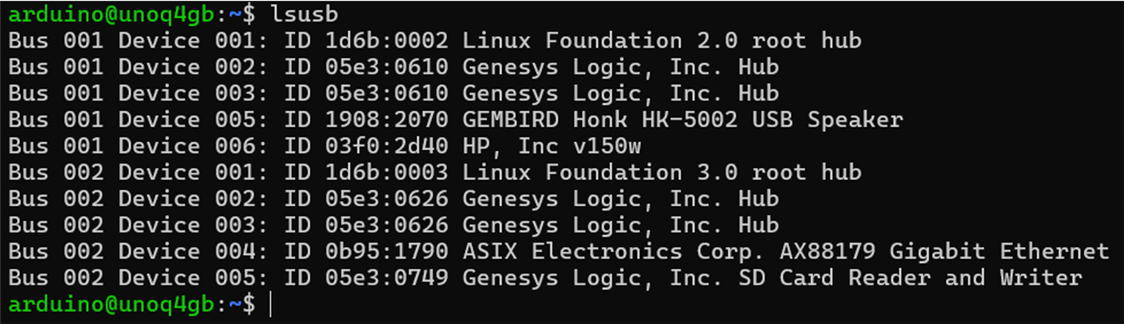
It sees the hub, hub Ethernet and SD card interfaces, and the USB speaker as Device 005 and the USB drive as Device 006. I will be using the drive in the next mp3 player app.
And that the audio player could ID the speaker:

And a quick video:
mp3 player
Next I thought it would be useful to create an mp3-player app that would play music stored on the USB drive. This turned out be be a lot more challenging than I expected. This seems like it would be a simple task with a Linux OS, but the difficulty arises with implementing it in the AppLab environment. Apps in AppLab are created in a sandboxed environment that is implemented using Docker containers. I didn't initially grasp the all the ramifications of this and I did what I usually do and created a global mount point for the USB drive. Linux could see the drive which is an HP 150 32GB drive that I use to store a single MP3 file borrowed from a previous project. It was found as Bus 001 Device 006 in the previous USB scan. It is drive /dev/sda with partition /dev/sda1.
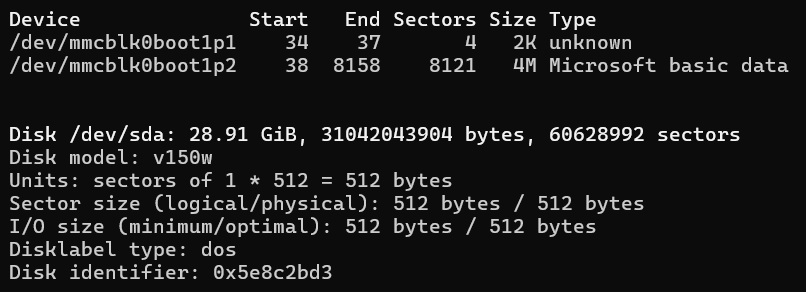
So, I mounted the partition on directory /mnt/usb and set access permissions for the user (arduino). And it is initially empty except for a directory that HP puts on there by default.

I used WinSCP to transfer the Christmas mp3 file from my host PC.
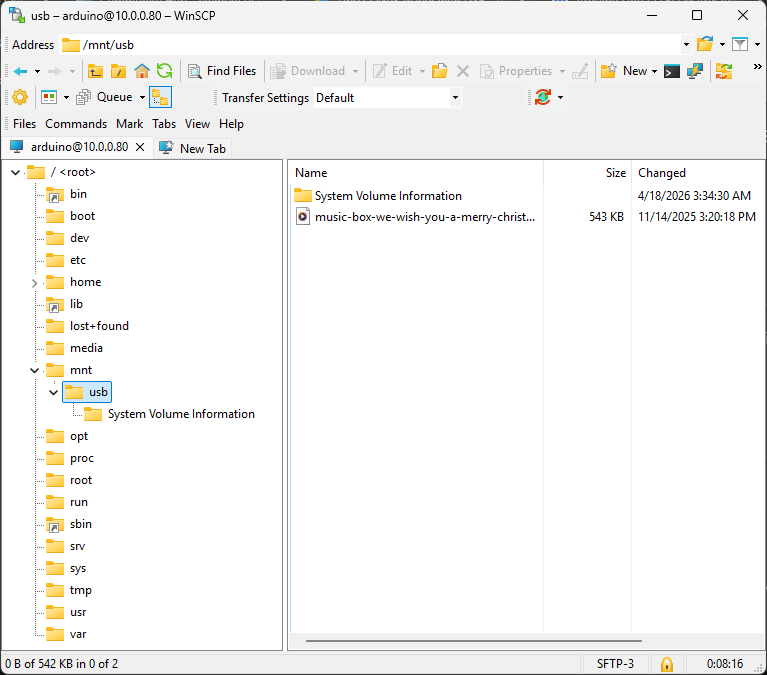

So, I thought all was good and proceeded to install a lightweight MP3 player, mpg123.


Good news and bad news about a sandboxed environment
It's been a while since I've worked in a sandboxed environment, so I thought that I had done what was required to run my app. I referenced the file I wanted to play as being located in the "/mnt/usb/" directory and called the system subprocess "mpg123" to play it.
Quick test
import subprocess
import os

# Point to your mounted USB path
MUSIC_PATH = "/mnt/usb"

def play_song(filename):
    full_path = os.path.join(MUSIC_PATH, filename)
    # '-a hw:1,0' specifies the USB speaker (Card 1, Device 0)
    # '--quiet' keeps the logs clean
    process = subprocess.Popen(["mpg123", "-a", "hw:1,0", "--quiet", full_path])
    return process

# Simple test: Play the first mp3 found
files = [f for f in os.listdir(MUSIC_PATH) if f.endswith('.mp3')]
if files:
    print(f"Now playing: {files[0]}")
    player = play_song(files[0])
else:
    print("No MP3 files found on the drive.")
The program did not run in the AppLab environment because it could not find /mnt/usb or mpg123. This is a feature of a sandboxed environment that I hadn't considered. The sandbox is created to isolate the app from the host Linux environment so that a misbehaving app cannot crash the system. One of the ways that it does this by restricting file and process access to within the sandbox, so it could not access either of these elements that I had created in the system environment.
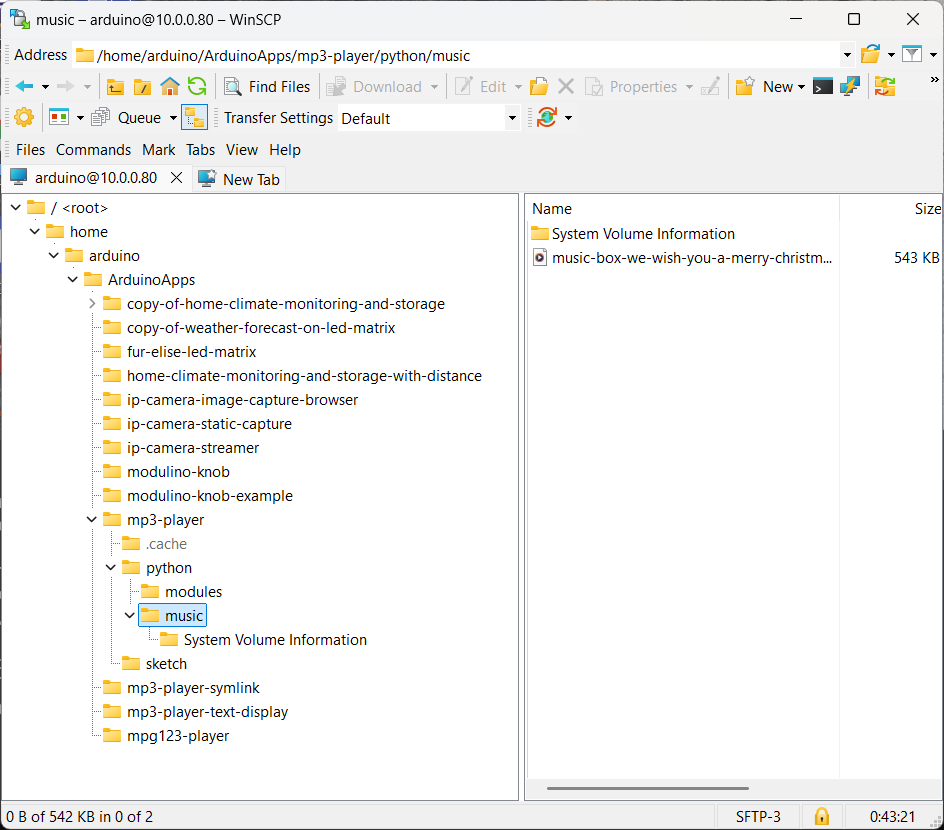
What is somewhat confusing is that the system can see and access the app file structure. You can see the files in the mp3-player app in the WinSCP window. There are probably many ways to solve the file problem. One way is to create a directory in the app file structure (music in this case) and just copy files from the /mnt/usb. Or you can mount the USB drive directly to the music directory. I've tried both and they both work (python code stays the same) One thing that does not work in the sandbox is a symlink to /mnt/usb. Depending on your development requirements you might try other solutions.
To solve the process/program problem I needed to install mpg123 in the sandbox python environment since it isn't installed by default. The only way to currently install python programs in AppLab is to use requirements.txt This requires that a package wheel is available for the program that you want to install. It turns out that there is not a wheel currently available for python 3.13.5 which is installed in AppLab. And there is currently not the capability to build a binary from source (lots of tools missing). So, I ended up searching for a different MP3 player and decided on pygame which is a bit more capable and resource heavy than mpg123.
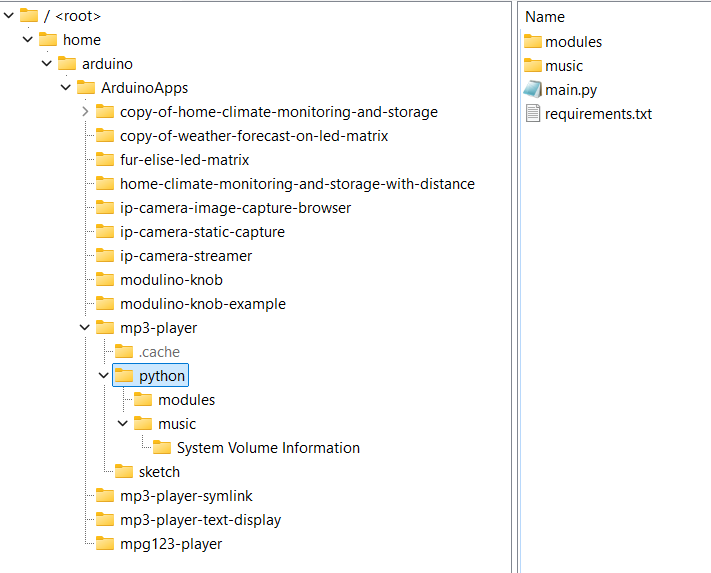

With these changes the app worked.
Volume control
Since I have a Modulino Knob, I decided to add volume control and display the volume level on the LED matrix. I initially intended to display the level as a "VU" meter style bar graph, but the 13 "pixel" horizontal resolution of the matrix is too coarse so I ended up just displaying the volume level as 0-100% in text.
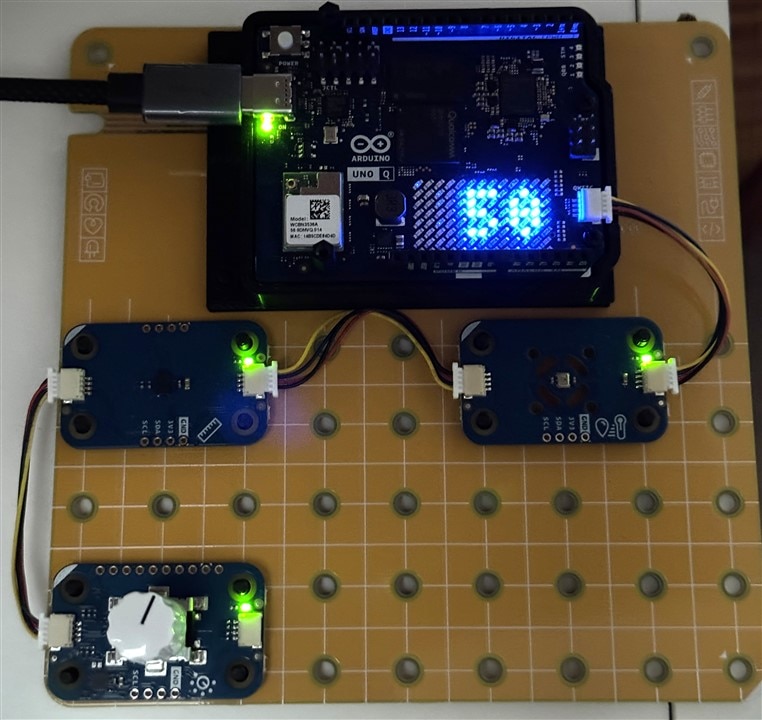
This post has been way too long, so I'll just include the code and the demo video.
sketch.ino
#include <Arduino_Modulino.h>
#include <Arduino_LED_Matrix.h>
#include <Arduino_RouterBridge.h>

ModulinoKnob knob;
ArduinoLEDMatrix matrix;
int lastVolume = -1;

void setup() {
  Bridge.begin();
  Monitor.begin();
  Modulino.begin(Wire1);
  knob.begin();
  matrix.begin();
  knob.set(50);
}

void loop() {
  int vol = knob.get();
  if (vol > 100) { vol = 100; knob.set(100); }
  else if (vol < 0) { vol = 0; knob.set(0); }

  if (vol != lastVolume) {
    Monitor.print("VOL:");
    Monitor.println(vol);
    Bridge.notify("volume", vol);

    matrix.beginDraw();
    matrix.clear(); // This is the fix for the "ghost digits"
    matrix.stroke(0xFFFFFFFF);
    matrix.textFont(Font_4x6);
    //matrix.beginText(0, 1, 0xFFFFFFFF);
    //matrix.print("V");
    // Small adjustment for positioning
    // If it's a single digit, move it right so it's centered
    if (vol < 10) {
      matrix.beginText(9, 1, 0xFFFFFFFF);
    } else if (vol < 100) {
      matrix.beginText(5, 1, 0xFFFFFFFF);
    } else {
      matrix.beginText(1, 1, 0xFFFFFFFF);
    }
    matrix.print(vol);
    matrix.endText();
    matrix.endDraw();


    lastVolume = vol;
  }
  delay(50);
}
main.py
import os
import time
import pygame
from arduino.app_utils import App, Bridge

pygame.mixer.init()
current_dir = os.path.dirname(os.path.abspath(__file__))
MUSIC_PATH = os.path.join(current_dir, "music")

# 1. This function only handles the volume updates
def update_volume(vol_data):
    try:
        new_vol = float(vol_data) / 100.0
        pygame.mixer.music.set_volume(new_vol)
        print(f"Volume updated to: {vol_data}")
    except Exception as e:
        print(f"Volume error: {e}")

# 2. This function starts the song and returns immediately
def start_playback():
    songs = [f for f in os.listdir(MUSIC_PATH) if f.endswith('.mp3')]
    if not songs:
        print("No music found!")
        return

    pygame.mixer.music.load(os.path.join(MUSIC_PATH, songs[0]))
    pygame.mixer.music.play(-1) # -1 means loop forever
    print(f"Playing: {songs[0]}")

# Register the volume callback
# Every time the MCU calls Bridge.notify("volume", val), this runs
print("Registering 'volume' callback.")
Bridge.provide("volume", update_volume)

# Start the music
start_playback()

print("Starting App Service...")
# App.run() keeps the script alive and listens for Bridge events
App.run()
Top Comments