element14 Community
element14 Community
    Register Log In
  • Site
  • Search
  • Log In Register
  • Community Hub
    Community Hub
    • What's New on element14
    • Feedback and Support
    • Benefits of Membership
    • Personal Blogs
    • Members Area
    • Achievement Levels
  • Learn
    Learn
    • Ask an Expert
    • eBooks
    • element14 presents
    • Learning Center
    • Tech Spotlight
    • STEM Academy
    • Webinars, Training and Events
    • Learning Groups
  • Technologies
    Technologies
    • 3D Printing
    • FPGA
    • Industrial Automation
    • Internet of Things
    • Power & Energy
    • Sensors
    • Technology Groups
  • Challenges & Projects
    Challenges & Projects
    • Design Challenges
    • element14 presents Projects
    • Project14
    • Arduino Projects
    • Raspberry Pi Projects
    • Project Groups
  • Products
    Products
    • Arduino
    • Avnet & Tria Boards Community
    • Dev Tools
    • Manufacturers
    • Multicomp Pro
    • Product Groups
    • Raspberry Pi
    • RoadTests & Reviews
  • About Us
    About the element14 Community
  • Store
    Store
    • Visit Your Store
    • Choose another store...
      • Europe
      •  Austria (German)
      •  Belgium (Dutch, French)
      •  Bulgaria (Bulgarian)
      •  Czech Republic (Czech)
      •  Denmark (Danish)
      •  Estonia (Estonian)
      •  Finland (Finnish)
      •  France (French)
      •  Germany (German)
      •  Hungary (Hungarian)
      •  Ireland
      •  Israel
      •  Italy (Italian)
      •  Latvia (Latvian)
      •  
      •  Lithuania (Lithuanian)
      •  Netherlands (Dutch)
      •  Norway (Norwegian)
      •  Poland (Polish)
      •  Portugal (Portuguese)
      •  Romania (Romanian)
      •  Russia (Russian)
      •  Slovakia (Slovak)
      •  Slovenia (Slovenian)
      •  Spain (Spanish)
      •  Sweden (Swedish)
      •  Switzerland(German, French)
      •  Turkey (Turkish)
      •  United Kingdom
      • Asia Pacific
      •  Australia
      •  China
      •  Hong Kong
      •  India
      •  Japan
      •  Korea (Korean)
      •  Malaysia
      •  New Zealand
      •  Philippines
      •  Singapore
      •  Taiwan
      •  Thailand (Thai)
      •  Vietnam
      • Americas
      •  Brazil (Portuguese)
      •  Canada
      •  Mexico (Spanish)
      •  United States
      Can't find the country/region you're looking for? Visit our export site or find a local distributor.
  • Translate
  • Profile
  • Settings
RoadTests & Reviews
  • Products
  • More
RoadTests & Reviews
Review Blogs Preview of the STM32H7B3I-DK -  DISCOVERY KIT
  • Blogs
  • RoadTest Forum
  • Documents
  • RoadTests
  • Reviews
  • Polls
  • Files
  • Members
  • Sub-Groups
  • More
  • Cancel
  • New
Join RoadTests & Reviews to participate - click to join for free!
  • Share
  • More
  • Cancel
  • Author Author: waleedelmughrabi
  • Date Created: 16 Jul 2020 10:55 PM Date Created
  • Views 3184 views
  • Likes 4 likes
  • Comments 11 comments
Related
Recommended
  • gui
  • graphical_user_interface
  • stm32
  • cube ide
  • stm32h7b3i-dk
  • stm32h7b3i-dk - discovery kit*
  • touchgfx

Preview of the STM32H7B3I-DK -  DISCOVERY KIT

waleedelmughrabi
waleedelmughrabi
16 Jul 2020

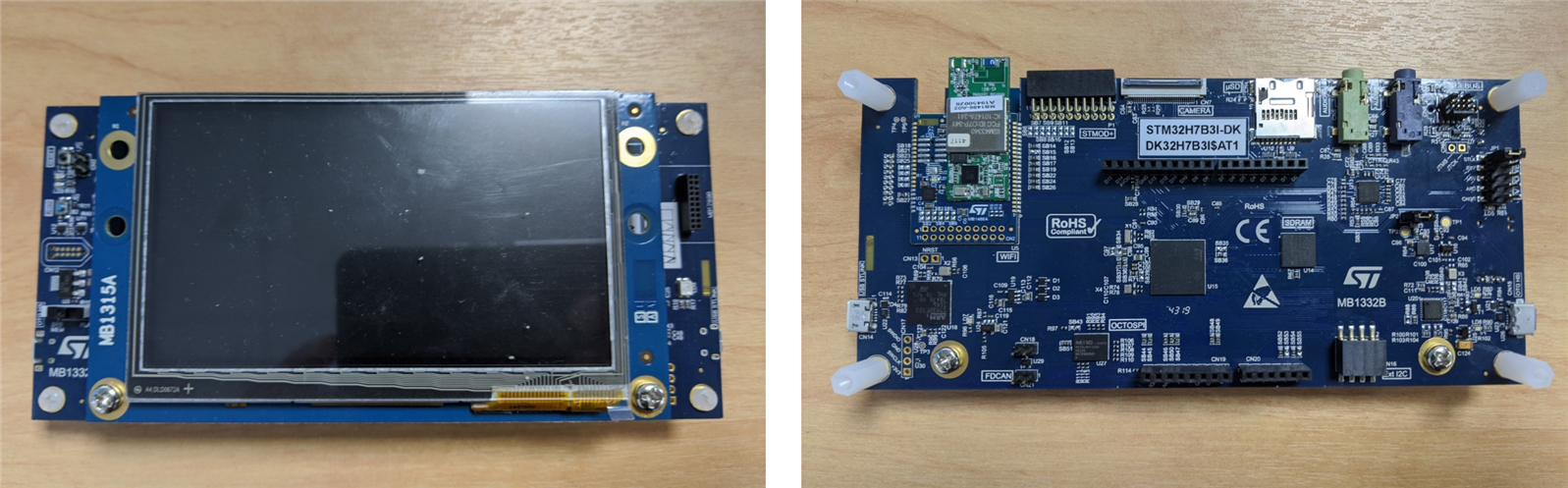
Getting started with the STM32H7B3I-DK

Posted to support the STM32H7B3I-DK -  DISCOVERY KIT roadtest.
image


The following items are recommended by ST to explore and test the various features of the STM32H7B3I-DK:

  • Java 8.241
  • STM32CubeIDE 1.3.0
  • STM32CubeMX 5.6.0
  • STM32CubeProgrammer 2.4.0
  • TouchGFX Designer 4.13.0
  • STM32Cube_FW_H7_V1.7.0
  • X-CUBE-TOUCHGFX


TouchGFX Designer

It is a user friendly software to facilitate creating graphics, especially for touchscreen displays.

It is a modern tool that can help developers create applications with a backwards approach starting from the user interface then back to low level coding.


Application templates

• TouchGFX Designer is based on Application Templates (AT)

• An AT is a complete setup for a given ST development Kit (HAL, Drivers, etc.)

• Once selected the AT is downloaded from a remote server (internet connection)


Tutorial

  • First we need to creating an application template
  • Start TouchGFX Designer
  • Startup screen looks like the following

image

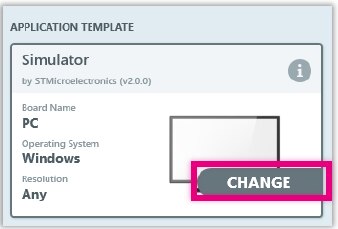
  • Hover the mouse cursor over the Simulator box, a pop up window appears, press "Change"
image

  • Scroll until you find the STM32H7B3I-DK template then select it

image

  • You can also hover the cursor over the "Blank UI box" and choose an exapmle UI, but for this tutorial it will be left as blank.
  • Change the Application name and directory if needed.

image

  • Click on create.
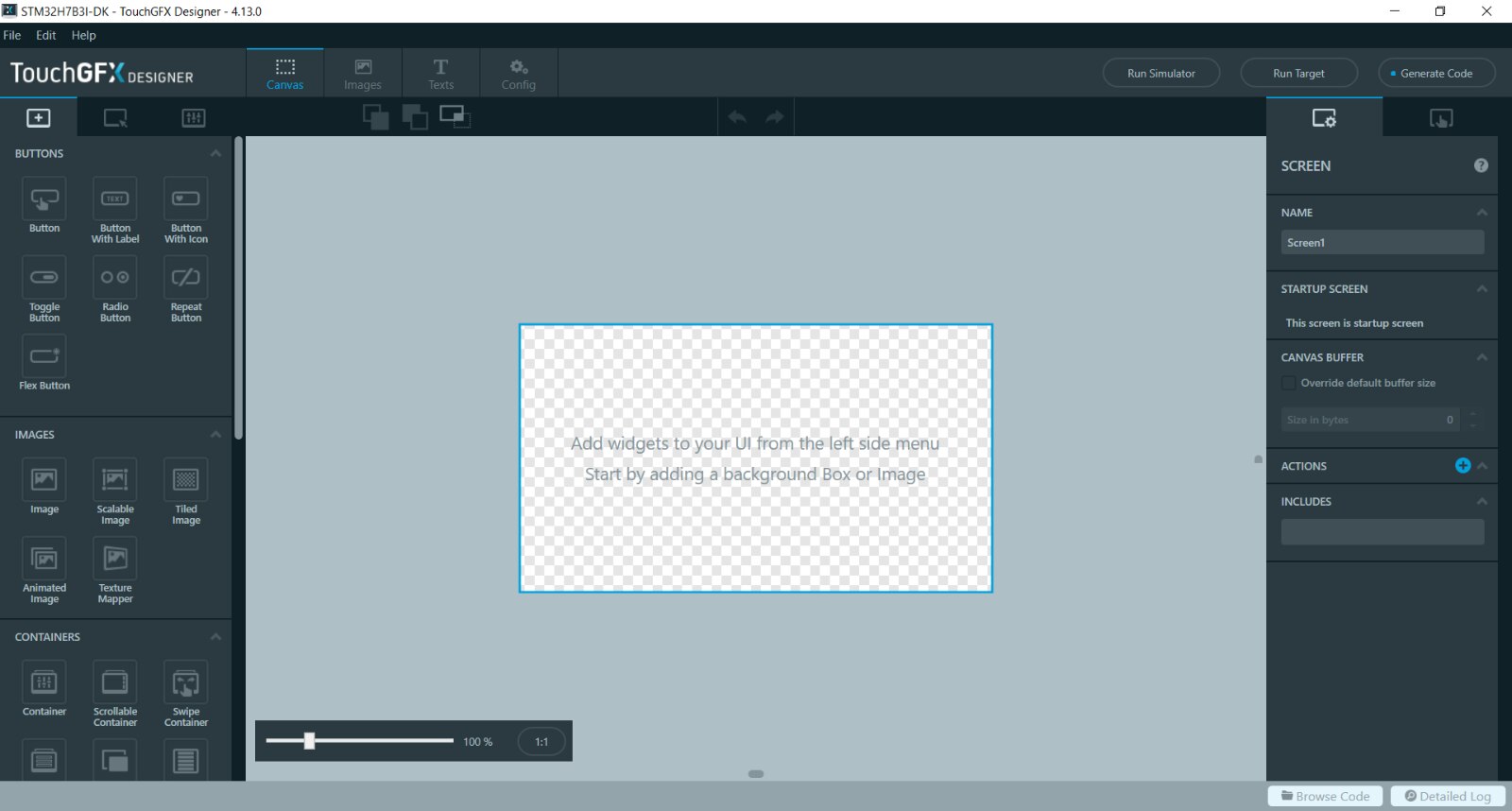
  • Now the template has been created, the designer screen looks like the following:
image

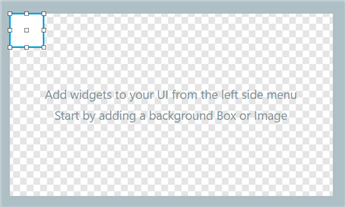
  • To choose a background we will create a box and choose a fill colour for it.
  • The left side menu has various widgets, scroll down to shapes then select the box widget.
  • This will create a box in the corner of the design.
image

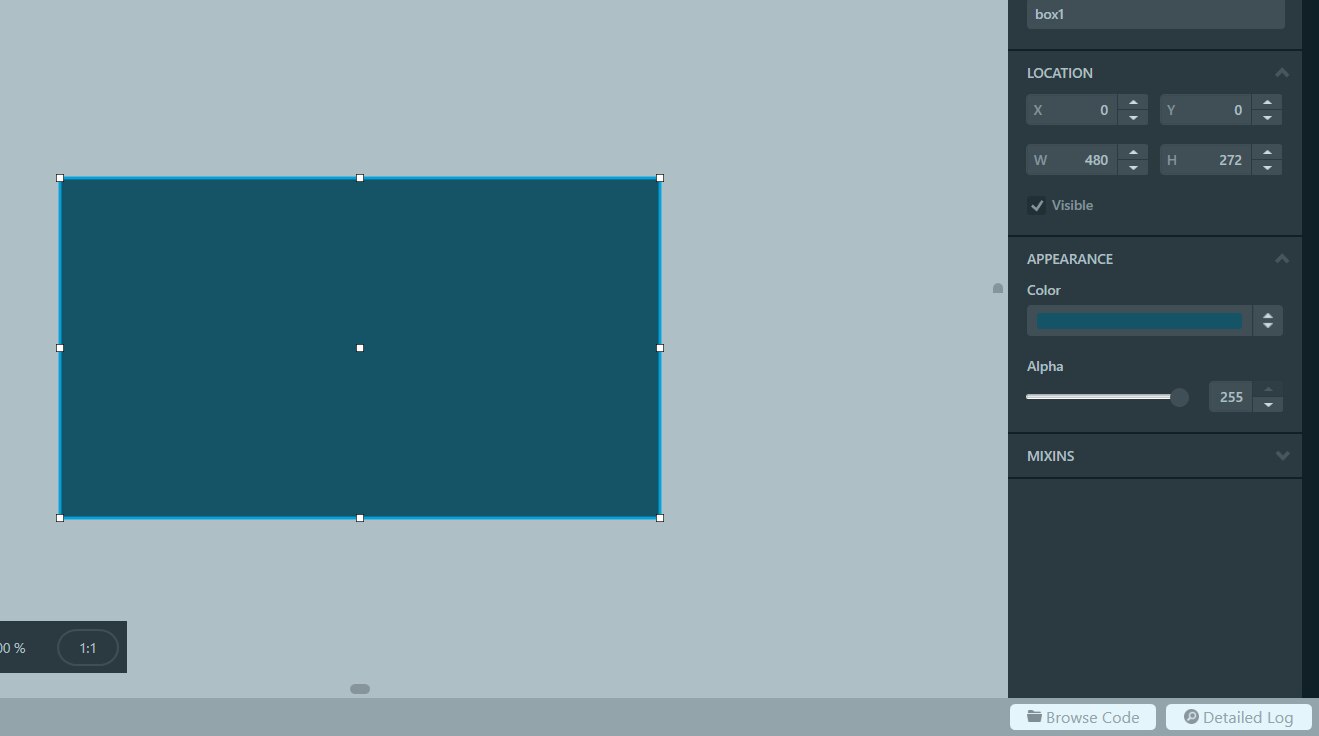
  • Resize the box to cover the screen.
  • Choose a colour from the appearance menu on the right (make sure the box is selected).
image

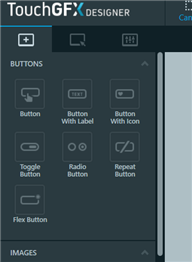
  • Next we will add a button, by going back to the widgets menu
image

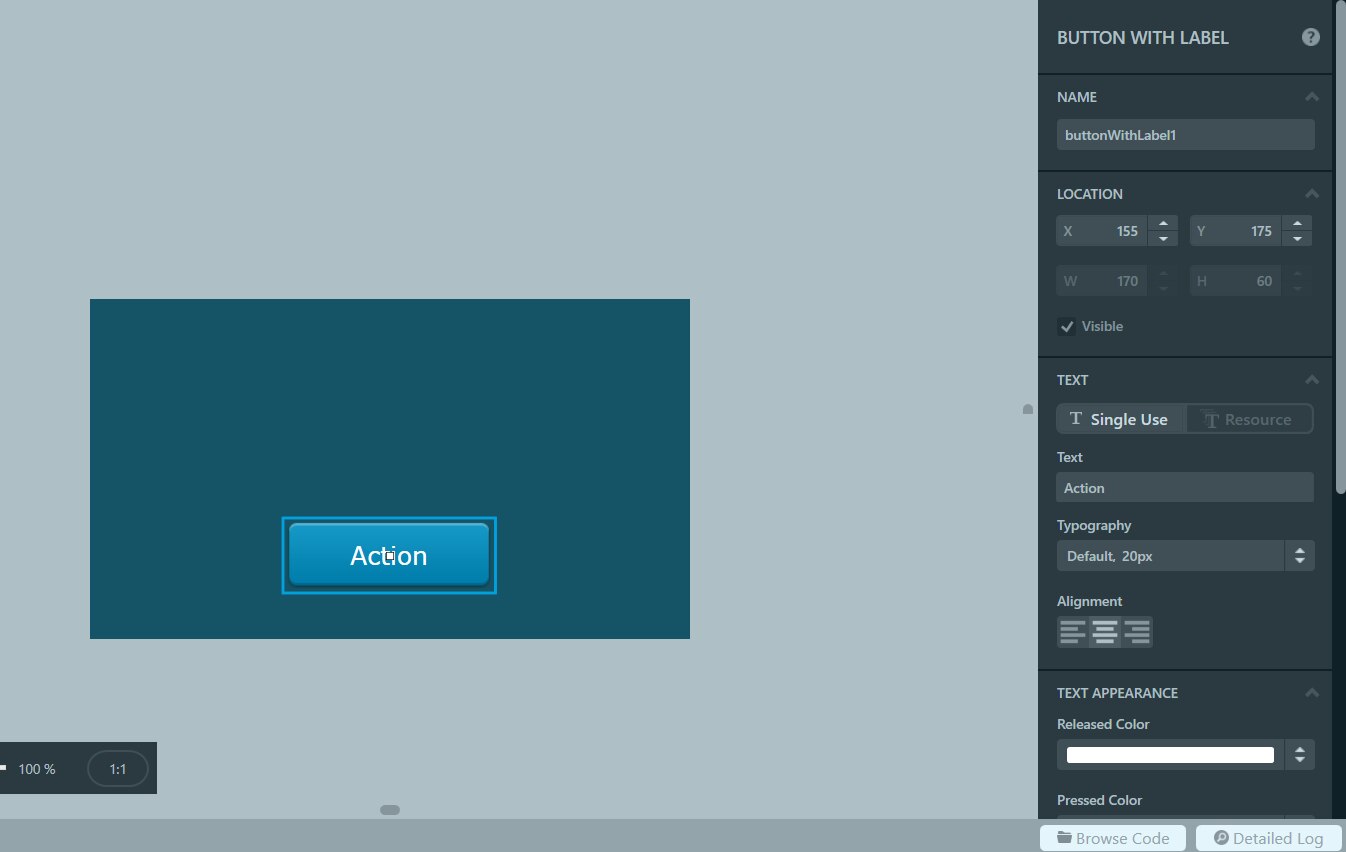
  • The created button can be dragged to desired location.
  • Various options for the button can be set in the menu, change text to "Action"
image

  • Now select a new widget, this time it is the scalable image.
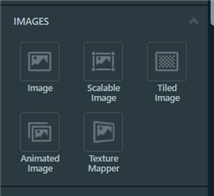
image

  • Once the widget is placed the options menu appear.
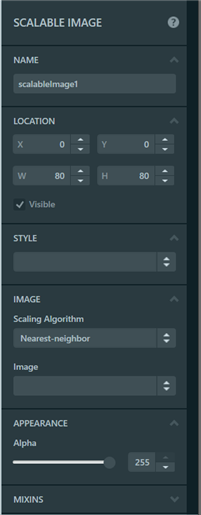
image


  • Click on the image bar to browse for the image you want to use.
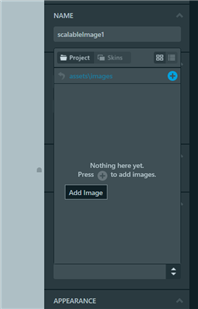
image

  • Once the image was selected, I dragged it to the centre and resized it.
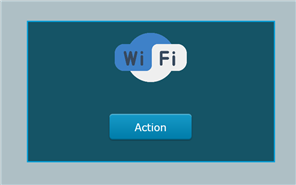
image


  • Now we need to configure the behaviour and functionality of these widgets.
  • This reminds me of designing mobile apps using Xamarin by selecting an action for events.
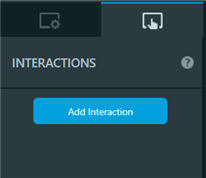
  • In the menu on the right side of the work space we can switch to the interactions tab to add the first interaction.
image


image

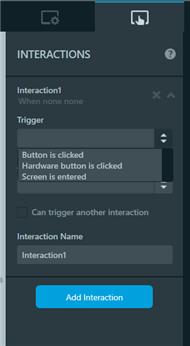
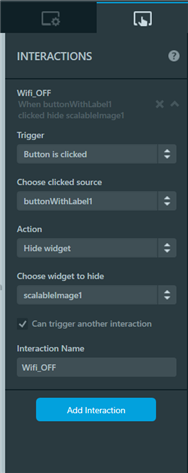
  • We can rename the interaction and choose how it is triggered, by what event, and its functionality.
  • In this example we will only add one interaction, but we can add more if needed, and have interactions trigger eachother.
  • Since it is only one interaction in this example we need to uncheck the option: "Can trigger another action"
image


  • Before generating your code and switching to Cube IDE to test the application on your board, you can run a simulation, by clicking on the word simulation above the workspace.


You don't have permission to edit metadata of this video.
Edit media
x
image
Upload Preview
image


  • Now that we verified that the application works as it should, it is time to test it on the target.
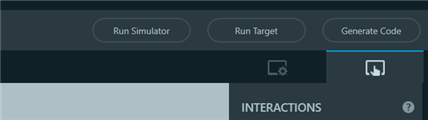
  • We start by clicking on Generate Code.
image


  • Once done the option to browse to the directory where the code was generated becomes available in the lower right corner.

 

image


  • When the folder opens go one folder back, in my case it is C:\TouchGFXProjects\STM32H7B3I-DK-RoadTest
  • click to STM32CubeIDE and open .project in CubeIDE tool
  • Click launch
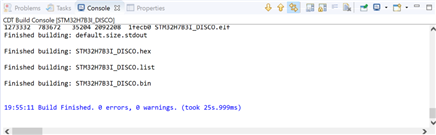
  • Right click on the project and build.
  • Once done the console window should look like the following
image

  • Connect the board using a micro usb cable
  • (the Cube IDE might detect an old ST link firmware, update if necessary)
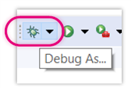
  • Now to configure the debugging configurations.
image

image

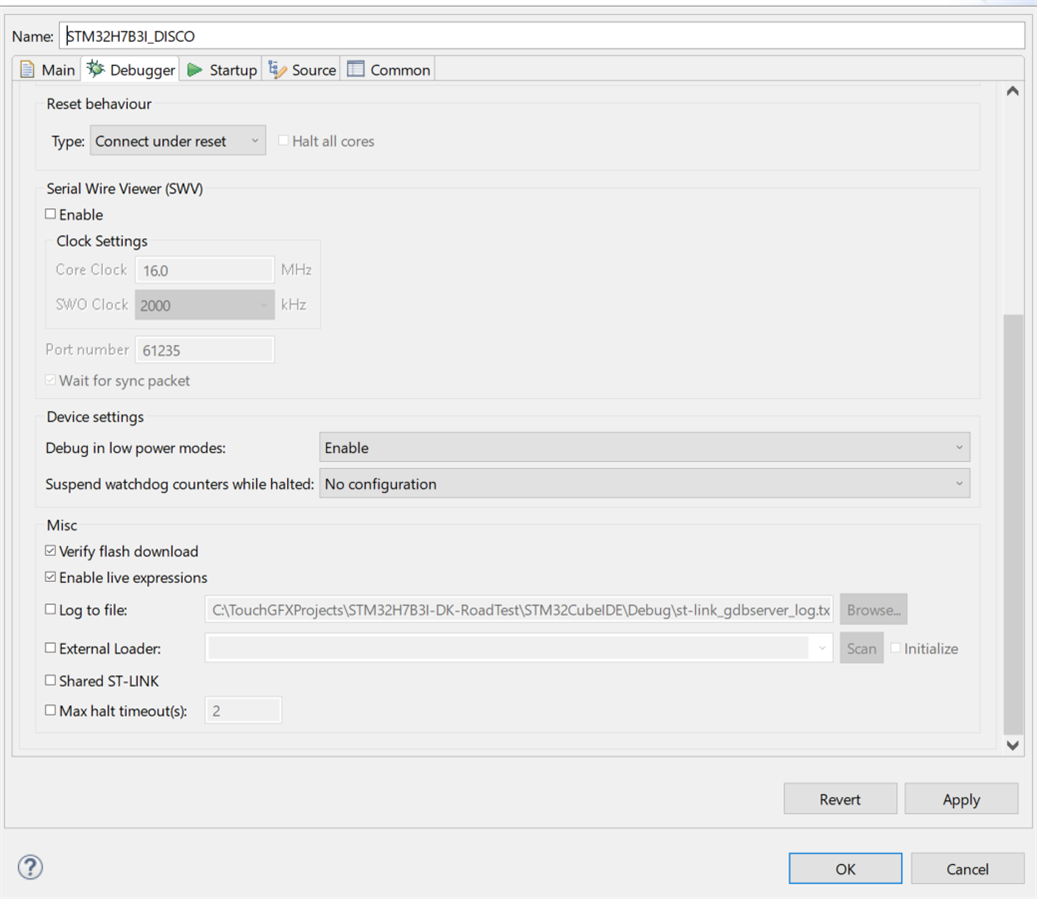
  • Click on the debugger tab.
  • Leave all settings at default values, except for the external loader.
  • Scroll down and tick the external loader box.
image

  • The scan button should be able to find your board automatically, but be careful it will not work for this board, it will select a wrong loader, it needs to be selected manually

image

  • Press OK and start the debug session.
  • The execution will halt at the beginning of the "main" function.
  • Press resume (F8) to run the code.

image

You don't have permission to edit metadata of this video.
Edit media
x
image
Upload Preview
image

  • Sign in to reply

Top Comments

  • waleedelmughrabi
    waleedelmughrabi over 5 years ago in reply to crisv22 +1
    Hi, Sorry I haven't tested WIFI on this board yet however same as other Inventek modules the firmware works with AT commands over UART or SPI not sure which one is the default on this board (either UART2…
  • waleedelmughrabi
    waleedelmughrabi over 5 years ago in reply to crisv22 +1
    Hi Cristian, sorry for my late reply. the B-L475E-IOT01A development board also has an inventek WIFI module, worth using it as a reference. I have tested this board using this example https://os.mbed.com…
  • crisv22
    crisv22 over 5 years ago in reply to waleedelmughrabi

    Hi Friend!!!

    I did not manage to adapt the code as you comment, to create a custom destination, it would be very helpful if you could do it, the board uses the SPI2 to what I read from in the data sheet, you only configure the board with the SPl2.


    you can make an example of it


    thanks ...


    image


    image

    • Cancel
    • Vote Up 0 Vote Down
    • Sign in to reply
    • More
    • Cancel
  • waleedelmughrabi
    waleedelmughrabi over 5 years ago in reply to crisv22

    Hi Cristian, sorry for my late reply. the B-L475E-IOT01A development board also has an inventek WIFI module, worth using it as a reference. I have tested this board using this example https://os.mbed.com/teams/ST/code/DISCO_L475VG_IOT01-wifi_http_server/  and it worked right away. Maybe it's worth porting the drivers to your application to save some time.


    Alternatively, the STM32H7B3I-DK is not supported on MBED by default but creating a custom target is not complicated please see this guide https://os.mbed.com/docs/mbed-os/v6.2/program-setup/adding-and-configuring-targets.html

    once you do you can then simply change the pin mapping and compile the same code of B-L475E-IOT01A to your STM32H7B3I-DK since MBED is cross platform.

    • Cancel
    • Vote Up +1 Vote Down
    • Sign in to reply
    • More
    • Cancel
  • crisv22
    crisv22 over 5 years ago in reply to waleedelmughrabi

    Hello my friend waleed

    To communicate with the wifi module, use the SPI2 of the board but no more, the board does not give me any answer. Any idea how to implement an example ???


    How to send the AT commanders in the SPI communication through the following lines:


    HAL_SPI_TransmitReceive_IT (SPI_HandleTypeDef * hspi, uint8_t * pTxData, uint8_t * pRxData, uint16_t Size)

    HAL_StatusTypeDef HAL_SPI_Transmit_IT (SPI_HandleTypeDef * hspi, uint8_t * pData, uint16_t Size)

    • Cancel
    • Vote Up 0 Vote Down
    • Sign in to reply
    • More
    • Cancel
  • crisv22
    crisv22 over 5 years ago

    I will do tests as you comment

    Thank you very much friend, if you know something about an example that you tried or made, let us know

    Greetings Good morning

    • Cancel
    • Vote Up 0 Vote Down
    • Sign in to reply
    • More
    • Cancel
  • waleedelmughrabi
    waleedelmughrabi over 5 years ago in reply to crisv22

    Hi, Sorry I haven't tested WIFI on this board yet however same as other Inventek modules the firmware works with AT commands over UART or SPI not sure which one is the default on this board (either UART2 or SPI2 pins).


    There is no dedicated Cube package for this board yet (as far as I know) maybe a quick way to get started is to start a project for this board and configure either UART or SPI and use a generic AT command parser or copy libraries files from another STM32 project which uses an Inventek module (https://www.st.com/resource/en/user_manual/dm00288701-getting-started-with-the-fpnetblestar1-software-package-for-blueto… ).

    An alternative would be to use MBED however since this board is not yet supported you will need to create a custom target (there is very good documentation on MBED site) once that is done you can use MBED libraries and APIs which cut down a lot of development time to get started.


    Regards

    Waleed

    • Cancel
    • Vote Up +1 Vote Down
    • Sign in to reply
    • More
    • Cancel
<>
element14 Community

element14 is the first online community specifically for engineers. Connect with your peers and get expert answers to your questions.

  • Members
  • Learn
  • Technologies
  • Challenges & Projects
  • Products
  • Store
  • About Us
  • Feedback & Support
  • FAQs
  • Terms of Use
  • Privacy Policy
  • Legal and Copyright Notices
  • Sitemap
  • Cookies

An Avnet Company © 2026 Premier Farnell Limited. All Rights Reserved.

Premier Farnell Ltd, registered in England and Wales (no 00876412), registered office: Farnell House, Forge Lane, Leeds LS12 2NE.

ICP 备案号 10220084.

Follow element14

  • X
  • Facebook
  • linkedin
  • YouTube