element14 Community
element14 Community
    Register Log In
  • Site
  • Search
  • Log In Register
  • Community Hub
    Community Hub
    • What's New on element14
    • Feedback and Support
    • Benefits of Membership
    • Personal Blogs
    • Members Area
    • Achievement Levels
  • Learn
    Learn
    • Ask an Expert
    • eBooks
    • element14 presents
    • Learning Center
    • Tech Spotlight
    • STEM Academy
    • Webinars, Training and Events
    • Learning Groups
  • Technologies
    Technologies
    • 3D Printing
    • FPGA
    • Industrial Automation
    • Internet of Things
    • Power & Energy
    • Sensors
    • Technology Groups
  • Challenges & Projects
    Challenges & Projects
    • Design Challenges
    • element14 presents Projects
    • Project14
    • Arduino Projects
    • Raspberry Pi Projects
    • Project Groups
  • Products
    Products
    • Arduino
    • Avnet & Tria Boards Community
    • Dev Tools
    • Manufacturers
    • Multicomp Pro
    • Product Groups
    • Raspberry Pi
    • RoadTests & Reviews
  • About Us
  • Store
    Store
    • Visit Your Store
    • Choose another store...
      • Europe
      •  Austria (German)
      •  Belgium (Dutch, French)
      •  Bulgaria (Bulgarian)
      •  Czech Republic (Czech)
      •  Denmark (Danish)
      •  Estonia (Estonian)
      •  Finland (Finnish)
      •  France (French)
      •  Germany (German)
      •  Hungary (Hungarian)
      •  Ireland
      •  Israel
      •  Italy (Italian)
      •  Latvia (Latvian)
      •  
      •  Lithuania (Lithuanian)
      •  Netherlands (Dutch)
      •  Norway (Norwegian)
      •  Poland (Polish)
      •  Portugal (Portuguese)
      •  Romania (Romanian)
      •  Russia (Russian)
      •  Slovakia (Slovak)
      •  Slovenia (Slovenian)
      •  Spain (Spanish)
      •  Sweden (Swedish)
      •  Switzerland(German, French)
      •  Turkey (Turkish)
      •  United Kingdom
      • Asia Pacific
      •  Australia
      •  China
      •  Hong Kong
      •  India
      • Japan
      •  Korea (Korean)
      •  Malaysia
      •  New Zealand
      •  Philippines
      •  Singapore
      •  Taiwan
      •  Thailand (Thai)
      • Vietnam
      • Americas
      •  Brazil (Portuguese)
      •  Canada
      •  Mexico (Spanish)
      •  United States
      Can't find the country/region you're looking for? Visit our export site or find a local distributor.
  • Translate
  • Profile
  • Settings
Internet of Things
  • Technologies
  • More
Internet of Things
Blog Set up Elecrow TTN LoRaWAN gateway on Raspberry Pi - Pt. 2: full install and run as service
  • Blog
  • Forum
  • Documents
  • Quiz
  • Events
  • Polls
  • Members
  • Mentions
  • Sub-Groups
  • Tags
  • More
  • Cancel
  • New
Join Internet of Things to participate - click to join for free!
  • Share
  • More
  • Cancel
Group Actions
  • Group RSS
  • More
  • Cancel
Engagement
  • Author Author: Jan Cumps
  • Date Created: 29 Dec 2023 8:24 PM Date Created
  • Views 6006 views
  • Likes 7 likes
  • Comments 18 comments
  • raspberry
  • the things network
  • lorawan
  • ttn
  • gateway
  • iot
Related
Recommended

Set up Elecrow TTN LoRaWAN gateway on Raspberry Pi - Pt. 2: full install and run as service

Jan Cumps
Jan Cumps
29 Dec 2023
Set up Elecrow TTN LoRaWAN gateway on Raspberry Pi - Pt. 2: full install and run as service

In part 1,  Set up Elecrow TTN LoRaWAN gateway on Raspberry Pi - Pt. 1: build and test , I compiled the software for the Elecrow LoRaWAN gateway (see  Low-Cost LoRaWAN Gateways! ), and enabled the gateway on The Things Network (TTN). I used Raspberry OS bullseye 32-bit lite on a Raspberry Pi  A+. I tested this on a B+ with the same OS too.

In part 2, the software gets properly installed, and I configure it as a systemd service.
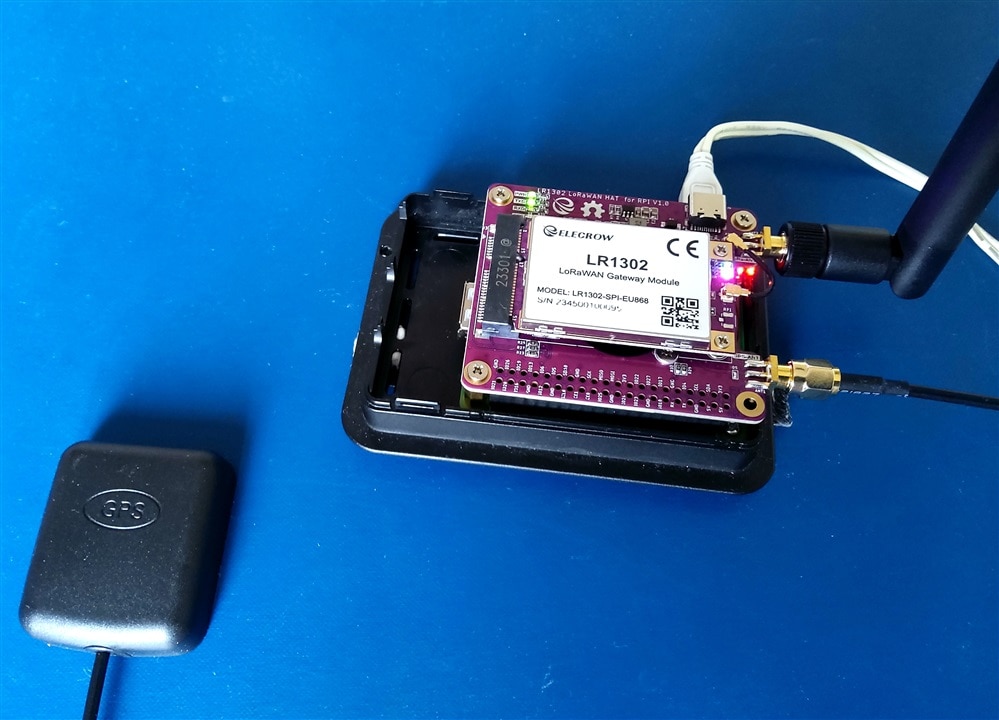
image

Install the software.

I'm going to install it in a bin folder of the user that will run the service (jancumps).

Instructions are on GitHub: SX1302 LoRa Gateway project - 4.2. Install executables and associated files in one directory:

mkdir ~/sx1302_hal

mkdir ~/sx1302_hal/bin

Then navigate to the build folder from post 1 and edit the install config file 

cd LR1302_loraWAN

cd LR1302_HAL

cd sx1302_hal

nano target.cfg

Check that the right folder and user are configured. Don't use the relative user path, but the full one.
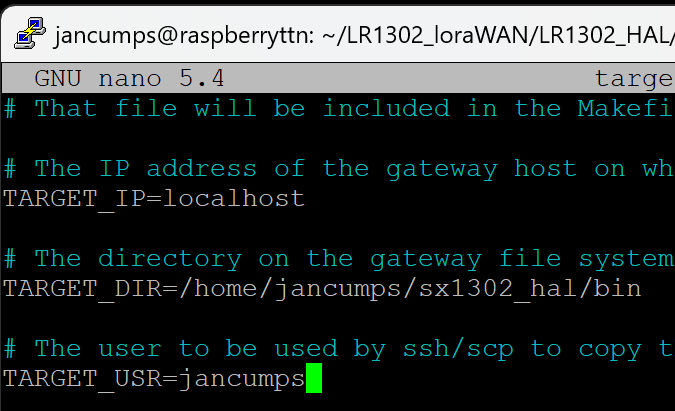
image

Then it's time for installing the software in the bin folder we just created. It's worth investigating how to set up ssh certificate logon for localhost, or you'll have to type your password a lot of times. See the link at the start of this section for instructions.

Then install the binaries and config:

make install

make install_conf

Different than the instructions:

cd ~/sx1302_hal/bin

chmod +x reset_lgw.sh

The application is now installed.

Test: 

./lora_pkt_fwd -c global_conf.json.sx1250.EU868

success:
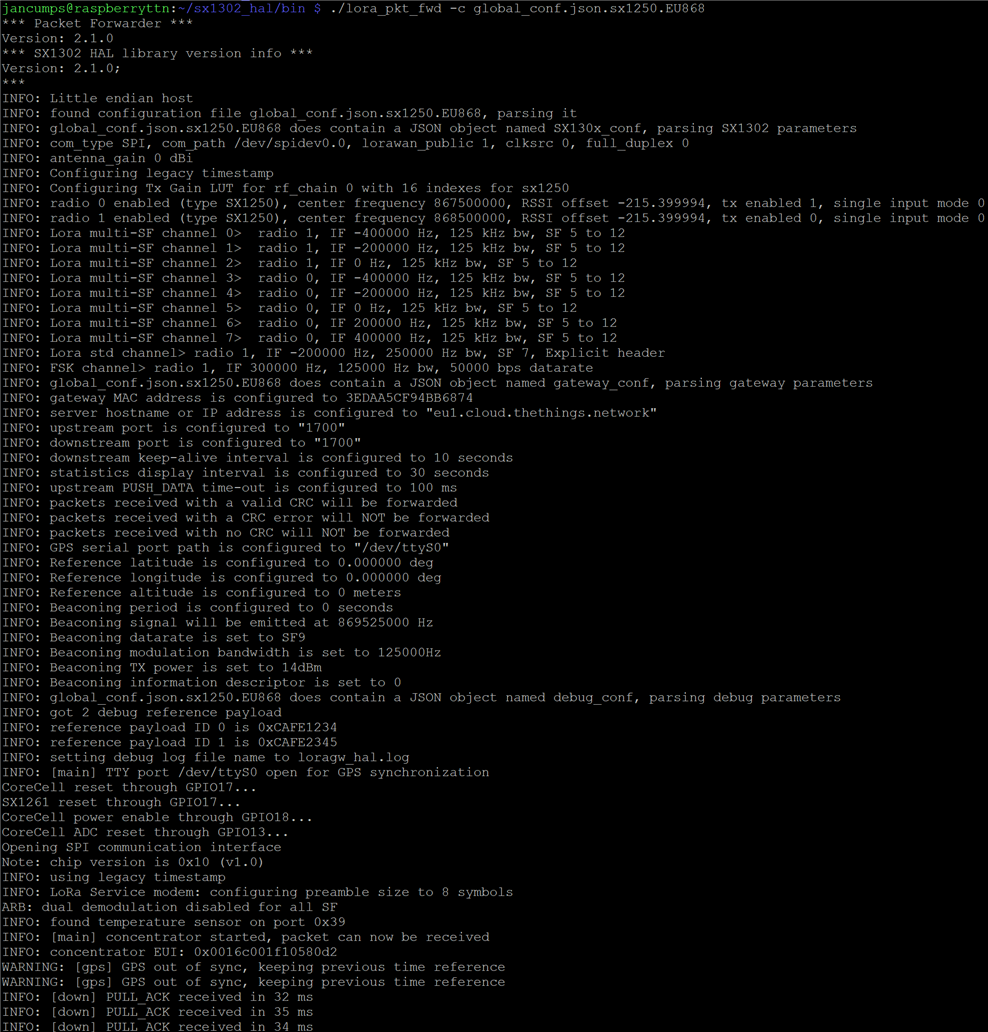
image

Install and run as a daemon

The instructions are also on Github: How to auto-start the with systemd.

In your build directory, there is a script file:

cd ~/LR1302_loraWAN/LR1302_HAL/sx1302_hal/tools/systemd

nano lora_pkt_fwd.service

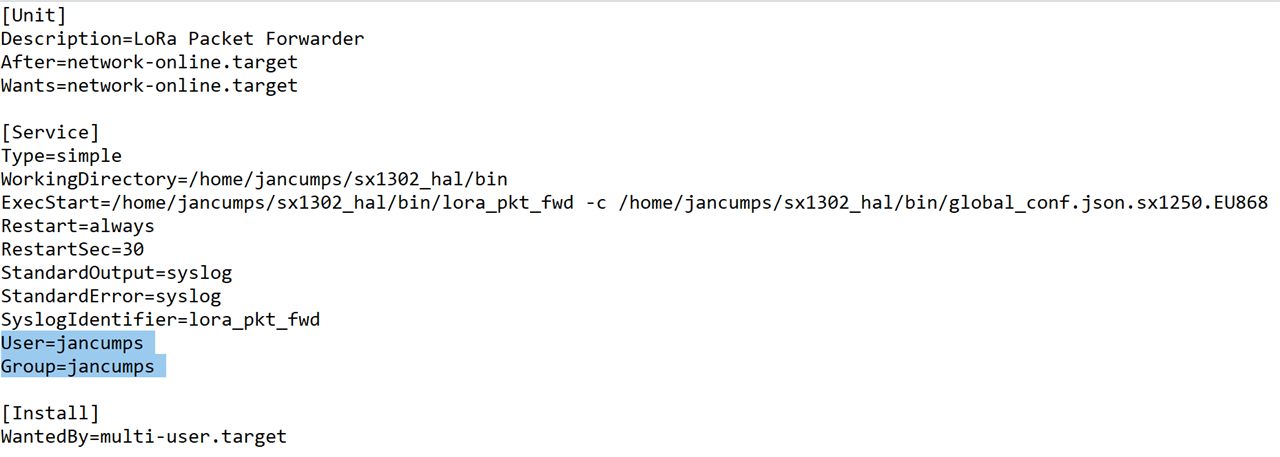
Adapt to the directory structure and user for your install. If you followed my instructions, you should only check the home folder.

I also tell systemd what group and user name to run this particular service under:

User=jancumps
Group=jancumps

image

Then copy the service file, register it, and enable:

sudo cp lora_pkt_fwd.service /etc/systemd/system

sudo systemctl daemon-reload

Before starting the service, let's redirect the output, so we can monitor it

sudo cp lora_pkt_fwd.conf /etc/rsyslog.d

sudo systemctl restart rsyslog

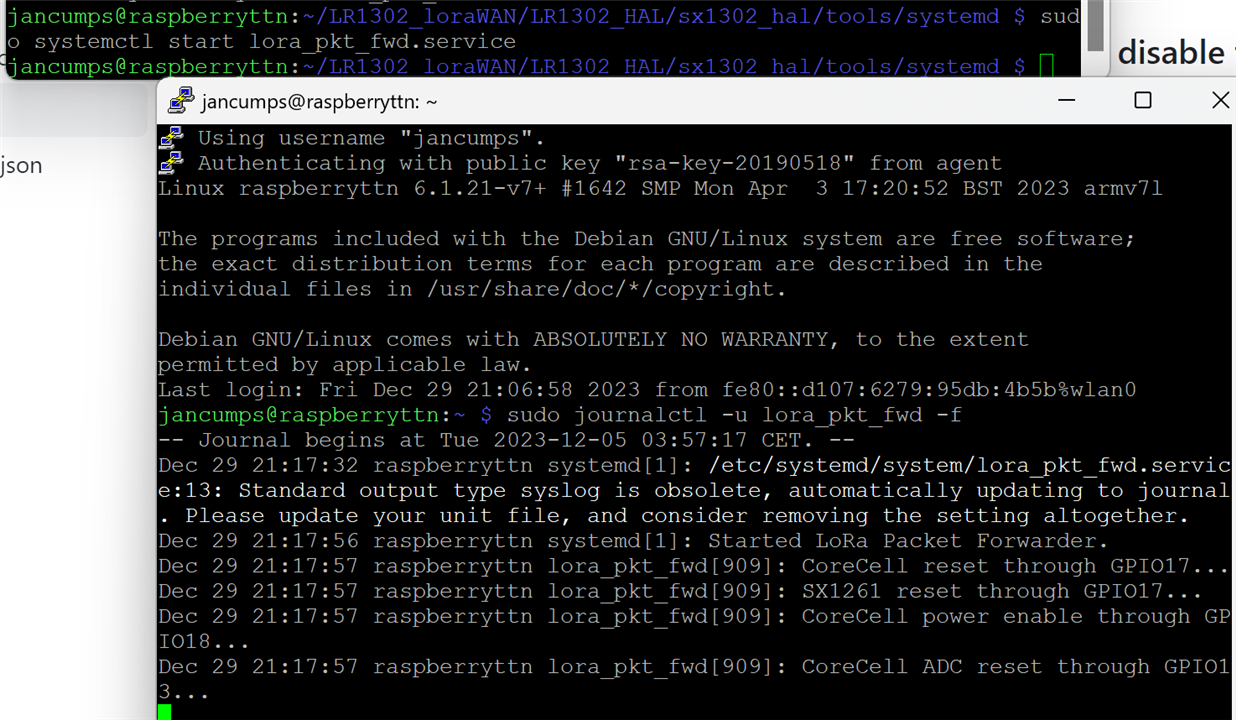
Start a second console to the Pi, to view the log (a new PuTTY session, or whatever Terminal program you use):

journalctl -u lora_pkt_fwd -f

Let it sit there. Any message from the service will show up there.

In the original terminal, enable and start the service;

sudo systemctl enable lora_pkt_fwd.service

sudo systemctl start lora_pkt_fwd.service
 

image

You can safely close all consoles now. Things will keep on running. Even after reboot. Executing this command at any time will show the log:

journalctl -u lora_pkt_fwd -f

And this will show the service status:

systemctl status lora_pkt_fwd.service

Enjoy

In theory, you don't need the build directory structure anymore ...

See also: Set up Elecrow TTN LoRaWAN gateway on Raspberry Pi - Pt. 3: manage the service log size 

  • Sign in to reply
  • Jan Cumps
    Jan Cumps over 2 years ago

    (from previous comment:) TTN's fair use budget for a thing - in the free tier - is 30 seconds of uplink airtime per day. 

    What time does an initial connection with data exchange take? "consumed_airtime": "1.318912s",

    Activity:
    Accept join-request
    Successfully processed join-request
    Forward join-accept message
    Forward uplink data message


    What time does typical data exchange take?  "consumed_airtime": "0.061696s",

    activity: 
    Forward uplink data message.

    This data is not coming from my gateway. It's on the TTN application log of my TTN account.

    • Cancel
    • Vote Up 0 Vote Down
    • Sign in to reply
    • More
    • Cancel
  • Jan Cumps
    Jan Cumps over 2 years ago

    Resource use on a Pi A+:

    image

    • Cancel
    • Vote Up 0 Vote Down
    • Sign in to reply
    • More
    • Cancel
  • Jan Cumps
    Jan Cumps over 2 years ago

    service log file handling on the Pi:  Set up Elecrow TTN LoRaWAN gateway on Raspberry Pi - Pt. 3: manage the service log size 

    • Cancel
    • Vote Up 0 Vote Down
    • Sign in to reply
    • More
    • Cancel
  • Jan Cumps
    Jan Cumps over 2 years ago in reply to Jan Cumps

    correction: fair use is 30 seconds per day.

    • Cancel
    • Vote Up 0 Vote Down
    • Sign in to reply
    • More
    • Cancel
  • Jan Cumps
    Jan Cumps over 2 years ago

    I have set up an Arduino MKR1310 as "pinger". It will send one metric every 2 hours.
    TTN "sandbox fair use" asks to have no more than 12 seconds of uplink communication per 24 hours. Having 12 communications per day should keep me under that threshold.

    Arduino Code:

    #include "arduino_secrets.h"
    /* 
      Sketch generated by the Arduino IoT Cloud Thing ***
      https://create.arduino.cc/cloud/things/*****
    
      Arduino IoT Cloud Variables description
    
      The following variables are automatically generated and updated when changes are made to the Thing
    
      int health;
    
      Variables which are marked as READ/WRITE in the Cloud Thing will also have functions
      which are called when their values are changed from the Dashboard.
      These functions are generated with the Thing and added at the end of this sketch.
    */
    
    #include "thingProperties.h"
    
    void setup() {
      // Initialize serial and wait for port to open:
      Serial.begin(9600);
      // This delay gives the chance to wait for a Serial Monitor without blocking if none is found
      delay(5000); 
      
      // Defined in thingProperties.h
      initProperties();
    
      Serial.println(APPEUI);
      Serial.println(APPKEY);
    /*
      ArduinoCloud.enableRetry(true);
      ArduinoCloud.setMaxRetry(5);
      ArduinoCloud.setIntervalRetry(10000);
    */
    
        // Connect to Arduino IoT Cloud
      ArduinoCloud.begin(ArduinoIoTPreferredConnection);
      
      /*
         The following function allows you to obtain more information
         related to the state of network and IoT Cloud connection and errors
         the higher number the more granular information you’ll get.
         The default is 0 (only errors).
         Maximum is 4
     */
      setDebugMessageLevel(2);
      ArduinoCloud.printDebugInfo();
      
      pinMode(LED_BUILTIN, OUTPUT);
      digitalWrite(LED_BUILTIN, ArduinoCloud.connected());
    
    
    }
    
    void loop() {
      static int loopcounter = 0;
      ArduinoCloud.update();
      // Your code here 
      digitalWrite(LED_BUILTIN, ArduinoCloud.connected());
      if (loopcounter % (6 * 60 * 2) == 0) { // every 2 hours
        loopcounter = 0;
        health = health + 1;
      }
      delay(10000); 
      loopcounter ++; 
    }
    
    /*
      Since Health is READ_WRITE variable, onHealthChange() is
      executed every time a new value is received from IoT Cloud.
    */
    void onHealthChange()  {
      // Add your code here to act upon Health change
    
      
    }

    Log on the gateway:

    Jan 5 11:17:09 raspberryttn lora_pkt_fwd[788]: INFO: Received pkt from mote: 2700AE9E (fcnt=0)
    Jan 5 13:16:10 raspberryttn lora_pkt_fwd[788]: INFO: Received pkt from mote: 2700AE9E (fcnt=1)
    • Cancel
    • Vote Up 0 Vote Down
    • Sign in to reply
    • More
    • Cancel
<>
element14 Community

element14 is the first online community specifically for engineers. Connect with your peers and get expert answers to your questions.

  • Members
  • Learn
  • Technologies
  • Challenges & Projects
  • Products
  • Store
  • About Us
  • Feedback & Support
  • FAQs
  • Terms of Use
  • Privacy Policy
  • Legal and Copyright Notices
  • Sitemap
  • Cookies

An Avnet Company © 2026 Premier Farnell Limited. All Rights Reserved.

Premier Farnell Ltd, registered in England and Wales (no 00876412), registered office: Farnell House, Forge Lane, Leeds LS12 2NE.

ICP 备案号 10220084.

Follow element14

  • X
  • Facebook
  • linkedin
  • YouTube