


Table of Contents
Introduction
KiCad software enables the user to create circuit schematics and convert those into printed circuit board (PCB) layouts, all ready for manufacturing, whether that’s for hobby or commercial use.
A lesser-used feature of KiCad is its SPICE circuit simulation capability. I explored it a while back (+) KiCad 8: Working with Circuit Simulations! - element14 Community however I felt it is useful enough that it was worth retrying it with the recent KiCad 10 software release. In particular, I wanted to see if I could now figure out some methods (perhaps not best practices - I don't know!), to make simulations more usable and accessible. In particular, I wanted to be able to easily share simulations with others, and to be able to create circuit boards from the same schematic that was being simulated. This blog post discusses how to do that, and also how to obtain slightly easier-to-read charts from simulation results.
What is SPICE and How it is Used with KiCad?
SPICE is a circuit simulation engine that KiCad uses. For more information, please refer to (+) SPICE Circuit Simulation: A Simple Explanation! - element14 Community and then to see how to use it specifically with KiCad, the earlier version 8 blog post can be used, it is still relevant: (+) KiCad 8: Working with Circuit Simulations! - element14 Community
Simulations and PCB Design with One Schematic
Often, just a subcircuit is simulated, rather than the entire project. A separate project or a separate schematic file could be created in KiCad, with just the parts you wish to simulate copied across from your real project that you wish to eventually construct with a real circuit board.
Another approach is described in the earlier version 8 blog post (in particular in the comments section there), where the entire schematic is split up into sheets, and the top level sheet is not simulated, but any of the lower-level sheets can be simulated if desired.
Yet another approach is to mark some components as excluded from simulation. With KiCad 10, that approach leaves boxes drawn around those components, which looks ugly. There may be a solution to that, but I have worked around it for now, by simply assigning benign “fake” SPICE models to the components that I do not wish to be simulated (usually connectors).
Here’s a SPICE model example, which I called AUDIOJACK_STEREO.lib, which was intended for a 3.5 mm audio connector with three pins called SHIELD, RING and TIP:
.SUBCKT AUDIOJACK_STEREO SHIELD RING TIPR1 SHIELD RING 1e12R2 SHIELD TIP 1e12.ENDS AUDIOJACK_STEREO
All it does is simulate two very high resistance (1e12 ohms) between the shield and the other pins.
Another problem that needs to be resolved, is that you might not want the SPICE-related stuff to clutter the schematic. To keep it clean, I rely on signal labels to attach connections to SPICE elements, and that way there’s no wires visually cluttering things. I can then push off all the SPICE related stuff into a corner of the schematic sheet. See the example screenshot below.
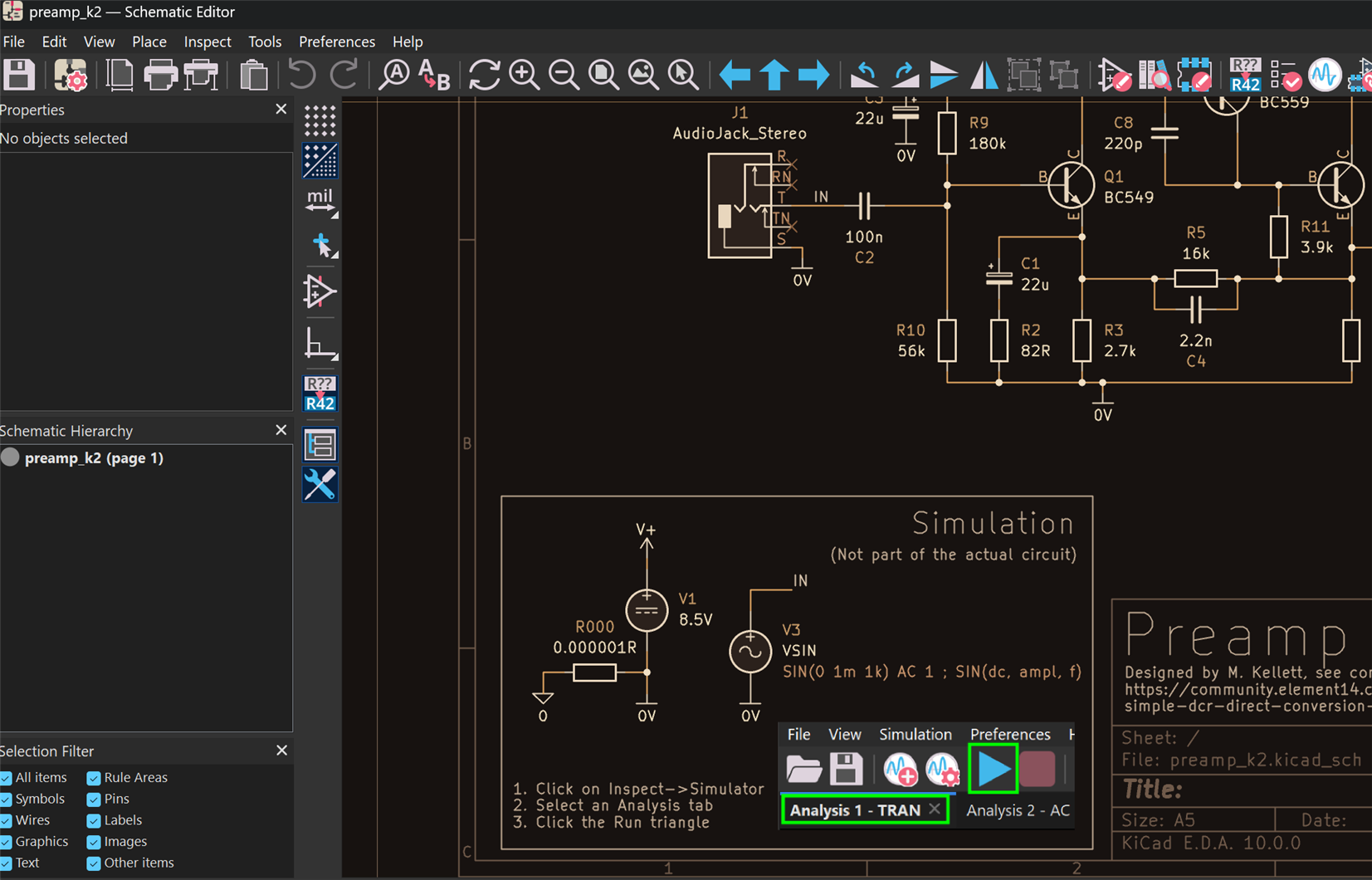
You’ll also notice a very small resistance of 0.000001 ohms present in the circuit! I used that to tie the SPICE ‘0’ symbol to the 0V rail in the circuit. Don’t connect the signals directly, because that causes KiCad to swallow the 0V connections, and then if your PCB layout had a 0V ground plane, it would disappear. A very low value resistor solves the problem. The resistor must not appear in the PCB since it’s just there for simulation purposes, so right-click on it and select Attributes->Exclude from Board, and Exclude from BoM.
Sharing Circuit Simulations
If you give someone else your KiCad project folder, they will not be able to easily simulate themselves, because the SPICE libraries are not local to a project. Their PC likely won’t have the SPICE libraries that you downloaded. Technically it is possible to 'embed' the SPICE model within KiCad symbols, but there are some limitations (not easy to view the model, and it gets dynamically saved I believe, with a mangled filename which is inconvenient, plus there's a KiCad 10 issue currently that can make you lose the embedded model). The only reasonably solution I could come up with so far, is to create a folder within the project folder, called say spice_lib, and then copy the SPICE libraries that were used into that folder, and then change each component in the schematic to point to the relevant model in that local folder, rather than wherever one normally stores models.
That can get tedious to do manually, so I used AI to help write a spice_lib_local graphical tool to automate things.
Here's a 4-minute video explanation:
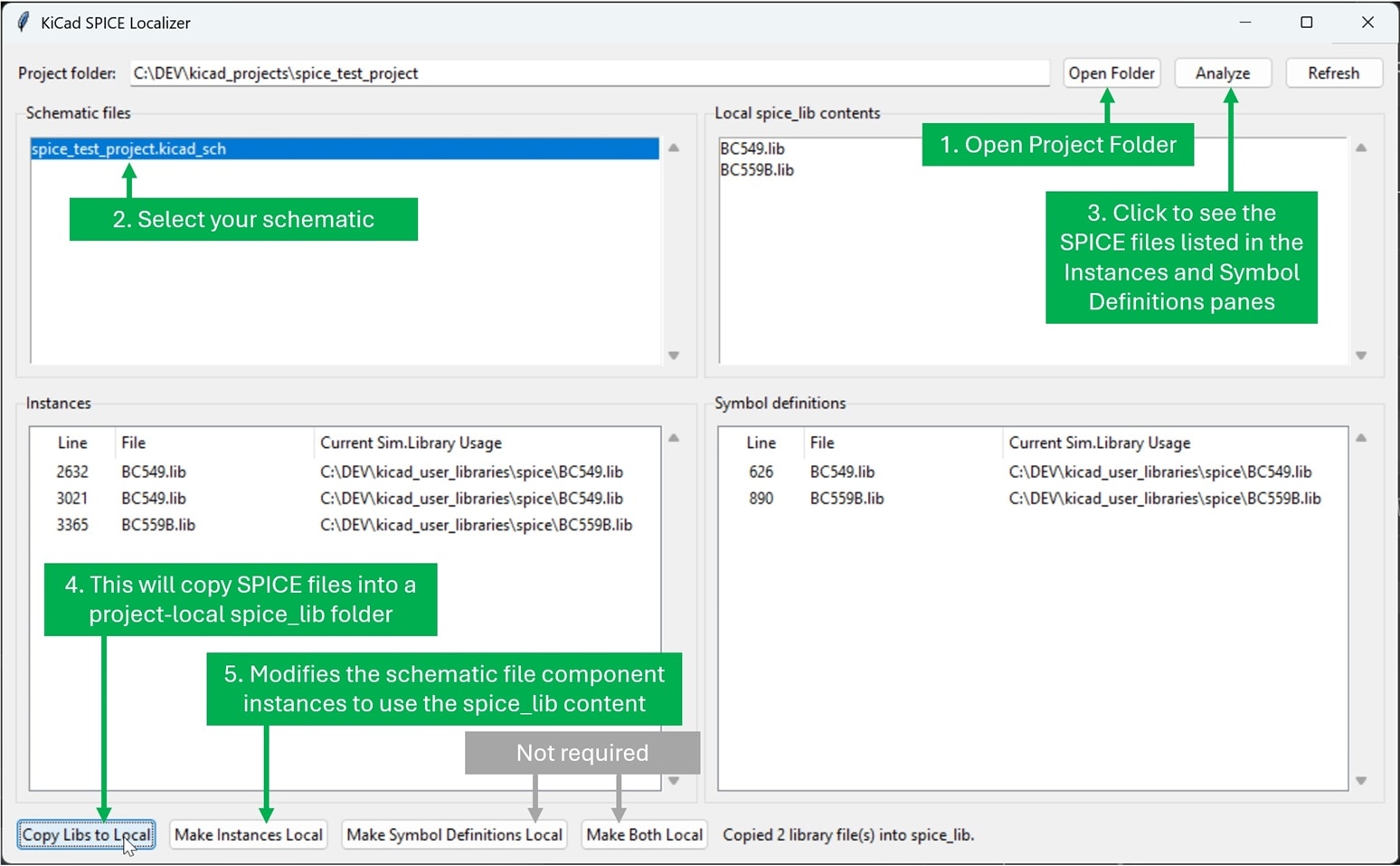
When run, the user can select their project folder, then select the schematic, and click Analyze to see what SPICE models are present inside that schematic. Another button-click will automatically copy those models into the local spice_lib folder, and then by clicking on the Make Instances Local button, the tool will modify the schematic file to point to the local SPICE models. After that, the project folder can be shared with others, and they will be able to run the simulations.
Easier-to-Read Charts
Personally, I don’t like the charts that KiCad generates from simulations; the values on the axes are tiny, and not easy to read. One solution is to use some other charting application, because the results can be exported from KiCad in a CSV format.
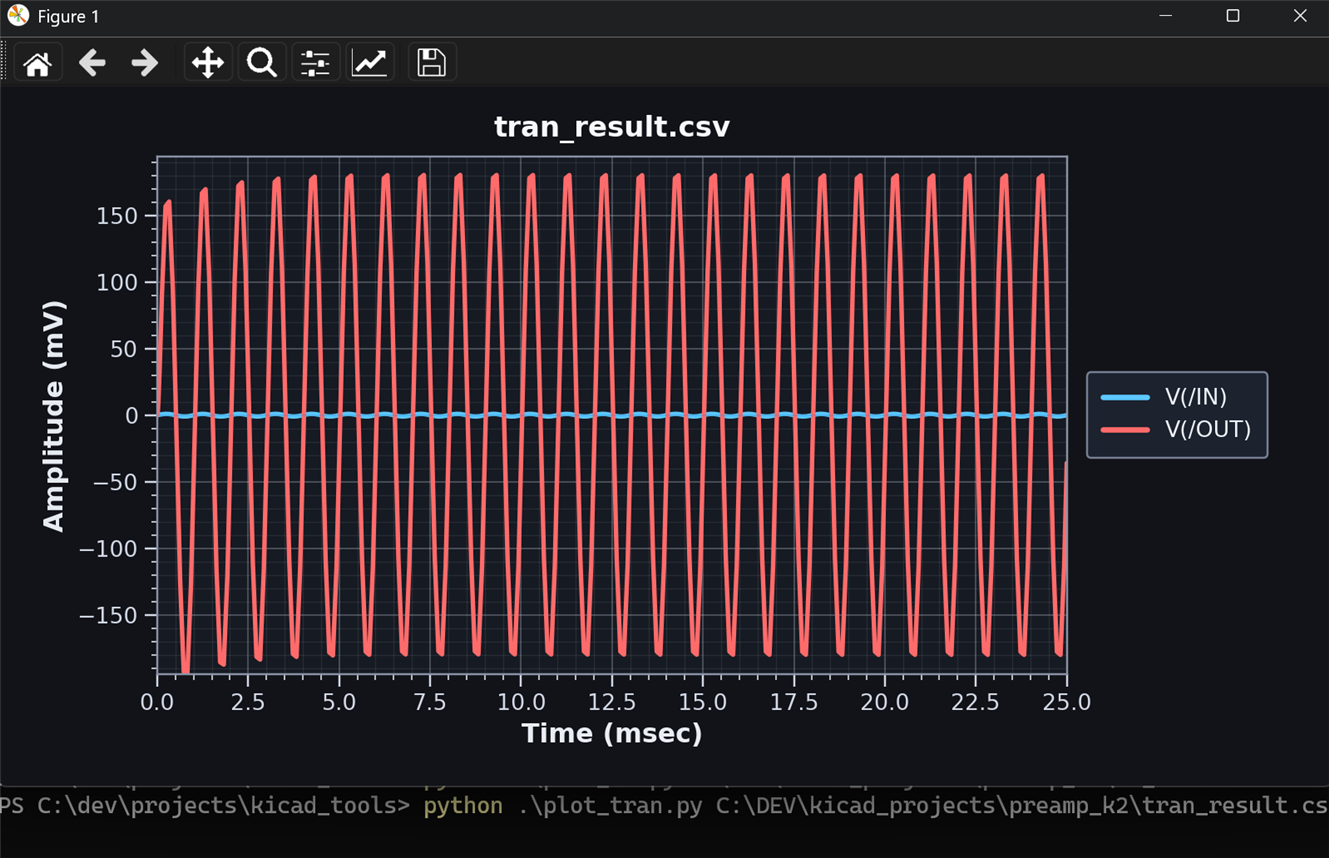
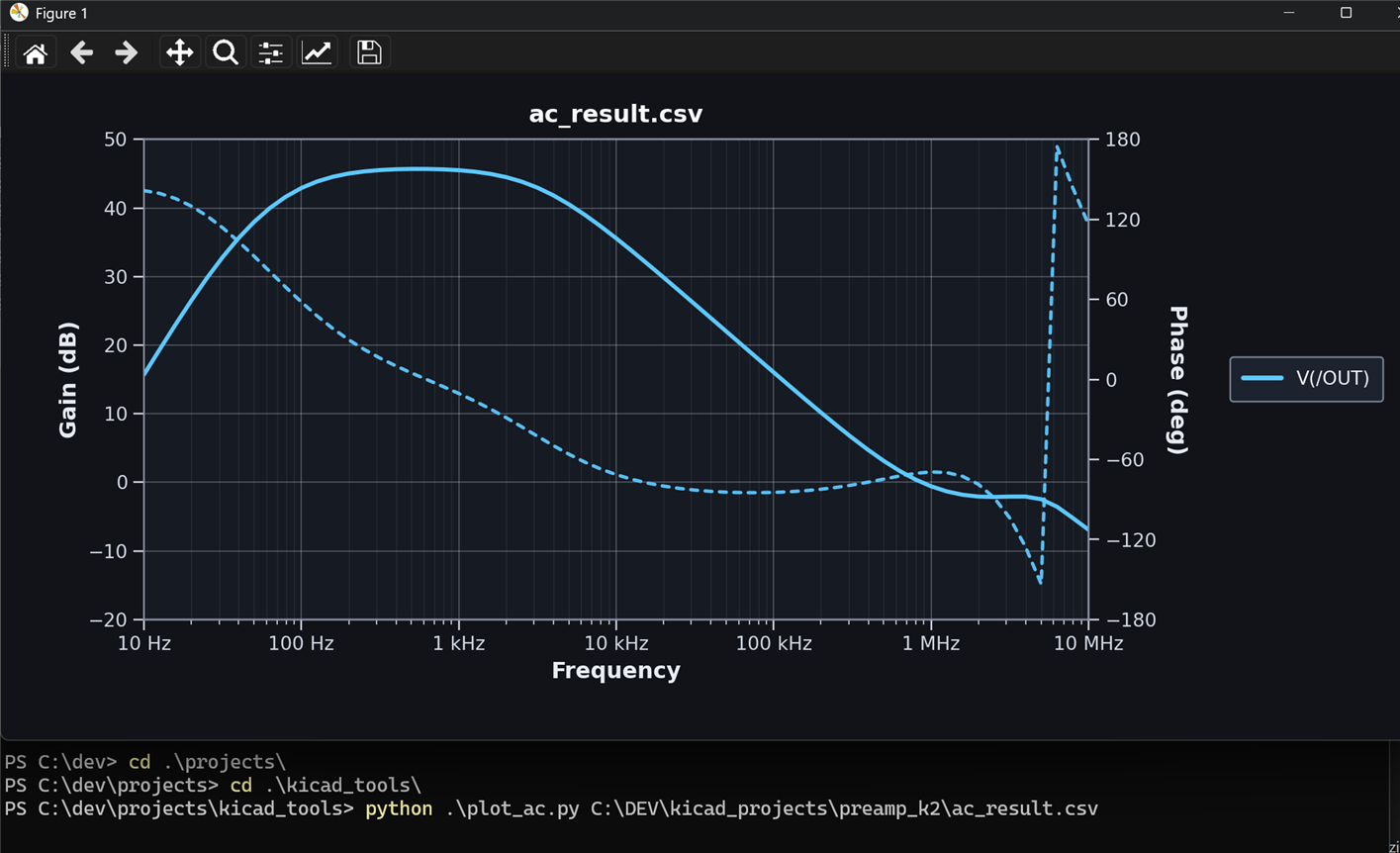
For TRAN and AC analyses (i.e. time-domain and frequency response simulations), I wrote a couple of simply Python scripts called plot_tran.py and plot_ac.py to show the results better. They could be tweaked to suit needs. The screenshots below show how to run the scripts, and example output.
Summary
Simulations run well in KiCad 10, but you may need to consider how to best draw the schematic if you want to separate out the things that need simulating, from the parts that are not to be simulated. Some techniques for that were discussed, and a simple way for smaller circuits could be to use SPICE models that do nothing (with very high resistances) for things like connectors. For connecting a ground net to the “0” symbol that is used by SPICE in KiCad, a very low value resistor can be used.
To share circuits with others, it is worthwhile to store SPICE models locally within the project folder (or a sub-folder, say called spice_lib) so that they are available to anyone else who receives the project folder. An automated tool to perform the copy operation, and to modify the schematic file to use the new path to the models was discussed.
KiCad supports SPICE results export in CSV format, and that can be used to plot results with custom or third party tools.
Thanks for reading!


