


Table of Contents
Introduction
Circuit simulation is powerful, and can be very accurate, depending on the how closely the circuit has been modelled to the actual circuit. It can save a lot of time to simulate, before constructing for real.
There are different kinds of circuit simulation engines, and different types of simulations to want to run, and some are more appropriate for particular niches in electronics engineering. The engine discussed in this blog post is called SPICE, and it is broadly used in electronics. SPICE dates back to the 1970’s, although the version used today was developed in the late 1980’s. Despite its ancientness, it is used professionally for simulating circuits containing passive components, discrete semiconductors as well as various integrated circuits, and the breadth of typical circuits can include (but is not limited to) amplifiers, filters, power supplies, oscillators and so on. SPICE is even used to an extent, to simulate custom integrated circuit designs (or at least subcircuits).
This blog post explores some of the popular capabilities of SPICE, and how it can be employed with CAD schematic entry software. I use example screenshots from KiCad, but this blog post is not KiCad specific; the concepts described work with other software too, such as LTspice.
I Want to Try It, Now!
If you want to explore for yourself, it’s very easy, a five-step process. Here are the steps, using an example project by michaelkellett which is an audio preamplifier. Please note this won’t teach how to use KiCad (that requires some self-training, for instance using this 50-minute video: Creating Circuit Boards with KiCad ), nor will it cover all aspects of SPICE, but will show how to run a simulation and explain how SPICE works, so that the benefits of SPICE can be explored further by those interested.
1. Download and install KiCad 10
2. Download the discrete_amps project zip file and extract it to anywhere on your PC
3. Run KiCad, open the extracted preamp_k2 project, and open up the schematic
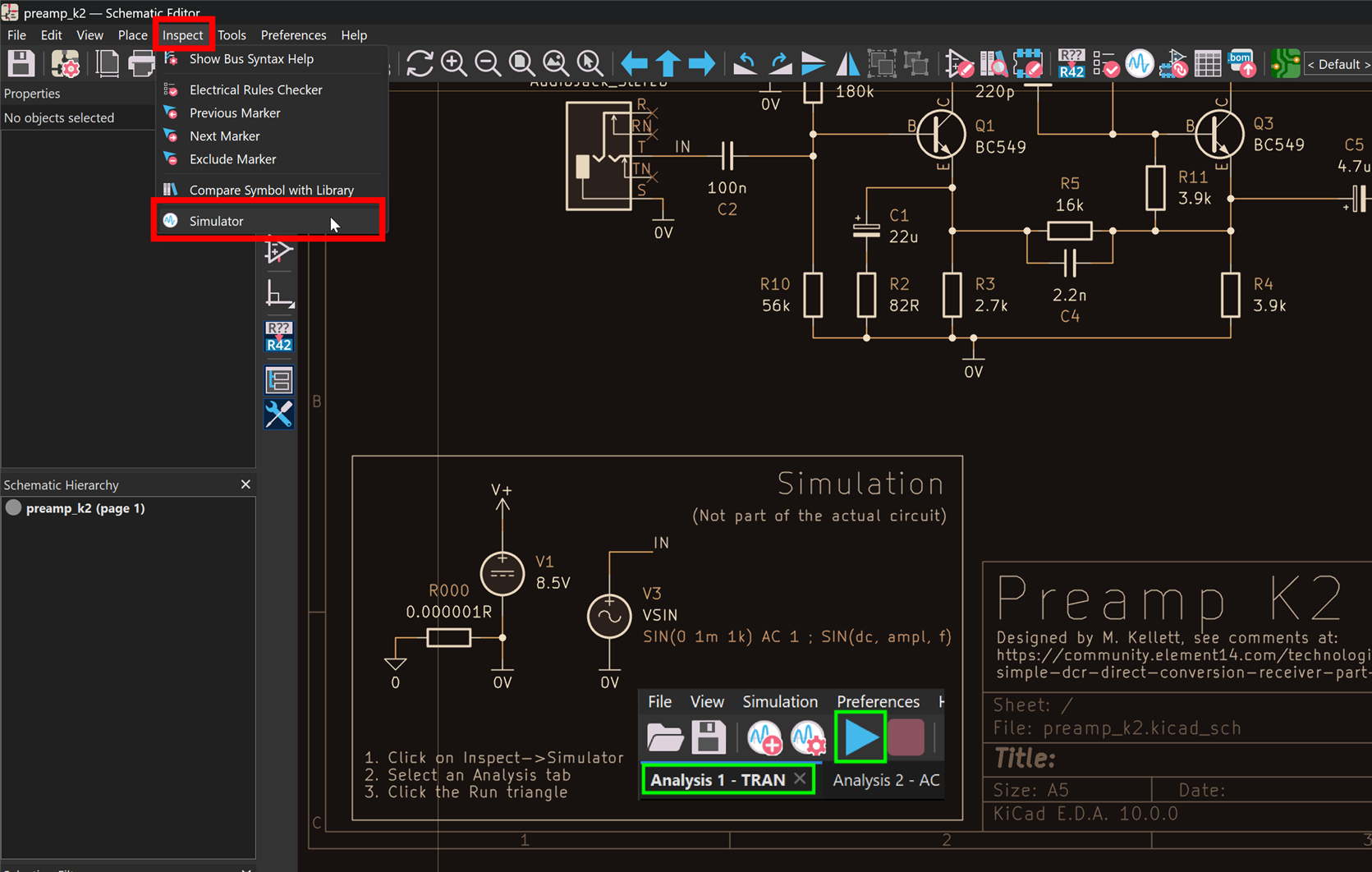
4. Click on Inspect->Simulator
5. You’ll see several simulation tabs. Click to select any of them, then click on the triangle RUN icon!
SPICE Quick Overview
There’s a simulation engine for electronics called SPICE, which traditionally ran on mainframes. It relies on internal models for various basic components such as resistors, capacitors and transistors, and accepts parameters as inputs to tweak the models for each component. Then, an entire circuit can be described as a collection of models and their wiring to each pin in the model. Finally, the desired type of simulation can be chosen, and SPICE will run it, and spit out a dataset, which can be charted.
Desktop CAD software can incorporate the SPICE engine, but in the background, the transfer of information between the CAD software and the SPICE engine is based on text-based files. That’s because SPICE follows the traditional batch-processing paradigm that was popular with mainframes. A user would prepare a set of instructions, send them to the computer, and then come back later to see the generated results. Today, the user would sketch a circuit graphically, but in the background KiCad (or any other software that uses SPICE) will prepare text files describing the components and circuit, and call the SPICE engine passing the text file names on the command line, and in return, SPICE will generate a file of results. The CAD software will then chart the results graphically from the results file. As far as the user is concerned, they need never know that text data was exchanged to make the simulation occur.
Elementary Models
As mentioned, SPICE’s internal models (such as an NPN transistor model) rely on parameters to tweak the model to represent specific components, such as a BC549 NPN transistor.
For instance, for an NPN or PNP transistor, one of the parameters would be the voltage across the base-to-emitter when current is flowing into the base. The transistor datasheet would be consulted to determine that voltage (it may be say 0.7V) and then the model would be configured by the following parameter setting:
VJE = 0.7
This would take ages since there can be a lot of parameters for a component model, so instead, one would download the manufacturer-supplied model file, which can have various suffixes, but .lib is common. A BC549 transistor would have a SPICE model file called BC549.lib and it would contain a list of the parameters, all ready for simulating that transistor.
In the example snippet below, the top part contains comment lines, followed by the model name BC549/550 and the NPN model type instruction to SPICE that indicates which model type to apply (for instance, for say N-channel mosfets, the model type field would need to be set to NMOS). After that, all the parameter settings for that model type follow.
* BC549/550 NPN EPITAXIAL SILICON TRANSISTOR ELECTRICAL PARAMETERS*--------------------------------------------------------------------* Switching and Amplifier* Vcbo & Vceo: BC549(Vcbo:30V / Vceo:30V)* BC550(Vcbo:50V / Vceo:45V)*--------------------------------------------------------------------* MODEL PARAMETERS FROM MEASURED DATA: BC549*--------------------------------------------------------------------.MODEL BC549/550 NPN+ LEVEL = 1+ IS = 2.24183E-14+ NF = 0.996496+ ISE = 1.90217E-14+ NE = 2+ BF = 228.4
The above is known as an elementary model.
Pin Ordering for Component Symbols
The model described above needs to somehow be mapped onto a graphical symbol, and some way of assigning pins is required. For instance, the NPN circuit symbol may have pins called B, C, E, or one may choose to call the pins BASE, COLLECTOR, EMITTER. SPICE works with any desired pin naming, it just use the order to determine which is which; internal to SPICE, each elementary model has a specific hard-coded pin order, and for NPN transistors the order happens to be collector, base, emitter. You wouldn’t know that order without delving into SPICE documentation, but ordinarily one doesn’t need to know this to use SPICE.
The model so far only tells SPICE how to model the transistor, but it doesn’t tell SPICE what pins go where. That needs to be further input into SPICE, and that input can be self-generated by KiCad or whatever desktop software the user is using with SPICE.
So, when a NPN symbol is created and drawn up in a symbol editor tool, there will be a drop-down menu that will either allow the user to assign each pin name to a order (i.e. if you name the collector pin “C”, then you would need to assign “C” to “1” since SPICE expects the collector pin to be listed first), or the symbol editor tool will have been pre-programmed with the expected order for each model type, and will allow the user to assign the “C” pin to “Collector” in the drop-down menu. The screenshot below shows a user assigning a pin called “E” to the BC549 model.

An Entire Circuit
Whenever a circuit contains a BC549 transistor, KiCad will automatically provide SPICE with an explanation of that, with a line such as:
Q1 Net-_Q1-C_ Net-_Q1-B_ Net-_Q1-E_ BC549/550
The above line indicates that the user’s circuit contains a BC549 transistor that the user has labeled as Q1. The fields beginning with Net- just happen to be names that KiCad decided to give to each wire drawn in the circuit, and the wire name connected to the BC549 collector has to be listed first, because the SPICE internal NPN model requires that to come first as mentioned earlier.
Sometimes a user will create their own signal (i.e. net) names in the schematic, for instance the wire connected to the BC549 base may be named INPUT, and in that case, KiCad will choose to use the user-provided net name:
Q1 Net-_Q1-C_ /INPUT Net-_Q1-E_ BC549/550
In summary, KiCad will provide SPICE with a list of all the components and their connections, and the model names, as shown in the example line above. It’s sometimes called a netlist.
The netlist snippet below would correspond to a circuit containing a capacitor, two transistors, and a resistor.
C1 Net-_Q1-E_ Net-_C1-Pad2_ 22uQ1 /BOB Net-_Q1-B_ Net-_Q1-E_ BC549/550Q2 Net-_Q2-C_ /INPUT Net-_Q2-E_ BC549/550R5 Net-_Q1-E_ Net-_Q3-E_ 16k
Choosing and Running Simulations
Now that SPICE is aware of component models, and the circuit topology, it can be made to run a desired simulation (technically known as an analysis). SPICE offers different analyses, of which the following three are typically encountered (others are too, but I will only cover these three for now, and may add more to this section later).
DC Voltages and Currents (Operating Point) Simulations
When designing a circuit, often the user needs to bias components to operate in a certain region, and then perhaps a varying signal is applied. This is easiest to picture with an amplifier circuit. The transistors would been to be placed into a region where they are passing some current, so that later when a varying audio signal arrives, that signal will linearly affect the amplified output.
A DC Operating Point simulation tries to calculate such initial voltages and currents in the circuit when no varying signals are present. It’s as if a user applied a multimeter to locations in a circuit.
When KiCad (or any other software application that uses the SPICE engine) runs such a simulation, the output will be a list of these voltages and currents for each wire in the circuit. Here is a snippet of example output:
I(q1:c): 101.647uAI(q1:b): 432.641nAI(q1:e): -102.079uAV(net-_q1-b_): 1.31966VV(/in): 0VP(c2): 0.00114469fWV(net-_c3-pad1_): 5.63932VP(c3): -3.82135e-05fW
Most users won’t ever need to follow that, and will instead look to see how the desktop software displays it graphically; in the screenshot below, it can be seen that the voltage at Q1 base is 1.32V, and the current flowing through the collector is 102 uA. Both of those values are also in the text output above.

Time-Domain (TRAN) Simulations
What SPICE calls a TRAN (short for Transient) analysis is really an oscilloscope-like simulation of all the voltages and currents in a circuit, as if an oscilloscope voltage or current probe were applied everywhere.
Imagine testing a real circuit, where first a user may use a multimeter, which is close to what a DC Operating Point analysis (as discussed earlier) achieves, and then the user connects up the oscilloscope, which is what a TRAN analysis is closest to.
Much like how an oscilloscope is set to a certain timebase (time per division) setting and then the oscilloscope Run/Stop button is pressed to capture the signal values over a period of time, the TRAN analysis is configured near-identically. Usually you need to choose the start and stop time and the step time for each sample of results. As with any other analysis, SPICE will output a load of values, but KiCad will also display them graphically. A user can choose which signals are of interest, and those will be displayed just like if an oscilloscope was being used. In the example in the screenshot below, the user has selected to view one signal, but others could be chosen too, just like oscilloscope channels.

An important thing to note, is that unlike an oscilloscope, SPICE does not run continually. It’s a one-time simulation. If changes are made to the circuit, then the simulation needs to be rerun. In contrast, with an oscilloscope, you can make changes to a circuit and watch the effects in real-time.
A few rare software tools can provide simulations that look real-time, but in the background, they are likely repeatedly running the SPICE engine for small periods of time, and updating the chart each time, thus making it appear dynamically updated. It can work really well, but unfortunately KiCad doesn't support that (and neither does LTspice, TINA/Spice, PSPICE, and so on).
Frequency Response Simulations (AC)
SPICE has an analysis called AC, which applies a swept frequency stimulus signal, and records the output at each frequency. CAD software can read the output file, and convert to gain and phase values and plotted as would a frequency response analyzer test tool. This sort of simulation is highly useful for examining filter bandwidths, and seeing if an audio amplifier has a flat response or not, for example.
SPICE needs to be told what frequency range to use; for an audio amplifier, one might select from 10 Hz to 100 kHz perhaps. The screenshot below shows that the user was interested to see the simulation run up to 10 MHz (which is typed as either 10Meg, or 10e6, and _not_ 10M; this is an artifact from SPICE’s heritage).

Unlike the earlier analyses (DC Operating Point and Transient), to be useful, the AC analysis always requires the SPICE engine to be instructed where the stimulus signal is to be applied.
With KiCad, a sine-wave stimulus is indicated directly on the schematic, by placing a component called VSIN from KiCad’s supplied Simulation_SPICE library and wiring it to the circuit just like any other component.
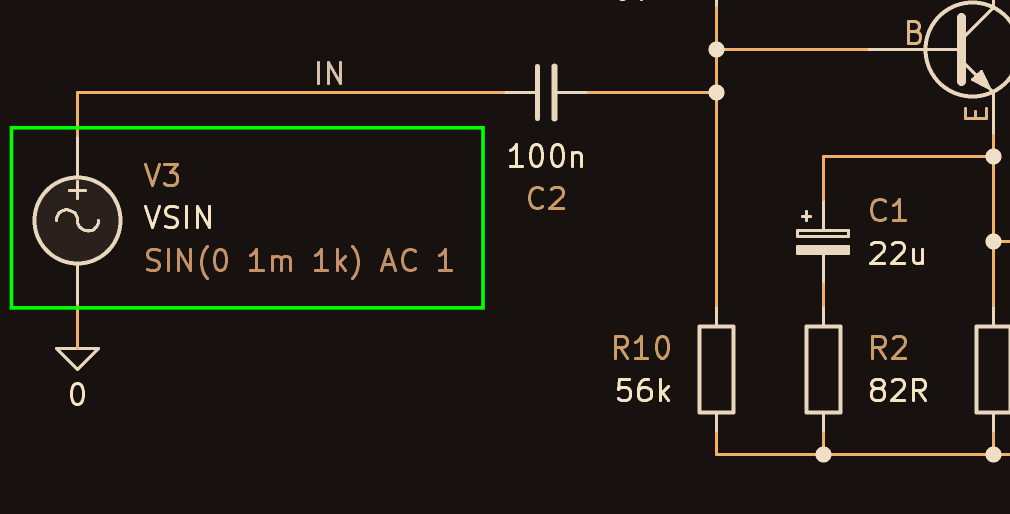
The stimulus source needs some configuration to work with SPICE. In KiCad, this is entered by double-clicking on the symbol and editing a symbol property:

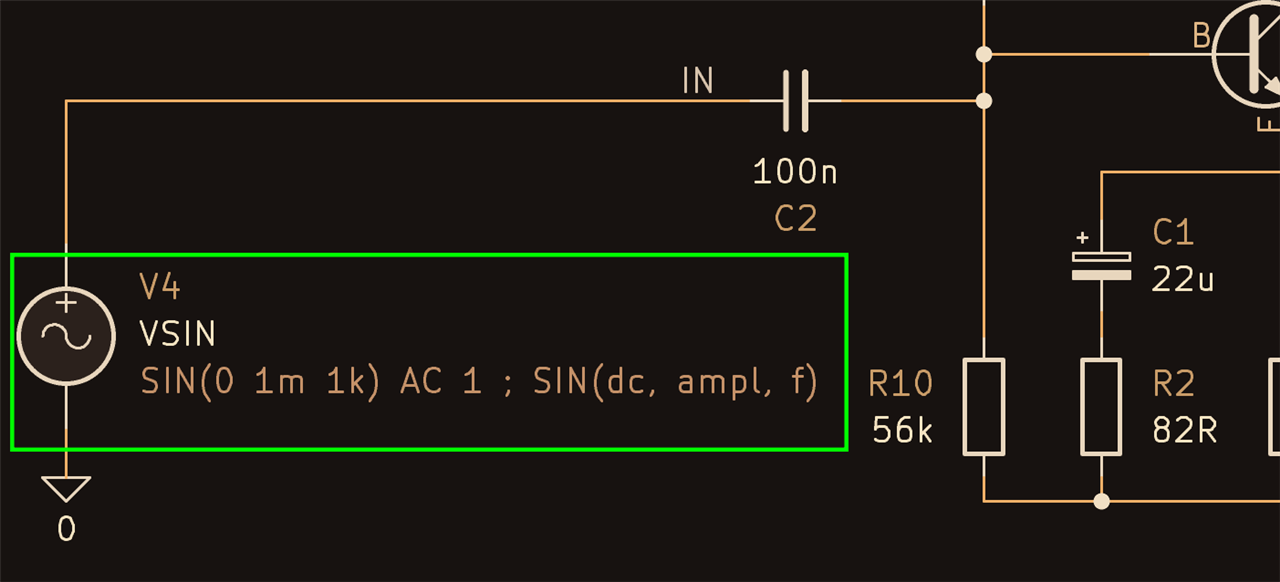
Technically all that is required is for that line to always state AC 1 (this scales the values to read correctly) however it’s useful to precede it with something like SIN(0 1m 1k) because that is then useful for TRAN simulations which may benefit from sine wave stimulus too (it depends on the circuit in question). The values 0, 1m and 1k represent the DC offset, Vpeak amplitude, and frequency, i.e. a sine wave with 1 mV peak (2 mV p-p) and 1 kHz frequency. Since the ordering may be hard to remember, it’s possible to place comments after a semicolon:
The screenshot below shows what the simulation results can look like. SPICE will have generated a file containing detail for each connection in the circuit, across the specified range of frequencies. The user can select the signals of interest, and the software will chart the frequency response.

Summary
SPICE allows the user to perform analyses (i.e. simulations) to achieve measurements of the type that could be performed in real life with a multimeter, oscilloscope and frequency response analyzer. Other types of simulation are possible too.
SPICE is text-file based, and manufacturers supply model files containing parameters or netlists for more complex devices and subcircuits, which can be assembled into a circuit netlist by CAD software such as KiCad, based on a schematic a user may create. When instructed to run a simulation based on those text files, SPICE will generate output in text form, which the CAD software can present graphically.
Thanks for reading!
Further Information
(+) KiCad 8: Working with Circuit Simulations! - element14 Community
(+) KiCad 10 and SPICE: Practical Tips for Working with Circuit Simulations! - element14 Community
Preamp circuit discussion (see the comments sections below the blog)


