



Hi all ! Hope everyone is well and safe.
This is the update on the server side of Space Vegetables.
More info on the design:
Space Vegetables - #5 : System concept and design
Space Vegetables - #6 : Software Design
Space Vegetables - #10 | Software #0: Wiring and Python programs
Hardware
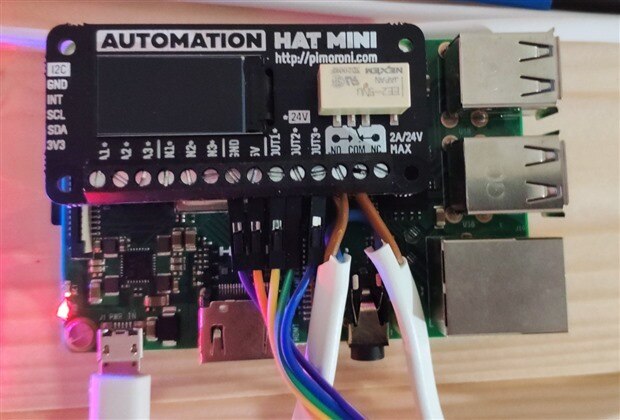
This is connected to a Raspberry PI 3B+ with the Automation HAT MINI from the KIT, that's connected to the water and air pump and the lights.
Software
The "server" is a Python script that's running a XMLRPC server to accept connections from the client (or clients if it were the case).
Very briefly, the script creates a threaded XMLRPC server, allowing it to accept multiple connections simultaneously, not locking.
By default, a server accepts a connection and while processing it, other possible connections are refused.
It defines several functions and register them to the server. The functions will turn on or off the several peripherals wired to the Automation HAT MINI.
Here's the code
from xmlrpc.server import SimpleXMLRPCServer
from socketserver import ThreadingMixIn
import datetime
import time
import threading
import automationhat
import logging
import telegram
from systemd.journal import JournalHandler
import configparser

from PIL import Image, ImageFont, ImageDraw
import ST7735 as ST7735

from fonts.ttf import Roboto as UserFont

# Create ST7735 LCD display class.
disp = ST7735.ST7735 (
        port=0,
        cs=ST7735.BG_SPI_CS_FRONT,
        dc=9,
        backlight=25,
        rotation=270,
        spi_speed_hz=4000000
)


class SimpleThreadedXMLRPCServer (ThreadingMixIn, SimpleXMLRPCServer):
    pass

config = configparser.ConfigParser()
config.read ('SpaceVegetablesServer.ini')


""" Variables definitions """

IP_address = config['default']['ipAddress']

""" AIR PUMP and White Lights are controled by an external RELAY
    controled by the outputs
"""

""" lights output """

outputLights = int(config['default']['outputLights'])

""" Air Pump """

outputAirPump = int(config['default']['outputAirPump'])


""" Water Pump """
""" Its the relay """

outputWaterPump = int(config['default']['outputWaterPump'])

# Telegram token

token = config['telegram']['telegramToken']


""" LOGGING  """
log = logging.getLogger('SpaceVegetables')
log_fmt = logging.Formatter("%(levelname)s %(message)s")
log_ch = JournalHandler()
log_ch.setFormatter(log_fmt)
log.addHandler(log_ch)
log.setLevel(logging.DEBUG)


s = SimpleThreadedXMLRPCServer((IP_address, 8000), allow_none=True)
s.register_introspection_functions() #enables use of s.system.listMethods()
log.info("Starting XMLRPC Server")


""" Next functions will be displayed using threads """

""" This is a function to delete text from the LCD
    The element argument is what you want to delete

    Remove text is draw a rectangle
    where text is written
    0 = lights
    1 = air pump
    2 = water pump
"""
def removeText(element):
    disp.set_backlight(1)
    rectElements =  [30, 45, 60]
    del_rectangle = 30

    # draw the rectangle
    draw.rectangle ((130, rectElements[element],
                    130 + del_rectangle,
                    rectElements[element] + 15),
                    (59, 55, 60))

    # the display will be done in the function
    disp.display(image)
    # sleep 5 minutes
    time.sleep(300)
    # reduce brightness of LCD
    disp.set_backlight(0)
    return 0


""" Write text to the LCD
"""
def writeText (element):
    disp.set_backlight(1)
    rectElements =  [30, 45, 60]
    draw.text((130,rectElements[element]), "On", font=font, fill=(156,170,171))
    disp.display(image)
    time.sleep(300)
    disp.set_backlight(0)
    return 0


# definig the threads
def tWriteText(element):
    log.info ("Thread to write text")
    twt = threading.Thread(target = writeText,args=(element,))
    twt.setName ('write text')
    twt.start()

def tRemoveText(element):
    log.info ("Thread to remove text")
    trt = threading.Thread(target = removeText,args=(element,))
    trt.setName ('remove text')
    trt.start()

""" this function will make sure that
    in case of a reboot - power outage -
    or restarting
    if something is running, will turn off
"""
def shutalloff():
    # turn off air pump
    automationhat.output[outputAirPump].off()
    # turn off water pump
    automationhat.relay.one.off()
    # turn off lights
    automationhat.output[outputLights].off()
    return 0


font_size = 13
font = ImageFont.truetype(UserFont, font_size)

# Initialise display.
disp.begin()

image = Image.open("automation_image_LCD.jpg")
draw = ImageDraw.Draw(image)
# display the background
disp.display(image)

""" This function sends a message to Telegram """
""" Going to use only tomain functions """

def sendMessageTelegram (msg,
        chat_id = config['telegram']['chatId'],
        token = token):
    msg = "AutomationPI: " + msg
    bot = telegram.Bot(token=token)
    try:
        bot.sendMessage(chat_id=chat_id, text=msg)
    except telegram.error.NetworkError:
        # If theres a problem with telegram or internet not available
        # dont let the SpaceVegetablesServer exit with error
        # just dont notify
        pass


""" This function will turn the water pump on or off
    depende what comes from the client
"""
def turnAirPump(state):
    if state == 1:
        log.info("Turning air pump on")
        sendMessageTelegram ("Activating air pump")
        automationhat.output[outputAirPump].on()
        # display in the LCD
        tWriteText(1)
    else:
        log.info ("Turn air pump off")
        sendMessageTelegram ("Turning off air pump")
        automationhat.output[outputAirPump].off()
        # display in the LCD
        tRemoveText(1)
    return 0

s.register_function(turnAirPump)


""" this function will turn the water
pump on or off depending on the state
"""
def turnWaterPump(state):
    if state == 1:
        # to OSD
        log.info("Turning water pump on")
        sendMessageTelegram ("Activating water pump")
        automationhat.relay.one.on()
        # display in the LCD
        tWriteText(2)
    else:
        # to OSD
        log.info("Turn water pump off")
        sendMessageTelegram ("Stoping water pump")
        automationhat.relay.one.off()
        # display in the LCD
        tRemoveText(2)
    return 0

s.register_function(turnWaterPump)

""" turn on lights """
""" White and Grow lights - red and blue """
def turnLights(state):
    if state == 1:
        # to OSD
        log.info("Turn lights on")
        sendMessageTelegram ("Activating lights")
        automationhat.output[outputLights].on()
        # display on the LCD
        tWriteText(0)
    else:
        # to OSD
        log.info("Turn lights off")
        sendMessageTelegram ("Stopping lights")
        automationhat.output[outputLights].off()
        # display in the LCD
        tRemoveText(0)
    return 0

s.register_function(turnLights)


#turn off any thing that could be running
log.info("booting - Shuting all off")
shutalloff()

sendMessageTelegram ("Starting server")
while True:
    s.handle_request()
and the config file
[default]
ipAddress = <RPI_IP_ADDRESS>
#outputs
outputLights = 0
outputAirPump = 2
#this is the relay
outputWaterPump = 0


[telegram]
telegramToken = 4.....h
chatId = 1...3
I've created a systemd unit file to start the script on booting
sudo vi /etc/systemd/system/SpaceVegetablesServer.service
[Unit]
Description = Space Vegetables Automation
After=systemd-networkd-wait-online.service
Wants=systemd-networkd-wait-online.service

[Service]
User = pi
Group = pi
WorkingDirectory = /home/pi/SpaceVegetables
Environment = "PATH=/home/pi/SpaceVegetables"
ExecStart = /usr/bin/python3 /home/pi/SpaceVegetables/SpaceVegetablesServer.py

[Install]
WantedBy = multi-user.target
The After and Wants was a try for Systemd to only start the service after a real IP address (not a private one like 169...) was present, but without success.
To enable it
sudo systemctl enable SpaceVegetablesServer
Explaining the code
lines 1 to 15 import the several libraries needed for the script to work.
First two lines import what's needed to create a threaded XMLRPC Server
from xmlrpc.server import SimpleXMLRPCServer
from socketserver import ThreadingMixIn
We then import datetime and time . We import threading to create some threads .
We next import the automationhat python library. We then import the logging and telegram libraries, as well the systemd libraries.
The configParser is imported to be able to import a config file.
Next, we import the libraries from PIL, such as Image, ImageFont and ImageDraw.
Next, we import ST7735 to be able to work with the LCD of the HAT. We import the Roboto font, also for the LCD.
from PIL import Image, ImageFont, ImageDraw
import ST7735 as ST7735

from fonts.ttf import Roboto as UserFont
Lines 18 to 25 create the LCD object, initializing some values specific for this LCD.
# Create ST7735 LCD display class.
disp = ST7735.ST7735 (
        port=0,
        cs=ST7735.BG_SPI_CS_FRONT,
        dc=9,
        backlight=25,
        rotation=270,
        spi_speed_hz=4000000
)
Line 28 creates a "dummy" class to be used to create a multithreaded server that can be used in combination with the builtin classes like the SimpleXMLRPCServer.
Like shown in the documentation, by using ThreadingMixIn in combination with SimpleXMLRPCServer, we create a server that spans threads every time it receives a connection, thus, not blocking incoming connections while handling one.
More on below.
class SimpleThreadedXMLRPCServer (ThreadingMixIn, SimpleXMLRPCServer):
    pass
The next lines get the configuration parameters from the config file.
IP_address = config['default']['ipAddress']
outputLights = int(config['default']['outputLights'])
outputAirPump = int(config['default']['outputAirPump'])
outputWaterPump = int(config['default']['outputWaterPump'])

# Telegram token
token = config['telegram']['telegramToken']

# constants
""" Time to keep lights on """
lightsTimeOn = int(config['default']['lightsTimeOn']) * 60 * 60
Values from the config file came as string, so I have to convert them to an int .
Lines 64 to 69 define a logger - so it gets logged in to the system log - Linux systemd.
Line 73 and 74 creates the server, listening on port 8000. Line 73 creates the server and 74 allows the use of listMethods - listing the functions available on the server. Line 75 just displays in the logs the start of the server.
s = SimpleThreadedXMLRPCServer((IP_address, 8000), allow_none=True)
s.register_introspection_functions() #enables use of s.system.listMethods()
log.info("Starting XMLRPC Server")
Lines 89 to 106 removes and draws text in the LCD.
If we write text after text, it just gets overwritten again and again. It's necessary to remove the text before and write a new text.
The removal of text is just creating a rectangle with the same background color of the image in the area that will be rewritten. To write the text, just give the coordinates, the color and the string.
Here's the background image
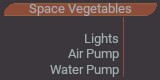
I've created a list - rectElements - that has the Y coordinate - according with the background image - for that element. 0 - lights; 1 - air pump; 2 - water pump
This LCD displays the status of the pumps - Air and Water - and the lights. By providing the element to erase (or write), it uses the Y coordinate for that element. The X is always the same.
def removeText(element):
    disp.set_backlight(1)
    rectElements =  [30, 45, 60]
    del_rectangle = 30

    # draw the rectangle
    draw.rectangle ((130, rectElements[element],
                    130 + del_rectangle,
                    rectElements[element] + 15),
                    (59, 55, 60))

    # the display will be done in the function
    disp.display(image)
    # sleep 5 minutes
    time.sleep(300)
    # reduce brightness of LCD
    disp.set_backlight(0)
    return 0


""" Write text to the LCD
"""
def writeText (element):
    disp.set_backlight(1)
    rectElements =  [30, 45, 60]
    draw.text((130,rectElements[element]), "On", font=font, fill=(156,170,171))
    disp.display(image)
    time.sleep(300)
    disp.set_backlight(0)
    return 0
Because I'm afraid of burning the LCD if I left it on all the time, I wanted to display the status of the pumps/lights and turn the display off after a while - 10 minutes looks like perfect - I've created two threads that will call the functions above.
Why threads ?
Because I use time.sleep, I need the script not to block while waiting 10 minutes and be able to do multiple tasks at the same time. Threads was my solution.
# defining the threads
def tWriteText(element):
    log.info ("Thread to write text")
    twt = threading.Thread(target = writeText,args=(element,))
    twt.setName ('write text')
    twt.start()

def tRemoveText(element):
    log.info ("Thread to remove text")
    trt = threading.Thread(target = removeText,args=(element,))
    trt.setName ('remove text')
    trt.start()
I don't call the functions writeText, removeText directly - I call the thread functions above and they call the functions.
Line 124 creates a thread called twt that calls the function writeText with element as a function argument. Line 125 defines a name for it and 126 starts the thread.
Line 139 defines a function that will turn off everything. This function only gets called at the start of the script. This ensures that, in case of a power outage, when starting the server again, nothing is working.
def shutalloff():
    # turn off air pump
    automationhat.output[outputAirPump].off()
    # turn off water pump
    automationhat.relay.one.off()
    # turn off lights
    automationhat.output[outputLights].off()
    return 0
Lines 149 and 150 define a font to write text to the LCD . Line 153 initializes the LCD.
font_size = 13
font = ImageFont.truetype(UserFont, font_size)

# Initialise display.
disp.begin()
Line 155 to 158 defines a background image (the one above) and display it in the LCD.
image = Image.open("automation_image_LCD.jpg")
draw = ImageDraw.Draw(image)
# display the background
disp.display(image)
Lines 163 to 174 define a function to send notifications to Telegram.
We define a message, to witch we concatenate the string "AutomationPI: " for me to know what PI sent the notification. It then creates a telegram bot and sends the message.
If Internet is not available, don't exit the script, just don't notify.
def sendMessageTelegram (msg,
        chat_id = config['telegram']['chatId'],
        token = token):
    msg = "AutomationPI: " + msg
    bot = telegram.Bot(token=token)
    try:
        bot.sendMessage(chat_id=chat_id, text=msg)
    except telegram.error.NetworkError:
        # If theres a problem with telegram or internet not available
        # dont let the SpaceVegetablesServer exit with error
        # just dont notify
        pass
turnAirPump (state)
This is the first function related to the Space Vegetables per say.
This function will turn on or off the Air Pump for water oxygenation. Depending on the state argument, we turn the pump on or off.
We start by logging to syslog the operation we're going to to.
Next, a notification to telegram.
After that, we activate/deactivate the output of the air pump.
Finally, we write in the LCD the state of the pump (removeText if turn off or writeText if turn on. - the 1 argument means is the element 1 - see functions above).
After the function declaration, we register this function on the server to make it available to clients.
def turnAirPump(state):
    if state == 1:
        log.info("Turning air pump on")
        sendMessageTelegram ("Activating air pump")
        automationhat.output[outputAirPump].on()
        # display in the LCD
        tWriteText(1)
    else:
        log.info ("Turn air pump off")
        sendMessageTelegram ("Turning off air pump")
        automationhat.output[outputAirPump].off()
        # display in the LCD
        tRemoveText(1)
    return 0

s.register_function(turnAirPump)
turnWaterPump(state)
the same above, but for the water pump.
Instead of a output, the water pump is connected to the relay of the automation HAT.
def turnWaterPump(state):
    if state == 1:
        # to OSD
        log.info("Turning water pump on")
        sendMessageTelegram ("Activating water pump")
        automationhat.relay.one.on()
        # display in the LCD
        tWriteText(2)
    else:
        # to OSD
        log.info("Turn water pump off")
        sendMessageTelegram ("Stoping water pump")
        automationhat.relay.one.off()
        # display in the LCD
        tRemoveText(2)
    return 0

s.register_function(turnWaterPump)
turnLights(state)
This is the function that turns the lights on or off. It's exactly like the ones above.
def turnLights(state):
    if state == 1:
        # to OSD
        log.info("Turn lights on")
        sendMessageTelegram ("Activating lights")
        automationhat.output[outputLights].on()
        # display on the LCD
        tWriteText(0)
    else:
        # to OSD
        log.info("Turn lights off")
        sendMessageTelegram ("Stopping lights")
        automationhat.output[outputLights].off()
        # display in the LCD
        tRemoveText(0)
    return 0

s.register_function(turnLights)
Line 244 calls the function to turn everything off.
#turn off any thing that could be running
log.info("booting - Shuting all off")
shutalloff()
The main function is just a infinite while loop, waiting for requests. Nothing fancy really.
while True:
    s.handle_request()
This is it.
Next, the client.
Top Comments