


Hi all,
In this blog post, I go through the basic steps required to blink an LED on a Raspberry Pi - the basic microprocessor way of saying "Hello World!" 
In case you missed it and need help getting started on the basics of writing and running a Python program on the Raspberry Pi, my previous blog post goes into a lot more detail of those first steps: Raspberry Pi - HelloWorld
For this tutorial, I am using:
1x Raspberry Pi Model B+ running Raspbian (other models should work fine too)
1x breadboard to make the connections
1x LED
1x 470Ω resistor (the precise value is not important)
2x M-F jumper wires
One of the great features of the Raspberry Pi is that it includes IO pins which, like an Arduino, allow you to connect it to other bits of hardware.
But, unfortunately, the default installation does not allow access to the IO pins, so the first step here is to change things so that we do have access.
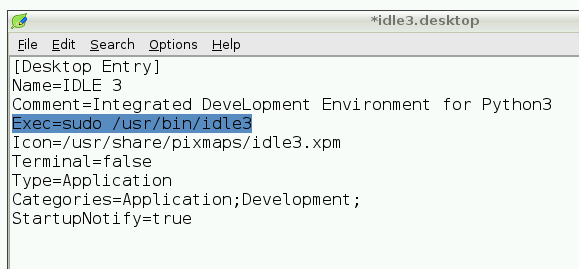
Thankfully this can be done very easily by just changing the settings of the "IDLE 3" desktop icon.
To do this, simply right-click on the IDLE 3 icon, then choose "Open With...", toggle to see Accessories, and then select Leafpad and click OK.
This pops up an editor showing several lines of text.
For the line that starts with "Exec", after the = sign add "sudo " (just the part within the quotation marks, including the space)
This will run the Python IDE as "root", giving it full access to the machine.
Now save and exit, and you are ready to blink the LED!
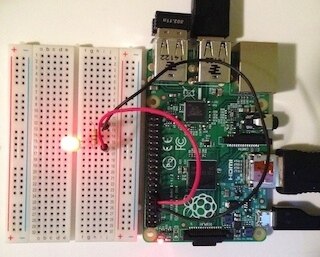
To connect the LED:
- put the LED into the breadboard
- connect one side of the 470Ω resistor to the short lead of the LED
- connect a wire from the long lead of the LED to pin 11 (GPIO17) on the Raspberry Pi
- connect a wire from the other side of the 470Ω resistor to pin 9 (GND) on the Raspberry Pi.
Now the fun begins!
You can open up a new window and try this yourself, or just download the attached blink.py example and open it.
To use the GPIO pins, you will need to import the correct library:
import RPi.GPIO as GPIO
Then you need to get the GPIO system set up:
GPIO.setmode(GPIO.BOARD)
And the output pin has to be set up as output:
GPIO.setup(11, GPIO.OUT)
After that basic setup you can then send a high or low value to the pin:
GPIO.output(11, GPIO.HIGH)
and
GPIO.output(11, GPIO.LOW)
When the script finishes, remember to clean up:
GPIO.cleanup()
In my example I use a little loop and a timer to turn the LED on and off 10 times.
It's actually quite easy to use once you know the basics
ps, I've given a bit less detail in the steps than in my last post, as that would make this a very long post, but please feel free to ask questions if any of it is unclear.
edit: Here is a picture of how the IO pins are arranged for the B+
Next: Raspberry Pi - DS18B20 Temperature Sensor
Edit: This has been tested and works on both the RPi model B+ and the RPi 2 model B.
Cheers,
-Nico
Top Comments
-

DAB
-
Cancel
-
Vote Up
+1
Vote Down
-
-
Sign in to reply
-
More
-
Cancel
Comment-

DAB
-
Cancel
-
Vote Up
+1
Vote Down
-
-
Sign in to reply
-
More
-
Cancel
Children