element14 Community
element14 Community
    Register Log In
  • Site
  • Search
  • Log In Register
  • Community Hub
    Community Hub
    • What's New on element14
    • Feedback and Support
    • Benefits of Membership
    • Personal Blogs
    • Members Area
    • Achievement Levels
  • Learn
    Learn
    • Ask an Expert
    • eBooks
    • element14 presents
    • Learning Center
    • Tech Spotlight
    • STEM Academy
    • Webinars, Training and Events
    • Learning Groups
  • Technologies
    Technologies
    • 3D Printing
    • FPGA
    • Industrial Automation
    • Internet of Things
    • Power & Energy
    • Sensors
    • Technology Groups
  • Challenges & Projects
    Challenges & Projects
    • Design Challenges
    • element14 presents Projects
    • Project14
    • Arduino Projects
    • Raspberry Pi Projects
    • Project Groups
  • Products
    Products
    • Arduino
    • Avnet & Tria Boards Community
    • Dev Tools
    • Manufacturers
    • Multicomp Pro
    • Product Groups
    • Raspberry Pi
    • RoadTests & Reviews
  • About Us
  • Store
    Store
    • Visit Your Store
    • Choose another store...
      • Europe
      •  Austria (German)
      •  Belgium (Dutch, French)
      •  Bulgaria (Bulgarian)
      •  Czech Republic (Czech)
      •  Denmark (Danish)
      •  Estonia (Estonian)
      •  Finland (Finnish)
      •  France (French)
      •  Germany (German)
      •  Hungary (Hungarian)
      •  Ireland
      •  Israel
      •  Italy (Italian)
      •  Latvia (Latvian)
      •  
      •  Lithuania (Lithuanian)
      •  Netherlands (Dutch)
      •  Norway (Norwegian)
      •  Poland (Polish)
      •  Portugal (Portuguese)
      •  Romania (Romanian)
      •  Russia (Russian)
      •  Slovakia (Slovak)
      •  Slovenia (Slovenian)
      •  Spain (Spanish)
      •  Sweden (Swedish)
      •  Switzerland(German, French)
      •  Turkey (Turkish)
      •  United Kingdom
      • Asia Pacific
      •  Australia
      •  China
      •  Hong Kong
      •  India
      • Japan
      •  Korea (Korean)
      •  Malaysia
      •  New Zealand
      •  Philippines
      •  Singapore
      •  Taiwan
      •  Thailand (Thai)
      • Vietnam
      • Americas
      •  Brazil (Portuguese)
      •  Canada
      •  Mexico (Spanish)
      •  United States
      Can't find the country/region you're looking for? Visit our export site or find a local distributor.
  • Translate
  • Profile
  • Settings
Autodesk EAGLE
  • Products
  • More
Autodesk EAGLE
EAGLE User Support (English) How do I create holes and positions from imported DXF
  • Blog
  • Forum
  • Documents
  • Events
  • Polls
  • Files
  • Members
  • Mentions
  • Sub-Groups
  • Tags
  • More
  • Cancel
  • New
Join Autodesk EAGLE to participate - click to join for free!
Actions
  • Share
  • More
  • Cancel
Forum Thread Details
  • State Suggested Answer
  • Replies 21 replies
  • Answers 2 answers
  • Subscribers 180 subscribers
  • Views 3930 views
  • Users 0 members are here
  • cnc
  • holes
  • eagle pcb
  • led
  • layer
  • polygon
Related

How do I create holes and positions from imported DXF

shearder
shearder over 9 years ago

Hi All


I have a panel that i have designed which has switches, buttons, knobs (rotaries), LEDs and a LCD screen. I have imported the DXF version of this into Eagle on the dimension layer. I will machine a 300mmx300mm Double sided board.


What i want to know: Some circles on the DXF are HOLES some are positions for LEDs.


How do i go about selecting a circle and making it a HOLE without redrawing a polygon and TRYING to align it. Also, how do i move other circles to a different layer for positioning of the LEDs?


Hope that makes sense.


Thanks in advance.

  • Sign in to reply
  • Cancel

Top Replies

  • autodeskguest
    autodeskguest over 9 years ago in reply to shearder +1 suggested
    Am 27.05.2016 um 12:46 schrieb Sean Hearder: That does make a lot of sense. So layer 45 isn't actually the drl layer for component holes but cut outs? I will try working with this over the weekend Thanks…
  • rachaelp
    rachaelp over 9 years ago +1 suggested
    Hi Sean, I posted this on your other thread in the suggest forum first then saw this so I am reposting in this thread which seems more live. Anyway, I thought this was an interesting query so decided to…
  • autodeskguest
    0 autodeskguest over 9 years ago

    Am 27.05.2016 um 06:54 schrieb Sean Hearder:

    Hi All


    I have a panel that i have designed which has switches, buttons, knobs (rotaries), LEDs and a LCD screen. I have imported the DXF version of this into Eagle on the dimension layer. I will machine a 300mmx300mm Double sided board.


    What i want to know: Some circles on the DXF are HOLES some are positions for LEDs.


    How do i go about selecting a circle and making it a HOLE without redrawing a polygon and TRYING to align it. Also, how do i move other circles to a different layer for positioning of the LEDs?


    Hope that makes sense.


    Thanks in advance.

    Hi,

    to move a circle to a other layer:

    ex. tPlace

    Change-> Layer-> tPlace

    then click on the circles witch do want to move.


    Maybe you can "move" the holes/circles to the Holeslayer(45)


    or

    Make a new Layer (display) "Helper" (color mybe a ugglyone like purple)

    move the holes-cricles to this layer.

    then place holes with the drill that you want (hole 3.2mm)

    near by the holescircles.

    With the "info" you can get the coords of the circle.

    now "info" the hole and type in the coords of the circle.

    (the hole move to circle)

    If you done with all "holes" you can delete the helper layer

    (the Helperlayer will be needfull.

    1. so you have a Layer with the holes-cricles and they of

       your import layer.

    2. you can check with circles do you move to holes.


    I hope i explained it unterstandfull (english is

      not my native-language)

    HTH

    Werner


    • Cancel
    • Vote Up 0 Vote Down
    • Sign in to reply
    • Verify Answer
    • Cancel
  • autodeskguest
    0 autodeskguest over 9 years ago

    Am 27.05.2016 um 06:54 schrieb Sean Hearder:

    Hi All


    I have a panel that i have designed which has switches, buttons, knobs (rotaries), LEDs and a LCD screen. I have imported the DXF version of this into Eagle on the dimension layer. I will machine a 300mmx300mm Double sided board.


    What i want to know: Some circles on the DXF are HOLES some are positions for LEDs.


    How do i go about selecting a circle and making it a HOLE without redrawing a polygon and TRYING to align it. Also, how do i move other circles to a different layer for positioning of the LEDs?


    Hope that makes sense.


    Thanks in advance.

    Hi,

    to move a circle to a other layer:

    ex. tPlace

    Change-> Layer-> tPlace

    then click on the circles witch do want to move.


    Maybe you can "move" the holes/circles to the Holeslayer(45)


    or

    Make a new Layer (display) "Helper" (color mybe a ugglyone like purple)

    move the holes-cricles to this layer.

    then place holes with the drill that you want (hole 3.2mm)

    near by the holescircles.

    With the "info" you can get the coords of the circle.

    now "info" the hole and type in the coords of the circle.

    (the hole move to circle)

    If you done with all "holes" you can delete the helper layer

    (the Helperlayer will be needfull.

    1. so you have a Layer with the holes-cricles and they of

       your import layer.

    2. you can check with circles do you move to holes.


    I hope i explained it unterstandfull (english is

      not my native-language)

    HTH

    Werner


    • Cancel
    • Vote Up 0 Vote Down
    • Sign in to reply
    • Verify Answer
    • Cancel
  • shearder
    0 shearder over 9 years ago in reply to autodeskguest

    That does make a lot of sense. So layer 45 isn't actually the drl layer for component holes but cut outs?


    I will try working with this over the weekend image


    Thanks so much.

    • Cancel
    • Vote Up 0 Vote Down
    • Sign in to reply
    • Verify Answer
    • Cancel
  • autodeskguest
    0 autodeskguest over 9 years ago in reply to shearder

    Am 27.05.2016 um 12:46 schrieb Sean Hearder:

    That does make a lot of sense. So layer 45 isn't actually the drl layer for component holes but cut outs?


    I will try working with this over the weekend image


    Thanks so much.


    --

    To view any images and attachments in this post, visit:

    https://www.element14.com/community/message/198044


    Hi,

    the Layer 45 is named holes because holes have drills.

    the Layer 46 named milling maybe with copperplating(by some pcb-houses)

    the layer 20 named dimension are cutouts without copper(cutout for

    displays or not-Rounded holes image etc)


    The drill command makes also a circle in layer 20.

    Some pcb-houses are "milling" without copper all layer 20

    lines, some "drill" a hole with the infos form excellon (Drill-infos)


    So if you want holes you can define them over drills with more info.

    Sometimes it is possible to define the hole only in the layer 20.


    If you want to place a led on an accurate position, make sure that your

    tOrigin or bOrigin in the package of the Led is in the center.

    Now you can move your led by the Info-Dialog to the pos of your "Helper"

    cirlce of the led.


    HTH

    and have a nice and successful weekend

    Werner


    • Cancel
    • Vote Up +1 Vote Down
    • Sign in to reply
    • Verify Answer
    • Reject Answer
    • Cancel
  • rachaelp
    0 rachaelp over 9 years ago

    Hi Sean,


    I posted this on your other thread in the suggest forum first then saw this so I am reposting in this thread which seems more live. Anyway, I thought this was an interesting query so decided to write a ULP to do this. Save the code below as circleToHole.ulp.


    #usage "en: Adds a hole at the location and size of the selected circle\n"

               "run circleToHole install - to install to the boards context menu"


    if (argv[1] == "install") {

        exit("edit .brd; set context circle 'Place hole (Non-PT)...' 'run circleToHole';"

             "           set context circle 'Place hole (PT)...' 'run circleToHole plated';");

    } else {


       string cmd="";

       string grid="mil";


       if (board) {

          board(B) {

             if (B.grid.unit == GRID_UNIT_MIC) {

                grid = "mic";

             } else {

                if (B.grid.unit == GRID_UNIT_MM) {

                   grid = "mm";

                } else {

                   if (B.grid.unit == GRID_UNIT_INCH) {

                      grid = "in";

                   }

                }

             }

             B.circles(C) {

                if (ingroup(C)) {

                   if (argv[1] == "plated") {

                      sprintf(cmd, "GRID mil; VIA %f Round 1-16 (%f %f); CHA DRI %f (%f %f); GRID %s;", 2.0 * u2mil(C.radius), u2mil(C.x), u2mil(C.y), 2.0 * u2mil(C.radius), u2mil(C.x), u2mil(C.y), grid);

                   } else {

                      sprintf(cmd, "GRID mil; HOLE %f (%f %f); GRID %s;", 2.0 * u2mil(C.radius), u2mil(C.x), u2mil(C.y), grid);

                   }

                }

             }

          }

       }


       exit(cmd);


    }

    Then in the board do:


         run circleToHole install <return>


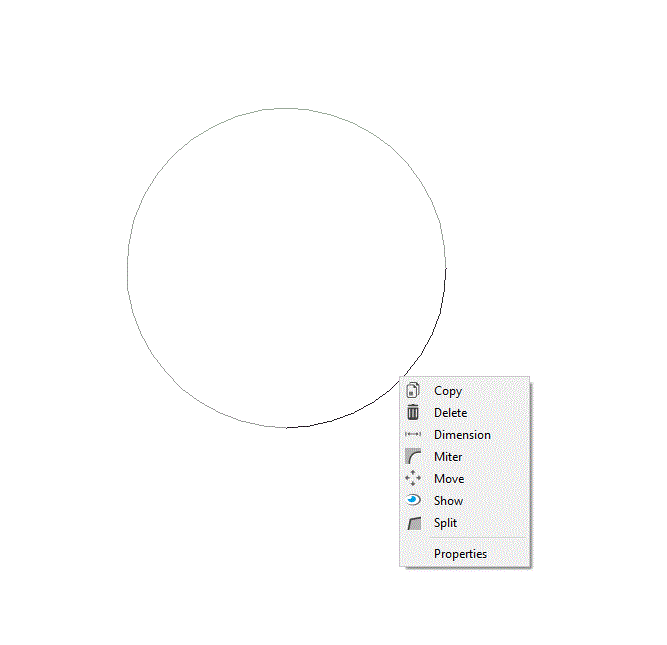
    Then two context menu items will appear when you right click on circles in imported DXF's relating to hole positions (actually any circle but I can't easily differentiate). You can then select to insert a non-plated or a plated hole (which is just a via).


    Best Regards,


    Rachael

    • Cancel
    • Vote Up +1 Vote Down
    • Sign in to reply
    • Verify Answer
    • Reject Answer
    • Cancel
  • shearder
    0 shearder over 9 years ago in reply to rachaelp

    WOW thank you so much. I will give it a try over this weekend. It will surely come in handy going forward as i get numerous requests for custom panels and the truth is it becomes difficult with the number of wires i sometimes need so a circuit board with tracks rather than wires will be much better then i can also lay SMD LEDs for back lighting and holes to mount rotaries and the panel just attaches to the circuit board.

    • Cancel
    • Vote Up 0 Vote Down
    • Sign in to reply
    • Verify Answer
    • Cancel
  • autodeskguest
    0 autodeskguest over 9 years ago in reply to rachaelp

    Hi Rachael,


    great ULP. Thank you.


    -Richard


    Am 28.05.2016 um 00:22 schrieb rachaelp:

    Hi Sean,


    I posted this on your other thread in the suggest forum first then saw this so I am reposting in this thread which seems more live. Anyway, I thought this was an interesting query so decided to write a ULP to do this. Save the code below as circleToHole.ulp.


    #usage "en: Adds a hole at the location and size of the selected circle\n"

                "run circleToHole install - to install to the boards context menu"


    if (argv[1] == "install") {

         exit("edit .brd; set context circle 'Place hole (Non-PT)...' 'run circleToHole';"

              "           set context circle 'Place hole (PT)...' 'run circleToHole plated';");

    } else {


        string cmd="";

        string grid="mil";


        if (board) {

           board(B) {

              if (B.grid.unit == GRID_UNIT_MIC) {

                 grid = "mic";

              } else {

                 if (B.grid.unit == GRID_UNIT_MM) {

                    grid = "mm";

                 } else {

                    if (B.grid.unit == GRID_UNIT_INCH) {

                       grid = "in";

                    }

                 }

              }

              B.circles(C) {

                 if (ingroup(C)) {

                    if (argv[1] == "plated") {

                       sprintf(cmd, "GRID mil; VIA %f Round 1-16 (%f %f); CHA DRI %f (%f %f); GRID %s;", 2.0 * u2mil(C.radius), u2mil(C.x), u2mil(C.y), 2.0 * u2mil(C.radius), u2mil(C.x), u2mil(C.y), grid);

                    } else {

                       sprintf(cmd, "GRID mil; HOLE %f (%f %f); GRID %s;", 2.0 * u2mil(C.radius), u2mil(C.x), u2mil(C.y), grid);

                    }

                 }

              }

           }

        }


        exit(cmd);


    }

    Then in the board do:


          run circleToHole install <return>


    Then two context menu items will appear when you right click on circles in imported DXF's relating to hole positions (actually any circle but I can't easily differentiate). You can then select to insert a non-plated or a plated hole (which is just a via).


    Best Regards,


    Rachael


    --

    To view any images and attachments in this post, visit:

    https://www.element14.com/community/message/198111


    --

    Mit freundlichen Gruessen / Best regards

    Richard Hammerl

      CadSoft Support -- hotline@cadsoft.de

      FAQ: http://www.cadsoft.de/training/faq/


    • Cancel
    • Vote Up 0 Vote Down
    • Sign in to reply
    • Verify Answer
    • Cancel
  • autodeskguest
    0 autodeskguest over 9 years ago in reply to rachaelp

    Hi Rachael,


    great ULP. Thank you.


    -Richard


    Am 28.05.2016 um 00:22 schrieb rachaelp:

    Hi Sean,


    I posted this on your other thread in the suggest forum first then saw this so I am reposting in this thread which seems more live. Anyway, I thought this was an interesting query so decided to write a ULP to do this. Save the code below as circleToHole.ulp.


    #usage "en: Adds a hole at the location and size of the selected circle\n"

                "run circleToHole install - to install to the boards context menu"


    if (argv[1] == "install") {

         exit("edit .brd; set context circle 'Place hole (Non-PT)...' 'run circleToHole';"

              "           set context circle 'Place hole (PT)...' 'run circleToHole plated';");

    } else {


        string cmd="";

        string grid="mil";


        if (board) {

           board(B) {

              if (B.grid.unit == GRID_UNIT_MIC) {

                 grid = "mic";

              } else {

                 if (B.grid.unit == GRID_UNIT_MM) {

                    grid = "mm";

                 } else {

                    if (B.grid.unit == GRID_UNIT_INCH) {

                       grid = "in";

                    }

                 }

              }

              B.circles(C) {

                 if (ingroup(C)) {

                    if (argv[1] == "plated") {

                       sprintf(cmd, "GRID mil; VIA %f Round 1-16 (%f %f); CHA DRI %f (%f %f); GRID %s;", 2.0 * u2mil(C.radius), u2mil(C.x), u2mil(C.y), 2.0 * u2mil(C.radius), u2mil(C.x), u2mil(C.y), grid);

                    } else {

                       sprintf(cmd, "GRID mil; HOLE %f (%f %f); GRID %s;", 2.0 * u2mil(C.radius), u2mil(C.x), u2mil(C.y), grid);

                    }

                 }

              }

           }

        }


        exit(cmd);


    }

    Then in the board do:


          run circleToHole install <return>


    Then two context menu items will appear when you right click on circles in imported DXF's relating to hole positions (actually any circle but I can't easily differentiate). You can then select to insert a non-plated or a plated hole (which is just a via).


    Best Regards,


    Rachael


    --

    To view any images and attachments in this post, visit:

    https://www.element14.com/community/message/198111


    --

    Mit freundlichen Gruessen / Best regards

    Richard Hammerl

      CadSoft Support -- hotline@cadsoft.de

      FAQ: http://www.cadsoft.de/training/faq/


    • Cancel
    • Vote Up 0 Vote Down
    • Sign in to reply
    • Verify Answer
    • Cancel
  • shearder
    0 shearder over 9 years ago in reply to autodeskguest

    So i seem to be battling. I have imported the DXF for the CAD drawing which gives me my layout of where i want LEDs etc. It appears my holes are drawn as 4 x 1/4 round segments so selecting only selects one quadrant and not a full circle. How do i join the quadrants into circles. I saved the ULP but it doesn't work even if i select all 4 quadrants of the circle/hole.


    I have been battling for hours. First time i am trying something like this BUT it is much easier to design the PC board around the panel

    • Cancel
    • Vote Up 0 Vote Down
    • Sign in to reply
    • Verify Answer
    • Cancel
  • autodeskguest
    0 autodeskguest over 9 years ago in reply to shearder

    Am 30.05.2016 um 14:24 schrieb Sean Hearder:

    So i seem to be battling. I have imported the DXF for the CAD drawing which gives me my layout of where i want LEDs etc. It appears my holes are drawn as 4 1/4 round segments so selecting only selects one quadrant and not a full circle. How do i join the quadrants into circles. I saved the ULP but it doesn't work even if i select all 4 quadrants of the circle/hole.


    I have been battling for hours. First time i am trying something like this BU it is much easier to design the PC board around the panel


    Hi again,

    what info shows the "info of your quadrant?

    Is it an arc?

    If so than we(or racelp thanks for the ulp image) can think about

    it (b.arc).

    The issue: if the ulp goes straight throu all "arc" we get 4 holes per

    dxf Hole.


    HTH

    werner


    • Cancel
    • Vote Up 0 Vote Down
    • Sign in to reply
    • Verify Answer
    • Cancel
>
element14 Community

element14 is the first online community specifically for engineers. Connect with your peers and get expert answers to your questions.

  • Members
  • Learn
  • Technologies
  • Challenges & Projects
  • Products
  • Store
  • About Us
  • Feedback & Support
  • FAQs
  • Terms of Use
  • Privacy Policy
  • Legal and Copyright Notices
  • Sitemap
  • Cookies

An Avnet Company © 2026 Premier Farnell Limited. All Rights Reserved.

Premier Farnell Ltd, registered in England and Wales (no 00876412), registered office: Farnell House, Forge Lane, Leeds LS12 2NE.

ICP 备案号 10220084.

Follow element14

  • X
  • Facebook
  • linkedin
  • YouTube