







Ways of the SD card
You may find yourself needing to backup your SD card for future reference or for posterity and fame. Whatever your reason there are several well documented ways you can do it.
In some case you might also want to be able to get things back from your backup and you then generally need to write it back to and SD card to do so.
Using a Linux distribution of your choice for your desktop system this article shows how to backup a card and get contents right from the .img backup file. I used Linux Mint but the procedure should be fairly similar for other distributions too.
Reading a Raspbian SD card
If you are on a Linux platform reading your Raspbian SD card is as easy as plugging it into your SD card reader and the OS will auto-mount it for you.
My Mint desktop mounts my cards under
/media/username/somerandomnumber
Getting hold of the contents is obviously very easy in this case. Use the GUI or the Terminal to move and read your files the way you would for any other directory on your system.
Backup the SD card
As I said earlier there are several ways this can be done, check the official pages from the Raspberry Pi Foundation or this really nice article on syntax-err0r which explains how to do it from a live system!
Remember that it is better to unmount the device that you’d like to backup.
Check what devices are available with
sudo fdisk -l

and run
mount
to check that none of the partitions of the device you want to backup are in use.
If for example you are running a graphical desktop then your SD card is automatically mounted

in which case you need to either eject the card from the GUI or run
umount /dev/sdx1 && umount /dev/sdx2
Note that you might have more partitions on your SD card, make sure to unmount them all.
Whichever way you’ll choose to go about creating your backup it pretty much boils down to create a .img file.
You will generally
sudo dd bs=4M if=/dev/sdx of=backup.img
and restore as
sudo dd bs=4M if=backup.img of=/dev/sdx
where sdx is the device assigned to your SD card in your Linux system
You can even combine the command with gzip so that the backup will take much less space on your backup device. This is especially true if the card is almost nearly empty as the command above will not take in consideration empty space and will just add it to the image. So if you have a 16GB SD card with 4GB of data you will get a 16GB file with the method above!!
To use gzip
sudo dd bs=4M if=/dev/sdx | gzip > backup.img.gz
and restore as
gunzip --stdout backup.img.gz | sudo dd bs=4M of=/dev/sdx
Mount the img
One way or another you should now have a .img file sitting somewhere. If you have used gzip to compress the image unzip it at this point.
gunzip backup.img.gz
The first thing to do is to have a look at the partitions within the image file.
fdisk -lu backup.img
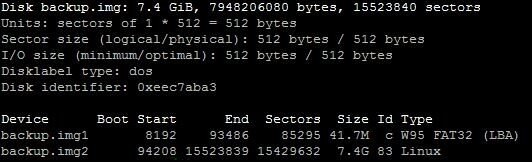
This will tell us what the offset for the data partition is. The SD card at its minimum has two partitions in fact, one is the boot partition and we would generally not be interested in it.
The offset is calculated by multiplying the unit size by the start sector of the partition we need to mount.
In our case the unit size is 512 bytes and the start sector is 94208 so the following command
sudo mount -t auto -o loop,offset=$((94208*512)) backup.img /mnt
will mount backup.img2 in /mnt which is generally available and free on most OS. Use another mountpoint of you need to.
Equally if you wanted to mount backup.img1 you would need to use and offset of 8192*512.
Wrap-up
Once the partition is mounted you can then proceed to retrieve whichever file you were after in the first place. You can use this same approach even in the case you wanted to add files or change the existing ones on the backup. Once unmounted in fact the backup can be restored to an SD card with all the changes you have made making it a good way to keep an updated master backup.
Tips:
- If you want some feedback on the progress of your backup or restore try using dclfdd instead of dd. You might need to install it with
apt-get install dcfldd
- All the dd commands above will work perfectly every time but the purists will advice you to run the sync command after each dd command. You can either run it separately or in line with your dd commands by adding
&& sync