element14 Community
element14 Community
    Register Log In
  • Site
  • Search
  • Log In Register
  • Community Hub
    Community Hub
    • What's New on element14
    • Feedback and Support
    • Benefits of Membership
    • Personal Blogs
    • Members Area
    • Achievement Levels
  • Learn
    Learn
    • Ask an Expert
    • eBooks
    • element14 presents
    • Learning Center
    • Tech Spotlight
    • STEM Academy
    • Webinars, Training and Events
    • Learning Groups
  • Technologies
    Technologies
    • 3D Printing
    • FPGA
    • Industrial Automation
    • Internet of Things
    • Power & Energy
    • Sensors
    • Technology Groups
  • Challenges & Projects
    Challenges & Projects
    • Design Challenges
    • element14 presents Projects
    • Project14
    • Arduino Projects
    • Raspberry Pi Projects
    • Project Groups
  • Products
    Products
    • Arduino
    • Avnet & Tria Boards Community
    • Dev Tools
    • Manufacturers
    • Multicomp Pro
    • Product Groups
    • Raspberry Pi
    • RoadTests & Reviews
  • About Us
  • Store
    Store
    • Visit Your Store
    • Choose another store...
      • Europe
      •  Austria (German)
      •  Belgium (Dutch, French)
      •  Bulgaria (Bulgarian)
      •  Czech Republic (Czech)
      •  Denmark (Danish)
      •  Estonia (Estonian)
      •  Finland (Finnish)
      •  France (French)
      •  Germany (German)
      •  Hungary (Hungarian)
      •  Ireland
      •  Israel
      •  Italy (Italian)
      •  Latvia (Latvian)
      •  
      •  Lithuania (Lithuanian)
      •  Netherlands (Dutch)
      •  Norway (Norwegian)
      •  Poland (Polish)
      •  Portugal (Portuguese)
      •  Romania (Romanian)
      •  Russia (Russian)
      •  Slovakia (Slovak)
      •  Slovenia (Slovenian)
      •  Spain (Spanish)
      •  Sweden (Swedish)
      •  Switzerland(German, French)
      •  Turkey (Turkish)
      •  United Kingdom
      • Asia Pacific
      •  Australia
      •  China
      •  Hong Kong
      •  India
      • Japan
      •  Korea (Korean)
      •  Malaysia
      •  New Zealand
      •  Philippines
      •  Singapore
      •  Taiwan
      •  Thailand (Thai)
      • Vietnam
      • Americas
      •  Brazil (Portuguese)
      •  Canada
      •  Mexico (Spanish)
      •  United States
      Can't find the country/region you're looking for? Visit our export site or find a local distributor.
  • Translate
  • Profile
  • Settings
Raspberry Pi
  • Products
  • More
Raspberry Pi
Blog How to connect Raspberry PI to Laptop/ Computer????
  • Blog
  • Forum
  • Documents
  • Quiz
  • Events
  • Polls
  • Files
  • Members
  • Mentions
  • Sub-Groups
  • Tags
  • More
  • Cancel
  • New
Join Raspberry Pi to participate - click to join for free!
Featured Articles
Announcing Pi
Technical Specifications
Raspberry Pi FAQs
Win a Pi
GPIO Pinout
Raspberry Pi Wishlist
Comparison Chart
Quiz
  • Share
  • More
  • Cancel
Group Actions
  • Group RSS
  • More
  • Cancel
Engagement
  • Author Author: rishikesh.147
  • Date Created: 7 Mar 2015 4:15 PM Date Created
  • Views 3619 views
  • Likes 0 likes
  • Comments 5 comments
Related
Recommended
  • raspberry
  • desktop.
  • found.
  • connect
  • working
  • virtual
  • g2d_23
  • pi
  • raspberry_pi
  • raspberrypi
  • rpi
  • fatal:
  • desktop
  • laptop
  • startx
  • not
  • remote
  • module

How to connect Raspberry PI to Laptop/ Computer????

rishikesh.147
rishikesh.147
7 Mar 2015

Now very Important Step to configure raspberry pi in laptop/computer.


Now disconnect every connection and do as follow:

1. Connect the raspberry to laptop through Ethernet cable

2. Power on the raspberry Pi by inserting USB cable to it and wait for some time for booting.

3. Now goto Network and Sharing Center and You will see the undefined connection and go to change adapter setting and then open properties of Ethernet and goto properties of IPv4 and change IP to Static 192.168.1.89 and subnet 255.255.255.0 and press ok.

Note: Now You have to connect you Raspberry Pi to your modem for INTERNET

4. Now download a client software Bitvise SSH Client [Link: https://www.bitvise.com/ssh-client-download] and do setting as follows:

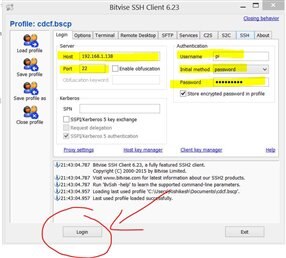
  • Login tab write HOST IP (Raspberry Pi address) and Port = 22 [see below Figure-1]
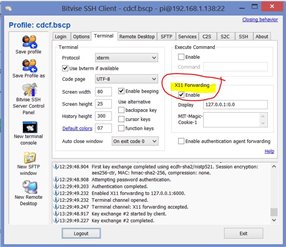
  • Goto Terminal tab of Bitvise SSH Client just enable X11 Forwarding [see below Figure-2]
  • You will asked for user and pwd : pi and raspberry respectively
  • Now press Login and you enter into raspberry pi terminal

Congrates You have done 60% work for configuring Raspberry Pi.


Raspberry Pi desktop to your Laptop screen through Remote Desktop( Ready available in Windows)

Note: Your raspberry should have net access in order to install some package from net.


startx does not work over SSH.

There are ways to get GUI witih x forwarding but I have not done it. Plenty of post on the forum about that.

I use RDP ( built into Windows)


On the RPi install xrdp:

Goto Terminal and write command
sudo aptget install xrdp


Go here for my RPi writeup. Basic config, Serial Port addon etc:

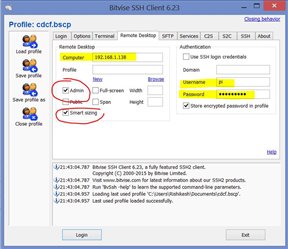
Now Open Bitvise SSH Client do setup


Figure-1
image


Figure-2

image


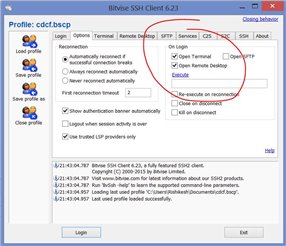
Figure-3  Configuration on Remote Desktop

image


Figure-4  Before Login do this


image


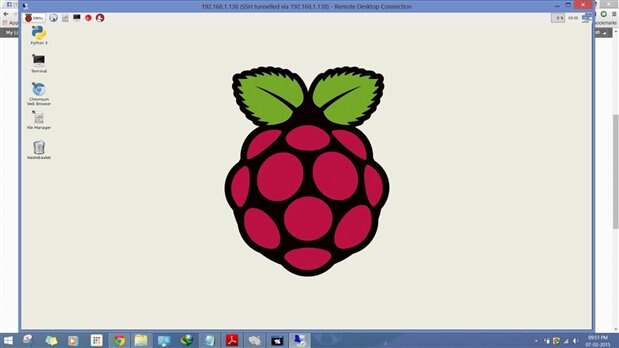
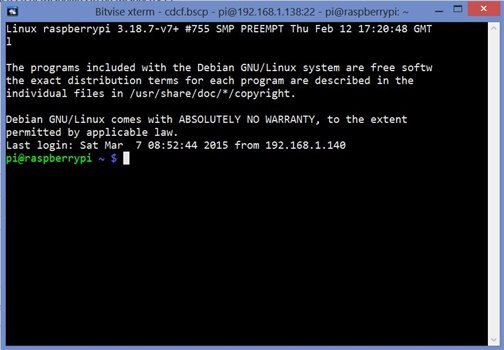
After ward you have some thing like this type screen of Raspbian OS on Raspberry Pi.

Terminal Screenshot

image


Remote Desktop Screen Shot


image


  • Sign in to reply

Top Comments

  • rishikesh.147
    rishikesh.147 over 10 years ago in reply to clem57 +2
    Reply for: I noticed you say to setup window network properties as 192.168.1.89, but bitvise server host as 192.168.1.138! Should they be the same? Answer: Yes you have noticed my mistake, Yes the IP that…
  • clem57
    clem57 over 10 years ago +1
    Now disconnect every connection and do as follow: 1. Connect the raspberry to laptop through Ethernet cable 2. Power on the raspberry Pi by inserting USB cable to it and wait for some time for booting…
  • clem57
    clem57 over 10 years ago in reply to rishikesh.147 +1
    I did get an SSH working now. Problem is no way to download packages per your statement.. : Your raspberry should have net access in order to install some package from net.
  • teleboysteve
    teleboysteve over 8 years ago

    Hello all,

    I have just joined this group because the explanation of how to connect a Pi to a laptop seemed to explain the process better than any other I have seen.

    However, after carrying out all the steps in the explanation I am unable to connect. I am using Windows 10 on an Acer laptop. I have down loaded the xrdp onto the Pi. I have tried all the IP addresses recommended, briefly disabled the McAfee firewall, but I get an error message that reads:

    Connection failed. Flow socket connector failed to connect to target address.

    Windows error 10061: No connection could be made because the target machine actively refused it.

    • Cancel
    • Vote Up 0 Vote Down
    • Sign in to reply
    • More
    • Cancel
  • rishikesh.147
    rishikesh.147 over 10 years ago in reply to clem57

    Reply for:

    I noticed you say to setup window network properties as 192.168.1.89, but bitvise server host as 192.168.1.138! Should they be the same?


    Answer:

    Yes you have noticed my mistake, Yes the IP that you assigned to RPi, same IP you have to write into Bitvise server software.....!!!


    Now, How to assigned IP to RPi that i have described above description.

    • Cancel
    • Vote Up +2 Vote Down
    • Sign in to reply
    • More
    • Cancel
  • clem57
    clem57 over 10 years ago in reply to rishikesh.147

    I did get an SSH working now. Problem is no way to download packages per your statement..

    : Your raspberry should have net access in order to install some package from net.


    • Cancel
    • Vote Up +1 Vote Down
    • Sign in to reply
    • More
    • Cancel
  • rishikesh.147
    rishikesh.147 over 10 years ago in reply to clem57

    Yes it is bit confusing becz it is in continue with the some other description please see first this click here......! http://www.raspberrypi.org/forums/viewtopic.php?f=63&t=103088

    • Cancel
    • Vote Up 0 Vote Down
    • Sign in to reply
    • More
    • Cancel
  • clem57
    clem57 over 10 years ago

    Now disconnect every connection and do as follow:

    1. Connect the raspberry to laptop through Ethernet cable

    2. Power on the raspberry Pi by inserting USB cable to it and wait for some time for booting.

    3. Now goto Network and Sharing Center and You will see the undefined connection and go to change adapter setting and then open properties of Ethernet and goto properties of IPv4 and change IP to Static 192.168.1.89 and subnet 255.255.255.0 and press ok.

    Note: Now You have to connect you Raspberry Pi to your modem for INTERNET

    4. Now download a client software Bitvise SSH Client [Link: https://www.bitvise.com/ssh-client-download] and do setting as follows:

    • Login tab write HOST IP (Raspberry Pi address) and Port = 22 [see below Figure-1]
    • Goto Terminal tab of Bitvise SSH Client just enable X11 Forwarding [see below Figure-2]
    • You will asked for user and pwd : pi and raspberry respectively
    • Now press Login and you enter into raspberry pi terminal

    Following this verbatim gets me to connection refused! Windows error 10061


    I noticed you say to setup window network properties as 192.168.1.89, but bitvise server host as 192.168.1.138! Should they be the same?

    • Cancel
    • Vote Up +1 Vote Down
    • Sign in to reply
    • More
    • Cancel
element14 Community

element14 is the first online community specifically for engineers. Connect with your peers and get expert answers to your questions.

  • Members
  • Learn
  • Technologies
  • Challenges & Projects
  • Products
  • Store
  • About Us
  • Feedback & Support
  • FAQs
  • Terms of Use
  • Privacy Policy
  • Legal and Copyright Notices
  • Sitemap
  • Cookies

An Avnet Company © 2025 Premier Farnell Limited. All Rights Reserved.

Premier Farnell Ltd, registered in England and Wales (no 00876412), registered office: Farnell House, Forge Lane, Leeds LS12 2NE.

ICP 备案号 10220084.

Follow element14

  • X
  • Facebook
  • linkedin
  • YouTube