element14 Community
element14 Community
    Register Log In
  • Site
  • Search
  • Log In Register
  • Community Hub
    Community Hub
    • What's New on element14
    • Feedback and Support
    • Benefits of Membership
    • Personal Blogs
    • Members Area
    • Achievement Levels
  • Learn
    Learn
    • Ask an Expert
    • eBooks
    • element14 presents
    • Learning Center
    • Tech Spotlight
    • STEM Academy
    • Webinars, Training and Events
    • Learning Groups
  • Technologies
    Technologies
    • 3D Printing
    • FPGA
    • Industrial Automation
    • Internet of Things
    • Power & Energy
    • Sensors
    • Technology Groups
  • Challenges & Projects
    Challenges & Projects
    • Design Challenges
    • element14 presents Projects
    • Project14
    • Arduino Projects
    • Raspberry Pi Projects
    • Project Groups
  • Products
    Products
    • Arduino
    • Avnet & Tria Boards Community
    • Dev Tools
    • Manufacturers
    • Multicomp Pro
    • Product Groups
    • Raspberry Pi
    • RoadTests & Reviews
  • About Us
  • Store
    Store
    • Visit Your Store
    • Choose another store...
      • Europe
      •  Austria (German)
      •  Belgium (Dutch, French)
      •  Bulgaria (Bulgarian)
      •  Czech Republic (Czech)
      •  Denmark (Danish)
      •  Estonia (Estonian)
      •  Finland (Finnish)
      •  France (French)
      •  Germany (German)
      •  Hungary (Hungarian)
      •  Ireland
      •  Israel
      •  Italy (Italian)
      •  Latvia (Latvian)
      •  
      •  Lithuania (Lithuanian)
      •  Netherlands (Dutch)
      •  Norway (Norwegian)
      •  Poland (Polish)
      •  Portugal (Portuguese)
      •  Romania (Romanian)
      •  Russia (Russian)
      •  Slovakia (Slovak)
      •  Slovenia (Slovenian)
      •  Spain (Spanish)
      •  Sweden (Swedish)
      •  Switzerland(German, French)
      •  Turkey (Turkish)
      •  United Kingdom
      • Asia Pacific
      •  Australia
      •  China
      •  Hong Kong
      •  India
      • Japan
      •  Korea (Korean)
      •  Malaysia
      •  New Zealand
      •  Philippines
      •  Singapore
      •  Taiwan
      •  Thailand (Thai)
      • Vietnam
      • Americas
      •  Brazil (Portuguese)
      •  Canada
      •  Mexico (Spanish)
      •  United States
      Can't find the country/region you're looking for? Visit our export site or find a local distributor.
  • Translate
  • Profile
  • Settings
Raspberry Pi
  • Products
  • More
Raspberry Pi
Blog Raspberry Pi 2 - Plex Media Server
  • Blog
  • Forum
  • Documents
  • Quiz
  • Events
  • Polls
  • Files
  • Members
  • Mentions
  • Sub-Groups
  • Tags
  • More
  • Cancel
  • New
Join Raspberry Pi to participate - click to join for free!
Featured Articles
Announcing Pi
Technical Specifications
Raspberry Pi FAQs
Win a Pi
GPIO Pinout
Raspberry Pi Wishlist
Comparison Chart
Quiz
  • Share
  • More
  • Cancel
Group Actions
  • Group RSS
  • More
  • Cancel
Engagement
  • Author Author: biglesp
  • Date Created: 3 Mar 2016 1:15 PM Date Created
  • Views 9989 views
  • Likes 4 likes
  • Comments 40 comments
Related
Recommended
  • plex_media_server_software
  • rpiintermediate
  • project
  • rpibeginner
  • internet_of_things
  • pi2_project
  • raspberrypi_project
  • raspberrypi
  • iot
  • raspberrypi2
  • media_library
  • plex
  • raspbian
  • multi_room_audio
  • pi2
  • home_entertainment

Raspberry Pi 2 - Plex Media Server

biglesp
biglesp
3 Mar 2016

With our ever increasing media libraries containing movies, TV shows, music and pictures we need something that can serve this content to any of our devices.

 

25100202219_0e81f79d0e_b_d.jpg


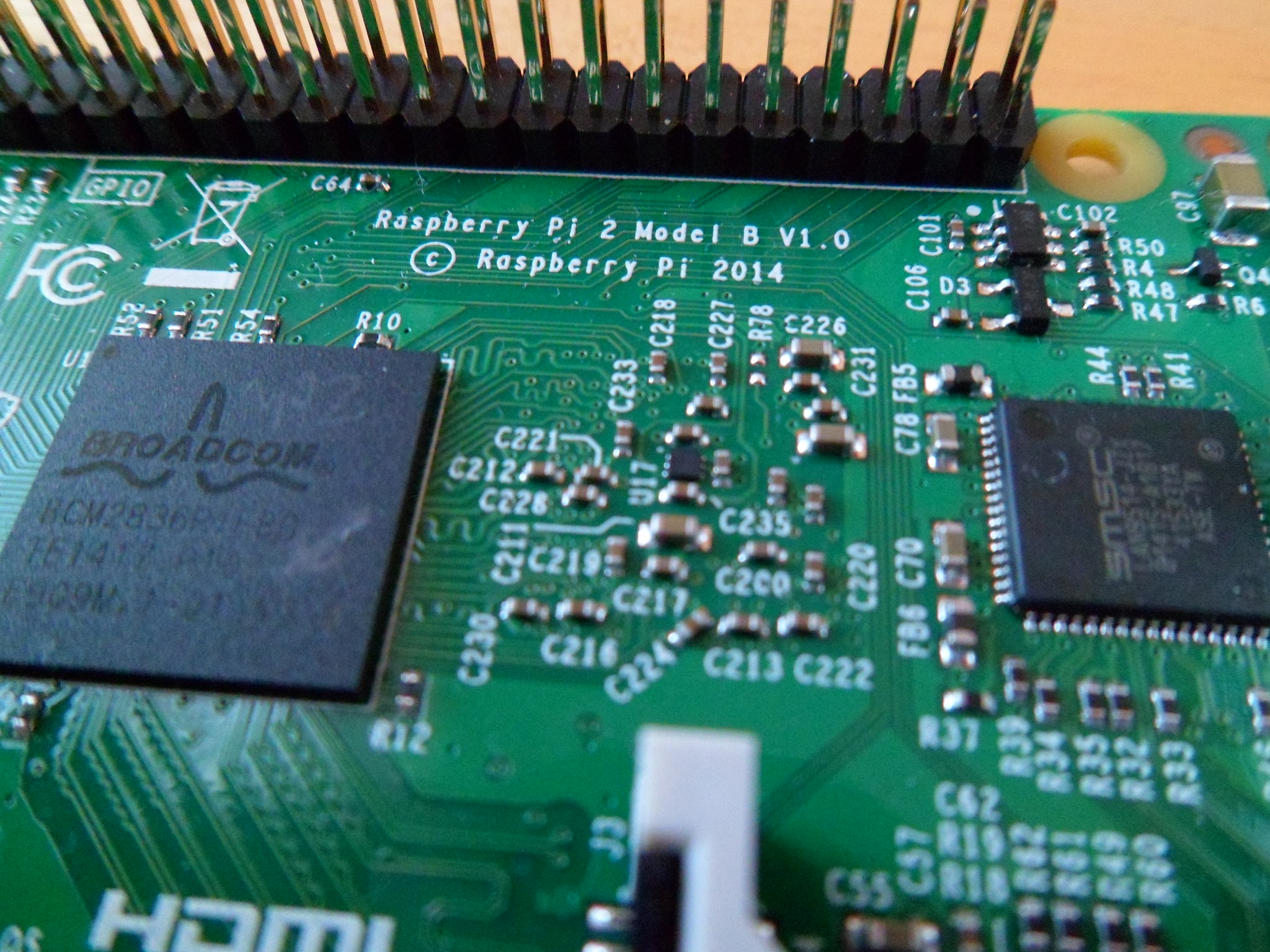
If you fancy opera in the kitchen, jazz in the bathroom and the latest Hollywood blockbuster in your pocket, then you need a media server and the Raspberry Pi 2 is the ideal low cost candidate.

To replicate this project you will need:


  • A Raspberry Pi 2
  • A laptop running Windows/Mac or Linux
  • A minimum of 8GB SD card
  • A 2A power supply
  • An Ethernet cable connected to a router.
  • An external USB hard drive


16249575259_467b219fb4_k_d.jpg


We start the project by installing the latest version of Raspbian on to an 8GB or greater SD card. The best tutorial on how to do this is provided by the Raspberry Pi Foundation and can be found on their blog

With Raspbian installed we now need to boot our Raspberry Pi. Insert the microSD into the Raspberry Pi, then attach any peripherals such as keyboard, mouse, HDMI, Ethernet to the Pi. Lastly attach the power cable to boot the Pi.

When your Pi has booted to the desktop, click on the menu to the top left of the screen and go to the Preferences menu. From there select the Raspberry Pi Configuration application.

In this application we need to change the boot behaviour so that the Pi boots to the terminal and is logged in. We’ll also change the memory for the GPU to only use 16MB of RAM, and overclock the Pi 2 to 1GHz.

With these changes made, save and exit the application. You will be asked to reboot, do so before progressing.

With our Pi rebooted we now find ourselves at the terminal. It may seem a little scary at first but the terminal is the best way to work with a Linux computer.

Setup software

Our next goal is to install the software necessary for our Pi.

First we update our list of available software. In the terminal type.


sudo apt-get update


The update will take a few moments to complete. When the terminal is returned to you enter the next command to install the HTTPS transport package to enable access to HTTPS content over the Internet.


sudo apt-get install apt-transport-https -y --force-yes


Next we shall download a key that will authenticate our downloads to ensure they are safe


wget -O - https://dev2day.de/pms/dev2day-pms.gpg.key  | sudo apt-key add -


With the key downloaded we now add a new repository to our list, this repository is provided by dev2day.de who has worked on the packages that will power our Plex install.

In the terminal type


echo "deb https://dev2day.de/pms/ jessie main" | sudo tee /etc/apt/sources.list.d/pms.list


We now update our list again, to ensure that we now have the latest updates for the Plex Media Server.


sudo apt-get update


Lastly we install the Plex Media Server software.


sudo apt-get install -t jessie plexmediaserver -y


The install will only take a few minutes and once completed the Plex Media Server will automatically start as a background service on your Pi.

Fix IP address of the Pi

To ensure that we can discover our Pi on a network we will now fix the IP address of the Pi.

First we need to find out the IP address, in the terminal type.


hostname -I


Write down your IP address!

Now let's fix the IP address, in the terminal type


sudo nano /boot/cmdline.txt


At the very end of the line we will add the IP address that we earlier wrote down. So type


ip=THE IP ADDRESS YOU WROTE DOWN


With the IP entered press CTRL + O, then Enter to save your changes.

Now press CTRL + X to close the file.

Now reboot your Pi to make the changes permanent.


sudo reboot


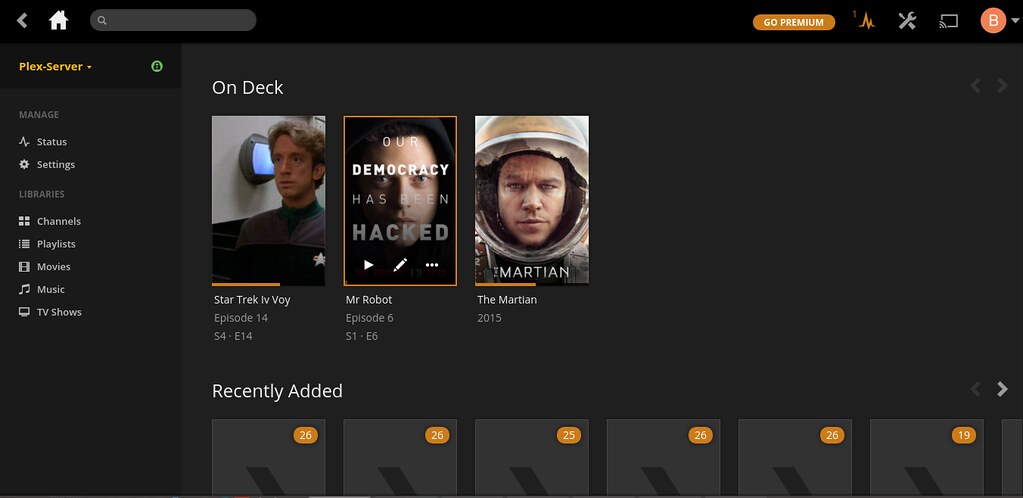
With your Pi rebooted we shall now test that we can access the Plex server. On your laptop or desktop PC open a web browser and type your IP address followed by :32400/web so for example I typed.


192.168.0.90:32400/web
 

24841031413_78331093d4_b_d.jpg


This will now open the Plex Media Server software and we will need to read and accept the Terms and Conditions before progressing.

Once Plex has loaded take a few moments to get familiar with the interface. Specifically the libraries, which will house your media collection.

The SD card of our Raspberry Pi is rather small, so let's add an external hard drive and store our media there.

Plug in your USB drive. Nothing will happen in Plex until we mount the drive. In Linux, mounting a drive means that it is ready to be used. On your Raspberry Pi, in the terminal type


dmesg


You will see a lot of text whizz up the screen but keep a look out for your hard drive.

So now lets create somewhere to link our hard drive to the Raspberry Pi this will be a directory called “library”. In the terminal type


sudo mkdir /mnt/library


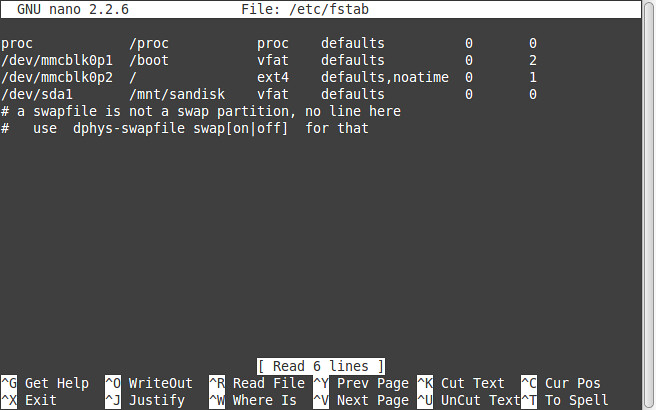
Now we shall open a text editor and add a line of code to mount the drive on boot. For our drive we used a FAT32 formatted drive. As this is the only USB drive it will be given the assignment “sda” and if the drive has one partition, where our data is stored, then it will be “1”. This gives us the location of our media which is “sda1”.


sudo nano /etc/fstab
 

25467761615_c0b2d45027_b_d.jpg


So now we shall mount our drive, got to the last line which starts with a “/” and make a new line under it. Enter the following and try and keep your spacing similar to those above.


/dev/sda1    /mnt/library   vfat   defaults    0    0


To save your work press CTRL + O followed by Enter. Then to exit press CTRL + X.

Reboot your Raspberry Pi.


sudo reboot


Once the Pi has booted back up navigate to your content by typing.


cd /mnt/library


Now we need to see where our content is, so to find it type


ls


You should see lots of directories and files, just as you arranged them on your main computer.

Our next step involves enabling access to the files for any user. As our server will be in our home we shall enable access to all of the content for all of the users. Typically this is not the done thing for big servers in production but for our server this is fine. So to enable access we need to type


sudo chmod 777 -R /mnt/library


Now this might take some time so be patient.
 

25349753862_c979d92f73_h_d.jpg


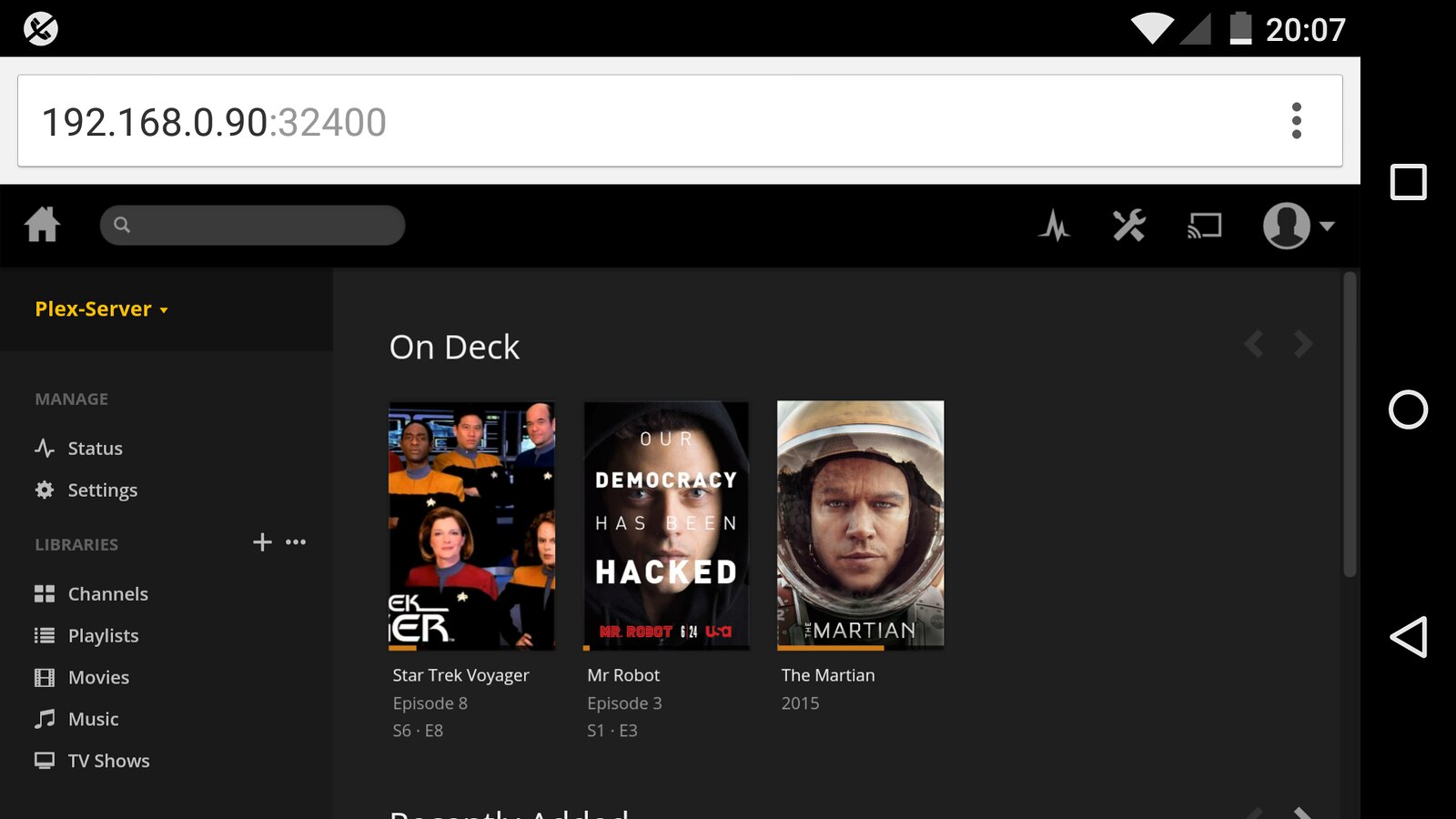
So now that we our drive ready to serve our media, let's start using it!

Back to our laptop/PC and open your web browser to your Plex Media Server.

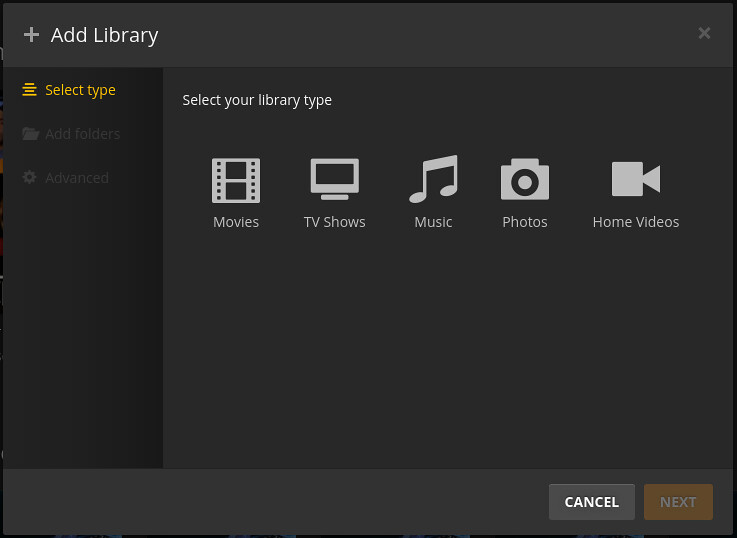
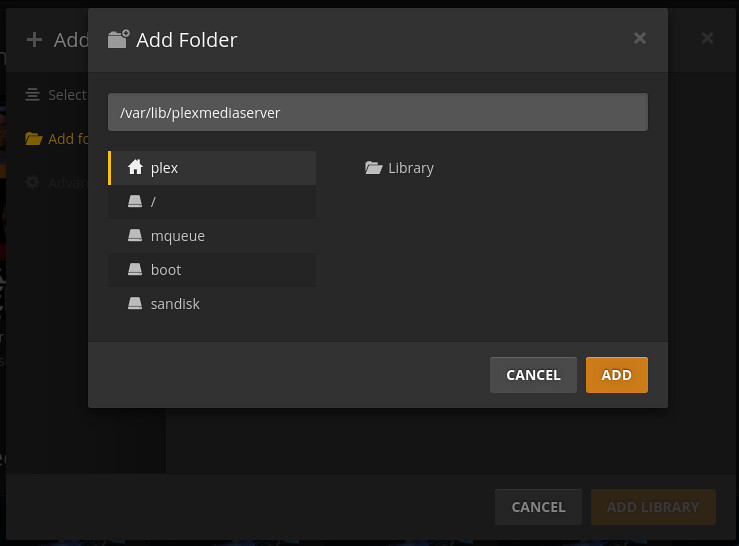
You will be prompted to add a library, so go ahead and do so. Now which library you add depends on what you have. I chose to add a couple of TV series. When ready click on “Add Library” to import the media.
 

24837201614_aacabb5271_b_d.jpg

24841031493_351b6b9f21_b_d.jpg


Depending on the amount of media that you have to import this process may take minutes or hours, so please be patient and wait for the process to finish.

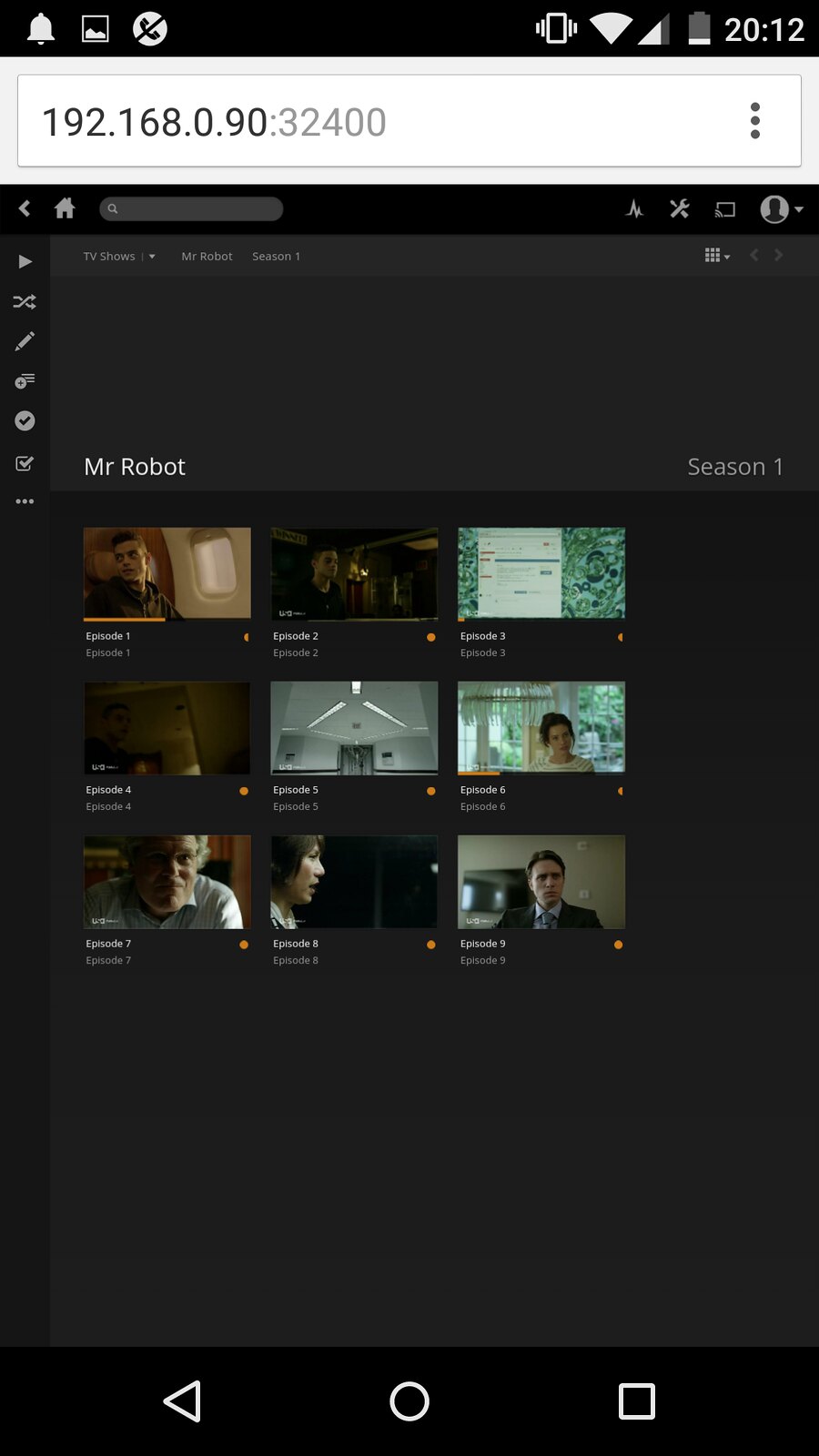
When the media is imported, Plex will try its best to grab the metadata, the information about the content such as genre, IMDB data, actor details etc.
 

24841467453_b9cea3a480_h_d.jpg

Multi User Access

The huge benefit of Plex is that any user on the home network can access any of the media in the library. So children can watch their favourite films on the mobile device, parents can listen to music or podcasts or share their family photos on their laptops.

Plex can also be streamed to a chromecast device, enabling high definition movies to be enjoyed on the big screen.

Listen to all of your music across your entire home and all you need is a Raspberry Pi and a little Linux know how.

  • Sign in to reply

Top Comments

  • spannerspencer
    spannerspencer over 9 years ago +2
    My smart TV has Plex, but it makes my old NAS crawl to run the server. This'd be a good way to effectively update the NAS and start using Plex again! Nice work!
  • Matt
    Matt over 9 years ago +1
    Awesome. I've heard really good things about Plex.. thanks for putting together all these instructions for how to get it working on a Pi
  • biglesp
    biglesp over 9 years ago in reply to clem57 +1
    Hi Clem Plex is a product that comprises of a server providing content to clients on a network.
  • smudgy
    smudgy over 8 years ago

    Trying to figure out how to enable PMS to see a DNLA NAS file server on the same network.


    Installed pms on a minimal jessie linux which was maybe a mistake as the gui environment (thunar etc) probably have tools to access the nas. OpenELEC was easy to just add the WD MyCloud NAS but Plex Media Server is not so straightforward.


    SOLVED (including automount which was tricky to solve)


    Added entry to fstab 


    sudo nano /etc/fstab


    e.g. For a file server with a reserved ipaddress of 192.168.0.200 specified in router admin settings and after having created the /media/fileServer directory to mount the file server shared folder into


    //192.168.0.200/Public   /media/fileServer      cifs         username=theName, password=thePassword, x-systemd.automount    0  0


    Save and exit nano


    Parameter  x-systemd.automount   was sufficient in the end.  The problem was to ensure system only tried to mount after network access secured...


    Check it works

    A)  sudo mount - a


    B) Reboot to make sure it automounts with list command


    ls   /media/fileServer


    And make sure Plex Apps connect to PlexMediaServer


    (Though I am not sure if I am not better off sticking with LocalCast for Android  and LIbreELEC for the Pi. So much easier to use for me although now I know what Plex is even if I am not so impressed!)

    • Cancel
    • Vote Up 0 Vote Down
    • Sign in to reply
    • More
    • Cancel
  • olafejs
    olafejs over 8 years ago in reply to clem57

    Clean instal of fresk rasbian noobs and full update with dist-upgrade.

    • Cancel
    • Vote Up 0 Vote Down
    • Sign in to reply
    • More
    • Cancel
  • clem57
    clem57 over 8 years ago in reply to olafejs

    2 not fully installed or removed.

    This indicates maybe the repository not in sync. What level of Rasbian do you have? Wheezy or Jessie?


    Did you enter these commands first? (Also you must have internet access of course)


    sudo apt-get update

    sudo apt-get upgrade


    These make sure your repositories are up to date!

    Clem

    • Cancel
    • Vote Up 0 Vote Down
    • Sign in to reply
    • More
    • Cancel
  • olafejs
    olafejs over 8 years ago

    When install i have this error:

    Reading package lists... Done
    Building dependency tree
    Reading state information... Done
    Calculating upgrade... Done
    0 upgraded, 0 newly installed, 0 to remove and 0 not upgraded.
    2 not fully installed or removed.
    After this operation, 0 B of additional disk space will be used.
    Do you want to continue? [Y/n] y
    Setting up plexmediaserver-installer (1.3.3.3148-b38628e-1~jessie) ...
    Plex Media Server is not running (no process found)...
    Downloading readynas package ...

    curl: (35) error:0906D06C:PEM routines:PEM_read_bio:no start line
    sha256sum: readynas.deb: No such file or directory
    Checksum mismatch. Downloaded file does not match this package.
    dpkg: error processing package plexmediaserver-installer (--configure):
    subprocess installed post-installation script returned error exit status 1
    dpkg: dependency problems prevent configuration of plexmediaserver:
    plexmediaserver depends on plexmediaserver-installer; however:
    Package plexmediaserver-installer is not configured yet.

    dpkg: error processing package plexmediaserver (--configure):
    dependency problems - leaving unconfigured
    Errors were encountered while processing:
    plexmediaserver-installer
    plexmediaserver

    WTF ?

    • Cancel
    • Vote Up 0 Vote Down
    • Sign in to reply
    • More
    • Cancel
  • Former Member
    Former Member over 9 years ago in reply to Former Member

    I'm having the same issue. It's not running (code=exited), but it was never bound to any ports or leave any error logs.

    • Cancel
    • Vote Up 0 Vote Down
    • Sign in to reply
    • More
    • Cancel
>
element14 Community

element14 is the first online community specifically for engineers. Connect with your peers and get expert answers to your questions.

  • Members
  • Learn
  • Technologies
  • Challenges & Projects
  • Products
  • Store
  • About Us
  • Feedback & Support
  • FAQs
  • Terms of Use
  • Privacy Policy
  • Legal and Copyright Notices
  • Sitemap
  • Cookies

An Avnet Company © 2025 Premier Farnell Limited. All Rights Reserved.

Premier Farnell Ltd, registered in England and Wales (no 00876412), registered office: Farnell House, Forge Lane, Leeds LS12 2NE.

ICP 备案号 10220084.

Follow element14

  • X
  • Facebook
  • linkedin
  • YouTube