element14 Community
element14 Community
    Register Log In
  • Site
  • Search
  • Log In Register
  • Community Hub
    Community Hub
    • What's New on element14
    • Feedback and Support
    • Benefits of Membership
    • Personal Blogs
    • Members Area
    • Achievement Levels
  • Learn
    Learn
    • Ask an Expert
    • eBooks
    • element14 presents
    • Learning Center
    • Tech Spotlight
    • STEM Academy
    • Webinars, Training and Events
    • Learning Groups
  • Technologies
    Technologies
    • 3D Printing
    • FPGA
    • Industrial Automation
    • Internet of Things
    • Power & Energy
    • Sensors
    • Technology Groups
  • Challenges & Projects
    Challenges & Projects
    • Design Challenges
    • element14 presents Projects
    • Project14
    • Arduino Projects
    • Raspberry Pi Projects
    • Project Groups
  • Products
    Products
    • Arduino
    • Avnet & Tria Boards Community
    • Dev Tools
    • Manufacturers
    • Multicomp Pro
    • Product Groups
    • Raspberry Pi
    • RoadTests & Reviews
  • About Us
  • Store
    Store
    • Visit Your Store
    • Choose another store...
      • Europe
      •  Austria (German)
      •  Belgium (Dutch, French)
      •  Bulgaria (Bulgarian)
      •  Czech Republic (Czech)
      •  Denmark (Danish)
      •  Estonia (Estonian)
      •  Finland (Finnish)
      •  France (French)
      •  Germany (German)
      •  Hungary (Hungarian)
      •  Ireland
      •  Israel
      •  Italy (Italian)
      •  Latvia (Latvian)
      •  
      •  Lithuania (Lithuanian)
      •  Netherlands (Dutch)
      •  Norway (Norwegian)
      •  Poland (Polish)
      •  Portugal (Portuguese)
      •  Romania (Romanian)
      •  Russia (Russian)
      •  Slovakia (Slovak)
      •  Slovenia (Slovenian)
      •  Spain (Spanish)
      •  Sweden (Swedish)
      •  Switzerland(German, French)
      •  Turkey (Turkish)
      •  United Kingdom
      • Asia Pacific
      •  Australia
      •  China
      •  Hong Kong
      •  India
      • Japan
      •  Korea (Korean)
      •  Malaysia
      •  New Zealand
      •  Philippines
      •  Singapore
      •  Taiwan
      •  Thailand (Thai)
      • Vietnam
      • Americas
      •  Brazil (Portuguese)
      •  Canada
      •  Mexico (Spanish)
      •  United States
      Can't find the country/region you're looking for? Visit our export site or find a local distributor.
  • Translate
  • Profile
  • Settings
Raspberry Pi
  • Products
  • More
Raspberry Pi
Documents Setting up Bluetooth on the Raspberry Pi 3
  • Blog
  • Forum
  • Documents
  • Quiz
  • Events
  • Polls
  • Files
  • Members
  • Mentions
  • Sub-Groups
  • Tags
  • More
  • Cancel
  • New
Join Raspberry Pi to participate - click to join for free!
Actions
  • Share
  • More
  • Cancel
Engagement
  • Author Author: cstanton
  • Date Created: 16 Mar 2016 1:01 AM Date Created
  • Last Updated Last Updated: 10 May 2021 7:23 PM
  • Views 15588 views
  • Likes 18 likes
  • Comments 61 comments
Related
Recommended

Setting up Bluetooth on the Raspberry Pi 3

Wireless at Last!


Now that it has been a few weeks since the release of the Raspberry Pi 3Raspberry Pi 3, support for the WiFi and Bluetooth chip has settled and you can use it with Raspbian. Support with Windows 10 IoT Core will be available in the early days via the Insider Program before it is pushed through to the full release.


As usual, with Raspbian ensure that you have your distribution up to date, with this guide we will be using Raspbian Jessie, at present it is still the ARMv7 32bit kernel. Connect your Raspberry Pi to the internet either via WiFi or Ethernet and run the following commands:


sudo apt-get update

sudo apt-get upgrade -y

sudo apt-get dist-upgrade -y

sudo rpi-update


Installing the Software


From a console terminal, either from within your desktop environment, which at the time of writing the window manager is still LXDE. This will ensure your system is up to date.


Now you have a few options, you can install the following package:


sudo apt-get install pi-bluetooth


Which should install what you need to use the bluetooth portion of the chip, this installs the following packages which you can, if you want, install instead of pi-bluetooth:


sudo apt-get install bluez bluez-firmware


As the chip requires a firmware blob to work along with the driver. Bluez also installs a suite of tools. These will work from the console terminal. Should you wish to manage your bluetooth devices from your X environment, aka your windows manager, aka your desktop then you can install the following package:


sudo apt-get install blueman


After installing the software and drivers, reboot your Raspberry Pi. Unless you know otherwise, to load the driver for the adapter.


Terminal / Console


Bluez comes with a tool called 'bluetoothctl' which you can run from the console terminal, typing 'man bluetoothctl' does not give you a great deal of detail, so you have to type 'help' from within the software:

pi@raspberrypi:~ $ bluetoothctl

[bluetooth]# help

Available commands:

  list                       List available controllers

  show [ctrl]                Controller information

  select <ctrl>              Select default controller

  devices                    List available devices

  paired-devices             List paired devices

  power <on/off>             Set controller power

  pairable <on/off>          Set controller pairable mode

  discoverable <on/off>      Set controller discoverable mode

  agent <on/off/capability>  Enable/disable agent with given capability

  default-agent              Set agent as the default one

  scan <on/off>              Scan for devices

  info <dev>                 Device information

  pair <dev>                 Pair with device

  trust <dev>                Trust device

  untrust <dev>              Untrust device

  block <dev>                Block device

  unblock <dev>              Unblock device

  remove <dev>               Remove device

  connect <dev>              Connect device

  disconnect <dev>           Disconnect device

  version                    Display version

  quit                       Quit program


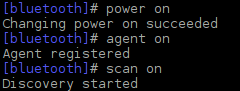
Now we are in bluetoothctl we can run the commands, first lets make sure that bluetooth is on, running and discovering devices:
 

image

With the commands 'power on', 'agent on' and 'scan on'. Though we likely only need 'power on' and 'scan on'.


image

image

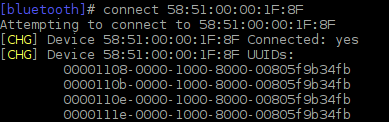
Devices! and while the software is running we will see devices appear, change, delete, etc. We can then connect to a device using its MAC address. Basically, we are talking to the devices directly at the hardware layer, usually on your typical WiFi or Ethernet network this is done transparently to you and we only work with IP addresses. However with Bluetooth at this point, no.
 

image

We can also then pair and trust the device and do all the fun features of Bluetooth, provided these are successful.


GUI

Some consider the blueman package and software to be unstable, though the sources saying so are a bit dated by now and it may be somewhat more stable.

 

image


When you have the blueman package installed, you should have a nice Bluetooth icon in your system tray. If you left-click with a mouse connected to your Raspberry Pi you should get a menu with all of the, hopefully, self explanatory options for you to play with, which for some reason I could not capture with scrot/imagemagick, so you get a nice photograph:


image


Yum, pixelated (it was an old Dell monitor). If we want to scan for devices, similarly to using the 'scan' command for bluetoothctl then we select 'Devices' on the menu:


image

And from here we can see what is available in the vicinity, you may be surprised at suddenly finding your neighbours smart television or phone, you will find out how thin your walls really are. It can be more fun in the office at work.


However, let us select "setup a new device":


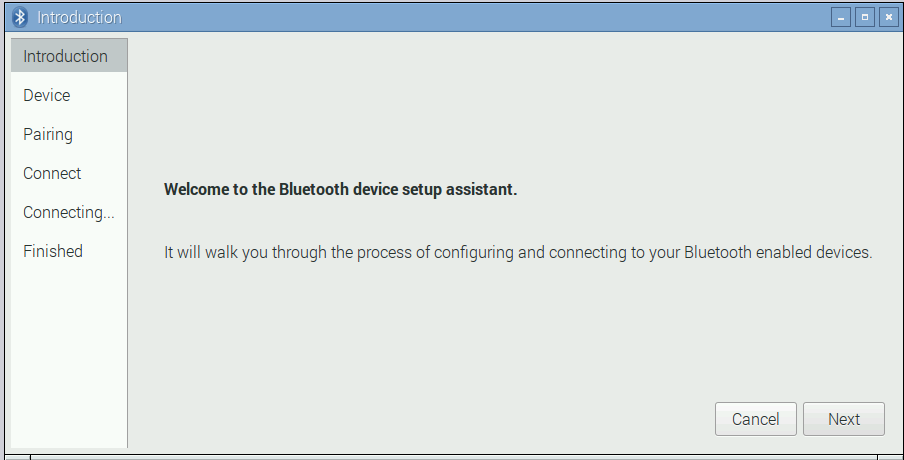
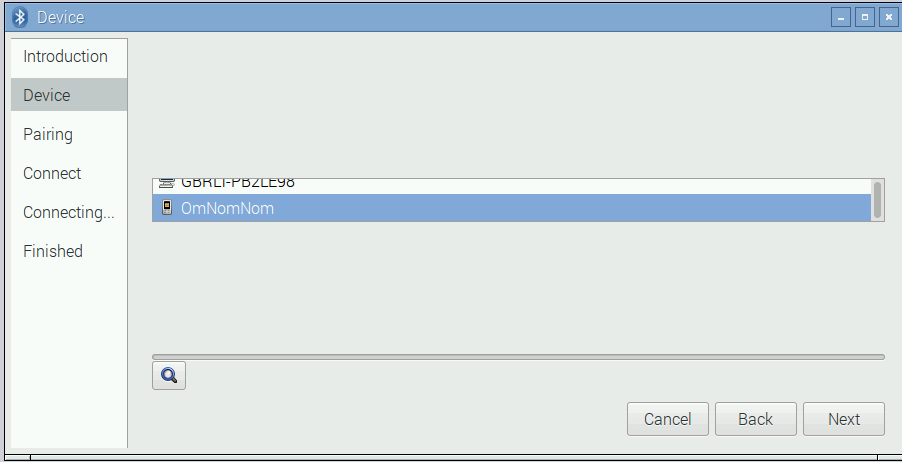
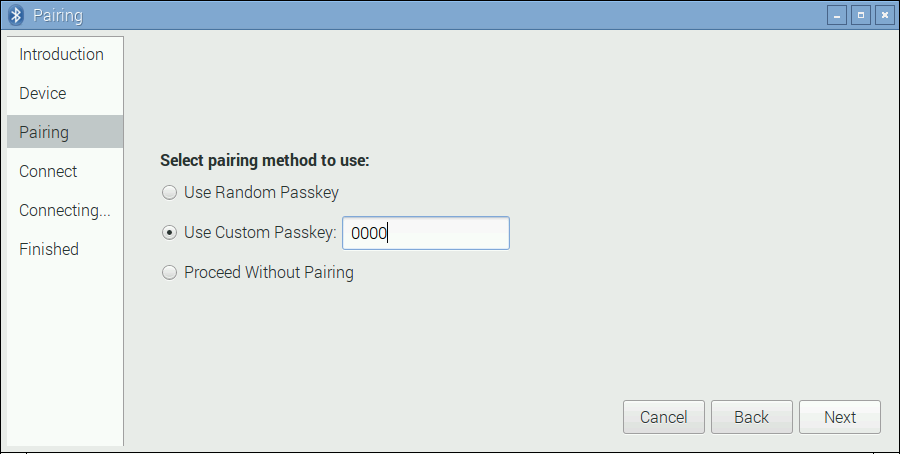
{gallery} Add New Device

image

Add New Devices: Introduction

image

Add New Device: Choose the Device to Connect to

image

Add New Device: Choose a pairing code


However, what I discovered is that the passkey method is practically deprecated or ignored, it may be applicable for older Bluetooth software or devices, but these days you will get a prompt appear (and for myself, then hide) on Raspbian, next to the icon for blueman, there will be a message, and in this message it will display a message like:


This device wants to pair with this machine, with this code xxxxxxxx, do you want to permit or deny?


This likely happens with new devices such as smart phones and televisions, as a security measure that you are physically holding or looking at the device in question. Of course you then 'permit' on either the device or Raspbian and the two will be paired. Allowing you to then setup drivers for your Bluetooth device functionality, to use it as a modem, in the case of a phone, share its internet access or simply send files to and from it. Potentially, you can even use it as an audio device!


Attaching to devices such as headsets tends to be easier, and usually does not use a pairing code. A standard is usually four zeroes (0000) with most consumer devices.


Have you setup your Raspberry Pi 3 with Bluetooth?

Perhaps speakers, or even the Panasonic Grid Eye sensor boardPanasonic Grid Eye sensor board? (yes, it has bluetooth). I am not sure what I will do with mine, but after I backed the Bluetooth Audio Link I may use it with some speakers, or perhaps add the functionality to remote control a Plex Server.

  • bluetooth
  • ble
  • raspberry pi 3 bluetooth
  • ble 4.0
  • bluetooth low energy 4.0
  • ble 4.1
  • raspberry_pi
  • bluetooth_4.1
  • raspberry pi
  • bluetooth 4
  • bluetooth 4.1
  • raspberry_pi_space
  • raspberry_pi_3_bluetooth
  • bluetooth 4.0
  • bluetooth low energy
  • raspberry pi 3
  • ble_4.1
  • Share
  • History
  • More
  • Cancel
  • Sign in to reply

Top Comments

  • shabaz
    shabaz over 9 years ago +3
    Nice! I just tried it - worked a treat with my keyboard following your instructions. The update/upgrade part is super important, I tried it first without that (I was curious lol). After the upgrade, I…
  • shabaz
    shabaz over 9 years ago +2
    Also, cool smartphone name ; )
  • bwelsby
    bwelsby over 9 years ago in reply to cstanton +2
    Christopher Stanton wrote: So just for clarification, you're pairing more than one device at once to the Raspberry Pi? Yep and playing music from one device through the RPi to the other BTW another cause…
  • cstanton
    cstanton over 9 years ago in reply to bwelsby

    Have you also connected the Pi to a WiFi access point, at the same time?

    • Cancel
    • Vote Up 0 Vote Down
    • Sign in to reply
    • More
    • Cancel
  • bwelsby
    bwelsby over 9 years ago in reply to cstanton

    Christopher Stanton wrote:


    So just for clarification, you're pairing more than one device at once to the Raspberry Pi?

    Yep and playing music from one device through the RPi   to the other image   


    BTW another cause of sound breakup is if you have "scan on" in bluetoothctl.

    • Cancel
    • Vote Up +2 Vote Down
    • Sign in to reply
    • More
    • Cancel
  • cstanton
    cstanton over 9 years ago in reply to bwelsby

    So just for clarification, you're pairing more than one device at once to the Raspberry Pi?

    • Cancel
    • Vote Up 0 Vote Down
    • Sign in to reply
    • More
    • Cancel
  • bwelsby
    bwelsby over 9 years ago in reply to shabaz

    Yep but it's one step better than just "unknown error" 

    As for breakup if I try to connect another device such as my kindle fire to the RPi (already paired) whilst playing music to the speaker I get some audio breakup.

    I stopped mplayer and then streamed audio from my kindle to the RPi using BT  and the RPi had the BT speaker configured for it's audio  it actually works but with significant breakup.  I don't know if that is supposed to work or not.


    Edit: I get these entries in /var/log/syslog:

    Mar 16 20:13:25 raspberrypi pulseaudio[967]: Skipping 8325 us (= 1468 bytes) in audio stream

    Mar 16 20:13:25 raspberrypi pulseaudio[967]: Skipping 203860 us (= 35960 bytes) in audio stream

    Mar 16 20:13:25 raspberrypi pulseaudio[967]: Skipping 84344 us (= 14876 bytes) in audio stream

    Mar 16 20:13:26 raspberrypi pulseaudio[967]: Skipping 218 us (= 36 bytes) in audio stream

    Mar 16 20:13:26 raspberrypi pulseaudio[967]: Skipping 16244 us (= 2864 bytes) in audio stream

    Mar 16 20:13:26 raspberrypi pulseaudio[967]: Skipping 13294 us (= 2344 bytes) in audio stream

    Mar 16 20:13:26 raspberrypi pulseaudio[967]: Skipping 50502 us (= 8908 bytes) in audio stream

    Mar 16 20:13:26 raspberrypi pulseaudio[967]: Skipping 87773 us (= 15480 bytes) in audio stream

    Mar 16 20:13:33 raspberrypi pulseaudio[967]: Skipping 67280 us (= 11868 bytes) in audio stream

    Mar 16 20:13:33 raspberrypi pulseaudio[967]: Skipping 13988 us (= 2464 bytes) in audio stream

    • Cancel
    • Vote Up 0 Vote Down
    • Sign in to reply
    • More
    • Cancel
  • shabaz
    shabaz over 9 years ago in reply to bwelsby

    Hehe it would be to much to expect the debug to actually print the 'seq type' value that is unknown.

    Glad that audio output is smooth though! I still need to investigate the significant break-up I got : (

    • Cancel
    • Vote Up 0 Vote Down
    • Sign in to reply
    • More
    • Cancel
  • bwelsby
    bwelsby over 9 years ago in reply to clem57

    I finally got it working but it's not stable, a reboot and it fails again.


    If I restart the bluetoothd daemon and then connect to the speaker device sometimes it works , sometimes it doesn't. When it doesn't I am seeing this is /var/log/syslog as it disconnects and reconnects.

    Mar 16 18:49:26 raspberrypi bluetoothd[1344]: Unknown seq type


    When it does work I don't get the log entry and  it works well playing music is smooth even when running the stress tests image


    I need to find some more BT devices to try out... image

    • Cancel
    • Vote Up +1 Vote Down
    • Sign in to reply
    • More
    • Cancel
  • Problemchild
    Problemchild over 9 years ago in reply to shabaz

    It would be interestingto try that BT  Audio  Amp see if it connects to the PI as well as my Fedora Desktop!

    • Cancel
    • Vote Up +1 Vote Down
    • Sign in to reply
    • More
    • Cancel
  • clem57
    clem57 over 9 years ago in reply to bwelsby

    Check pairing options. This looks software related.

    Clem

    • Cancel
    • Vote Up 0 Vote Down
    • Sign in to reply
    • More
    • Cancel
  • bwelsby
    bwelsby over 9 years ago in reply to shabaz

    So far no joy image

    I have tried a bluetooth speaker and  I managed to pair and then connect but then it repeatedly disconnects and connects every few seconds...

    [CHG] Device 19:00:00:00:22:35 Connected: yes

    [CHG] Device 19:00:00:00:22:35 Connected: no

    [CHG] Device 19:00:00:00:22:35 Connected: yes

    [CHG] Device 19:00:00:00:22:35 Connected: no

    [CHG] Device 19:00:00:00:22:35 Connected: yes

    [CHG] Device 19:00:00:00:22:35 Connected: no

    [CHG] Device 19:00:00:00:22:35 Connected: yes

    [CHG] Device 19:00:00:00:22:35 Connected: no

    [CHG] Device 19:00:00:00:22:35 Connected: yes

    [CHG] Device 19:00:00:00:22:35 Connected: no

    [CHG] Device 19:00:00:00:22:35 Connected: yes

    [CHG] Device 19:00:00:00:22:35 Connected: no

    ..........


    No time at the moment to investigate further will have to get back to it later.

    • Cancel
    • Vote Up +1 Vote Down
    • Sign in to reply
    • More
    • Cancel
  • shabaz
    shabaz over 9 years ago

    Also, cool smartphone name ; )

    • Cancel
    • Vote Up +2 Vote Down
    • Sign in to reply
    • More
    • Cancel
<>
element14 Community

element14 is the first online community specifically for engineers. Connect with your peers and get expert answers to your questions.

  • Members
  • Learn
  • Technologies
  • Challenges & Projects
  • Products
  • Store
  • About Us
  • Feedback & Support
  • FAQs
  • Terms of Use
  • Privacy Policy
  • Legal and Copyright Notices
  • Sitemap
  • Cookies

An Avnet Company © 2026 Premier Farnell Limited. All Rights Reserved.

Premier Farnell Ltd, registered in England and Wales (no 00876412), registered office: Farnell House, Forge Lane, Leeds LS12 2NE.

ICP 备案号 10220084.

Follow element14

  • X
  • Facebook
  • linkedin
  • YouTube