element14 Community
element14 Community
    Register Log In
  • Site
  • Search
  • Log In Register
  • Community Hub
    Community Hub
    • What's New on element14
    • Feedback and Support
    • Benefits of Membership
    • Personal Blogs
    • Members Area
    • Achievement Levels
  • Learn
    Learn
    • Ask an Expert
    • eBooks
    • element14 presents
    • Learning Center
    • Tech Spotlight
    • STEM Academy
    • Webinars, Training and Events
    • Learning Groups
  • Technologies
    Technologies
    • 3D Printing
    • FPGA
    • Industrial Automation
    • Internet of Things
    • Power & Energy
    • Sensors
    • Technology Groups
  • Challenges & Projects
    Challenges & Projects
    • Design Challenges
    • element14 presents Projects
    • Project14
    • Arduino Projects
    • Raspberry Pi Projects
    • Project Groups
  • Products
    Products
    • Arduino
    • Avnet & Tria Boards Community
    • Dev Tools
    • Manufacturers
    • Multicomp Pro
    • Product Groups
    • Raspberry Pi
    • RoadTests & Reviews
  • About Us
    About the element14 Community
  • Store
    Store
    • Visit Your Store
    • Choose another store...
      • Europe
      •  Austria (German)
      •  Belgium (Dutch, French)
      •  Bulgaria (Bulgarian)
      •  Czech Republic (Czech)
      •  Denmark (Danish)
      •  Estonia (Estonian)
      •  Finland (Finnish)
      •  France (French)
      •  Germany (German)
      •  Hungary (Hungarian)
      •  Ireland
      •  Israel
      •  Italy (Italian)
      •  Latvia (Latvian)
      •  
      •  Lithuania (Lithuanian)
      •  Netherlands (Dutch)
      •  Norway (Norwegian)
      •  Poland (Polish)
      •  Portugal (Portuguese)
      •  Romania (Romanian)
      •  Russia (Russian)
      •  Slovakia (Slovak)
      •  Slovenia (Slovenian)
      •  Spain (Spanish)
      •  Sweden (Swedish)
      •  Switzerland(German, French)
      •  Turkey (Turkish)
      •  United Kingdom
      • Asia Pacific
      •  Australia
      •  China
      •  Hong Kong
      •  India
      •  Japan
      •  Korea (Korean)
      •  Malaysia
      •  New Zealand
      •  Philippines
      •  Singapore
      •  Taiwan
      •  Thailand (Thai)
      •  Vietnam
      • Americas
      •  Brazil (Portuguese)
      •  Canada
      •  Mexico (Spanish)
      •  United States
      Can't find the country/region you're looking for? Visit our export site or find a local distributor.
  • Translate
  • Profile
  • Settings
Test & Tools
  • Technologies
  • More
Test & Tools
Blog KiCad 10: Saving RAM! Pruning Libraries
  • Blog
  • Forum
  • Documents
  • Files
  • Members
  • Mentions
  • Sub-Groups
  • Tags
  • More
  • Cancel
  • New
Join Test & Tools to participate - click to join for free!
  • Share
  • More
  • Cancel
Group Actions
  • Group RSS
  • More
  • Cancel
Engagement
  • Author Author: shabaz
  • Date Created: 25 Mar 2026 6:29 PM Date Created
  • Views 39 views
  • Likes 4 likes
  • Comments 2 comments
  • kicad
  • kicad_10
  • cad
  • kicad 10
Related
Recommended

KiCad 10: Saving RAM! Pruning Libraries

shabaz
shabaz
25 Mar 2026

Table of Contents

  • Introduction
  • How are Libraries Stored?
  • Pruning Strategy
  • Source Code
  • Using the Code
  • Summary

Introduction

KiCad 10, the PCB design software, has finally been released, and I've started getting up to speed with it.

One thing I've noticed is that KiCad by default consumes just over 5 GB of RAM when running, and a part of that is due to the number of default libraries it loads. RAM is tight these days, due to increasing costs!

I don't use all the default libraries, and have no foreseeable plans to use them in the coming year either. This blog post discusses how to prune things to reduce the RAM usage.

You don't have permission to edit metadata of this video.
Edit media
x
image
Upload Preview
image

How are Libraries Stored?

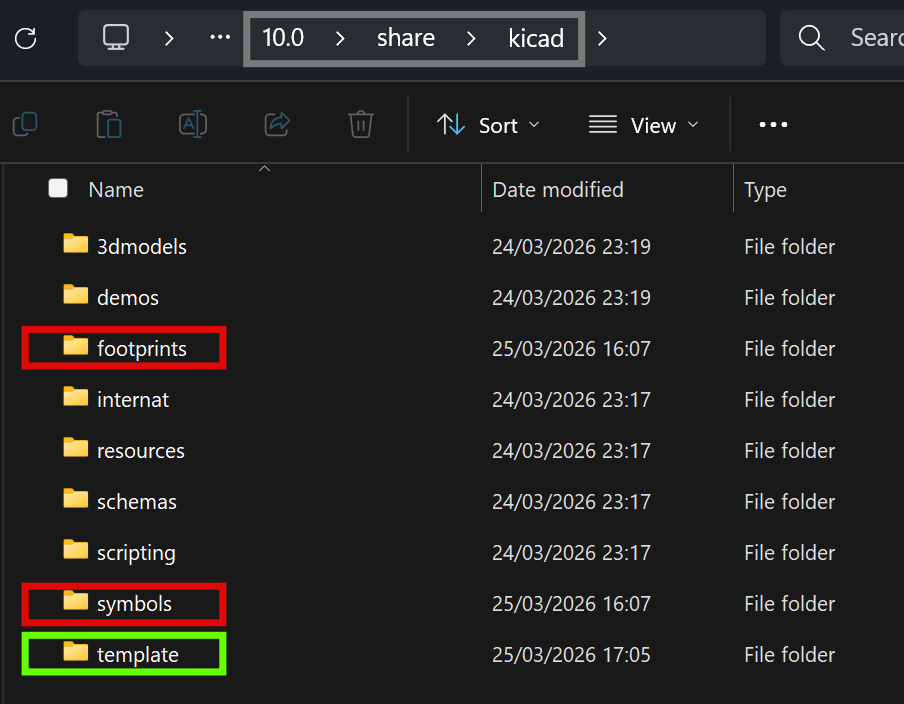
KiCad creates a folder KiCad\10.0\share\kicad during installation.  
image

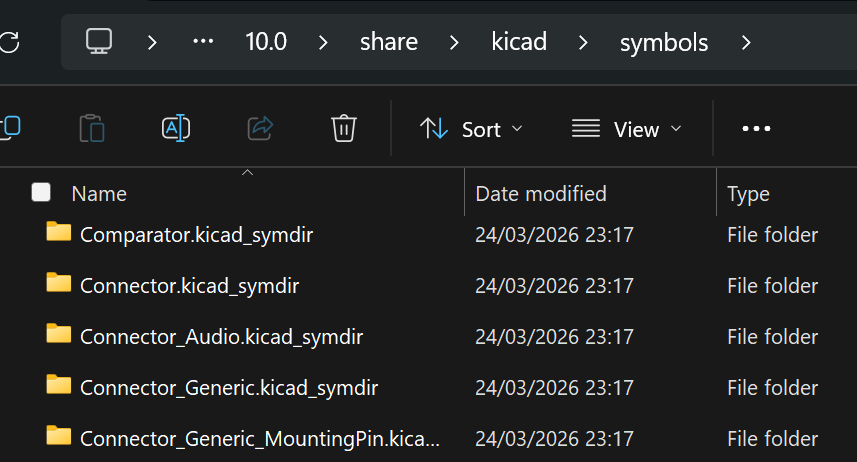
Within that, there are footprints and symbols folders, and within those are a load of yet more folders, one for each library. In other words, each library is a folder (this wasn't the case in older KiCad versions, but it is in the past few KiCad versions).

For instance, here is some of the content in the symbols folder:
image

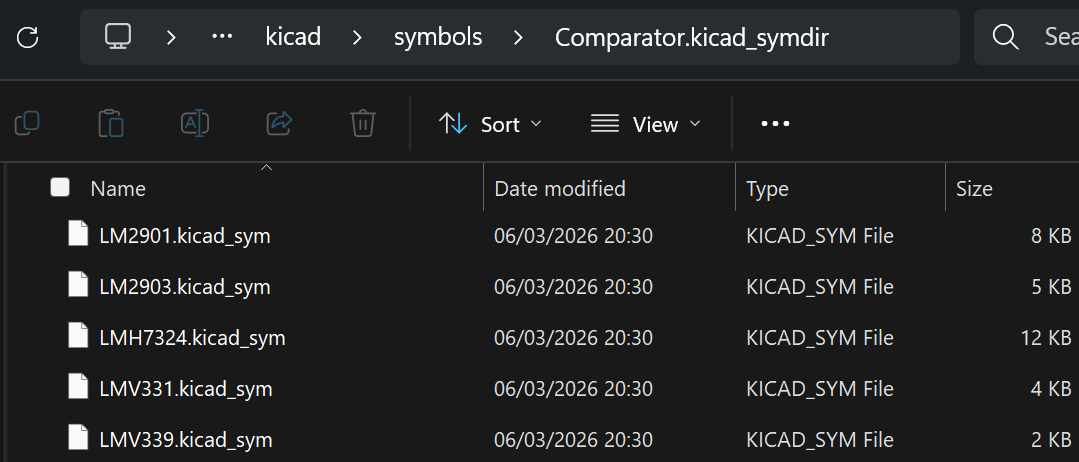
Clicking on (say) the Comparator.kicad_symdir folder reveals files, one per symbol:
image

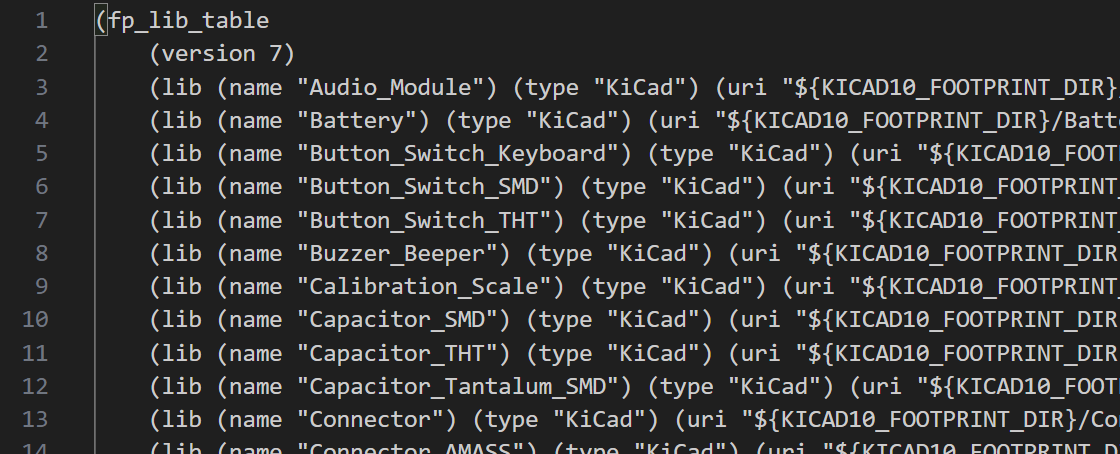
There are hundreds of libraries, and KiCad maintains a list of them; two lists actually, one for symbols, and one for footprints, called sym-lib-table and fp-lib-table, respectively. They are stored in the template folder highlighted in green in an earlier screenshot.

Here is what the two files look like (both are similar; this is just a screenshot from the fp-lib-table file):
image


Pruning Strategy

Ordinarily, you don't need to touch the files manually. You can create libraries, footprints, symbols, and so on using the KiCad graphical app. Using the Preferences selection in the top menu bar, you can click on Manage Symbol Libraries or Manage Footprint Libraries and work with the contents listed there.

However, I wanted a programmatic way to 'remove' libraries. The method described in this blog post doesn't actually delete any library files as such; it just modifies the sym-lib-table and fp-lib-table files in the template folder, so that KiCad simply ignores libraries that are not present in those two files.

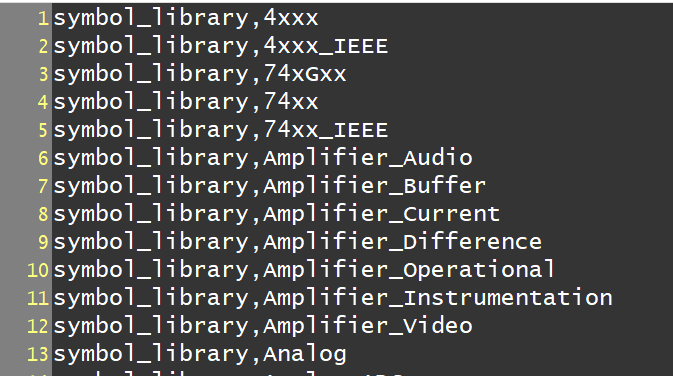
With some AI help, I created a couple of Python programs. One program will read the two files and save a list of all libraries in a simple CSV format to a file called lib-list.txt, which looks like this:
image

Then, using any text editor, I can delete line entries for libraries I do not care about and save the file with a name such as desired-lib-list.txt.

Next, I run another program that will perform the following steps:

(a) Backup the sym-lib-table and fp-lib-table files

(b) Recreate the two files, but omitting any entries that are not present in the desired-lib-list.txt file

(c) Save all the omitted entries in a file called lib-table-removed-lines.txt, just in case it's ever needed.

Source Code

The two Python files are on GitHub, called list-libs.py and write-table-files.py

Using the Code

First, I closed KiCad.

I placed the Python files in a folder (in my case, I created one called C:\dev\projects\kicad_tools) and then typed the following in a PowerShell window from that folder:

python list-libs.py C:/DEV/vhd_mounts/kicad/10.0/share/kicad/template

That resulted in a file called lib-list.txt

Next, I opened up the text file, manually deleted all the uninteresting (to me) library entries, and saved the file as desired-lib-list.txt

After that, I typed the following line (the two parameters are the desired list name, and the path to the folder containing the sym-lib-table and fp-lib-table files):

python write-table-files.py desired-lib-list.txt C:/DEV/vhd_mounts/kicad/10.0/share/kicad/template

That was all I needed to do. Here is a screenshot of the commands and their output:

image

Next, I started up KiCad, opened an example project and schematic, and that consumes about 2.7 GB according to Windows Task Manager. Then I clicked Tools->Assign Footprints, which usually results in a short delay while the footprints are loaded into RAM. It was noticeably quicker. Also, Windows Task Manager revealed significantly reduced RAM usage by this stage (4 GB, i.e., a 20% saving of that resource).

Summary

KiCad consumes a lot of memory because it loads certain library-related content into RAM. Not all libraries are interesting, and it is possible to effectively remove unwanted libraries from KiCad visibility by editing a couple of files. Python code was written to perform the editing operations, and noticeable memory savings were achieved, as well as a noticeably quicker response when KiCad loads library content into memory.

Please note that there may be bugs in the code; I don't believe there is any significant risk, but I cannot guarantee it. KiCad can be uninstalled and reinstalled if any wanted libraries are lost or the table files become corrupted.

If you give it a shot, it would be useful to hear whether it worked or not.

Thanks for reading!


  • Sign in to reply
Parents
  • shabaz
    shabaz 11 hours ago

    Reading online, apparently this is one of the changes in KiCad 10; previous versions didn't load all libraries into RAM. It's been done to speed up user interaction when choosing symbols and footprints. It does seem very snappy, so I suppose it was worth it! I'm guessing that when the feature was developed, probably people thought PCs and laptops would continue to be supplied with more and more RAM..

    • Cancel
    • Vote Up 0 Vote Down
    • Sign in to reply
    • More
    • Cancel
Comment
  • shabaz
    shabaz 11 hours ago

    Reading online, apparently this is one of the changes in KiCad 10; previous versions didn't load all libraries into RAM. It's been done to speed up user interaction when choosing symbols and footprints. It does seem very snappy, so I suppose it was worth it! I'm guessing that when the feature was developed, probably people thought PCs and laptops would continue to be supplied with more and more RAM..

    • Cancel
    • Vote Up 0 Vote Down
    • Sign in to reply
    • More
    • Cancel
Children
  • Fred27
    Fred27 9 minutes ago in reply to shabaz

    I was just abut to ask if this is secific to 10.0. I just upgraded and noticed that things are slow to load. Maybe they're snappier after that, but I don't recall that being a problem.

    I forsee a "preload libraries" checkbox in the Preferences for 10.0.1 if it's not there already.

    • Cancel
    • Vote Up 0 Vote Down
    • Sign in to reply
    • More
    • Cancel
element14 Community

element14 is the first online community specifically for engineers. Connect with your peers and get expert answers to your questions.

  • Members
  • Learn
  • Technologies
  • Challenges & Projects
  • Products
  • Store
  • About Us
  • Feedback & Support
  • FAQs
  • Terms of Use
  • Privacy Policy
  • Legal and Copyright Notices
  • Sitemap
  • Cookies

An Avnet Company © 2026 Premier Farnell Limited. All Rights Reserved.

Premier Farnell Ltd, registered in England and Wales (no 00876412), registered office: Farnell House, Forge Lane, Leeds LS12 2NE.

ICP 备案号 10220084.

Follow element14

  • X
  • Facebook
  • linkedin
  • YouTube