



Hello ! Hope all are safe and sound.
This is the last post about the software that drives the Space Vegetables Project - the client.
More info on the design:
Space Vegetables - #5 : System concept and design
Space Vegetables - #6 : Software Design
Space Vegetables - #10 | Software #0: Wiring and Python programs
The Space Vegetables server post
I'm going to split this post into 2 - this one is about the SpaceVetetablesClient.py and the other will talk about the TDS sensor and the Arduino Pro mini that's connected via USB to the Raspberry PI
Hardware
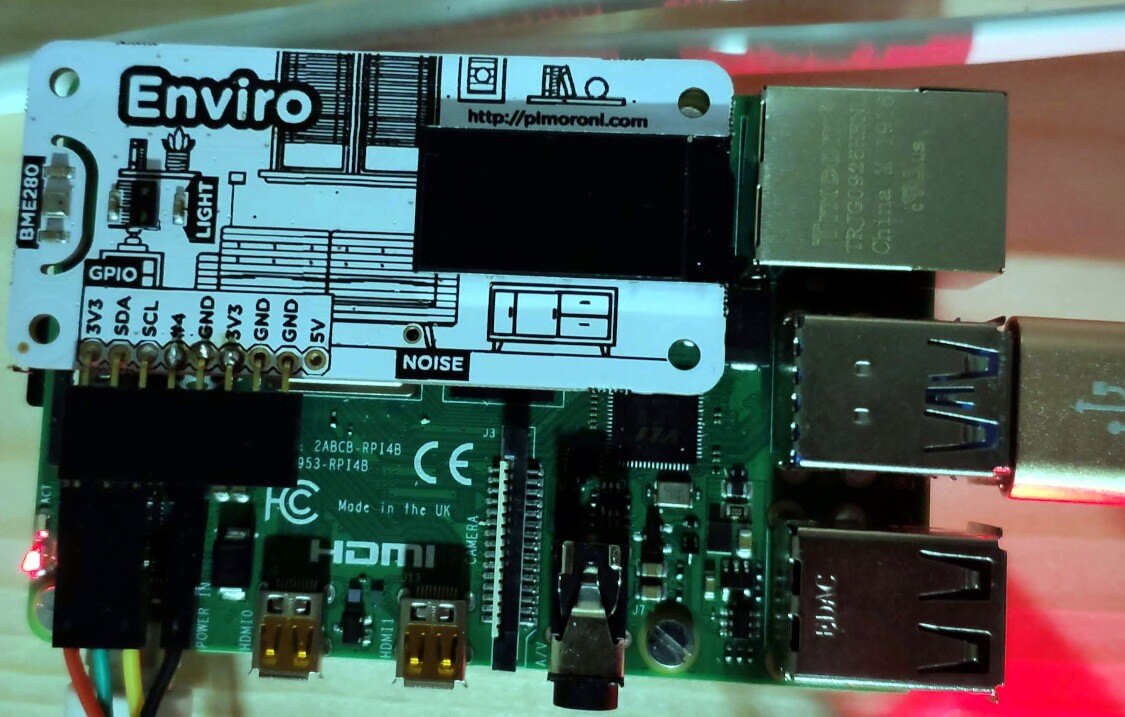
This is connected to a Raspberry PI 4B+ (that was part of the kit with the Enviro HAT. Besides monitoring all the environment with the sensors of the hat, It's connected to a SHT21 sensor (temperature/humidity) inside the greenhouse and to an Arduino Pro Micro that's connected to the TDS sensor inside the water recipient. You can refer Space Vegetables - #10 | Software #0: Wiring and Python programs for wiring schematics.
Software
The "client" is a Python script that makes connections to a XMLRPC server to activate the pumps and the lights at specific times.
Very briefly, the script, at scheduled intervals, creates connections to the XMLRPC server and executes the functions on the server that will activate or deactivate the pumps and/or the lights.
Here's the code
import xmlrpc.client
import time
import datetime
import threading
import prctl
import serial
import schedule
import sys
import logging
from systemd.journal import JournalHandler
import urllib3
from subprocess import PIPE, Popen
import telegram
import board
import busio
from adafruit_htu21d import HTU21D
import configparser

from bme280 import BME280
from ltr559 import LTR559

import sqlite3


from PIL import Image, ImageFont, ImageDraw
import ST7735 as ST7735
from fonts.ttf import Roboto as UserFont

# Create ST7735 LCD display class.
disp = ST7735.ST7735 (
        port=0,
        cs=1,
        dc=9,
        backlight=12,
        rotation=270,
        spi_speed_hz=1000000
)


config = configparser.ConfigParser()
config.read ('SpaceVegetablesClient.ini')


""" Remove text is draw a rectangle
    where text is written
    0 = temperature
    1 = humidity
    2 = ph
    3 = tds
"""
def removeText():
    rectElements =  [17, 32, 47, 63]
    del_rectangle = 40

    for i in range(4):
        # draw the rectangle in all elements
        draw.rectangle ((118, rectElements[i], 118 + del_rectangle, rectElements[i] + 15), (255, 182, 141))

    # draw.rectangle ((118, rectElements[element], 118 + del_rectangle, rectElements[element] + 15), (255, 182, 141))
    return 0

""" Write text to the LCD """

def writeText (elements):
    disp.set_backlight(1)
    rectElements =  [17, 32, 47, 63]
    for i in range(4):
        draw.text((118,rectElements[i]), elements[i], font=font, fill=(255, 255, 255))

    disp.display(image)
    time.sleep(300)
    disp.set_backlight(0)
    return 0


""" threads to function above write text
    only write text needs thread
    the removetext is called before to erase any previous values
"""
def tWriteText(elements):
    log.info("Thread to write text")
    twt = threading.Thread(target = writeText, args=(elements,))
    twt.setName ('Write text')
    twt.start()

font_size = 13
font = ImageFont.truetype(UserFont, font_size)

# Initialise display.
disp.begin()


image = Image.open(config['default']['backgroundImage'])
draw = ImageDraw.Draw(image)
disp.display(image)


# constants
# ThingSpeak
TSUrl = config['thingspeak']['url']

# temperature/humidity/pressure - enviro
bme280 = BME280()

# temperature/humidity HTU21
i2c = busio.I2C (board.SCL, board.SDA)
sensorhtu21d = HTU21D(i2c)

# sleep time is in seconds
airPumpTimeOn = int(config['default']['airpumptimeon']) * 60     # 15 minutes
waterPumpTimeOn = int(config['default']['waterpumptimeon']) * 60  # 20 minutes
lightsTimeOn = int(config['default']['lightstimeon']) * 60 * 60  # 10 hour


Server_IP_address = config['default']['serverIpAddress']

# Telegram token
token = config['telegram']['telegramToken']
chatId = config['telegram']['chatId']

""" This function sends a message to Telegram """
""" Going to use only to main functions """
def sendMessageTelegram (msg,
        chat_id = chatId,
        token = token):
    msg = "EnviroPI: " + msg
    bot = telegram.Bot(token=token)
    try:
        bot.sendMessage(chat_id=chat_id, text=msg)
    except telegram.error.NetworkError:
        # If there's some problem, handling the exception
        # so the SpaceVegetablesClient will not exit with an error
        # If cannot reach telegram or internet, just continue
        pass


""" Read TDS values from Arduino Pro Micro """
def getTDS():
    ser = serial.Serial('/dev/ttyACM0', 9600, timeout=1)
    readtds = ser.readline().decode('utf-8').rstrip()
    return (readtds)

""" LOGGING """
log = logging.getLogger('SpaceVegetablesClient')
log_fmt = logging.Formatter("%(levelname)s %(message)s")
log_ch = JournalHandler()
log_ch.setFormatter(log_fmt)
log.addHandler(log_ch)
log.setLevel(logging.DEBUG)


""" Functions definitions """

""" DATABASE FUNCTIONS """
""" This will get environmental condiditions
    and populate the database with those conditions
"""
bme280 = BME280()
ltr559 = LTR559()

def sendToThingSpeak (url):
    log.info ("Updating ThingSpeak")
    toUpdate = TSUrl + url
    f = urllib3.PoolManager()
    response = f.request('GET',toUpdate)


def get_cpu_temperature():
    process = Popen(['/usr/bin/vcgencmd', 'measure_temp'], stdout=PIPE, universal_newlines=True)
    output, _error = process.communicate()
    return float(output[output.index('=') + 1:output.rindex("'")])

def environmentalConditions(conn):
    print("Getting environmental data")
    log.info("Getting environmental data")
    # get data
    humidity = round(bme280.get_humidity(),1)
    pressure = round(bme280.get_pressure(),1)
    lux = round(ltr559.get_lux(),1)


    #smooth cpu temperature
    cpu_temps = [get_cpu_temperature()] * 5

    factor = 7.00

    cpu_temp = get_cpu_temperature()
    cpu_temps = cpu_temps[1:] + [cpu_temp]
    avg_cpu_temp = sum(cpu_temps) / float (len(cpu_temps))
    raw_temp = bme280.get_temperature()

    temperature = round(raw_temp - ((avg_cpu_temp - raw_temp) / factor),1)


    humidityInside = round(sensorhtu21d.relative_humidity,1)
    temperatureInside = round(sensorhtu21d.temperature,1)

    #get TDS
    tds = getTDS()

    # get datetime
    dt = datetime.datetime.now()
    # format the date time to insert into the database
    dtdb = dt.strftime ("%Y-%m-%d %H:%M:%S")

    curs = conn.cursor()

    log.info("Populating database with environmental data")
    curs.execute (""" insert into Vegetables (TDS,temperature,humidity,pressure,lightSensor,temperatureInside,humidityInside,dateTime) values ((?),(?),(?),(?),(?),(?),(?),(?)) """, (tds, temperature, humidity, pressure, lux, temperatureInside, humidityInside,dtdb))
    conn.commit()

    # Send to thingspeak
    log.info("Updating ThingSpeak")
    field1 = str(temperatureInside)
    field2 = str(humidityInside)
    field3 = str(pressure)
    field4 = str(lux)
    field5 = str(tds)
    field6 = str(0)

    toUpdate = "&field1=" + field1 + "&field2=" + field2 + "&field3=" + field3 + "&field4=" + field4 + "&field5=" + field5 + "&field6=" + field6
    sendToThingSpeak (toUpdate)
    # update display
    # remove all from display
    removeText()
    disp.display(image)
    # update
    toOSD = [field1, field2, field6, field5]
    tWriteText(toOSD)


def setDBWaterPump(conn,pumpState):
    log.info("Populating water pump state into database")
    # get datetime
    dt = datetime.datetime.now()
    # format the date time to insert into the database
    dtdb = dt.strftime ("%Y-%m-%d %H:%M:%S")

    curs = conn.cursor()
    curs.execute (""" insert into Vegetables (waterPumpActive, dateTime) values ((?), (?)) """, (pumpState, dtdb))
    conn.commit()

    toUpdate = "&field7=" + str(pumpState)
    sendToThingSpeak(toUpdate)


def setDBAirPump(conn,pumpState):
    log.info("Populating air pump state into database")
    # get datetime
    dt = datetime.datetime.now()
    # format the date time to insert into the database
    dtdb = dt.strftime ("%Y-%m-%d %H:%M:%S")

    curs = conn.cursor()
    curs.execute (""" insert into Vegetables (airPumpActive, dateTime) values ((?), (?)) """, (pumpState, dtdb))
    conn.commit()

    toUpdate = "&field8=" + str(pumpState)
    sendToThingSpeak(toUpdate)


def setDBLights(conn,lightsState):
    log.info("Populating lights state into database")
    # 0 - off
    # 1 - on
    # get datetime
    dt = datetime.datetime.now()
    # format the date time to insert into the database
    dtdb = dt.strftime ("%Y-%m-%d %H:%M:%S")

    curs = conn.cursor()
    curs.execute (""" insert into Vegetables (lightsActive, dateTime) values ((?), (?)) """, (lightsState, dtdb))
    conn.commit()

""" Lights will have their own timer """

"""
Start and stop Air Pump for oxigenation of water
"""
def airPump(conn):
    prctl.set_name("Air Pump")
    # to OSD
    sendMessageTelegram("Activating Air Pump")
    log.info("Activating air pump into automationPI")
    server = xmlrpc.client.ServerProxy ('http://' + Server_IP_address + ':8000', allow_none=True)
    server.turnAirPump(1)
    # set air pump db
    setDBAirPump(conn,1)
    time.sleep(airPumpTimeOn)
    sendMessageTelegram("Stoping Air Pump")
    log.info("Deactivating air pump into automationPI")
    server.turnAirPump(0)
    setDBAirPump(conn,0)

"""
Start and stop water pump for NFC
"""
def waterPump(conn):
    # set thread name
    prctl.set_name("Water Pump")
    log.info("Activating water pump into automationPI")
    sendMessageTelegram("Activating water pump Pump")
    server = xmlrpc.client.ServerProxy ('http://' + Server_IP_address + ':8000', allow_none=True)
    server.turnWaterPump(1)
    setDBWaterPump(conn,1)
    time.sleep(waterPumpTimeOn)
    sendMessageTelegram("Stoping water Pump")
    log.info("Deactivating water pump into automationPI")
    server.turnWaterPump(0)
    setDBWaterPump(conn,0)
    return 0

""" OLD: Before testing resulted in success
    with one function to control all
"""
#def turnLights(conn):
#    prctl.set_name("Lights")
#    log.info("Turnin on lights into automationPI")
#    sendMessageTelegram ("Turning On Lights")
#    server = xmlrpc.client.ServerProxy ('http://' + Server_IP_address + ':8000', allow_none=True)
#    server.turnLightsv2()
#    setDBLights(conn,1)


def turnLights(conn):
    prctl.set_name("Lights")
    log.info("Turning on lights into automationPI")
    sendMessageTelegram ("Turning On Lights")
    server = xmlrpc.client.ServerProxy ('http://' + Server_IP_address + ':8000', allow_none=True)
    server.turnLights(1)
    setDBLights(conn,1)
    time.sleep(lightsTimeOn)
    #server = xmlrpc.client.ServerProxy ('http://' + Server_IP_address + ':8000', allow_none=True)
    log.info("Turning off lights")
    sendMessageTelegram("Turnin off lights")
    server.turnLights(0)
    setDBLights(conn,0)
    return 0


""" The functions to spawn threads """
def tAirPump(conn):
    log.info("Thread to air pump")
    ax = threading.Thread (target = airPump, args=(conn,))
    ax.setName ('Air Pump')
    ax.start()
    return 0

def tWaterPump(conn):
    log.info("Thread to water pump")
    aw = threading.Thread (target = waterPump,args=(conn,))
    aw.setName('Water Pump')
    aw.start()
    return 0

def tLights(conn):
    log.info("Thread to lights")
    atl = threading.Thread (target = turnLights,args=(conn,))
    atl.setName('Lights')
    atl.start()
    return 0

""" In case of a power outage, check if the lights should be active
    because the instructions to turn the lights on
    comes from the client - that is schedule at 8am
    if it reboots, it will schedule for next day 8am

    This function will run before the main function
    It only runs once, when the program starts
    like if a reboot or startup
"""

def checkActiveLights():
    global lightsTimeOn
    log.info("Checking if lights needed to be active")
    now = datetime.datetime.now().time()
    start8am = datetime.time(8,0,0)
    end18pm = datetime.time(18,0,0)
    if now > start8am and now < end18pm:
        #need to turn them on
        #but make some time diferences
        toend = datetime.datetime.combine(datetime.date.today(),end18pm)
        tonow = datetime.datetime.combine(datetime.date.today(),now)
        stilLit = toend - tonow
        lightsTimeOn = round(stilLit.total_seconds(),0)
        msg = "Power outage. Turning lights on for: " + str(lightsTimeOn)
        sendMessageTelegram (msg)
        log.info(msg)
        # call the functions to turn the lights
        tLights(conn)
    else:
        log.info("Not the corret time to activate lights")

    return 0


"""
    Resetting here the light time because
    if there's a power outage, this variable gets changed
    to the time left until 18:00. If nothing more happens
    that value remains, so, next time at 0800, when the lights
    turn on, the last value remains and the lights turn off at that time
    called everyday at 07:50
"""
def resetLightsTime():
    global lightsTimeOn
    lightsTimeOn = 60 * 60 * 10 #10 hours
    return 0


def checkActiveThreads():
    ac = threading.active_count()
    log.info ("There are %s threads active", str(ac))
    sendMessageTelegram("There are " + str(ac) + " threads active")
    message = str(threading.enumerate())
    log.info(message)
    sendMessageTelegram (message)
    return 0

#set sqlite3 connection
log.info ("Connecting to database")
conn = sqlite3.connect("/home/pi/SpaceVegetables/spaceVegetables.db", check_same_thread=False)
""" Scheduling """

# Schedules for water and air pump
""" Turn water pump every hour for about 15m """
""" airPumpTimedOn """
log.info("Scheduling air pump")
schedule.every().day.at("09:00").do(tAirPump,conn)
schedule.every().day.at("11:00").do(tAirPump,conn)
schedule.every().day.at("13:00").do(tAirPump,conn)
schedule.every().day.at("15:00").do(tAirPump,conn)
schedule.every().day.at("17:00").do(tAirPump,conn)
schedule.every().day.at("19:00").do(tAirPump,conn)
schedule.every().day.at("21:00").do(tAirPump,conn)


""" Schedule - for now
The more the plants grow, the more time it needs to be pumping
In the off ligths period (night time), no pumping is needed
So, we're goint to specify every time
It's the only way
Remember to check the waterPumpTimedOn
20m every 1.5 hours - for starters
"""
log.info("Scheduling water pump")
schedule.every().day.at("08:00").do(tWaterPump,conn)
schedule.every().day.at("09:30").do(tWaterPump,conn)
schedule.every().day.at("11:00").do(tWaterPump,conn)
schedule.every().day.at("12:30").do(tWaterPump,conn)
schedule.every().day.at("14:00").do(tWaterPump,conn)
schedule.every().day.at("15:30").do(tWaterPump,conn)
schedule.every().day.at("17:00").do(tWaterPump,conn)
schedule.every().day.at("18:30").do(tWaterPump,conn)
schedule.every().day.at("20:00").do(tWaterPump,conn)


# Turn lights on
log.info("Scheduling lights on")
schedule.every().day.at("08:00").do(tLights,conn)

# Environmental conditions
log.info("Scheduling environmental conditions")
schedule.every(30).minutes.do(environmentalConditions,conn)

# Scheduling reset lights time
log.info("Scheduling lights time reset")
schedule.every().day.at("07:50").do(resetLightsTime)

# threads active
log.info("scheduling active threads")
schedule.every(2).hours.do(checkActiveThreads)

# Check if lights needed to be started
# power outage and this function executes just at program start
checkActiveLights()

event = threading.Event()

sendMessageTelegram ("Starting server")
while True:
    schedule.run_pending()
    time.sleep(1)
The Configuration file
[default]
serverIpAddress = <RPI_3B+_AutomationHAT>
backgroundImage = enviro_image_LCD.jpg
# minutes
airPumpTimeOn = 15
waterPumpTimeOn = 20
# hours
lightsTimeOn = 10

[telegram]
telegramToken = 3...d
chatId = 1..2

[thingspeak]
url = https://api.thingspeak.com/update?api_key=V....5D
Explaining the code
There are a lot of functions that have the same behavior than the ones in the server, but I'll explain them again.
Lines 1 to 27 import all the libraries needed . From xmlrpc to telegram, sqlite3, sensors and threads.
import xmlrpc.client
import time
import datetime
import threading
import prctl
import serial
import schedule
import sys
import logging
from systemd.journal import JournalHandler
import urllib3
from subprocess import PIPE, Popen
import telegram
import board
import busio
from adafruit_htu21d import HTU21D
import configparser

from bme280 import BME280
from ltr559 import LTR559

import sqlite3


from PIL import Image, ImageFont, ImageDraw
import ST7735 as ST7735

from fonts.ttf import Roboto as UserFont
The last lines import the libraries from PIL, such as Image, ImageFont and ImageDraw.
Next, we import ST7735 to be able to work with the LCD of the HAT. We import the Roboto font, also for the LCD.
Lines 30 to 37 create the LCD object, initializing some values specific for this LCD. Although the driver is the same for the Automation Hat, some values are not.
disp = ST7735.ST7735 (
        port=0,
        cs=1,
        dc=9,
        backlight=12,
        rotation=270,
        spi_speed_hz=1000000
)
Lines 40 to 41 import the config file to read same configuration files.
config = configparser.ConfigParser()
config.read ('SpaceVegetablesClient.ini')
Lines 51 to 73 removes and draws text in the LCD.
If we write text after text, it just gets overwritten again and again. It's necessary to remove the text before and write a new text.
The removal of text is just creating a rectangle with the same background color of the image in the area that will be rewritten. To write the text, just give the coordinates, the color and the string.
Here's the background image
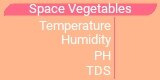
I've created a list - rectElements - that has the Y coordinate - according with the background image - for that element. 0 - temperature; 1 - humidity; 2 - ph; 3 - TDS
This LCD displays the values for the several environmental conditions measured - temperature, humidity, PH and TDS. By providing the element to erase (or write), it uses the Y coordinate for that element. The X is always the same.
def removeText():
    rectElements =  [17, 32, 47, 63]
    del_rectangle = 40

    for i in range(4):
        # draw the rectangle in all elements
        draw.rectangle ((118, rectElements[i], 118 + del_rectangle, rectElements[i] + 15), (255, 182, 141))

    # draw.rectangle ((118, rectElements[element], 118 + del_rectangle, rectElements[element] + 15), (255, 182, 141))
    return 0

""" Write text to the LCD """

def writeText (elements):
    disp.set_backlight(1)
    rectElements =  [17, 32, 47, 63]
    for i in range(4):
        draw.text((118,rectElements[i]), elements[i], font=font, fill=(255, 255, 255))

    disp.display(image)
    time.sleep(300)
    disp.set_backlight(0)
    return 0
Because I'm afraid of burning the LCD if I left it on all the time, I wanted to display the values and turn the display off after a while - 10 minutes looks like perfect - I've created a thread that will call the function writeText() above.
def tWriteText(elements):
    log.info("Thread to write text")
    twt = threading.Thread(target = writeText, args=(elements,))
    twt.setName ('Write text')
    twt.start()
Unlike the server side, when displaying values on the LCD, I display all the elements - temperature, humidity, ph and TDS - all together, so, the removeText(), removes everything in a for loop. The writeText(elements), receives a list and in a for loop, writes the values for all the elements.
Lines 86 and 87 define a font to write text to the LCD . Line 90 initializes the LCD.
font_size = 13
font = ImageFont.truetype(UserFont, font_size)

# Initialise display.
disp.begin()
Line 92 to 95 defines a background image (the one above) and display it on the LCD.
image = Image.open(config['default']['backgroundImage'])
draw = ImageDraw.Draw(image)
disp.display(image)
Next, I store the thingspeak URL used to update the channel.
# ThingSpeak
TSUrl = config['thingspeak']['url']
Initializing the BME280 sensor in the Enviro HAT and the HTU21 sensor inside the greenhouse.
# temperature/humidity/pressure - enviro
bme280 = BME280()

# temperature/humidity HTU21
i2c = busio.I2C (board.SCL, board.SDA)
sensorhtu21d = HTU21D(i2c)
I then get the variables values that are in the config file. The values in the file are the minutes I want for the pumps to be on and the hours I want for the lights to be on.
Because the values retrieved from the config file are string, need to convert them to int.
I store the IP address of the server - RPI with the Automation HAT - and the token and chat ID for Telegram.
# sleep time is in seconds
airPumpTimeOn = int(config['default']['airpumptimeon']) * 60     # 15 minutes
waterPumpTimeOn = int(config['default']['waterpumptimeon']) * 60  # 20 minutes
lightsTimeOn = int(config['default']['lightstimeon']) * 60 * 60  # 10 hour

Server_IP_address = config['default']['serverIpAddress']

# Telegram token
token = config['telegram']['telegramToken']
chatId = config['telegram']['chatId'
Lines 122 to 133 define a function to send notifications to Telegram.
We define a message, to which we concatenate the string "EnviroPI: " for me to know what PI sent the notification. It then creates a telegram bot and sends the message.
If Internet is not available, don't exit the script, just don't notify.
def sendMessageTelegram (msg,
        chat_id = chatId,
        token = token):
    msg = "EnviroPI: " + msg
    bot = telegram.Bot(token=token)
    try:
        bot.sendMessage(chat_id=chat_id, text=msg)
    except telegram.error.NetworkError:
        # If there's some problem, handling the exception
        # so the SpaceVegetablesClient will not exit with an error
        # If cannot reach telegram or internet, just continue
        pass
Lines 137 to 140 define a function that will read the TDS value from the sensor.
We start by defining a serial connection to the serial port where the Arduino is connected - a USB port from the Raspberry PI - and reads what information is there available.
The connection is 9660 bauds to the device ttyACM0.
The Arduino is always sending the TDS value to the port - so when read, it's always available. See Space Vegetables - #19 | Software #4: Client #0 - TDS for more information.
""" Read TDS values from Arduino Pro Micro """
def getTDS():
    ser = serial.Serial('/dev/ttyACM0', 9600, timeout=1)
    readtds = ser.readline().decode('utf-8').rstrip()
    return (readtds)
Lines 157 and 158 initialized the libraries for the EnviroHat sensors to be used
bme280 = BME280()
ltr559 = LTR559()
Line 160 to 164 will update the Thingspeak channel. It uses the requests library to the update. We already have the url in the variable TSUrl.
def sendToThingSpeak (url):
    log.info ("Updating ThingSpeak")
    toUpdate = TSUrl + url
    f = urllib3.PoolManager()
    response = f.request('GET',toUpdate)
To update, we just append the fields and the values in a URL format and use requests to make a request, just like if it were a browser.
def get_cpu_temperature()
Line 167 defines the function get_cpu_temperature. This function is from Pimoroni's Enviro Python library examples. Why do I need the cpu temperature ? Well, I don't. This is clever, I must take my hat to the Pimoroni folks who came up with this.
When you use the Enviro temperature sensor to take measurements, you are taking a reading from the sensor in the HAT. The HAT is hot because it sits right in the Raspberry PI, that's also hot from operation.
Briefly, they take 5 readings of the cpu temperature, on whitch they calculate the average temperature of the cpu.
Next, they take the temperature reading from the bme280 sensor (that sits on top of the Enviro HAT).
The effective temperature of the environment is the temperature from the sensor minus the difference of the average cpu temperature and the sensor temperature divided by the factor variable. The factor variable is a value that you need to calibrate .
In my script this is the temperature.
This is all taken into account in the function def environmentalConditions(conn) defined in line 172.
This function does a lot of stuff.
The argument conn is a connection to the SQLITE3 database.
Lines 176 to 178 get the humidity and temperature from the bme280 sensor and round it to one decimal place. Line 178 gets the luminosity value from the ltr559 sensor on the Enviro HAT.
The lines 181 to 191 calculate the temperature of the environment using all the calculations descrived above. This is from the Pimoroni's examples.
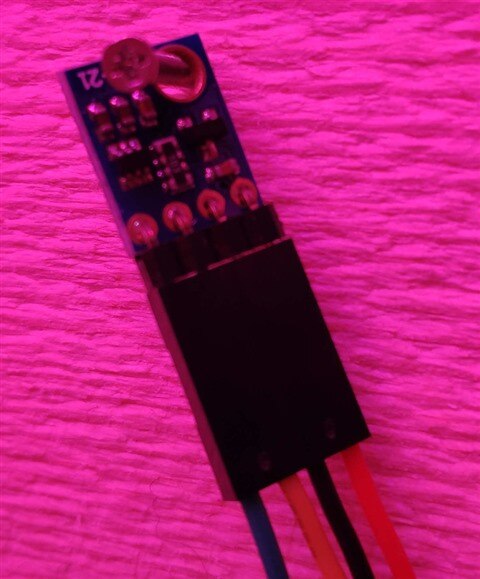
Lines 194 and 195 get the temperature and humidity from the HTU21 sensor inside the greenhouse (photo below) and rounds them to one decimal place.
humidityInside = round(sensorhtu21d.relative_humidity,1)
temperatureInside = round(sensorhtu21d.temperature,1)
Line 198 will get the TDS value. <I will update here with the post of TDS when it's done>
#get TDS
tds = getTDS()
Where now going to prepare to insert the valus into the SpaceVegetables database. This is the database schema:
CREATE TABLE sqlite_sequence(name,seq);
CREATE TABLE IF NOT EXISTS "Vegetables" (
        "idVegetables"  INTEGER,
        "PH"    REAL DEFAULT 0.0,
        "TDS"   NUMERIC DEFAULT 0,
        "waterPumpActive"       NUMERIC DEFAULT 0,
        "lightsActive"  NUMERIC DEFAULT 0,
        "airPumpActive" NUMERIC DEFAULT 0,
        "temperature"   REAL DEFAULT 0.0,
        "humidity"      REAL DEFAULT 0.0,
        "pressure"      REAL DEFAULT 0.0,
        "lightSensor"   REAL DEFAULT 0.0,
        "temperatureInside"     REAL DEFAULT 0.0,
        "humidityInside"        REAL DEFAULT 0.0,
        "dateTime"      TEXT DEFAULT '0000-00-00 00:00:00',
        PRIMARY KEY("idVegetables" AUTOINCREMENT)
);
We start by creating a string with the current date and time
# get datetime
dt = datetime.datetime.now()
# format the date time to insert into the database
dtdb = dt.strftime ("%Y-%m-%d %H:%M:%S")
This will create a string like "2020-12-16 15:39:12"
Next, we create a cursor object to the database. conn.cursor() returns a Cursor object. Cursor objects allow us to send SQL statements to a SQLite database using cursor.execute()
Line 208 creates a SQL insert to add the data to the Vegetables database.
In this function, we only add the values for the environment, not pumps, not lights, nothing. The SQL query explicitly says what fields are we going to insert and it's values.
curs.execute (""" insert into Vegetables (TDS,temperature,humidity,pressure,lightSensor,temperatureInside,humidityInside,dateTime) values ((?),(?),(?),(?),(?),(?),(?),(?)) """, (tds, temperature, humidity, pressure, lux, temperatureInside, humidityInside,dtdb))
conn.commit()
Next, we prepare the values to update the thingspeak channel. Using the API and the URL to update using a GET method. There's an API to update thingspeak, but I find this method much more friendly and without the need to install another library.
The method to update thingspeak is using a URL, plus your API key and the fields to update.
This the the base:
https://api.thingspeak.com/update?api_key=####
You now start by adding the fields and the values
Before adding the values, it's necessary to convert them to string. Lines 213 to 218 will do just that.
Now, we create a variable with the correct format for a GET request:
&field1=<value>&field2=value......
that will translate to:
https://api.thingspeak.com/update?api_key=####&field1=value&field2=value
With this, just issue a GET request and it's done. That's handled by the function sendToThingSpeak () already discussed above.
field1 = str(temperatureInside)
field2 = str(humidityInside)
field3 = str(pressure)
field4 = str(lux)
field5 = str(tds)
field6 = str(0)

toUpdate = "&field1=" + field1 + "&field2=" + field2 + "&field3=" + field3 + "&field4=" + field4 + "&field5=" + field5 + "&field6=" + field6
sendToThingSpeak (toUpdate)
Next, we update the LCD of the Enviro HAT
We call the function removeText() that will remove previous values. We update the LCD with disp.display(image). Next, we create a list with the values to display -:
- temperatureInside is field1
- humidityInside is field2
- PH is field6 (0)
- TDS is field5
PH is always 0 because it's measured manually. When creating the database, I hadn't realized yet that the PH sensor would not be possible to always stay in the water, like the TDS sensor.
Next, we call the thread tWriteText to update the LCD, wait 10 minutes and then turn the backlight off.
def environmentalConditions(conn):
    print("Getting environmental data")
    log.info("Getting environmental data")
    # get data
    humidity = round(bme280.get_humidity(),1)
    pressure = round(bme280.get_pressure(),1)
    lux = round(ltr559.get_lux(),1)


    #smooth cpu temperature
    cpu_temps = [get_cpu_temperature()] * 5

    factor = 7.00

    cpu_temp = get_cpu_temperature()
    cpu_temps = cpu_temps[1:] + [cpu_temp]
    avg_cpu_temp = sum(cpu_temps) / float (len(cpu_temps))
    raw_temp = bme280.get_temperature()

    temperature = round(raw_temp - ((avg_cpu_temp - raw_temp) / factor),1)


    humidityInside = round(sensorhtu21d.relative_humidity,1)
    temperatureInside = round(sensorhtu21d.temperature,1)

    #get TDS
    tds = getTDS()

    # get datetime
    dt = datetime.datetime.now()
    # format the date time to insert into the database
    dtdb = dt.strftime ("%Y-%m-%d %H:%M:%S")

    curs = conn.cursor()

    log.info("Populating database with environmental data")
    curs.execute (""" insert into Vegetables (TDS,temperature,humidity,pressure,lightSensor,temperatureInside,humidityInside,dateTime) values ((?),(?),(?),(?),(?),(?),(?),(?)) """, (tds, temperature, humidity, pressure, lux, temperatureInside, humidityInside,dtdb))
    conn.commit()

    # Send to thingspeak
    log.info("Updating ThingSpeak")
    field1 = str(temperatureInside)
    field2 = str(humidityInside)
    field3 = str(pressure)
    field4 = str(lux)
    field5 = str(tds)
    field6 = str(0)

    toUpdate = "&field1=" + field1 + "&field2=" + field2 + "&field3=" + field3 + "&field4=" + field4 + "&field5=" + field5 + "&field6=" + field6
    sendToThingSpeak (toUpdate)
    # update display
    # remove all from display
    removeText()
    disp.display(image)
    # update
    toOSD = [field1, field2, field6, field5]
    tWriteText(toOSD)

The next 3 functions, from lines 232 to 273, will update the status of the pumps and lights into the database.
def setDBWaterPump(conn,pumpState)
def setDBAirPump(conn,pumpState)
def setDBLights(conn,lightsState)
I'm going to explain one of them, the others are the same, except for the field updated.
def setDBWaterPump(conn,pumpState)
Like above, we start by creating a string with the current date and time
# get datetime
dt = datetime.datetime.now()
# format the date time to insert into the database
dtdb = dt.strftime ("%Y-%m-%d %H:%M:%S")
Now, we create a cursor object to insert the status of the pump into the database, alongside the current date and time. Like above, we specify whitch fields are going to be updated. This time, is the water pump that will be put at 0 or 1.
curs = conn.cursor()
curs.execute (""" insert into Vegetables (waterPumpActive, dateTime) values ((?), (?)) """, (pumpState, dtdb))
conn.commit()
But, what happens to all the other fields ?
Well, they are populated with the default values specified in the schema.
Here's an example of the database populated with the latest values:
idVegetables,PH,TDS,waterPumpActive,lightsActive,airPumpActive,temperature,humidity,pressure,lightSensor,temperatureInside,humidityInside,dateTime
2417|0.0|0|0|0|0|0.0|0.0|0.0|0.0|0.0|0.0|2020-12-16 12:50:02
2418|0.0|0|0|0|1|0.0|0.0|0.0|0.0|0.0|0.0|2020-12-16 13:00:01
2419|0.0|1335|0|0|0|32.7|29.5|970.7|11.9|18.2|82.3|2020-12-16 13:05:04
2420|0.0|0|0|0|0|0.0|0.0|0.0|0.0|0.0|0.0|2020-12-16 13:15:02
2421|0.0|1335|0|0|0|32.9|29.5|970.8|11.9|18.3|82.5|2020-12-16 13:35:05
2422|0.0|0|1|0|0|0.0|0.0|0.0|0.0|0.0|0.0|2020-12-16 14:00:10
2423|0.0|1335|0|0|0|32.9|29.5|971.0|11.9|18.3|82.2|2020-12-16 14:05:06
2424|0.0|1335|0|0|0|32.9|29.4|971.4|11.9|18.3|82.1|2020-12-16 14:35:09
2425|0.0|0|0|0|1|0.0|0.0|0.0|0.0|0.0|0.0|2020-12-16 15:00:01
2426|0.0|1335|0|0|0|33.0|29.6|971.7|11.9|18.3|82.2|2020-12-16 15:05:10
2427|0.0|0|0|0|0|0.0|0.0|0.0|0.0|0.0|0.0|2020-12-16 15:15:03
2428|0.0|0|1|0|0|0.0|0.0|0.0|0.0|0.0|0.0|2020-12-16 15:30:01
2429|0.0|1335|0|0|0|32.9|29.6|971.7|11.9|18.3|82.2|2020-12-16 15:35:12
2430|0.0|0|0|0|0|0.0|0.0|0.0|0.0|0.0|0.0|2020-12-16 15:50:02
2431|0.0|1335|0|0|0|32.8|29.6|972.2|11.9|18.3|82.4|2020-12-16 16:05:13
for example, the first line is all 0. That's because the water pump or air pump state was changed (the pump was stopped) and all the other values are the default ones.
In the line with the idVegetables 2425, the water pump was activated.
The line with the idVegetables 2429 was populated with the values from temperature, humidity, lux, etc...
After that, a URL is created with the field value to update the thingspeak channel.
toUpdate = "&field7=" + str(pumpState)
sendToThingSpeak(toUpdate)
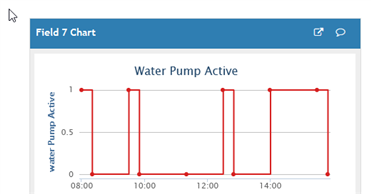
Why is the water pump the field 7 ? Well, in the channel, the water pump state is the field 7 (water Pump Active):
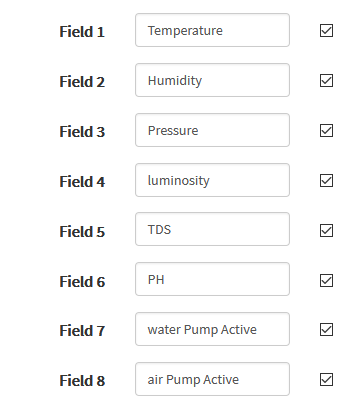
Now, the functions that will connect to the SpaceVegetables Server and activate the pumps and/or the lights.
It's the same for all the functions, except what they activate or deactivate, turn on or off.
Lines 280 to 338 define the following functions:
def airPump(conn)
def waterPump(conn)
def turnLights(conn)
I'll explain the last one, def turnLights(conn) because it was the most troublesome and it's the one that stays on most time.
def turnLights(conn)
I had troubles keeping the lights on for the hours defined - 10 hours . They would turn off before, or wouldn't turn off after the time. So, I look into the Python threads a bit further and created a function to list the threads active from time to time (more on this later). To identify the threads active, I had to name them. The first line sets a name for the thread.
prctl.set_name("Lights")
The next two lines display a message in the system log and send a notification to telegram.
log.info("Turning on lights into automationPI")
sendMessageTelegram ("Turning On Lights")
Next, the function opens a connection to the SpaceVegetables server on the port 8000 using XMLRPC
server = xmlrpc.client.ServerProxy ('http://' + Server_IP_address + ':8000', allow_none=True)and calls the function turnLights(state). In this case, 1 to turn the lights on.
server.turnLights(1)
Here's the function on the server (this function is on the script of the server):
def turnLights(state):
    if state == 1:
        # to OSD
        log.info("Turn lights on")
        sendMessageTelegram ("Activating lights")
        automationhat.output[outputLights].on()
        # display on the LCD
        tWriteText(0)
    else:
        # to OSD
        log.info("Turn lights off")
        sendMessageTelegram ("Stopping lights")
        automationhat.output[outputLights].off()
        # display in the LCD
        tRemoveText(0)
    return 0
The client can call this function because it has been registered on the server with the following line:
s.register_function(turnLights)
It then updates the database
setDBLights(conn,1)
and sleeps for the specified time - 10 hours.
time.sleep(lightsTimeOn)
After that, it displays a message on the system log and sends a notification to telegram informing that the lights are turning off.
log.info("Turning off lights")
sendMessageTelegram("Turnin off lights")
Tells the server to turn the lights off
server.turnLights(0)
and update the database
setDBLights(conn,0)
Why time.sleep and keeping a connection open to the server all that time?
The Pimoroni's AutomationHAT is a great HAT and does a lot of stuff, but, the outputs only work while you're connected with them. If you activate an output and exit the Python script, the output does not stay on, it turns off. It's the same if you call the output from a function. If you exit the functions, the output turns off. So, the time.sleep is necessary.
NOTE: I don't call this function directly. Because of time.sleep, the execution of the script would be suspended. I call a thread and the thread calls this function.
Next, is the definition of the threads. This are the functions that are called and in turn, they call the functions above.
Lines 342 to 361 define these functions. They are all the same, changing only what they call
def tAirPump(conn)
def tWaterPump(conn)
def tLights(conn)
I'm going to explain one of them
def tAirPump(conn)
This is the function that spawns a thread and calls the function to activate the air pump on the server.
We start by logging to system log indicating this function was activated.
Next, we define a thread that will call the function airPump and passes an argument, called conn.
We then set a name for the thread and start the theread.
def tAirPump(conn):
    log.info("Thread to air pump")
    ax = threading.Thread (target = airPump, args=(conn,))
    ax.setName ('Air Pump')
    ax.start()
    return 0
I'm passing the conn argument to allow the functions themselfs to populate the database.
Next functions, checkActiveLights and resetLightsTime, as the name implies, have something to do with the lights ! 
Because I have the ocasional power outage, when something like that would occour, the lights would turn off and never turn on again, because they are scheduled at 08:00am to turn on . When the PI reboots, and the script gets executed, this function is called to check if it is time for the lights to be on.
We start by getting the current time.
now = datetime.datetime.now().time()
Next, I define when the lights are supposed to turn on and off.
start8am = datetime.time(8,0,0)
end18pm = datetime.time(18,0,0)
Next, I check if when this function is called, if lights should be on, by comparing the current time to be greater than 8am and less then 18pm.
if now > start8am and now < end18pm:
If it is, let's enter the if clause and do some calculations.
Why the calculations ?
By default, the ligths stay on 10 hours a day. But, a power outage can occour at any time. If, by example, the power outage occours at 14:00 (02:00pm), I'm not going to turn the lights on and wait 10 hours, turning the lights at 02:00am - that's not feasable and the plants need to have a light cycle, just like in the outdoors.
So, I'm going to calculate how much time the lights still need to be on until 18:00 (06:00pm).
We need to get a time diference - how many hours until - from how are we now until 18:00. So, I use the Python function combine to join date and time and have a datetime object so I can perform a subtraction to discover how many seconds are left.
toend = datetime.datetime.combine(datetime.date.today(),end18pm)
tonow = datetime.datetime.combine(datetime.date.today(),now)
stilLit = toend - tonow
After that, and, not to have many code, I'll change the variable lightsTimeOn content, that's the same used in the function def tLights(conn) and the same defined in the config file. For that, I need to define in the start of the function the reserved word global .
global lightsTimeOn
By using global i'm indicating to Python that, when I'll use the variable lightsTimeOn, it will not be a variable with a local scope, but a global one, thus, using the same variable.
lightsTimeOn = round(stilLit.total_seconds(),0)
I then call the lights thread.
# call the functions to turn the lights
tLights(conn)
def checkActiveLights():
    global lightsTimeOn
    log.info("Checking if lights needed to be active")
    now = datetime.datetime.now().time()
    start8am = datetime.time(8,0,0)
    end18pm = datetime.time(18,0,0)
    if now > start8am and now < end18pm:
        #need to turn them on
        #but make some time diferences
        toend = datetime.datetime.combine(datetime.date.today(),end18pm)
        tonow = datetime.datetime.combine(datetime.date.today(),now)
        stilLit = toend - tonow
        lightsTimeOn = round(stilLit.total_seconds(),0)
        msg = "Power outage. Turning lights on for: " + str(lightsTimeOn)
        sendMessageTelegram (msg)
        log.info(msg)
        # call the functions to turn the lights
        tLights(conn)
    else:
        log.info("Not the corret time to activate lights")

    return 0
def resetLightsTime()
This function resets the variable lightsTimeOn.
Why ?
Because, if a power outage occours, this variable will not have 10 hours in seconds, but the seconds remaining from the time the power outage occured until 18:00. If nothing more happens, next time at 08:00am, the lights are turned on, but because the power outage occured, its value will not be 60 * 60 * 10, but the one calculated in the function above. This way, the variable will be reset to the default value.
def resetLightsTime():
    global lightsTimeOn
    lightsTimeOn = 60 * 60 * 10 #10 hours
    return 0
Line 411 to 418 define a function to display the current running threads. It's not important to the project, but it was created out of necessity.
I had some troubles with the lights, like I've explained above. The thread to turn the lights on would vanish...without a trace (without any errors...), having the consequence of the lights not turning off at the desired time.
Looking into the Python threads API, I discover that there was a way to check at any given time the number of threads active. I tought that, I could find out if any error was thrown or something if I could possible know when the thread to turn the lights on disappear from memory and I would read the logs if anything was there.
So, this function was born.
First, we get the number active threads and log to system log and send a notification to telegram.
Next, we create a message with the name of the active threads. Using enumerate, we get the names - that's why I've named them.
we then send a notification to the system log and to telegram. This is the result:

def checkActiveThreads():
    ac = threading.active_count()
    log.info ("There are %s threads active", str(ac))
    sendMessageTelegram("There are " + str(ac) + " threads active")
    message = str(threading.enumerate())
    log.info(message)
    sendMessageTelegram (message)
    return 0
I never found out why the thread was exiting (more on this later)...  But I left this function anyway...
Now that the definition of functions is over, let's start the program.
Line 422 define the connection to the database
#set sqlite3 connection
log.info ("Connecting to database")
conn = sqlite3.connect("/home/pi/SpaceVegetables/spaceVegetables.db", check_same_thread=False)
Scheduling the functions
This was, I think, the best approach for this. Instead of having a loop (I still have) and inside that loop was all the calculations of time and time intervals - that I would think would be a tremendous pain, using the Python scheduler would work better and be more clean.
The functions are define, let's tell Python when to execute them.
Python scheduler
Schedule lets anyone run Python functions periodically at pre-determined intervals using a simple, human-friendly syntax.
You can specify hours, minutes, days, weeks, week dat, etc... It's very flexible.
Lines 426 to 435 schedule the enabling of the air pump. Just like in nature, at night there's nothing, no sun, no watering, nothing. So, instead of scheduling the air pump at every 2 hours, that would execute it during the night, I just set the hours directly.
The air pump pumps air into the water tank, oxygenating the water.
schedule.every().day.at("09:00").do(tAirPump,conn)
schedule.every().day.at("11:00").do(tAirPump,conn)
schedule.every().day.at("13:00").do(tAirPump,conn)
schedule.every().day.at("15:00").do(tAirPump,conn)
schedule.every().day.at("17:00").do(tAirPump,conn)
schedule.every().day.at("19:00").do(tAirPump,conn)
schedule.every().day.at("21:00").do(tAirPump,conn)
Next, I do the same thing to the water pump, pumping water to the hydroponics kit. It's scheduled every 1h:30m
schedule.every().day.at("08:00").do(tWaterPump,conn)
schedule.every().day.at("09:30").do(tWaterPump,conn)
schedule.every().day.at("11:00").do(tWaterPump,conn)
schedule.every().day.at("12:30").do(tWaterPump,conn)
schedule.every().day.at("14:00").do(tWaterPump,conn)
schedule.every().day.at("15:30").do(tWaterPump,conn)
schedule.every().day.at("17:00").do(tWaterPump,conn)
schedule.every().day.at("18:30").do(tWaterPump,conn)
schedule.every().day.at("20:00").do(tWaterPump,conn)
Next, turning the lights at 08:00.
schedule.every().day.at("08:00").do(tLights,conn)
Update thingspeak and the database with the environmental conditions - every 30 minutes
schedule.every(30).minutes.do(environmentalConditions,conn)
Reset the lightsTimeOn variable every day at 07:50
schedule.every().day.at("07:50").do(resetLightsTime)
Send a notification every 2 hours about the threads active
schedule.every(2).hours.do(checkActiveThreads)
Scheduling is over. Now, execute the function to see if the lights needed to be turned on.
Remember, this is out of the main loop, so, its executed only at the script start.
checkActiveLights()
Next, I execute the threading.Event() to be able to communicate with the threads - the function to display the active threads and their names.
event = threading.Event()
We get to the main loop. Nothing fancy, just a infinit loop to execute the scheduled functions.
while True:
    schedule.run_pending()
    time.sleep(1)
Systemd Unit
To have the script run at start, I've created a Systemd unit file.
sudo vi /etc/systemd/system/SpaceVegetablesClient.service
[Unit]
Description = Space Vegetables Client
After=systemd-networkd-wait-online.service
Wants=systemd-networkd-wait-online.service

[Service]
User = pi
Group = pi
WorkingDirectory = /home/pi/SpaceVegetables
Environment = "PATH=/home/pi/SpaceVegetables"
ExecStart = /usr/bin/python3 /home/pi/SpaceVegetables/SpaceVegetablesClient.py

[Install]
WantedBy = multi-user.target
The lines After and Wants were added because it depends on having an IP address present (in my case given by DHCP), an in case of a power outage, the Raspberry PI boots first than my network USG, so, it doesn't has an IP when it boots and the service will fail. So, we need to use systemd-networkd-wait-online.service. But, until now, it didn't work. Need more testing.
Nevertheless, enable all the services
sudo systemctl enable systemd-networkd.service systemd-networkd-wait-online.service
sudo systemctl enable SpaceVegetablesClient
Ghosts in the Code
On my weekly update Space Vegetables - #14 | Weekly update #1 (2nd Week), I've talked about ghosts in the code. The lights thread would just exit without any error or crashing the code. I didn't new what was going on.
Lines 314 to 323 show a commented function.
This function was an attempt to discover what was going on.
This function would only turn the lights on and the server was the one to turn them off. This worked well, but the client should be the one controling the time and I was not satisfied. But, a twiste happened. This function would only exit after the server turn the lights off. So, something was happening here.
I've completed the function, just like it is on lines 326 to 339 and it has worked since then...
And there it is. This is the Space Vegetables Client.
All the code will be available in Github in a few days.
Happy coding.
Top Comments