Table of Contents
Part 1: System Concept and Architecture
Part 2 : Sponsored Kit Overview
Part 3 : Alternatives for Heart Rate, SpO₂, and Temperature Sensing
Part 4 : MAX30208EVSYS Evaluation System – Technical Overview & Operation
Part 5 : Reverse-Engineering the MAX30208EVSYS Communication Protocol
Part 6 : Communicating with the MAX30208EVSYS in LabVIEW
Part 7 : Building a Cross-Platform Qt6 Desktop Application for the MAX30208EVSYS Temperature Sensor
Part 8 : STM32 Pulse Oximeter & Heart Rate Monitor (MAXREFDES117 + USB CDC)
Part 9 : MAXREFDES117 – JSON Data Acquisition via USB-CDC in LabVIEW
Part 10 : Building a Real-Time Sensor Data Visualizer for MAXREFDES117 / USB CDC
Part 11 : Research Workstation System Architecture
Part 12 : Combined Pulse Oximeter & Temperature Monitoring System in LabVIEW
Part 13 : Dual-Port Biomedical Telemetry Dashboard - Integrating STM32 (MAXREFDES117) and MAX30208EVSYS in C++ and Qt
1. Motivation & Background
When working with high-accuracy temperature sensors such as the Maxim Integrated MAX30208 (delivering clinical-grade accuracy), developers frequently encounter a major bottleneck: vendor lock-in and restrictive software ecosystems.
Official evaluation software provided by manufacturers is typically restricted exclusively to Windows, leaving Linux workstations, developer laptops running Ubuntu, and edge single-board computers (SBCs) like Raspberry Pi unsupported. Furthermore, proprietary tools often lack flexibility for multi-sensor scaling, real-time CSV streaming, or automated remote storage management.
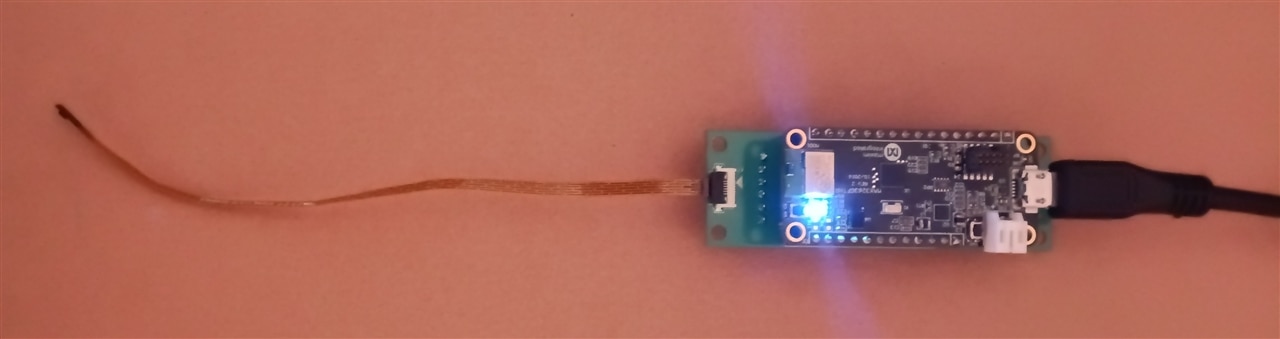
To overcome these hardware and OS constraints, MAX30208 EVSYS Desktop Monitor was engineered from scratch using modern C++ and Qt6. It provides engineers and researchers with a responsive, multi-threaded telemetry station that runs seamlessly across Windows, Linux, and embedded SBC environments.
2. Key Capabilities & Features
-
Cross-Platform Portability: Built with CMake and Qt6, ensuring native execution on Windows, Linux, and ARM-based single-board computers.
-
Plug & Play Auto-Detection: Automatically scans available system serial ports and connects to the evaluation kit using dynamic device descriptor matching, removing the need for manual COM port configuration.
-
Non-Blocking Multi-Threaded Architecture: Utilizes a dedicated background thread (
SerialWorker+QThread) combined with thread-safe Qt signals and slots, ensuring the user interface remains completely smooth and responsive during heavy polling or file I/O operations. -
Real-Time Multi-Channel Plotting (
QCustomPlot): Dynamically renders high-refresh-rate temperature curves for all sensors discovered on the I²C bus, complete with zoom, pan, and live color-coded legends. -
Interactive Vertical Thermometer Widget: Features an intuitive, gradient-styled vertical progress bar acting as a visual thermometer alongside the main plot for quick status checks.
-
Hardware Register Map Viewer: Provides a custom
QAbstractTableModelinterface to inspect, read (r), and write (w) internal device registers (0x00to0xFF) on the fly. -
Remote MicroSD Card Management: Enables users to check onboard storage status (
f), download internal log files (g1), and clear storage memory (g2) directly from the desktop GUI. -
Streamlined Data Logging: Automatically captures real-time telemetry into structured CSV files (
.csv) for post-processing and compliance reporting.
3. System Architecture & Tech Stack
-
Language: C++17
-
Framework: Qt6 (Core, GUI, Widgets, SerialPort)
-
Charting Library: QCustomPlot
-
Build System: CMake

UI Tabs & Functional Breakdown
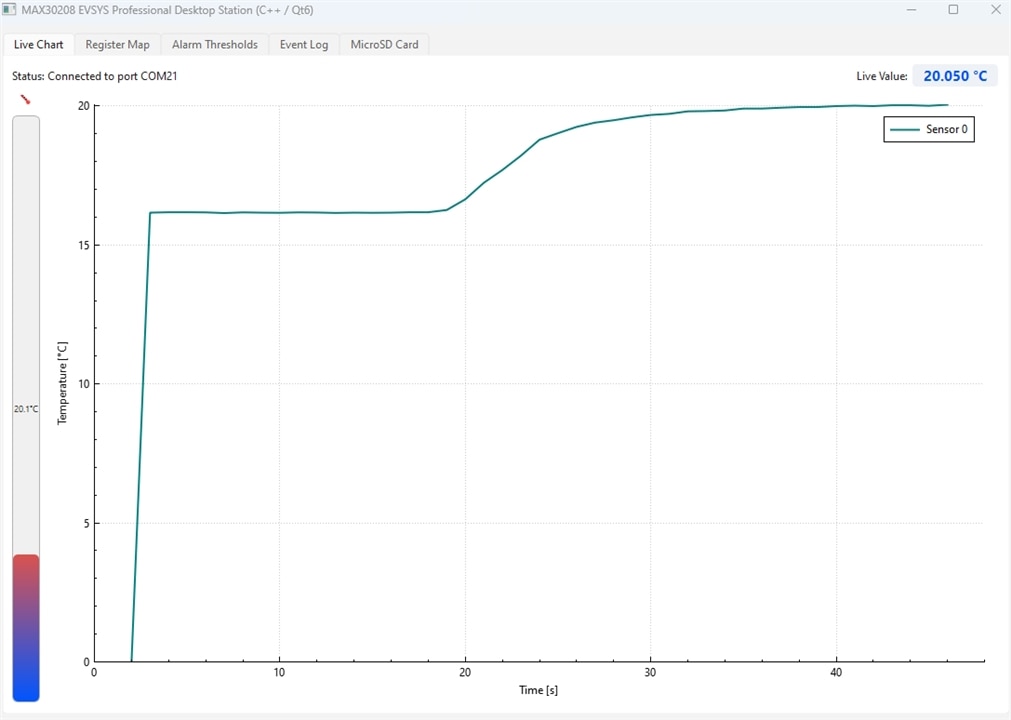
1. Live Chart Tab (Main Dashboard)
The primary workspace designed for real-time telemetry observation and quick visual assessment.
-
Top Compact Info Bar: Displays the current connection status (e.g., active COM port name) and a real-time numerical readout of the primary sensor's temperature (
Live Value) formatted to three decimal places. -
Vertical Thermometer Widget: Positioned on the left side, this gradient-styled vertical progress bar acts as a visual mercury column that provides an intuitive, at-a-glance thermal indicator.
-
Multi-Channel
QCustomPlotArea: Occupies the main right-hand portion of the window. It renders smooth, color-coded temperature curves for all sensors discovered on the I²C bus simultaneously. It features interactive zoom, pan, and a live legend.
2. Register Map Tab
An advanced hardware debugging interface providing transparent access to the internal register architecture of the MAX30208 sensors.
-
Interactive Table View (
QTableView): Powered by a customQAbstractTableModel, it displays all core device registers from address0x00(Status) through0xFF(Part Identifier). -
Detailed Mapping: Columns explicitly outline the register Address, Register Name, current Value (Hex), and a functional Description (e.g., FIFO configuration, high/low alarm thresholds, and GPIO settings).

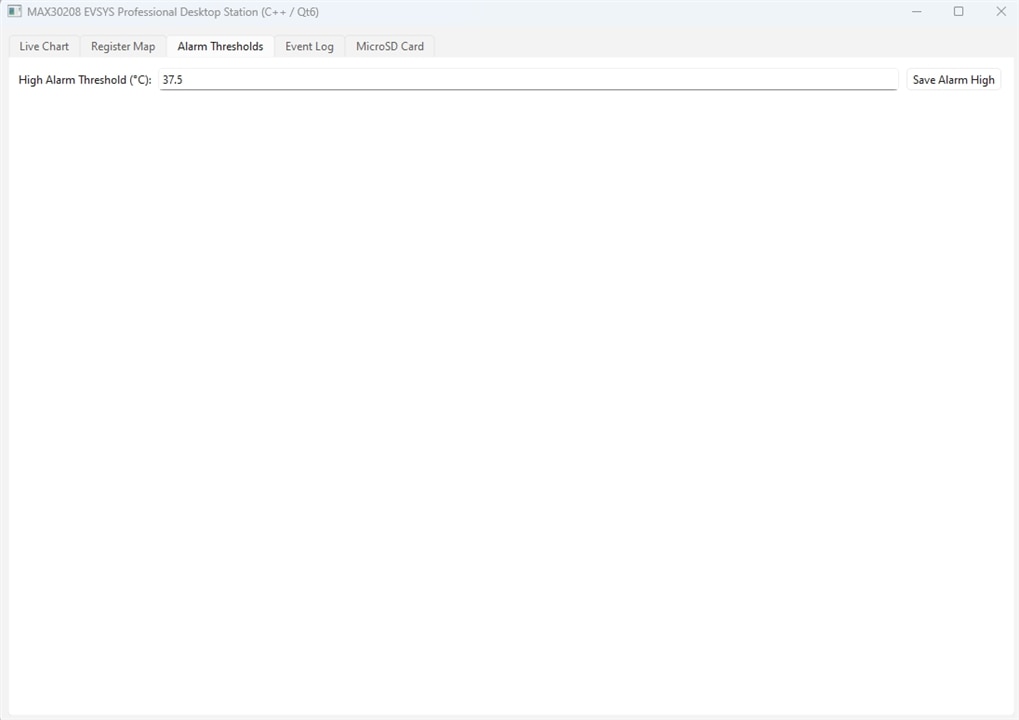
3. Alarm Thresholds Tab
A dedicated control panel for configuring high and low temperature warning limits.
-
Input Controls: Allows engineers to specify precise high-temperature thresholds (e.g., default set to 37.5'C).
-
Hardware Triggering: Clicking the "Save Alarm High" button invokes background routines that automatically translate the floating-point Celsius value into 16-bit Two's complement register bytes and writes them directly to the sensor's threshold registers (
0x10and0x11). When breached, the UI visually highlights the temperature label in warning red.
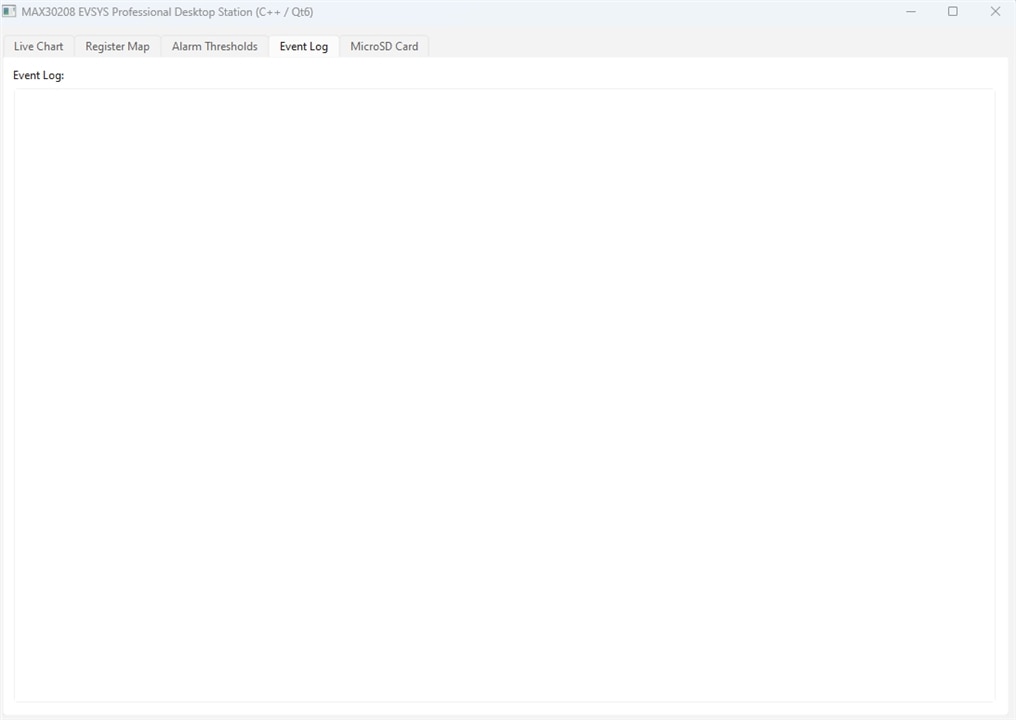
4. Event Log Tab
The system audit trail and diagnostic log viewer.
-
Chronological Tracking: Records significant background events, such as successful hardware initialization, device discovery counts, USB serial disconnections, auto-reconnect attempts, and critical hardware errors.
-
Timestamping: Every log entry is prefixed with an exact system timestamp (
hh:mm:ss) to aid in debugging communication drops or signal integrity issues.
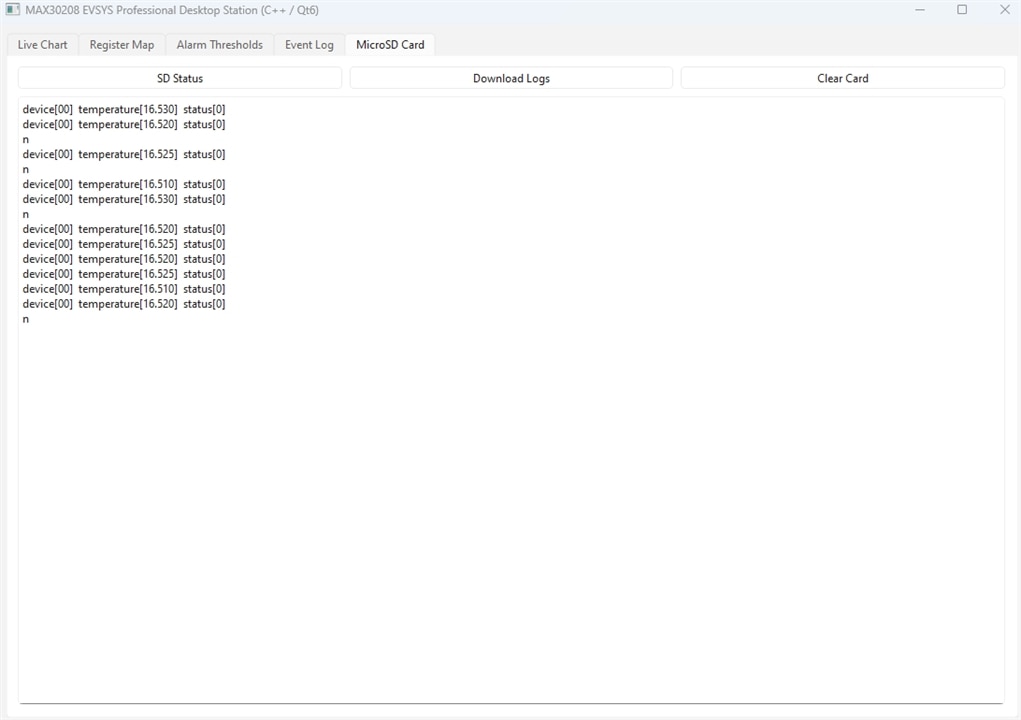
5. MicroSD Card Tab
An embedded storage management interface for the evaluation kit's onboard logging capabilities.
-
SD Status (
f): Queries the storage subsystem to verify if a card is present, formatted, and operational. -
Download Logs (
g1): Remotely pulls historical data logs stored on the kit's internal card and displays the text dump directly in the scrollable preview box. -
Clear Card (
g2): Issues a hardware wipe command to flush and clear stored logs directly from the desktop software.