element14 Community
element14 Community
    Register Log In
  • Site
  • Search
  • Log In Register
  • Community Hub
    Community Hub
    • What's New on element14
    • Feedback and Support
    • Benefits of Membership
    • Personal Blogs
    • Members Area
    • Achievement Levels
  • Learn
    Learn
    • Ask an Expert
    • eBooks
    • element14 presents
    • Learning Center
    • Tech Spotlight
    • STEM Academy
    • Webinars, Training and Events
    • Learning Groups
  • Technologies
    Technologies
    • 3D Printing
    • FPGA
    • Industrial Automation
    • Internet of Things
    • Power & Energy
    • Sensors
    • Technology Groups
  • Challenges & Projects
    Challenges & Projects
    • Design Challenges
    • element14 presents Projects
    • Project14
    • Arduino Projects
    • Raspberry Pi Projects
    • Project Groups
  • Products
    Products
    • Arduino
    • Avnet & Tria Boards Community
    • Dev Tools
    • Manufacturers
    • Multicomp Pro
    • Product Groups
    • Raspberry Pi
    • RoadTests & Reviews
  • About Us
  • Store
    Store
    • Visit Your Store
    • Choose another store...
      • Europe
      •  Austria (German)
      •  Belgium (Dutch, French)
      •  Bulgaria (Bulgarian)
      •  Czech Republic (Czech)
      •  Denmark (Danish)
      •  Estonia (Estonian)
      •  Finland (Finnish)
      •  France (French)
      •  Germany (German)
      •  Hungary (Hungarian)
      •  Ireland
      •  Israel
      •  Italy (Italian)
      •  Latvia (Latvian)
      •  
      •  Lithuania (Lithuanian)
      •  Netherlands (Dutch)
      •  Norway (Norwegian)
      •  Poland (Polish)
      •  Portugal (Portuguese)
      •  Romania (Romanian)
      •  Russia (Russian)
      •  Slovakia (Slovak)
      •  Slovenia (Slovenian)
      •  Spain (Spanish)
      •  Sweden (Swedish)
      •  Switzerland(German, French)
      •  Turkey (Turkish)
      •  United Kingdom
      • Asia Pacific
      •  Australia
      •  China
      •  Hong Kong
      •  India
      • Japan
      •  Korea (Korean)
      •  Malaysia
      •  New Zealand
      •  Philippines
      •  Singapore
      •  Taiwan
      •  Thailand (Thai)
      • Vietnam
      • Americas
      •  Brazil (Portuguese)
      •  Canada
      •  Mexico (Spanish)
      •  United States
      Can't find the country/region you're looking for? Visit our export site or find a local distributor.
  • Translate
  • Profile
  • Settings
Raspberry Pi
  • Products
  • More
Raspberry Pi
Raspberry Pi Forum GPIO:  HD44780 chip from old Fax Machine.
  • Blog
  • Forum
  • Documents
  • Quiz
  • Events
  • Polls
  • Files
  • Members
  • Mentions
  • Sub-Groups
  • Tags
  • More
  • Cancel
  • New
Join Raspberry Pi to participate - click to join for free!
Featured Articles
Announcing Pi
Technical Specifications
Raspberry Pi FAQs
Win a Pi
Raspberry Pi Wishlist
Actions
  • Share
  • More
  • Cancel
Forum Thread Details
  • Replies 32 replies
  • Subscribers 679 subscribers
  • Views 5017 views
  • Users 0 members are here
  • others
  • seen
  • it.;
  • never
  • to
  • from
  • this
  • gpio?
  • have
  • chip
  • etc;
  • fax
  • but
  • through
  • raspberry_pi
  • before
  • messages
  • old
  • hd44780
  • machine.;
  • display
  • how
  • they
  • it
  • do
  • get
  • state
  • tell
  • gpio:
  • i
  • or
  • text
Related

GPIO:  HD44780 chip from old Fax Machine.

wallarug
wallarug over 13 years ago

How do I get this to display messages, text, etc; through GPIO?  I have seen others do it before but they never state or tell how they do it.


I want to know if this is possible to do and how difficult it is to get the software for it.


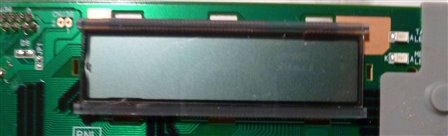
This is my screen:
image

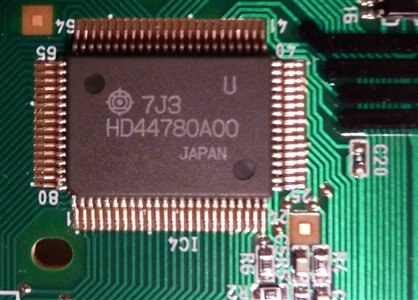
This is the chip:

image


How do I wire them togther (they are already on PCB togther)?  How do I wire them to GPIO?


I can work off schematics and can follow very basic instructions (but can not compile software).

  • Sign in to reply
  • Cancel
Parents
  • fustini
    fustini over 13 years ago

    Check out this tutorial from Adafruit:


    http://learn.adafruit.com/drive-a-16x2-lcd-directly-with-a-raspberry-pi

    Adding a LCD to any project immediately kicks it up a notch. This tutorial explains how to connect a inexpensive HDD44780 compatible LCD to the raspberry pi using 6 GPIOs. While there are other ways to connect using I2C or the UART this is the most direct method that get right down to the bare metal.

    • Cancel
    • Vote Up 0 Vote Down
    • Sign in to reply
    • Cancel
  • wallarug
    wallarug over 13 years ago in reply to fustini

    Hey Drew,


    The problem I am having is that the Screen is already mounted on a PCB.  I don't know which pins to send to Raspberry Pi.  See the image above.


    Also, it connected to the rest of the fax machine via a 16 pin flat ribbon cable (which the socket is acessable from the rear - not pictured). 


    Can I use any of these pins to acess the display?  And is the power for the display the same as what it was connected to on the fax machine (the two pins on the top left)?

    • Cancel
    • Vote Up 0 Vote Down
    • Sign in to reply
    • Cancel
  • GreenYamo
    GreenYamo over 13 years ago in reply to wallarug

    Fergus, be interested to hear if you get any advice for desoldering, I am completely useless at that. I did pose a question in the soldering forum and it was suggested that plenty of flux is the way to go, then use de-soldering braid. Haven't had a chance to try yet, but trying to use a solder sucker is about the only way I have managed even a half decent job. Watching youtube videos and it seems so easy !


    Steve

    • Cancel
    • Vote Up 0 Vote Down
    • Sign in to reply
    • Cancel
  • bodgy
    bodgy over 13 years ago in reply to GreenYamo

    I would advise against attempting to desolder the connector unless you can lay your hands on a desoldering gun. Manual pneumatic ones can work, and solder braid desoldering is very likely to fail and cause you frustration and possibly a damaged board. I should also point out that desoldering using a desoldering gun can also ruin boards if not carefully used.


    I would really recommend the tracing route for the moment.


    It ought to be possible so long as you have access to the HD44780 chip pins which you do. You have already discovered the power rails, so there are just 8 data pins, 3 status pins plus possibly the contrast control pins, these probably do come out to the connector but might not and you may possibly have the backlight control coming out to the connector.


    Page 4 of the http://www.sparkfun.com/datasheets/LCD/HD44780.pdf datasheet shows that DB0:7 are on pins 39...46 of the 44780 chip and it also shows that RS, RW, E are on pins 36....38 . Once you've found and mapped these on a piece of paper that leaves just 3 pins unaccounted for on your 16 pin connector. If two of these remaining pins trace to one of the power planes the third one is likely to be Vo which is the contrast control. If they don't then they could be the backlight switch.


    If RW pin doesn't seem to be represented on the connector check to see if there is a direct connection between that pin on the 44780 chip and ground.


    As for the desoldering route, at the very least you will need some solder - apply solder to the pin and make sure it wets the surrounding pad well - to desolder anything properly solder is needed because you are relying on the flux which acts as a medium to help the solder to melt. You could use flux, I have a passion for gel flux, but this is very very expensive in hobby terms so the solder method is the better way to go.


    Once you've rewetted all the connector joints, you can then either apply your desoldering gun gently to the pin and pad, make sure the solder has become liquid and gently attempt to move the pin side to side so that the melted solder makes contact with the track that will be on the other side of the board, then press the suck button, you may need to resolder and perform this more than once especially on the power plane. If none of the pins become loose the next step would be to reapply solder and then apply your soldering iron and your desodlering gun to the joint and then suck. Do this only on pins with thick traces otherwise the pad or track may well come away from the board and you're then in trouble.


    Using a hand operated cold solder sucker you need to  apply your sodlering iron to the pin on the PCB (after wetting it in solder), apply the teflon tip of the sucker and release the spring catch.


    Ideally for connector boards a PCB warmer gets the best results, but it it pointless getting one of those as they are not cheap and you aren't going to use it that often. Even where I work, they refuse to buy one for the workshop.


    Colin

    • Cancel
    • Vote Up 0 Vote Down
    • Sign in to reply
    • Cancel
  • wallarug
    wallarug over 13 years ago in reply to bodgy

    Thanks man,


    i will look into what you have posted above.

    • Cancel
    • Vote Up 0 Vote Down
    • Sign in to reply
    • Cancel
  • GreenYamo
    GreenYamo over 13 years ago in reply to bodgy

    Hi Colin,

    I've always had problems de-soldering stuff, so to be clear (and not to hijack this thread) you use the flux from the solder core to do the job of separate flux, or is there another mechanism involved as well?

    Steve

    • Cancel
    • Vote Up 0 Vote Down
    • Sign in to reply
    • Cancel
  • bodgy
    bodgy over 13 years ago in reply to GreenYamo

    Steve,


    That is correct, the job of flux in soldering is to help the solder flow (flux is based on the Latin word 'to flow'), transfer heat between the molten solder and a non melted metal object.  Solder for electronics (apart from solder paste, where it is most often added at time of use and is specific to the type of solder being used and the end purpose of the assembled product) contain flux to help aid the flow of solder and to transfer the heat from the iron tip efficiently. 


    As the solder joint ages it is subjected to heat from the environment including heat that might be transferred by the component it is attached to, this causes the flux to dry out among other things. After a period of time if a soldering iron is applied straight to the joint, it will be noticed that the solder either doesn't melt around the joint or it takes a very long time or a much higher temperature is required to get to the melting point. Some of this is due to oxidisation and a film that gets layed down on the outside of the solder 'blob'. Application of flux to this joint will help burn away any oxidisation and also work as a heat transfer mechanism that enables the old solder to be able to flow again.


    For electronic purposes there are flux pens, gel flux and of course the flux in solder itself.  Using solder to reinvigorate an aged solder joint often works better than just the application of flux alone on through hole components as often the solder in between the two sides of the board has become closer to concrete in texture plus there will be a metal copper sleeve inside the hole connecting the two or more layers of a PCB, this copper sleeve also has to heat to allow the solder to flow freely enough to be removed and allow the pin to become free.


    So always refresh a joint with solder before attempting to desolder, it will be much easier.


    A solder joint that has just been made should in most case be able to be desoldered with no additional solder naturally.  Cleaning the board thoroughly beforehand can also help, as that can remove the oxidisation layer across the board.


    Colin

    • Cancel
    • Vote Up 0 Vote Down
    • Sign in to reply
    • Cancel
  • GreenYamo
    GreenYamo over 13 years ago in reply to bodgy

    Hello Colin, Thank you for that, it makes perfect sense now you have explained it, but have never thought of it that way before.

    I was trying to repair a Netbook power connector at the weekend and I could not get the original one off - I think another try soon using this method may prove a lot more productive.

    Thanks


    Steve

    • Cancel
    • Vote Up 0 Vote Down
    • Sign in to reply
    • Cancel
  • Former Member
    Former Member over 13 years ago in reply to GreenYamo

    Don't use one of those manual desoldering pumps. When the plunger shoots back, as a reaction , the tip will move as well. You will just wipe small tracks of the pcb with it. They are good for larger solderings with wide tracks. (4 - 5 mm wide.) I use desoldering wick for the fine work. They have the disadvantage that the cupper of the desoldering also takes heat away from the solder point and the tip of your iron. So, don't use one of those small 15W irons. You will notice they have problems to melt the solder when the desoldering wick is attached to it.

    Also note that some multi layer pcb's have large cupper areas in their inner layers that are used as power supply layers. If a component is attached to such a layer, you need a real powerfull soldering iron to desolder it, as the cupper layer inside the pcb takes the heat away. This often is a problem when you replace electrolitic capacitors on pc boards, as those are connected to the supply and ground layers to suppress the ripple on those. I sometimes even use a 150W plumber soldering iron for such a job. Only problem is they don't come with a fine tip to do precision work. If the heat transfer isn't good, and the solder isn't melting, don't keep trying. Stop your activity and give everything time to cool down. Add some extra fresh solder and try again afterwards.

    So far my 5 cent on 27 year of desoldering experience.

    • Cancel
    • Vote Up 0 Vote Down
    • Sign in to reply
    • Cancel
  • wallarug
    wallarug over 13 years ago in reply to Former Member

    Could I make my own interface off the HD44800U Chip?  Say: Desolder the certain pins of the chip that I know and run a wire straight into the chip? from the Raspberry Pi?


    Is that possible?  I have scene it all over the internet but is there a special techque required?


    This is what I know:

      Diagram is upside-down.image

    image


    I will be using http://learn.adafruit.com/drive-a-16x2-lcd-directly-with-a-raspberry-pi/wiring as the instuctions to set-up the screen.  See if a direct wire will work with the set-up in the link.


    Thanks in advanced.

    • Cancel
    • Vote Up 0 Vote Down
    • Sign in to reply
    • Cancel
  • bodgy
    bodgy over 13 years ago in reply to wallarug

    This is not a route I would take, but is possible, bear in mind not only is there a likelihood of breaking the pins, overheating the chip, plus trying to solder wires to the pins won't be easy if you are not experienced wit soldering nor have a fine tip and the correct size solder 0.6mm or less would be ideal.


    Did you not get anywhere in tracing the pins to your connector?


    The easiest thing by far would be to purchase a surplus 2 * 16 display if you cannot afford a new one.  Rockby or Oately Electronics  in Victoria and NSW respectively woul be a place to look for surplus.


    If you live in SE Qld, I might be able to personally help you with your problem.  If you are at school or university, why not see if someone there could help you trace the pins?


    Colin

    • Cancel
    • Vote Up 0 Vote Down
    • Sign in to reply
    • Cancel
  • wallarug
    wallarug over 13 years ago in reply to bodgy

    I tried tracing but the pins on the connector don't seem to be in the correct order.  I don't know If you will be able to view the images but here a link:

    https://www.dropbox.com/sh/6hj5g7gove4gj1v/KNWwcrS9Ns?m


    i have uploaded my tracing progress here ^.

    • Cancel
    • Vote Up 0 Vote Down
    • Sign in to reply
    • Cancel
Reply
  • wallarug
    wallarug over 13 years ago in reply to bodgy

    I tried tracing but the pins on the connector don't seem to be in the correct order.  I don't know If you will be able to view the images but here a link:

    https://www.dropbox.com/sh/6hj5g7gove4gj1v/KNWwcrS9Ns?m


    i have uploaded my tracing progress here ^.

    • Cancel
    • Vote Up 0 Vote Down
    • Sign in to reply
    • Cancel
Children
  • bodgy
    bodgy over 13 years ago in reply to wallarug

    The pins on the connector may well not be in the same order as the pins on either the 44870 chip orthe LCD itself.


    It is possible that the connector doesn't have direct connections with the LCD chips, is there another chip on the board that looks like it might be a microcontroller?


    Have you searched te internet to see if there are any schematics for the fax machine posted anywhere?


    As an example, I've attached a schematic of a Xerox printer graphic display board that I traced out, you'll see that on the connector there are more than just the connections to the graphics chips (not shown on this schematic).


    image

    Attachments:
    image
    • Cancel
    • Vote Up 0 Vote Down
    • Sign in to reply
    • Cancel
  • wallarug
    wallarug over 13 years ago in reply to bodgy

    There is a chip that one of the connectors goes to that is called: HC138.  Otherwise, the pins seem to go into the HD44780.


    I will look for a schematic later. (or if you can find one - Panasonic Panafax UF-S2)

    • Cancel
    • Vote Up 0 Vote Down
    • Sign in to reply
    • Cancel
  • wallarug
    wallarug over 13 years ago in reply to bodgy

    Here is the tracing so far:

    Attachments:
    image
    image
    • Cancel
    • Vote Up 0 Vote Down
    • Sign in to reply
    • Cancel
  • bodgy
    bodgy over 13 years ago in reply to wallarug

    If the HC138 has 16 pins it is a 3 -> 8 line demultiplexor. In other words it has three binary data lines as input and eight data lines out.  These are used when the designer has perhaps run out of IOs from a specific chip or to save space and components.


    As the 3 input pins are brought high (to the +v rail) in sequence they switch on an output. You can see that a high on an input actually takes an output low.


    input       output


    CBA   76543210


    000 = 11111110

    001 = 11111101

    010 = 11111011

    011 = 11110111

    100 = 11101111

    101 = 11011111

    111 = 01111111


    Assuming the 3 enable pins G1 /G2A /G2B =  100 (/x = pin works in an inverted fashion, so these two pins are taken low for an internal high or high for an internal low)

    • Cancel
    • Vote Up 0 Vote Down
    • Sign in to reply
    • Cancel
  • wallarug
    wallarug over 13 years ago in reply to bodgy

    What does this mean for me and the conector?

    • Cancel
    • Vote Up 0 Vote Down
    • Sign in to reply
    • Cancel
  • bodgy
    bodgy over 13 years ago in reply to wallarug

    It means that some of your pins may come from that chip.


    I'll look at the two images you uploaded more closely and see if there is anything of note.


    I take it as well as the images you've noted own on abit of paper the pin numbers of the connector and  what they connect to and those pin numbers.

    • Cancel
    • Vote Up 0 Vote Down
    • Sign in to reply
    • Cancel
  • wallarug
    wallarug over 13 years ago in reply to bodgy

    The only one that I have noted was: DB 7 (pin 46 on chip) goes to Pin 12.

    • Cancel
    • Vote Up 0 Vote Down
    • Sign in to reply
    • Cancel
  • rew
    rew over 13 years ago in reply to wallarug

    I hope you know that for under $10 you can get an 44780 display, "clean" in that it has the pins labeled, and you don't have to reverse engineer what does what.


    The 44780 needs 5V to operate. The raspberry pi doesn't handle that: Max 3.3V. So it's going to be a bit tricky to operate....

    • Cancel
    • Vote Up 0 Vote Down
    • Sign in to reply
    • Cancel
  • wallarug
    wallarug over 13 years ago in reply to rew

    Roger Wolff wrote:


    I hope you know that for under $10 you can get an 44780 display, "clean" in that it has the pins labeled, and you don't have to reverse engineer what does what.


    The 44780 needs 5V to operate. The raspberry pi doesn't handle that: Max 3.3V. So it's going to be a bit tricky to operate....

    I know that you can buy them...but I don't know where.  On some of the websites I have visited, they don't tell you that it is a 44780.  On others it has the Audrunio name tag attached making it more expensive.


    Apparently, the Raspberry Pi can take a 5v screen.  See:  http://learn.adafruit.com/drive-a-16x2-lcd-directly-with-a-raspberry-pi

    Where they use a Raspberry Pi and power the screen through the Raspberry Pi.

    • Cancel
    • Vote Up 0 Vote Down
    • Sign in to reply
    • Cancel
  • rew
    rew over 13 years ago in reply to wallarug

    Since you're asking: We sell them. http://www.bitwizard.nl/catalog/index.php?cPath=36

    That's a 20x4, which is more expensive than a 16x2. The 16x2 should also be in there, but I don't know where it's gone. Maybe they ran out of stock while I was on vacation.


    We're not the cheapest for the bare LCDs, but we have fancy addons that make it even easier to connect the display to the 'pi. (consider rpi_serial + spi_LCD (with LCD) + cable)

    • Cancel
    • Vote Up 0 Vote Down
    • Sign in to reply
    • Cancel
element14 Community

element14 is the first online community specifically for engineers. Connect with your peers and get expert answers to your questions.

  • Members
  • Learn
  • Technologies
  • Challenges & Projects
  • Products
  • Store
  • About Us
  • Feedback & Support
  • FAQs
  • Terms of Use
  • Privacy Policy
  • Legal and Copyright Notices
  • Sitemap
  • Cookies

An Avnet Company © 2026 Premier Farnell Limited. All Rights Reserved.

Premier Farnell Ltd, registered in England and Wales (no 00876412), registered office: Farnell House, Forge Lane, Leeds LS12 2NE.

ICP 备案号 10220084.

Follow element14

  • X
  • Facebook
  • linkedin
  • YouTube